Docket
Stop babysitting your AI agent. Queue ten tasks, get on with something else, and come back to ten reports.
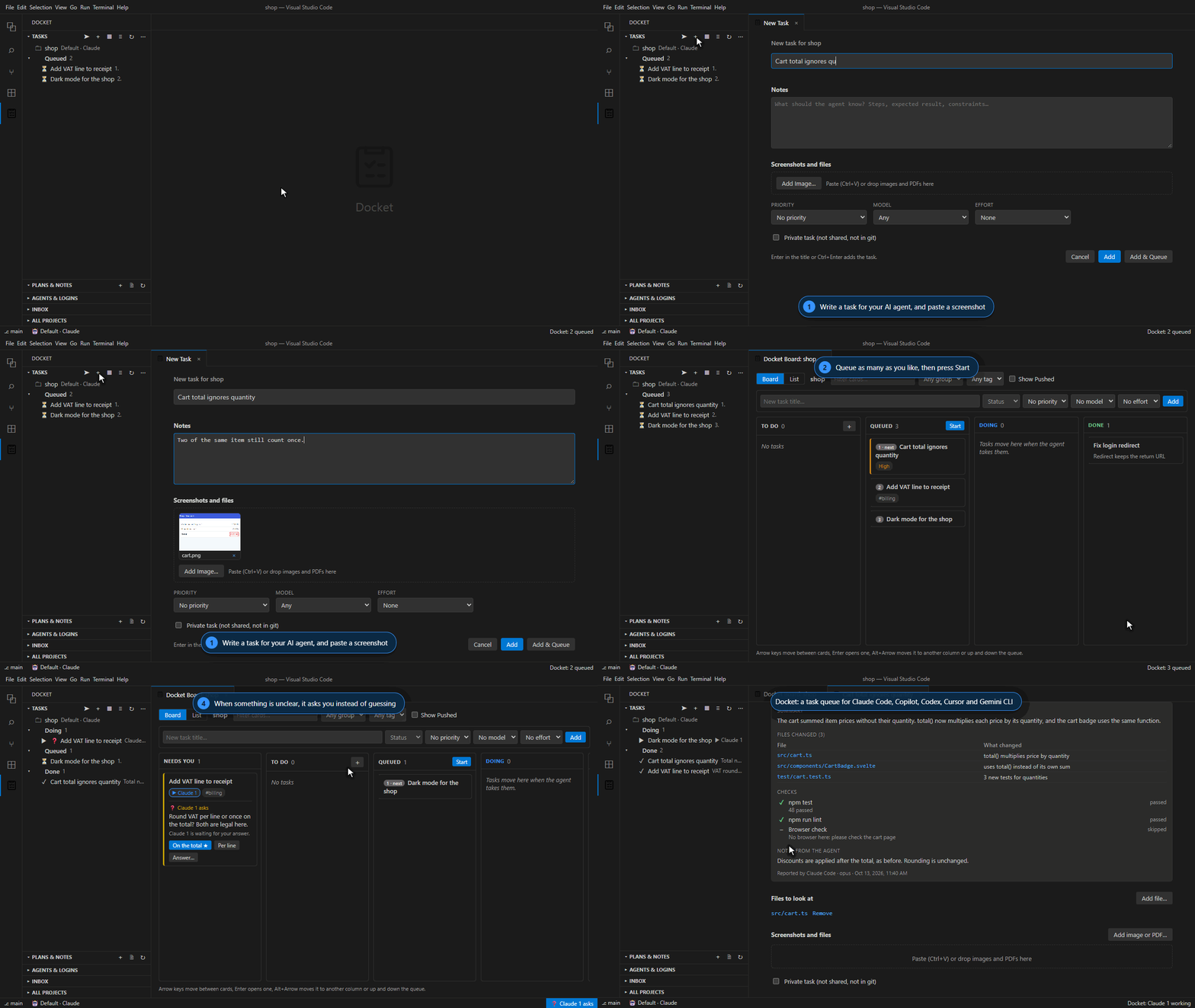
Docket is a task queue for AI coding agents in VS Code. Write tasks with screenshots and files, queue the ones you want done, and send the queue to Claude Code, GitHub Copilot, Cursor, Codex, Gemini CLI, Qwen Code, OpenCode, GitHub Copilot CLI or the Cursor CLI. The agent works through them one at a time, finishes each with a result and a report, and you keep adding tasks while it works.
Why Docket
Coding agents are fast, but they wait for you: one prompt, wait, read, next prompt. Docket gives them a list instead.
| Without Docket |
With Docket |
| You type a prompt, wait for the answer, then type the next one |
You queue the work and the agent goes through it while you keep adding |
| What the agent needs to know lives in a chat that ends with the session |
Each task keeps its notes, screenshots and files, in your project |
| You scroll back through the chat to see what was done |
Each finished task has a report: summary, files changed, the checks it ran, notes |
| When something is unclear, the agent guesses |
It asks you, with options; if you're away, the task waits and the agent goes on with the next |
| A usage limit stops the work until you notice |
Docket shows the pause and the queue carries on after the reset |
| One agent and one account for everything |
Nine agents, and each project can have its own agent, Claude login and Copilot account |
No new account, no new service. Docket works with the agent you already use and brings its own local server. Your tasks stay in your project (or your user folder), and nothing is sent anywhere except to that agent.
Made for teams too. Tasks are small files in .docket/ that you can commit, so everyone sees the same queue. Several agent sessions can work it at once, each in its own git worktree if you like.
The full user guide, with a short animation for every step, opens from the Tasks view's … menu → Open User Guide (or Docket: Open User Guide in the Command Palette).
What you can do
- Write tasks the agent can act on: a title, notes, screenshots (paste with Ctrl+V or drop them), PDFs and files to look at, priority, model and effort.
- Queue and send: tasks wait in To Do until you queue them. Send hands the queue to your agent, which takes one task at a time; keep adding meanwhile.
- See it all on a board: To Do, Queued, Doing, Done and Pushed, with drag and drop, a quick-add form and a sortable list view. Click a project to open its board.
- Answer the agent's questions: when something is unclear it asks you with options, in a notification, on the board and in the status bar. Unanswered, the task waits and the agent moves on.
- Read what was done: each finished task carries the agent's report: summary, files changed, the checks it ran, and notes.
- Archive old work: move done and pushed tasks out of the list, by hand or after a number of days. They stay in the project and can be restored.
- Plan bigger work: plans are Markdown checklists with a live preview; each line can become a task and is ticked when its task is done. Notes keep findings and decisions.
- Work in parallel: several agent sessions on one queue, each in its own terminal and, if you like, its own git worktree.
- Use the right account and agent per project: each project can have its own agent, Claude login and GitHub account for Copilot, chosen from its right-click menu or Agent & Login…, and shows them in the status bar and on its row. Logins & Usage shows each Claude login's and Copilot account's usage.
- Keep going past usage limits: Docket shows when Claude is paused and makes sure the queue continues after the reset.
- Your choice of look: the extension's pages in dark or light, whatever VS Code's theme is.
Get started
- Install: open the Extensions view (Ctrl+Shift+X), search for Docket and click Install. Cursor and other editors that use Open VSX install it the same way.
- Click the Docket icon in the activity bar.
- Connect your agent once: Tasks view … menu → Connected Agents, then your agent → Connect (each one shows whether it is connected). Then start a new agent session. The Agents & Logins view in the sidebar shows your agents, logins and accounts at a glance.
- Add a task (+ or Ctrl+Alt+D A), queue it, and press Send (Ctrl+Alt+D S). Claude Code starts in a terminal and takes the first task at once. Queue more tasks later and the same session takes them too.
Terminal or Claude tab. By default Send starts Claude Code in a terminal, and it starts working at once: no prompt to paste, no Enter to press. You can choose the Claude Code tab instead (setting Send: Target). The tab always waits for you to press Enter, because Claude Code only lets other extensions fill in its prompt, not send it. The tasks, the board, questions and reports work the same either way. Several sessions at once and a project's own Claude login need a terminal.
Docket: Get Started in the Command Palette walks through these steps.
Requirements
|
|
| VS Code |
1.94 or later; 1.101 or later for GitHub Copilot. Cursor works too. |
| An agent |
Claude Code (the VS Code extension or the CLI, signed in), GitHub Copilot Chat, Cursor, Codex, or a terminal agent: Gemini CLI, Qwen Code, OpenCode, GitHub Copilot CLI, Cursor CLI |
| Anything else |
No: Docket brings its own server, and no account or internet service of its own |
Keyboard shortcuts
| Keys |
Action |
| Ctrl+Alt+D, A |
Add Task |
| Ctrl+Alt+D, Q |
Add Task and Queue It |
| Ctrl+Alt+D, T |
Add Task from Selection |
| Ctrl+Alt+D, S |
Send to the agent |
| Ctrl+Alt+D, B |
Open Board |
Where your tasks live
By default, in a .docket folder inside each project: one small file per task, so the list can be committed and your team sees the same queue. You can keep single tasks private (never in git), keep the whole list out of git, or keep everything in your user folder instead. Nothing is sent anywhere except to the agent you choose.
Settings
Tasks view … menu → Settings opens Docket's settings page: one box per section, for you or for this workspace, with a search. The same settings are in VS Code's Settings editor (Ctrl+, and search docket); every setting explains what it does. The ones most people change are Send: Agent, Send: Target (terminal or Claude tab), Sessions: Max Per Project, Questions: Wait and Theme.
Feedback
Found a problem? Tasks view … menu → Report a Problem… (or Docket: Report a Problem… in the Command Palette) opens a bug report on GitHub with your Docket, editor and system versions already filled in. You see everything before you send it.
Ideas and questions are welcome in the Docket repository: feature requests and Q&A.
Licence
Docket is proprietary software by Polestar Tech Consultancy LLP. You may install and use it; copying, modifying, redistributing or reverse engineering it is not allowed. See the LICENSE file. Open-source components it includes are listed, with their licences, in THIRD-PARTY-NOTICES.txt.
| |

