
EasyAuth EmulatorEmulate Azure App Service / Functions / Container Apps Easy Auth locally. Auto-starts an auth proxy during VS Code debug sessions — no Azure deployment needed. Installation Launch VS Code Quick Open ( Ctrl+P), paste the following command, and press enter.Copied to clipboard |

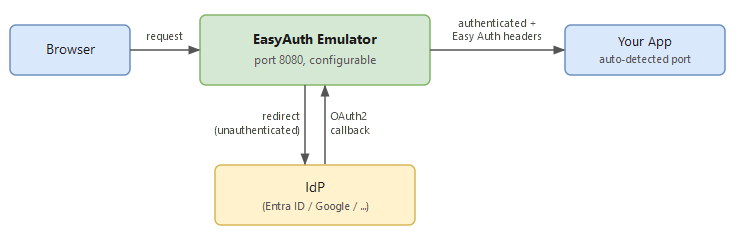
EasyAuth EmulatorDevelop locally with Azure App Service / Azure Functions / Azure Container Apps authentication — without Azure. EasyAuth Emulator is a local authentication gateway that emulates Easy Auth behavior (multi-provider login, Easy Auth-compatible request headers, Why?Azure App Service, Azure Functions, and Azure Container Apps' built-in authentication feature (commonly known as Easy Auth) is powerful — but it only works inside Azure. This makes local development and testing difficult for applications that depend on Easy Auth headers and endpoints. EasyAuth Emulator bridges that gap by running a compatible authentication gateway on your development machine, so you can develop and test as if Easy Auth were active. How it works
The extension auto-detects your app's listening port from Features
Requirements
No additional runtime installation is needed — the emulator binary is bundled inside the extension. Getting Started1. Configure your identity providerOpen your workspace settings ( 2. Store the client secretRun EasyAuth Emulator: Set Client Secret from the Command Palette ( 3. Register the callback URLAdd the following redirect URI in your identity provider's app registration: If you changed
UsagePress F5 to start debugging. The emulator starts automatically after your app. Once running, click the Status BarThe status bar item in the bottom-left corner shows the emulator state at a glance. Clicking it performs a context-sensitive action:
Explorer ViewAn EasyAuth Emulator view appears in the Explorer panel. It shows the same state as the status bar, and the view title bar offers actions matching the current state:
CommandsAll commands are available from the Command Palette (
Supported Identity ProvidersBuilt-in
At least one Custom OIDC ProvidersAdd any OIDC-compatible provider via After adding a custom provider, store its client secret with EasyAuth Emulator: Set Client Secret. Available fields per entry:
Configuration ReferenceFor the full parameter reference including all options, see docs/configuration-reference.md.
|
| Setting | Default | Description |
|---|---|---|
easyauth.autoStart |
true |
Start emulator when a debug session begins |
easyauth.autoStop |
true |
Stop emulator when the debug session ends |
easyauth.upstreamPort |
null |
Fix the upstream port; null = auto-detect |
easyauth.launchJsonPortKey |
"" |
Custom key name to find the port in launch.json (checked as an env entry, then a top-level config field, then an args flag), checked before all other auto-detection. If set and not found, auto-detection stops instead of falling back |
easyauth.stdoutPortPattern |
"" |
Custom regex (one capture group) to match the port in debug output, checked before all other auto-detection. If set and it never matches, auto-detection stops instead of falling back. Example: App listening at https?://[^:]+:(\d+) (escape \ as \\ if editing settings.json directly) |
easyauth.stdoutPatternTimeoutMs |
3000 |
Milliseconds to wait for a port number in debug output (applies to both the built-in framework patterns and stdoutPortPattern) |
easyauth.portScanMax |
5 |
Ports to scan during auto-detection |
easyauth.portScanBase |
null |
Base port for scanning; null = use first hint found |
easyauth.verbose |
false |
Log all resolved configuration values on startup |
easyauth.privateBrowser.command |
"" |
Command that launches a private/incognito browser window; the site URL is appended as the last argument (e.g. msedge --inprivate, chrome --incognito, firefox --private-window). Empty hides the button. Not used in remote sessions (the button copies the URL to the clipboard instead) |
Gateway
| Setting | Default | Description |
|---|---|---|
easyauth.site.url |
http://localhost |
Usually no change needed. Set an https:// value only if a TLS-terminating front end (reverse proxy) does not send X-Forwarded-Proto |
easyauth.site.port |
8080 |
Listen port of the EasyAuth gateway (also the public port when accessed directly) |
easyauth.tls.certFile |
"" |
Path to the TLS certificate file (PEM). Set with tls.keyFile to enable HTTPS. Required for Facebook Login. |
easyauth.tls.keyFile |
"" |
Path to the TLS private key file (PEM). Set with tls.certFile to enable HTTPS. Required for Facebook Login. |
easyauth.http20Enabled |
false |
Accept HTTP/2 on site.port, alongside HTTP/1.1 |
easyauth.http20ProxyMode |
disabled |
How much of an HTTP/2 request is relayed as-is to the upstream app: disabled, all, or grpc-only |
easyauth.appserviceHttp20OnlyPort |
unset | Mirrors Azure App Service's HTTP20_ONLY_PORT (leave unset for Azure Container Apps). When a request is relayed over HTTP/2, it's sent to this port on the upstream app's host instead of the app's regular port. |
easyauth.webSocketsEnabled |
true |
Whether WebSocket (HTTP/1.1 Upgrade and HTTP/2 RFC 8441 extended CONNECT) is relayed at all, mirroring Azure App Service's "Web sockets" on/off switch. On Linux App Service this is always effectively on; only Windows App Service can actually turn it off. |
easyauth.defaultIdp |
"" |
Default IdP when /.auth/login is accessed |
easyauth.skipAuthRoutes |
"" |
Routes that bypass auth — comma-separated [METHOD=]REGEX patterns |
easyauth.debugHeadersEndpointEnabled |
false |
Enable GET /.debug/headers to inspect injected headers |
easyauth.idpSelectIcons |
simple |
Icons on the IdP selection screen: simple, generic, or text |
easyauth.corsAllowedOrigins |
"" |
Allowed CORS origins — comma-separated list, or * for any origin |
oauth2-proxy
| Setting | Default | Description |
|---|---|---|
easyauth.oauth2proxy.portBase |
4180 |
Base port for internal oauth2-proxy instances |
easyauth.oauth2proxy.standardLogging |
false |
Show startup/shutdown messages in the output channel |
easyauth.oauth2proxy.authLogging |
false |
Show authentication events in the output channel |
easyauth.oauth2proxy.requestLogging |
false |
Show per-request HTTP logs in the output channel |
easyauth.oauth2proxy.showDebugOnError |
false |
Show detailed OIDC error info (useful during initial setup) |
easyauth.oauth2proxy.version |
"" |
Pin a specific oauth2-proxy version (e.g. v7.6.0) |
easyauth.oauth2proxy.autoUpdate |
false |
Auto-update oauth2-proxy to the latest version on startup |
easyauth.oauth2proxy.sslCaBundle |
"" |
Path to a custom CA certificate bundle (PEM). Normally not needed — the OS certificate store is used automatically. |
Implemented Easy Auth Endpoints
| Endpoint | Description |
|---|---|
GET /.auth/me |
Returns the current user's claims as JSON |
GET /.auth/login |
Redirects to the configured IdP login |
GET /.auth/login/<idp> |
Logs in with the specified IdP |
GET /.auth/login/aad |
Alias for entra (Azure AD compatibility) |
GET /.auth/logout |
Logs out and clears the session |
GET /.auth/refresh |
Stub for Azure Easy Auth compatibility — returns 200 if authenticated, 401 if not; no token refresh is performed |
GET /.auth/login/select |
Shows the IdP selection screen (multi-IdP) — emulator only, not part of Azure Easy Auth |
Easy Auth-compatible Headers
After authentication, the following headers are injected into upstream requests:
X-MS-CLIENT-PRINCIPAL(Base64-encoded claims JSON)X-MS-CLIENT-PRINCIPAL-IDX-MS-CLIENT-PRINCIPAL-IDPX-MS-CLIENT-PRINCIPAL-NAMEX-MS-TOKEN-AAD-ACCESS-TOKENX-MS-TOKEN-AAD-ID-TOKENX-Forwarded-UserX-Forwarded-Email
Not yet implemented: X-MS-TOKEN-AAD-EXPIRES-ON, X-MS-TOKEN-AAD-REFRESH-TOKEN
Troubleshooting
Status bar shows $(warning) EasyAuth: no config
No IdP is configured. Set at least one clientId in your workspace settings, then run EasyAuth Emulator: Set Client Secret from the Command Palette.
Status bar shows $(lock) EasyAuth: secret missing
A Client ID is configured but no client secret has been stored yet. Click the status bar item to open the secret entry prompt, or run EasyAuth Emulator: Set Client Secret from the Command Palette. The status bar switches to stopped automatically after the secret is saved.
Status bar shows $(warning) EasyAuth: Entra issuer missing
Microsoft Entra ID's client ID and secret are configured, but the OIDC Issuer URL is not set. Click the status bar item to open the easyauth.entra.oidcIssuerUrl field in workspace settings. Enter the Entra ID issuer URL, for example: https://login.microsoftonline.com/<tenant-id | common | organizations | consumers>/v2.0.
Login fails — redirect URI mismatch (AADSTS50011 or similar)
The callback URL follows the origin shown in your browser's address bar. Register the matching redirect URI in your IdP's app registration:
<origin the browser uses>/oauth2/callback
For example http://localhost:8080/oauth2/callback (or with the port set in easyauth.site.port). Register one entry per origin you use.
Login fails — invalid_client
The clientId or client secret does not match the IdP app registration. Double-check both values and run EasyAuth Emulator: Set Client Secret to update the secret.
App port was not detected automatically
The extension could not determine which port your app listens on. Set easyauth.upstreamPort in your workspace settings:
{ "easyauth.upstreamPort": 5000 }
If the port varies between runs but always appears under a specific launch.json key (env, a top-level field, or an args flag) or a specific line in your app's startup output, use easyauth.launchJsonPortKey or easyauth.stdoutPortPattern instead — see the status bar entry EasyAuth: port unknown if the custom pattern you configured stops matching.
For example, if your app's startup output includes this line:
App listening at http://127.0.0.1:54321
Use a regex with exactly one capture group around the port number. If you're typing it into the Settings UI text box, enter it as-is:
App listening at https?://[^:]+:(\d+)
If you're editing settings.json directly, escape \ as \\ since it's a JSON string:
{ "easyauth.stdoutPortPattern": "App listening at https?://[^:]+:(\\d+)" }
502 error while debugging
The emulator cannot reach the upstream app. Possible causes:
- The app crashed or is still starting up and has not bound to its port yet
- If
easyauth.upstreamPortis set manually, the port does not match the app's actual listen port
Check the app logs to confirm it is running correctly.
Startup times out on the first run
On the first run, the emulator downloads oauth2-proxy from GitHub Releases, which may take more than 30 seconds. Watch the output channel for oauth2-proxy ... installed at ... to confirm the download is complete, then use EasyAuth Emulator: Restart to retry.
Authentication callback shows a blank page
VS Code's built-in Simple Browser has limited cookie support and cannot complete OAuth2 flows. Use an external browser (Chrome, Edge, Firefox) instead.
The emulator stopped when I started a second debug session
Only the first debug session controls the emulator. Stopping that session stops the emulator; subsequent sessions do not affect it. Use EasyAuth Emulator: Start / Stop / Restart from the Command Palette for manual control.
The emulator process is still running after VS Code was force-killed
Internal oauth2-proxy processes are cleaned up automatically by the OS. If the emulator itself is orphaned, terminate it manually:
- Windows: End
easyauth-emulator.exein Task Manager - macOS: Use Activity Monitor, or run
pkill easyauth-emulator - Linux: Run
pkill easyauth-emulator
More troubleshooting topics
For additional troubleshooting topics — including oauth2-proxy error diagnosis, OIDC configuration issues, and runtime diagnostics — see the Runtime Guide: Troubleshooting.
Remote Development
The extension and the emulator run on the remote host in all cases.
Remote - SSH
Works with the default settings. The gateway is reached the same way as when running locally.
Remote - Tunnels
The gateway is exposed through a forwarded tunnel URL (e.g. https://xxxxxxxx-8080.usw2.devtunnels.ms) instead of localhost. To sign in:
- Find the forwarded URL — start a debug session (or the emulator) once; the URL is shown in the EasyAuth Emulator output and in the notification when you click Open in Browser.
- Add
<forwarded URL>/oauth2/callbackto your IdP app registration's redirect URIs.
vscode.dev (browser client) + Tunnels — Open in Browser and Copy URL for Private Browser are not supported and show a guidance message instead. Open the gateway from the forwarded address for the gateway port in the PORTS panel.
The forwarded URL stays the same while the tunnel exists, but changes when the tunnel is re-created — e.g. after code tunnel unregister, or when an unused tunnel expires (by default after 30 days of inactivity). Update the IdP redirect URI when that happens. See "When are unused dev tunnels deleted?" in the dev tunnels FAQ for tunnel lifetime details.
Dev tunnels allow at most 10 forwarded ports per tunnel, while VS Code automatically forwards every listening port it detects. This includes the emulator's internal oauth2-proxy ports (4180, 4181, …), which never need forwarding, so the limit can be exhausted quickly. Exclude the internal ports from auto-forwarding:
// .vscode/settings.json
"remote.portsAttributes": {
  "4180-4189": { "onAutoForward": "ignore" }
}
Dev Containers
Works with the default settings. The gateway is reached the same way as when running locally.
WSL
Works with the default settings. The gateway is reached the same way as when running locally.
Known Limitations
X-MS-TOKEN-AAD-EXPIRES-ONandX-MS-TOKEN-AAD-REFRESH-TOKENheaders are not implemented- This is a development tool, not a byte-for-byte replica of Azure Easy Auth