
SFCC Sandbox SwitcherSee which SFCC sandbox you are pointed at, switch instances without editing dw.json, and keep Business Manager passwords out of plaintext. Installation Launch VS Code Quick Open ( Ctrl+P), paste the following command, and press enter.Copied to clipboard |

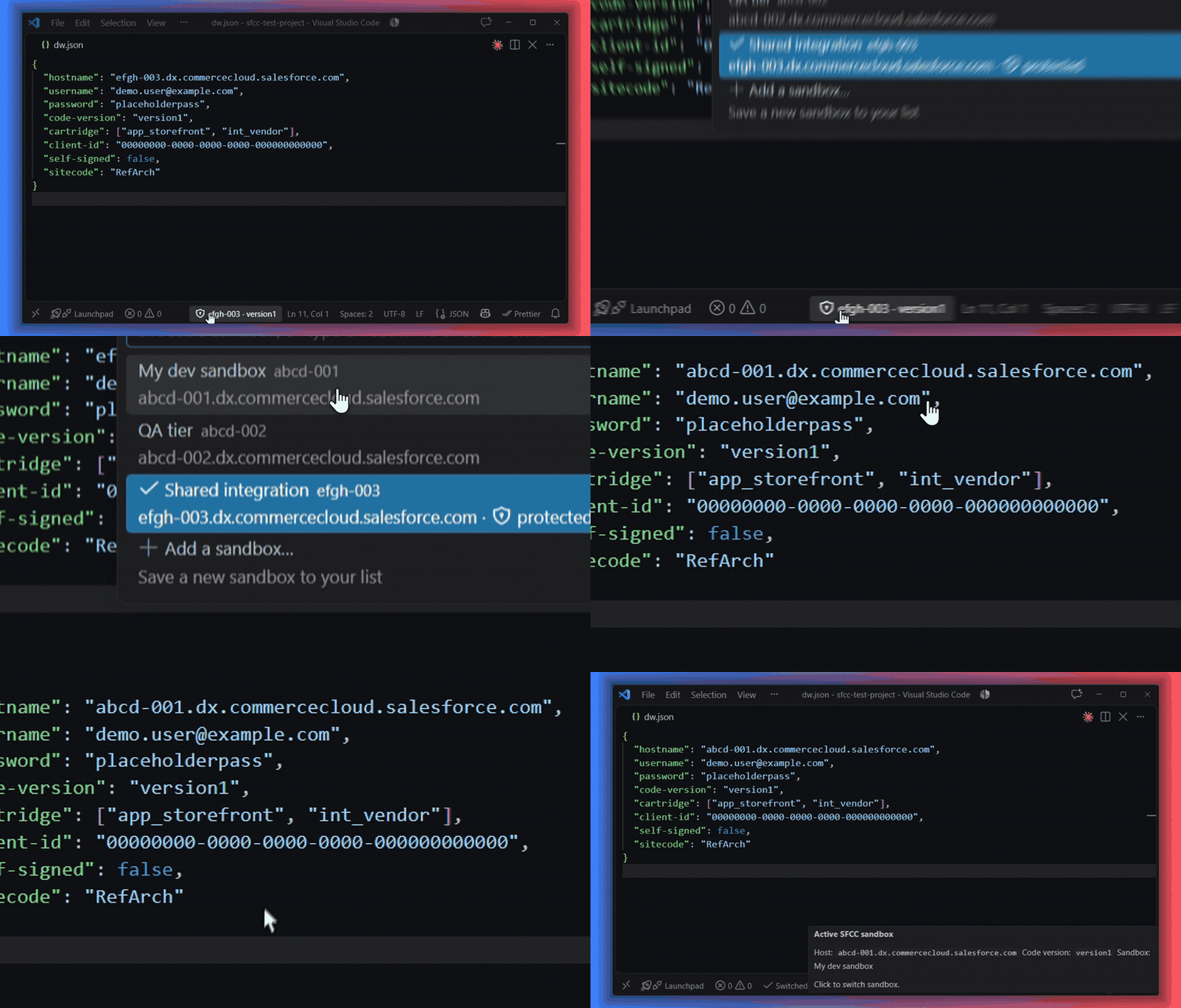
SFCC Sandbox SwitcherAlways know which SFCC sandbox you are uploading to. Switch instances in two clicks. Salesforce Commerce Cloud developers work against several sandboxes, but The typing is the annoyance. The expense is not knowing which sandbox you are on. Prophet uploads on save, silently, to whatever This extension puts the active sandbox in your status bar and makes switching a two-click operation. It is a guardrail that happens to also save the typing. Around that it does the rest of the connection housekeeping: passwords in your OS keychain
rather than a text file, Business Manager, logs and storefronts one click from any sandbox in
your list, and a warning when
What you getAn indicator that is always right. The status bar shows the instance you are pointed at
and its code version. Hand-edit Protected instances look different. Flag your shared integration and QA boxes as
Passwords out of plaintext files. Credentials go to your operating system's keychain via
VS Code's A sandbox list your team can share. Commit a It works alongside Prophet, not instead of itThis extension does not upload cartridges, debug, or tail logs — Prophet Debugger owns those and does them well. It only manages the connection target. Prophet re-reads Your
|
| Where it lives | Who sees it | |
|---|---|---|
| Personal | ~/.dw-json-manager/sandboxes.json |
every project on your machine, and only you |
| This project | sandboxes.json beside dw.json |
this project only — your team too, if you commit it |
Choosing This project the first time creates the file, and the extension then asks what to do about source control — see below.
Each row shows the file it will write to, so the choice is never a guess about what "personal" and "project" mean. The folder button on the Personal row keeps that list somewhere else — a local folder, when your home directory is on a slow or offline network share. It offers to take the sandboxes already in it along, and leaves the old file on disk either way.
Project entries win on an id collision, so a team default cannot be silently shadowed by something on your machine.
If your team has not adopted this extension yet, a project list is an untracked file sitting in your changes. So choosing This project for the first time asks one more question, in the same flow:
This project — what about source control?
👁 Keep it out of my changes — this clone only Adds sandboxes.json to .git/info/exclude — private to your clone, and .gitignore is left alone
⎇ Leave it visible — commit it when you like sandboxes.json appears in Source Control like any other new file
It names the file it would write, because it is your repository. .git/info/exclude is git's
own place for per-clone ignore rules: never committed, never shared. .gitignore is left alone
on purpose — editing it would change a file the whole team pulls, which is the thing you are
avoiding. The file stays in your Explorer either way; what changes is whether it turns up in
Source Control. When the team adopts the extension, delete the line and commit the file.
Finding things
Almost everything lives in the sandbox picker — click the status bar indicator.
- A row switches to that sandbox.
- The pencil on a row edits it.
- The
⋯on a row opens the rest: Business Manager, the storefront, the logs, its storefront aliases, forgetting its stored password, removing it from your list. - Sites… at the bottom of the picker manages the sites every sandbox can open. It sits there rather than on a row because it is not about one sandbox.
- The key in the picker's title bar updates or forgets Business Manager passwords.
The sandbox you are currently on is listed first and highlighted, so the row actions you reach for most are at the top and pressing Enter on an unchanged picker moves you nowhere.
Everything is also in the command palette (Ctrl+Shift+P, type SFCC), which is the only
place Show Diagnostics lives.
Commands
| Command | What it does |
|---|---|
| SFCC Sandbox: Switch Sandbox | Open the picker (also the status bar click action) |
| SFCC Sandbox: Add Sandbox | Save a new sandbox, choosing where the list is kept |
| SFCC Sandbox: Edit Sandbox | Change one field of a saved sandbox (or click the pencil on any row of the picker) |
| SFCC Sandbox: Remove Sandbox | Remove an entry from a list |
| SFCC Sandbox: Update or Forget Passwords | Store a new password for an account or one sandbox, or forget the stored ones so each is asked for again |
| SFCC Sandbox: Open Business Manager | Open the active instance in your browser |
| SFCC Sandbox: Open Storefront | Open a storefront for the active instance |
| SFCC Sandbox: Open Logs | Open the active instance's WebDAV log directory |
| SFCC Sandbox: Forget Stored Password for Active Sandbox | Forget the keychain entry for the instance you are on |
| SFCC Sandbox: Show Diagnostics | A report you can paste into a bug report — hostnames and usernames are redacted, passwords never included |
Opening an instance in the browser
The ⋯ on any sandbox row opens three things for that sandbox, not whichever one you
happen to be pointed at. All three are also in the command palette, where they act on the
instance you are currently on.
Business Manager and the logs need no setup — both live at a fixed path on every instance, so the hostname is enough. The logs open the WebDAV directory listing, which is the place to go when you want to see what files exist or download one whole; Prophet tails them inside the editor and does that better.
A storefront takes two facts, and they belong in different places.
Sites belong to the project
A site id means the same thing wherever the project is deployed: RefArch is RefArch on dev,
QA and staging. So the site list is declared once for the whole sandbox list and works on every
entry, unchanged:
{
  "sites": ["RefArch", { "site": "RefArchGlobal", "label": "EU storefront" }],
  "sandboxes": [
    { "id": "dev", "hostname": "abcd-001.dx.commercecloud.salesforce.com" },
    { "id": "qa", "hostname": "abcd-002.dx.commercecloud.salesforce.com" }
  ]
}
Add one from Sites… at the bottom of the picker, or the first time you ask a row to
open a storefront. You are asked for the site id and, optionally, a name — RefArchGlobal says
little, "EU storefront" says what you are opening. Nothing asks you to confirm the save:
choosing to add a storefront is already the decision to keep it.
There is no per-sandbox site list, and nothing to reason about: every sandbox shows the same sites, resolved against its own hostname.
An alias belongs to one sandbox
An address does not travel. https://dev-shop.example.com is one box, and the same site on
staging answers somewhere else — so where an instance is reached through a configured domain,
that is an alias, set on that sandbox and always against a site the project already
has:
{
  "sites": ["RefArch", "RefArchGlobal"],
  "sandboxes": [
    {
      "id": "dev",
      "hostname": "abcd-001.dx.commercecloud.salesforce.com",
      "aliases": { "RefArch": "https://dev-shop.example.com" }
    },
    { "id": "qa", "hostname": "abcd-002.dx.commercecloud.salesforce.com" }
  ]
}
Opening RefArch on dev goes to https://dev-shop.example.com. Opening it on qa — which
has no alias — builds the standard path on qa's own hostname, as does RefArchGlobal
everywhere. Leave a sandbox's aliases empty and every site resolves the ordinary way.
Set them from Storefront aliases… on the row's ⋯ menu, from the pencil under
Storefront aliases, or as an optional step when adding a sandbox. All three open the same
list: every site with the address this sandbox answers on, or the standard one where it has
none. Choosing a site edits it and returns to the list, so a project with five sites takes one
visit rather than five. Done ends it, and blanking an address puts that site back on the
standard one.
Enter it in whichever form you have. Business Manager lists aliases as bare hosts under
Merchant Tools → SEO → Aliases, so dev-shop.example.com is accepted and stored as
https://dev-shop.example.com — the field shows you what it will save as you type. A scheme
or a path you type yourself is kept exactly as entered.
Starting over
Your sandbox list is a plain file you own, so resetting it is a file operation — nothing in the extension is hiding state somewhere else.
- Clear one list: replace its contents with
{ "sandboxes": [] }, or delete the file. Both read as an empty list.{}on its own does not — the extension reports it as a file with no"sandboxes"array, because an empty object is more often a mistake than an intention. - Keep your sites, drop your sandboxes: empty the
sandboxesarray and leavesiteswhere it is. They are independent. - Which file: the paths are shown on each row when you add a sandbox, and in SFCC
Sandbox: Show Diagnostics. Personal is
~/.dw-json-manager/sandboxes.json; a project list sits besidedw.json.
Emptying a list does not forget your stored passwords. Those live in your OS keychain, keyed
by username@hostname, and outlive any list that mentioned them — use Update or Forget
Passwords → Forget all stored passwords to clear them, which asks for confirmation and tells
you how many it found.
Settings
All optional. The defaults suit most people.
| Setting | Default | What it does |
|---|---|---|
sfccSandboxSwitcher.statusBar.alignment |
right |
Which side of the status bar the indicator sits on. Move it to left if your right side is crowded. |
sfccSandboxSwitcher.statusBar.priority |
100 |
Ordering within that side. Higher sits further left, and is less likely to be dropped when the bar runs out of room. |
sfccSandboxSwitcher.confirmProtectedSwitch |
true |
Ask before switching to an instance flagged protected. |
sfccSandboxSwitcher.warnWhenDwJsonIsCommittable |
true |
Warn when dw.json sits in a git repository with no .gitignore rule covering it. |
sfccSandboxSwitcher.sandboxListPath |
(blank) | Where your personal list is kept. Blank means ~/.dw-json-manager/sandboxes.json. Set it if you keep the file elsewhere — the list is only read from a location the extension knows about. |
There is also an environment variable, DW_JSON_MANAGER_HOME, for machines where the home
directory is redirected to a network share.
When your Business Manager password expires
Most teams authenticate to every sandbox with one Business Manager account, and most employers expire it on a schedule. The key in the picker's title bar offers two ways through that, because they fail differently rather than because one is better.
Update password asks what changed: the password for a Business Manager account, or one sandbox on its own. A password belongs to an account rather than to an instance, so that is what it names — if your team uses one account everywhere, rotating it is two questions, the account and the new password. Sandboxes whose passwords have diverged are what the single-sandbox answer is for. Each account row says how many instances it covers before you commit to it.
There is deliberately no "apply this to everything" spanning several accounts: one password across different logins is right for nobody except by coincidence.
If the sandbox you are currently on is among those updated, dw.json is updated too, so
uploads keep working without switching away and back. The catch is that it stores whatever you
typed without any way to check it — a typo becomes several instances that quietly fail to
upload.
Forget all stored passwords removes them instead, so the next switch to each sandbox asks again. More typing, spread across the days you actually visit each instance, but it cannot store a wrong value and it is the only option that copes with instances whose passwords have diverged.
Worth knowing what it does and does not do: dw.json keeps the password it already has, and
Prophet reads it from there — so uploads carry on using the old one until it is replaced. That
is true from the moment your password is rotated, before you run anything here. Because the
instance you are currently on is the one case a switch cannot fix, it offers to take the new
password straight away; every other sandbox asks on the next switch.
Each instance keeps its own keychain entry rather than sharing one. Writing the same value to several entries costs nothing and means forgetting one instance does not forget the rest.
Code version
Switching leaves dw.json's code-version alone unless a sandbox explicitly declares
one. Which code version you deploy into is your decision, not a property of the instance you
happen to be pointed at, so nothing changes it behind your back. Set codeVersion on an entry
only for an instance that genuinely needs a different one — and nothing is validated, so if
the version does not exist, Prophet will tell you at upload time.
One thing to be aware of
dw.json holds your Business Manager password in plaintext. That is the platform's interface
and no tool can change it — Prophet and everything else read it from there.
So keep dw.json out of version control. The extension warns you if it sits in a git
repository without a .gitignore rule covering it, and offers to add one.
Reporting a problem
Use the Q & A tab on this page. Include the output of SFCC Sandbox: Show Diagnostics — it is already redacted, so hostnames, usernames and paths are removed and passwords are never included. That report usually answers the question on its own.
Please do not paste a real sandbox hostname or a password. The whole point of this extension is that those stay on your machine.
License
MIT