
A Visual Studio Code extension for viewing and interacting with Perforce Swarm code reviews directly inside the IDE.
Browse and interact with P4 Code Reviews (a.k.a) Perforce Swarm code reviews without leaving Visual Studio Code.
Support
If you find this extension useful, please consider supporting its development:

About
P4 Review Explorer brings your entire Swarm review workflow into the IDE. Instead of constantly switching to the browser to check on reviews, read comments, and post replies, you get a dedicated panel in the Activity Bar that shows your open reviews in real time so you can browse changed files, open side-by-side diffs, post inline comments, and reply to feedback all without leaving your editor.
Important Links
What is new in v1.0.3?
- Fix: Adding a reply to a comment thread in the Comments panel now correctly posts to Swarm and updates the thread in place.
- Fix: Status filter to the Explorer toolbar now filters correctly so you can quickly filter reviews by any combination of statuses. Your choice is remembered per workspace.
- Improvement: Adding a reply to a comment thread in the Comments panel now keeps the thread open so you can see your new comment immediately after posting, instead of collapsing the thread and refreshing the diff tool.
- Improvement: Added gifs to extension overview page for better display of extension's features.
Roadmap
- v1.0.X — Stability, bug fixes, and small improvements
- v1.1.0 — Enhanced filtering, search, and UI improvements
- v2.0.0 — Major features like AI review and multi-IDE support
Features
Review Voting
Approve or reject a review without leaving the IDE. Hover over any review node to reveal two inline icon buttons:
- 👍 Approve (green) — submits an "up" vote to Swarm
- 👎 Reject (red) — submits a "down" vote to Swarm
The button matching the review's current status is hidden automatically (no approving an already-approved review). Both actions are also available in the right-click context menu. Works in both My Reviews and Reviewing panels. A toast notification confirms the action and the list refreshes immediately.
Dedicated Review Explorer
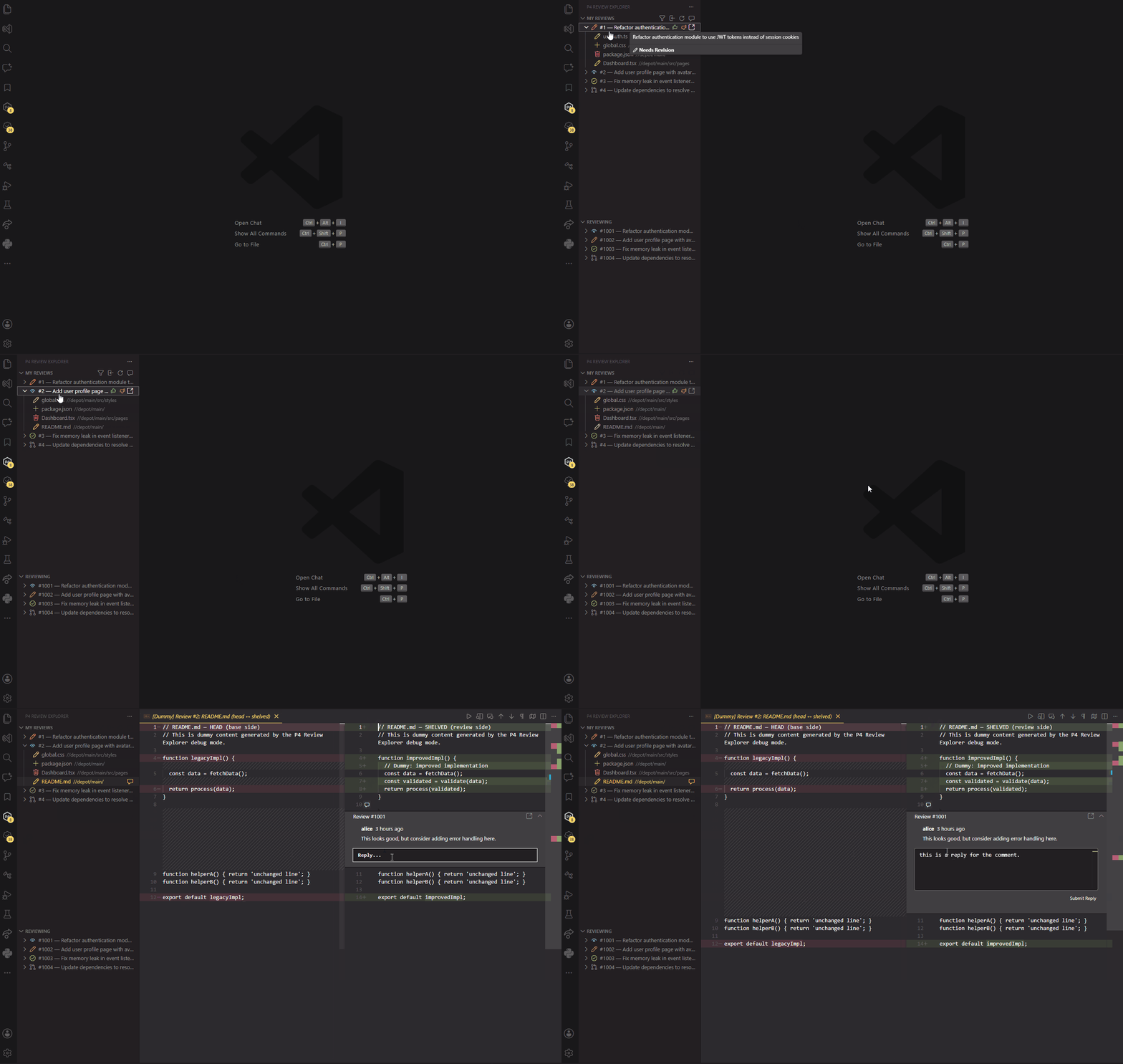
A new panel in the Activity Bar lists all your reviews in two sections:
- My Reviews — reviews you authored
- Reviewing — reviews where you are listed as a reviewer
Each review shows its ID, description, and status. Click the expand arrow to list every file in that review directly below it.
Activity Bar Badge
A live badge on the P4 Review Explorer icon shows the total number of active reviews (My Reviews + Reviewing) so you always know how much review work is waiting, even when the panel is closed.
Status Filter
Click the funnel icon in the Explorer toolbar to filter reviews by status. Choose any combination of:
open · needsReview · needsRevision · approved · rejected · closed · archived
Your filter choice is remembered per workspace.
File Tree in Reviews
Expand any review in the sidebar to see the full list of changed files sourced from the review's changelists. Hover over any file that has comments to see a comment balloon icon on the right — the tooltip shows the exact count (1–9, then 9+). Click it to:
- Open the Comments panel instantly, pre-loaded with only that file's threads
- Any previously shown threads are cleared first so you see only what's relevant
Click the file name itself to open the diff view.
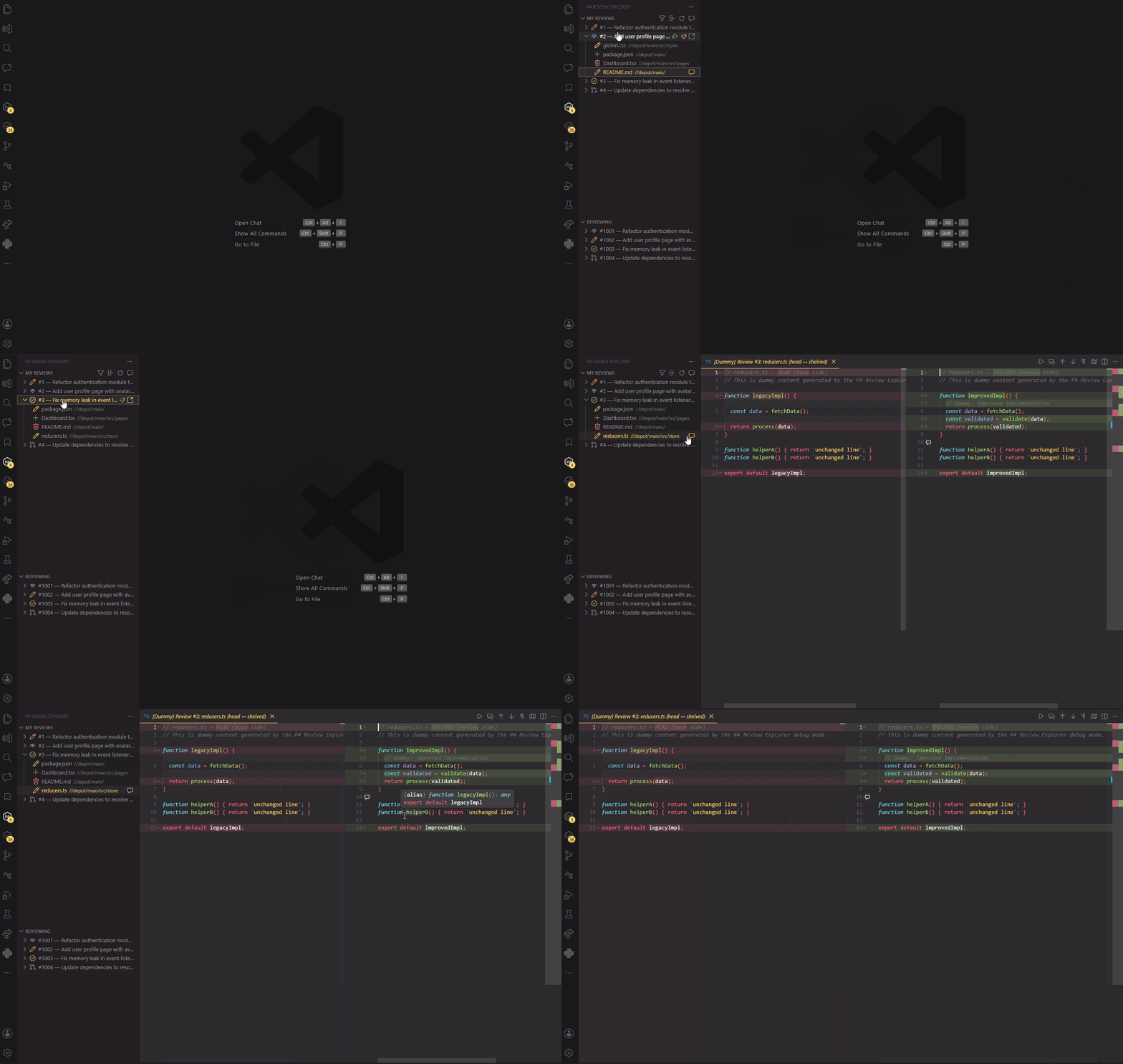
The native VSCode Comments panel always reflects the currently active file. Switching to a new file automatically clears any threads from the previous file so you never see stale comments from a different review. Clicking a thread navigates directly to the relevant line in the diff view.
Side-by-Side Diff View
Clicking a file opens VSCode's built-in diff editor with:
- Left panel — HEAD revision (what is currently in the depot)
- Right panel — shelved revision (what the review proposes)
This lets you review changes directly in your IDE with full syntax highlighting and navigation. Right-click anywhere in the diff to access two actions:
- Open File to Edit — opens the local workspace copy of the file in a regular editor tab so you can make changes
- Add P4 Review Comment — posts an inline line comment to Swarm
Right-click any line in the diff editor and choose Add P4 Review Comment. A gutter balloon opens at that line — type your comment and hit Submit. The comment is posted to Swarm and the balloon stays open showing your text. Click 🗑 Discard to cancel without posting.
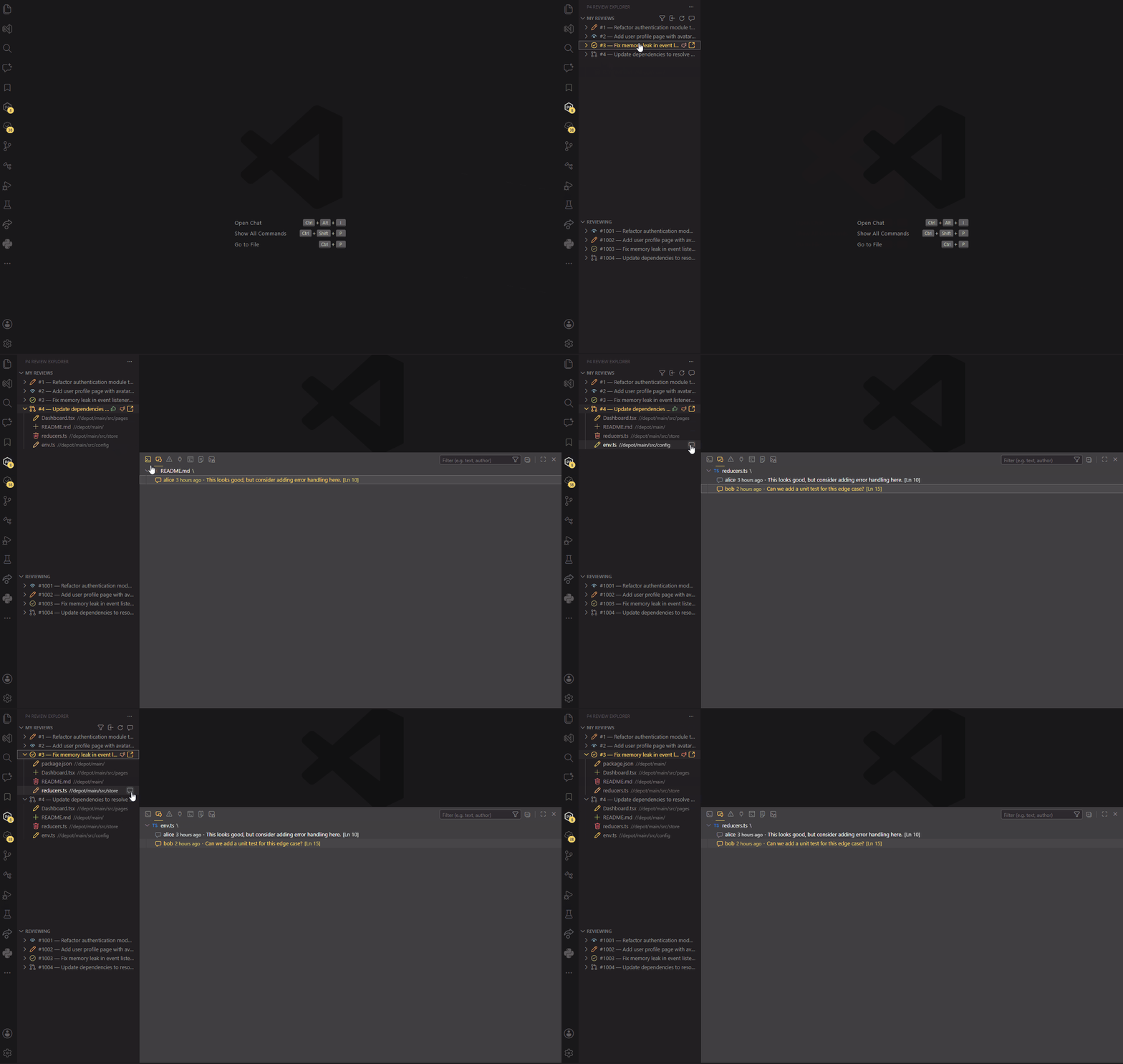
Open any file that is part of an active review and balloon icons appear in the editor gutter on every line that has comments — visible in both regular editors and diff views. Click a balloon to expand the thread and reply directly from the IDE.
The native VSCode Comments panel is fully integrated with P4 Review threads:
- Sidebar balloon click → opens Comments panel showing only that file's comments
- Comments panel thread click → if the diff is not already open, automatically opens it and scrolls to the commented line
- Use the Show P4 Comments button in the diff editor title bar to reload threads for the current diff
Reply Without Leaving the IDE
Click a comment balloon to expand the thread as a native VSCode comment panel. Hit Reply, type your response, and it is posted directly to Swarm.
Auto-Refresh
Reviews and annotations refresh automatically in the background at a configurable interval so you are never looking at stale data.
Requirements
- A Perforce Swarm instance (API v9, v10, or v11 — the version is detected automatically at runtime)
p4 CLI installed and on $PATH (used for file resolution and ticket-based authentication)- A valid Perforce account with access to the reviews you want to see
Setup
Open Settings (Ctrl+,) and search for P4 Review, or add the following to your settings.json:
{
  // Required — base URL of your Swarm server
  "p4review.swarmUrl": "https://swarm.example.com",

  // Required — your Perforce username
  "p4review.username": "philipegouveia",

  // Optional — P4PORT used to locate your ticket in ~/.p4tickets
  // When set, no password prompt is needed if a valid ticket exists
  "p4review.p4port": "ssl:perforce:1666",

  // Optional — Swarm API token (best for SSO environments — bypasses password auth entirely)
  "p4review.apiToken": "your-swarm-api-token",

  // Optional — which statuses to show on first launch
  "p4review.defaultStatusFilter": ["open", "needsReview", "needsRevision"],

  // Optional — background refresh interval in seconds (minimum 30)
  "p4review.pollIntervalSeconds": 120
}
2. Authenticate
On first launch the extension resolves credentials in this order:
| Priority |
Source |
What happens |
| 1 |
API Token |
If p4review.apiToken is set, it is used directly. Best for SSO environments. |
| 2 |
P4 ticket |
Runs p4 login -p from the user's home directory for a live-validated ticket. Falls back to scanning ~/.p4tickets by username if a port-format mismatch occurs. |
| 3 |
Stored password |
Uses a username/password pair previously saved in VSCode's encrypted Secret Storage. |
| 4 |
Input prompt |
Asks for username and password, then saves the choice in Secret Storage for future sessions. |
After credentials are resolved, the extension establishes a Swarm session cookie (SWARM_SESSION) via POST /api/v9/login. All subsequent requests use this cookie instead of Basic auth, which is more SSO-friendly. On a 401 (expired session), the extension silently refreshes the ticket before prompting you to re-enter credentials.
To reset your credentials at any time, run P4 Review Explorer: Login / Configure Credentials from the Command Palette (Ctrl+Shift+P) or click the sign-in icon in the explorer toolbar.
Privacy & Security
- Your password or API token, if entered, is stored exclusively in VSCode Secret Storage (OS keychain-backed). It is never written to disk in plain text or sent anywhere other than your configured Swarm server.
- No telemetry is collected by this extension.
Commands
All commands are available from the Command Palette (Ctrl+Shift+P) under the prefix P4 Review Explorer:
| Command |
Description |
P4 Review Explorer: Refresh |
Manually reload all reviews and annotations |
P4 Review Explorer: Filter by Status |
Open the status filter picker |
P4 Review Explorer: Open Review in Browser |
Open the selected review in Swarm |
P4 Review Explorer: Approve |
Submit an "up" vote on the selected review |
P4 Review Explorer: Reject |
Submit a "down" vote on the selected review |
P4 Review Explorer: Login / Configure Credentials |
Reset and re-enter credentials |
P4 Review Explorer: Open File to Edit |
Open the workspace file from the active diff editor for editing |
P4 Review Explorer: Add Line Comment |
Post an inline comment on the current line (diff editor only) |
Settings Reference
| Setting |
Type |
Default |
Description |
p4review.swarmUrl |
string |
(required) |
Base URL of your Swarm instance |
p4review.p4port |
string |
"" |
P4PORT for ticket lookup (e.g. ssl:perforce:1666) |
p4review.username |
string |
"" |
Your Perforce username |
p4review.apiToken |
string |
"" |
Swarm API token (bypasses password auth) |
p4review.defaultStatusFilter |
string[] |
["open","needsReview","needsRevision"] |
Statuses shown on first launch |
p4review.pollIntervalSeconds |
number |
120 |
Auto-refresh interval in seconds (min 30) |
Known Limitations
- File path resolution uses three strategies in order:
p4 where → p4 fstat clientFile → workspace filename scan. Files not present in the active client view may not resolve.
- Gutter annotations in diff views match by filename. If multiple files share the same name across depot streams, the first match wins.
- Inline comments require Swarm API v11. The right-click menu entry is hidden on v9/v10 servers.
Contributing
See DEVELOPER.md in the repository for architecture notes, how to run tests, and how to build and install locally.
License
MIT — see LICENSE for details.
Back to top



