Percy: AI Research Assistant
Percy is your AI research assistant. Assign it tasks like data cleaning, scraping, regressions, visualizations, LaTeX markdown — and more. All in your existing workspace.
Percy is currently in closed beta. For early access, please join the waitlist here.
Getting Started
Click the Percy lightbulb on the VS Code sidebar. Follow the prompts to log in with the email registered to your account.
Open a workspace folder in VS Code. Then click “Create project file” on the Percy sidebar. Percy will read data, generate code, and keep a running .percy log of its work in the selected folder.
Enter your Research Question in the Percy Project tab — briefly describe the data, research question(s), and any hypotheses. Percy will give better suggestions with your broader research goals in mind.
Click “Start” on the Percy sidebar to begin your analysis.
Using Percy
Chat → Chat with Percy like you would a research assistant! Not sure what to do? Percy will give you suggestions.
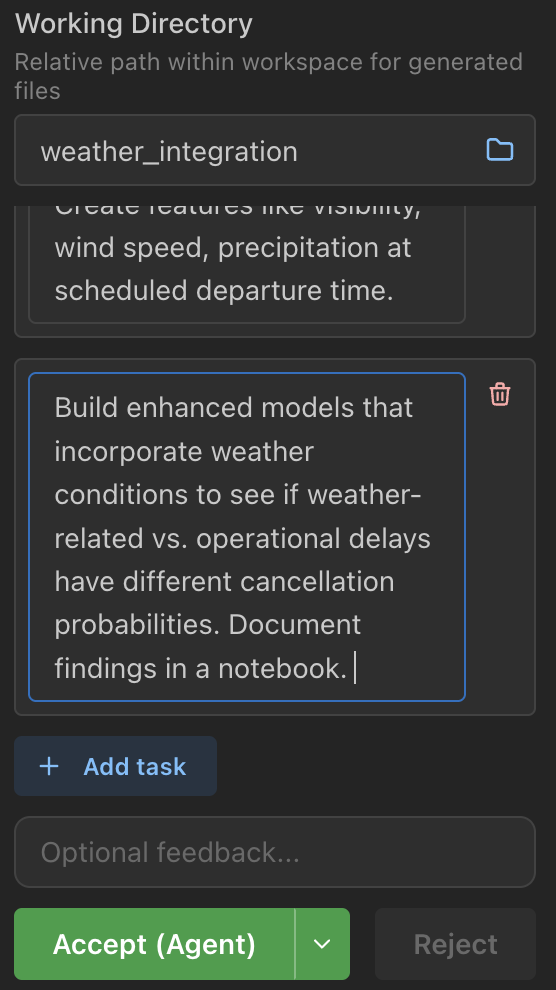
Plans → Percy tells you its plan before it gets to work. Edit the plan manually, or just tell Percy what you want adjusted.
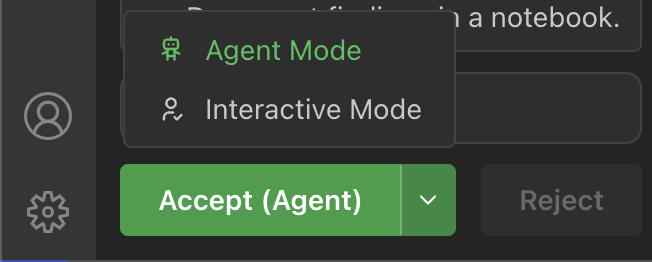
More control → Percy defaults to doing its work and reporting to you at the end. Toggle “Interactive Mode” if you want Percy to check with you after each step.
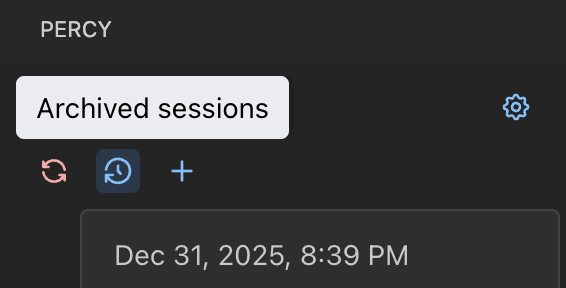
Past sessions → Percy prompts a new chat session after each plan is executed, or after an extended time period, to optimize performance. Click to review archived chat sessions at any time:
Project Settings
Open the Percy Project page to configure settings and enable key functionalities:

External Data Sources → If your data is in a separate folder from your code, add it here so Percy has access.
Environment → Percy facilitates installations required for R and LaTeX features. If new to Python in VS Code, we recommend using the Easy Python Setup tool for an “it just works” environment using the uv package manager. You can also enable and configure Stata in the Stata section.
Protected Files → Mark critical files as read-only to prevent accidental modifications.
Experiments → Define and manage experiments with parameters and outcomes.
Some users prefer the Percy sidebar pinned on the right side of the VS Code window. To move it, simply drag the PERCY sidebar title text to the top-right corner of the window.
Data Lineage
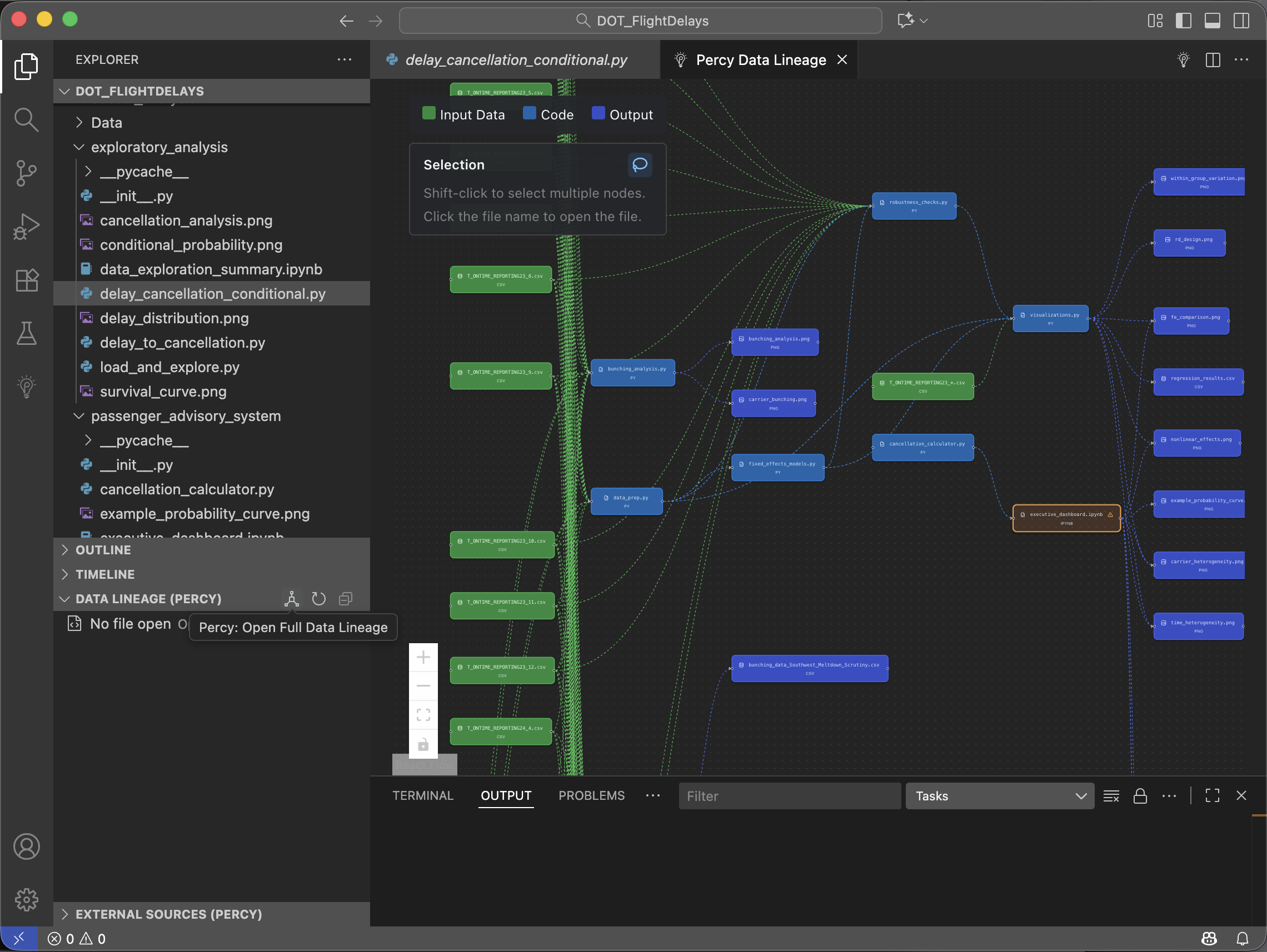
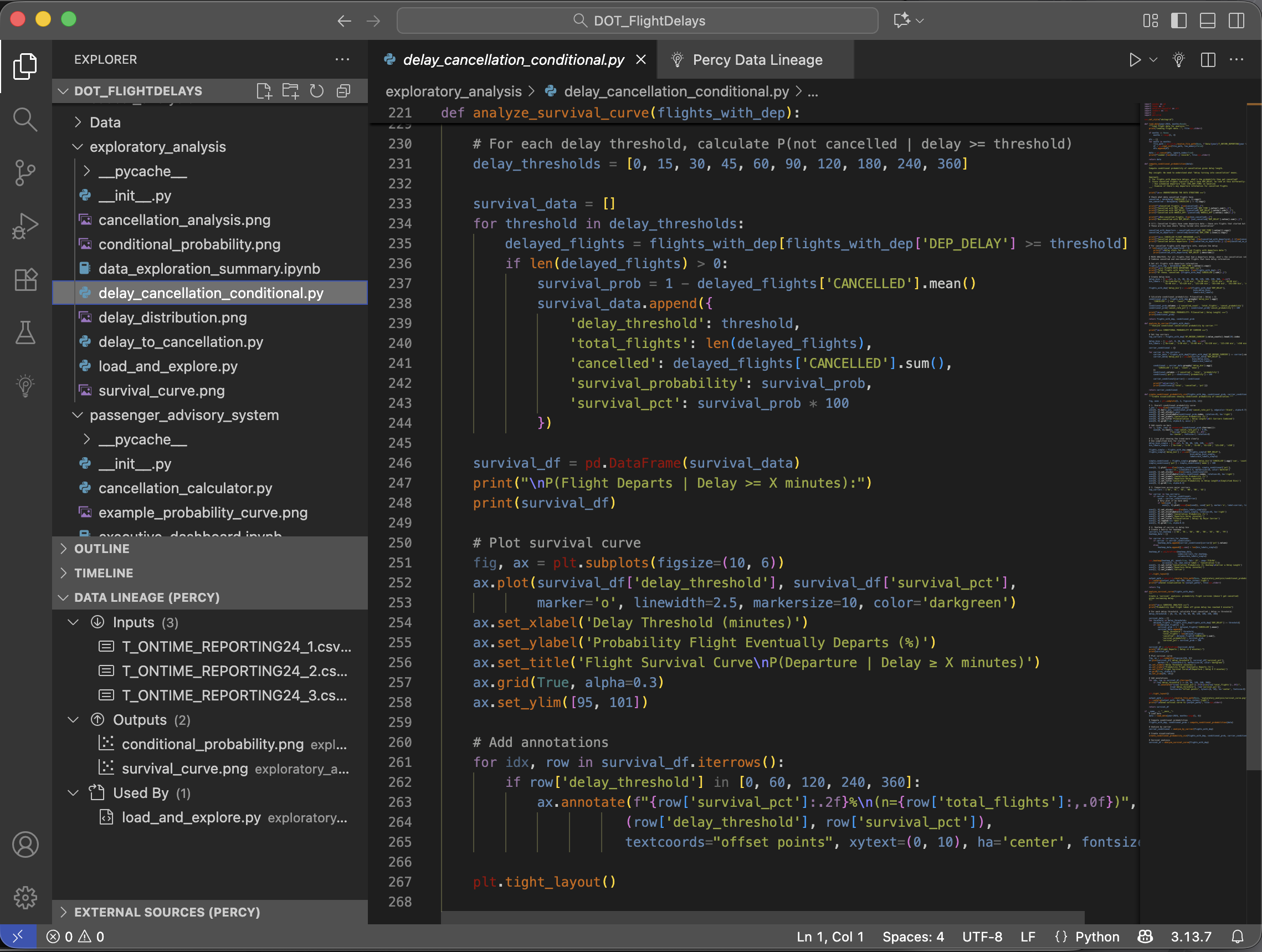
Percy keeps track of code inputs and outputs for you via Data Lineage. Percy does this automatically for the files it creates, but can also index for code that you’ve written.
To visualize Data Lineage for the entire workspace: click the geometric icon to the right of DATA LINEAGE (PERCY) in the VS Code Explorer tab:
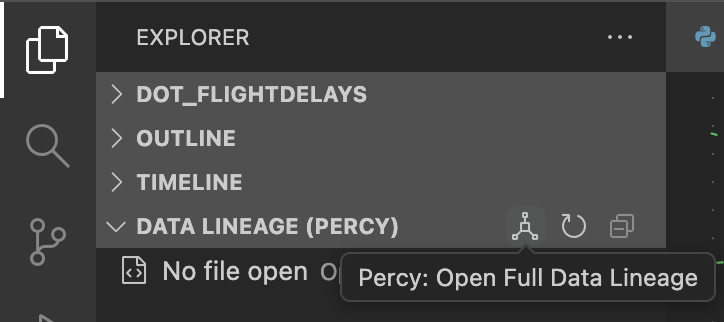
To view Data Lineage for a single file: click a file name followed by the DATA LINEAGE (PERCY) drop-down:
Support
To report a bug, suggest a feature, or get help with Percy, reach via our contact form.

