T3 Code for VS Code
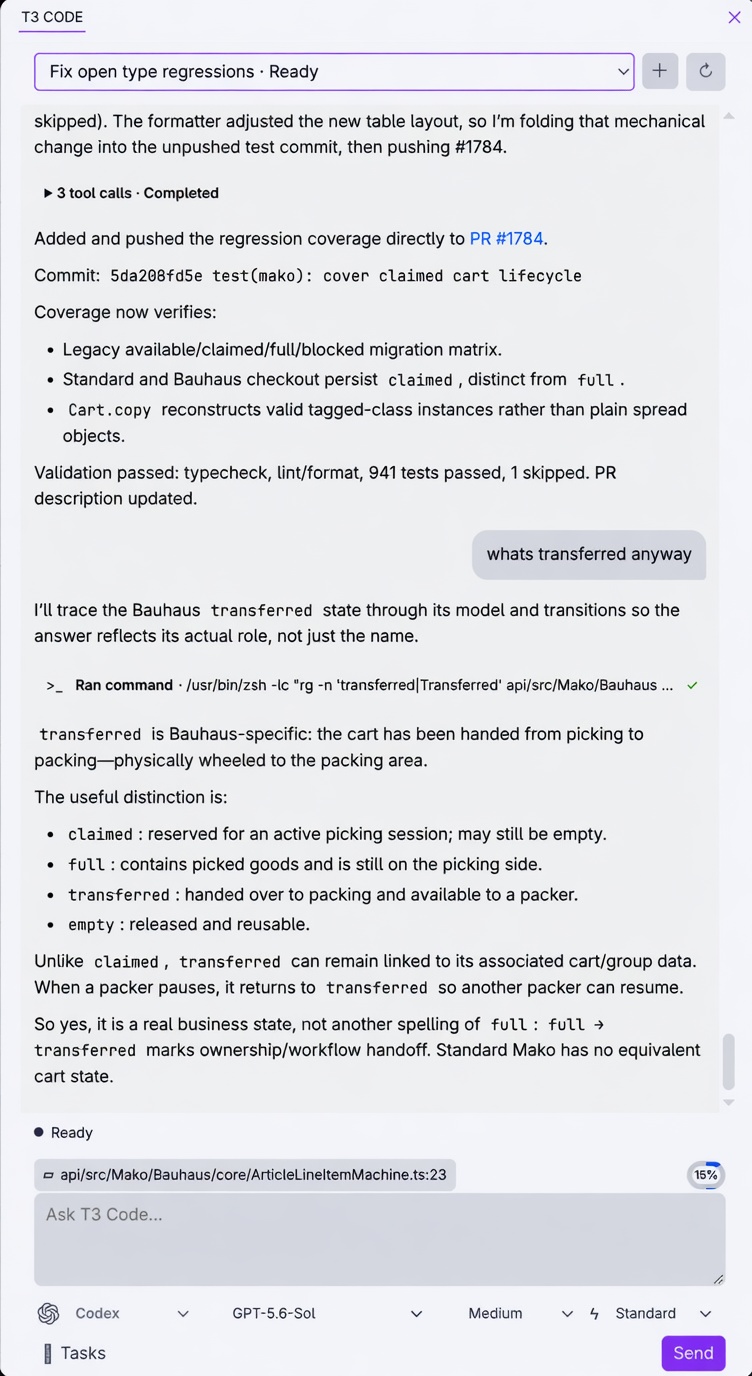
Unofficial fork build. This extension is published as patroza.t3-code from
patroza/t3code, a fork of
pingdotgg/t3code. It is not published or supported by
T3 Tools Inc. Report issues against
this fork's tracker.
This package exposes T3 Code as a dedicated VS Code secondary-sidebar chat tab, alongside the
Claude Code, Chat, and Codex tabs. It connects directly to the same T3 Code server used by the web,
desktop, and mobile clients, so projects, threads, messages, turn state, and assistant streaming
remain synchronized. It also provides an optional native @t3 participant inside VS Code Chat.
Requirements
The extension is a client only — it needs a T3 Code backend to talk to. Either run T3 Desktop on the
same machine as the extension host, or point t3Code.serverUrl at a reachable T3 Code server.
VS Code 1.95 or newer is required.
Connecting to a server
The default is http://127.0.0.1:3773, which is a T3 Code server running on your own machine.
If that describes your setup, there is nothing to configure. Change the URL if your server runs on
another host or a different port.
Run T3 Code: Set Server URL from the Command Palette to change it. The prompt is prefilled with
the current value and rejects anything that isn't an http/https URL, so a typo surfaces
immediately instead of as a failed connection later. The extension reconnects as soon as the
setting changes.
If the server requires authentication, run T3 Code: Set Server Bearer Token. The token is kept
in VS Code's secret storage — never in your settings file — and is exchanged for a short-lived
WebSocket ticket.
Two details worth knowing:
- A local T3 Desktop runtime wins over this setting. The extension prefers the backend
advertised by the T3 Desktop process beside its extension host, and only falls back to
t3Code.serverUrl. This is what makes local, SSH, and other remote windows work independently,
rather than treating a synced 127.0.0.1 setting as the same machine.
t3Code.serverUrl is machine-scoped. It is stored per machine in your user settings and
cannot be set per workspace, so a 127.0.0.1 URL never follows you to a different machine.
Connection trouble is usually quickest to diagnose from T3 Code: Show Diagnostics, which logs
each endpoint the extension tried and why it was rejected.
Settings
Run T3 Code: Open Settings to open all of these in the Settings UI, or edit settings.json
directly.
| Setting |
Default |
What it does |
t3Code.serverUrl |
http://127.0.0.1:3773 |
Fallback server URL, used when no local T3 Desktop runtime is advertised. WebSocket and environment endpoints are derived from it. |
t3Code.defaultRuntimeMode |
full-access |
Runtime mode for new threads: approval-required, auto-accept-edits, or full-access. |
t3Code.desktopClientSettingsPath |
"" (auto-detect) |
Path to T3 Desktop's client-settings.json, to share provider and model favorites. Auto-detects ~/.t3/userdata or ~/.t3/dev when empty. |
The default runtime mode is full-access, meaning new threads apply edits and run commands without
asking. Set t3Code.defaultRuntimeMode to approval-required if you would rather review each one.
Development
- Start T3 Code (
pnpm dev), which listens at http://127.0.0.1:3773 by default.
- Build the extension with
pnpm --filter t3-code build.
- Open this repository in VS Code, choose Run Extension from the Run and Debug view, and point
the extension-development host at
apps/vscode if prompted.
- Select the T3 Code tab in the secondary sidebar. Use T3 Code: Open Chat from the Command
Palette if the secondary sidebar is hidden.
Dedicated chat workflow
The T3 Code tab contains a worktree-scoped thread picker, synchronized transcript, context control,
and prompt composer. Select a thread to continue it on any T3 client, or use + to create one for
the open worktree. Enter sends; Shift+Enter inserts a newline.
The same operations are also available through the optional native Chat participant:
@t3 /threads selects an existing thread whose worktree matches the open workspace folder.@t3 /new creates a synchronized thread (and a project when the folder is not registered yet).- A normal
@t3 prompt continues the last selected thread, or the most recently updated matching
thread. If none exists, it creates one.
@t3 /history, /status, and /stop inspect or control the selected server thread.
Active editor context is included by default and can be toggled from the composer, with
@t3 /context, or T3 Code: Toggle Automatic Editor Context. This preference is kept in VS Code's
extension state and never written to workspace settings. A non-empty
selection includes the exact character range; an empty selection includes the cursor line and
column. Explicit Chat references such as #file and attached selections are always included.
The T3 Code: Ask About Selection editor action opens Chat with @t3 prefilled. Context is sent
as structured-looking provider context using workspace-relative paths and language-aware Markdown
fences. T3 Code clients present that envelope as a context reference rather than authored text.
Releasing
The extension publishes to the patroza namespace on both the VS Code Marketplace and Open VSX.
Extension IDs and versions are shared between the two, so publish the same .vsix to each.
Bump version in apps/vscode/package.json, add a CHANGELOG.md entry, then commit and push —
packaging pins README links to the current commit and refuses to run if that commit is not on a
remote branch. Then:
pnpm --filter t3-code package # -> t3-code-<version>.vsix
Both package and publish:vsce go through scripts/vsce.ts, which runs the vscode:prepublish
build and supplies two sets of flags:
--no-dependencies, because esbuild already bundles src/. Nothing from node_modules ships,
and vsce never has to resolve the workspace:* dependencies it cannot understand.--baseContentUrl / --baseImagesUrl pinned to the current commit, because vsce cannot infer
that this extension lives in a monorepo subdirectory and would otherwise rewrite the README's
relative links to the repository root. Pinning to the commit rather than main keeps each
published version's README pointing at the tree it was built from, so the screenshot survives
files moving later and works even when a version is published before its commit reaches main.
A published README cannot be corrected without publishing a new version.
Inspect the packaged contents before publishing:
pnpm --filter t3-code exec vsce ls --no-dependencies
Publishing needs a token per registry, neither of which is stored in this repo:
- Marketplace — an Azure DevOps PAT for the
patroza publisher, created with the Marketplace:
Manage scope and the organization set to All accessible organizations (a PAT scoped to a
single organization fails at publish time with a 401). Pass it as VSCE_PAT, or run
vsce login patroza once. Note that Azure DevOps retires global PATs on December 1, 2026; the
replacement, vsce publish --azure-credential backed by Microsoft Entra ID, currently only covers
CI pipelines, so manual publishing still depends on a PAT until then.
- Open VSX — an access token for the
patroza namespace from https://open-vsx.org/user-settings/tokens.
Pass it as OVSX_PAT. The namespace must be created once with ovsx create-namespace patroza.
VSCE_PAT=... pnpm --filter t3-code publish:vsce
OVSX_PAT=... pnpm --filter t3-code publish:ovsx t3-code-<version>.vsix
Tag the release as vscode-v<version> so extension tags do not collide with the v*.*.* tags that
drive the desktop release workflow.

