Skill Builder Companion
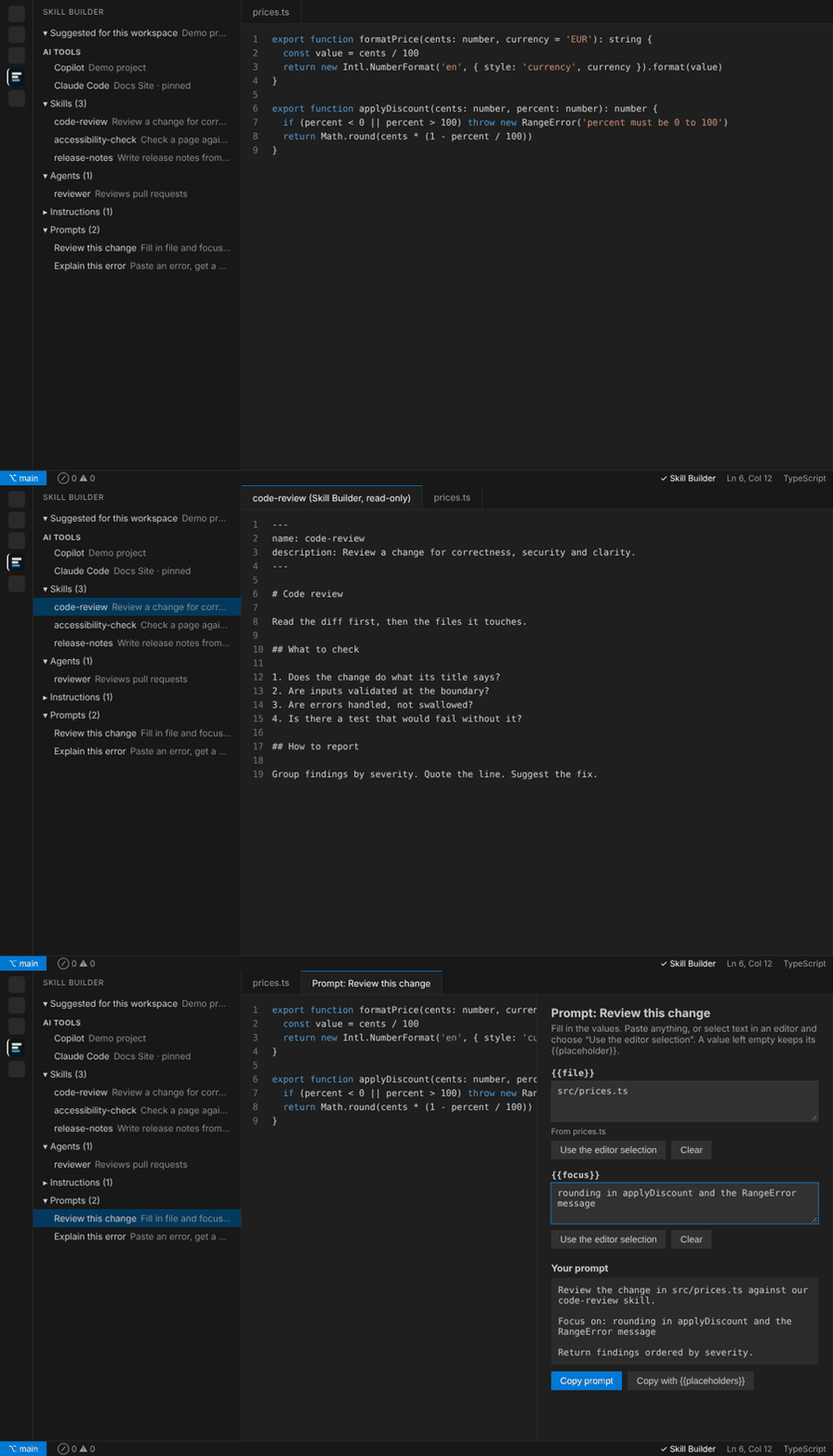
See your Skill Builder skills, agents and prompts right next to your code.
Skill Builder is where you build AI skills, agents and prompts. The companion shows the project for
the code you have open, which AI tool is using which project, and what you have chosen to share,
without leaving VS Code. Read a skill, fill in a prompt and copy it, or jump to an item in Skill
Builder.
Preview. This is an early version. It needs the Skill Builder web app, open in your browser:
https://skill-builder.pascalcouturier.com
Why Skill Builder?
Other tools help you find and install skills, or run agent workflows. Skill Builder is where you
build them well:
- Build with blocks. Compose skills, agents and prompts from ready-made blocks and templates, with
drag and drop and a live preview.
- Check before you ship. Built-in checks against the Agent Skills format, context-cost estimates,
competing-description warnings and a security scan on everything you import.
- Keep a history. Save versions, compare changes and sync a project to GitHub.
- Use it anywhere. Export for Claude Code, Copilot, Codex and Cursor, or connect them to your open
project.
- Private by default. It works offline in your browser, and this companion sends nothing to an AI
model.
The companion brings your projects into VS Code so you can read what you have shared, fill in prompts
with code from your editor, and jump back to Skill Builder to edit. It can also import the skills, agents and
instructions of the folder you have open into Skill Builder, after you tick what you want and review it.
It never installs files into your folder.
New to the companion? Read the guide:
Use the Skill Builder companion in VS Code.
How it works
- Connect. In VS Code, choose Connect in the Skill Builder view. A short code appears.
- Approve. In the Skill Builder tab you already have open, type the code. You choose, once,
whether VS Code may switch that tab for you.
- Browse. The view fills in. The first time you open an item's text, Skill Builder asks you to
allow it.
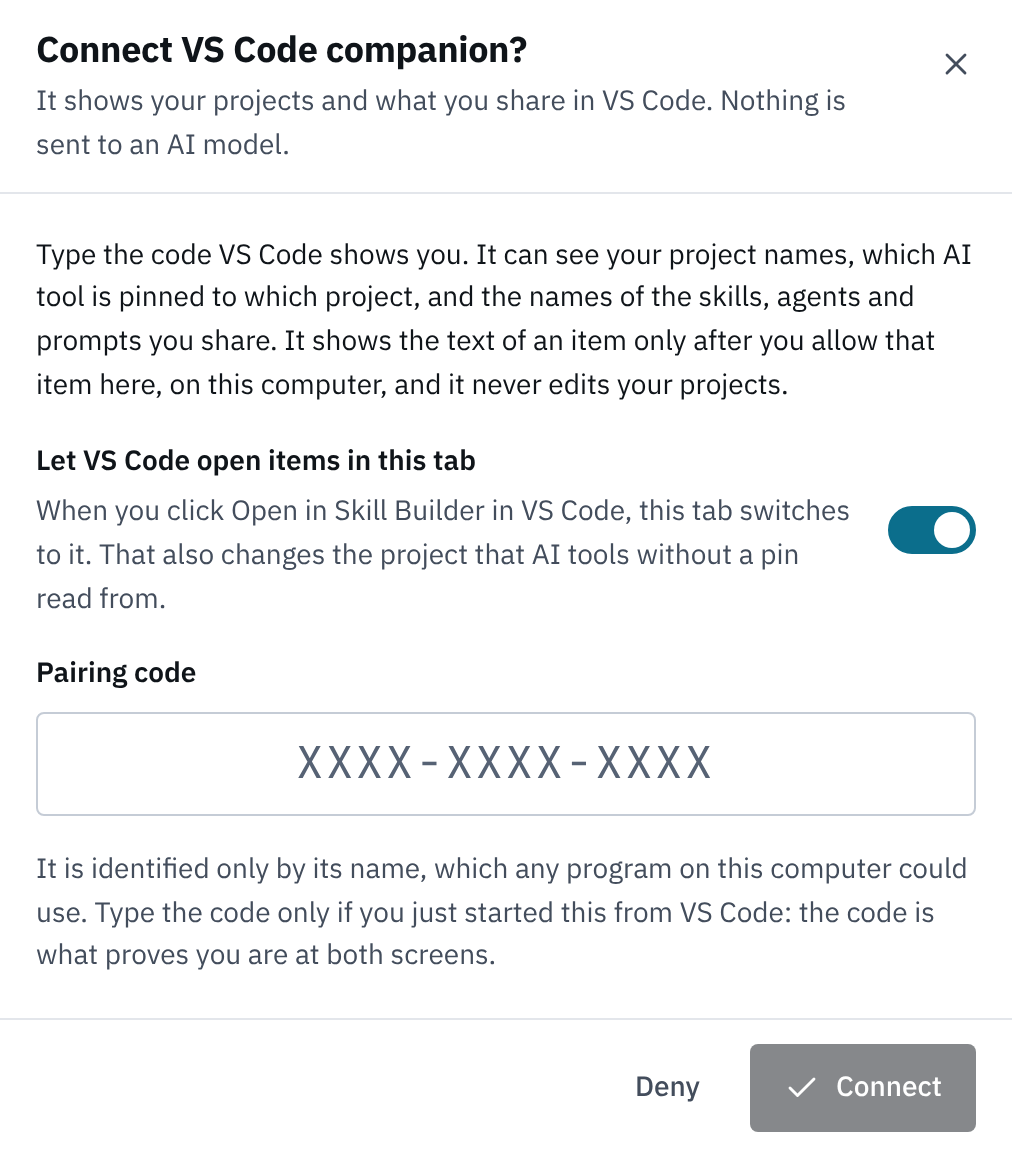
You type a new code each time VS Code starts. Nothing connects until you do.
What you can do
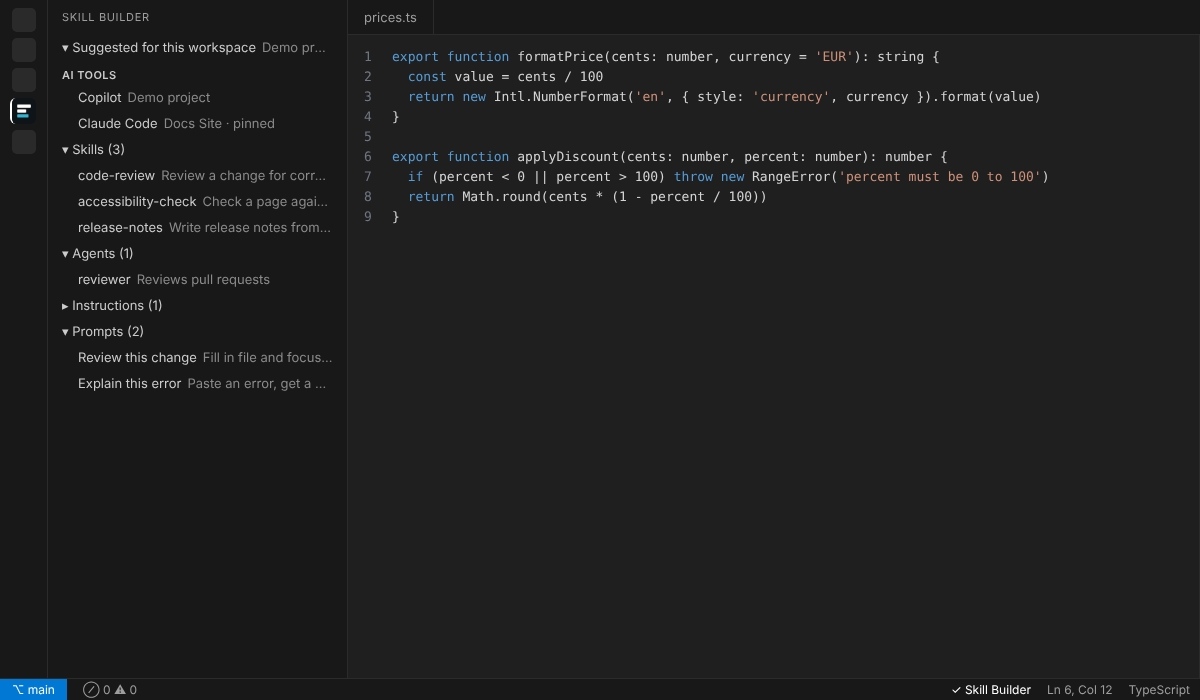
- See the project for this workspace. Pick it once per repository, and Skill Builder remembers it
on this computer only. Forget one repository, or reset them all, at any time.
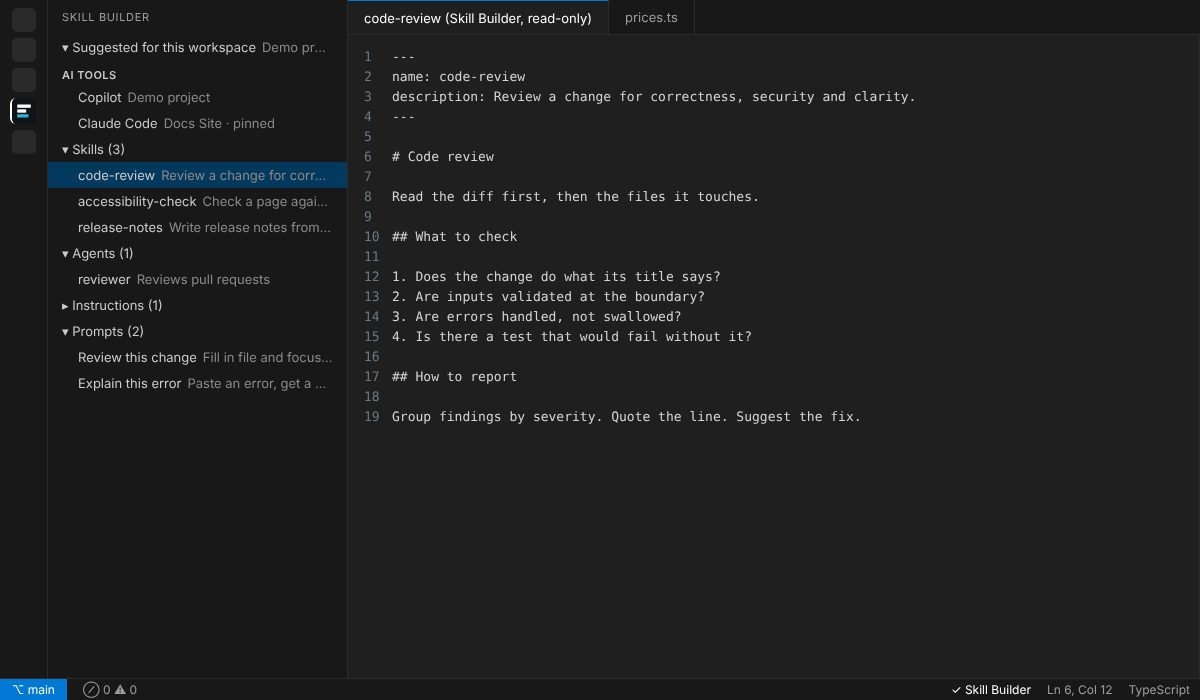
- See what each AI tool reads. The view shows which project Copilot, Claude Code, Codex and others
are really using (their pin, or the project open in Skill Builder), and flags a difference from
this workspace.
- Read what you share. Skills, agents, instructions, rules and prompts you marked "Available to AI
tools" appear by name. Click one to read it in a read-only editor, or copy it.
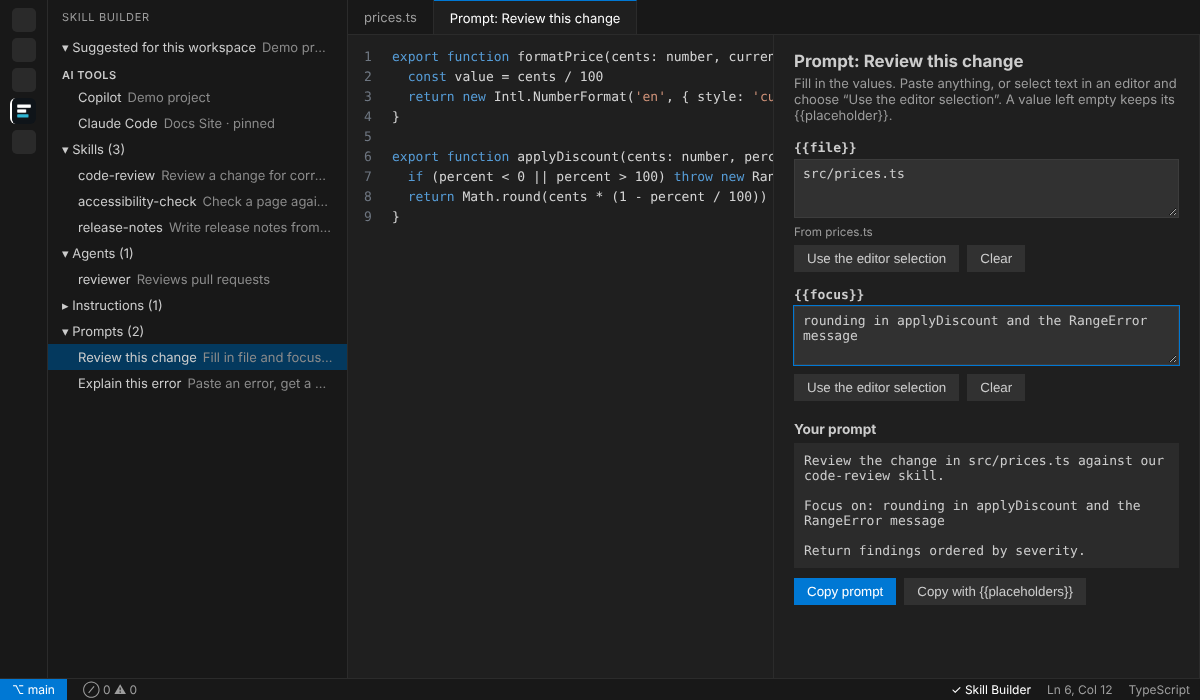
- Fill in prompts. Open a prompt and give each
{{variable}} its own box. Paste a value, or select
code in any editor and choose Use the editor selection. The finished prompt updates as you type;
copy it with the values filled in, or as it is.
- Import this folder into Skill Builder. Choose Import from this folder… in the Skill Builder
view. You see the skills, agents, instructions and rules found in the open folder, tick what you
want, and then choose the project in Skill Builder: a new one, or one you already have. If a name
already exists there, you choose to keep both, replace it or skip it. Nothing changes until
you press Import in Skill Builder. Skills kept in other folders are found by their
SKILL.md. For any
other layout (agents or rules in a folder of your own), choose Import from a folder…, pick the
folder and say whether it holds skills, agents or rules.
- Open in Skill Builder, in the same tab. The link icon switches the Skill Builder tab you already
have open, instead of opening another one. You can turn this off.
You stay in control
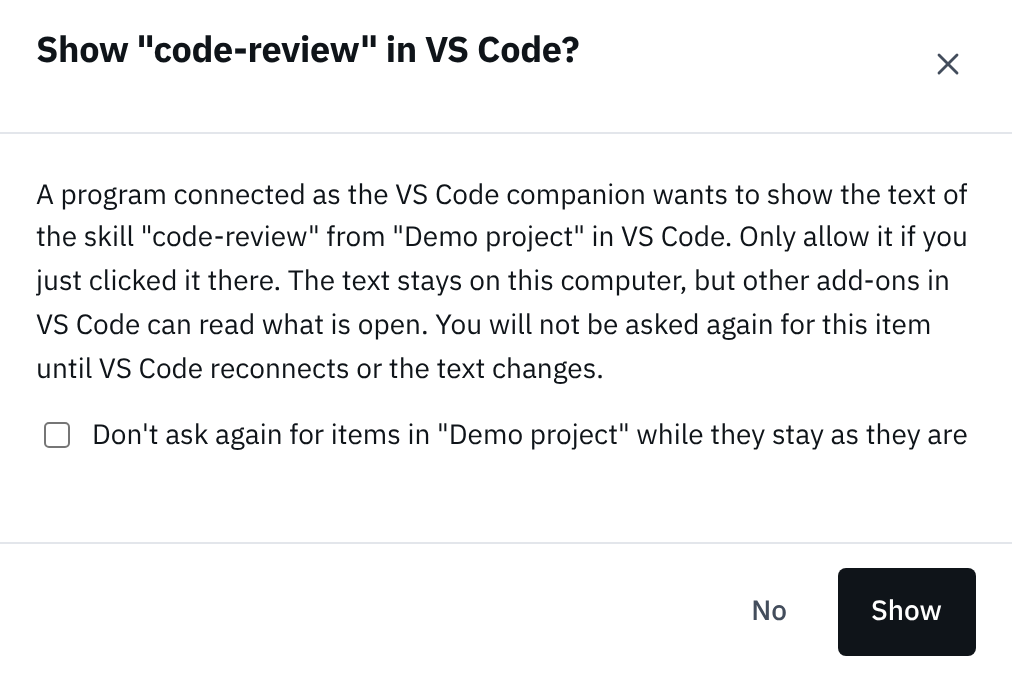
- Nothing is shown without your approval. Skill Builder asks you, in the browser, before the text of
each item reaches VS Code. Only allow it if you just clicked it there.
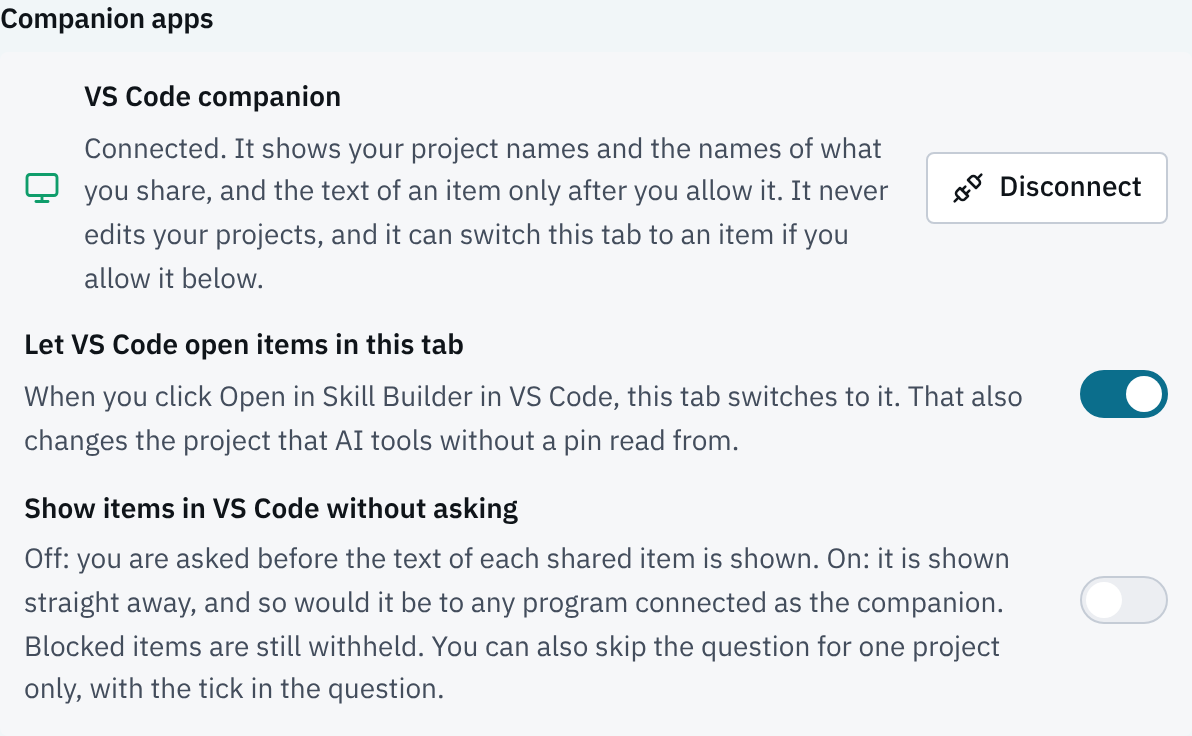
- Want fewer questions? You choose, in Skill Builder, never in VS Code. The question has a
"Don't ask again for items in this project" tick (a changed item asks again). Under Connect AI →
Companion apps, "Show items in VS Code without asking" skips the question for everything you
share, in every project. It is off by default, and the scanner, size limit and sharing choices
still apply.
- Only what you share. Items you did not mark "Available to AI tools" are never listed. Anything
Skill Builder's security check blocks is never shown. Scripts and supporting files are never sent.
- Local only. The connection never leaves your computer, and the companion sends nothing to an AI
model or over the internet. It has no telemetry.
- Projects change only after you review. Import reads only the files you tick, and Skill Builder
shows you the project and any name that clashes before anything is added. If you allow it, the
companion can also switch the project open in your Skill Builder tab, which changes the project AI
tools without a pin read from.
- Your repository stays yours. Git remote addresses are read inside VS Code, with passwords removed,
and are never sent to Skill Builder. It reads nothing from a folder you have not trusted, and
no file contents until you choose Import and tick files.
- Easy to undo. Disconnect closes everything it showed. In Skill Builder you can turn off tab
switching, or disconnect the companion, whenever you like.
Text open in VS Code can be read by other add-ons there, including VS Code's own AI features. Close it
when you are done.
Requirements
- VS Code 1.101 or newer, running on your computer. Remote windows (SSH, WSL, Dev Containers,
Codespaces) and VS Code for the Web are not supported yet, and the companion says so.
- Skill Builder open in Chrome, Edge or Firefox, with Settings, Connect AI turned on.
- A trusted folder. In a folder you have not trusted, the companion only shows its status.
Settings
| Setting |
Default |
What it does |
skillBuilder.openInExistingTab |
on |
Open in Skill Builder switches the tab you already have open instead of opening a new one. It works only while connected, and unless you turned it off in Skill Builder. |
Both are user settings: a repository can not change them.
Also in VS Code's AI chat
Add to VS Code AI chat lets VS Code's own AI chat use Skill Builder, like any AI tool. It is
separate from the companion, needs its own approval in Skill Builder, and sends what the AI reads to
its provider. Remove from VS Code AI chat turns it off.
Troubleshooting
- "Waiting for Skill Builder". Open Skill Builder in your browser and turn on Connect AI. Keep the
tab visible, and allow your browser's "access apps and services on this device" prompt if it asks.
- "Needs an update". Reload Skill Builder in your browser to get the latest version.
- Another VS Code window is connected. Only one window connects at a time. Use that window, or
disconnect it first.
- "All connection slots are in use". Close an AI tool chat you are not using, then choose Connect.
Licence
Skill Builder Companion is free to install and use, and its code remains the property of its owner. All rights reserved: see LICENSE.txt.
Feedback and security
Questions, ideas or a problem: https://skill-builder.pascalcouturier.com/contact
The extension opens a port on your computer's loopback address only, accepts only Skill Builder's own
web address, and needs a code you type. Its security notes are in the extension's SECURITY.md.
| |

