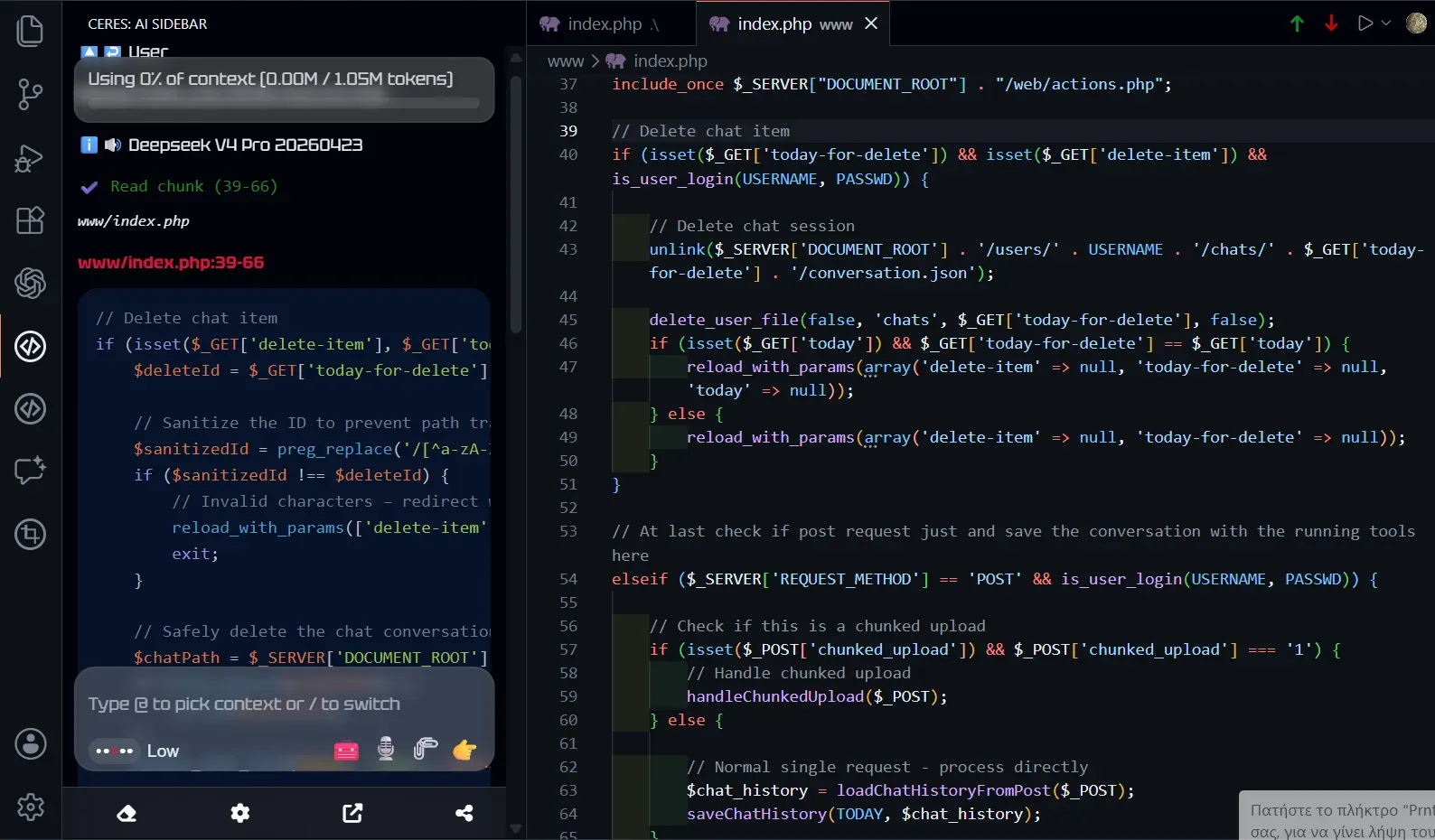
Ceres: AI Coding Assistant with VoicePredictable AI help in VS Code with voice input, file and selection chat, code review, terminal context, and support for OpenAI-compatible providers like OpenAI, DeepSeek, Qwen, Ollama, and more. Installation Launch VS Code Quick Open ( Ctrl+P), paste the following command, and press enter.Copied to clipboard |

Ceres: AI Coding Assistant with VoiceFocused AI assistance for the code in front of you. Ceres Assistant is an AI sidebar for VS Code that helps with code, files, errors, terminal output, Git changes, and debugging work. It is built for developers who want AI nearby, not AI taking over. Instead of turning every request into a full autonomous run, Ceres keeps the workflow explicit: ask questions, get context-aware suggestions—it is that simple.
Why Ceres?Many AI coding tools are designed around large agent runs. That can be powerful, but it can also be expensive, noisy, and hard to control. Ceres takes a smaller, more predictable path:
What Ceres IsCeres is a practical AI assistant inside VS Code. Use it when you want help with:
What Ceres Is NotCeres is not designed to take over your whole repository. It does not try to silently crawl every file, plan a large autonomous task, and rewrite your project on its own. If you want a full end-to-end coding agent that works independently for a long session, tools like Cursor, Copilot agents, Cline/Kilo, Claude Code, Codex, or other agent platforms may be a better fit. Ceres is designed to understand the relevant parts of your project and provide focused assistance without taking over the entire workflow. Features
Local And Hosted ModelsCeres is provider-flexible by design. You can use hosted models when you need stronger reasoning, or local and budget models for everyday development work.
Supported providers include:
This makes Ceres useful for developers who care about cost, privacy boundaries, experimentation, or avoiding lock-in. Context ControlCeres gives you control over how project context is gathered and processed.
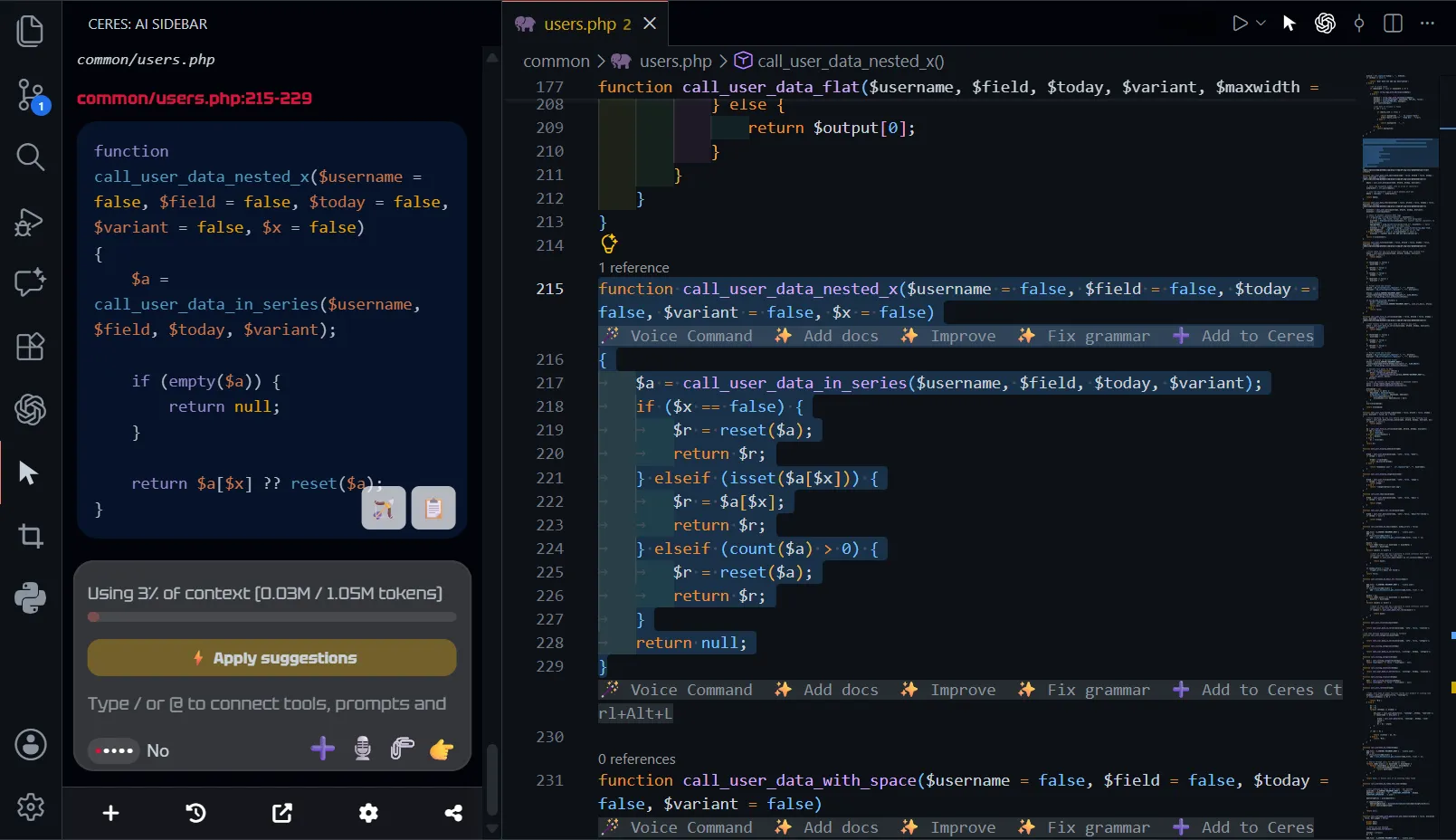
Better context usually means better answers, lower token usage, and fewer hallucinations. Navigation ModeNavigation mode allows Ceres to search the codebase, find and read relevant workspace files, inspect Git information, and gather useful context when needed. Navigation Mode only gathers information. It does not edit files, run commands, or make changes to your project on its own. Turn it on or off at any time to continue with the focused workflow, where Ceres uses only the context you provide manually. Use the Browser and Code Editor TogetherKeep Ceres open in your code editor and Chrome at the same time. Your active conversation and current draft update automatically, so you can research in the browser and continue working beside your code without copying and pasting between windows. Live synchronization requires the browser extension to have access to the same local project folder. Common WorkflowsExplain or Improve a SelectionSelect code, run Add Selection to Ceres, and ask for an explanation, refactor, review, or bug check. Default shortcut:
On macOS:
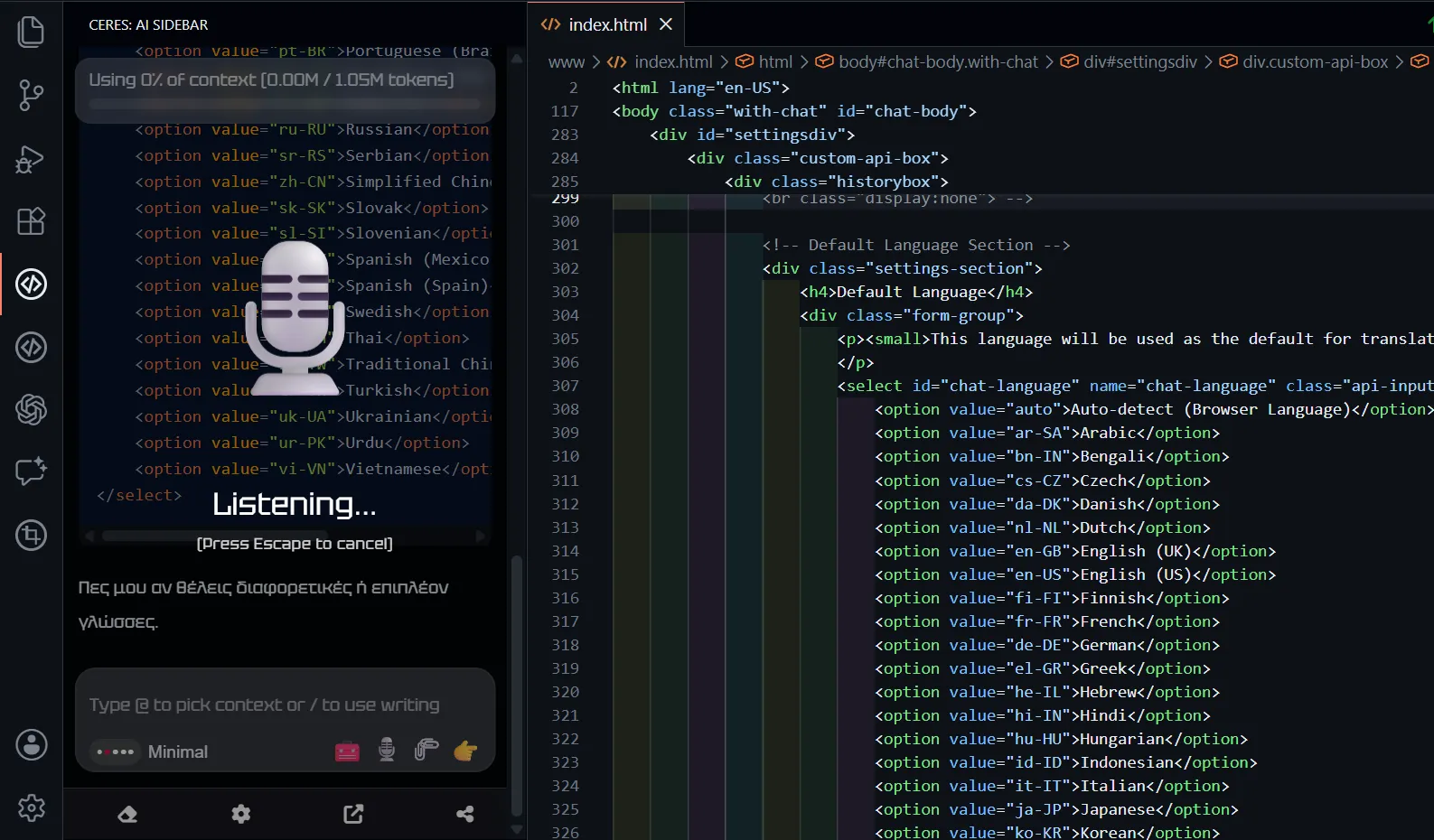
Review Before PullingAsk Ceres to inspect incoming Git changes before merging them into your working tree. Edit Code with VoiceSelect a code block and describe the change. Ceres rewrites the selected code as you speak. You can also use speech recognition instead of typing every prompt. Speech recognition helps you describe code changes, debugging notes, and follow-up questions while staying in the flow.
CommandsCeres contributes these VS Code commands:
You can access them from editor context menus, explorer context menus, editor title actions, code actions, and the command palette. Best ForCeres is a good fit for:
Known Limits
UsageCeres is designed for minimal resource consumption and works even with the most affordable models. You are responsible for the provider you connect to, the model you select, and the data you include in prompts. If you use a hosted provider, your data is sent according to their terms. If you use a local setup with Ollama or LM Studio, your code and data never leave your machine. Bug Reports and Feedbackhttps://ceres-assistant.com/web/contact.php Troubleshoot Pagehttps://ceres-assistant.com/web/troubleshoot.php Privacy Policy Page |