CodeSnap Lite
Take screenshots of code in vscode for presenting in a simplified manner.
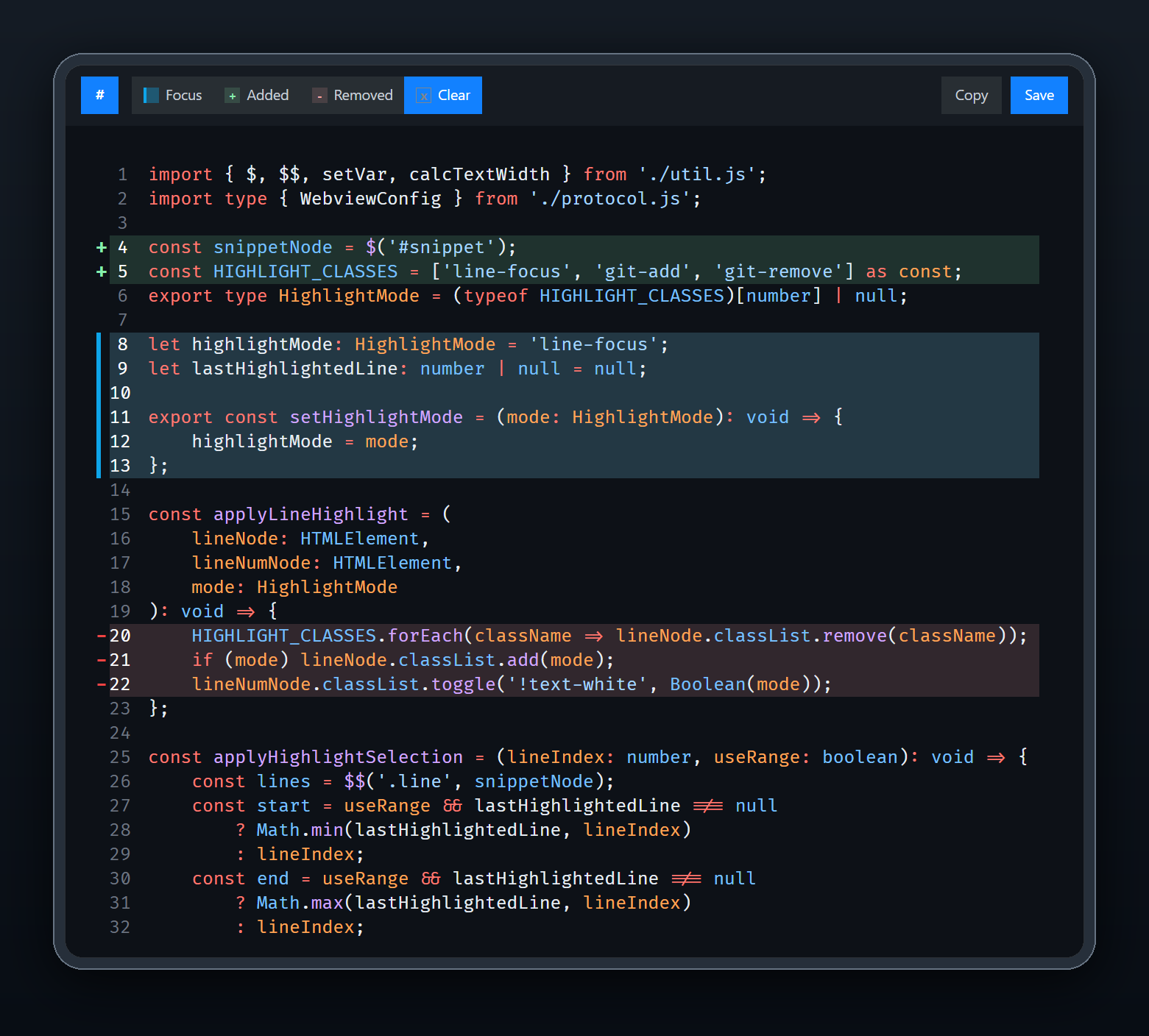
Features
- Can highlight the line if you click line number
- Highlight has 3 styles:
(For usage, see the Highlight Usage Instructions)
- Original features of CodeSnap
- Quickly save screenshots of your code
- Copy screenshots to your clipboard
- Show line numbers
- Many other configuration options
Basic Usage Instructions
- Open the command palette (Ctrl+Shift+P on Windows and Linux, Cmd+Shift+P on OS X) and search for
CodeSnap Lite.
- Select the code you'd like to screenshot.
- Use Copy to place the image on the clipboard, or Save to write a PNG file.
Tips:
- You can also start CodeSnap by selecting code, right clicking, and clicking CodeSnap.
- If you'd like to bind CodeSnap to a hotkey, open up your keyboard shortcut settings and bind
codesnap-lite.start to a custom keybinding.
- Use the Copy button to copy the image to the clipboard, or Save to write it to a PNG file.
Highlight Usage Instructions
If you want to highlight the line, click the line number and the line will be highlighted.
- Click once: Style focus
- Click twice: Style git-add
- Click thrice: Style git-remove
- Click four times: No hightlight
Configuration
CodeSnap Lite provides two settings for line-number output:
codesnap-lite.showLineNumbers: Boolean value to show or hide line numbers.
codesnap-lite.realLineNumbers: Boolean value to start from the real line number of the file instead of 1.
Acknowledgements
CodeSnap Lite is based on CodeSnap-plus, with modernization work and additional fixes maintained in this repository.
The great Polacode, for the initial concept.
Carbon for some design inspiration.

