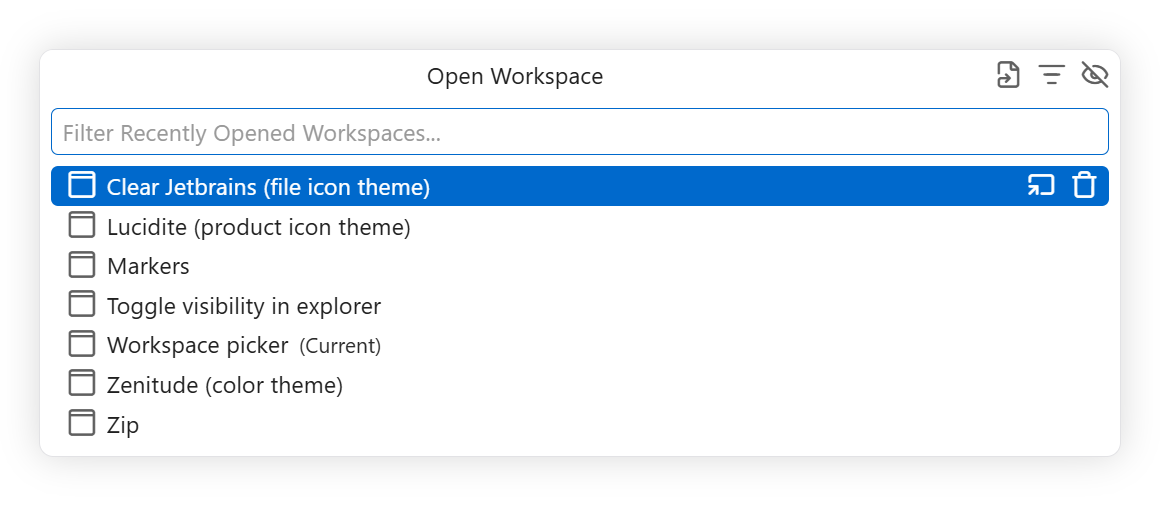
Jump between your workspaces in one click — or one keystroke.
Workspace Picker puts a dedicated button right where you want it and opens a
focused quick pick of your recent workspaces. No menus, no digging through
File → Open Recent.
Why you'll like it
Always within reach — put the button in the status bar, the Explorer
toolbar, or both. Right-click a workspace root folder in the Explorer for
Open Workspace....
One keystroke — Ctrl+R opens the picker instantly.
Open anywhere — pick a workspace for the current window, or hover to send
it to a new one.
Stay tidy — remove stale entries from your recent history without leaving
the picker.
Sort your way — most recent or alphabetical, toggled straight from the
picker header.
Not in the list? — the last entry opens any .code-workspace file
directly from disk.
Make it yours — choose between a Codicon- or Lucide-style glyph, and show
full paths when names alone aren't enough.
Settings
Setting
Values
Default
workspacePicker.position
statusBar, explorer, both
statusBar
workspacePicker.icon
codicon, lucide
codicon
workspacePicker.showPath
true, false
false
workspacePicker.sortOrder
mostRecent, alphabetical
mostRecent
Positions
statusBar — far left of the status bar.
explorer — actions toolbar of the Explorer view.
both — status bar and Explorer view toolbar.
The Explorer context-menu entry is available with every position setting and
appears above Add Folder to Workspace... when you right-click a workspace root
folder.
Icons
codicon — a custom Codicon-style glyph.
lucide — a Lucide glyph.
Path visibility
false — show only workspace names in the picker.
true — also show the path of the folder containing each workspace.
Sort order
mostRecent — keep VS Code recent history order (newest first).
alphabetical — sort entries alphabetically by workspace name.
You can also toggle sort order directly from the picker header button (top-right),
which updates this setting.
Commands
Workspaces: Open Workspace... (workspacePicker.open) — bound to Ctrl+R,
which overrides VS Code's native File: Open Recent... picker.
Picker actions
Recent workspace entries are shown.
Selecting a workspace opens it in the current window.
Hovering an entry reveals an Open in New Window button that opens that
workspace in a new window.
Hovering an entry also reveals a Remove from Recently Opened (cross) button
that deletes it from VS Code's recent history. The currently open workspace
cannot be removed.
Open Workspace from File... opens VS Code's native Open Workspace from
File... dialog for .code-workspace files.
Development
npm install
npm run build:icons   # regenerates media/pick-recent-workspace.woff
npm run compile
Then press F5 to launch the extension host.
The icon font is generated by scripts/build-icon-font.js from
media/codicon-icon.svg and media/lucide-icon.svg. Icon fonts only support
filled contours, so stroked SVG geometry is expanded into round-capped polygons
and rings before converting to WOFF.