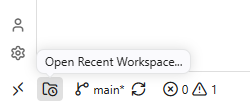
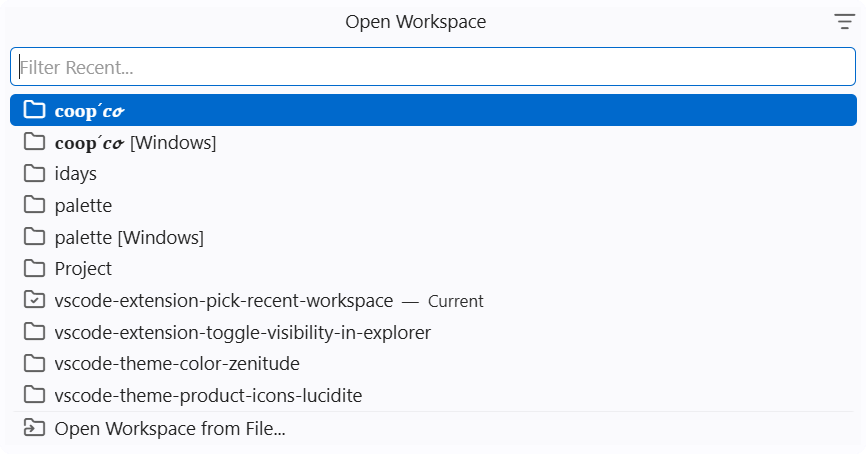
Adds a button that opens a custom quick pick of recent workspaces and lets you choose where the button lives (status bar or action bar of the Explorer view).
The picker also includes a final action to choose a .code-workspace file directly
from disk.
Settings
Setting
Values
Default
pickRecentWorkspace.position
statusBar, explorer, both
statusBar
pickRecentWorkspace.icon
codicon, lucide
codicon
pickRecentWorkspace.showPath
true, false
false
pickRecentWorkspace.sortOrder
mostRecent, alphabetical
mostRecent
Positions
statusBar — far left of the status bar.
explorer — actions toolbar of the Explorer view.
both — status bar and Explorer view toolbar.
Icons
codicon — a custom Codicon-style glyph.
lucide — a Lucide glyph.
Path visibility
false — show only workspace names in the picker.
true — show the full workspace path in the picker.
Sort order
mostRecent — keep VS Code recent history order (newest first).
alphabetical — sort entries alphabetically by workspace name.
You can also toggle sort order directly from the picker header button (top-right),
which updates this setting.
Commands
Recent Workspace: Open Recent Workspace... (pickRecentWorkspace.open)
Picker actions
Recent workspace entries are shown under Recent workspaces.
Selecting a workspace opens it in the current window.
Hovering an entry reveals an Open in New Window button that opens that
workspace in a new window.
Open from File... opens a file picker for .code-workspace files.
Development
npm install
npm run build:icons   # regenerates media/pick-recent-workspace.woff
npm run compile
Then press F5 to launch the extension host.
The icon font is generated by scripts/build-icon-font.js from
media/codicon-icon.svg and media/lucide-icon.svg. Icon fonts only support
filled contours, so stroked SVG geometry is expanded into round-capped polygons
and rings before converting to WOFF.