Compare. Pick. Validate. Deploy.
Orgbench — compare two Salesforce orgs and deploy only the difference,
without leaving VS Code.
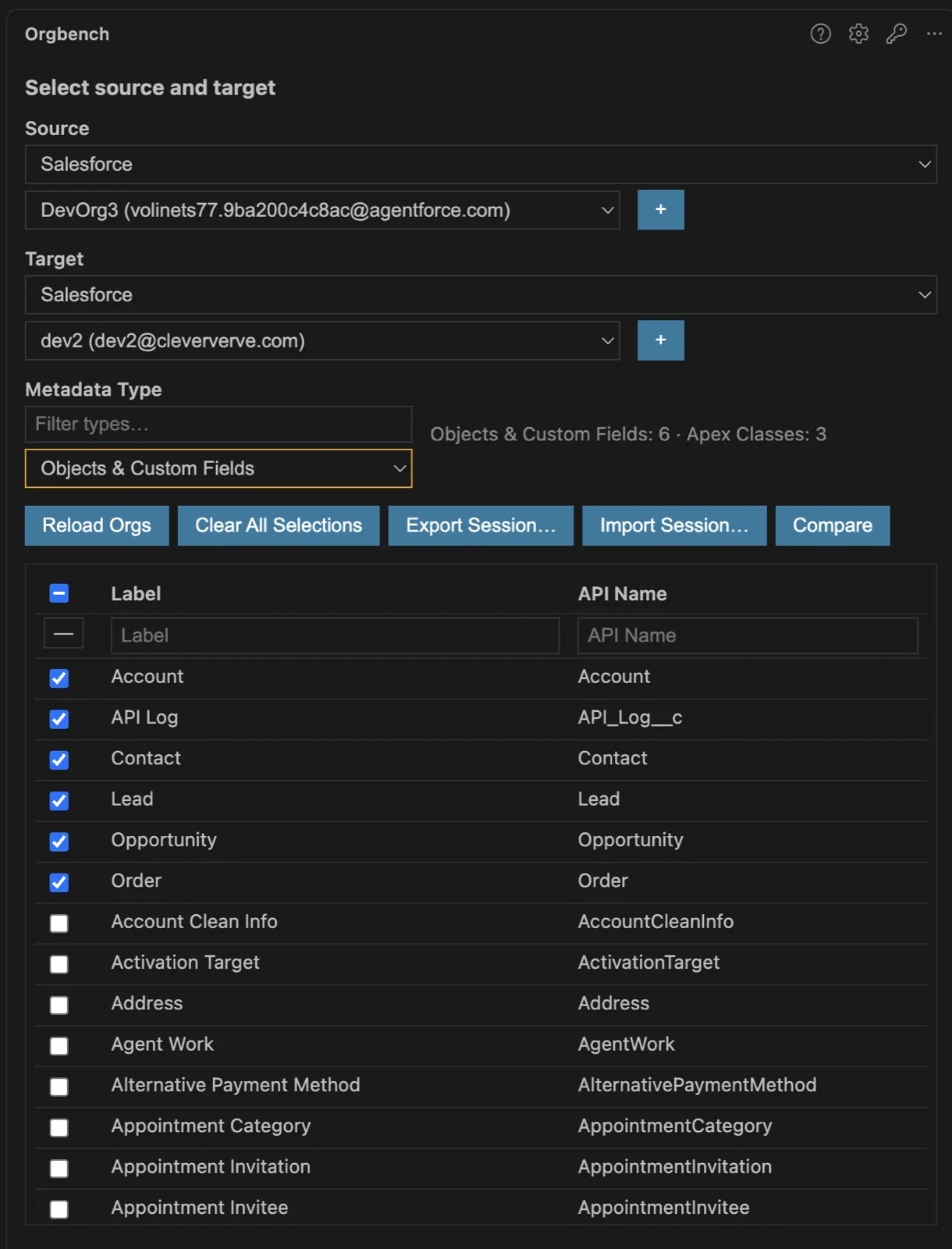
Pick a source and a target — a Salesforce org or a local git repository on
either side — choose the metadata you care about, and Orgbench shows what's
added and what changed, component by component, with a side-by-side diff on any
row. Tick what you want moved. Everything runs on your machine through the
Salesforce CLI you're already authenticated with: no cloud service, no vendor
account, no managed package in your org, and your metadata never leaves your
laptop.
A native core, not a web app. Orgbench is a single native binary (written
in Rust) driving your local Salesforce CLI — no bundled Node runtime, nothing
installed in your org. It runs outside the editor's process, so a large
comparison — hundreds of components across dozens of metadata types — neither
bloats VS Code's memory nor takes it down. It is the same core that powers the
Orgbench plugin for IntelliJ IDEA, so the comparison and deployment rules are
identical in both.
What you can do with it
Find and pick exactly what to deploy. Filter by label or API name across
objects, fields, Apex, LWC/Aura, Visualforce, layouts, flows — up to 195
items in 16 groups; selections across types accumulate into one
session you can export to a file and import back later. One of those groups,
Revenue Cloud, carries fourteen pricing metadata types and record rows plus 33
configuration records, and is switched off out of the box.
Compare product bundles and constraint models as whole documents. Two items
of the Revenue Cloud group are records rather than files: a Product Bundle
is one Product2 of type Bundle, and the plugin synthesizes its document out
of the bundle's catalog — classifications and their parent chain, component
groups, related components, the child products they name, selling model options
and price book entries — with every reference written as a natural identity
rather than a record id. A Constraint Model is one constraint ExpressionSet:
its document carries the definition and version shells, the CML text of every
version, and its tags with their addressees resolved. Which fields travel is the
intersection of both orgs' describes, and the document says so in its own
schema section. Both are compared only between two orgs and both are transferred, in
Best-effort only — never to a recognized production target by default, unless Allow Best Effort against production was on when Compare was pressed, and never to a target whose class the plugin could not determine: a bundle row as records through the REST composite
API; a model row as its definition shell in the same Metadata API package, where
the version the target already runs as active is left out of the package untouched
and every other version travels Inactive, so the package never changes which version is
active — followed by
its tags, CML and activation as REST calls, where nothing in the target is ever deleted and the
row is Succeeded only when the target carries the content the source carries that it could place —
a tag whose addressee the target does not have is left out, counted and named in the row's message
rather than failing it — an activation that
did not happen being stated in the row's message instead. Checking either row
removes the Validate and Deploy buttons and puts Records cannot roll back: Best Effort only. under the row. Checking a bundle also
brings into the comparison every constraint model whose tags address that bundle — its groups,
components and child products included — as a row marked required by <bundle>, and checks it
as added as dependency — every model the plugin can actually deploy that has an active version in
the source; a model without one stays unchecked, and its row says so (required by <bundle>; not auto-checked: no active version in the source) when the bundle is what brought the model into
the comparison — a model you picked yourself on the selection screen stays unchecked without a note
— as does a No change or blocked model, each showing its own reason — and
the walk stops there: one checkbox reaches the bundle and its active models, never another bundle
through a model — a bundle that CONTAINS bundles still checks them (below) — and every check is
removable on its own row. Checking a constraint model checks that row alone: a model transferred
this way leaves out the tags that address records of some other bundle absent from the target and
names them in its message. The warning Product bundle … is tagged by constraint model …, which is not in this comparison. is left only for a model the plugin could not list, and when the
dependency warnings run past fifty the last line says how many were not shown. A child product that
already exists in the target as an ordinary Product2 under the same name — not itself a bundle —
still receives the document's fields as an update, even though the comparison table never showed
that target record.
Move Revenue Cloud pricing configuration with what it depends on. Pick a
Pricing Recipe, a pricing procedure or a Context Definition and the offline
cascades auto-check what it needs — the decision tables a procedure looks up,
the context it reads, the custom fields and objects a context hydrates from,
the global picklists those fields use — each as a checkbox you can remove. A
Context Definition document deployed into an org is trimmed to the target's
schema before the deploy and, in Best-effort, sent again without what the
target rejected; the whole selection still ships as one package. What the
plugin leaves to you — release-gated tags, the platform's cap on pricing
elements per pricing procedure, activating the new procedure version in
Setup — is listed in the change log.
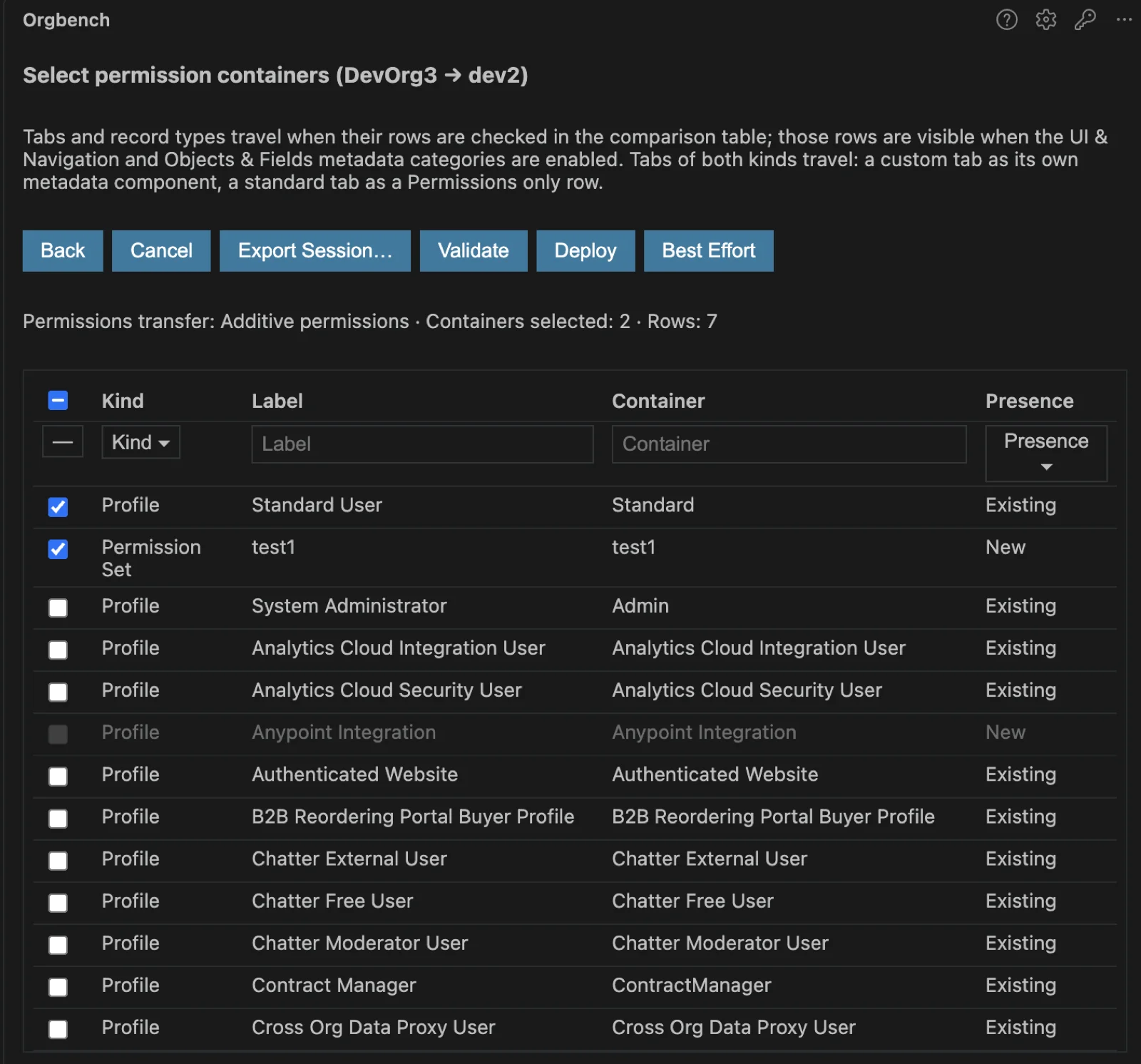
Move the field and its permissions in one go. Field-level security, object
CRUD, Apex class and Visualforce page access, tab visibility and record type
visibility travel with the components you checked — additively (never revokes)
or as a full sync — into exactly the Permission Sets and Profiles you select.
Managed-package and standard components get rows too, as permission subjects —
their permissions travel while their metadata never deploys. The part change
sets and the CLI leave to you.
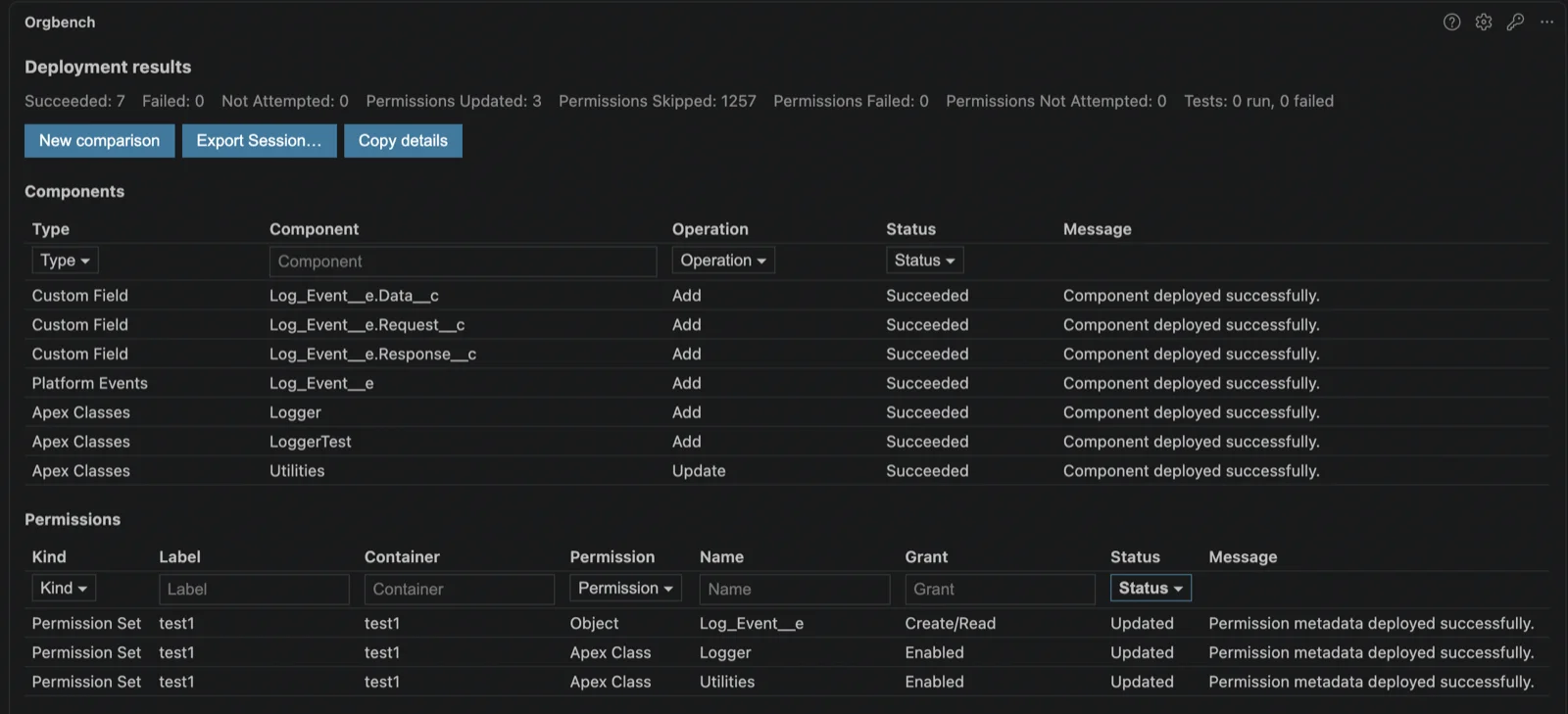
Choose how much risk you want. Validate only dry-runs the whole package
against the target. All or nothing sends it as one deployment that rolls back
completely on any failure. Best-effort sends the same package but keeps every
component Salesforce accepted and reports the ones it rejected — so a big
package lands in one pass, and your next run only deals with what failed.
Quick Deploy promotes an already-validated package without uploading or
re-running tests.
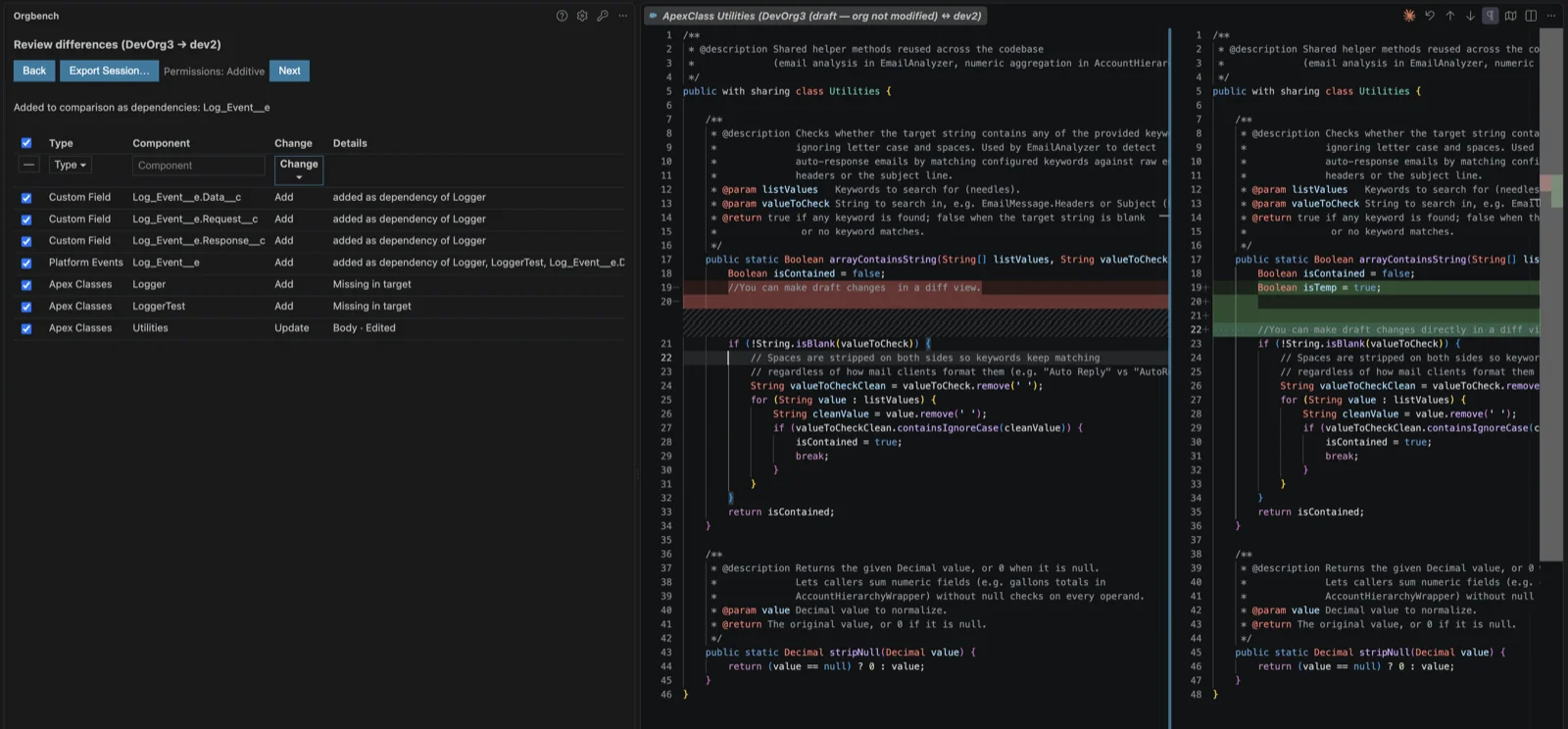
Fix it in the diff, ship the fix. The source side of the diff view is
editable for any component whose row is a single document — Apex, Visualforce
pages, objects, fields, flows, layouts and more — and the deployment sends your
edited version. The source org is never modified, the edit is marked on the row
and can be reverted, and it lives only inside that comparison session. Bundles
and multi-component container files stay read-only.
Deploy one field on a page layout. Switch page layouts to "Select fields
and related lists" and move a single field or related list into the higher org
without touching anything else on that layout.
Use git as either end. Org → org, org → git, git → org, git → git. A git
target ends in one local commit containing only what you selected — Orgbench
never pushes and never switches your branches.
Let dependencies pick themselves. Checking a field pulls in its missing
object; checking a list view pulls in the fields it references — visibly, as
rows you can uncheck.
What it never does
- Never deletes metadata in a target org — a component that exists only in
the target produces no row and is untouched. The one exception is a Revenue
Cloud record: the Target health check screen deletes a leaf record only
when the user marked its finding with Fix, and the deploy that follows
creates it again.
- Never deploys managed-package or standard-object metadata — such rows
exist to carry permissions, and a managed or standard field deploys at most
its two history-tracking toggles, spliced into the target's own document,
never the source definition.
- Never creates an object you didn't tick: auto-selected dependencies are
visible rows you can uncheck before deploying.
- Never touches your tokens — authentication stays in the Salesforce CLI,
and diagnostics are sanitized before you see them.
- Partial deployment happens only in the mode built for it: Best-effort
keeps what succeeds because you chose that trade-off — and by default it is not offered
against a recognized production org, unless Allow Best Effort against production was on
when Compare was pressed — while All or nothing rolls back the whole package
on any failure. A package carrying Apex or Flows always passes through the
test-selection screen before it goes to any org.
Requirements
- macOS arm64, macOS x64, Windows x64 or Linux x64 (the bundled core is
fail-closed on other platforms). The Windows x64 build is for Windows on
x64; it has not been verified on Windows on ARM, and VS Code itself may
reject installing an x64-targeted VSIX (
targetPlatform: win32-x64) there.
The Linux x64 build is statically linked against musl, so it needs no
particular system libc version; Linux on ARM has no build and the launcher
refuses it rather than running the x64 binary.
- VS Code 1.85 or newer.
- Salesforce CLI (
sf) installed and on PATH. On Windows the core also looks
for sf.exe, sf.cmd, sf.bat and sf in %LOCALAPPDATA%\sf\client\bin.
- Two authenticated aliases that resolve to different Salesforce org IDs. The
terminal is not the only way to create them: the + button next to the
Source or Target dropdown runs the CLI's own
sf org login web for
you (see the workflow below).
Install from disk
- Obtain the VSIX for your platform:
orgbench-darwin-arm64.vsix (Apple
silicon), orgbench-darwin-x64.vsix (Intel), orgbench-win32-x64.vsix
(Windows x64) or orgbench-linux-x64.vsix (Linux x64), or build it
(below).
- In VS Code, open the Extensions view, choose Install from VSIX… from the
… menu, and select the file.
- Open the Orgbench view from the Activity Bar.
Workflow
- Choose the Source and the Target. Two orgs must resolve to different
org IDs; either side can be a local git repository instead — see below.
The + button next to either dropdown creates a new alias without leaving
the editor: enter the alias name, choose Production, Sandbox or a My Domain
URL, and sign in in the browser the Salesforce CLI opens. The new alias is
selected on the side you asked from. The extension never sees your
credentials, never sets a default org and never overwrites an existing alias
— a name already in use is refused before the browser opens. While the login
runs, the selection screen stays where it is with its controls disabled and
offers Cancel; cancelling leaves your selection untouched.
- Pick a Metadata Type and tick the components you want. Selections
accumulate across types into one session manifest: switching the type does
not discard what you ticked before. Export Session… writes the session's
current selections to a scenario file, Import Session… reads one back —
see Session export and import below. Reload Orgs re-reads the alias
list and then the component list of the type on screen. The source and
target orgs you picked last are selected again the next time the selection
screen opens — only their aliases are remembered, on this machine, in the
same private data directory as the license key; a repository endpoint is
not remembered, and an alias the CLI no longer lists is left unselected.
- Choose Compare.
- Review the differences and tick the rows to deploy. Double-click a row to
open both versions of that component side by side. An Apex class, an Apex
trigger and a Visualforce page are two documents each — the body and its
*-meta.xml sidecar — so such a row opens the sidecar in its own read-only
window when the row has attribute differences (an API version, a status or a
label change), and the body window whenever the sidecar window does not open
or the body differs too. A row whose only difference is a sidecar attribute
therefore opens the sidecar alone: there is no body window for it, because
the two bodies are identical. The left pane of the diff is editable while
orgbench.allowSourceEditing is on and the core marked that row editable —
a metadata XML document, or the body of an Apex class, an Apex trigger or a
Visualforce page; a sidecar, a bundle, a rule or label sharing one file, a
single layout element and any row with nothing to deploy stay read-only. So
the deployment can send your own increment instead of the whole
current document of the source org: type in it, and about a second and a half
after you stop the draft is sent to the core and the row picks up its
Edited mark. The draft is saved as you type, so the tab never shows
unsaved changes and never asks whether to keep them; closing the tab sends
whatever is left, and pressing a deploy button sends everything still unsent
before the deployment starts. Orgbench: Revert
Edit in the command palette drops the edit and puts the original text back;
it acts on the pane your caret was last in, so click into the left pane
first. Retyping the original text usually drops the edit too, but only the
command is guaranteed to: a body whose line endings are mixed, or one that
starts with a byte-order mark, is not loaded byte for byte. The draft is held
in memory and never written to disk, and it goes away with the comparison.
Revert only works from the comparison screen itself; run it from the test
selection or permission screen and it answers "Revert is available on the
comparison screen." instead of reverting anything.
Pick a permission transfer mode in Settings — search for Orgbench › Fls
Mode (the setting is orgbench.flsMode; its label is unchanged from
before wave A, but its three values now read Do not transfer
permissions, Additive permissions and All permissions) — then
start the deployment: against an org the row of final buttons is Validate
(--dry-run, nothing is written), Deploy (all or nothing — one atomic
package, any failure rolls everything back) and Best Effort (the same
single package sent with --ignore-errors, so Salesforce keeps every
component it accepted and only the ones it named are Failed); Best
Effort is not offered at all against a target the core has recognized as
production. Every mode sends the whole selection as one Metadata API
deployment — there are no waves or batches, and no ordering between
metadata types. Against a git repository there is a single Deploy.
- If the package contains Apex classes, Apex triggers or flows and the target
is an org, an Apex test screen comes first; an empty selection means no
--test-level is passed, and a production org still runs its own local
tests and enforces 75% coverage.
- With a transfer mode other than Do not transfer permissions, the
containers that will receive the permissions are listed for confirmation
before the deployment runs — provided at least one checked row carries a
permission subject (a field, an object, an Apex class, a Visualforce page,
a tab or a record type); otherwise that screen is skipped, the previous
screen shows the deploy mode buttons directly, and the deployment
produces no permission result rows. The list distinguishes Existing containers,
matched by kind and API name in both orgs, from New Permission Sets
that exist only in the source and are eligible for creation, and can be
filtered by the Presence column. Each row carries two names: the Setup
Label and the metadata full name in the Container column. They
differ for many standard profiles —
Standard User is Standard,
System Administrator is Admin — and only the full name is used to
match, retrieve, package and merge. The label shown is the target org's
for a matched container and the source org's for a newly creatable
Permission Set, so it always names the org where you would go check the
result in Setup. The permission result table shows the
same pair. Which permissions travel is decided by
the rows you checked: a custom field row carries its field-level security,
a custom object or platform event row carries the seven object
permissions — create, read, edit, delete, View All Records, View All
Fields and Modify All Records — an Apex class row and a Visualforce page
row carry access to that component, a custom tab row carries that tab's
visibility, and a record type row carries whether that record type is
visible. A managed-package or standard component gets a row too, so its
permissions can be selected even though its own metadata never deploys: the
Details column reads Permissions only for a managed Apex class,
Visualforce page, tab or record type, a managed or standard object, or a
standard tab — the row has no document, so double-clicking it opens no
window — and Tracking only for a managed or standard field, where the
only metadata that travels is the Track History and Track Feed
History toggles, merged into a fresh copy of the target's own field
document. Two boundaries: the default record type of the target is never
changed by a transfer, and tabs of both kinds are transferred — a custom
tab travels as its own metadata component, while a standard tab such as
standard-Account travels as a Permissions only row whose name is the
permission entry itself. Both kinds of row are visible
only when the UI & Navigation and Objects & Fields metadata
categories are enabled. A selected source-only Permission Set may be
created in the target, populated with only the selected rows' permissions
plus the source document's own description and license — and never a user
permission, an application visibility or a Profile. A New Permission Set
whose license the target org does not have is listed with its checkbox
disabled and the reason on the row, because such a container would be
rejected whole.
- Read the result tables. Copy details copies only the sanitized
diagnostics — never a token. Quick Deploy appears after a successful
Validate run that actually ran Apex tests, and deploys the very package
Salesforce already validated without re-running them; a validation that ran
no tests says so instead, because Salesforce refuses to quick-deploy it.
New comparison starts over.
Comparison or deployment can be cancelled from the progress view, and so can a
browser login.
Session export and import
Export Session… writes what the current session has selected so far to a
JSON scenario file (default name session.json). The button is on five views —
object selection, differences, Apex tests, permission containers and results —
and each writes what is known by then. The whole file is still serialized and
written by the extension's core, but the core does not already hold what goes
into it: the webview sends the live marks of the screen the button was
pressed on, and the host only picks the path.
The file holds no snapshot of the comparison — no difference rows, no statuses,
no attribute values — because such a snapshot goes stale the moment either end
changes. It holds no secrets either: metadata names, org aliases, branch names
and modes only, and a git end is written as the repository directory's last
segment plus the branch, never as an absolute path.
An absent field and an empty one mean different things: no apexTests key means
the test view was never reached, "apexTests": [] means it was reached and no
test was checked. deployMode travels with deployModeIsFinal, which is true
only on the results view. The file carries its own version, independent of the
protocol version.
Import Session… is a button on the object selection view that reads a
scenario file back in — a version-1 or version-2 file, either one written by
Export Session or handed to you by someone else. It restores both endpoints
and the session manifest, the checked comparison rows and the permission
transfer mode, the checked Apex test classes, and the checked permission
containers, each applied once the matching view is built. Every mark is
applied exactly once per set, so a checkbox you clear afterward does not come
back just because the view is rebuilt for another reason. Import does not
navigate anywhere: you still walk the wizard yourself, and each view shows its
marks already checked when you reach it. A name the file carries but the
extension no longer accepts — renamed, deleted, or changed type since the
file was written — does not fail the import; it is listed instead, on the
view where it turned out to be unaccepted. A git endpoint is never restored,
because the file, like every other output of the extension, carries only the
repository directory's last path segment and the branch name, never the
absolute path — you choose a git endpoint by hand after importing. The deploy
mode recorded in the file is only shown as a text hint next to the deploy
summary; it is never pressed on your behalf.
Git source and target
Each side is chosen independently, so org-to-org, org-to-git, git-to-org and
git-to-git all work. A repository side is an absolute path plus a branch:
Browse… picks the folder, and the extension reads the SFDX layout declared
by its sfdx-project.json. A deployment into a repository ends in exactly one
local commit and never pushes; the extension never checks out a branch in your
repository — another branch is written through a temporary worktree that is
removed afterwards. The + button next to the branch dropdown names a new
branch, which is created by that commit alone.
Filtering
Every webview table (components, differences, Apex tests, permission
containers, and both result tables) shares one per-column filter row directly
under its header:
- Text columns get a free-text box that matches a substring anywhere in the
value, case-insensitively; a leading and/or trailing
* is optional and
ignored.
- Enum columns — Change, Kind, Presence, Operation, Status — get a
multi-select popup listing every value with checkboxes. Two carry a smart
default: the differences Change popup hides
No change rows, and the
permission-results Status popup hides Skipped.
- The selection column gets a tri-state toggle.
Column filters combine with AND. Filtering only hides rows: a row that is
checked and then hidden by a filter keeps its selection, and the selection
column's header checkbox selects or clears only the currently visible,
filtered rows (hidden selections are left untouched). Filters reset to their
defaults when you leave the screen (a new comparison, or stepping between the
review and permission-container screens).
Selections (chosen components, deployable rows, and permission containers), together
with each table's column filters and sort, are preserved when the view is
hidden and shown again, so switching away from the panel never re-checks a
container you deselected before deploying or drops the filters you set. Filters
and sort persist while you stay on a screen and reset only when you leave it.
Sorting
Click any column header except the selection column to sort the table by that
column. Each click cycles the sort: ascending (▲), then descending (▼), then
off (original order). One column sorts at a time. Enum columns sort by their
displayed label; boolean columns (Read/Edit) sort unchecked-before-checked.
Sorting only reorders rows — it never changes which rows a filter has hidden —
and, like the column filters, persists while you stay on a screen, resetting to
the original order when you leave it.
Settings
orgbench.layoutMode — how Page Layouts are compared. whole is the
default: one row per layout, compared over the whole document, and a
deployment replaces the target layout with the source version, so an element
that exists only in the target is gone afterwards. elements compares a
layout element by element — one row is a field or a related list — and merges
only the selected elements into the target layout. The mode applies to the
next Compare; rows already on screen keep the form they were built with.orgbench.retryUnexpectedErrorsAlone — Retry rows alone after a Salesforce
unexpected error (Best Effort), off by default. When on, Best Effort against
an org sends a row the target still fails with only its generic "An unexpected
error occurred" text after a whole-set retry of several rows once more on its
own — one extra deployment call per such row. When off, no such call is made
and the row's message names this setting. Applies to the next Compare.orgbench.allowSourceEditing — allow editing metadata in the diff view. On
by default: the left pane is then editable for a row whose document belongs
entirely to it — a metadata XML document, or the body of an Apex class, an
Apex trigger or a Visualforce page — and the deployment sends the edited
document. The *-meta.xml sidecar of those three, a Lightning or Aura
bundle, a rule or label that shares a file with its siblings, a single layout
element and the target pane stay read-only either way. The key keeps its
historical name so a cleared box survives the upgrade. Clearing it does not
erase edits that already exist — it gates the FIRST edit of a row, not access
to one that already exists, so a row already carrying an edit reopens
editable. The value is read when a window is opened, so a window already on
screen keeps the form it was opened with.orgbench.flsMode — permission transfer mode used by every deployment:
NONE (do not transfer permissions), ADDITIVE (the default) or ALL. The key keeps its
historical name so existing configurations keep working.orgbench.metadataCategories — which categories of metadata types the
Metadata Type dropdown offers. Core alone is the default.orgbench.logLevel — session log detail: off, standard or detailed.
No token ever reaches the file, and no response body either, except the
sanitized diagnostic of a failed call — the same text the UI shows.
The live progress line (phase, step counter, elapsed time) is always shown while
an operation runs; there is no setting for it.
Licensing
Orgbench is free during early access. A paid tier for advanced features is
planned; nothing is gated today, and every feature described above is available
to everyone.
The license path is fully offline: validation is a local signature check inside
the bundled sf-core-server — there is no license server, no phone-home and no
network call of any kind, not even a revocation check. Any licensing failure
degrades to the free tier and keeps working, and safety is never gated: every
boundary the repository's root README.md lists applies in every tier.
Enter or remove a key with the Orgbench: Manage License command — the key
icon in the view title opens it — and the picker's own title shows what the core
decided, including the reason a key was not accepted. The key and the first-run
timestamp live in a single file the core owns, inside your user data directory
(~/Library/Application Support/orgbench/ on macOS, %APPDATA%\orgbench\ on
Windows), so a key entered in either editor applies in both once that editor's
core has restarted and read the file.
There is no telemetry: nothing about you or your orgs is collected or
transmitted. The extension is distributed under the
End User License Agreement; see also the
Privacy Policy and the
third-party notices.
Troubleshooting
The support site https://orgbench.io/ answers questions about the extension and files a ticket; the question-mark icon in the view title opens it, and the link opens only when you choose it.
The Salesforce core process did not start
The extension launches a bundled sf-core-server binary from its bin/
directory. If the view reports that the core process could not start or
terminated, confirm the platform is supported (macOS arm64, macOS x64, Windows
x64 or Linux x64) and that the VSIX was installed without modification. On
Windows the bundled binary is unsigned, so SmartScreen or the antivirus may
quarantine it on first launch. The core process log is written to the Orgbench
Core output channel.
No aliases are listed
Use the + button next to the Source or Target dropdown to log in to an
org and create an alias without leaving the editor, or run sf org list --json in
a terminal, authenticate aliases there and use the Reload Orgs button. Entries
without an alias are intentionally not shown.
While a browser login is running, the selection screen stays where it is with its
controls disabled, shows the live progress line and offers Cancel; cancelling
stops the CLI and leaves the browser tab open for you to close. A login that is not
finished within ten minutes is reported as such. In a headless or container
environment the Salesforce CLI refuses a browser login outright, and the extension
reports that instead — authenticate in a terminal there.
Source and target are rejected as the same org
Choose aliases that resolve to different org IDs; two alias names can point to
one org.
Salesforce is a trademark of Salesforce, Inc. Orgbench is an independent
product and is not affiliated with, endorsed by, or sponsored by Salesforce.

