Oracle SQL Developer for VSCodeUnified development of Oracle SQL, PL/SQL, and APEX Installation Launch VS Code Quick Open ( Ctrl+P), paste the following command, and press enter.Copied to clipboard |


Oracle SQL Developer for VS CodeAbout Oracle SQL Developer for VS CodeThe de facto standard for Oracle Database development and administration tools is now fully integrated into Visual Studio Code. Oracle SQL Developer for VS Code brings familiar SQL Developer workflows to experienced Oracle Database users who want to stay inside VS Code. Execute SQL queries and scripts, build and debug PL/SQL, manage schema objects, inspect performance, administer users and roles, and work with Oracle APEX application source from one workspace. The extension also integrates with Oracle SQLcl, Oracle's command-line interface and MCP Server for Oracle Database. Use SQLcl from an integrated terminal, run SQL and PL/SQL from your editor, and make SQL Developer database connections available to GitHub Copilot and other MCP-compatible VS Code extensions.
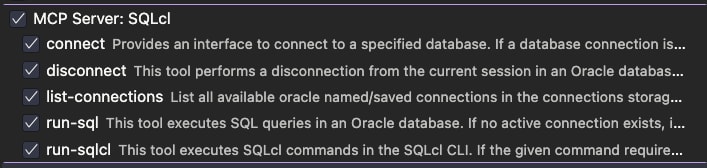
Product updates are delivered quarterly, adding capabilities from SQL Developer Classic along with new features that take advantage of the VS Code platform. Getting StartedInstall SQL Developer for VS Code by clicking the Complete Feature ListOracle SQLcl MCP Server IntegrationWhen installed, the extension registers the Oracle SQLcl MCP Server for GitHub Copilot, making your SQL Developer database connections available for agentic chat requests, including running SQL and PL/SQL against your database. Optionally, you can invoke the
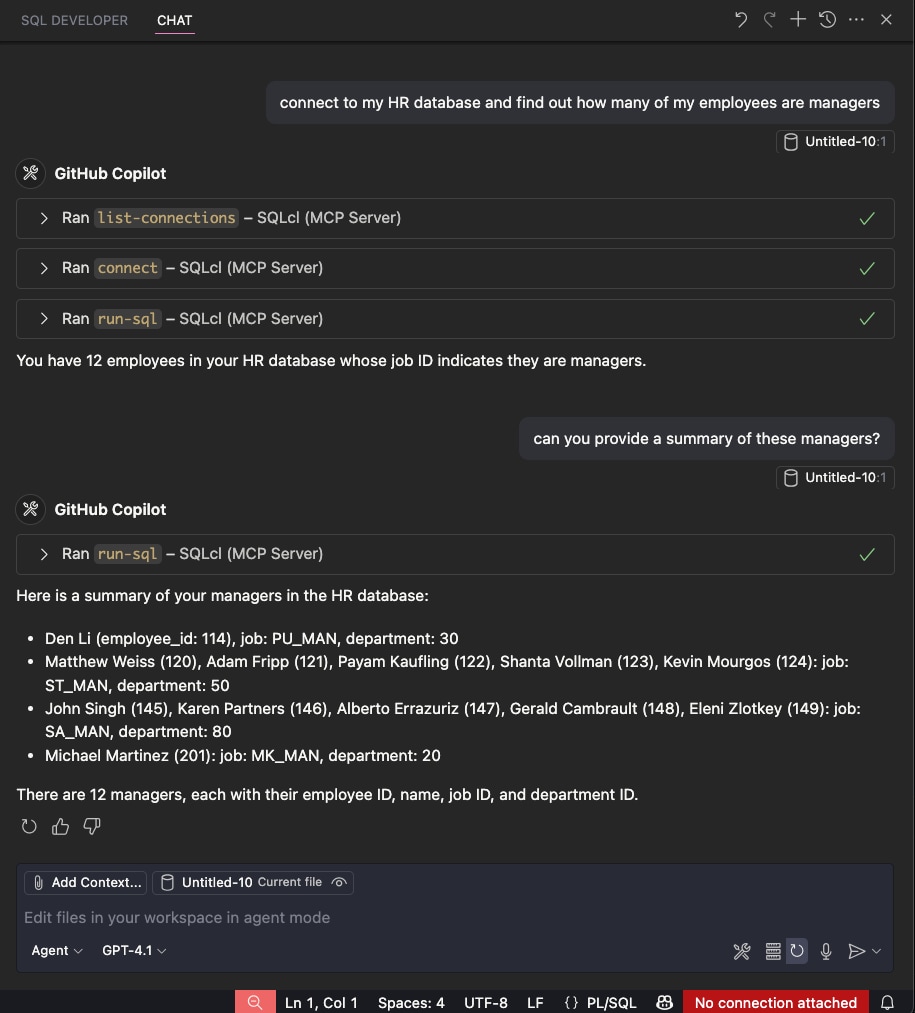
In this Copilot session, a request for a list of managers from the HR database can use a database connection named Note regarding Oracle Database access via MCP and AI chat assistants
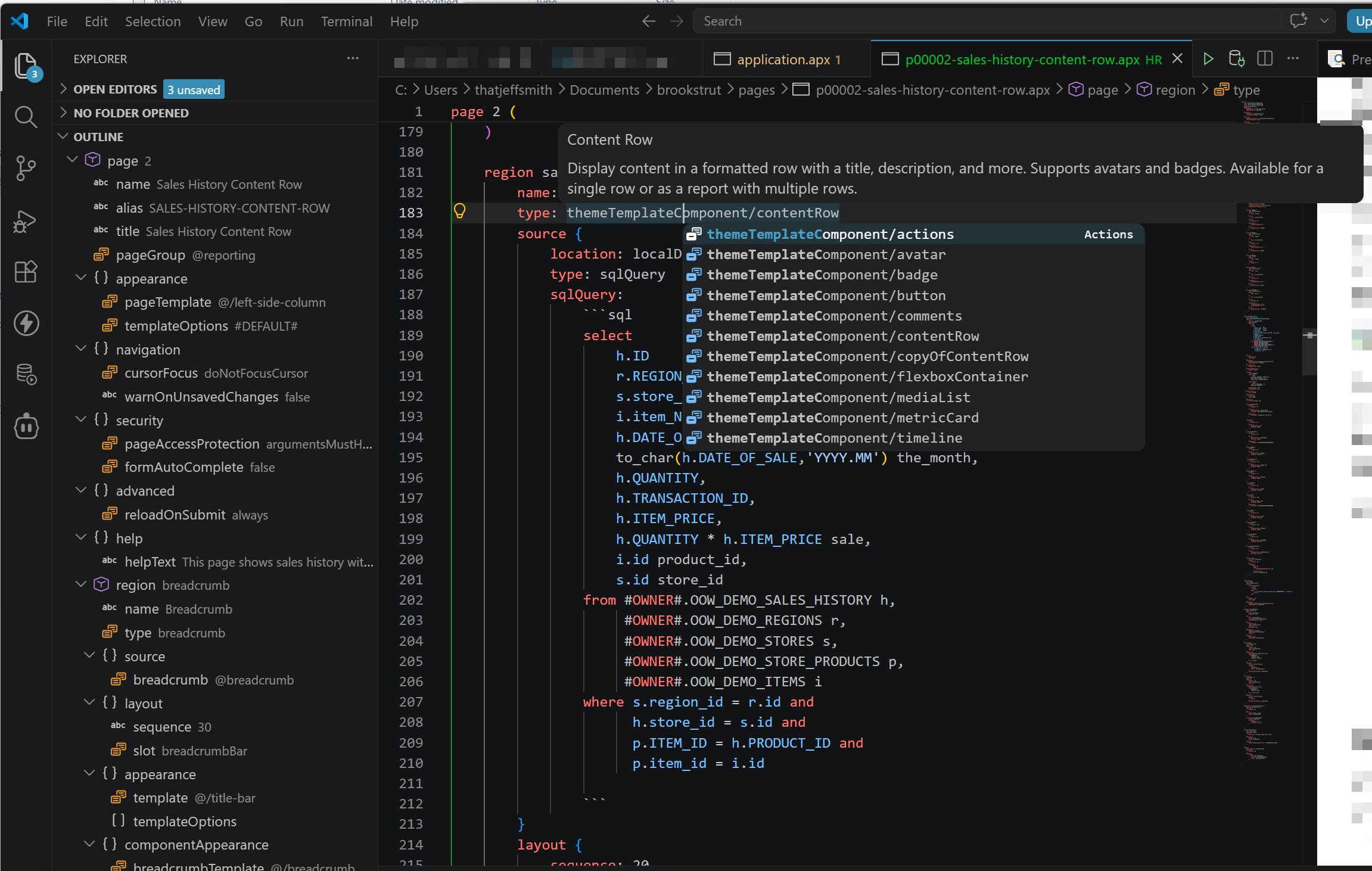
Oracle APEXLang IDE SupportAPEXLang is a complete application specification language for Oracle APEX, with a documented grammar and compiler. APEXLang files are plain-text, human-readable, source-control friendly, and designed for diffing, merging, reviewing, and automation. SQL Developer for VS Code includes native APEXLang support, providing a rich editing experience powered by the Language Server Protocol (LSP). Features include syntax highlighting, code completion, validation, diagnostics, formatting, and intelligent editing assistance. Export APEX applications from the database, manage them as source code, and import them back to create or update applications. The extension simplifies AI-assisted development through its built-in SQLcl MCP Server. This enables AI agents to generate and work with APEXLang while securely connecting to your Oracle AI Database. Rather than producing arbitrary code, AI assistants generate structured application specifications that are validated and compiled through the same APEX compiler, governance, and security model used by developers. By leveraging the integrated SQLcl MCP Server, AI-driven workflows operate with the same database identity, security policies, and audit controls as traditional development workflows, enabling secure and governed application development with Oracle APEX.
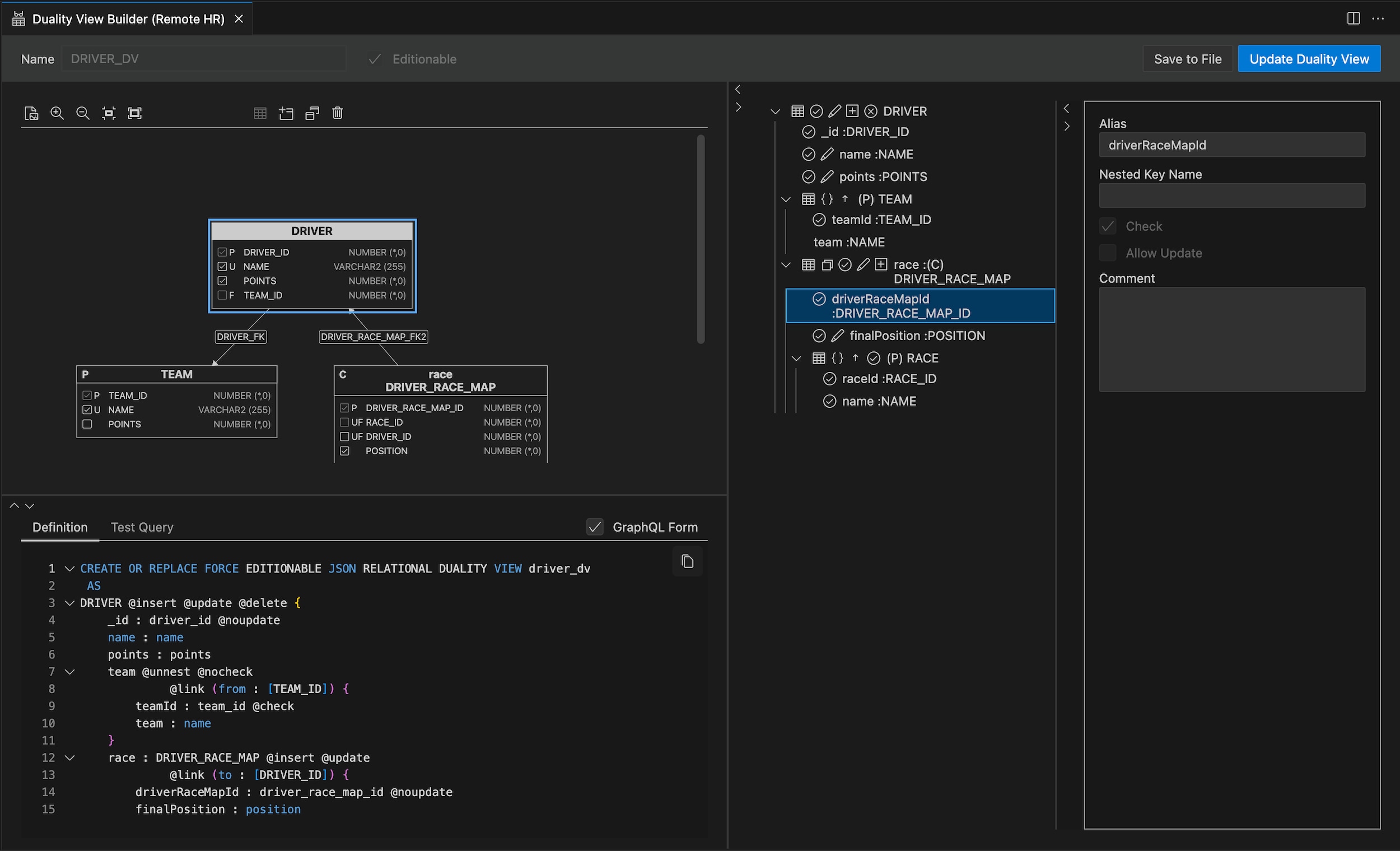
JSON Duality Views SupportWith the JSON duality view builder, you can create, edit, and test JSON duality views. Duality views are treated as database objects and are available as a separate node in the Connections panel.
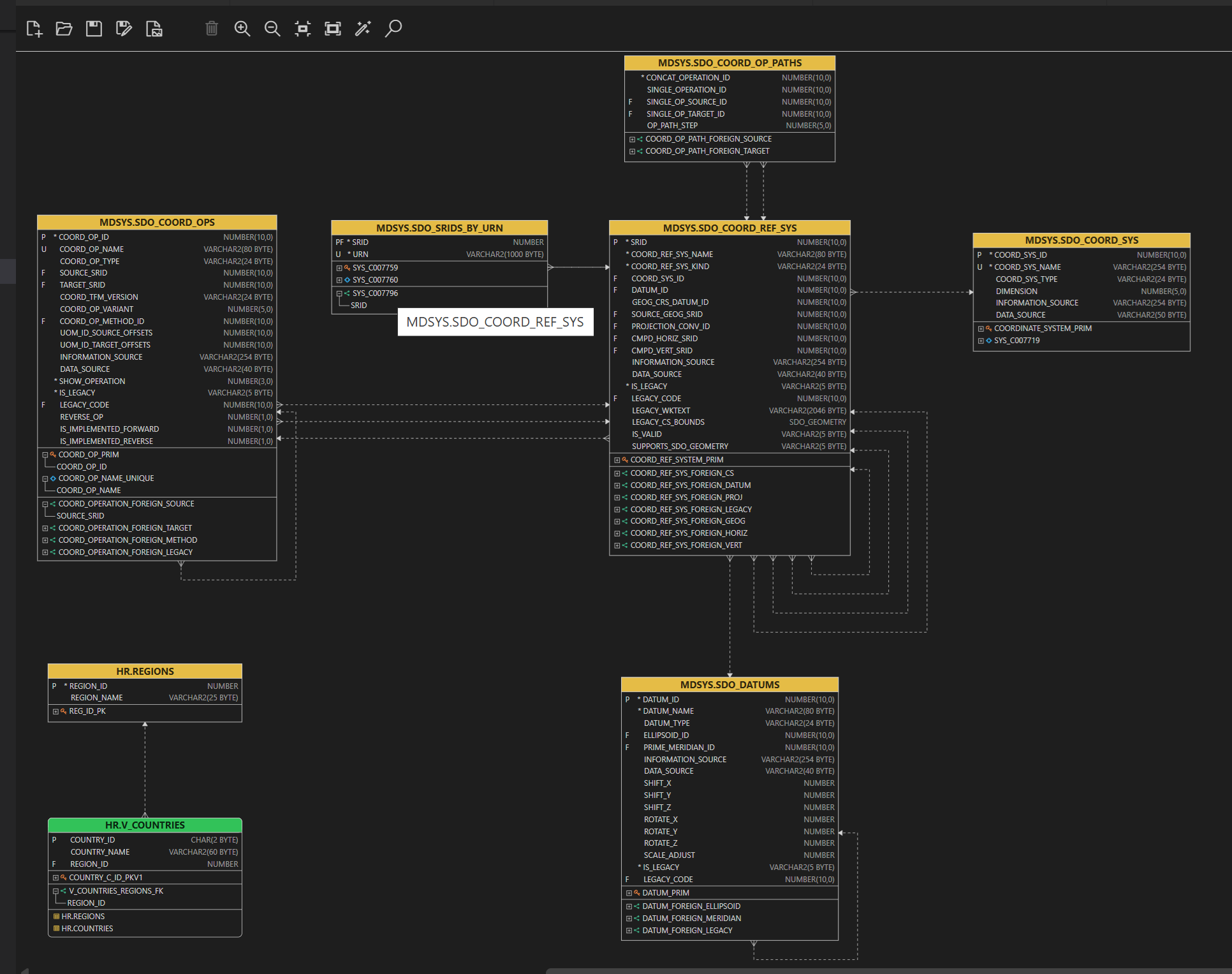
DiagrammingRight-click a connection and select Open Diagram to create an empty diagram. Select tables and views, then drag and drop them onto the diagram.
Drag a connection folder to a diagram to add all tables, views, and duality views from the connection schema. To add all tables and views to a diagram, select the table or view folders from the connected schema, or from schemas under the Other Users node. Arrange objects on the diagram using Auto Layout, then fine-tune the layout manually. Save diagrams to the file system and reopen them later with the same connection, or with another connection that has access to the same objects.
ConnectivityEverything required to connect to your database is included in the extension. If you have a Create connections by entering EZConnect or Basic connection properties, referencing a TNS entry, using an Oracle Cloud Autonomous Database wallet ZIP file, or importing existing connections from the Oracle Cloud Infrastructure (OCI) Database Tools service. You can also import existing connections you have previously defined in your Oracle Cloud Infrastructure (OCI) tenancy via the Database Tools service.
Features include:
Once connected, right-click to open a Worksheet. For any code editor, use the connection selector in the bottom-right corner to switch to a different database. If a connection is interrupted, you will be prompted to reconnect automatically. We take security seriously. Saved connection passwords are stored securely in private Java wallets. Connections defined in SQL Developer for VS Code are also available to independent installs of Oracle SQLcl on your machine. DBA PanelMark a connection as DBA to enable DBA-focused nodes and workflows in the Connections tree. The DBA Panel now includes
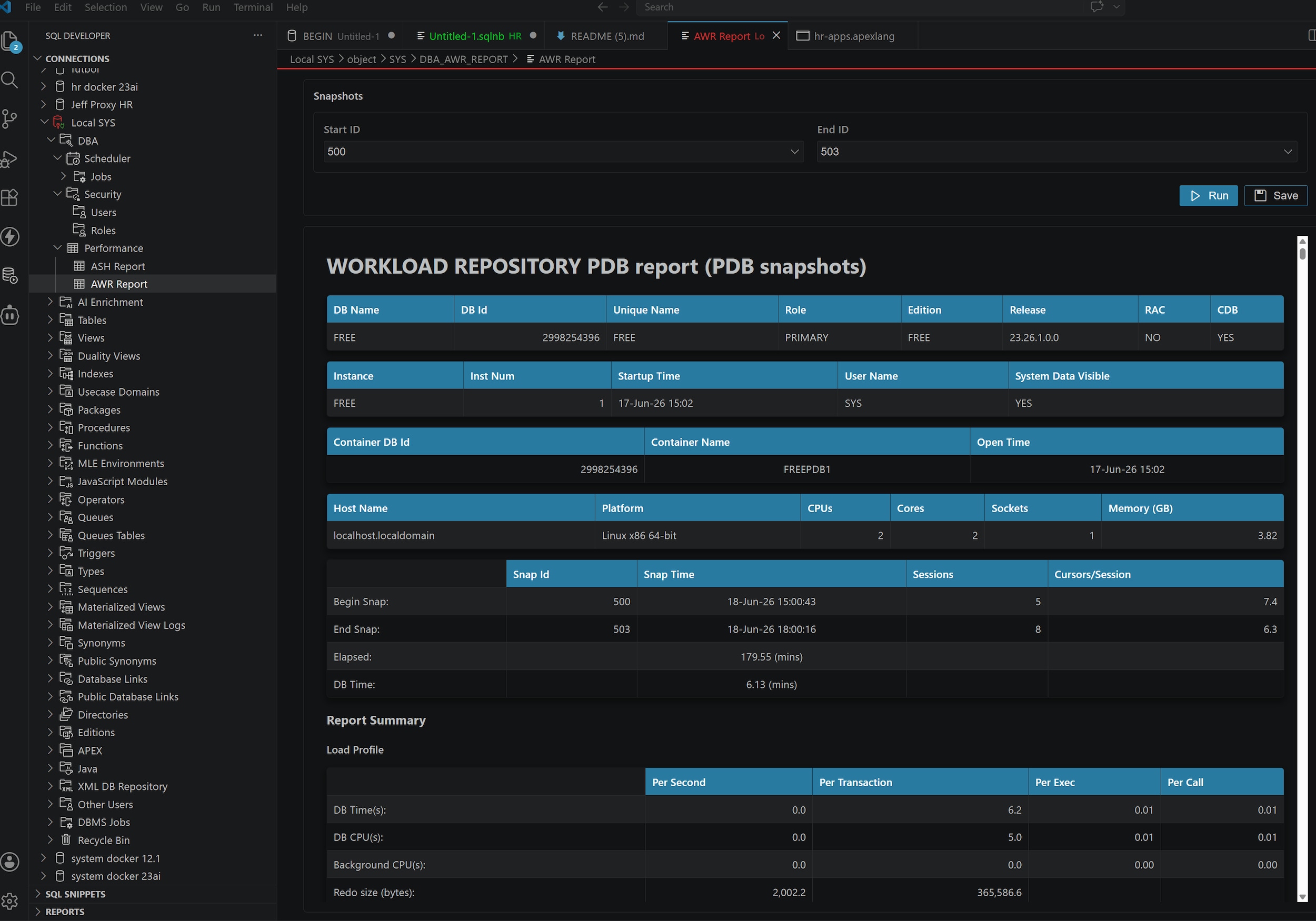
PerformanceCreate database performance reports directly from SQL Developer for VS Code, including Active Session History (ASH) and Automatic Workload Repository (AWR) reports.
SecurityManage users and roles from SQL Developer for VS Code, with workflows designed for experienced Oracle Database administrators and developers who need to understand exactly what will change.
Schema NavigationYour connection can be expanded to display a tree representation of your schema and the other schemas in your database. To open an object, click it. You can also drag and drop items into a code editor to generate SQL or DML code. An alternative navigation aid is available through VS Code breadcrumbs. SQL Developer presents the contents of your database as a virtual file system. Use the drop-down controls to change the schema, object type, or object you want to browse.
SQL WorksheetThe worksheet is where most Oracle Database professionals spend their time. Run ad hoc queries, execute complex SQL scripts, inspect plans, use SQL history, format code, and rely on completion and snippets to stay productive.
Existing SQL Developer users will find familiar keyboard shortcuts intact, including
Data GridsBrowsing table data and query results is straightforward with spreadsheet-style displays. Use Single Record View to browse one record at a time in a vertical, index-card-style viewer.
Drag and drop columns to arrange the display, or double-click column headers to apply ascending, descending, or no sort. When results are ready to share, right-click to export them to the desired format.
SQL NotebooksStreamline database development, investigation, and reporting with interactive SQL Notebooks.
PL/SQL Code EditorWhether you are working directly with PL/SQL programs in your database or from files in your local workspace, SQL Developer makes it easy to develop stored procedures, functions, packages, triggers, and more. As you code, problems are detected through the PL/SQL and SQL parser. Compiler errors are displayed automatically when you save your work to the database. When it is time to test or execute your program, SQL Developer provides an interactive panel where you can enter the required parameters. The generated PL/SQL anonymous block can be executed immediately or saved to a new code editor for further customization.
OUT and RETURN parameters are automatically captured and displayed after execution, including
PL/SQL DebuggerThe PL/SQL debugger makes it easy to debug stored procedures, packages, and more using VS Code's native debugger.
Post-Execution Debugging of MLE JavaScript ModulesThe MLE post-execution debugging feature in Oracle Database enables developers to debug JavaScript code deployed as MLE modules. It captures module execution state at predefined breakpoints, allowing you to analyze the code after it has run to completion. To start a debug session, set breakpoints in the module's code and define a PL/SQL snippet within the debug runner file. When you open a new debug runner file, a sample After execution, you can review collected data, including variable values and call stacks, to identify and resolve issues using standard debugging controls such as step into, step over, and continue. All breakpoints must be added before the debug session starts; no breakpoints can be added while the session is running. Only one debug session can be active at a time.
Code SnippetsYour favorite analytic functions, date format options, conversion functions, and examples are available through VS Code's integrated code completion support for extension snippets.
Integrated Command Line Interface via Oracle SQLclMany database professionals are most comfortable at a command prompt. With the SQL Developer for VS Code, you do not have to choose between a rich editor and a command-line workflow. Connections defined in the extension can also be used to start command-line sessions to your database. Oracle SQLcl is a modern command-line interface and MCP Server for Oracle Database. Popular SQL Developer features such as code completion, SQL History, and DDL generation are available in SQLcl. Oracle's enhanced implementation of Liquibase for schema versioning is delivered in SQLcl through the Start a CLI session on demand, or execute the contents of any code editor immediately in a new, independent session.
Useful Commands
Quick Start ExamplesStart WorkingStart working with your database by expanding a connection in the Connections panel.
WorksheetTo write and execute SQL against your database, click the Worksheet icon.
Auto-CompleteAuto-complete can accelerate database development.
SQL SnippetsSQL snippets help you keep moving without leaving the editor.
SQL HistoryTo revisit earlier work, use the SQL History tab in the bottom panel.
Working With Database ObjectsWorking with database objects is a click away. Inspect objects, gather important details, and generate SQL without leaving VS Code.
JSON Data and JSON Duality ViewsIf you work with JSON documents, JSON duality views make it easier to create, manage, view, and query JSON data within your relational database.
Supported LocalesThe extension is available in multiple languages: de, en, es, fr, it, ja, ko, pt-BR, zh-CN, zh-TW. Bookmarks
SupportSupport documentation for Oracle SQL Developer for VS Code can be found here. Customers with My Oracle Support established for their Oracle Database can create Service Requests for official product support, including filing bugs or submitting enhancement requests. Data and TelemetryTo continuously improve our products, Oracle is interested in learning about product usage. Automated reports can occasionally be sent to Oracle describing the product features in use. No personally identifiable information will be sent, and the report will not affect performance. You can review Oracle's privacy policy. LicenseOracle SQL Developer for VS Code is distributed free, under the Free Use Terms and Conditions (FUTC) License. |
 Set your profile, region, and compartment, then search for your connection.
 Add a connection color and/or toggle on the DBA features.
 Add a connection color and/or toggle on the DBA features.
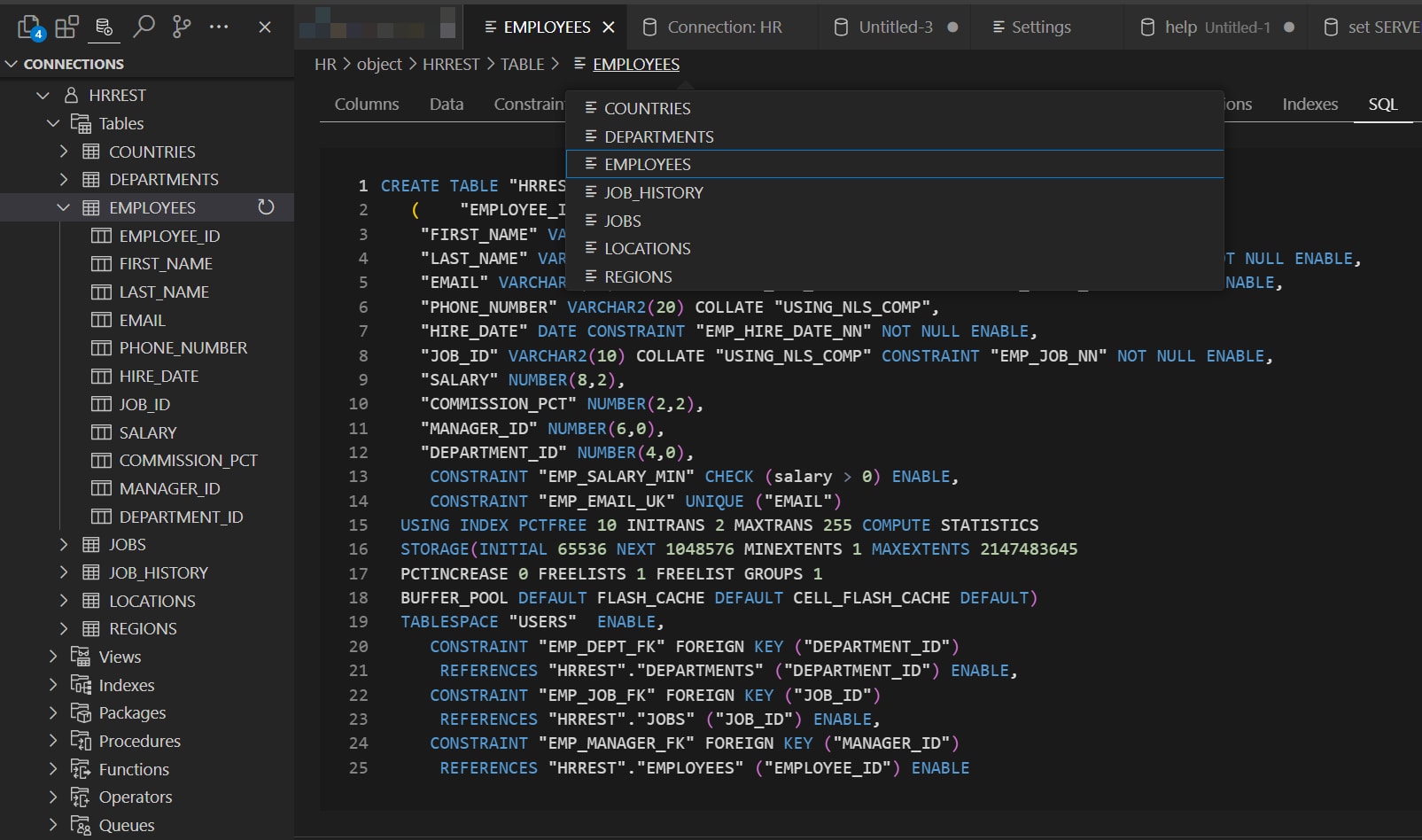 Easily navigate your schema with breadcrumbs.
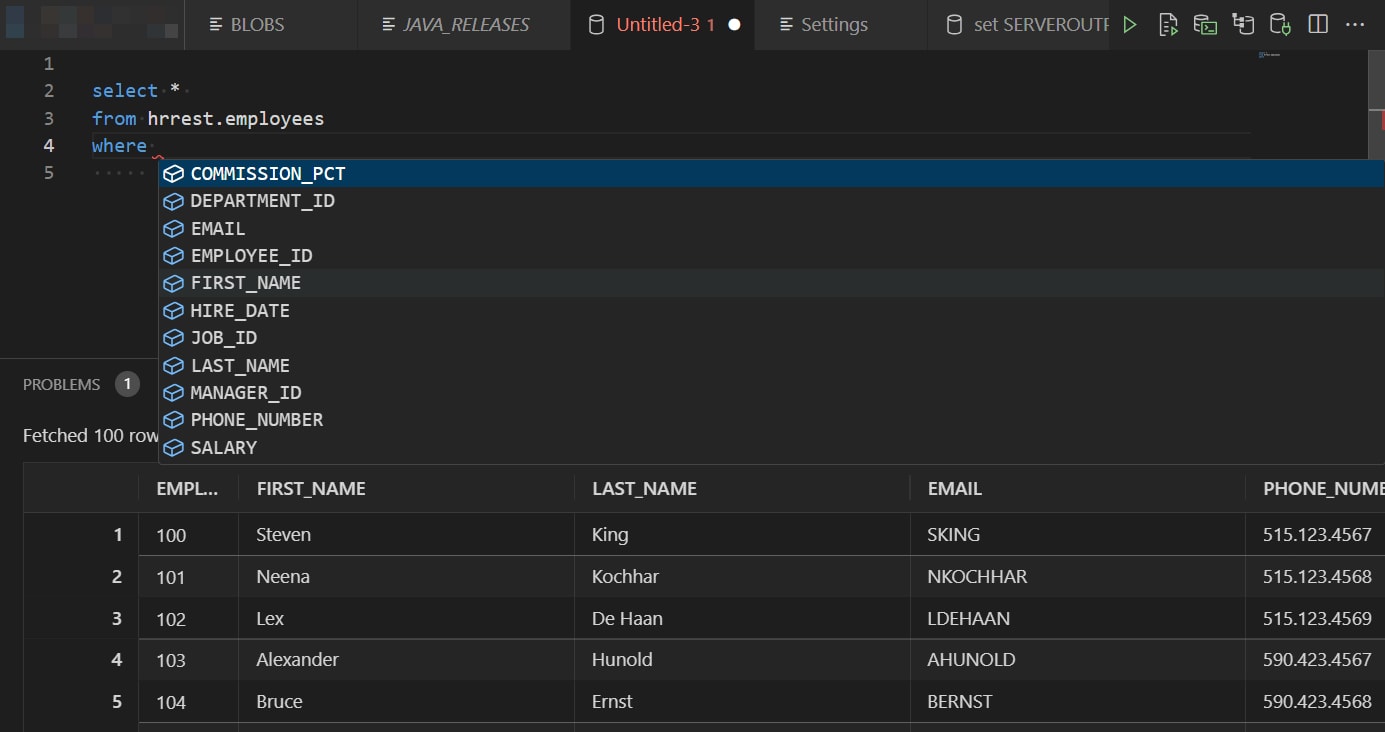 Automatic insight, or invoke it on demand with
 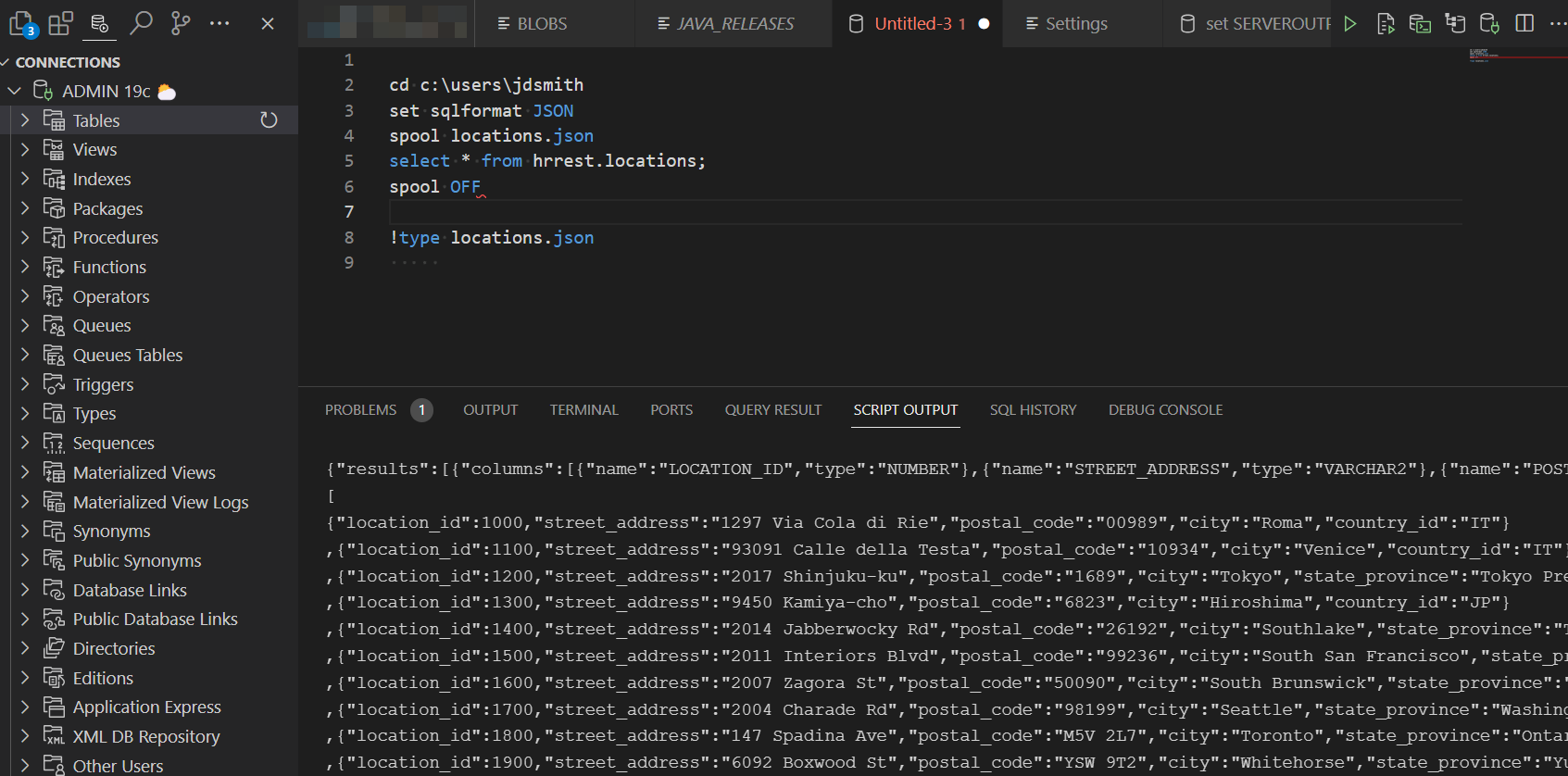 Query and generate output files using your favorite SQL Developer scripting commands.
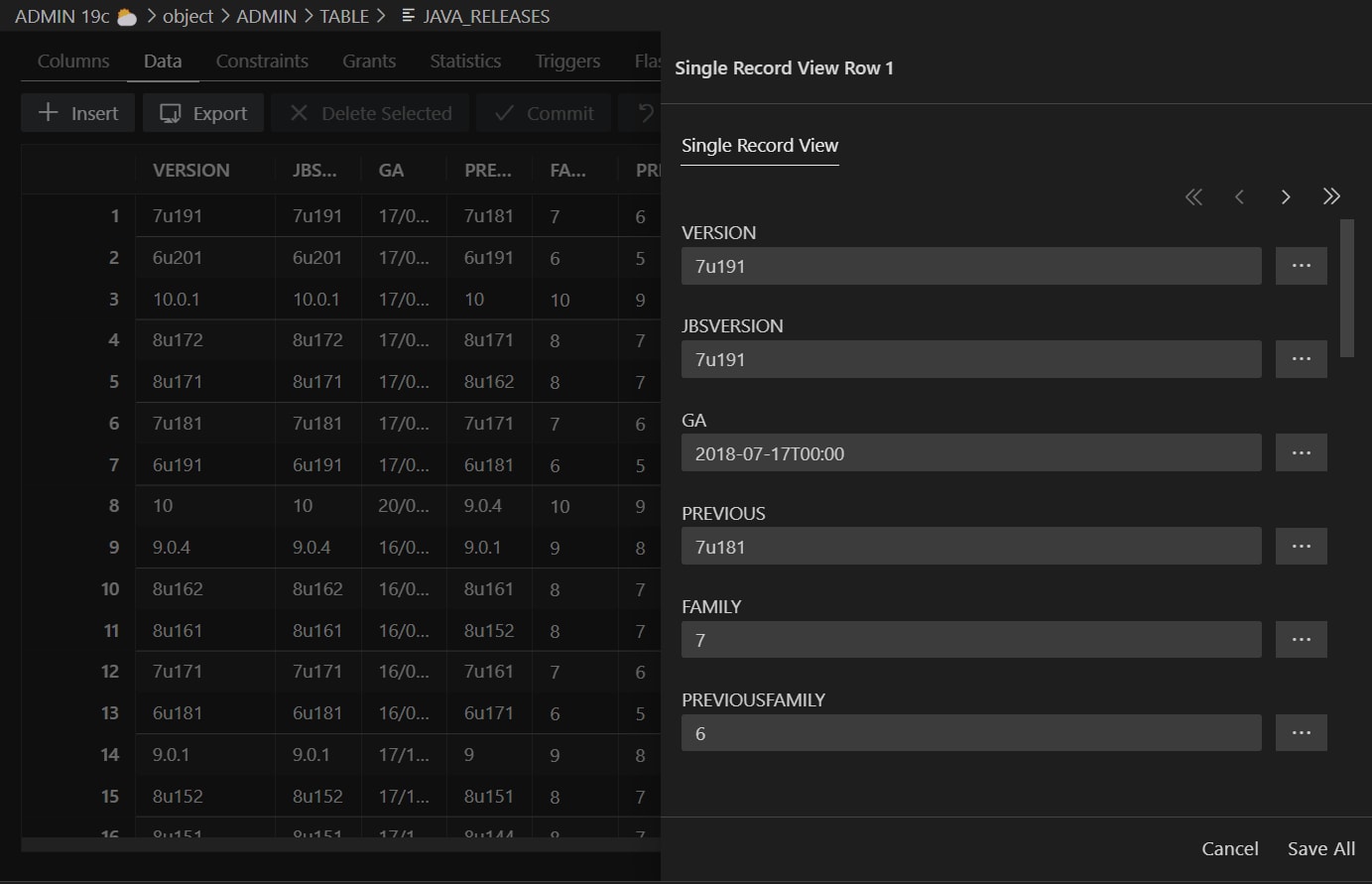 Vertical display in Single Record View.
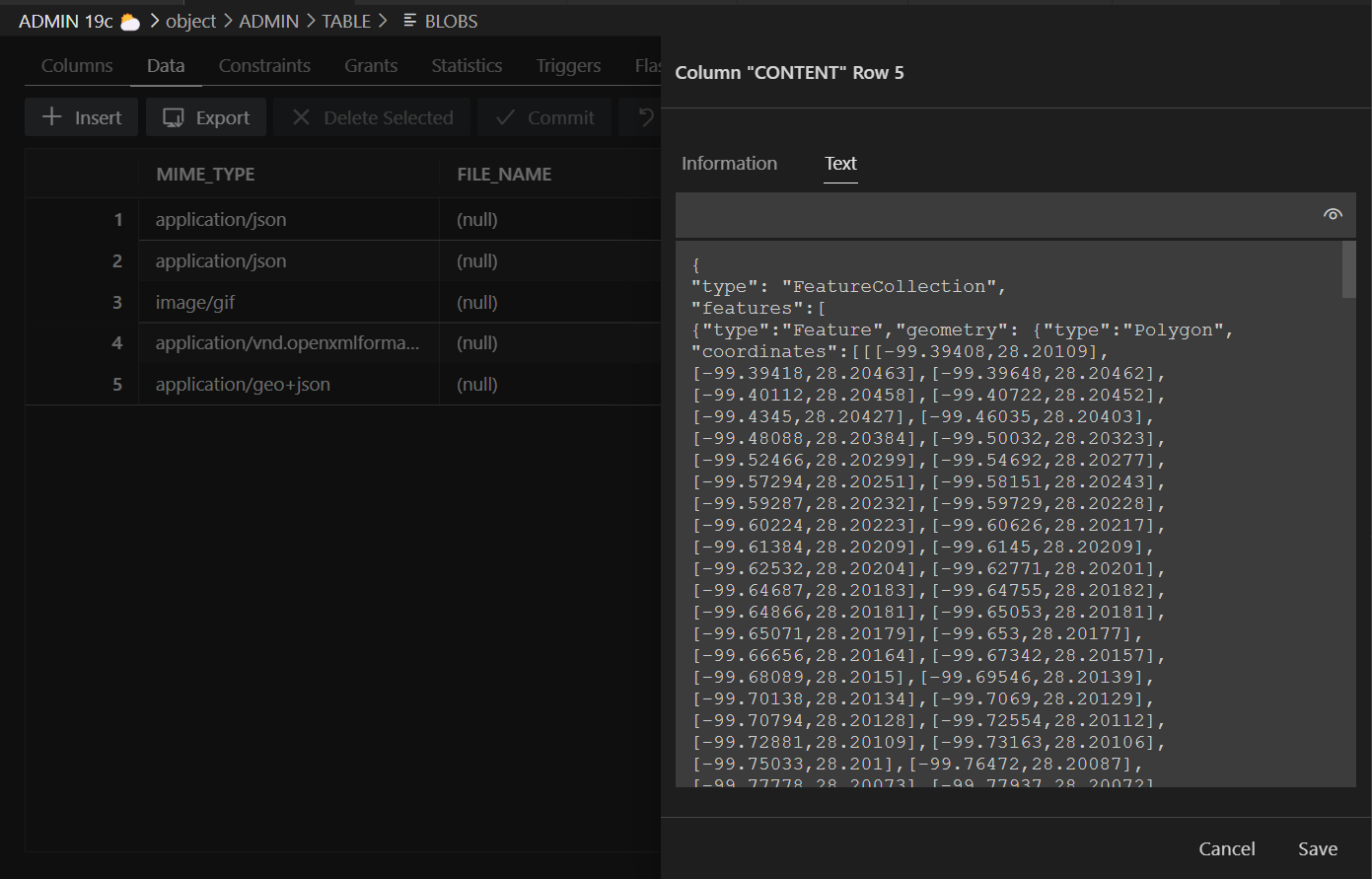 Inspect the contents of LOB and JSON columns.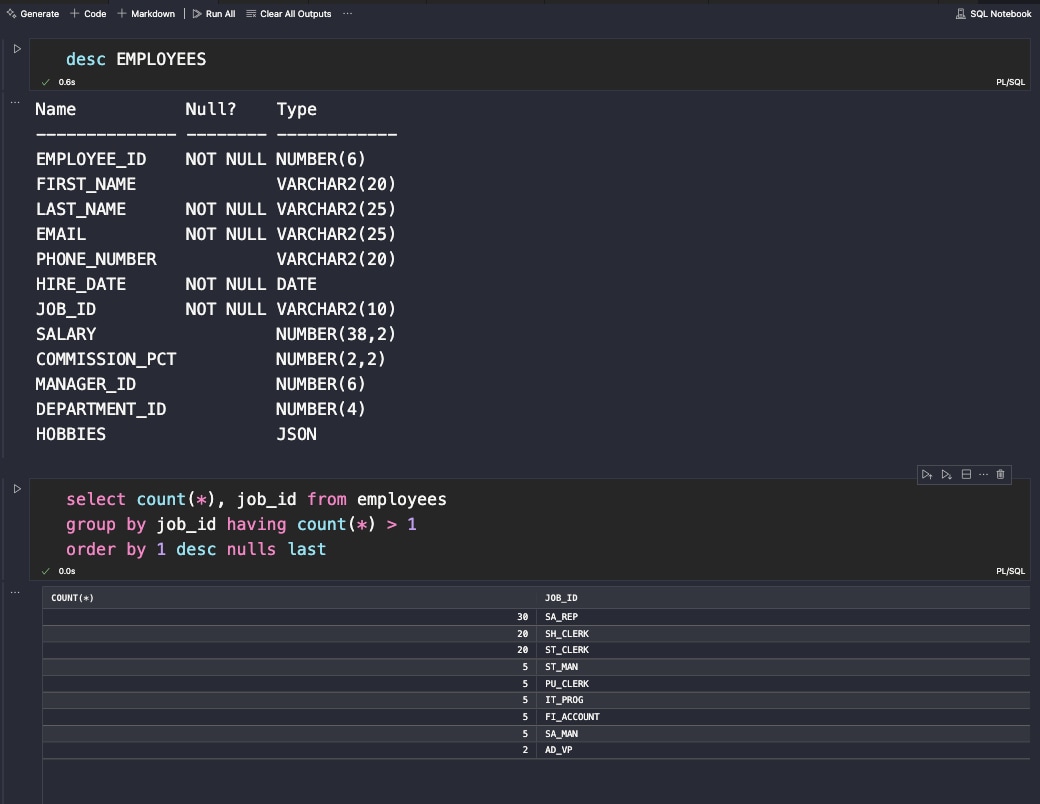
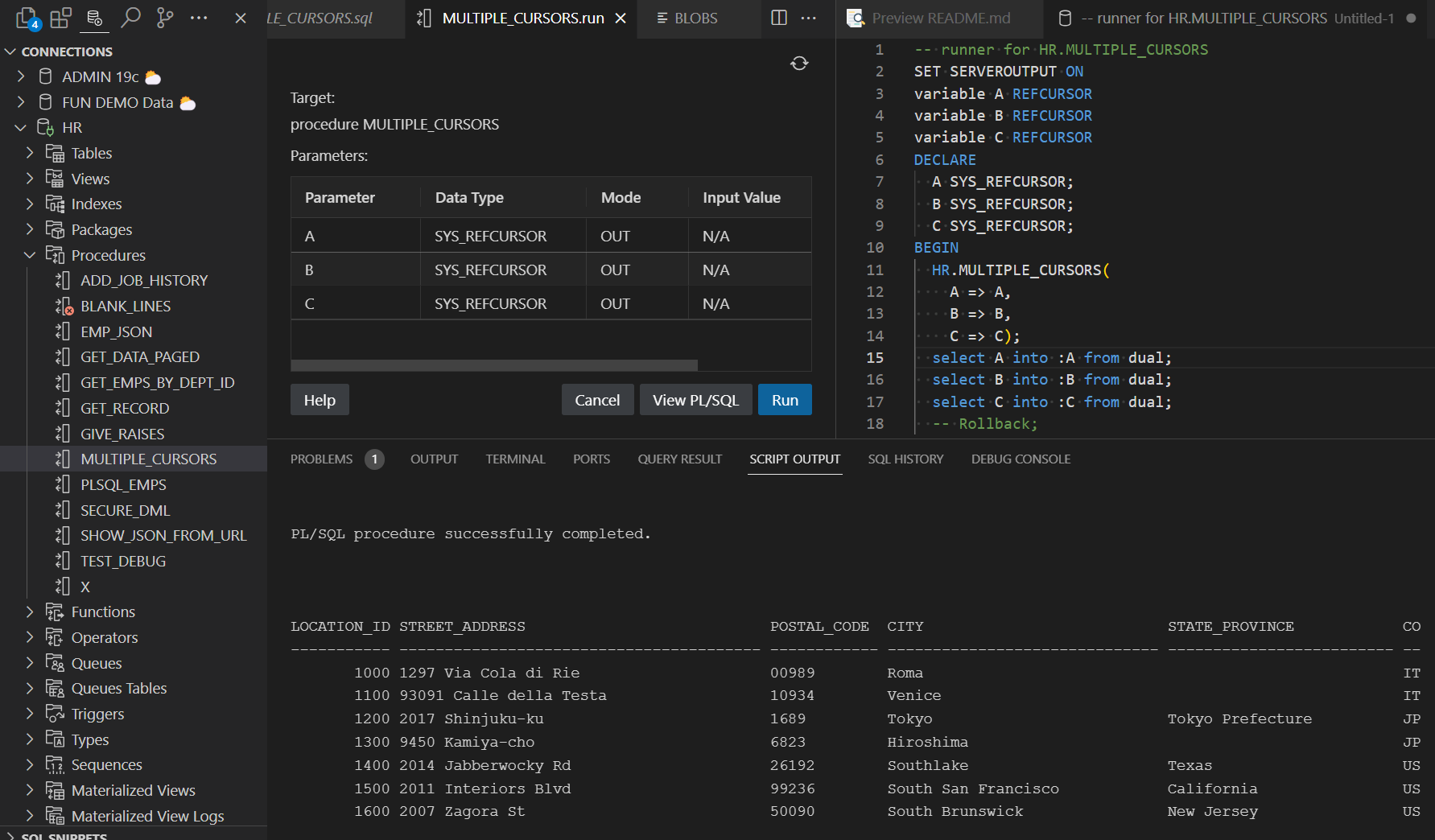 Execute PL/SQL, review generated scripts, and see the results.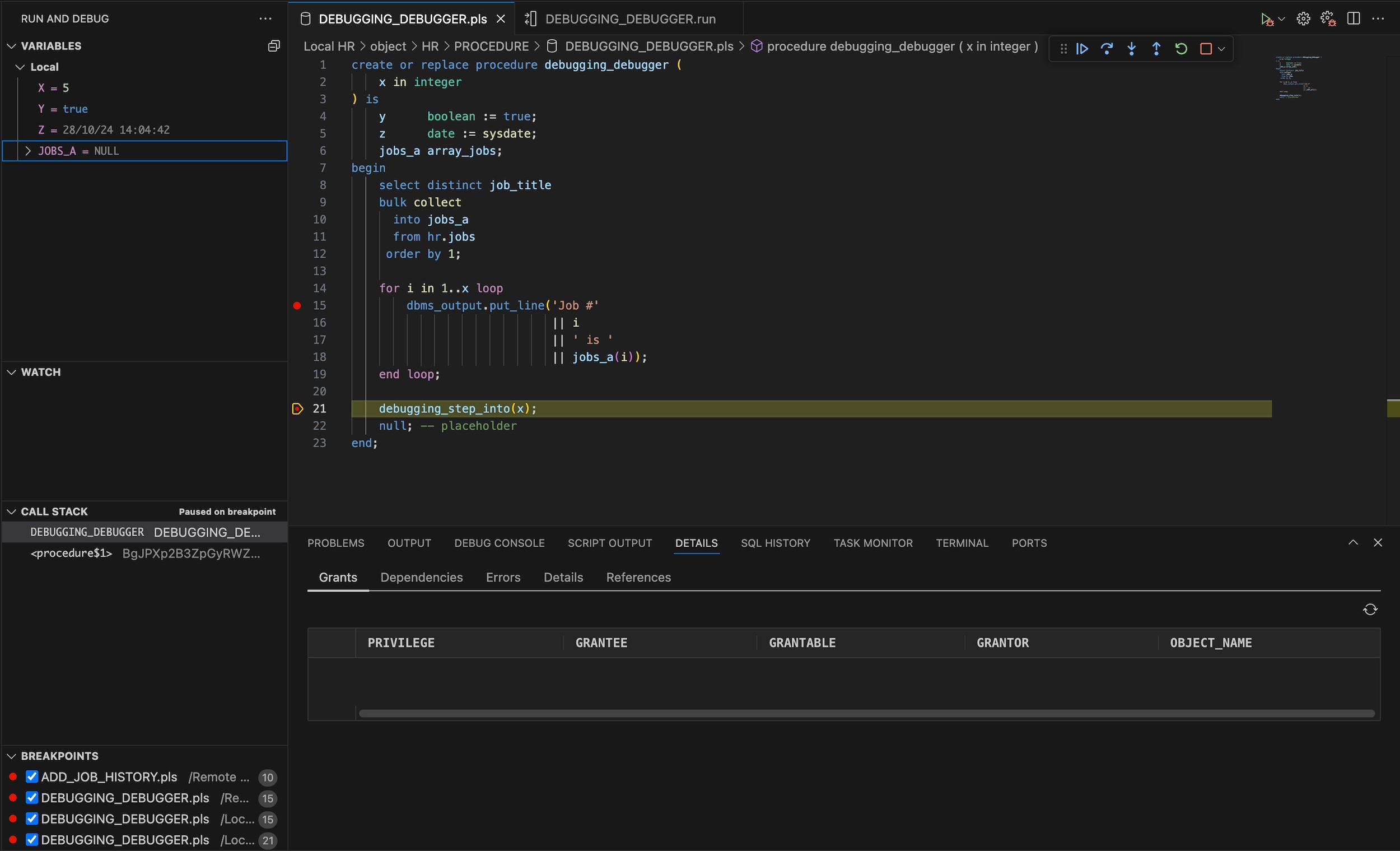

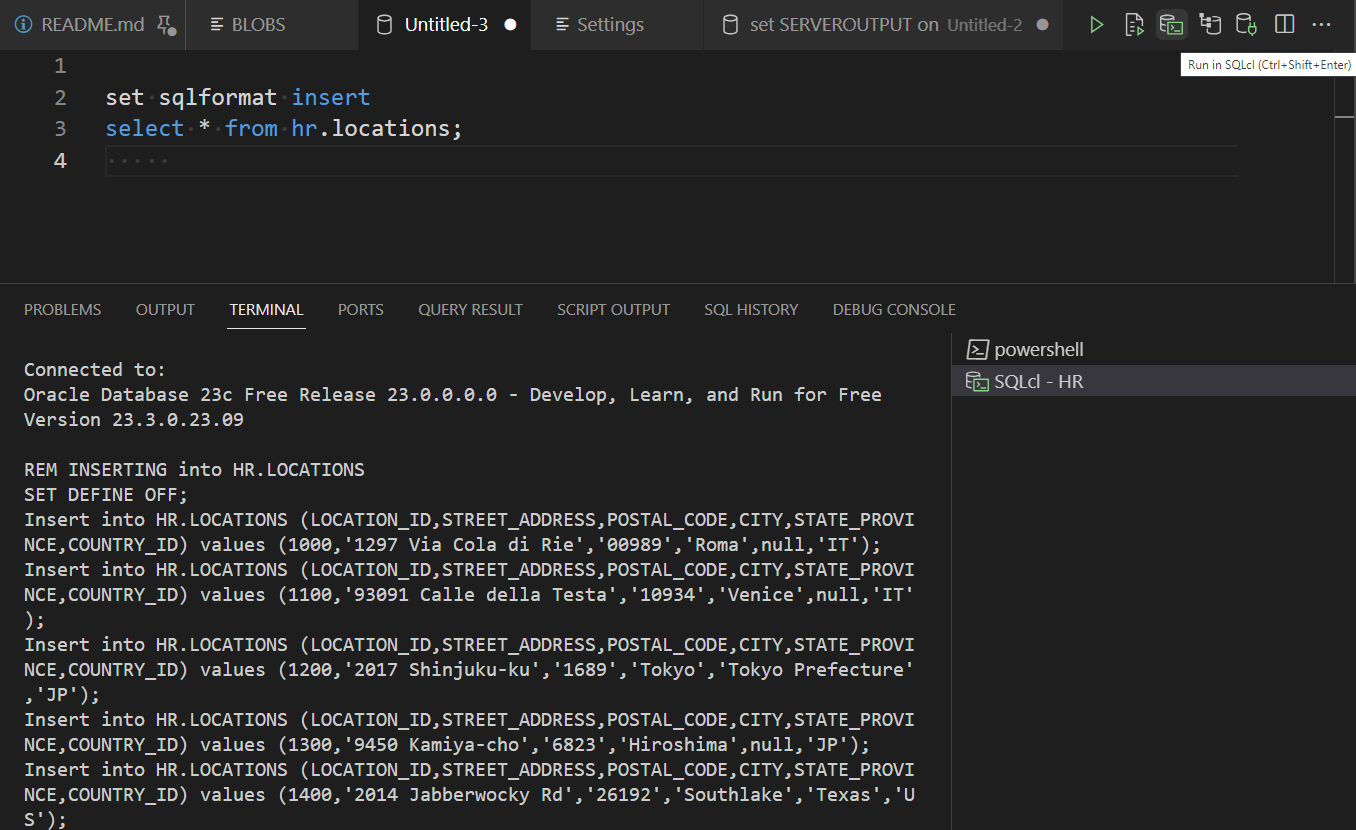 Use the editor, execute in the terminal, and choose the workflow that fits the task.