Mermaid Viewer
A VSCode extension that gives you a powerful viewer for Mermaid diagrams with independent theme selection, appearance overrides, and export controls. Everything stays local-no accounts, Copilot prompts, or external services-while the dedicated preview surface (plus CodeLens buttons and gutter highlights) keeps multi- and single-diagram workflows fast.
Features
Syntax Highlighting: Full syntax highlighting for Mermaid diagrams in markdown code blocks and standalone .mmd/.mermaid files
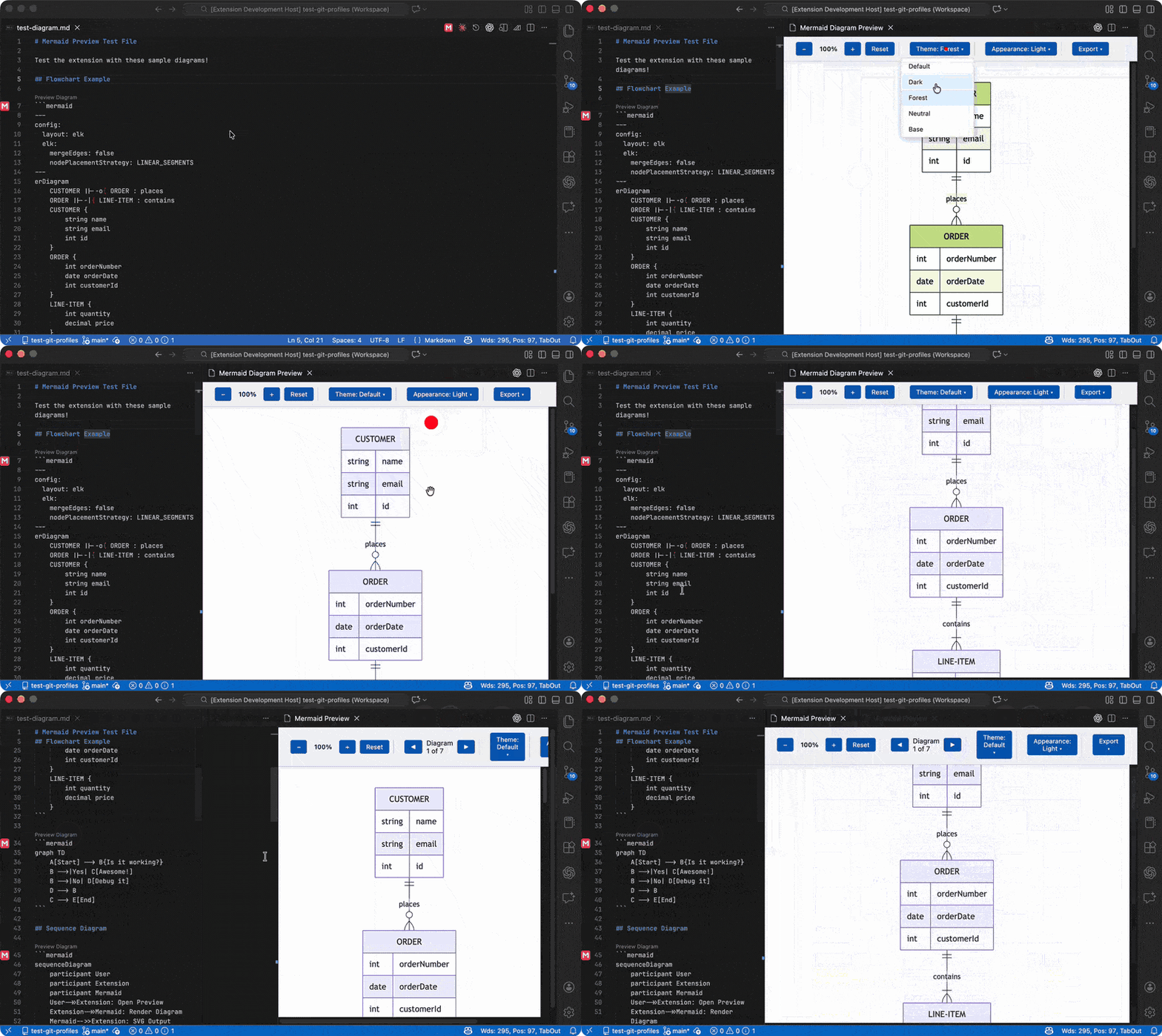
Live Preview: Automatic preview updates as you edit, with side-by-side layout and multi-diagram support (navigate between blocks with the toolbar controls)
Theming: Choose from five built-in themes (default, dark, forest, neutral, base), optionally sync with your VS Code theme, and save your preference as the default
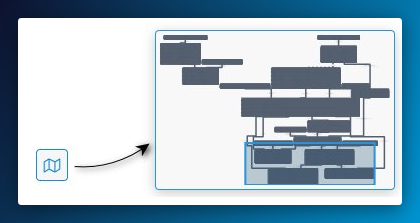
Preview & Navigation: Toolbar with zoom (+/-), pan (arrow keys or drag), reset (R), reload, appearance override (match VS Code, light, or dark), and an interactive minimap for navigating large diagrams. Works with keyboard shortcuts too.
Annotation Tools: Draw directly on diagrams with pen (red/blue/green), laser pointer with fade-out, and shape tools (arrows, lines, rectangles, ellipses). Annotations remain available while using Diagram Search and are not altered by search highlighting. Keyboard shortcuts make annotation fast: P for pen, L for laser, S for shapes, R/G/B to cycle colors for both pen and shape tools, E to erase all
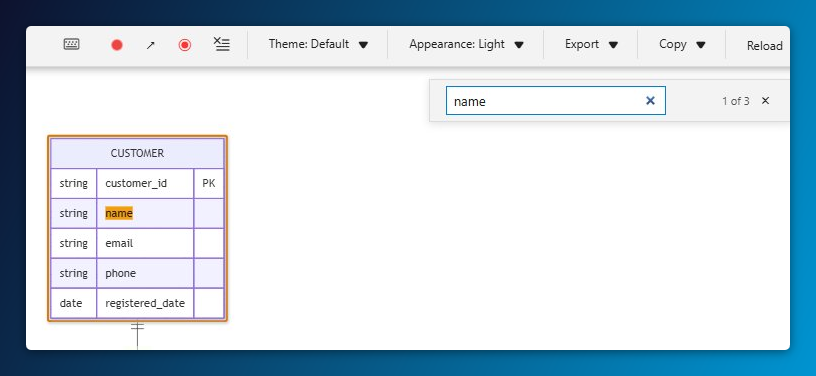
Diagram Search: Press Ctrl+F (Cmd+F on macOS) in the preview to find text in entities, labels, notes, messages, and relationships; matching text is highlighted and results cycle with Enter or Shift+Enter
ER Table Breadcrumbs: Navigate tables and their columns directly in the .mmd/.mermaid editor using VS Code breadcrumbs, Outline, or Go to Symbol (Ctrl+Shift+O / Cmd+Shift+O). Breadcrumbs follow the current table and column; columns use the Field icon and show their type and key markers as detail.
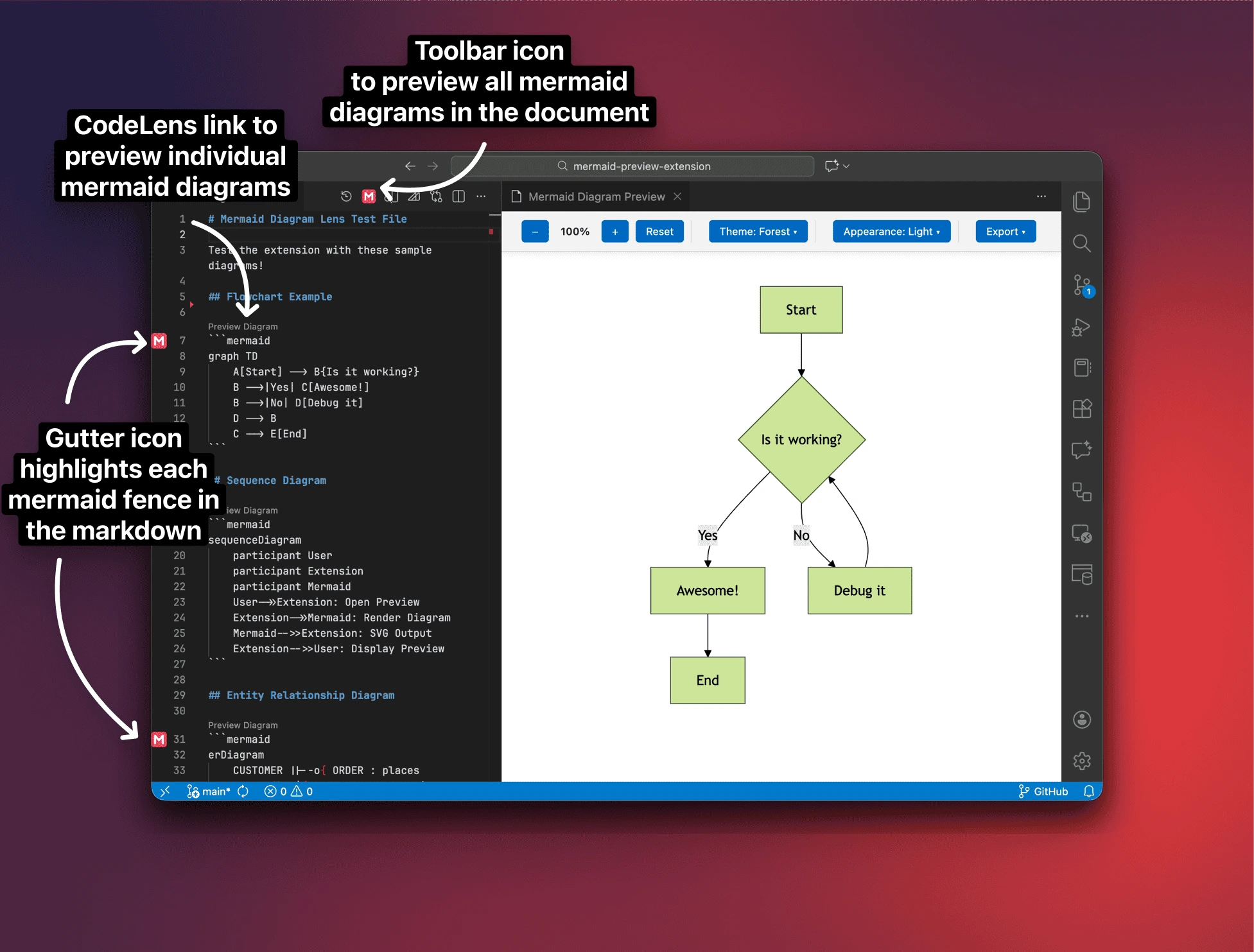
On-Document Shortcuts: CodeLens buttons and gutter icons on every Mermaid block let you open a focused single-diagram preview without leaving the editor
Export & Copy Image: Save or copy any diagram as SVG, PNG (1x-4x), or JPG (1x-4x) from the toolbar - dimensions shown before you export
Copy Source: Copy raw Mermaid code via CodeLens or command palette
Copy with Wrapper: Wrap copied code in a configurable template - useful for platforms that require a specific syntax (e.g. Azure DevOps). Configure via mermaidViewer.copy.wrapper in settings, using {{mermaid-code}} for the diagram code, {{fileName}} for the source file's name, and {{date:FORMAT}} for the copy date/time:
:::mermaid
{{mermaid-code}}
:::
Format Diagram: Tidy a diagram's indentation and whitespace via CodeLens, command palette, or context menu. Standalone .mmd/.mermaid files also work with VS Code's built-in Format Document (Shift+Alt+F). Formatting is conservative and works across diagram types - it normalizes nesting indentation (flowchart subgraph/end, sequence loop/alt/opt/par/critical, class/state/ER/C4 braces, block groups, gantt/journey sections, multi-line state notes), trims trailing whitespace, and collapses blank lines without altering the diagram. Re-indenting is applied only to recognized structural diagram types; types where indentation is meaningful (mindmap, kanban, treemap, sankey) and any unrecognized diagram type are left un-indented on purpose - only trailing whitespace is trimmed
Formatting Diagnostics: Lines that don't match the formatting rules get a warning squiggle. Use the lightbulb (Quick Fix) on a squiggle to Fix formatting on this line (one at a time) or Format Mermaid diagram (the whole block at once). Toggle with mermaidViewer.format.diagnostics
ELK Layout Support: Use the ELK layout engine for complex diagrams by adding layout: elk frontmatter - works with ER diagrams, flowcharts, and more. Loaded on demand, so there is no cost for diagrams that use the default layout
Offline Friendly: Bundles Mermaid locally, so previews work without a network connection or account
Demo
Usage
Opening the Preview
- Open a Markdown file containing Mermaid diagrams
- Use one of these methods:
- Click the preview icon in the editor title bar
- Right-click in the editor and select "Mermaid Viewer: Open Preview"
- Use Command Palette (
Cmd+Shift+P / Ctrl+Shift+P) and search for "Mermaid Viewer: Open Preview"
- For side-by-side view: "Mermaid Viewer: Open Preview to the Side"
- For a separate floating window: "Mermaid Viewer: Open Preview in New Window"
- The toolbar/title icon uses "Open Preview to the Side" behavior by default; set
mermaidViewer.defaultPreviewLocation to newWindow to make it open in a new window instead
Changing Themes
In the preview panel toolbar:
- Use the Theme dropdown to select different themes
- Check "Sync with VSCode theme" to automatically match VSCode's theme
- Click "Save as Default" to persist your theme choice
Previewing Individual Diagrams
- A CodeLens button labeled Preview Diagram appears above every Mermaid block in Markdown (fenced
mermaid blocks and ::: mermaid containers); clicking it opens a panel focused on that diagram.
- In standalone
.mmd/.mermaid files, the CodeLens appears at the top so you can preview or copy quickly.
- A subtle gutter icon highlights Mermaid block starts in Markdown, so you can spot diagrams quickly (it's a visual cue only; use CodeLens to open preview).
- The editor toolbar/title icon still opens the multi-diagram preview, so you can see every Mermaid block at once.
Navigating with the Minimap
Hover over the map icon in the lower-right corner of the preview to reveal an overview of the active diagram. The outlined area shows the current viewport; click or drag within the minimap to move around large diagrams quickly.
Searching Entities and Labels
Press Ctrl+F (Cmd+F on macOS) in the preview to search rendered Mermaid entities, labels, notes, and relationships. Matching text is highlighted across the diagram; press Enter or Shift+Enter to move between results and focus the active entity or edge.
Copying Diagram Code
- Copy (
Preview | Copy CodeLens): Copies the raw Mermaid source for the block, respecting the copy.includeFrontMatter setting for standalone files.
- Copy with Wrapper: Wraps the diagram code in the template configured in
mermaidViewer.copy.wrapper before copying. Useful for pasting into platforms that require a specific syntax, such as Azure DevOps (::: mermaid ... :::).
Using ELK Layout
For complex diagrams where the default dagre layout produces crowded or hard-to-read results, you can switch to the ELK layout engine by adding a frontmatter config block:
```mermaid
---
config:
  layout: elk
---
erDiagram
  Customer ||--o{ Order : places
  Order ||--|{ LineItem : contains
  Product ||--o{ LineItem : "ordered in"
```
ELK layout is supported on ER diagrams, flowcharts, and any other diagram type that accepts a layout config. The ELK engine is loaded on demand (only when a diagram requests it), so there is no performance cost for diagrams that use the default layout.
ELK also supports several sub-algorithms via layout: elk.<algorithm>:
| Algorithm |
Description |
elk |
Layered layout (default ELK algorithm) |
elk.stress |
Force-directed stress minimization |
elk.force |
Simple force-directed layout |
elk.mrtree |
Compact tree layout |
elk.sporeOverlap |
Overlap removal |
Supported Themes
- Default: Classic Mermaid theme with clean, neutral colors
- Dark: Dark background with light elements
- Forest: Green-themed palette
- Neutral: Minimalist grayscale theme
- Base: Simple base theme
Newly added annotation tools allow you to walk through service boundaries, data flows, and integration points live while drawing arrows and highlights directly on the diagram, and there is also a laser pointer to focus attention during presentations.
All tools have smooth anti-aliased rendering and respect the current zoom level.
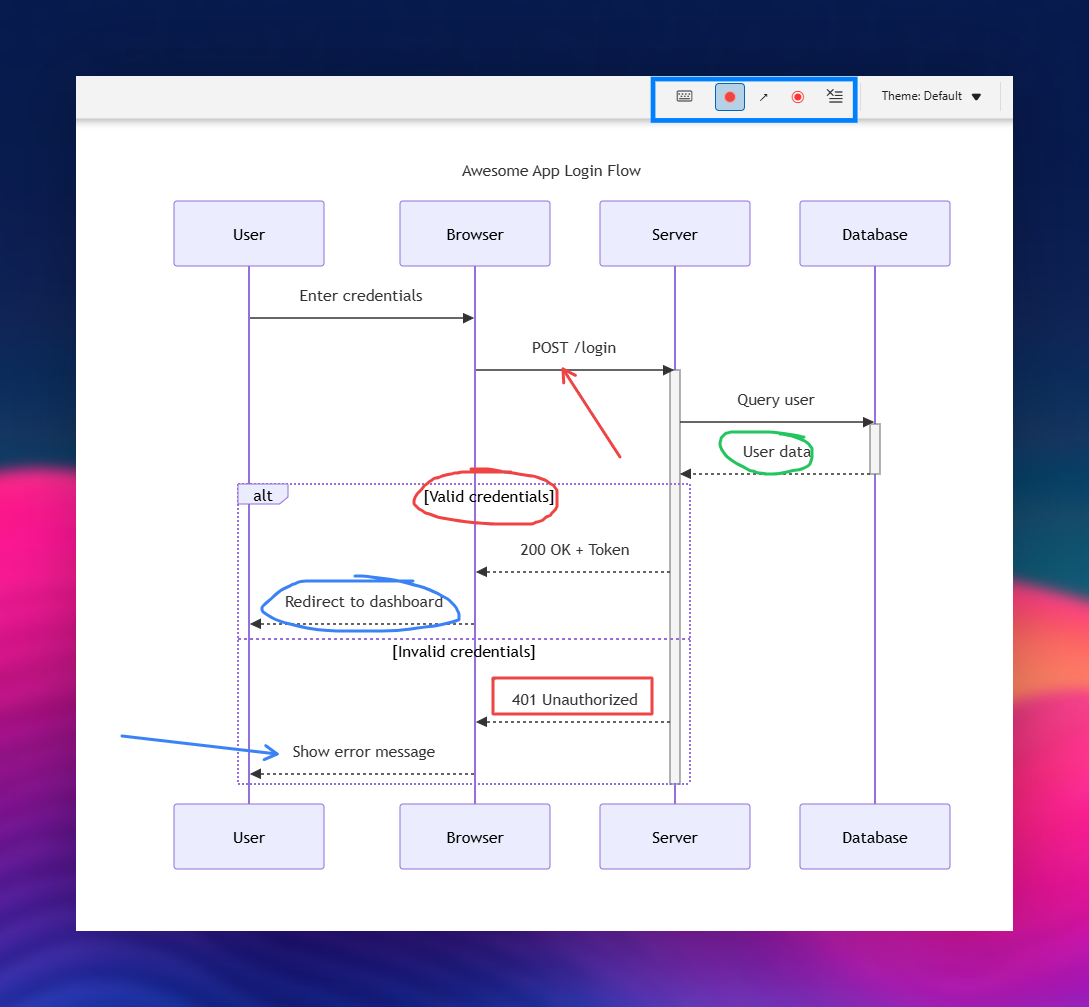
Draw freehand strokes on the diagram with a smooth brush.
- Activate: Press
P or click the pen button in the toolbar
- Colors: Press
R (red), G (green), or B (blue) to change color for pen and shape tools; the dot icon shows the active color
- Draw: Click and drag to draw
- Persistent: Strokes remain on the diagram until erased
Laser Pointer
Draw temporary strokes that fade away after 2 seconds.
- Activate: Press
L or click the laser button
- Use: Click and drag to draw; the stroke will fade with a glowing effect
- Deactivate: Press
L again or press Esc
Draw geometric shapes: arrows, lines, rectangles, and ellipses.
- Activate: Press
S or click the shape button
- Cycle shapes: Press
S again to cycle through arrow → line → rectangle → ellipse
- Colors: Press
R, G, or B to set color before drawing (same shortcuts as the pen tool)
- Draw: Click and drag from start to end point
Erase All
- Erase: Press
E or click the erase button to remove all annotations from the diagram
Exit Annotation Mode
- Deactivate: Press
Esc to exit annotation mode and return to pan/zoom controls
Configuration
Configure the extension through VSCode settings:
{
  // Default theme for Mermaid diagrams
  "mermaidViewer.theme": "default",

  // Automatically sync Mermaid theme with VSCode theme
  "mermaidViewer.useVSCodeTheme": false,

  // Automatically refresh preview on document changes
  "mermaidViewer.autoRefresh": true,

  // Delay in milliseconds before refreshing preview after changes
  "mermaidViewer.refreshDelay": 500,

  // Where the toolbar icon opens the preview: "side" or "newWindow"
  "mermaidViewer.defaultPreviewLocation": "side",

  // Include frontmatter when copying from standalone .mmd/.mermaid files
  "mermaidViewer.copy.includeFrontMatter": true,

  // Template used when copying with wrapper. Use {{mermaid-code}} as the diagram code placeholder, {{fileName}} for the source file's name, and {{date:FORMAT}} for the copy date/time (tokens: yyyy, yy, MMM, MM, dd, HH, mm, ss).
  // Example for Azure DevOps:
  "mermaidViewer.copy.wrapper": ":::mermaid\n{{mermaid-code}}\n:::",

  // Show a warning squiggle when a Mermaid diagram is not formatted
  "mermaidViewer.format.diagnostics": true
}
Example Mermaid Diagram
```mermaid
graph TD
    A[Start] --> B{Is it working?}
    B -->|Yes| C[Awesome!]
    B -->|No| D[Debug it]
    D --> B
    C --> E[End]
```
Commands
Mermaid Viewer: Open Preview - Shows Mermaid diagrams from the active Markdown or Mermaid file in the current editor column.Mermaid Viewer: Open Preview to the Side - Same preview behavior, but always opens in the column beside the editor for live editing.Mermaid Viewer: Open Preview in New Window - Opens the preview in its own floating VSCode window, separate from the main editor window.Mermaid Viewer: Preview Diagram Here - Focuses only the Mermaid block at the current cursor (or the CodeLens target) and keeps that single-diagram panel in sync while you type.Mermaid Viewer: Copy - Copies the raw Mermaid source code for the diagram at the current cursor position.Mermaid Viewer: Copy with Wrapper - Copies the diagram code wrapped in the template from mermaidViewer.copy.wrapper. Also available via right-click context menu.Mermaid Viewer: Format Diagram - Normalizes indentation and whitespace for the diagram at the cursor (Markdown) or the whole file (.mmd/.mermaid). Standalone files also respond to the built-in Format Document command.
Formatting is also exposed as a source.fixAll code action, so you can format every Mermaid diagram in a file automatically on save (including diagrams embedded in Markdown):
"editor.codeActionsOnSave": {
  "source.fixAll.mermaidViewer": "explicit"
}
For standalone .mmd/.mermaid files you can alternatively use "editor.formatOnSave": true.
Requirements
- VSCode 1.85.0 or higher
- Markdown files with Mermaid code blocks (fenced
mermaid) or ADO-style Mermaid containers (::: mermaid ... :::)
- Mermaid files (
.mmd, .mermaid)
Known Limitations
- Markdown preview supports Mermaid fenced blocks and ADO-style
::: mermaid containers.
- ADO containers must be properly closed with
::: to be extracted as a diagram.
Extension Settings
This extension contributes the following settings:
mermaidViewer.theme: Choose the default Mermaid thememermaidViewer.useVSCodeTheme: Sync theme with VSCodemermaidViewer.autoRefresh: Enable/disable auto-refreshmermaidViewer.refreshDelay: Set refresh delay in millisecondsmermaidViewer.copy.includeFrontMatter: Include frontmatter when copying from standalone .mmd/.mermaid files (default: true)mermaidViewer.copy.wrapper: Template applied by "Copy with Wrapper". Use {{mermaid-code}} as the diagram code placeholder, {{fileName}} for the source file's name, and {{date:FORMAT}} for the copy date/time (tokens: yyyy, yy, MMM, MM, dd, HH, mm, ss) (default: {{mermaid-code}})
Contributing
Found a bug or have a feature request? Please open an issue!
License
MIT - if you build on Mermaid Viewer, please keep the copyright notice intact and include attribution to Utkarsh Shigihalli in your distribution or documentation.
| |

