Flutter Asset Viewer Pro
Browse, preview, and insert image asset paths — all without leaving VS Code.
A powerful visual asset manager built for developers working with images, icons, and media files. Whether you're building a Flutter app, a React project, or a static website, Flutter Asset Viewer Pro gives you instant access to every image in your workspace.
Demo (Click to watch)
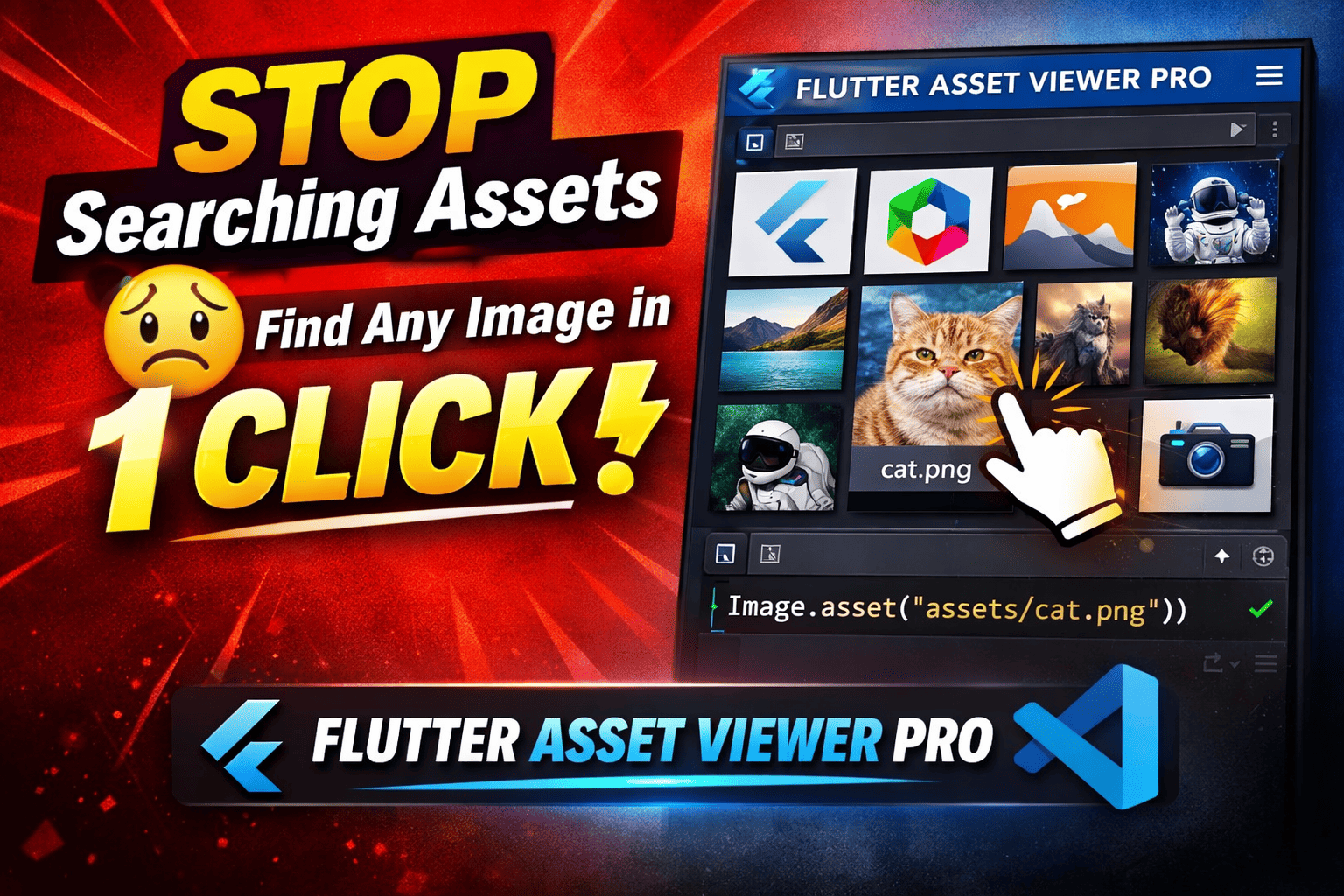
Highlights
- 5 View Modes — Grid, List, Compact, Masonry, Details
- Instant Search — filter by name, path, or file type
- One-Click Insert — drop asset paths as HTML, React imports, or Flutter widgets
- Usage Finder — see exactly where each asset is referenced
- Flutter IntelliSense — autocomplete with live image previews in Dart files
- Auto Refresh — file watcher keeps everything in sync
How to Use
1. Open the Asset Panel
Click the Flutter Asset Viewer Pro icon in the Activity Bar (left sidebar).
You'll see a tree view of all images in your workspace, organized by folder.
Tip: You can also open the rich preview panel from the Command Palette:
Ctrl+Shift+P / Cmd+Shift+P → Open Asset Viewer
2. Browse Your Assets
Use the toolbar at the top of the panel to switch between view modes:
| Mode |
Best For |
| Grid |
Visual browsing — thumbnail cards in a gallery layout |
| List |
Scanning large sets — rows with name, path, and size |
| Compact |
Quick overview — small icons with file names |
| Masonry |
Inspiration boards — Pinterest-style flowing layout |
| Details |
Full info — expanded cards with all metadata |
3. Search & Filter
- Search bar — type any part of a file name or path to instantly filter
- Extension chips — click
PNG, SVG, JPG, WebP, GIF, or ICO to show only that type
- Folder sidebar — click any directory to scope results to that folder
All three filters work together, so you can search for logo within SVG files in the assets/icons folder.
4. View Asset Details
Click any asset to open the detail panel on the right side. It shows:
- Full-size preview with transparency grid
- File name, relative path, size, type, and creation date
- Action buttons for quick operations (see below)
- Usage list — every file in your workspace that references this asset, with line numbers and code snippets
5. Insert Paths Into Your Code
Select an asset, then use the action buttons in the detail panel:
| Action |
What It Inserts |
| Copy Relative Path |
assets/images/logo.png |
| Copy Absolute Path |
/Users/you/project/assets/images/logo.png |
| Insert as HTML |
<img src="https://github.com/om-chauhan/flutter-asset-viewer-pro/raw/HEAD/assets/images/logo.png" alt="logo.png" /> |
| Insert as React |
import logo from 'assets/images/logo.png'; |
| Insert as Flutter |
Image.asset('assets/images/logo.png') |
Tip: You can also right-click any asset in the sidebar tree → Insert Asset Path to pick a format from a quick-pick menu.
6. Flutter Autocomplete
When editing Dart files, start typing inside any of these constructors:
Image.asset('    // ← suggestions appear here
AssetImage('
SvgPicture.asset('
Lottie.asset('
You'll get autocomplete suggestions for every image in your workspace, complete with:
- Live image preview (thumbnail with transparency grid)
- File type badge and size
- Full relative path
7. Tree View Quick Actions
Right-click any asset in the sidebar tree view to access:
- Open File — open the image in the VS Code editor/previewer
- Copy Relative Path — copy to clipboard
- Copy Absolute Path — copy to clipboard
- Insert Asset Path — pick a format and insert at your cursor
Commands
Open the Command Palette (Ctrl+Shift+P / Cmd+Shift+P):
| Command |
Description |
Open Asset Viewer |
Open the main preview panel |
Refresh Assets |
Re-scan the workspace for all assets |
Insert Asset Path |
Pick a format and insert at cursor |
Copy Relative Path |
Copy the selected asset's relative path |
Copy Absolute Path |
Copy the selected asset's absolute path |
Open File |
Open the asset in the editor |
| Format |
Extensions |
| PNG |
.png |
| JPEG |
.jpg, .jpeg |
| SVG |
.svg |
| WebP |
.webp |
| GIF |
.gif |
| ICO |
.ico |
Requirements
- VS Code 1.74.0 or later
- No additional dependencies — works out of the box
License
Personal Use License — free for personal and non-commercial use. Commercial use is not permitted without prior authorization from the author. See the LICENSE file included with this extension for full terms.

