
Octoloom for Agent Fabric
Connect agents, MCP servers and LLMs into one Agent Fabric network.
Design it visually, start on A²D mocks, switch to real Agent Fabric services, then publish and deploy, all from VS Code.
Highlights · Feature tour · Getting started · Meet the Octoloomies
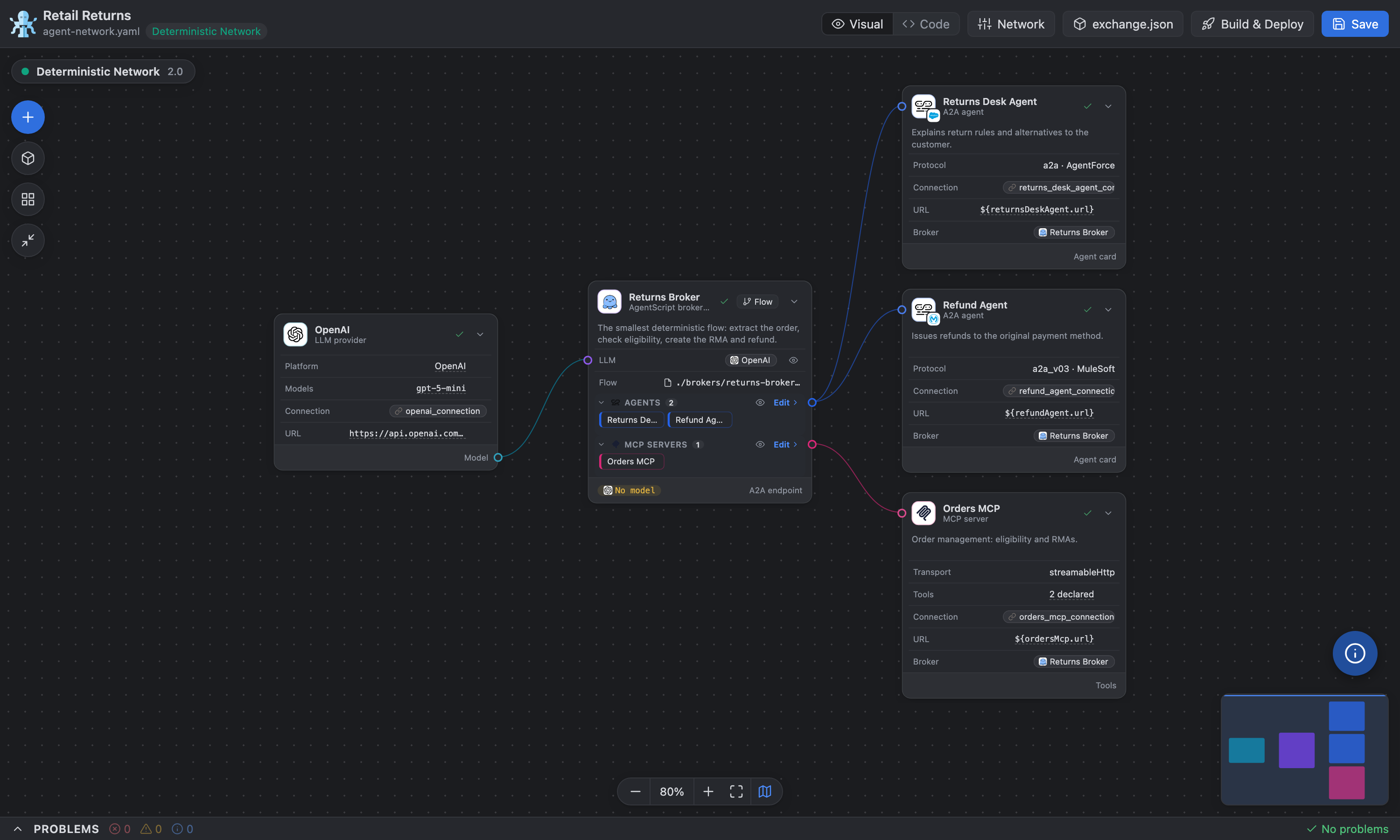
Octoloom is a visual editor for Agent Fabric network projects (agent-network.yaml, brokers/*.agent, exchange.json). Each arm of the octopus stands for one asset: A2A agents from any framework, MCP servers and LLM providers. The loom is where you weave them into a network that a broker orchestrates.
You can still open the YAML; Octoloom keeps it valid while you work on a canvas.
Highlights
|
|
| Two network canvases |
Probabilistic (v1, LLM-routed brokers) and Deterministic (v2, AgentScript brokers). Octoloom detects the version from the file. |
| Welcome page |
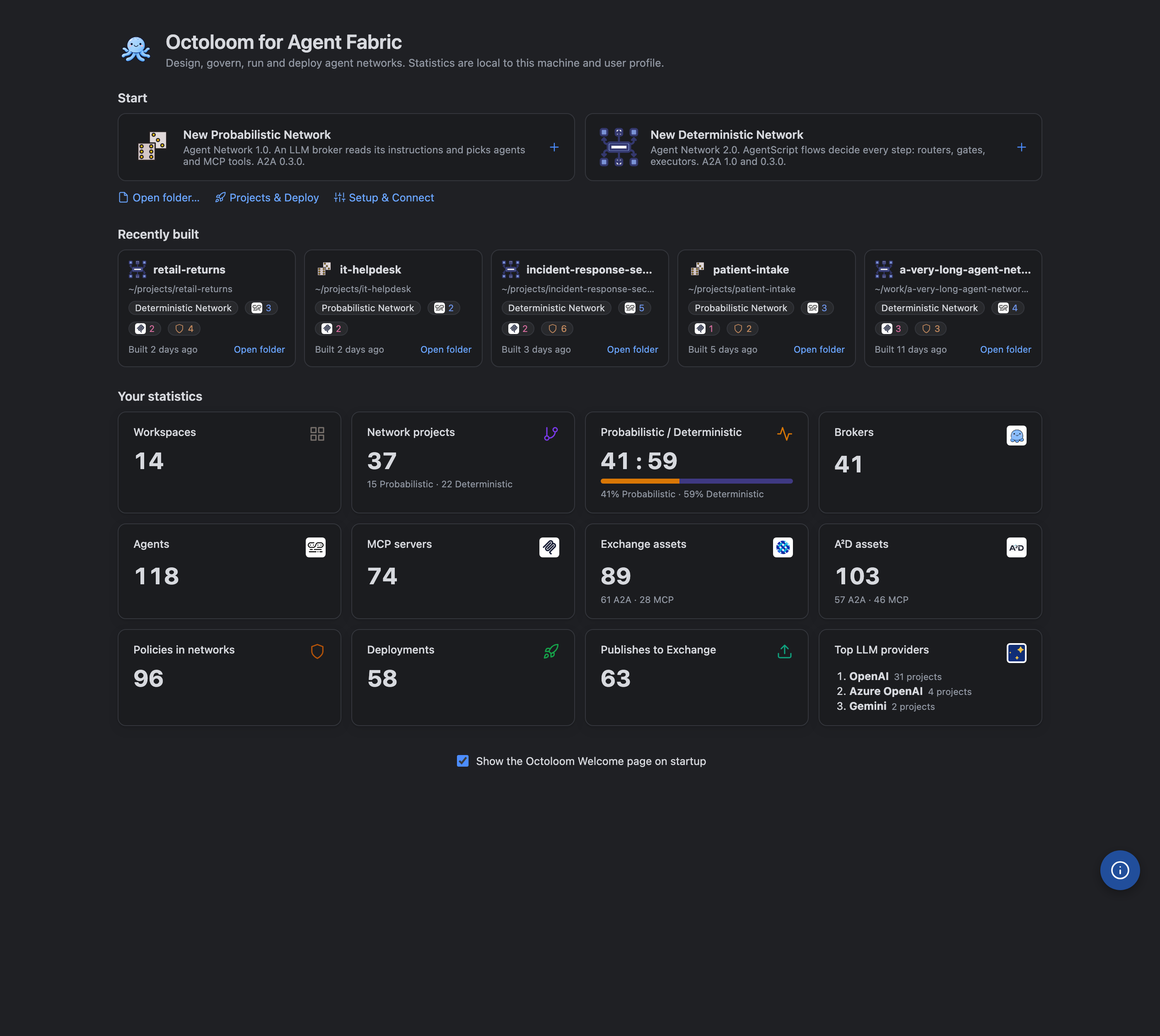
When VS Code starts, Octoloom opens a Welcome page. It has cards to start a Probabilistic or Deterministic network and the 5 agent network projects built last on this machine. It also shows local statistics: workspaces, projects and the v1 / v2 ratio, brokers, agents, MCP servers, Exchange and A²D assets, policies, deployments, publishes and the top 3 LLM providers. |
| Project templates |
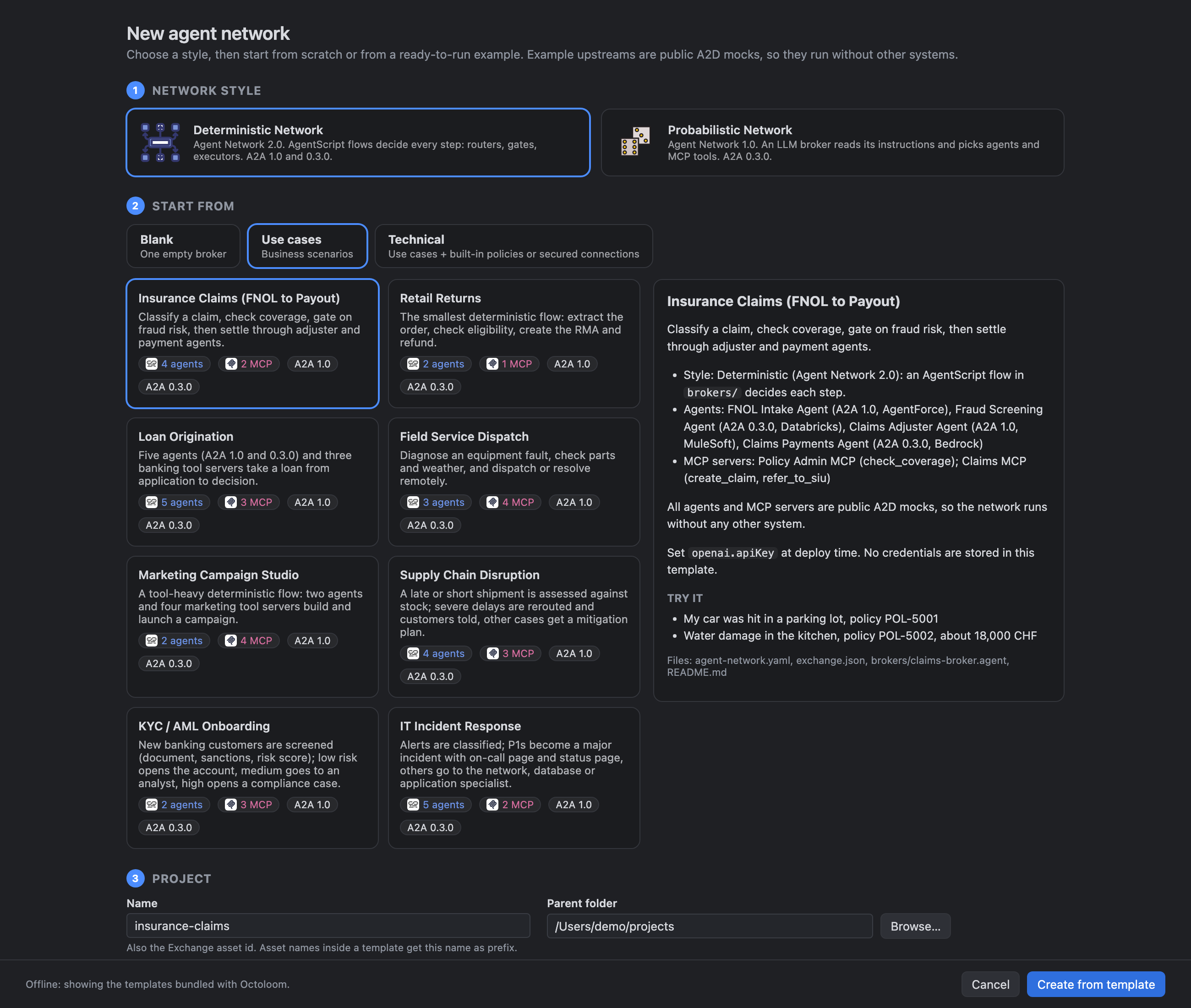
New Project opens a dialog. Start blank or from 37 ready-to-run examples: business use cases, each with a governed variant that has built-in Agent Fabric policies, five secured variants, and two Informatica IDMC networks. All other upstreams are public A²D mocks. |
| Broker flow editor |
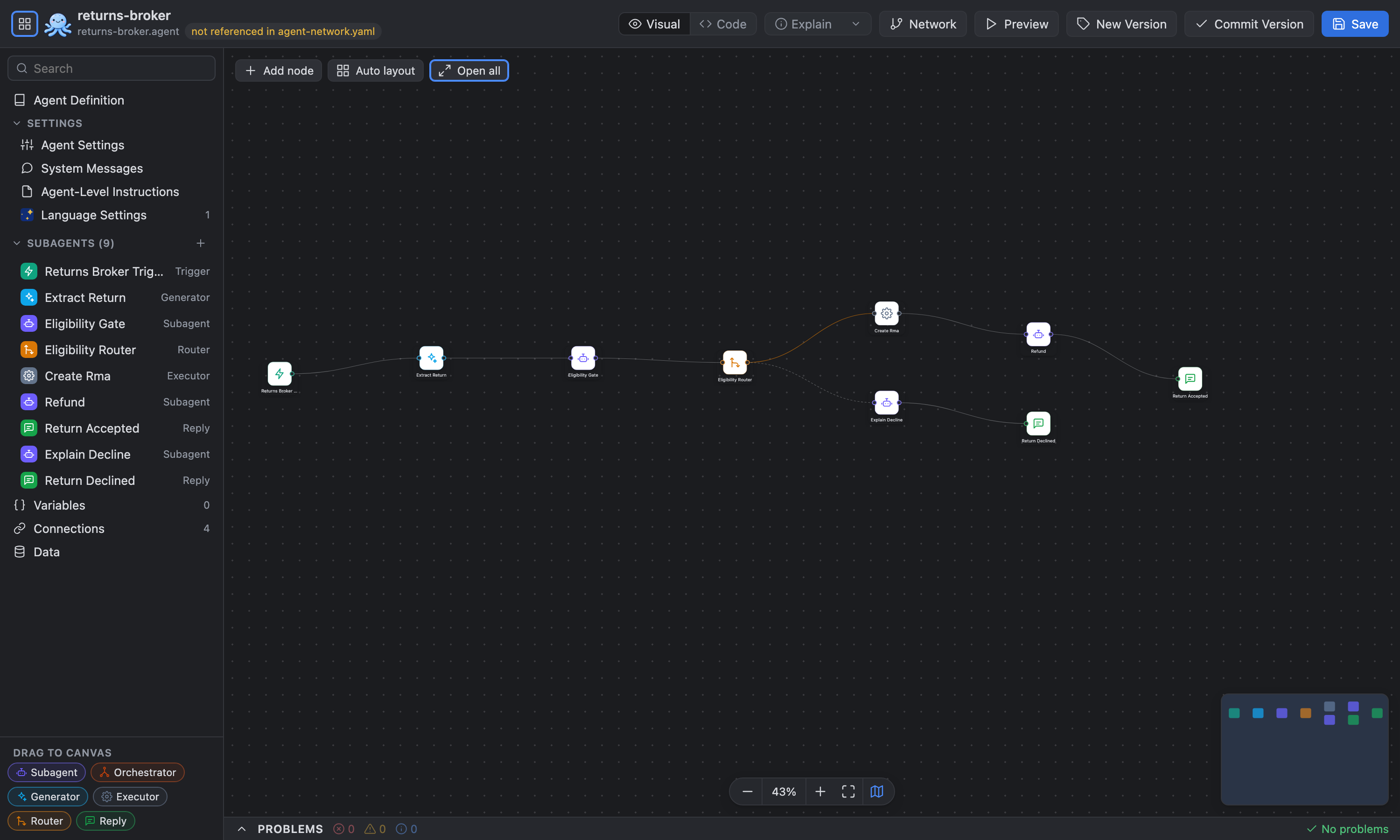
Edit .agent broker flows as a graph: triggers, routers, orchestrators, subagents, generators, executors and replies. |
| Asset palette |
Browse Agent Fabric (Exchange) assets and A²D prototypes side by side. Drag them onto the canvas to add them. |
| Mocks → real services |
Start with A²D hosted mocks and replace them with published Agent Fabric assets later. Every card shows where it comes from. |
| Any agent framework |
Shows the framework of each agent: Agentforce, MuleSoft, OpenAI, Anthropic, Google ADK / Vertex, Gemini, Bedrock, Azure AI Foundry, Microsoft, LangChain, Langflow, LlamaIndex, Databricks, Snowflake, ServiceNow, Atlassian. |
| Protocols |
A2A agents (v0.3 and current), MCP servers (streamable HTTP / SSE) and LLM providers. |
| LLM providers |
OpenAI, Gemini, Amazon Bedrock and Salesforce, with API key or OAuth 2.0 client credentials (JWT) for LLM gateways. The Omni gateway is recognised from the URL. You can change a broker's LLM provider and model on the canvas. |
| Policies |
Apply gateway policies to brokers and connections (v1 spec.policies, v2 inbound / outbound). Pick from the built-in Agent Fabric policies, your organization's policies in Exchange, or the P4A catalog. A P4A policy that is not yet in your org is deployed there first. Cards show the policies that are applied. |
| Connectivity test |
Test any broker, agent, MCP server, LLM or connection from the inspector: MCP initialize and tools/list, the A2A agent card, LLM /models. Uses the auth of the connection and the exchange.json defaults. MCP servers are called at the connection URL + transport.path, exactly like the runtime. |
| Inline editing |
Change values directly on a card, for example the allowed MCP tools, the URL, the LLM platform or the broker limits. Click a card to open the full inspector. |
| Deployment status |
Each project shows a status light: grey not deployed, green deployed and running, blue deployed behind authentication (needs credentials), red stopped or failed. Octoloom remembers where a project is deployed (environment, gateway, broker URLs) across restarts, and finds projects that were deployed earlier in API Manager. |
| Broker chat |
Chat with a deployed broker: the Agent Network View on the left (the whole network read-only, or one reply as a sequence of calls), and a chat on the right with the skills from the agent card, the task state and the raw JSON-RPC request and response. The trace icon under a reply shows the trace of that message on the left as a waterfall. Works with A2A 0.3.0 (v1) and 1.0 (v2). Brokers behind authentication: bearer token, client credentials, OAuth 2.0 password grant, client ID, API key, Basic or user sign-in (OAuth 2.0 + PKCE). |
| Agent Network Tracer |
See what a deployed broker did for each task: the path it took through its .agent graph, the tools and LLMs it called, what failed and why. Read-only, from Anypoint logs, task state and traces. Export a whole task as JSON for Splunk or Datadog. |
| Build, publish, deploy |
Validate, publish to Exchange, deploy and undeploy through anypoint-cli-v4. Octoloom installs the CLI and its prerequisites if they are missing. Pre-deploy checks catch what the CLI only reports after a full deploy: a missing broker implementation file (stops the build), and, when Agent Fabric is connected, a dependency the org can't read, a registry key owned by another project and a connection key that is already an API instance in the environment (asks Fix and deploy, Deploy anyway or Cancel; Fix and deploy renames the taken key with every reference and .agent target). An exchange.json groupId still at ${organizationId} is set to the connected organization or business group before every build. Validate Project (check icon) is a dry run of build, publish and deploy on a copy of the project: it lists the repairs a build would make, the project and pre-deploy findings, the CLI build result and the deploy variables without a value, and changes nothing in your files or the org. |
| Share a broker |
The Share icon in the broker chat header opens the Share dialog. Local portal generates a standalone web chat for a deployed broker: a Node server with no dependencies, a chat page, a Dockerfile and deploy steps. Run it here or host it anywhere; visitors sign in with a shared passcode (shown once, only its hash is stored) and the broker credentials stay on the server. A²D sessions invite people by email to chat with a deployed broker in the Octoloom chat hosted by A²D; their passed / failed / in-progress marks, comments and conversations come back into the dialog, and you can continue any conversation in your chat. |
| Governance |
Validate a project against rulesets from Agent Fabric (MuleSoft), P4A (community and your own), your organization's Exchange and local files, with anypoint-cli-v4 governance api validate. Only rulesets that apply to A2A Brokers, A2A agents or MCP servers are listed. Findings are marked on a read-only canvas and grouped by rule as in Anypoint API Governance, with a Fix button that applies the v1 / v2 reference change. A report covers one project or the whole workspace (overview, per-service rules and configuration). A local check only: never part of build, publish or deploy. |
| Minimize to icons |
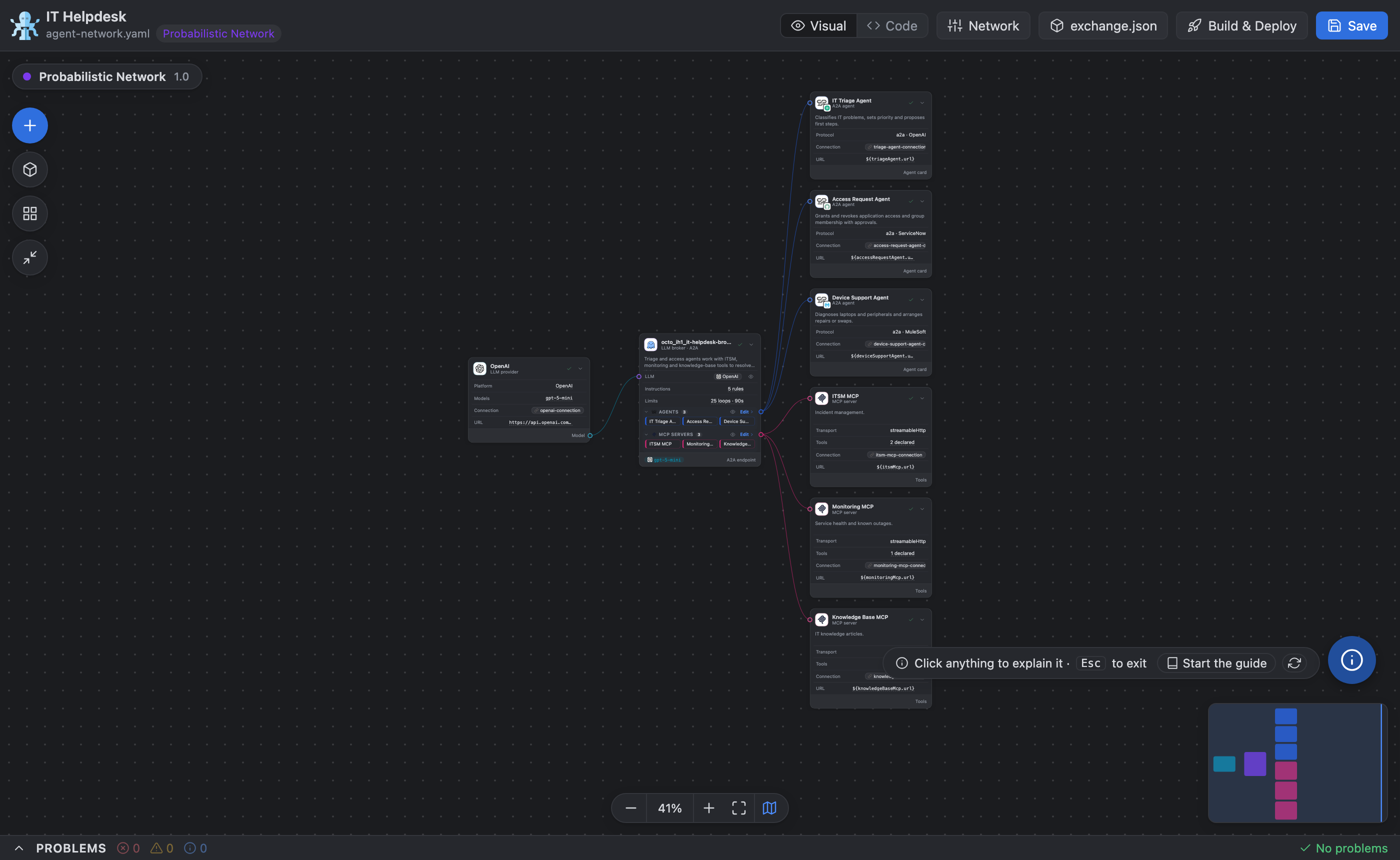
Shrink every card on the network canvas or broker flow to its icon (or one card at a time) to see what is orchestrated at a glance. |
| Explain anything |
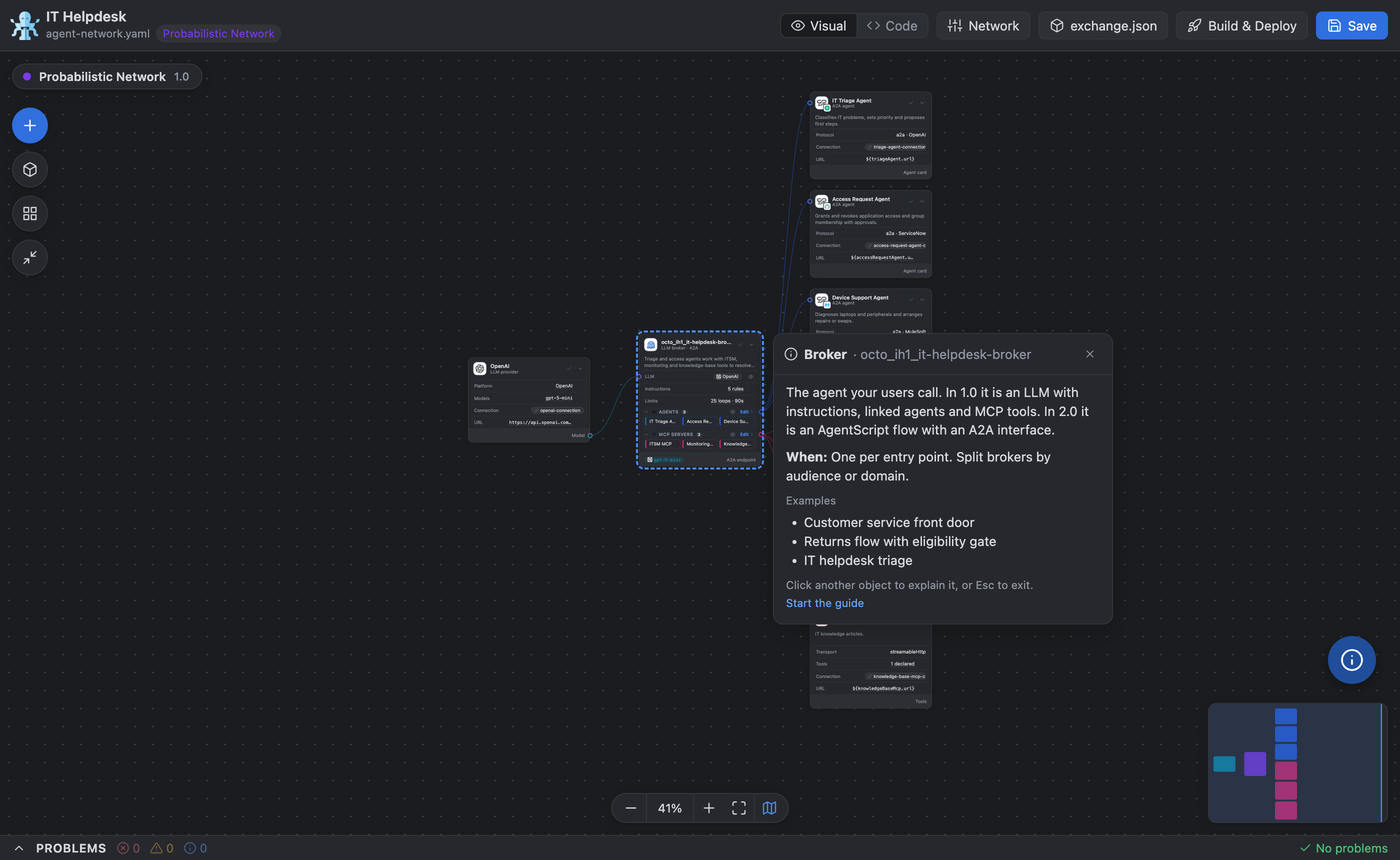
A floating info button on every Octoloom editor and panel. Click it, then click any card, panel, tool or canvas to see what it is, when to use it and examples. It also starts the guided tour of a canvas. Drag the button anywhere; every tab follows. |
| Light, dark or auto |
One switch sets the theme for every Octoloom view. |
Feature tour
Welcome page
When VS Code starts, Octoloom opens its Welcome page next to the VS Code one. It doesn't open when you click the Octoloom icon later. You can also open it with the home button in Projects & Deploy or with Octoloom: Welcome.
- Start: cards for a new Probabilistic or Deterministic network. Each opens New Project with that style. There are also links to Open folder, Projects & Deploy and Setup & Connect.
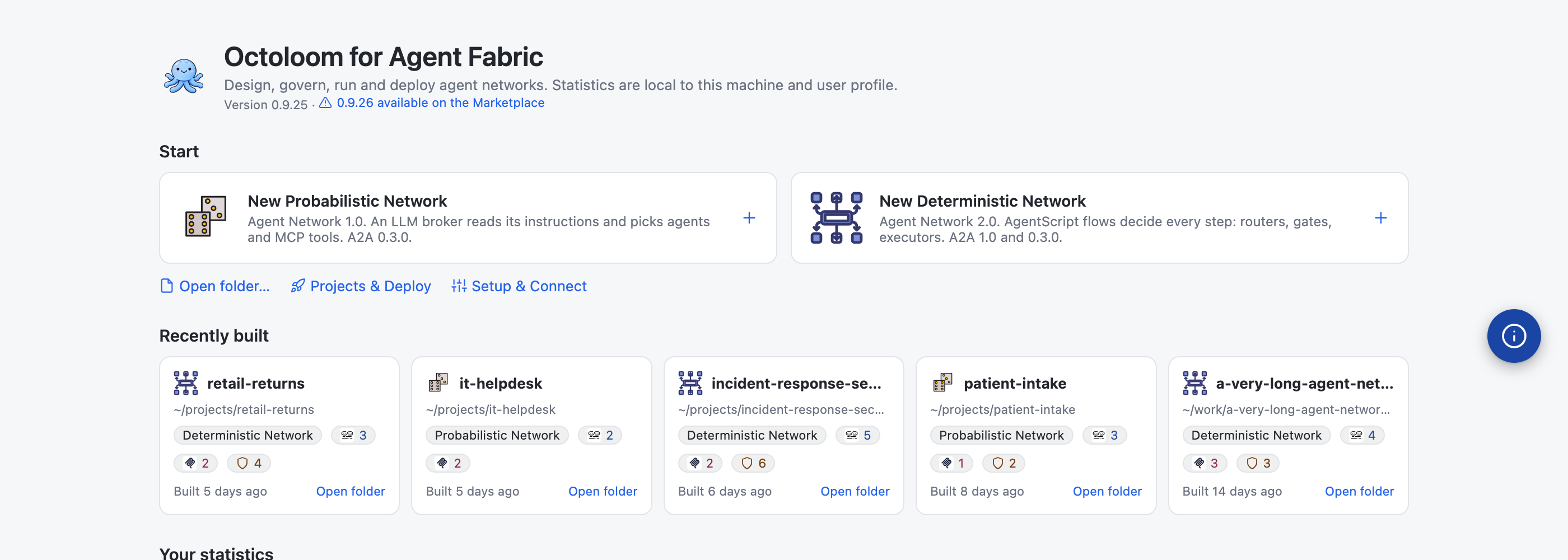
- Recently built: the 5 agent network projects built last on this machine, as cards. Each card shows the style, agents, MCP servers, policies and when the project was built. Click a card to open its canvas, or Open folder to open the project in this window.
- Your statistics (this user profile):
- workspaces opened with Octoloom;
- network projects and the Probabilistic / Deterministic ratio;
- brokers, agents and MCP servers;
- Exchange and A²D assets (A2A + MCP);
- policies used in networks;
- deployments and publishes to Exchange;
- the top 3 LLM providers.
- How it is counted: totals come from the projects Octoloom has seen in your workspaces. Builds, deploys and publishes count when they succeed. Projects built before 0.6.7 are picked up from their
target/ folder. The numbers stay on your machine (no telemetry).
- Version: under the title you see the installed Octoloom version. When the Visual Studio Marketplace has a newer one, a link (0.9.26 available on the Marketplace) opens Octoloom in the Extensions view so you can update. Setup & Connect → Tooling shows the same in its Octoloom row.
- Tutorials: Getting started (a 10-step tour of Octoloom) and All template tutorials: one per template, with Just use it (create, deploy, chat) and Learn step by step (canvas, broker flow, policies, deploy, chat, Tracer, with screenshots). They live in octoloom-assets/tutorials.
- Turning it off: clear Show on startup or set
agentNetwork.showWelcome.
New project: from templates
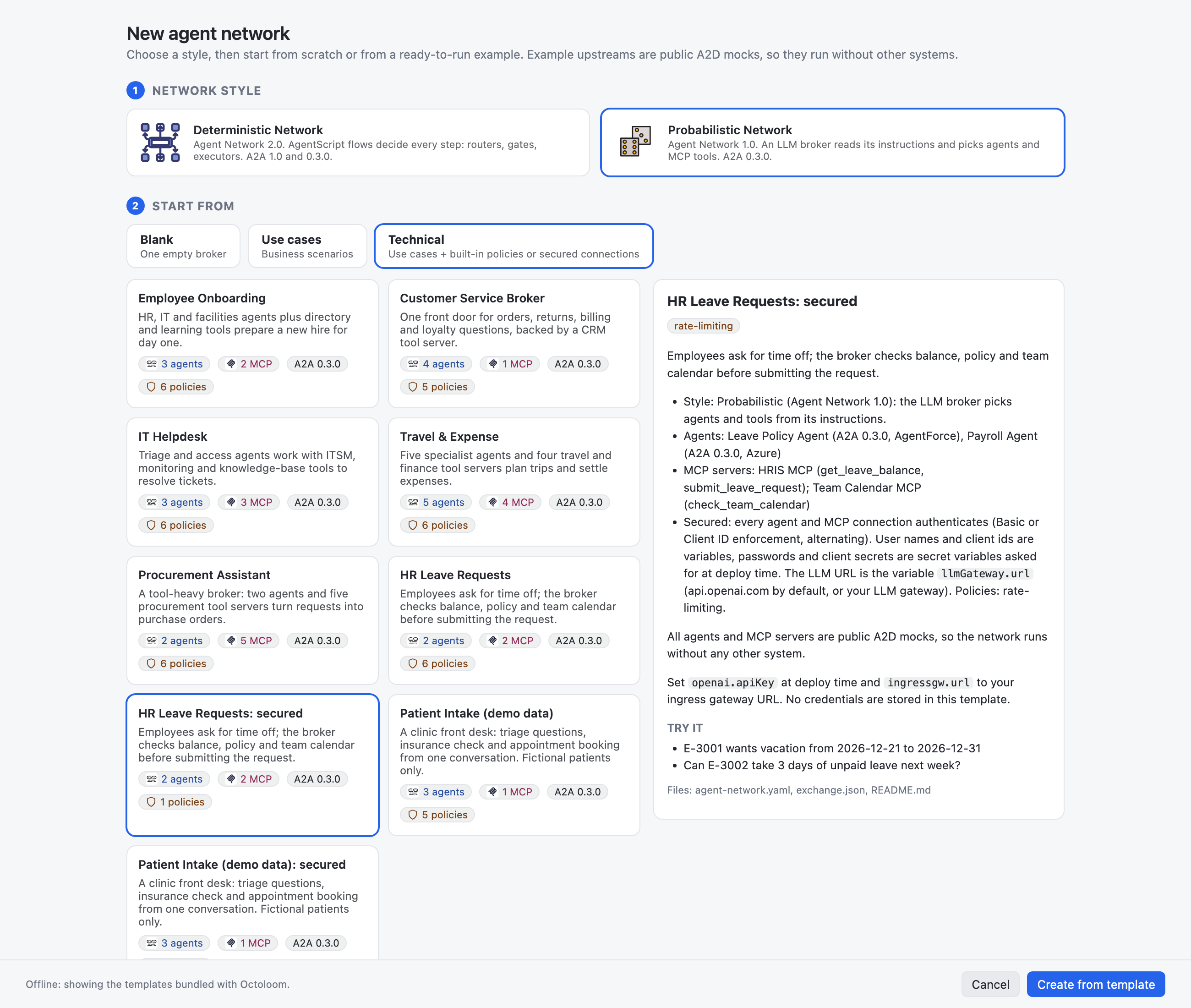
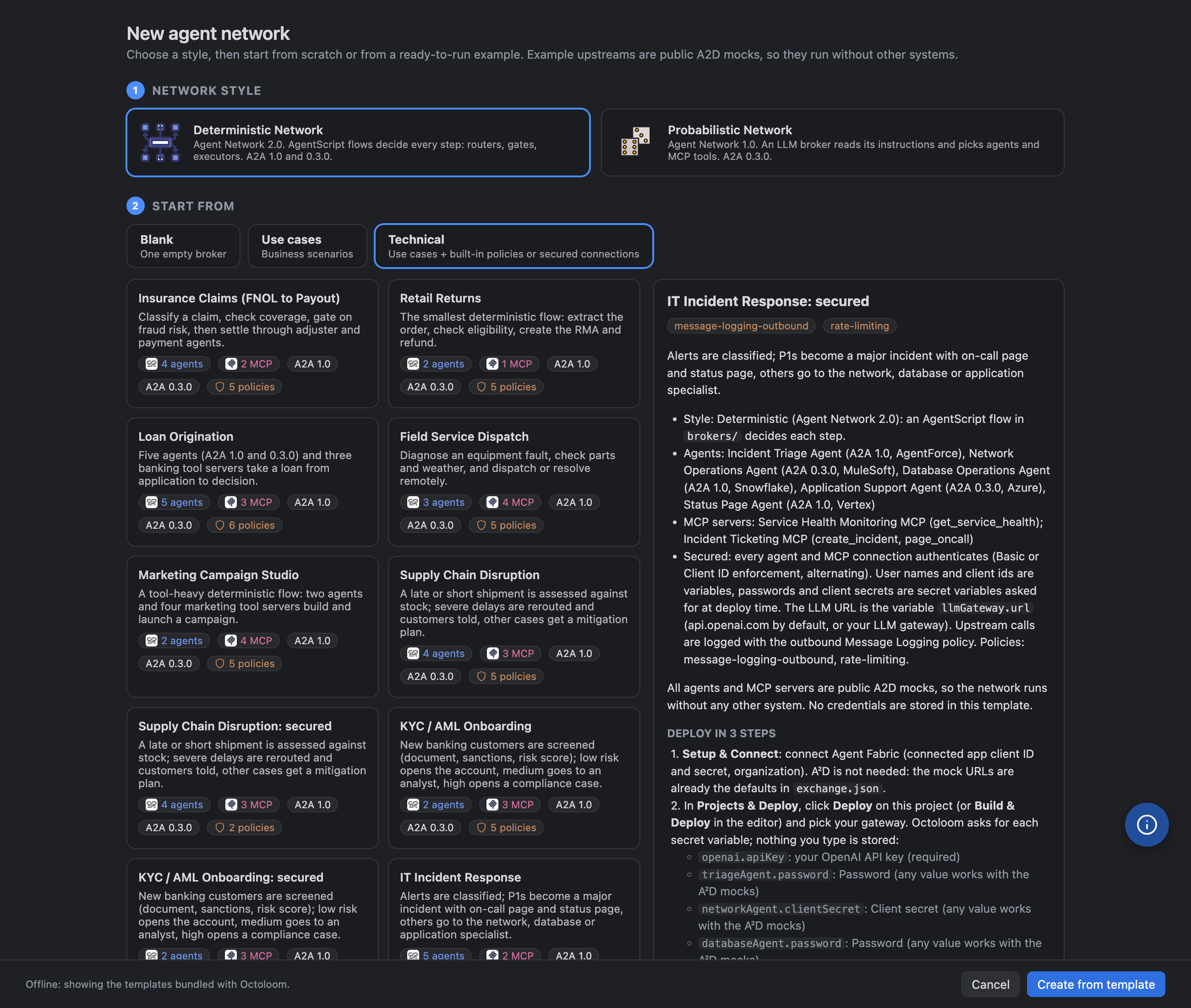
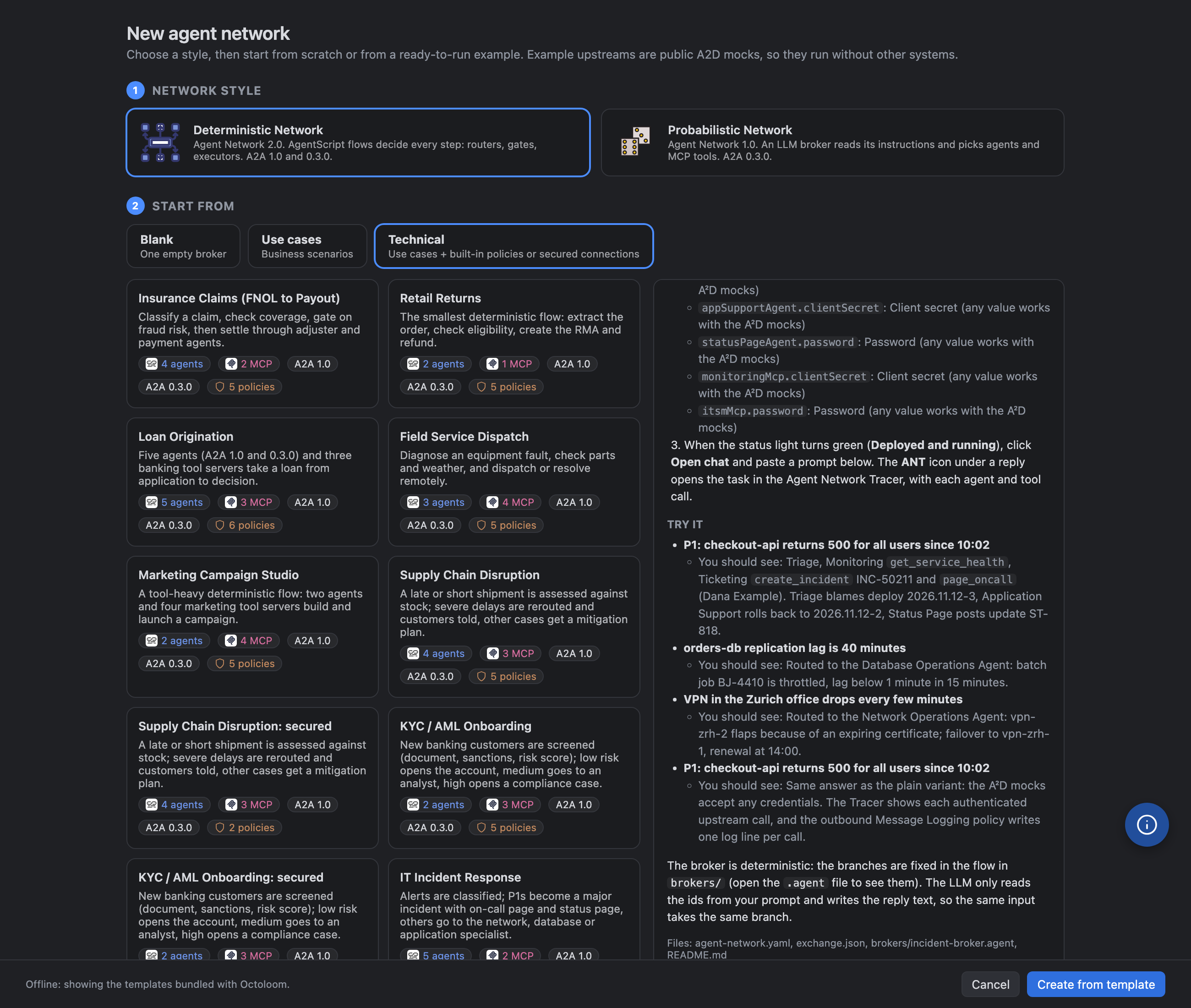
New Project opens a dialog with 37 ready-made examples: 15 business use cases, each as a plain network and as a governed variant with built-in Agent Fabric policies (rate limiting, PII detection, schema validation, header injection, prompt decoration). Five of them also come as a secured variant: every agent and MCP connection authenticates (Basic or Client ID enforcement) with exchange.json variables (passwords and client secrets are secret variables, asked at deploy time), the LLM URL is a variable (llmGateway.url, your LLM gateway or api.openai.com), the broker is rate limited and v2 upstream calls are logged with the outbound Message Logging policy.
|
Use cases |
Technical (governed / secured) |
| Deterministic (v2, AgentScript) |
insurance claims, retail returns, loan origination, field service, campaign studio, supply chain disruption, KYC / AML onboarding, IT incident response |
the same 8 with policies; supply chain, KYC and incident response also secured |
| Probabilistic (v1, LLM routing) |
customer service, employee onboarding, IT helpdesk, procurement, travel & expense, HR leave, patient intake (demo data) |
the same 7 with policies; HR leave and patient intake also secured |
Informatica IDMC (technical, both styles): IDMC Customer Data Steward (v1) and IDMC Data Trust (v2, AgentScript) call four Informatica shared MCP servers (Customer Identification, Address Verification, CDGC Metadata Search, CDGC Data Quality Score) with OAuth 2.0 client credentials. They need an IDMC org with these services and an IDMC MCP client; their README lists the IDMC setup step by step, then how to deploy.
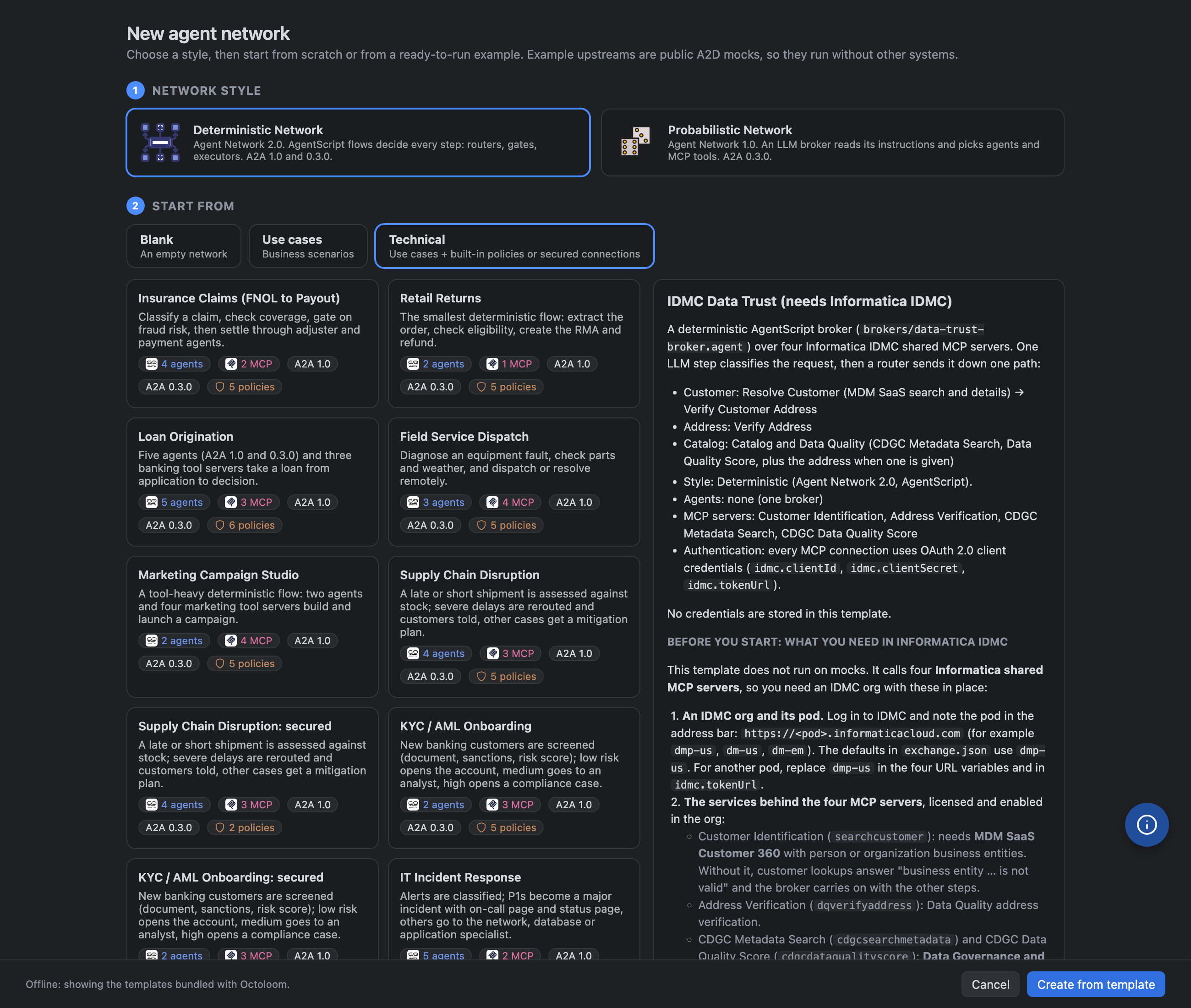
Pick the network style, then start Blank, from a Use case or from a Technical example. Each card shows the number of agents and MCP servers, the A2A versions and the policies; the right side shows the example's README: Deploy in 3 steps (what to connect, which variables to fill in and which secrets you are asked for at deploy) and Try it, 3 to 6 prompts to paste into the chat (the main path, the other branches, and for governed and secured variants a prompt that shows the policies) each with You should see: the agents, tools and mock ids to expect in the reply and the Agent Network Tracer. All upstreams are public A²D mocks, so a new project builds and runs without other systems; set openai.apiKey at deploy time.
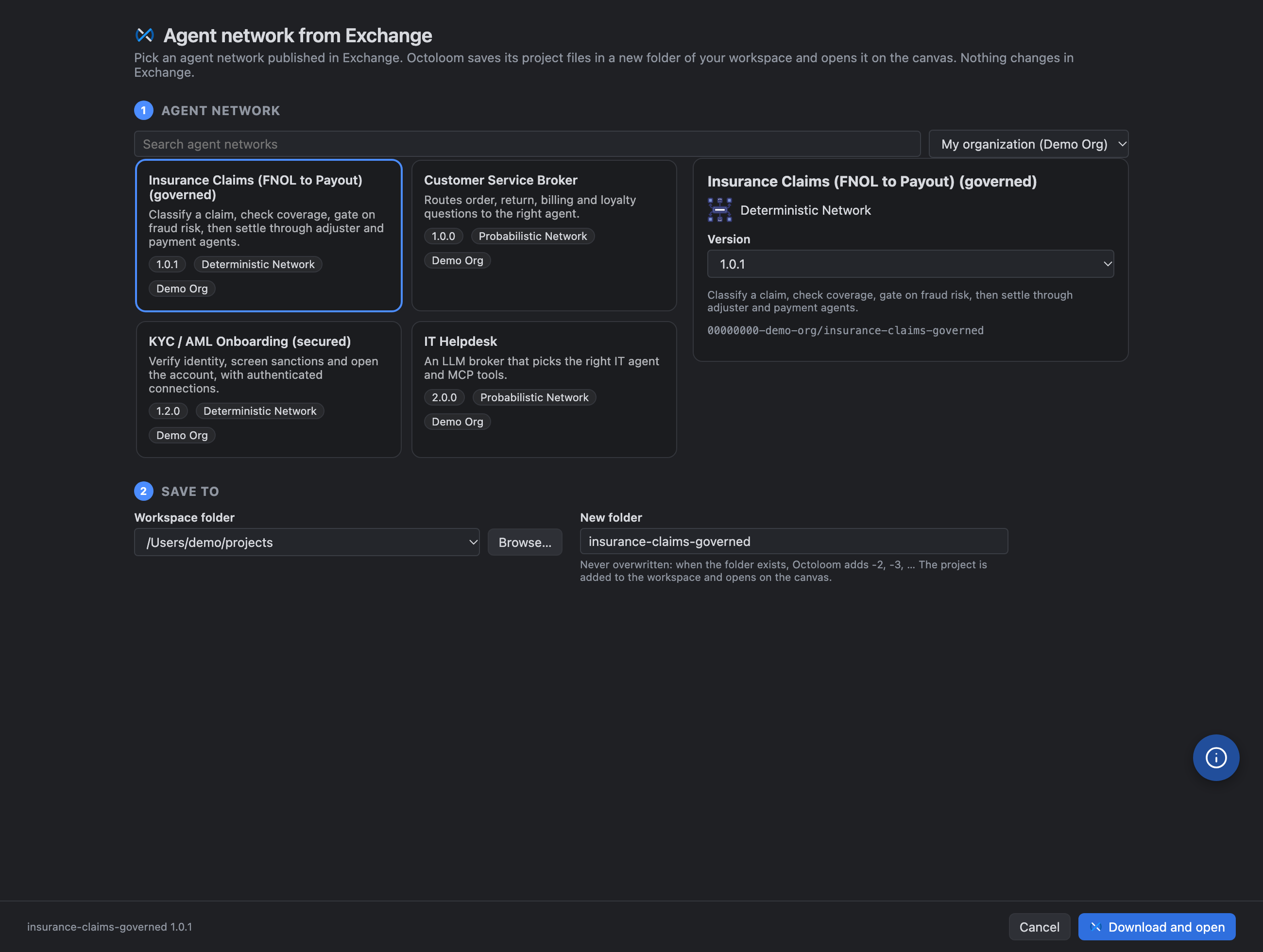
Agent network from Exchange
Continue work on an agent network that is already published in Exchange, by you on another machine or by a colleague. Click the Exchange icon next to + in Projects & Deploy, or choose From Exchange in the + menu. The dialog lists only Agent Network assets: your organization first, or everything you can see. You can search them and pick a version. Each one shows whether it is Deterministic (v2) or Probabilistic (v1).
Download and open saves the version's project files (agent-network.yaml, exchange.json and brokers/*.agent) in a new folder of your workspace folder. Existing folders are never overwritten: Octoloom adds -2, -3, and so on. The project is added to the workspace and opens on the canvas. Only read calls go to Exchange. Secrets are not part of the asset, so you set them again at deploy. If the exchange.json version is already in Exchange, bump it before the next Publish.
Network canvas (agent-network.yaml)
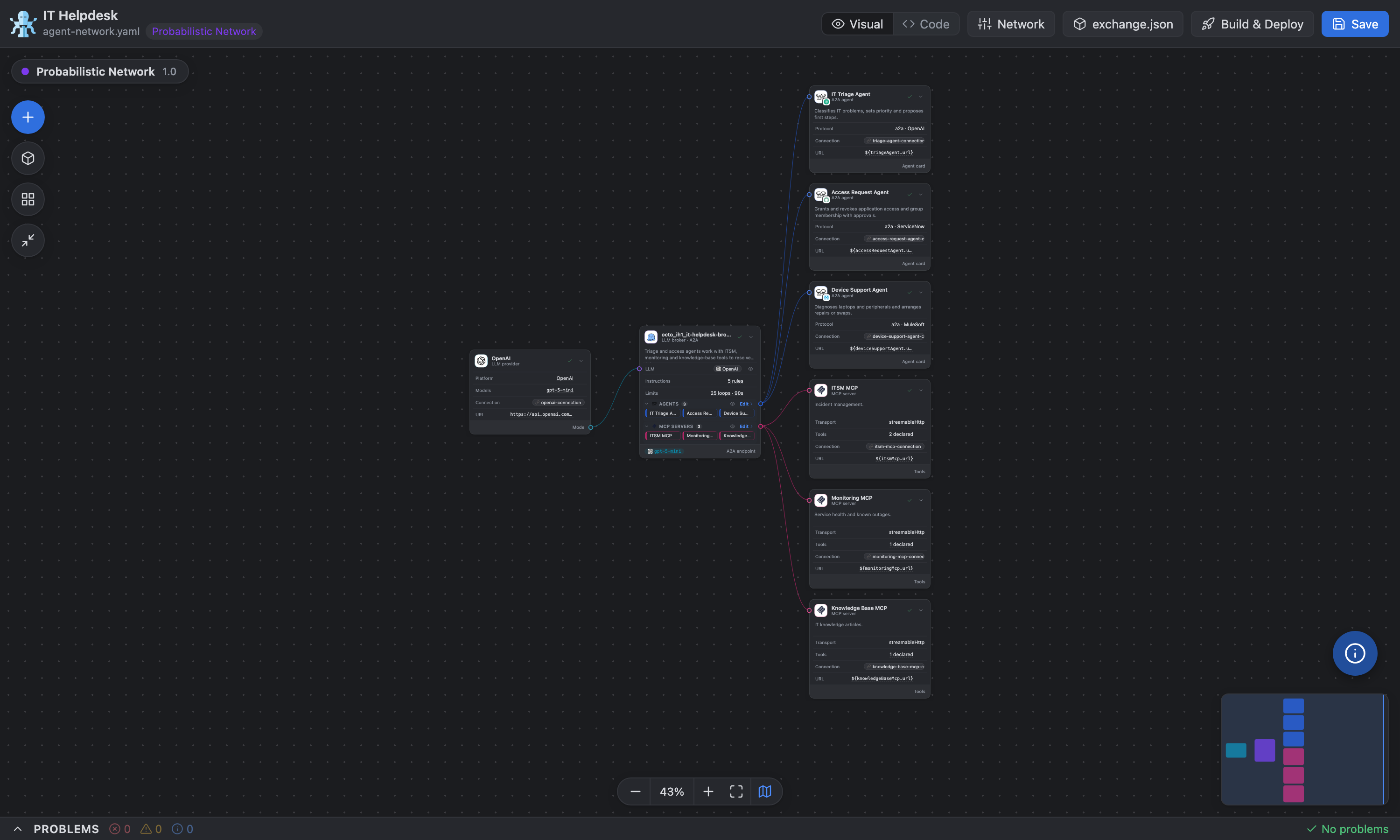
- Cards for brokers, agents, MCP servers and LLMs, with edges for the references between them. Ports sit on the exact row an edge refers to.
- Add menu with templates (the + button): each component offers Empty or a ready-made entry: LLM providers (OpenAI, Azure OpenAI, Gemini, LLM through a gateway, Bedrock on v2), connections with a chosen authentication, reusable v2 policies, A2A 1.0 / 0.3.0 agents and HTTP / SSE MCP servers. Variables go into
exchange.json; secrets have no default and are asked for at deploy time.
- Inspector panel: identity, connections, interfaces (A2A card, skills), MCP tools, framework, tags, description, policies and a connectivity test. Drag its left edge to resize it.
- Inline editing: click a value with a dashed underline, or the pencil on a row, to edit it on the card. Examples: allowed MCP tools (multi-select read from Exchange or the live server), connection URL, LLM platform, broker loops and timeout.
- Allowed tools (v1): choose any number of tools of an MCP server with checkboxes. No selection means all tools are allowed.
- Deterministic brokers (v2) show the agents and MCP servers they use, grouped by section. Link adds the matching actions to the broker's
.agent flow (a2a://… / mcp://…), and the trash icon removes them. An agent or MCP server that no broker uses shows a Link to … shortcut.
- Delete a component: select it and press Delete, or use the trash icon in the inspector. Its references, connection and
exchange.json dependency are removed with it. A flow's start and Done nodes cannot be deleted.
- Collapse any card, fold a section, or hide/show connected cards with the eye button (for example, hide every MCP server of a broker, or its LLM). Positions and visibility are saved for each workspace.
- Problems panel with schema validation. Click a problem to jump to the card.
- Auto layout, zoom and fit, and a minimap you can collapse or show from the toolbar.
- Switch between Visual and Code at any time. Edits go to the YAML directly, and comments and formatting are kept. See Code view.
Broker LLM provider
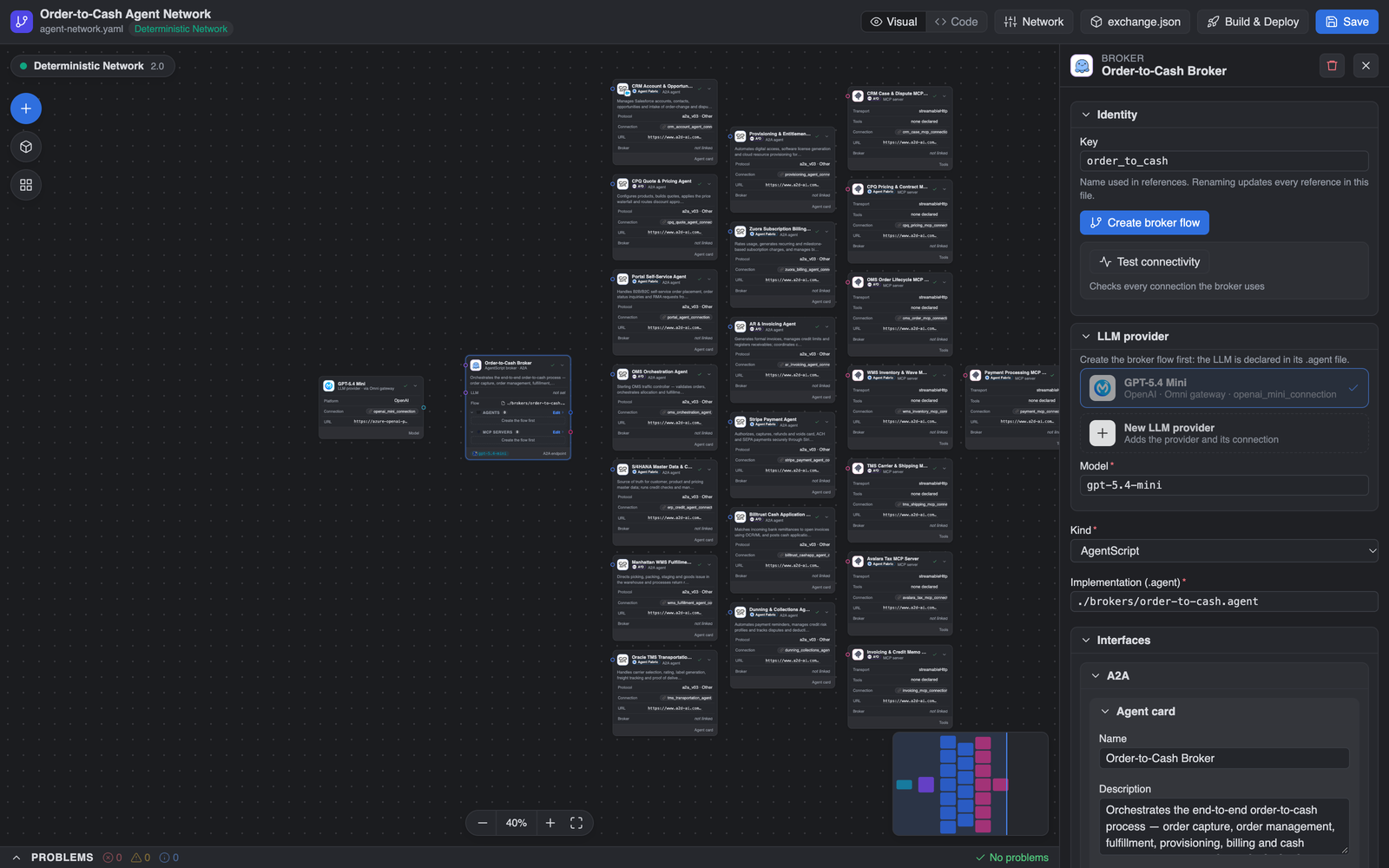
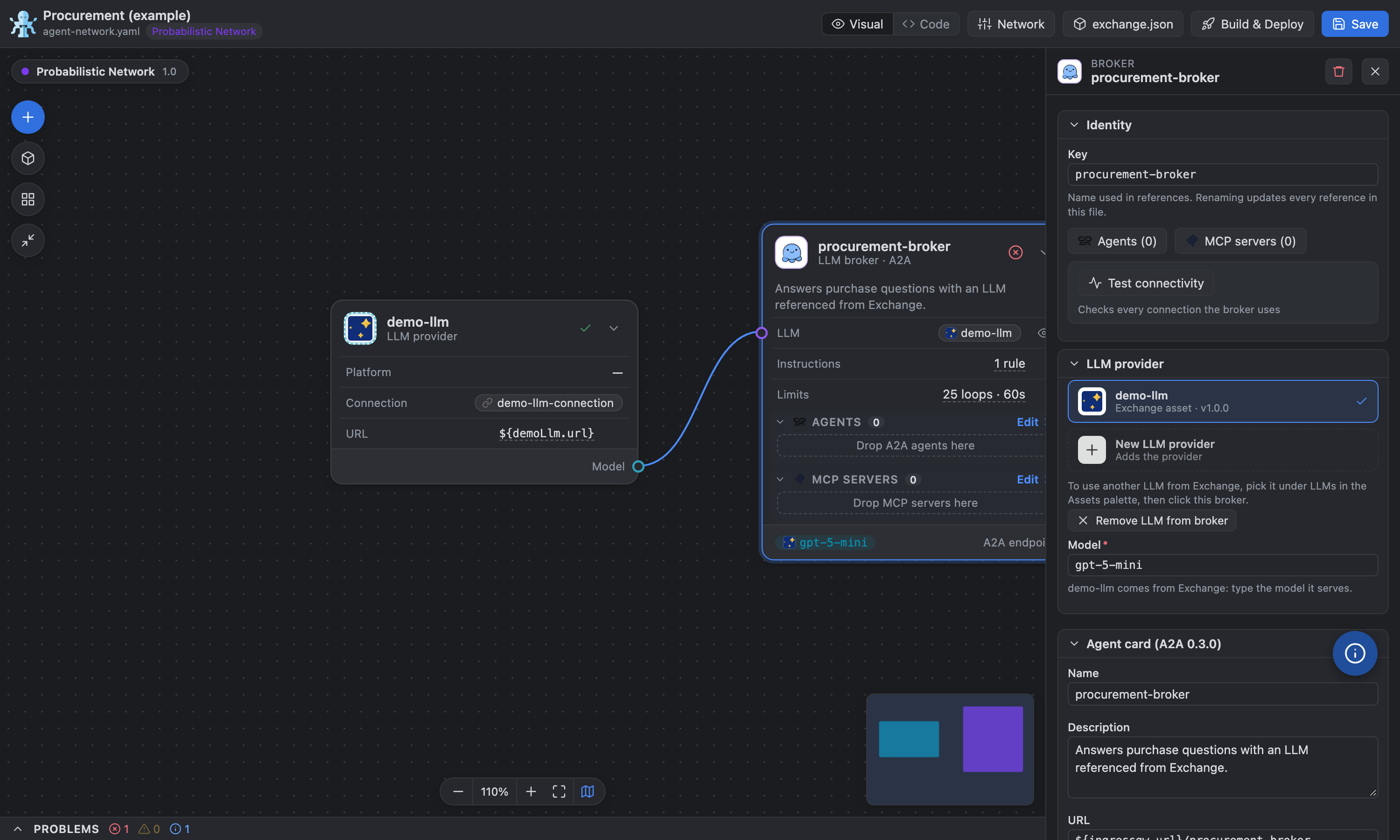
Select a broker and choose its LLM provider and model in the inspector:
- v1: writes
spec.llm (provider reference, connection, model).
- v2: writes the
llm block and config.default_llm of the broker's .agent file.
An LLM whose URL points to a MuleSoft / Flex gateway is labelled via Omni gateway. Variables are resolved from the exchange.json defaults; secrets are never shown.
LLM authentication: API key or OAuth 2.0 (JWT)
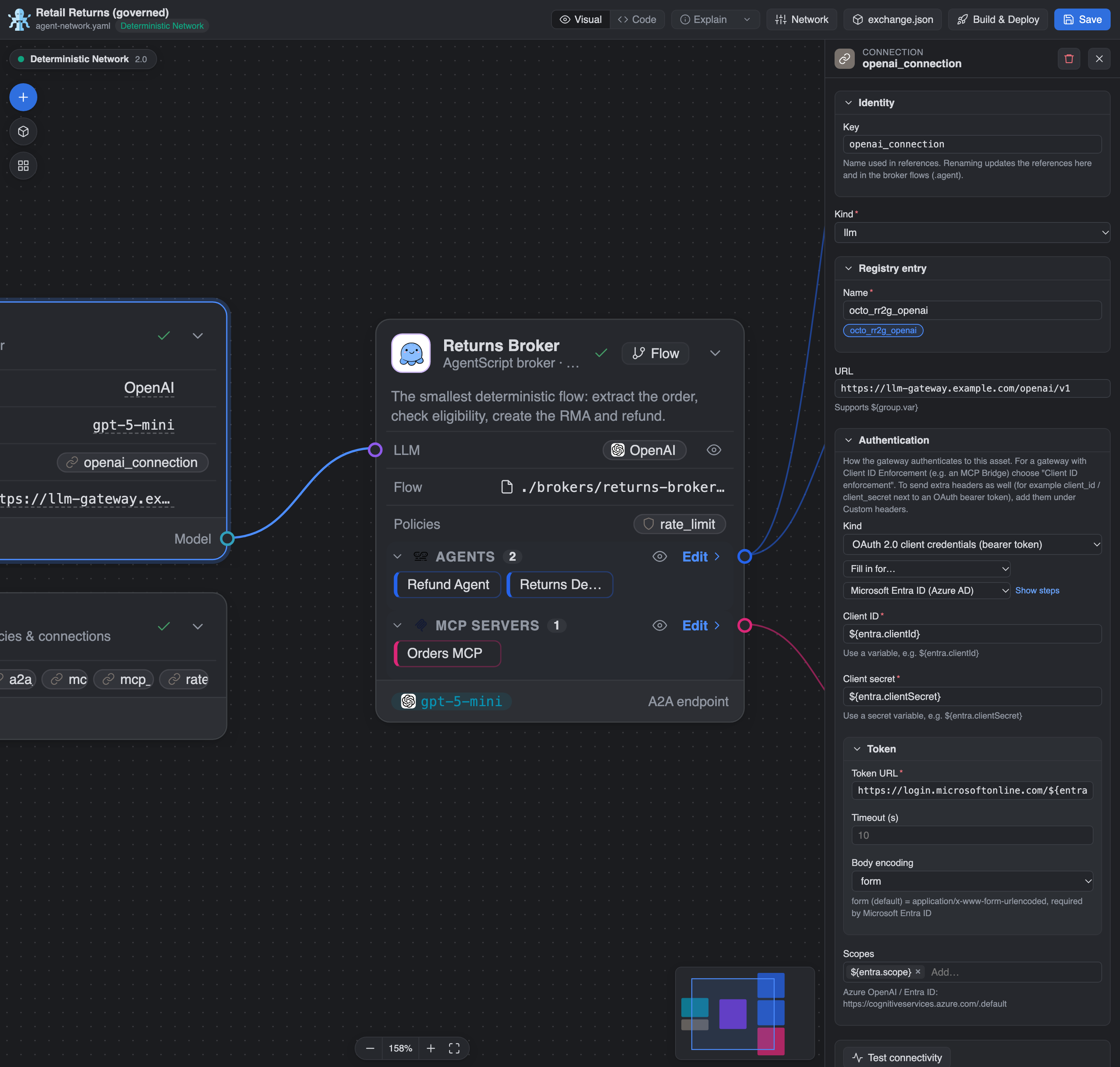
By default an LLM connection uses an API key and the gateway adds its transcoding policy. For an LLM behind your own gateway that expects a JWT, choose OAuth 2.0 client credentials on the connection: the egress gateway fetches the token from your identity provider, caches it and sends Authorization: Bearer <token> with every LLM call.
- Fill in for… writes the authentication block and the
exchange.json variables for Microsoft Entra ID, Okta, Auth0, Keycloak, Salesforce, Amazon Cognito, PingOne, Anypoint connected apps or any other provider. Show steps lists the setup at the provider.
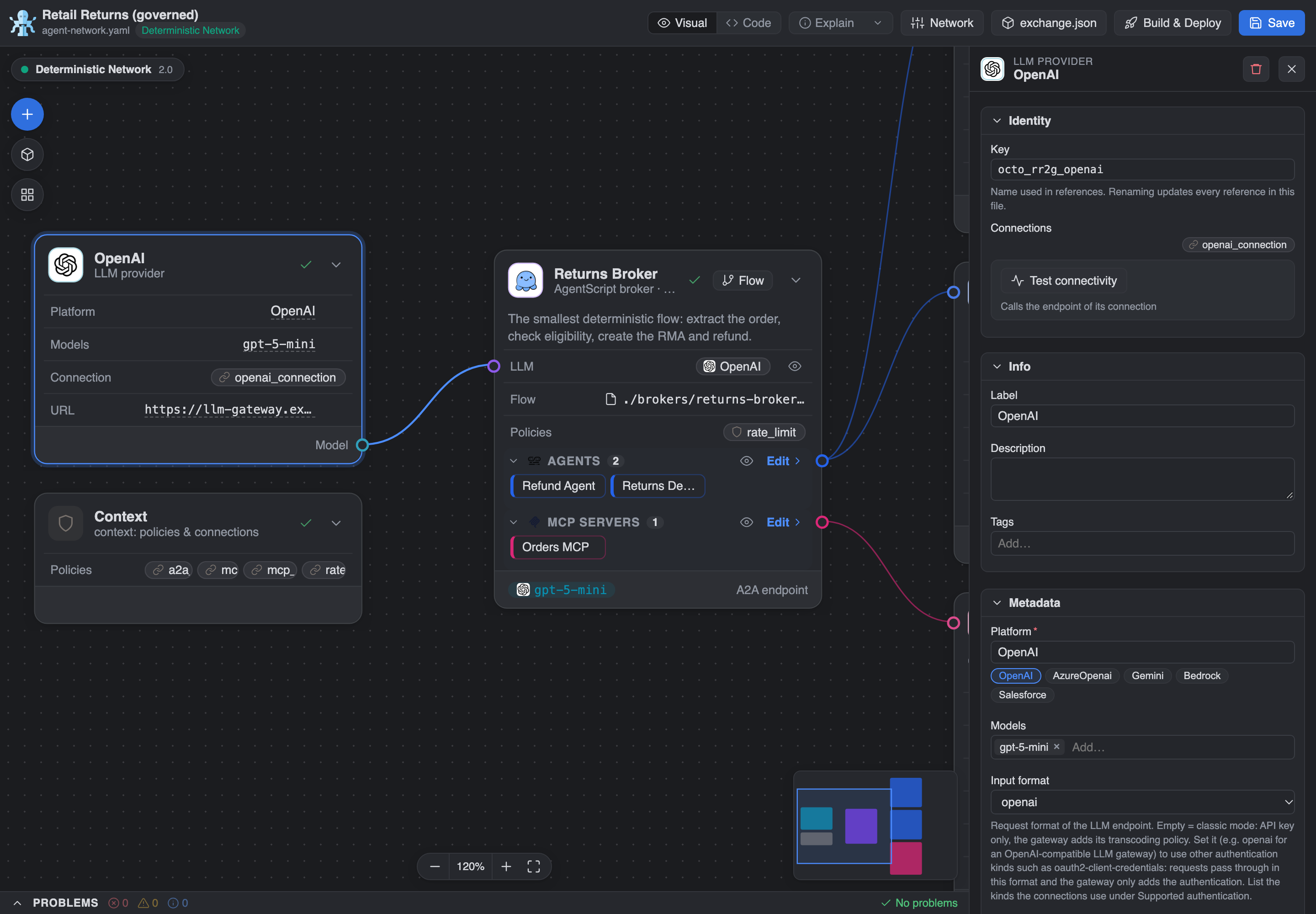
- The LLM must declare an Input format (
openai, anthropic or gemini) and the kind under Supported authentication, otherwise the CLI only accepts an API key (build error 3060). Octoloom flags this in Problems and adds both before a build when the platform is clear. API key setups are not changed.
Policies and P4A
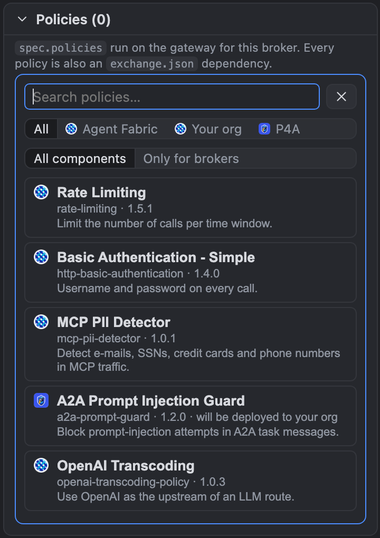
Select a broker or a connection (or an agent, MCP server or LLM, which uses its connection), then click Add policy under Policies:
- Agent Fabric: the MuleSoft-provided gateway policies that Anypoint offers on an Agent Fabric instance (about 120), for example Basic Authentication - Simple and LDAP, Client ID Enforcement, JWT Validation, IP Allowlist / Blocklist, CORS, Spike Control, Rate Limiting, Header Injection, Credential Injection, the A2A, MCP and LLM policies and OpenAI Transcoding. The list is bundled so it works offline; when you are connected, newer MuleSoft policies from Exchange are added. Mule 4-only templates and the policies the CLI adds to every connection by itself (MCP Support, Tracing, A2A Agent Card, …) are not listed.
- Your org: policies published to Exchange in your Agent Fabric organization.
- P4A: the P4A policy catalog. If the policy is not in your org yet, Octoloom asks before deploying it through the P4A MCP server, using your P4A connection and workspace, and then waits for the release.
The picker lists every policy for every component (broker, agent, MCP server or LLM). Policies from Exchange and P4A do not say reliably where they apply, so nothing is hidden. To narrow the list, switch All components to Only for brokers (or A2A agents, MCP servers, LLMs).
Each applied policy has a chevron to collapse it to its title row: the binding name, direction, policy asset and number of settings. With two or more policies they start collapsed, and Collapse all / Expand all sits in the Policies header. Octoloom remembers your choice per policy.
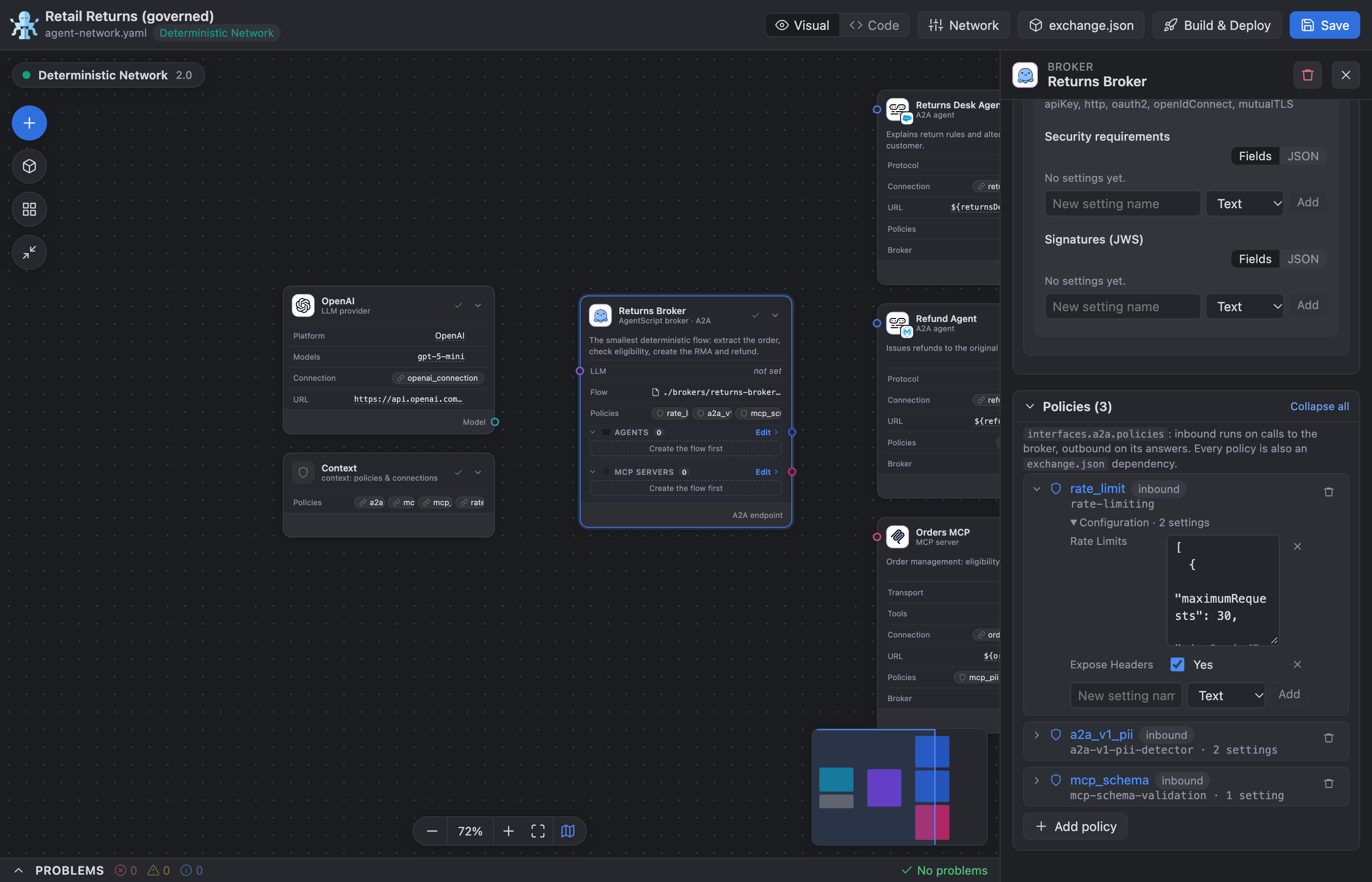
Octoloom writes the policy into the YAML (v1 spec.policies; v2 policies.inbound|outbound on a connection or interfaces.a2a.policies on a broker) and adds its exchange.json dependency (classifier schema). For custom headers next to OAuth, such as a client_id header that client ID enforcement requires, add Header Injection to the connection and edit the headers in place.
Broker flow editor (brokers/*.agent)
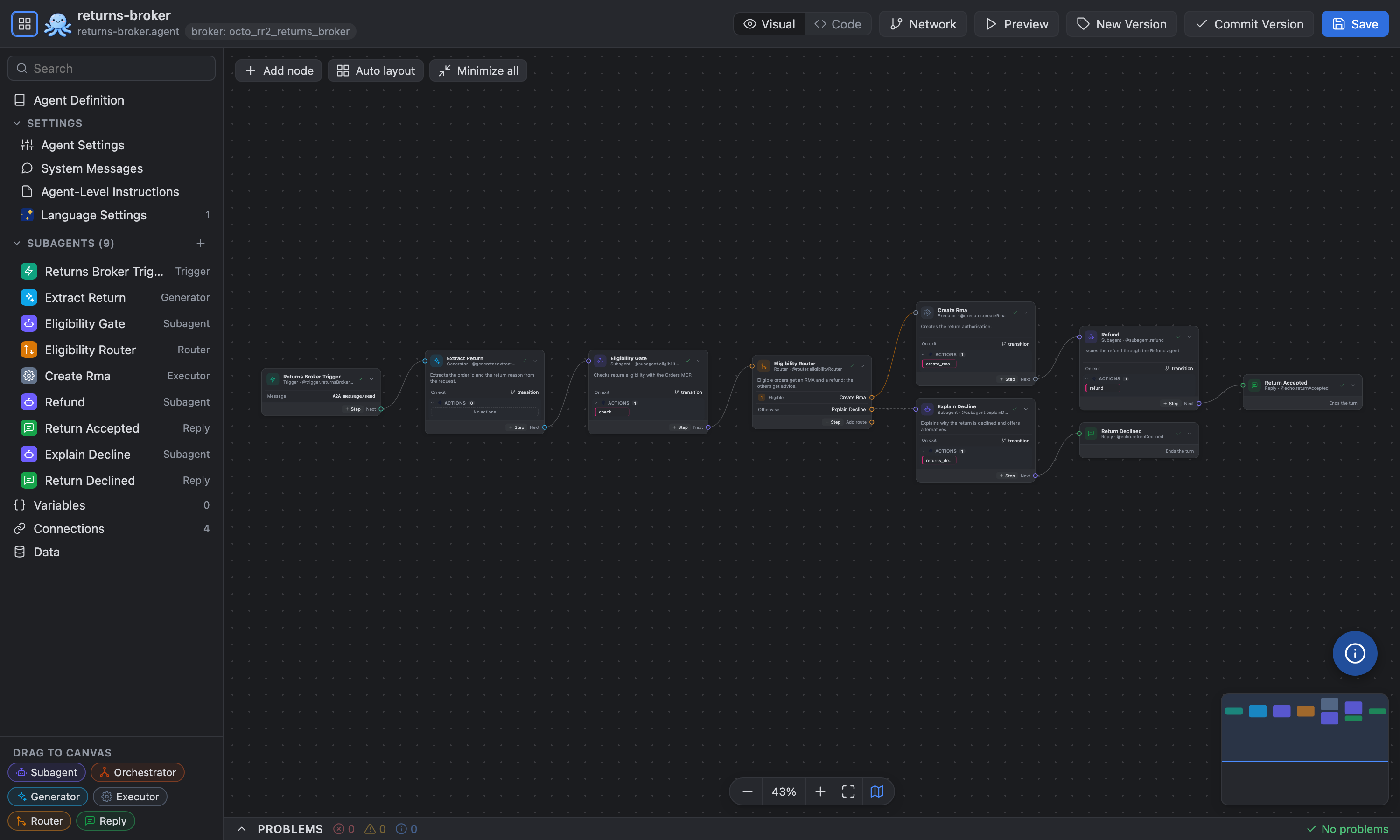
Every subagent is a node, and transitions, routes and actions are edges.
The outline lists agent settings, system messages, instructions, language settings and all subagents.
Drag new nodes onto the canvas: Subagent, Orchestrator, Generator, Executor, Router, Reply.
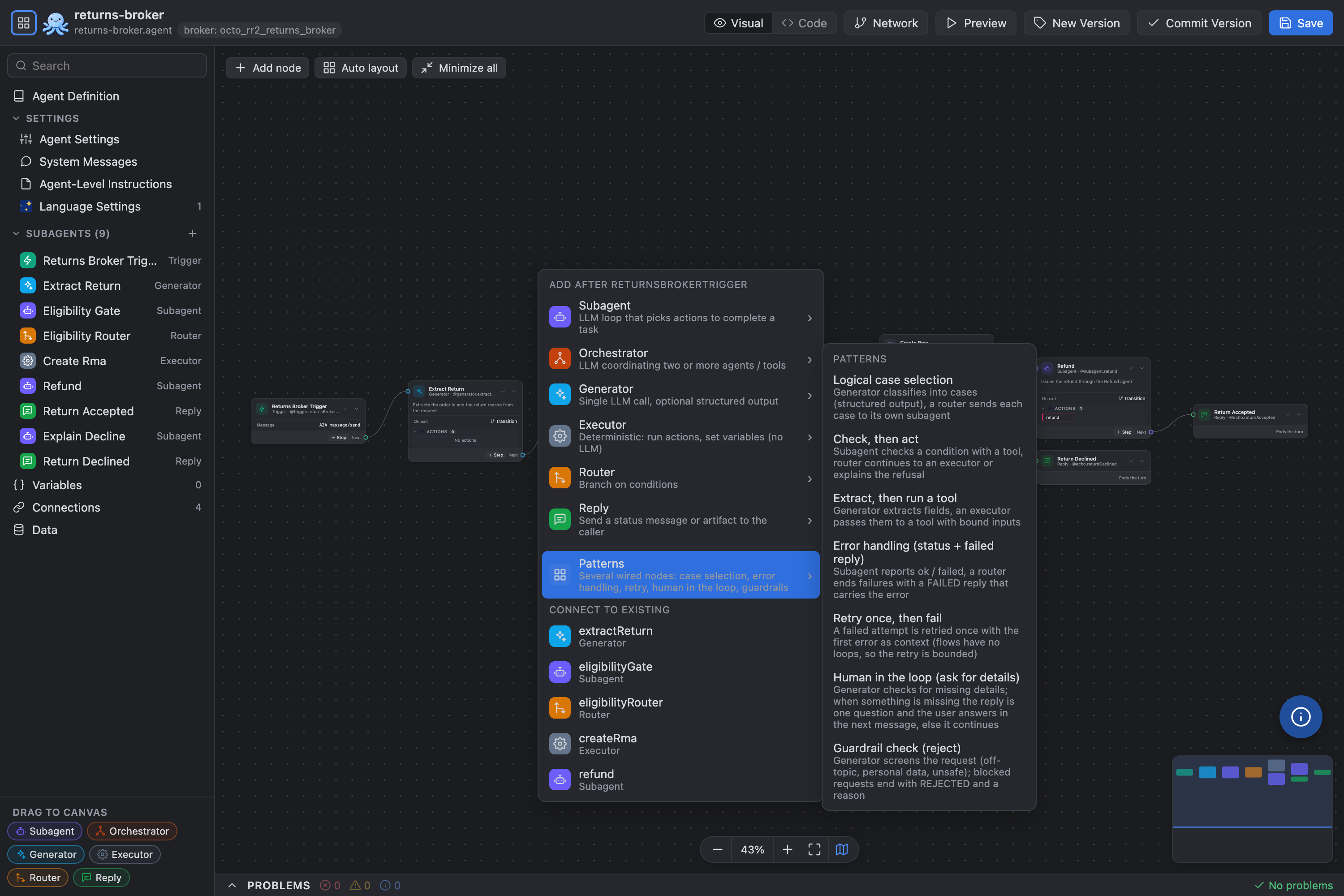
+ Step or right-click opens a multi-level menu: each node type has an empty entry and templates (structured extraction, classifier, yes/no branch, tool gate, run tool with bound inputs, completed/failed reply…). Patterns insert several wired nodes:
- Logical case selection: generator with an enum output → router → one subagent per case.
- Check, then act and Extract, then run a tool.
- Error handling: a subagent with an
ok / failed status → router → reply, or a FAILED reply with the error.
- Retry once, then fail: a second attempt gets the first error as context. Flows have no loops, so the retry is bounded.
- Human in the loop: a generator checks for missing details; when something is missing the reply is one question, answered in the next message.
- Guardrail check: blocked requests end as REJECTED with a reason.
Replies include Completed, Failed, Canceled and Rejected. Every path must end in a terminal state; the CLI rejects a branch that ends with input required.
Executors and subagents / orchestrators can run both MCP tools and A2A agents (per the AgentScript reference); the action picker groups them by kind (MCP tools, A2A agents), explains each and suggests the bindings (with message = ... for A2A, tool inputs for MCP). Executors cannot slot-fill, so an A2A action run by an executor without with message = ... is flagged.
Drag from an output port onto a card to connect it; click a connection to delete it. A node's type is fixed once created.
Instruction fields (and v1 broker instructions) have an Insert template picker, with templates for error handling, retry, asking the user for missing details and guardrail screening.
- Preview (chat with the deployed broker; A2A 0.3.0 or 1.0 detected from its card, URL prefilled from the last deployment), New Version and Commit Version actions for AgentScript brokers.
Code view (YAML, AgentScript, JSON)
Every editor has a Code tab with a full code editor, aware of the Agent Fabric v1 and v2 reference and of AgentScript.
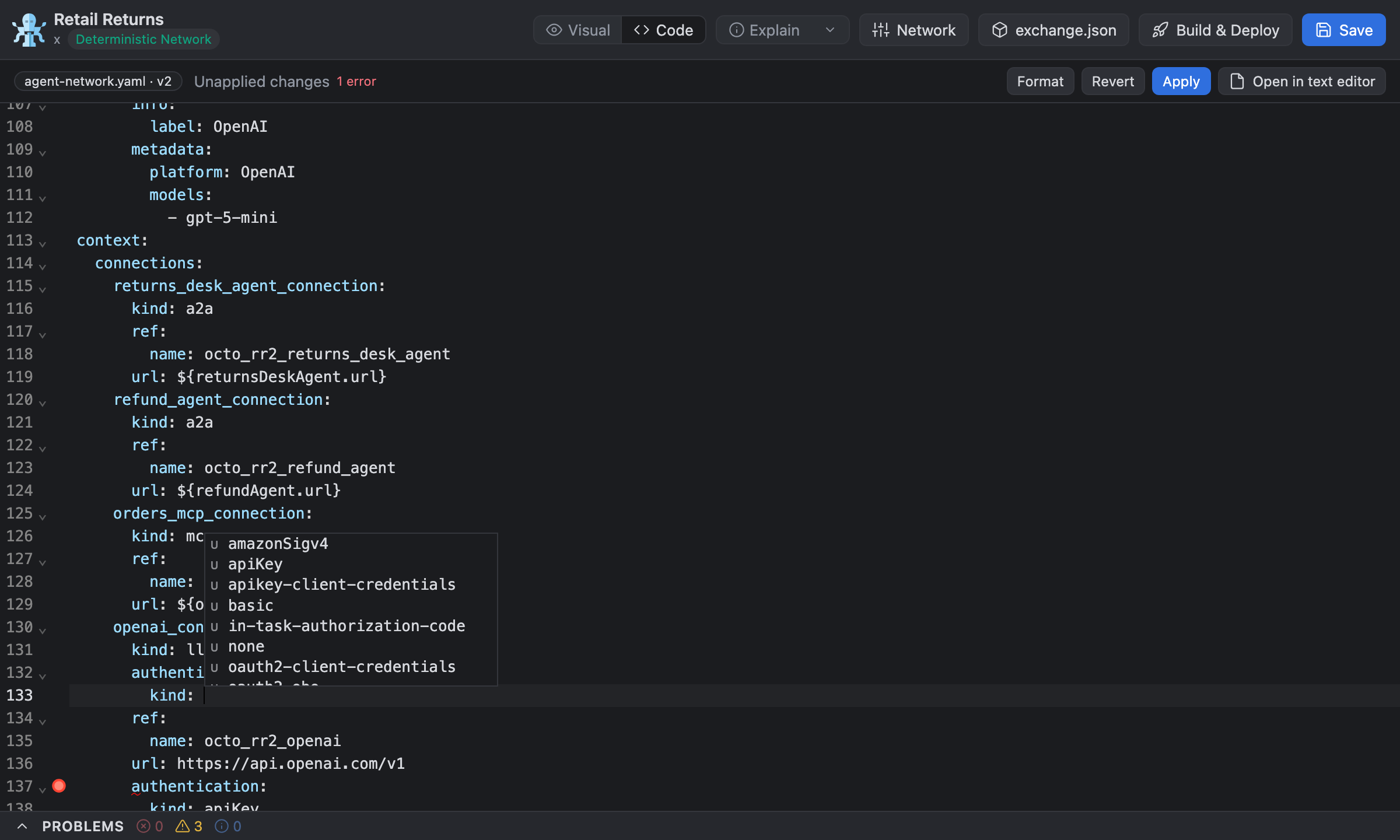
- Syntax colours for
agent-network.yaml, brokers/*.agent and exchange.json, following your VS Code theme: keys, values, quoted strings, numbers, comments, and : / list - in YAML.
- Autocomplete (IntelliSense) from the reference: keys valid at the cursor for v1 or v2, allowed values (authentication kinds, transports, platforms, input formats, A2A protocol bindings), names of declared agents, MCP servers, LLMs, connections and policies,
${variables} from exchange.json. In AgentScript: node kinds, block keys, statements (transition to, run, with, set), @ references (@actions.…, @router.…, @variables.…), A2A task states and MCP tool names.
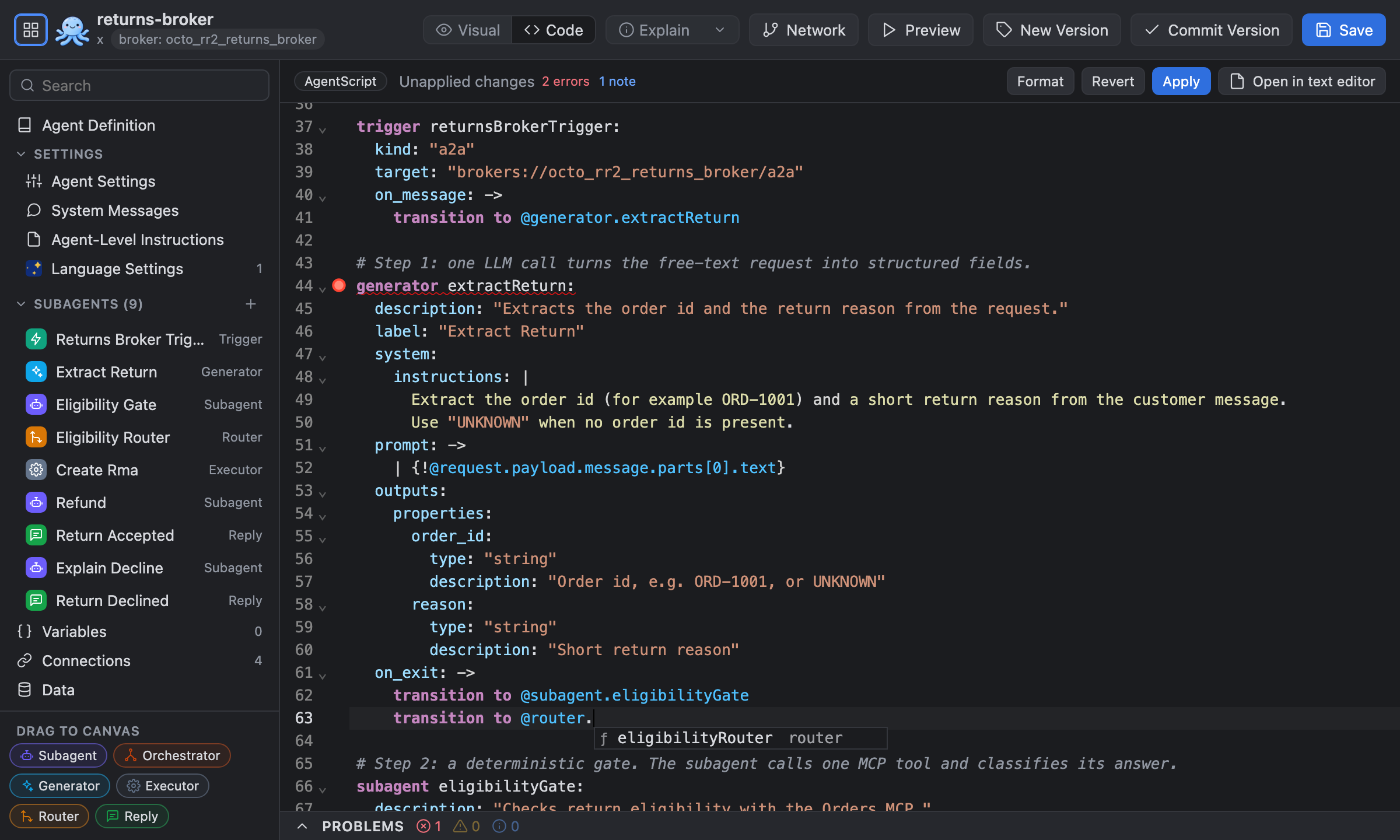
- Checks while you type: syntax errors, the same validation as the Problems panel (for example references to missing components or connections, undeclared variables, an MCP connection URL that already ends with the server's transport path such as
/mcp), keys that are not in the reference, and lines with off-level indentation. Errors, warnings and notes are counted in the toolbar; hover the underline or press F8 for the next one.
- Format (Shift+Alt+F): re-indent to 2 spaces per level. Auto-indent on Enter, folding, bracket matching, find and replace like VS Code (Ctrl/Cmd+F, Ctrl/Cmd+H): a find box at the top right with match case, whole word and regex toggles, the match count, previous / next, select all, replace and replace all.
- Apply (Ctrl/Cmd+S) writes to the file, Revert drops your edits, Open in text editor opens the file in VS Code.
Asset editor (exchange.json)
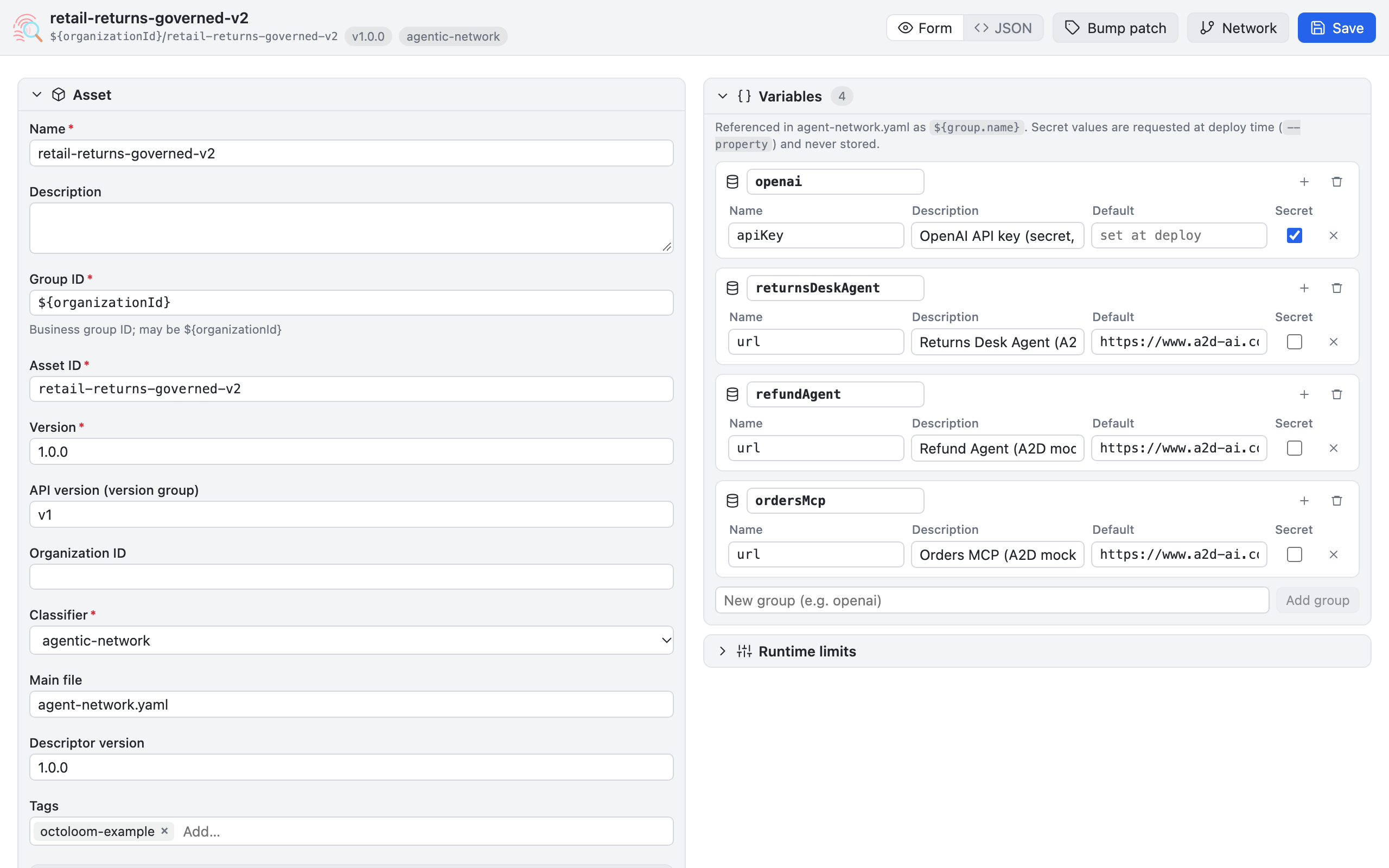
A form for the Exchange descriptor: asset identity, version, variables and their defaults (secrets are masked), and dependencies.
Asset palette: Agent Fabric and A²D
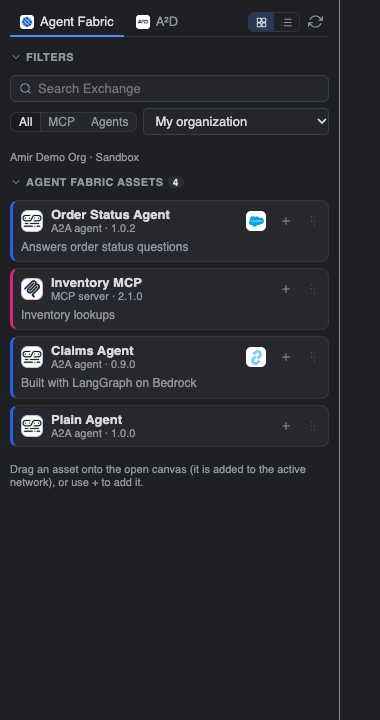
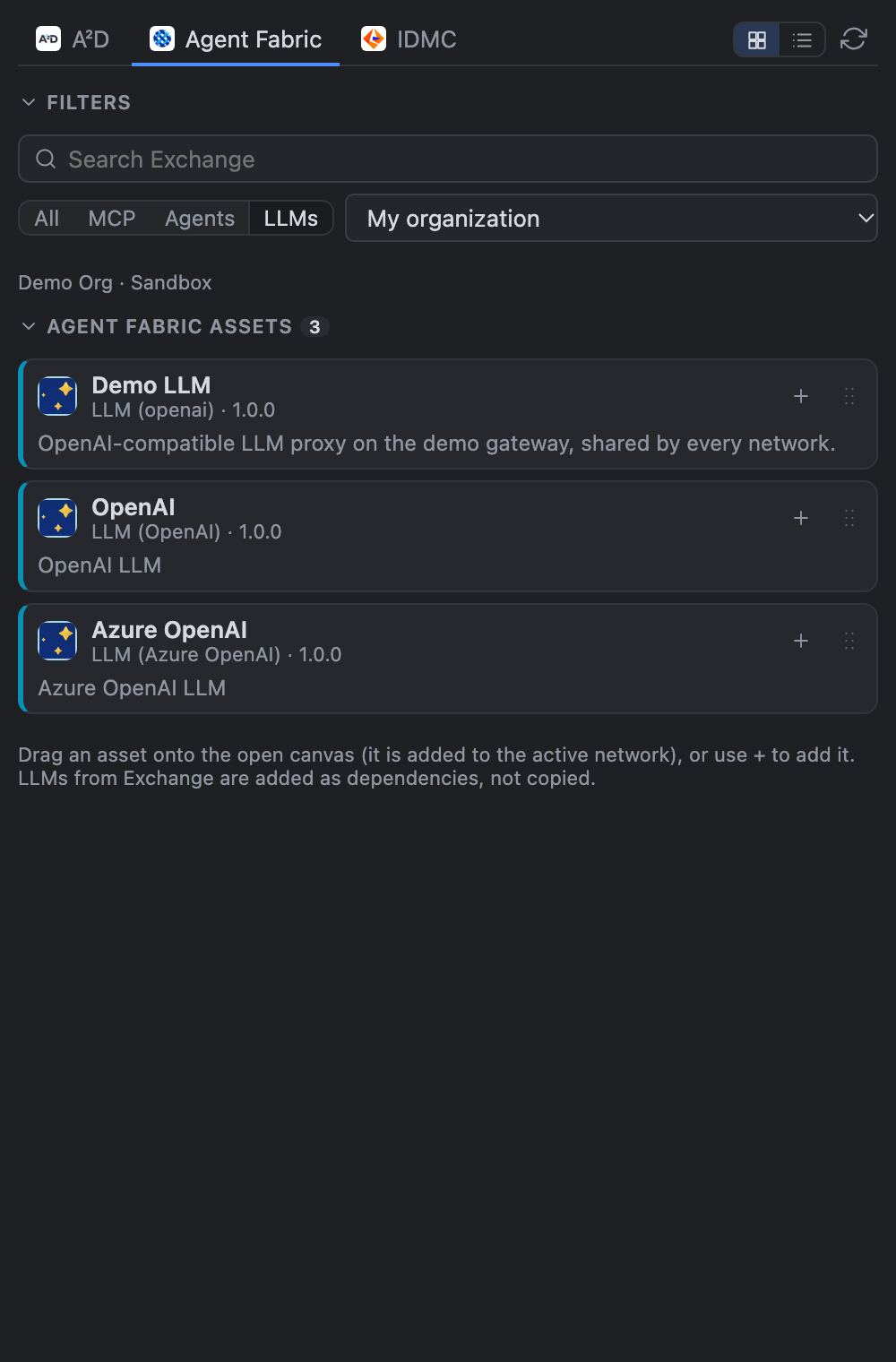
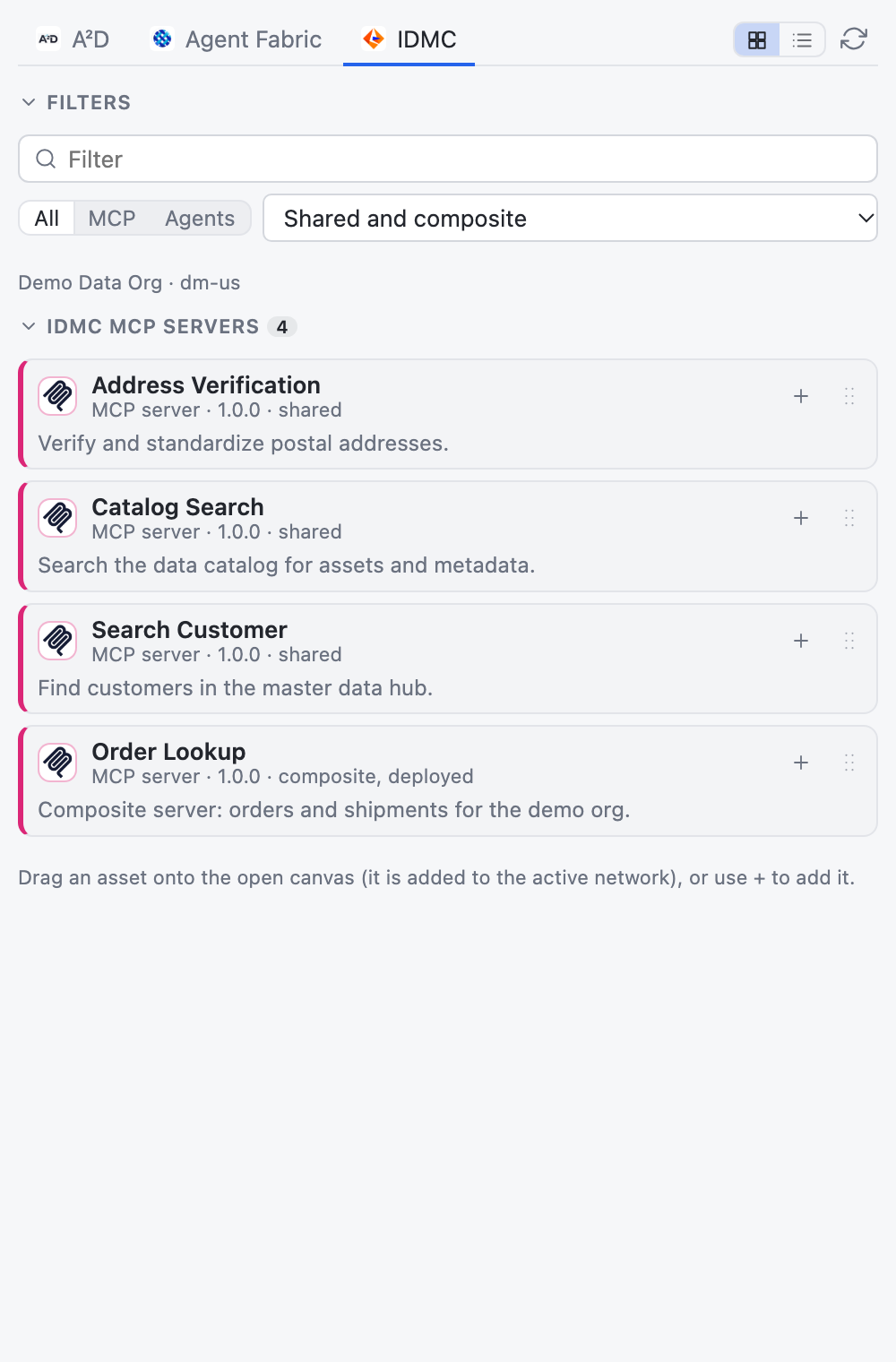
- Agent Fabric tab: MCP servers, A2A agents and LLMs published in Exchange for your organization. You can include public assets.
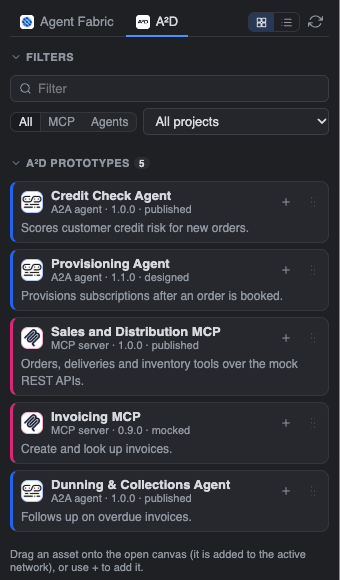
- A²D tab: your A²D prototype MCP servers and agents with their hosted mocks, filtered by A²D project.
- Search, filter (All / MCP / Agents, plus LLMs on the Agent Fabric tab; A²D and IDMC have no LLMs), and switch between card and row layouts.
- Expand a card to see its URL, Exchange coordinates, tools and skills.
- Drag an asset onto the canvas, or click +, to add it to the active network:
- Agent Fabric assets are referenced, not copied. Octoloom adds the broker link or tool, a connection, an
exchange.json variable for the URL, and an exchange.json dependency (agent-metadata / mcp-metadata, with group and version). The CLI resolves the card, skills and tools from that dependency at build time, so nothing is published twice. Assets from another business group get a namespace on the reference.
- LLMs from Exchange (for example your LLM proxy, or MuleSoft
openai) are referenced the same way: an llm-metadata dependency, an LLM connection with a URL variable and a secret apiKey variable, and, dropped on a broker, the broker's LLM. Publish creates no new LLM asset. LLMs with an input format (MuleSoft openai) work in Deterministic (v2) networks only; the Probabilistic (v1) build rejects them (error 3061).
- A²D assets have no Exchange asset yet, so Octoloom declares them in the network (agent card or MCP tools) with their connection and URL variable.
- Each card shows an origin tag (A²D or Agent Fabric) and its framework logo.
- New Deterministic (v2) projects and the v2 templates reference MuleSoft
openai instead of declaring their own LLM. For a v2 project that declares an OpenAI LLM in registry.llms, Problems offers a Fix that switches it to MuleSoft openai.
Projects & Deploy
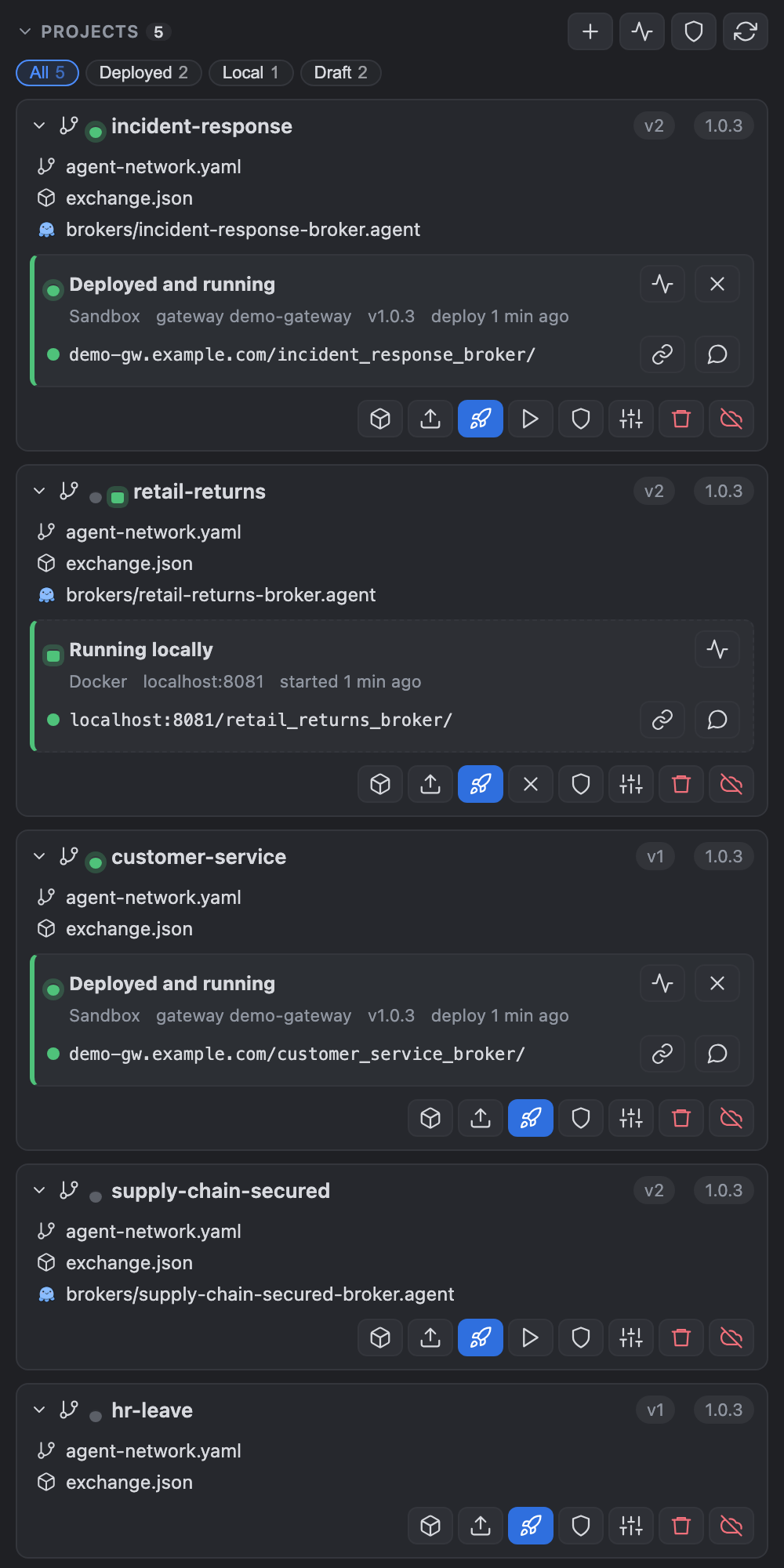
Lists the agent network projects in the workspace (folders under .deployment/ are ignored). Filter chips show all, deployed, local or draft projects; + creates a new project.
Build / Publish / Deploy / Set Up Gateways / Undeploy / Unpublish as compact icons on each project (hover for the name).
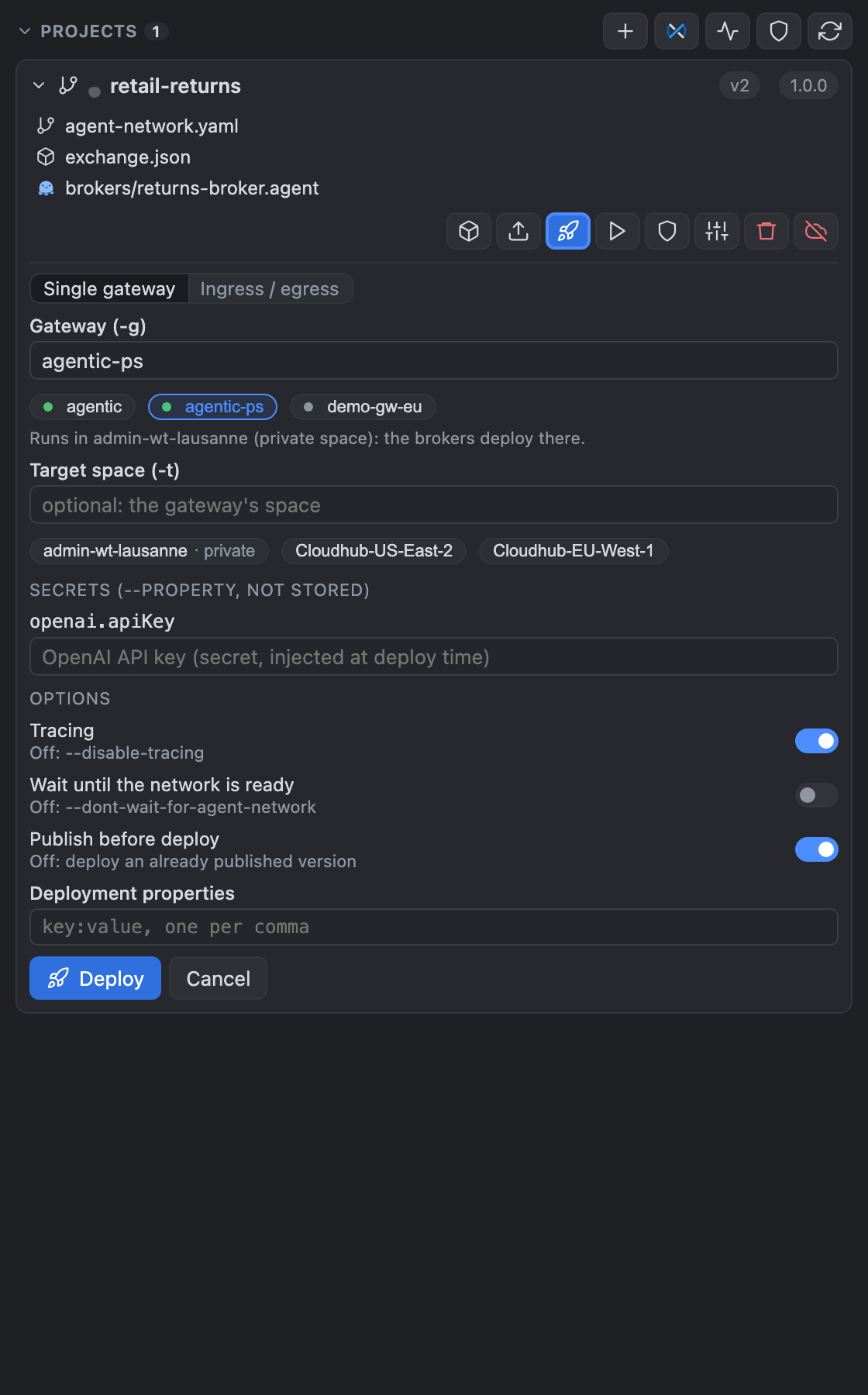
Deploy form: pick the gateway from the gateways of the connected environment (chips with a status dot; typing a name still works), enter the secrets (passed as --property, never stored) and set the options with on/off switches: Tracing, Wait until the network is ready and Publish before deploy (on by default; off passes --disable-tracing, --dont-wait-for-agent-network, --disable-autopublish). Target space offers the organization's private spaces (marked private) and the CloudHub shared spaces as chips, and each gateway chip says which space it runs in (with a single gateway the brokers deploy to the gateway's space). Deploy… on the canvas, in the command palette, in the editor title and on agent-network.yaml in the Explorer opens this same form for the project, with the same saved values. Run locally has a Watch files switch.
Pre-deploy checks before build and deploy, with a fix for each finding in the Agent Network CLI output: a broker implementation file that doesn't exist; an exchange.json dependency the connected org can't read; a v2 registry key that is already an Exchange asset of another project ("Asset 'X' belongs to another project"); a v2 connection key that is already an API instance in the environment (409). Your own earlier deploys of the same project are not flagged. Org lookups are best effort and never block a deploy.
Status light per project: grey = not deployed, green = deployed and running (the broker serves its agent card), blue = deployed, needs credentials (the gateway answers 401/403 because of an auth policy such as Client ID Enforcement, and no working credentials are saved), red = stopped or the last deploy failed. The pulse icon checks again.
Credentials chip on each protected broker row: saved (green, with the method, e.g. Client ID) when the credentials you saved with the chat's shield button work, or needed / refused / sign in (blue). Click it to open the chat. Saving or clearing credentials in the chat checks again at once, so the light turns green.
Exchange icon (key) on each broker row, and in the chat's Authentication header: opens the broker's page in Exchange, where Request access gives you the client ID and secret to paste into the chat. No searching in Exchange.
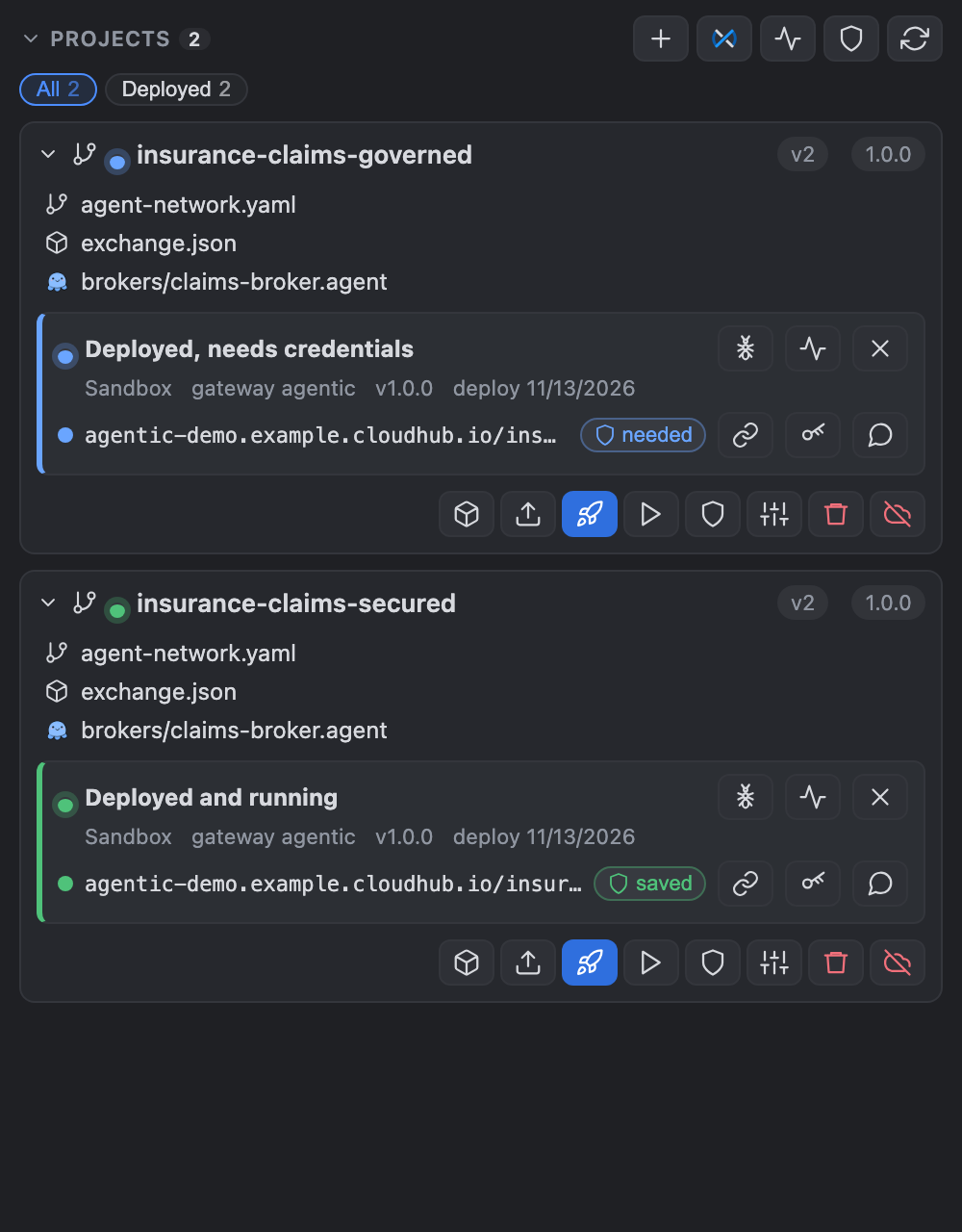
Deployment details stay with the project after VS Code restarts: environment, gateway, version and every broker URL (click to copy).
Chat icon: opens the broker chat (see below).
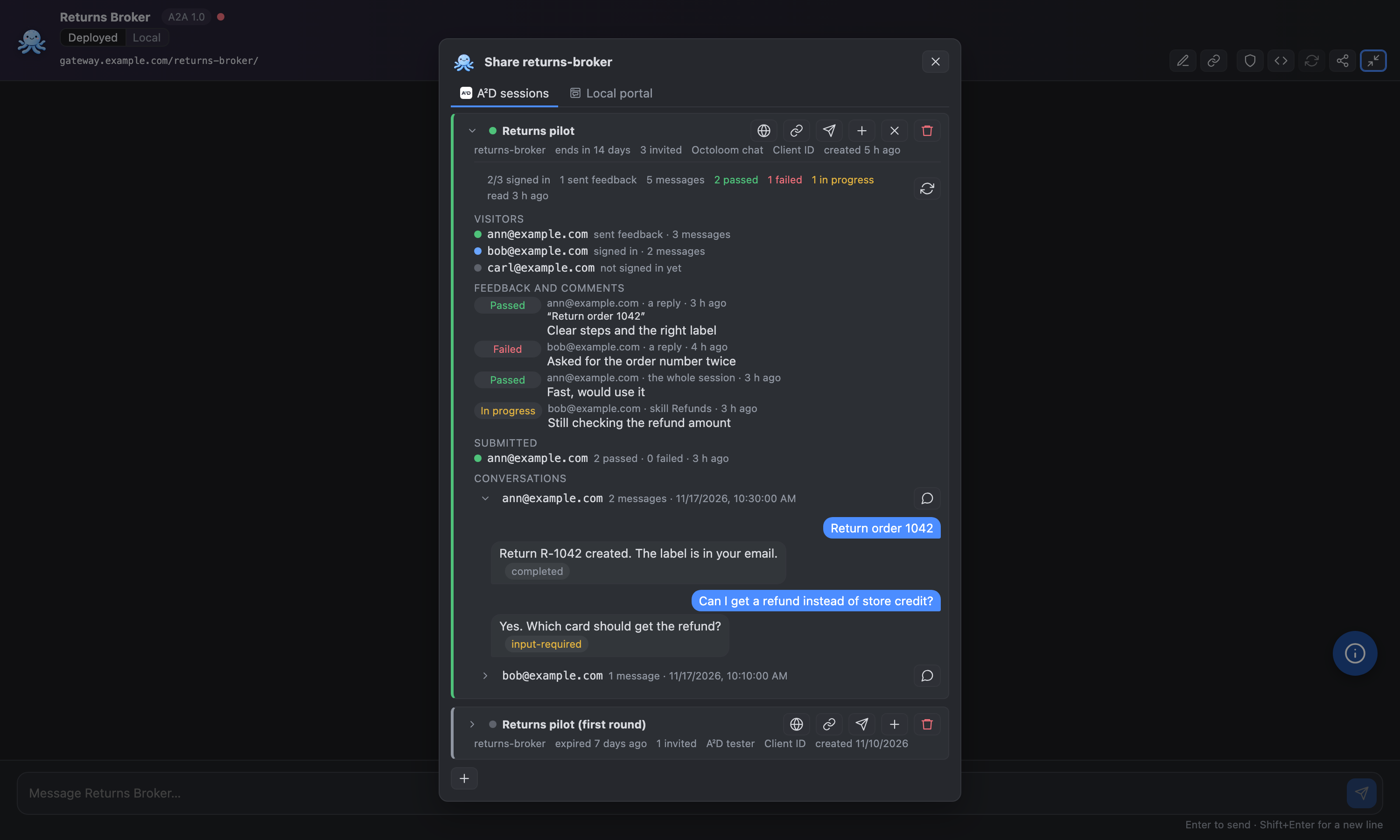
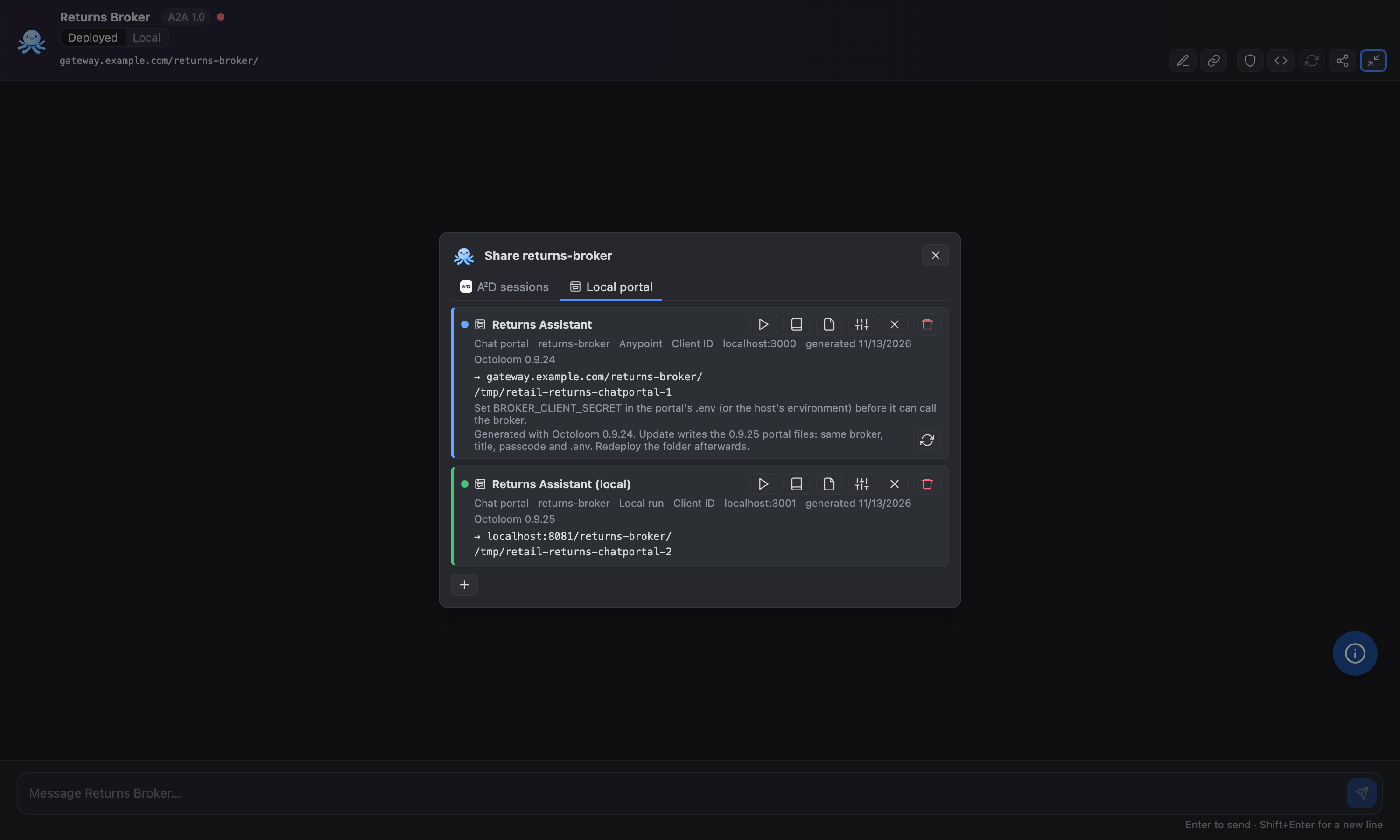
Share (the share icon in the broker chat header, after New conversation; it opens the Share dialog on its A²D sessions tab, not this view). Its Local portal tab is a web chat for a broker that runs without VS Code, for colleagues who should just chat with it.
Pick the broker and its Broker URL: the Anypoint deployment, the local run (reachable only while the portal runs on this machine), or Other URL… for any broker address. Then a portal title and the folder. By default it goes next to the project as <project>-chatportal-1 (the next portal gets -2, and so on), never inside it, so it is not built or published with the network.
A project can have several portals, for example one on Anypoint for colleagues and one on the local run for your tests. Each has its own folder, passcode and local port (3000, 3001, …) and its own row in the dialog with a settings icon to change it.
Forget (×) takes a portal off the list and keeps its folder. Delete (trash) asks first, then moves the portal folder to the Trash, .env included, so you can still restore it. It only deletes folders Octoloom generated, never the project, and says which files in it Octoloom did not write. A copy deployed to a hosting service keeps running: delete it there.
Generate portal writes a small project: server.mjs (Node 18+, no dependencies), the chat page in public/, .env.example, .gitignore, a Dockerfile and a README with deploy steps for Docker, Render, Fly.io, Cloud Run and Azure App Service.
Visitors sign in with a shared passcode. Octoloom shows it once: save it and share it with the people who may chat. Only its scrypt hash goes into the portal's .env. Generating again keeps it, unless you turn on New passcode.
The server calls the broker over A2A with the credentials method saved in the chat (shield button). The secret lives in the server's environment and never reaches the browser. For a quick local run, Write the saved secret into .env puts it in the gitignored .env.
A portal row in the dialog shows the folder and what is still missing (for example Set BROKER_CLIENT_SECRET), with Run locally (terminal + browser), the README and the folder.
Self-diagnosis. node server.mjs --check (and the same checks at startup) tests the settings, the broker, its agent card, the token and the credentials, and prints a fix for each problem. The page has a Status panel with the checks, the versions and recent events (never messages), and Copy report for support. A failed reply says what went wrong, with a reference that is also in the server log.
Version stamp. Each portal records the Octoloom version that generated it. When Octoloom is newer, the portal row offers Update (same broker, title, passcode and .env).
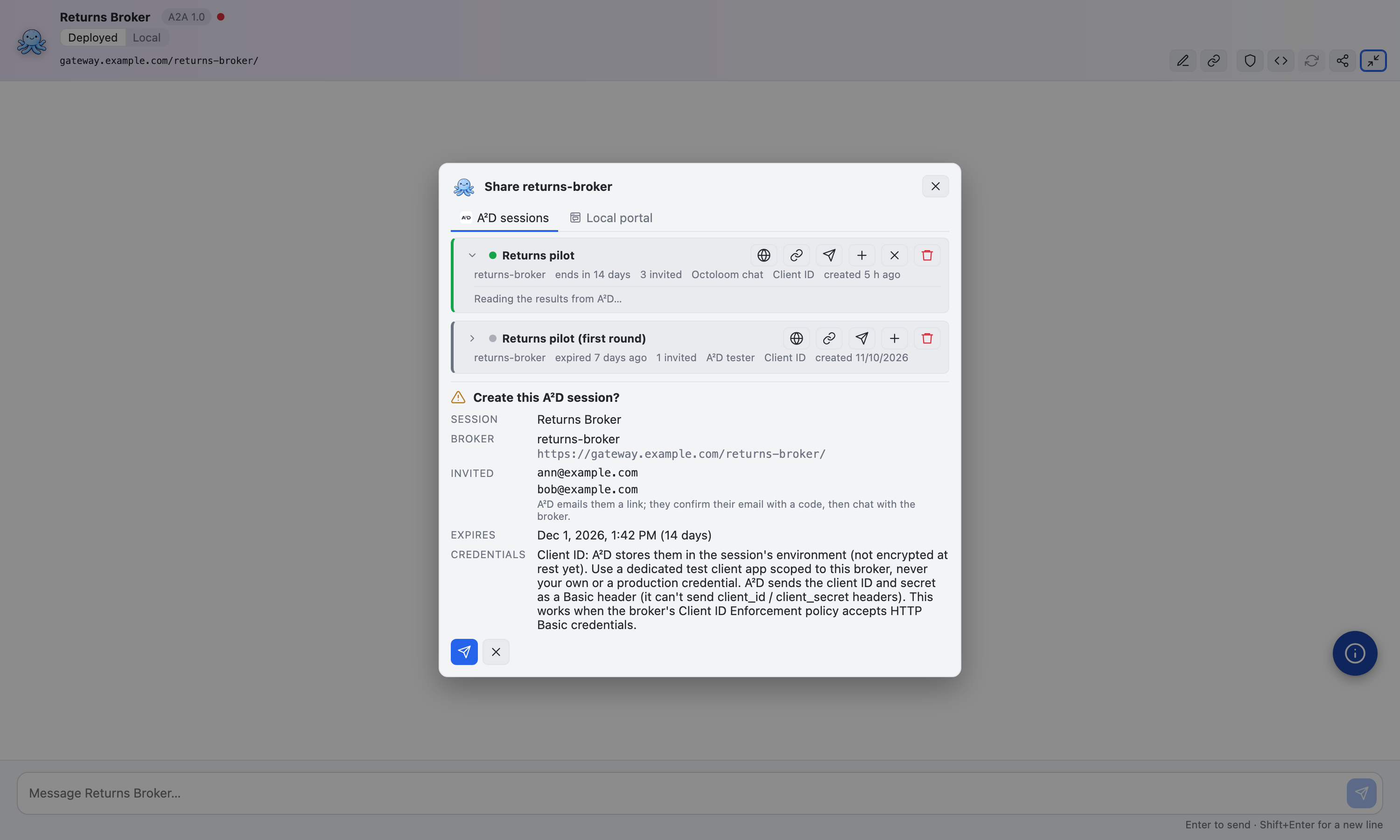
A²D sessions (the tab the dialog opens on). Instead of a folder, it shares the deployed broker as an A²D exploratory session of the Octoloom chat type:
- The people you invite by email verify themselves with a code on an Octoloom-styled page with the mascot, then chat with the broker in the Octoloom chat window hosted by A²D. Follow-up questions keep the conversation, as in this chat.
- The session always expires, after 1 to 90 days, with no "never". Its row opens or copies the link, invites more people, extends, ends it, or removes it from A²D (session, environment and card copy), with small icons and inline fields.
- Results. Open a row to see what A²D stored, refreshed every minute: invited, verified and submitted people, every Passed / Failed / In progress mark with its comment (new ones are marked new), each visitor's submit, and every conversation with its turns. Continue in the chat loads a visitor's conversation into this chat window, with the same context, so you can carry it on.
- An older A²D without the Octoloom chat type falls back to its exploratory tester (the row says A²D tester). The marks and comments testers set there show the same way once A²D returns them; until then only the invite status.
- Needs the A²D connection (Setup & Connect) and a deployed broker that A²D's cloud can reach. Use a dedicated test client app for the broker credentials. Supported: no credentials, bearer token, Basic, and Client ID; with the Octoloom chat type also client_id / client_secret headers, a custom header and OAuth 2.0 client credentials (an older A²D sends Client ID as a Basic header).
- Create opens a review step inside the dialog (session, broker, invited people, expiry, credentials) before anything is sent to A²D; End and Remove ask in a strip on the row.
Run locally (v2, play icon): runs the network on your machine in Docker with the CLI's run-local. Two Flex gateways, a local Exchange and the agent graph start in containers; nothing changes in your Anypoint org. Brokers answer on http://localhost:<port>/<broker>/. A square status light and a local box show the progress and the URLs. The stop icon ends the run (Ctrl+C in the terminal). Needs Docker Desktop. .deployment/ is added to .gitignore, because it holds the local gateway certificates. Brokers that call an LLM do not work locally yet with CLI plugin 1.5.0; see Known limitations.
Setup & Connect
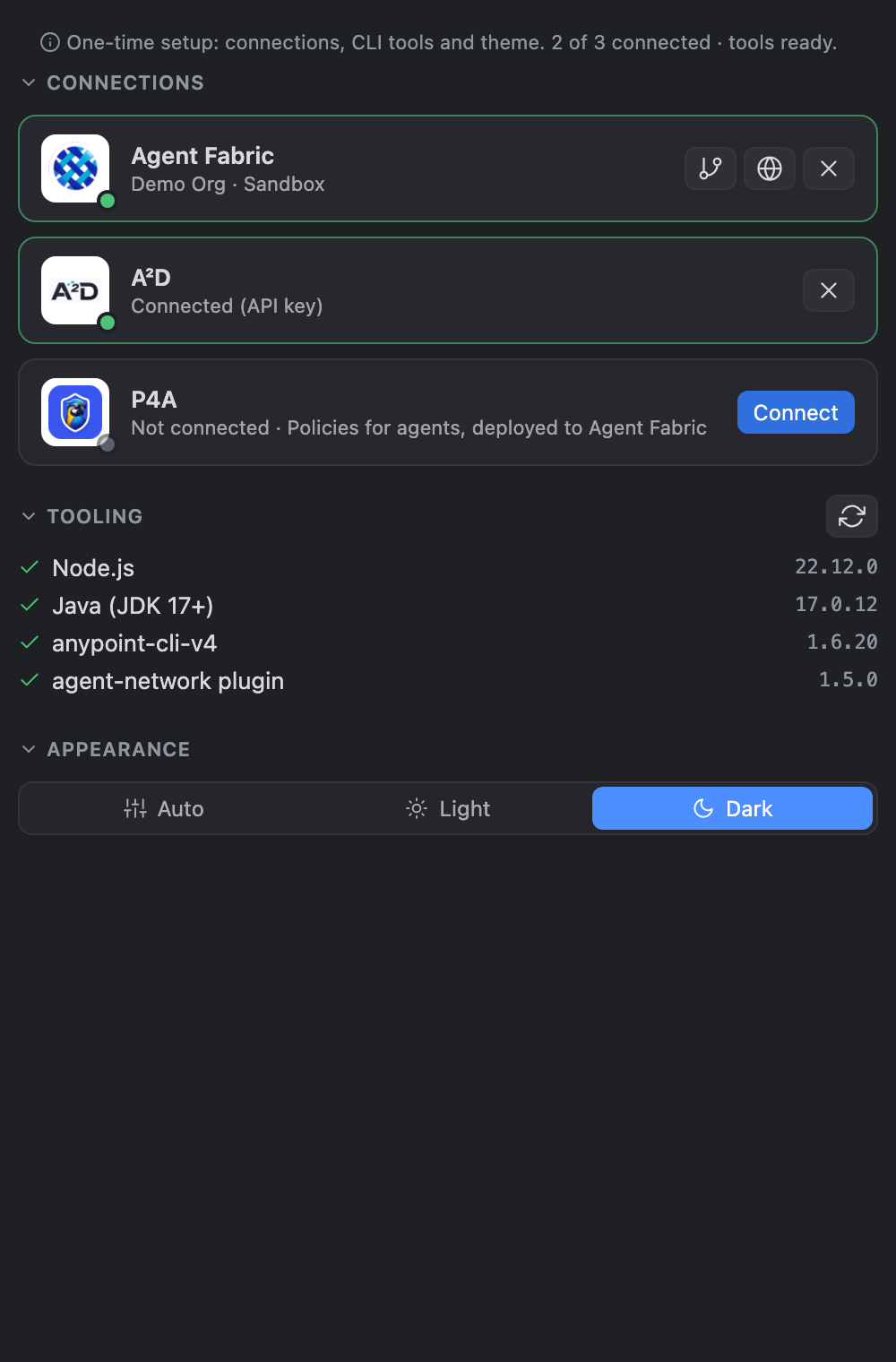
The first view in the Octoloom side bar, above Projects & Deploy and Asset Palette. It holds one-time setup, most important first. The line on top shows what is left, for example 2 of 3 connected · tools ready:
- Connections: Agent Fabric (business group and environment pickers), A²D and P4A. Connect or disconnect with one click.
- Tooling: Node.js, Java, anypoint-cli-v4 and the agent-network plugin, with one-click install or repair. The Octoloom row shows the installed version and available when the Marketplace has a newer one.
- Appearance: auto, light or dark for every Octoloom view.
It is collapsed by default. It opens by itself when the window has no folder or the workspace has no agent network project yet. VS Code remembers when you open or close it yourself.
Governance: rulesets for brokers, agents and MCP servers
Open it from the shield button in Projects (one project) or in the Projects header (workspace report), or run Governance: Validate Against Rulesets.
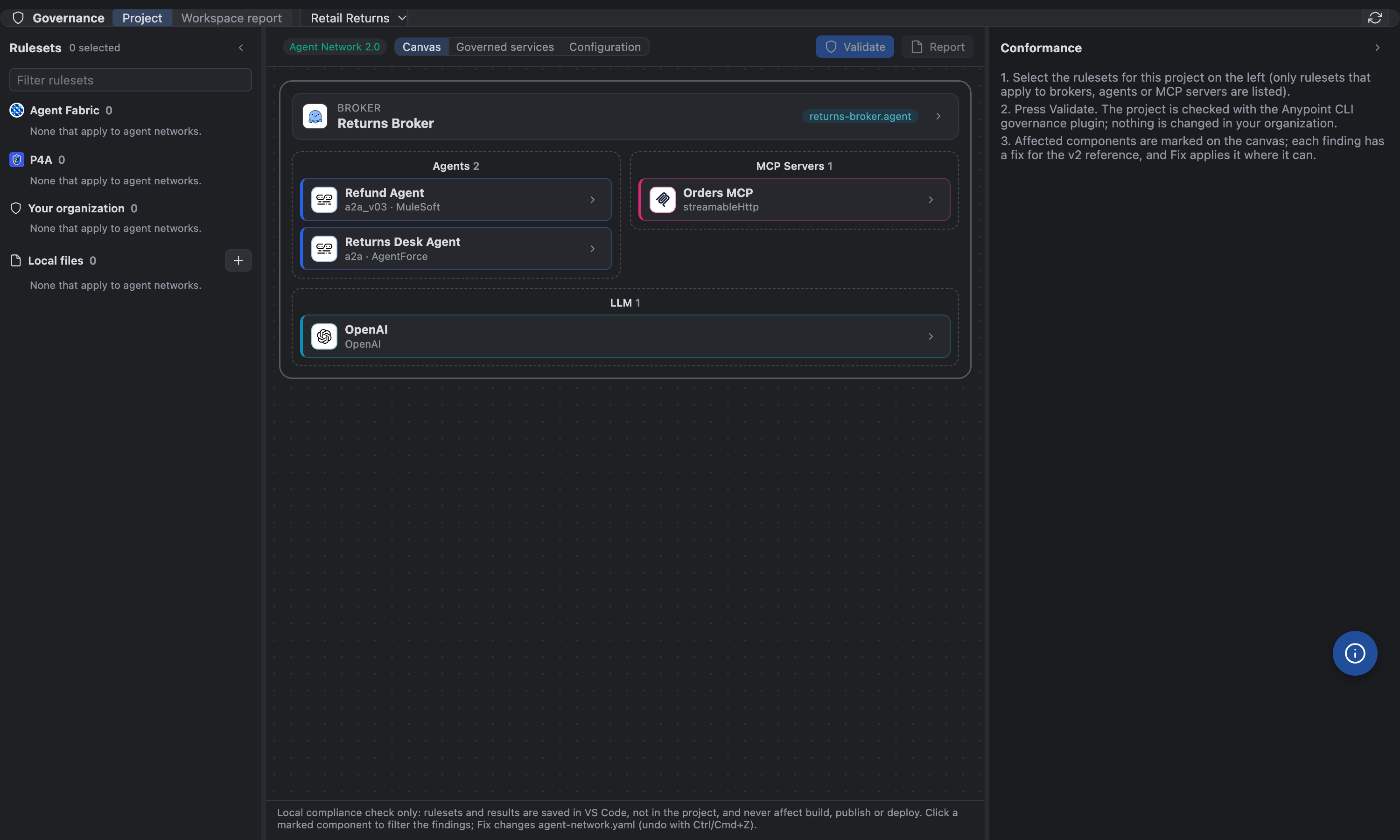
- Rulesets (per project): Agent Fabric (MuleSoft, e.g. Agent Network Best Practices), P4A community rulesets (e.g. MCP Server Safety, MCP Server Usability) and your own P4A rulesets (P4A token), rulesets published in your organization's Exchange, and local ruleset YAML files. Only rulesets that apply to agent networks are shown; chips tell which asset types a ruleset covers (A2A Broker, A2A, MCP).
- Validate runs
anypoint-cli-v4 governance api validate on the project. Components with findings get a shield badge (red violation, amber warning, blue info); click one to filter the findings.
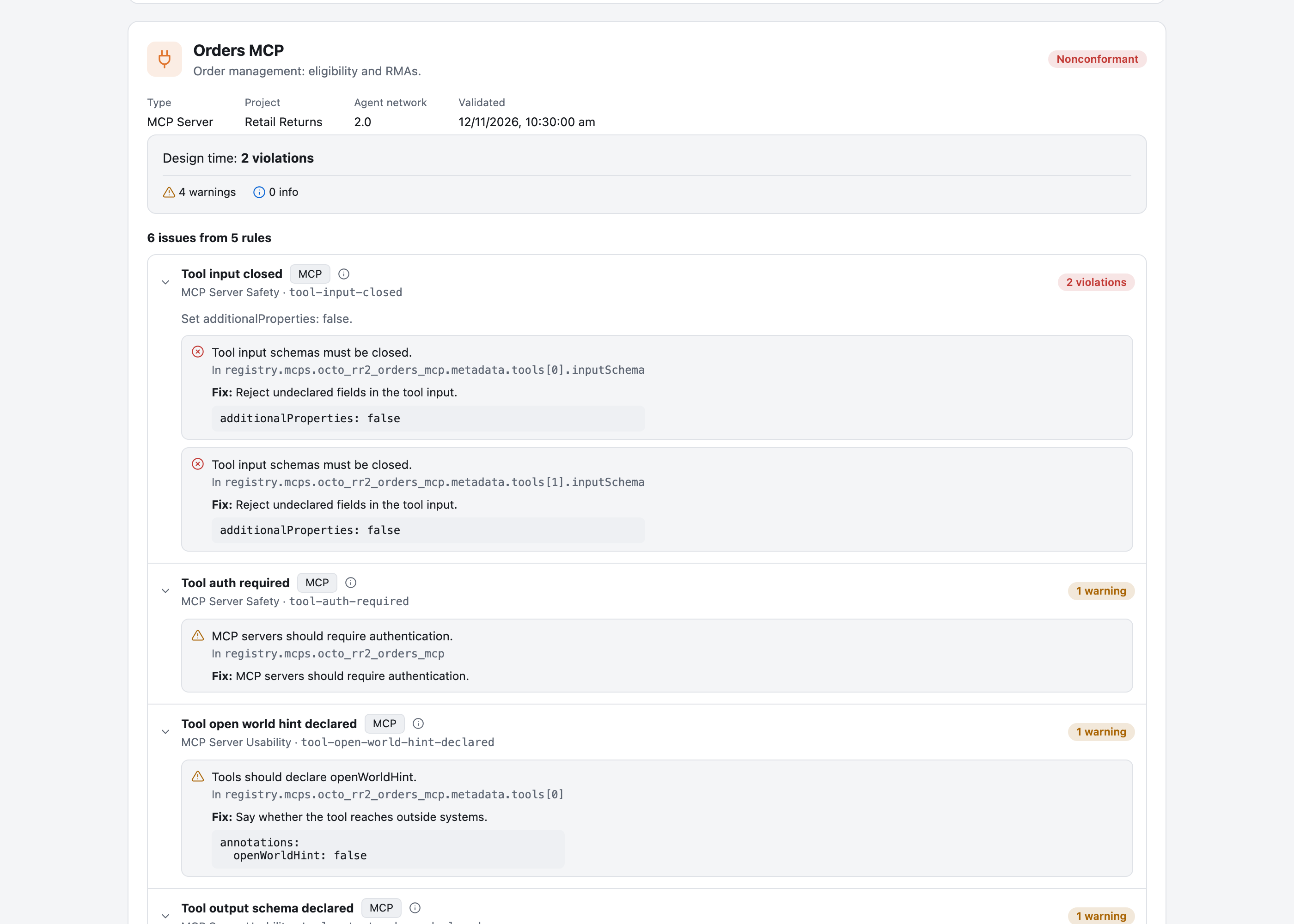
- Conformance (right) works like Anypoint API Governance: a design-time card with the violation, warning and info counts, then one row per rule (or per component) with its ruleset and a severity count. Expand a rule to see each finding, where it is in
agent-network.yaml (v1 or v2 path) and the fix.
- Fix applies the fix to
agent-network.yaml where it can be done safely, using only keys from the v1 / v2 reference. Examples: card capabilities, protocolVersion, the card name, description or URL taken from the component and its connection, interfaces.a2a.authorization.allowAnonymousAccess: false on a v2 broker, a streamableHttp transport, the allowed tools, and inline secrets moved to secret exchange.json variables. Fix all applies every fix the ruleset can confirm, so its count is what it clears. It skips MCP tool rules written for MCP server specs (see Known limitations); each of those keeps its own Fix to write the reference keys anyway. The project is then saved and validated again; undo with Ctrl/Cmd+Z in the file. Findings that need a decision (which policy, provider or broker URL) keep a snippet to copy.
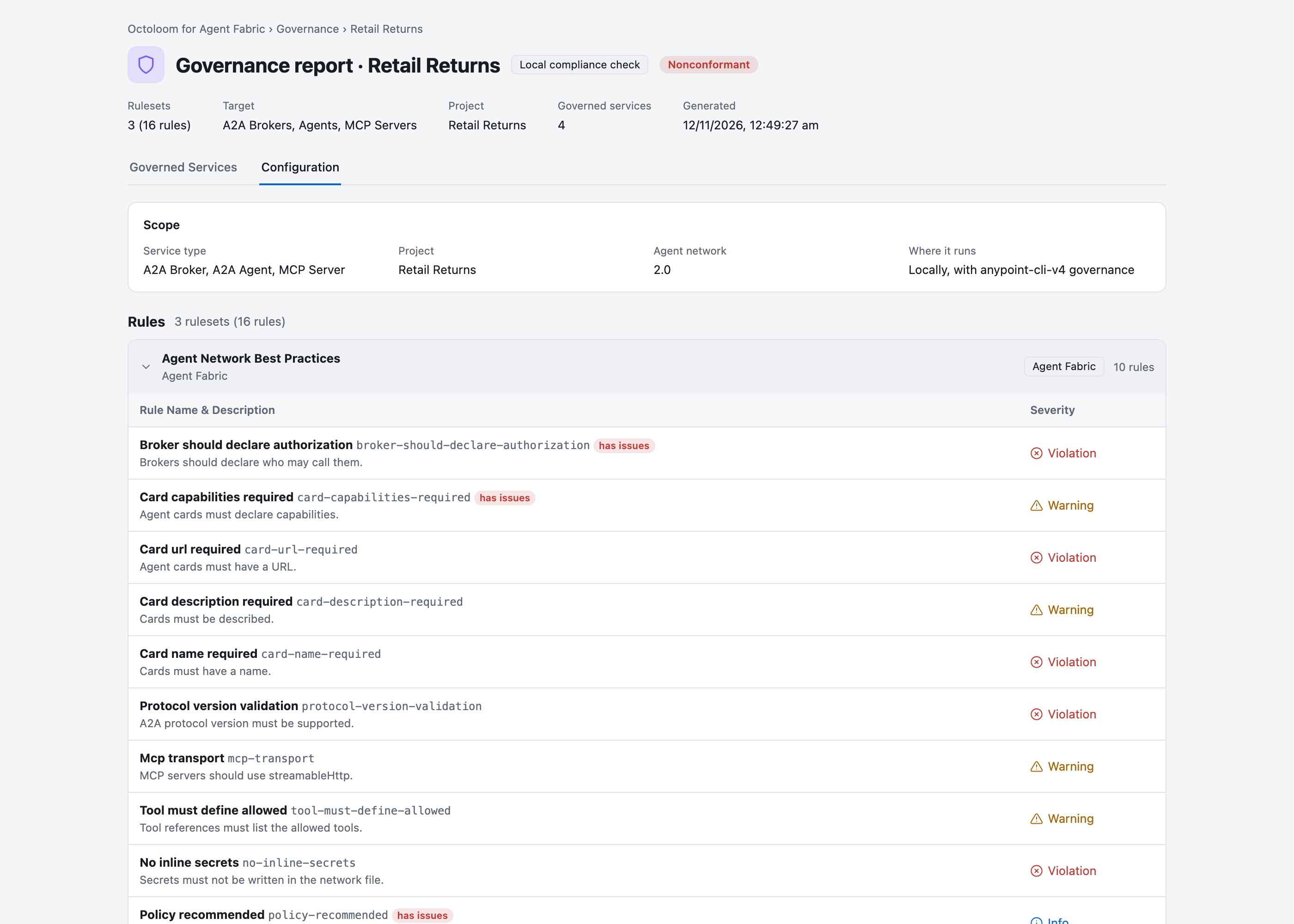
- Governed services and Configuration (above the canvas) show conformance per broker, agent and MCP server, and the scope and rules of every selected ruleset.
- The Rulesets and Conformance columns can be resized by dragging their edges and hidden with the arrow buttons; the widths are remembered.
- The floating info button explains each part of the panel: rulesets, findings, governed services and the report.
- Local compliance check only: the selection and the results are kept in VS Code workspace storage, not in the project. Build, publish and deploy never read them, and nothing is created or published in your org or in P4A. The only change to the project is a fix you apply.
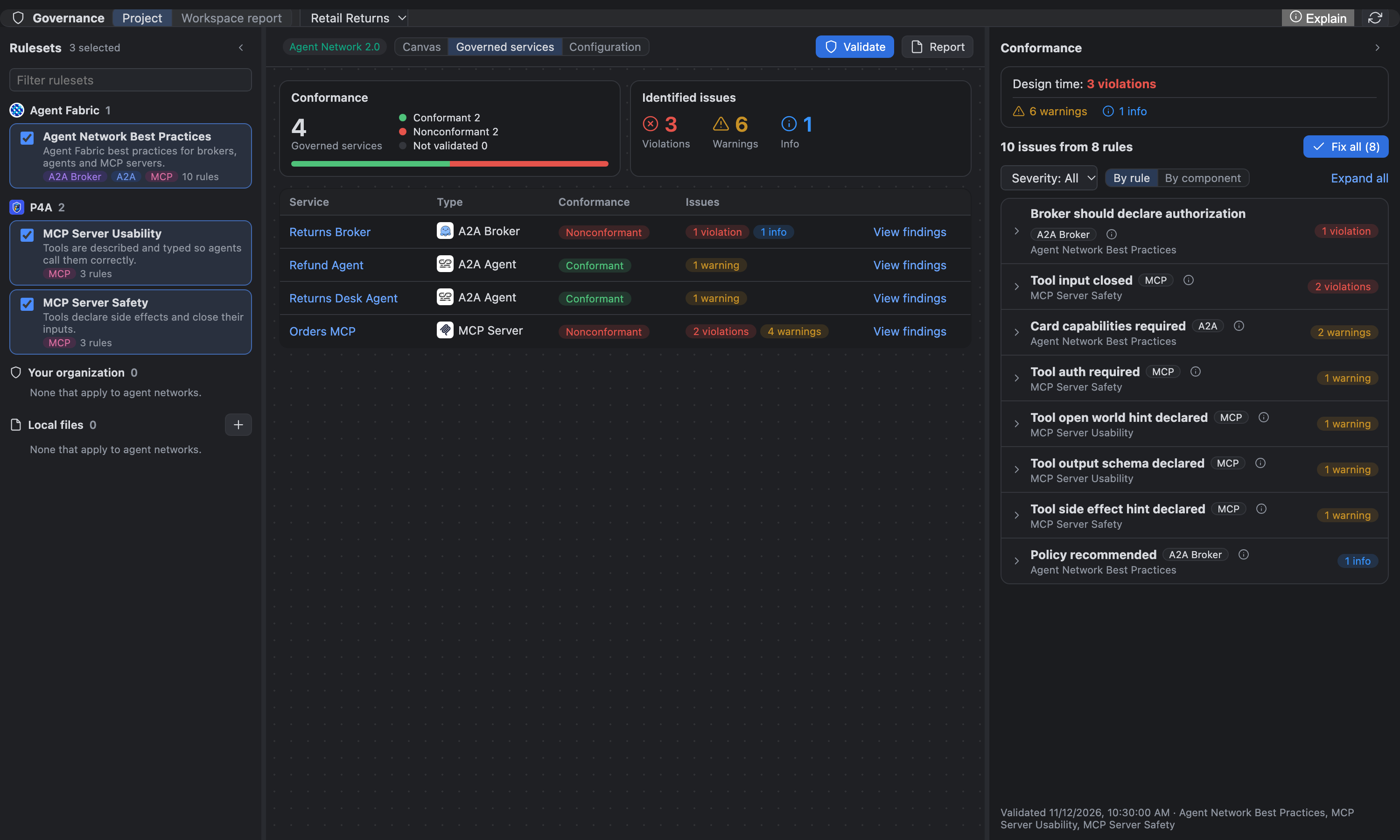
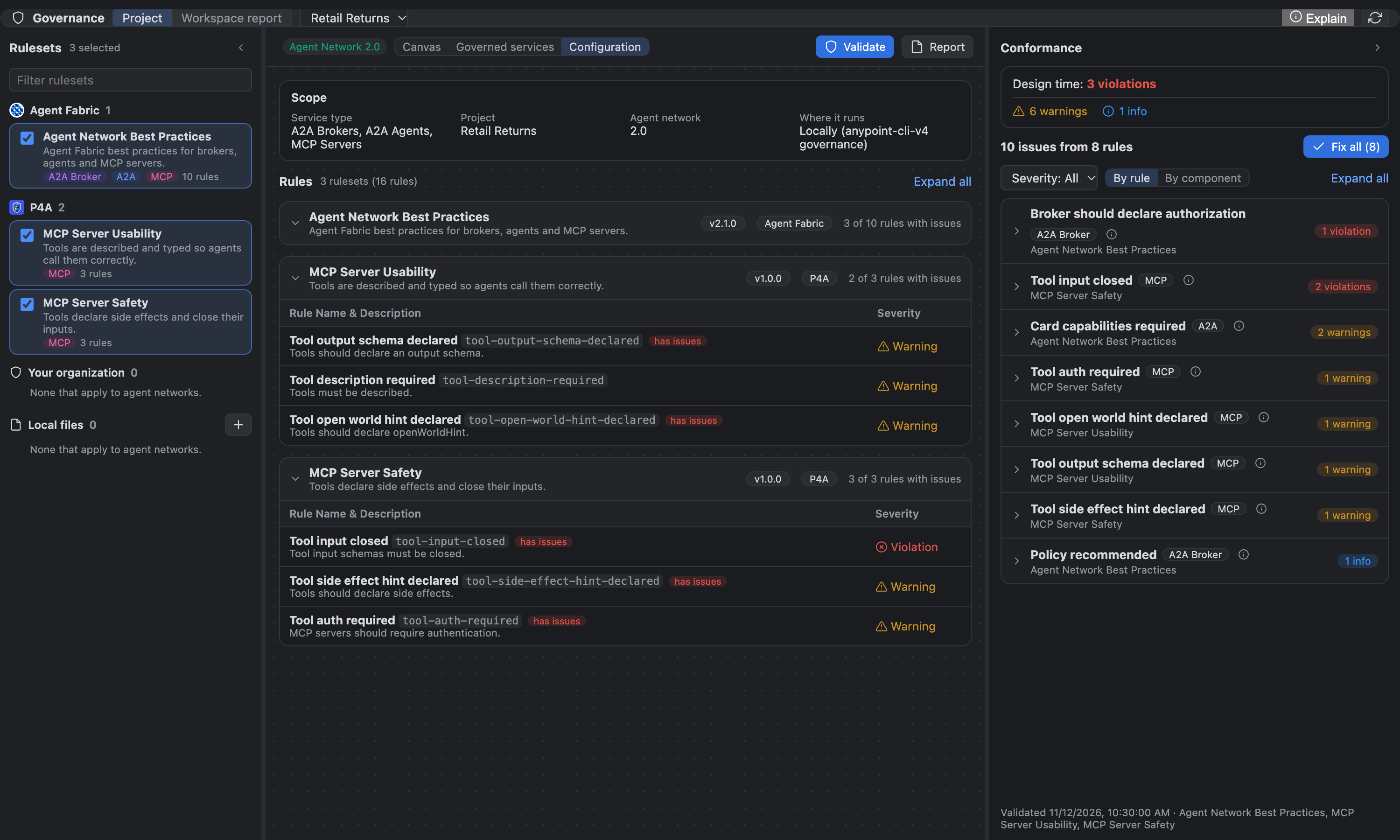
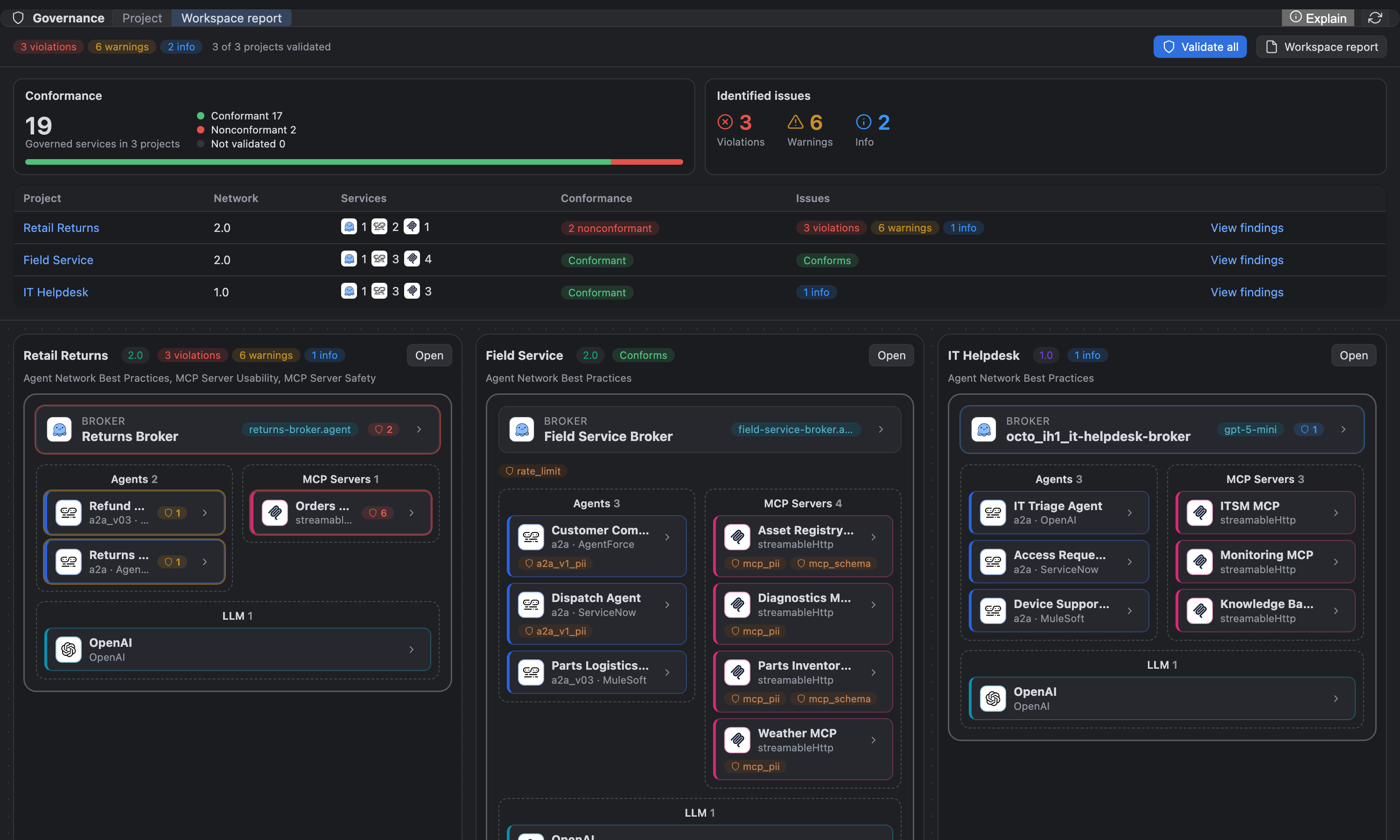
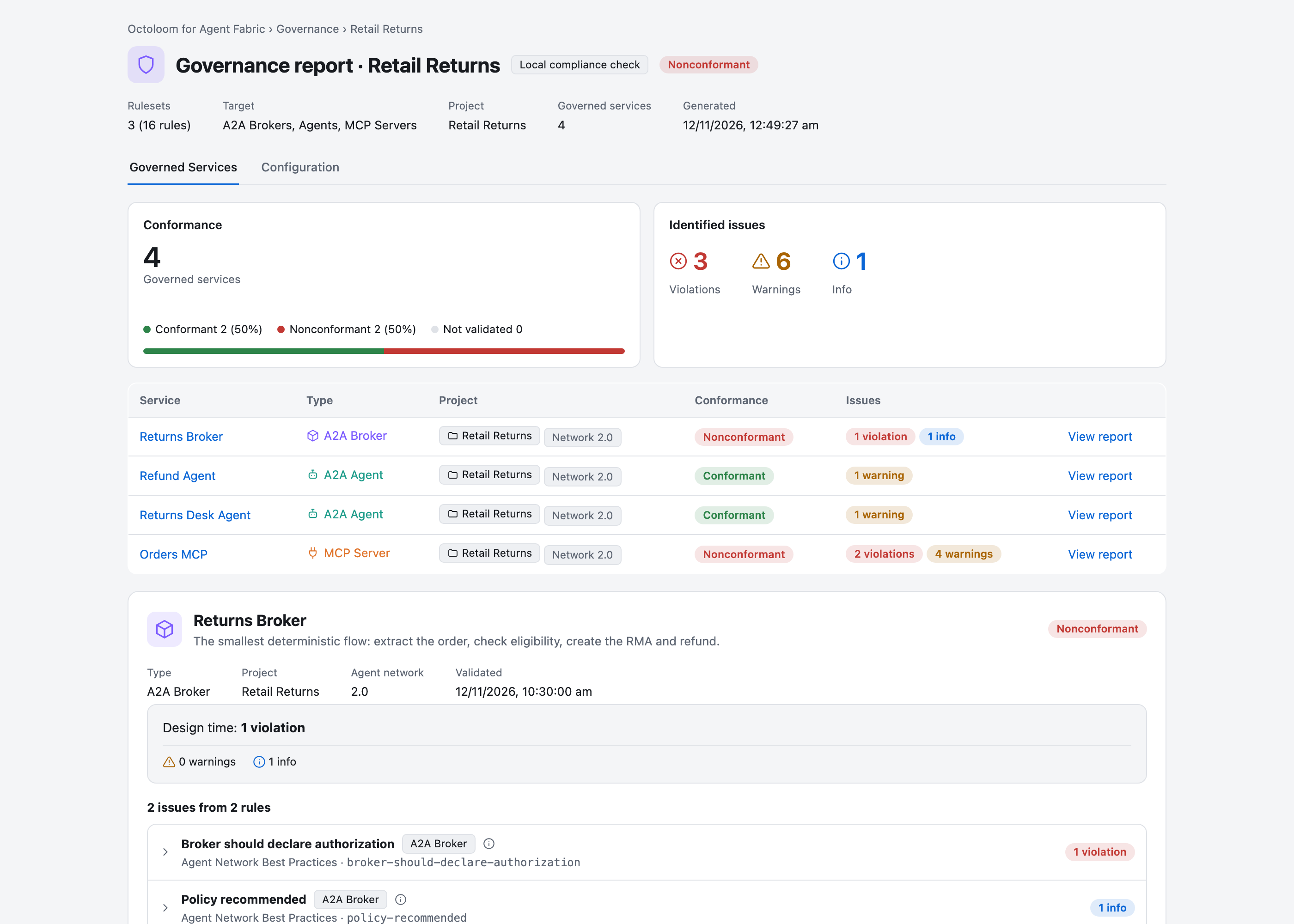
Workspace report shows conformance and issues across every project, then each canvas with its marked components; Validate all checks every project that has rulesets. Report saves a stand-alone HTML file for one project or the workspace, by default in Octoloom's storage, outside your projects. It has an overview with the conformance and issues cards and a governed services table, a section per service with expandable rules, and a Configuration tab with every rule and its severity:
Minimize to icons
Toolbars stay on one row. When an editor is too narrow for the top bar (Visual / Code, Network, Build & Deploy, Save…), the button labels hide and only the icons stay, with their names as tooltips. The labels come back when there is room again. This works on the network canvas, the broker flow and exchange.json.
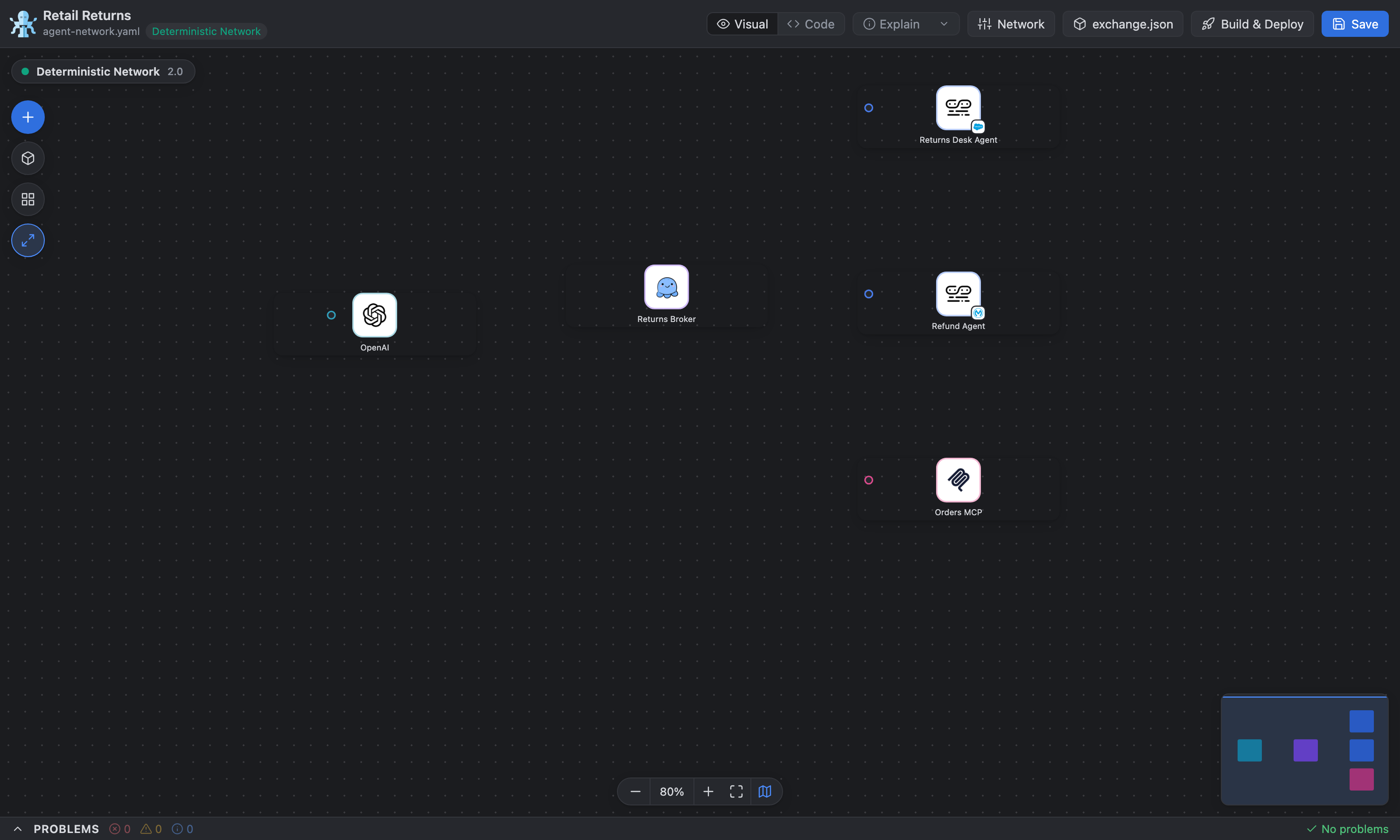
The Minimize all button (network canvas: left toolbar; broker flow: canvas toolbar) shrinks every card to its icon and name, and auto layout packs them; connections stay drawn. Click an icon to open or minimize a single card. Cards can be dragged in every state (open, collapsed, minimized), also by the icon tile. The choice is saved with the canvas layout, not in your YAML or .agent file.
Explain anything
Every Octoloom editor and panel (canvases, broker flow, exchange.json, chat, Governance, Welcome, New project) has one round, dark blue info button floating near the bottom right, above the minimap. It replaces the Explain buttons the views used to have. Click it (or focus it and press Enter) to turn on Explain mode:
- Hover any object: it is outlined and named (Broker, Agent, Canvas tools, Problems, Trace…).
- Click it: the click is not passed to the view, so nothing is changed, opened or deployed. A card opens beside the object with what it is, when to use it and examples. For a card, it also shows the object's own name.
- Click another object to explain it next; Esc closes the card, and Esc again (or the info button) leaves Explain mode.
- Start the guide: on the network canvas and the broker flow, the hint next to the button (and each explanation card) has Start the guide, which replays the guided tour of that canvas.
- Drag the button anywhere. It feels like one button: every open Octoloom tab follows, so it is in the same place when you switch tabs (and after a restart). In a split view each editor group shows its own copy at that place. Double-click it to put it back everywhere.
Broker chat
Click the chat icon next to a deployed broker URL in the project's deployment box, or run Chat with Deployed Broker.
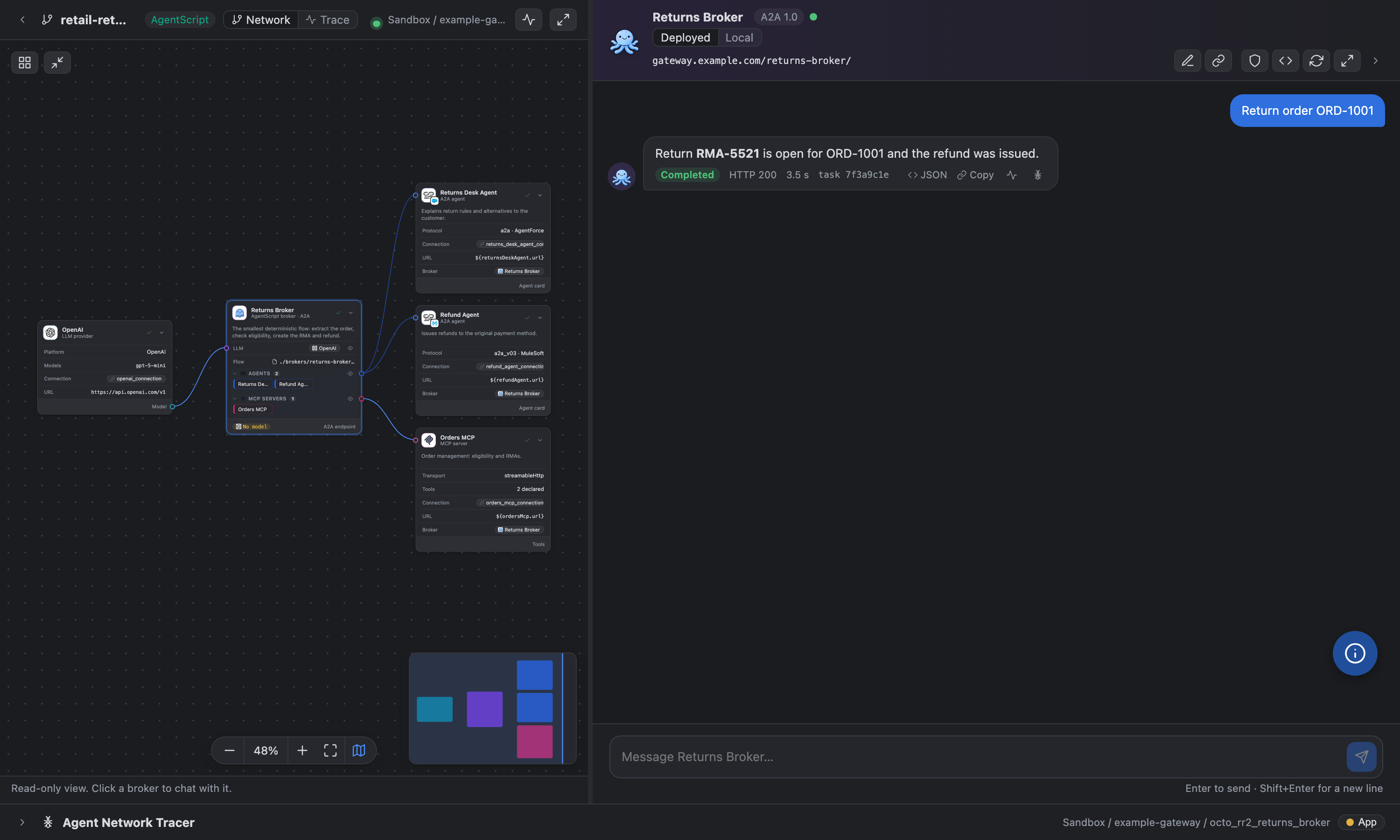
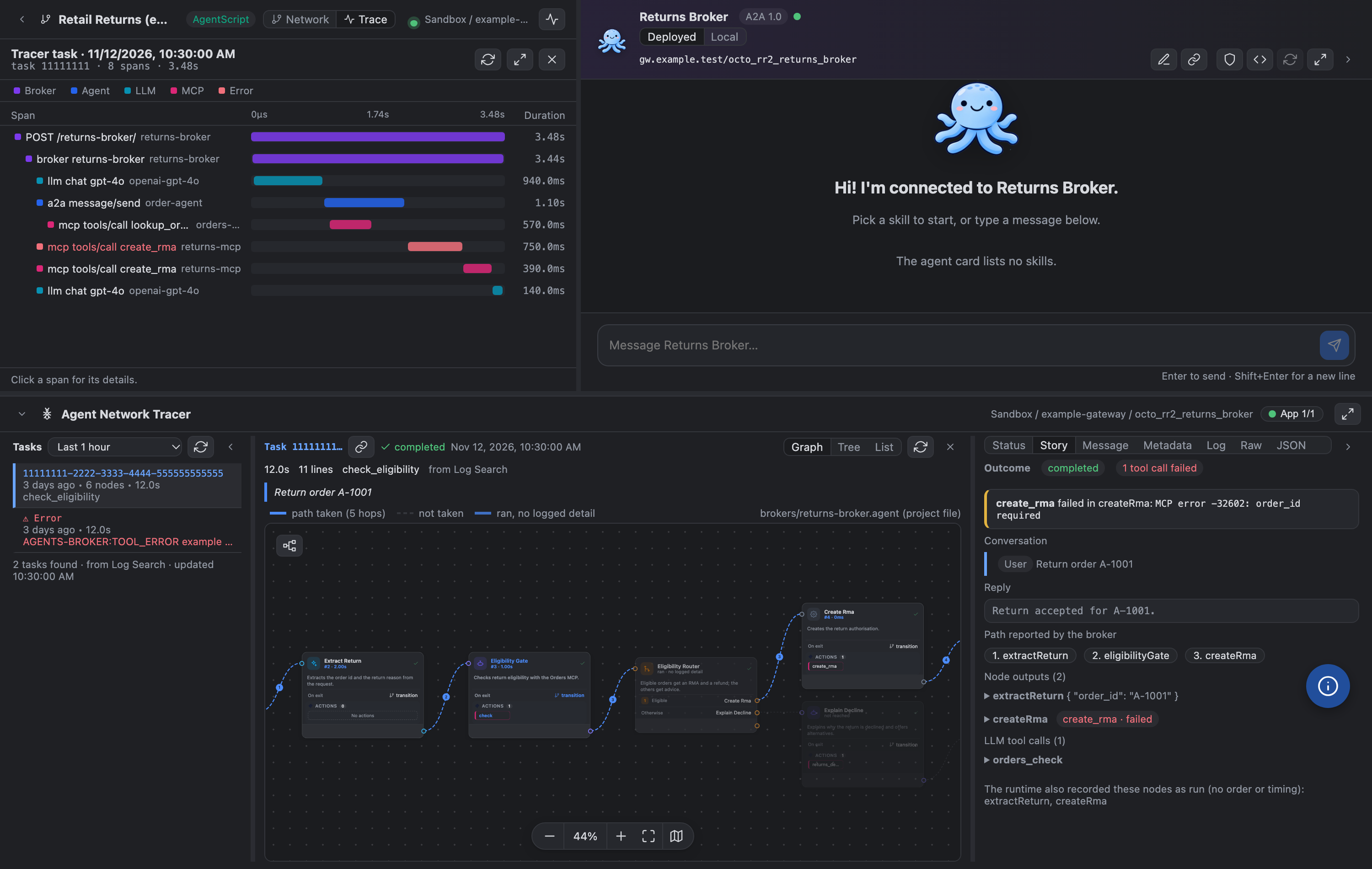
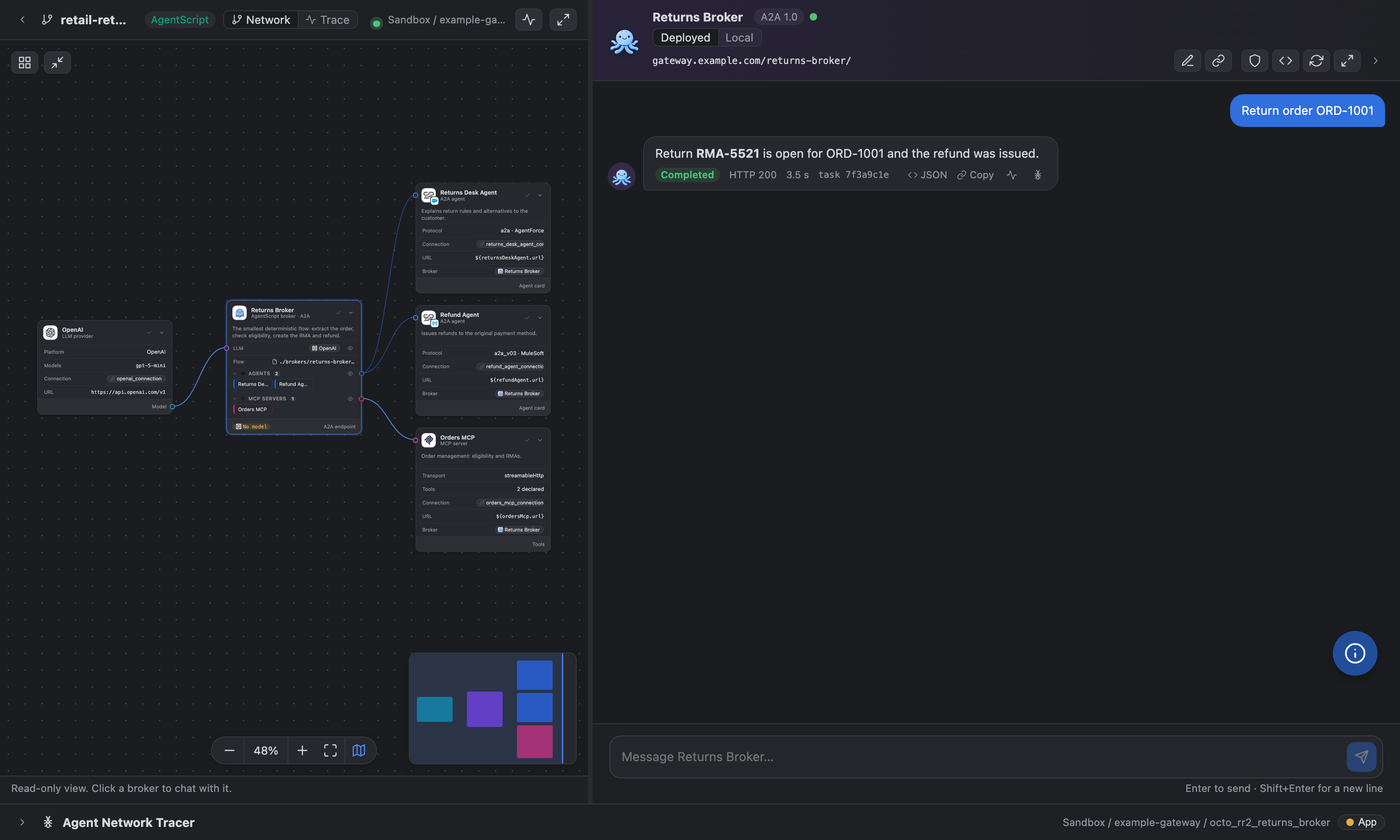
Left: a read-only view of the network, one box per broker with its agents, MCP servers and LLM. Click a broker to chat with it. The chevron on a box shows its details: description, URL, skills (broker and agents), tools (MCP servers) and models (LLMs).
Right: the chat. Start with a skill example from the agent card or type a message. Each answer shows the task state (completed, needs input, failed), the HTTP status and the time taken. JSON shows the raw request and response; the {} button shows them for every answer.
Follow-ups keep the conversation context. When the broker asks for more input, the next message continues the same task.
v2 networks have a Deployed / Local switch: Local chats with the broker started by Run locally.
The deployed URL is used by default. The pencil button sets another URL for this chat, for example a broker deployed elsewhere.
Collapse a part fully and expand it back: the chevron at the left of the network bar folds the left side (network or trace) to a thin rail, and the chevron at the end of the chat header folds the chat. Click the rail to expand it. The Agent Network Tracer collapses to its header with its own chevron. The choice is kept.
The full height button (last icon in the chat header) gives the whole panel to the conversation and hides the network and the Tracer. Press it again to bring them back. The choice is kept.
Trace of a reply
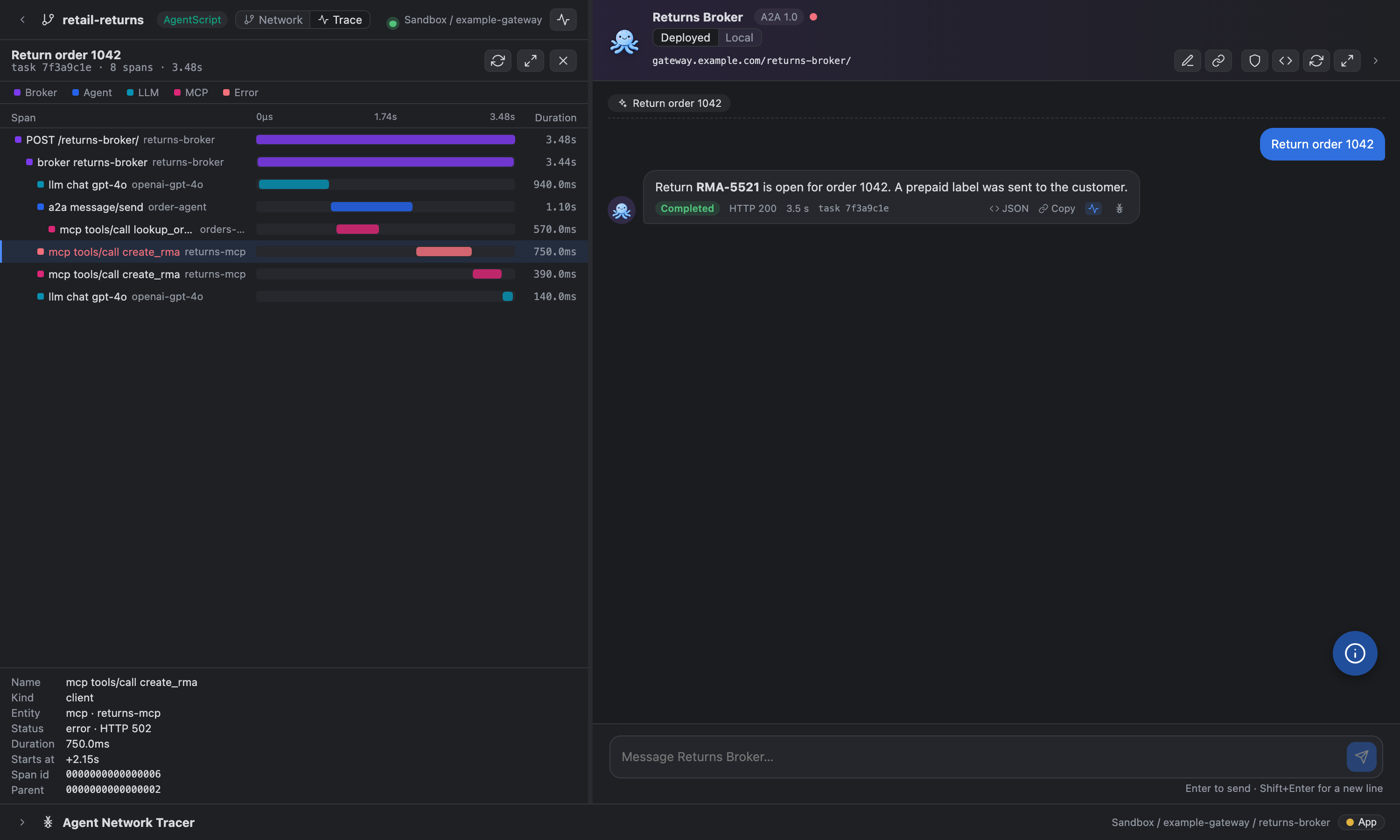
A deployed reply has two icons next to Copy. The trace icon (a pulse line) shows that reply's distributed trace on the left. The ANT icon opens the reply's task in the Agent Network Tracer. Network | Trace above the left column switches between the network and the trace. Opening a task in the Agent Network Tracer's Tasks list also shows that task's trace here, so you can walk through older tasks with the waterfall.
The legend above the waterfall names each colour: Broker, Agent, LLM, MCP, Router, Other and Error (only the kinds in that trace). Click a name to pick your own colour for it; Reset colours brings back the defaults. Your colours are kept on this machine only.
Agent Network View
The Network tab shows the whole network read-only, drawn like the network canvas: brokers, agents, MCP servers, LLMs, connections and policies. Click a broker to chat with it. Cards can be dragged, minimized and collapsed, and Minimize all and Auto layout are at the top left. The canvas fits its section and refits when the section is resized; the zoom bar zooms by hand. The maximize icon in the left header shows the network, the sequence or the trace full screen, like the chat's and the Tracer's own full-screen buttons. The layout is kept per project and never changes the project files.
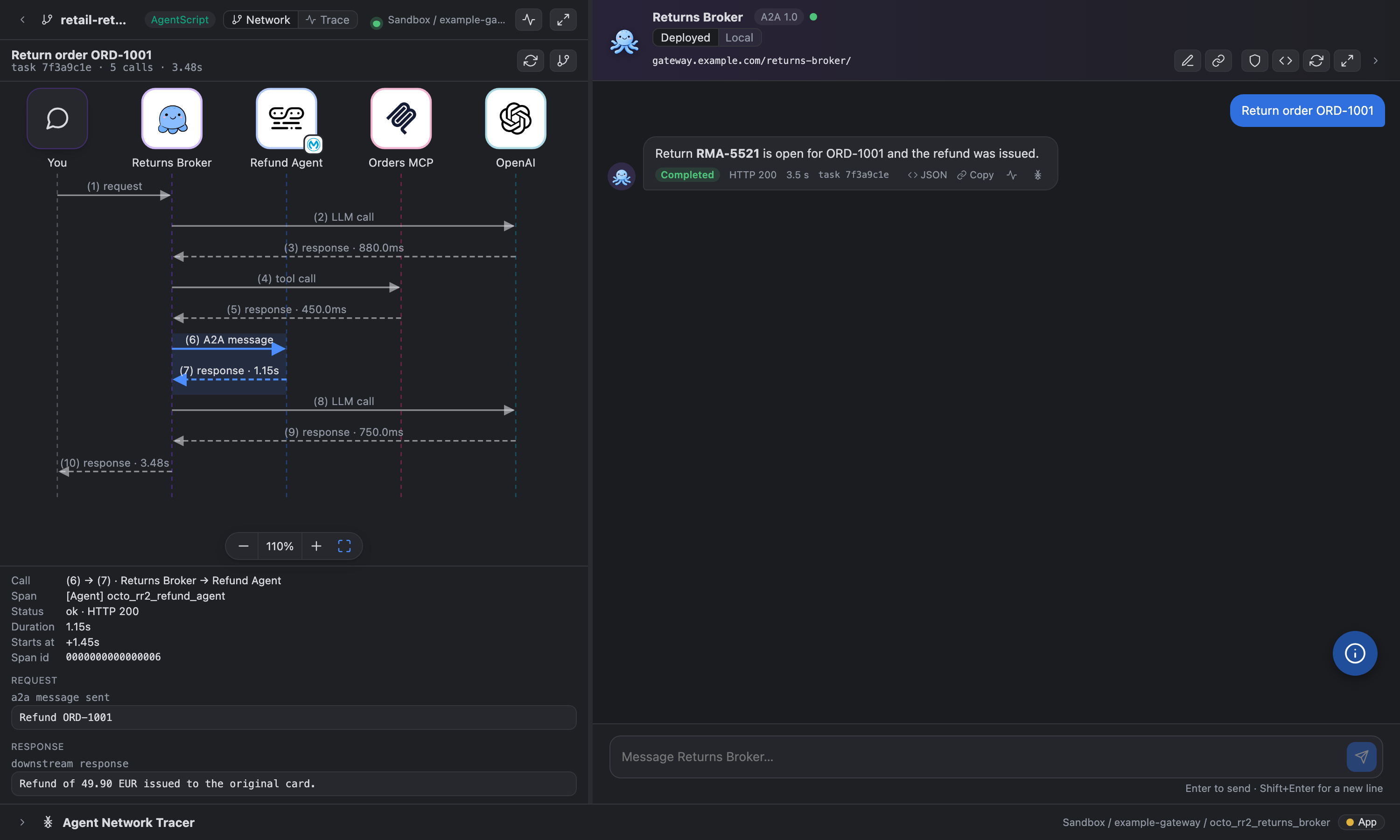
After you pick a reply (with the trace icon, or from a task in the Agent Network Tracer), the Network tab shows that reply as a sequence diagram. You, the broker, and every agent, MCP server and LLM it called each get a lifeline, with one request arrow and one response arrow per call, numbered (1), (2), … in time order. The diagram fits its section, and has its own zoom bar. Click an arrow to see the call's span facts and the log lines with what was sent and what came back. Gateway router hops and Mule flow spans are folded into the call above them. The network icon in the header goes back to the whole canvas. This view uses the same trace lookup as the waterfall. The loaded trace is kept while the chat is open, so switching between Network and Trace doesn't load it again. The refresh icon in the section header does.
- One row per span, nested by parent span id: the gateway request, the broker, LLM calls, A2A calls to agents and MCP tool calls. Each bar sits on a shared time axis and is coloured like its box on the canvas. Errors are red.
- Click a span to see its kind, entity, status, HTTP code, duration, start offset and ids.
- Spans reach Anypoint about 20 seconds after a reply. A young reply with no spans yet is checked again by itself (after 10, 20 and 40 seconds), and the refresh button checks again at any time.
- The full height icon in the trace header gives the whole panel to the waterfall. Press it again to bring the chat back.
- Read-only: the trace uses the Tracer's task lookup (Log Search for the trace id, then the Observability span search). It needs a deployed, running broker; local runs have no spans.
Authentication
Brokers behind a gateway policy (JWT Validation, Client ID Enforcement, Basic) or with anonymous access off answer the chat with HTTP 401 or 403. The shield button in the chat header opens Authentication for the selected broker (deployed and local are set separately). The method that the broker's inbound policies suggest is preselected.
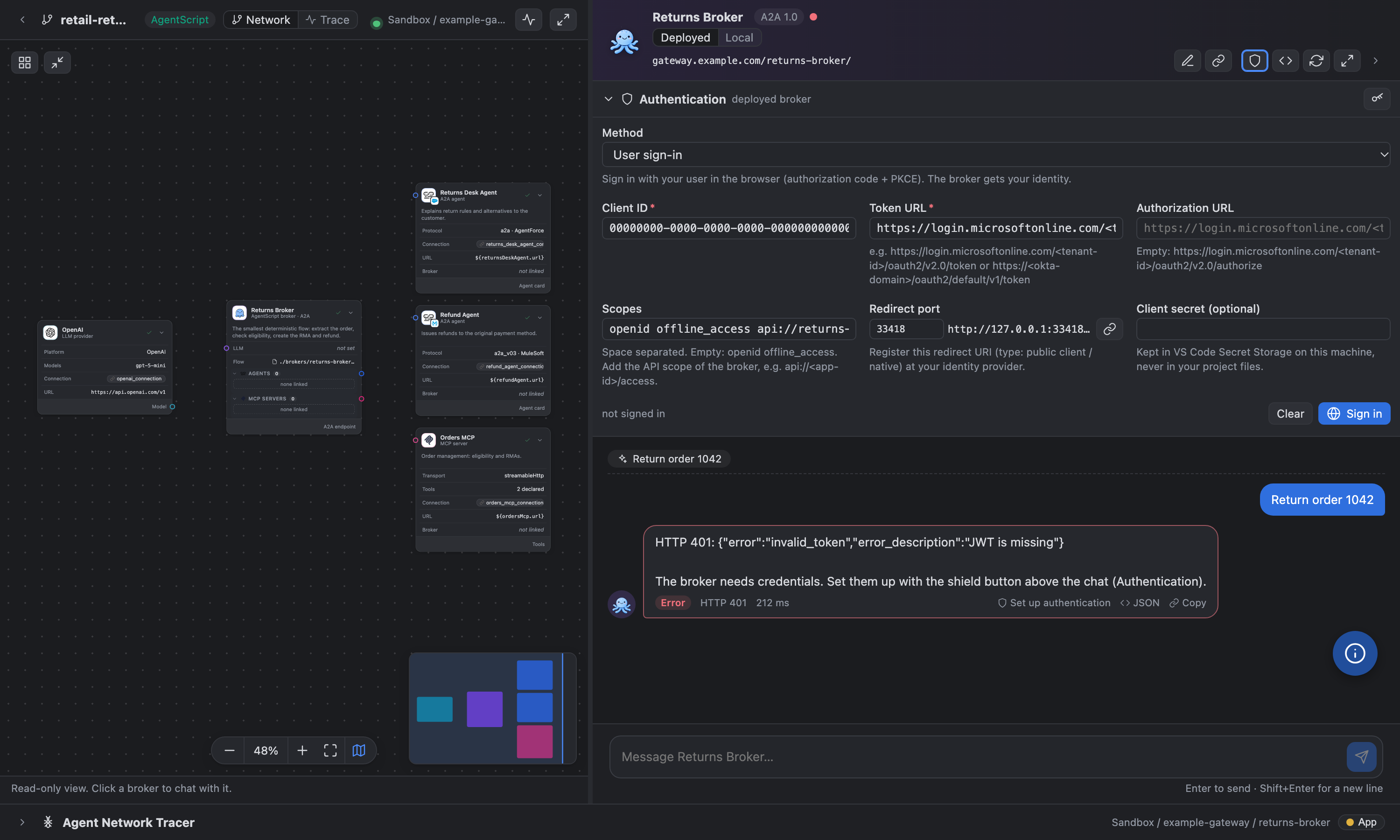
| Method |
Sends |
| Bearer token |
Authorization: Bearer <token> (paste a token you already have) |
| User sign-in |
OAuth 2.0 authorization code + PKCE in your browser. Tokens refresh automatically; Sign out forgets them |
| Client credentials |
A token from your identity provider (token URL, client ID, client secret, scopes) |
| OAuth2 password |
A token from the password grant (token URL, client ID, optional client secret, user name, password, scope openid), for Keycloak clients with Direct Access Grants. Prefer User sign-in where the provider allows it |
| Client ID |
client_id / client_secret headers |
| API key header |
A header of your choice, e.g. x-api-key |
| Basic |
Authorization: Basic |
For User sign-in, register the redirect URI http://127.0.0.1:33418/callback (public client / native app) at Microsoft Entra ID, Okta, Auth0 or Keycloak. The port can be changed. The authorization URL is derived from the token URL for these providers.
Secrets, passwords and tokens are stored in VS Code Secret Storage on your machine. They are never written to the project, exchange.json or the chat history, and never sent to the webview. The project status uses the same credentials to read the agent card of a protected broker.
- Messages are sent from VS Code, not from the webview. A2A 0.3.0 brokers (v1) get
message/send; 1.0 brokers (v2) get SendMessage with the A2A-Version: 1.0 header.
Agent Network Tracer
Click the ANT button on a project's Deployed and running box in Projects & Deploy, or the ANT icon under a deployed chat reply. The chat panel opens with the Tracer below the network and the chat. The Full height icon at the right end of the Tracer header hides the network and the chat; press it again to bring them back.
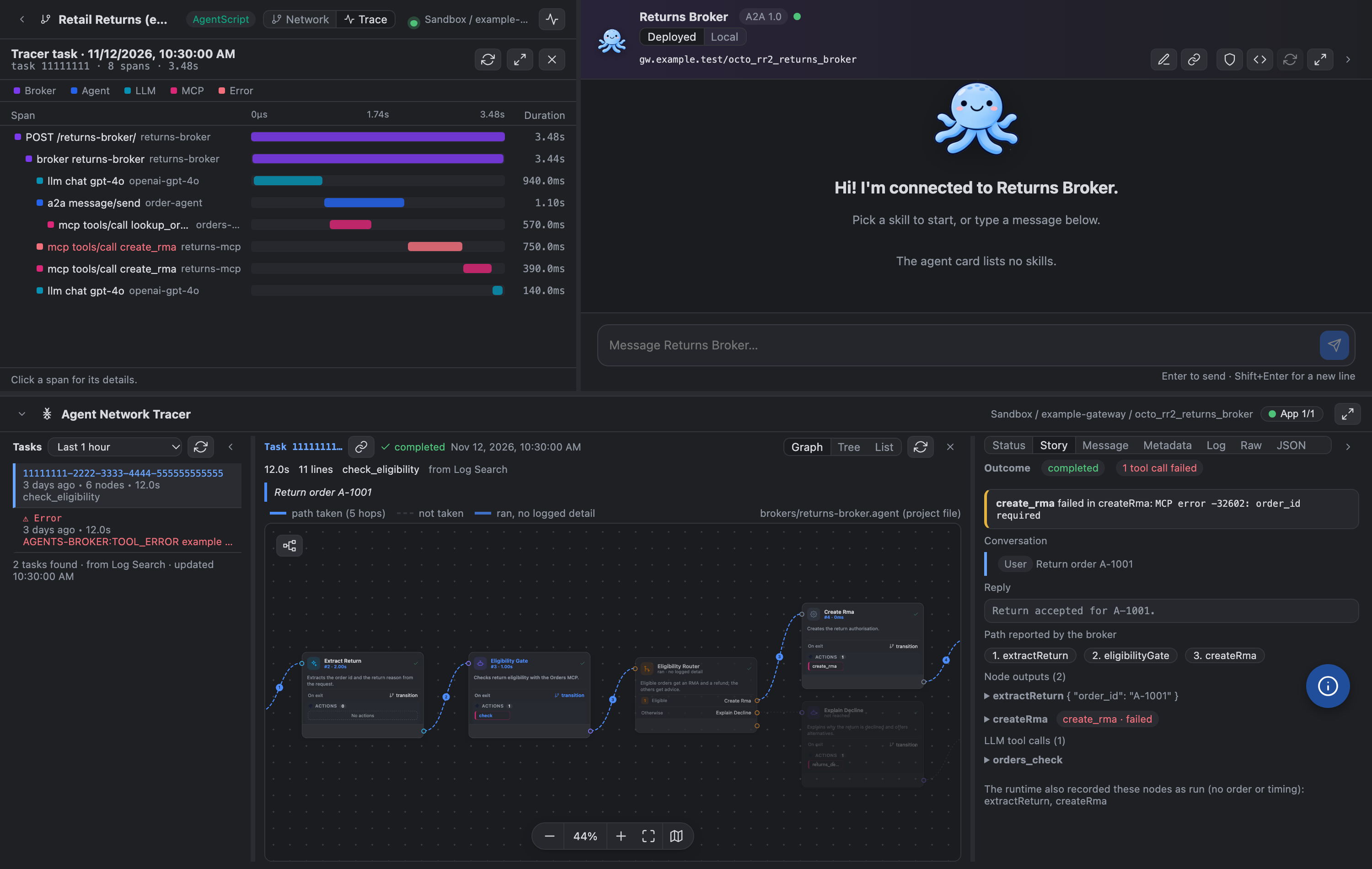
Tasks (left): the broker's tasks in the period you pick, newest first, with their nodes, time and tools. Error-only runs are marked in red. Opening a task also shows its span waterfall in the chat's Trace view above (top left).
Task (middle): Graph draws the broker's .agent flow with Octoloom's own cards and the path the task took: numbered hops, and dimmed nodes it didn't reach. Minimize all (the workflow icon at the top left of the graph, one node branching to two) turns the cards into icons, as on the flow canvas, so long flows fit; press it again (Open all, two linked cards) to bring them back. Tree lists the nodes in order (iterations for v1 brokers) and List shows every log line.
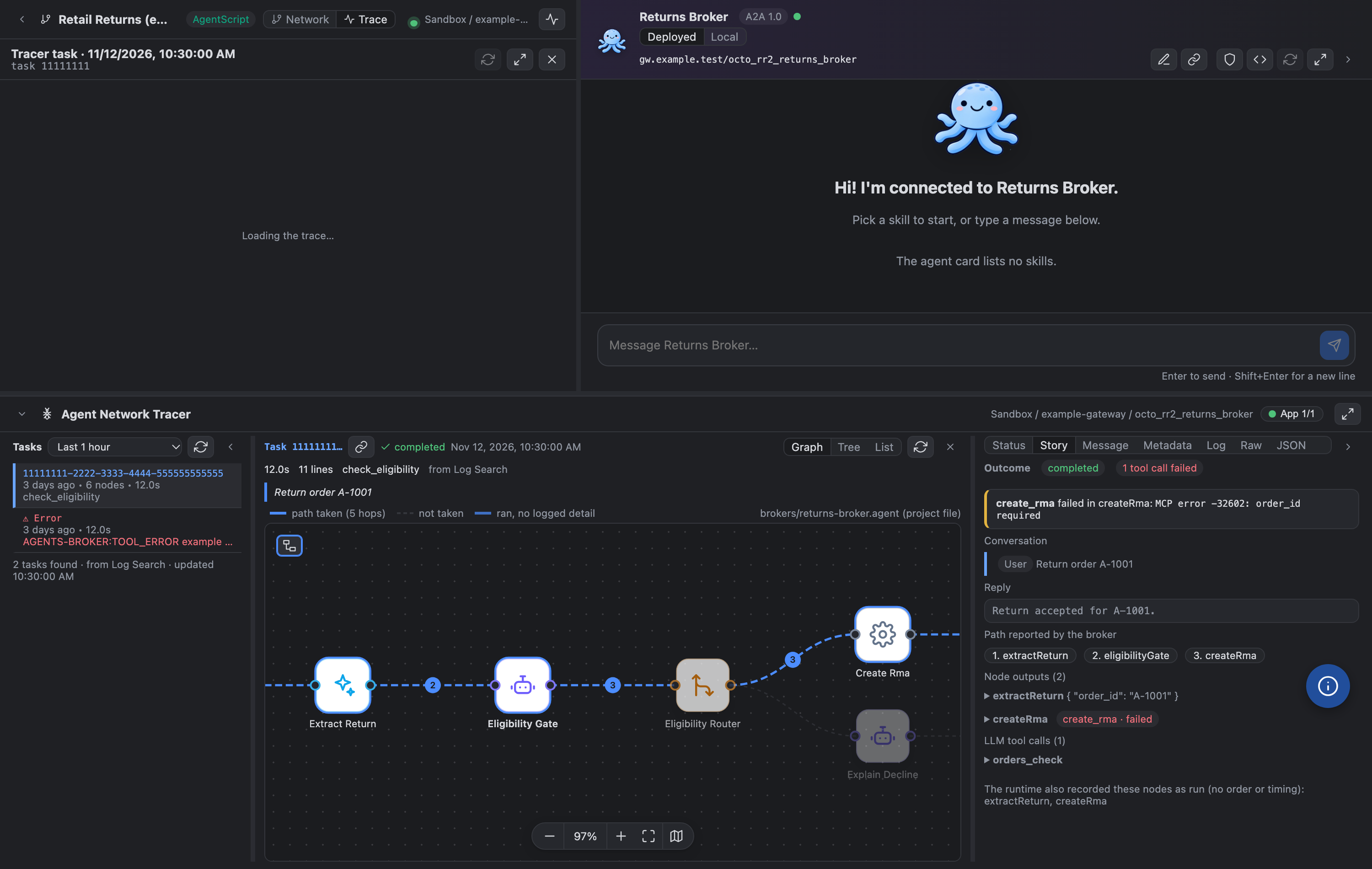
Detail (right): Status (data sources), Story (the conversation, node outputs and failed tools the broker stored), Message, Metadata, Log, Raw and JSON. The task's Observability spans are in the chat's Trace view above, which opens when you open the task.
JSON is the whole task as one document (octoloom.tracer.task/v1) or NDJSON, to send to Splunk or Datadog. Credentials are masked.
Drag the edges of the Tasks and Detail columns to resize them; the arrow buttons hide or show them.
Read-only: the Tracer only reads from Log Search, runtime logs, Object Store and Observability, and never changes anything in your organization. The organization, environment and broker come from the project's deployment. The Agent Fabric connected app makes the calls from VS Code; tokens never reach the webview.
The access pill (for example App 10/10) checks each Anypoint API the Tracer uses. When one fails, it names the permission to add to the connected app, or offers to trace with your own Anypoint Code Builder sign-in instead. The choice is remembered per connection.
Deployed brokers only: local runs have no Anypoint logs.
Getting started
1. Install
Install Octoloom for Agent Fabric from the Marketplace, or from a .vsix file (Extensions → … → Install from VSIX…).
Click the octopus in the activity bar to open Setup & Connect, Projects & Deploy and Asset Palette. Connect and install the tools in Setup & Connect.
2. Open or create a project
- Open a folder that contains an
agent-network.yaml. The canvas opens automatically (setting agentNetwork.autoOpenCanvas).
- Or run Octoloom: New Agent Network Project. Pick Probabilistic (v1) or Deterministic (v2), then Blank, Use cases or Technical (use cases with built-in policies). Templates load from the public octoloom-assets repository; a bundled copy is used offline. Asset names get your project name as prefix, so several projects can live in one org.
- Each canvas shows a short guide the first time (Don't show again hides it). The floating info button explains any component with examples, and its Start the guide button replays the guide.
- Right-click a file to switch views: Open Visual Editor or Open as Text.
3. Connect to Agent Fabric (real services)
Octoloom uses an Anypoint connected app that acts on its own behalf (client credentials):
- In Anypoint Platform, go to Access Management → Connected Apps → Create app. Choose App acts on its own behalf (client credentials).
- Add these scopes for your business group and environment(s):
- Exchange Viewer, to list assets.
- Exchange Contributor, to publish.
- Runtime Manager (read and deploy), to deploy.
- Run Octoloom: Connect to Agent Fabric (or click Connect Agent Fabric in the palette).
- Enter the client ID and secret, then pick the environment.
You can change the environment later with Octoloom: Select Agent Fabric Environment.
Sub business groups. When the connected app can see more than one business group, Octoloom asks which one to use at connect, root first. Change it later with the branch button on the Agent Fabric card, or Octoloom: Select Agent Fabric Business Group. The chosen group is used for environments, gateways, Exchange search, --organization on publish and deploy, and the groupId of new projects. To use a sub group:
- In Access Management → Connected Apps, give the connected app the scopes above in the sub group and its environments. Without them only the root organization is listed.
- Pick the sub group in Octoloom, then the environment.
- Existing projects keep their
groupId in exchange.json. The pre-deploy check warns when it is not the selected group: set it to the group's ID. For a different control plane, such as EU or Gov, set agentNetwork.anypointHost (for example eu1.anypoint.mulesoft.com).
4. Connect to A²D (mocks and prototypes)
A²D hosts prototype MCP servers and agents with mock back ends, so you can build and test a network before the real services exist.
- In A²D, open A2D > Settings > Organization Settings > API Keys and create a key.
- Run Octoloom: Connect to A²D (or click Connect A²D in the palette) and paste the key.
To use a self-hosted A²D, set agentNetwork.a2dBaseUrl.
5. Connect to P4A (policy catalog, optional)
- In P4A, open Settings → Personal Access Tokens and create a token (
p4a_…).
- Run Octoloom: Connect to P4A (or click Connect P4A in Setup & Connect or in the policy picker) and paste the token.
- To deploy P4A policies to Agent Fabric, set up a P4A connection to your Anypoint organization and a workspace in P4A.
To use another P4A host, set agentNetwork.p4aBaseUrl.
6. Build the network
- Drag assets from the palette onto the canvas.
- Connect them to a broker and choose the broker's LLM.
- Check the Problems panel.
- Save. The YAML, the
.agent files and exchange.json are updated in place.
Typical workflow: start with A²D mocks, validate the conversation flow, then replace each mock with its published Agent Fabric asset. The origin tags show which parts are still mocked.
7. Build, publish and deploy
From Projects & Deploy or the command palette:
- Build (validate) Project
- Publish to Exchange
- Deploy / Undeploy
- Unpublish from Exchange
- Set Up Gateways
Output goes to the Octoloom CLI output channel.
Requirements
- VS Code 1.82 or newer.
- For build, publish and deploy (no need to install anything yourself; Octoloom does it on first use or with Install / Repair):
- Node.js ≥ 22.12. Octoloom uses yours if it is recent enough, otherwise it installs a portable copy from nodejs.org.
- Java 17+. Octoloom uses
JAVA_HOME / agentNetwork.javaHome, otherwise it installs a portable Temurin 17 from Adoptium.
- anypoint-cli-v4 with the Agent Fabric plugin, installed into the extension's private storage.
- For Run locally (v2 only): Docker Desktop, running.
Portable installs stay inside the extension's storage folder and do not change your system PATH.
Commands
All commands are under the Octoloom category in the command palette.
| Command |
What it does |
| Welcome |
Open the Octoloom Welcome page: new network, recently built projects, statistics |
| New Agent Network Project |
Create a v1 or v2 project skeleton |
| Download Agent Network from Exchange |
Pick a published agent network and version, save it in a new workspace folder and open it |
| Open Visual Editor / Open as Text |
Switch between canvas and YAML |
| Connect / Disconnect Agent Fabric |
Connected-app sign-in |
| Select Agent Fabric Environment |
Choose the target environment |
| Connect / Disconnect A²D |
A²D API key |
| Connect / Disconnect P4A |
P4A personal access token (policy catalog and deployment) |
| Refresh Asset Palette |
Reload Exchange / A²D assets |
| Install / Repair Agent Fabric CLI and Prerequisites |
Node.js, Java, anypoint-cli-v4, plugin |
| Show CLI Status |
Versions and paths |
| Build (validate) Project |
agent-network build |
| Publish to Exchange / Unpublish from Exchange |
Exchange lifecycle |
| Deploy / Undeploy |
Runtime lifecycle |
| Set Up Gateways |
Gateway setup for the network |
| Run Locally (Docker) / Stop Local Run |
v2: run the network on this machine with run-local |
| Chat with Deployed Broker |
Opens the broker chat for a project |
| Check Deployment Status |
Checks every project's brokers again (status lights) |
| Governance: Validate Against Rulesets |
Pick rulesets for a project, validate it and see the findings with fixes |
| Governance: Workspace Report |
All projects in the workspace with their findings; HTML report |
Settings
| Setting |
Default |
Description |
agentNetwork.theme |
auto |
Color mode of all Octoloom views (auto, light, dark) |
agentNetwork.showWelcome |
true |
Open the Octoloom Welcome page when VS Code starts |
agentNetwork.autoOpenCanvas |
true |
Open the canvas when a workspace with one project opens |
agentNetwork.keepOctoloomCanvas |
true |
Keep the Octoloom canvas when another extension (Anypoint Code Builder for v1 networks) replaces it with its own canvas and the YAML text right after you open agent-network.yaml |
agentNetwork.useVariablesForUrls |
true |
Put asset URLs into exchange.json variables instead of hard-coding them |
agentNetwork.anypointHost |
anypoint.mulesoft.com |
Agent Fabric control plane host |
agentNetwork.a2dBaseUrl |
https://www.a2d-ai.com |
A²D base URL |
agentNetwork.p4aBaseUrl |
https://www.p4a.ai |
P4A base URL |
agentNetwork.cliPath |
(auto) |
Path to anypoint-cli-v4; empty means detect or install |
agentNetwork.javaHome |
(auto) |
Java 17+ home for builds; empty means detect or install |
agentNetwork.tracer.debugLog |
false |
Agent Network Tracer: log every Anypoint call (method, path, status, timing, answer shape; never tokens or contents) to the Agent Network Tracer output |
agentNetwork.tracer.debugLogFile |
(empty) |
Also append the Tracer debug log to this file |
Privacy and security
- The connected-app secret, the A²D API key and the P4A token are stored in VS Code SecretStorage (your OS keychain). They are never written to settings or project files.
- Octoloom only talks to the hosts you configure (the Anypoint control plane, A²D and P4A), plus nodejs.org / Adoptium / npm when it installs prerequisites, and once per session the public Visual Studio Marketplace to read the latest Octoloom version (no project or usage data is sent).
- There is no telemetry. The Welcome page statistics are kept in VS Code's global state on your machine.
- Secret variables in
exchange.json are masked in the UI and are never used to resolve URLs for display. The connectivity test uses them inside the extension host only, to call the endpoint you test (and its OAuth token URL). They are never sent to the webview.
Known limitations
- Code view colours: VS Code does not pass its editor syntax colours to webviews, so the Code view takes them from theme colours that are available (keys can look close to the text colour in some themes), and YAML numbers and booleans have the same colour as other values. For the exact colours of your theme, use Open in text editor.
- CLI credentials: Build, Publish, Deploy and Run locally pass the connected app from Setup & Connect to anypoint-cli-v4 (in the process environment). Without a connection the CLI falls back to its own
anypoint-cli-v4 conf client_id / client_secret or ANYPOINT_CLIENT_ID / ANYPOINT_CLIENT_SECRET. Variables exported in a terminal don't reach VS Code started from the Dock, so "No authentication mechanism was provided" means: connect to Agent Fabric in Setup & Connect.
- Anypoint Code Builder installed: for v1 networks, ACB closes the editor that opens
agent-network.yaml and opens its own canvas and the YAML text. Octoloom closes those two tabs again for a few seconds after it opens its canvas, so you may see a short flicker. To use the ACB canvas, use Reopen Editor With… → API YAML Canvas Viewer, or set agentNetwork.keepOctoloomCanvas to false.
- Governance:
- Agent Fabric rulesets are downloaded from Exchange by the CLI the first time: connect to Agent Fabric once. After that they are cached (
~/.anypoint_deps) and work without a connection.
- Rulesets of your organization are listed through Exchange and validated from their downloaded YAML (read-only).
- Your own P4A rulesets need a P4A token; otherwise add the ruleset YAML as a local file. P4A community rulesets are read from their public GitHub source.
- Fix changes
agent-network.yaml (and exchange.json for secrets) only when you press it. Findings that need a decision stay suggestions, and so do v1 brokers' authorization findings (v1 has no interfaces.a2a.authorization).
- P4A MCP server rulesets (MCP Server Safety / Usability) are written for MCP server specs. In
agent-network.yaml the governance CLI 1.1.3 can still report tool findings after the fix (annotations, additionalProperties, outputSchema; even existing descriptions). Fix all skips these rules and they don't trigger the "still reported" warning. A single Fix still writes the keys; the finding is then marked fixed, still reported and the fix is not offered again.
- Tested with the governance CLI plugin 1.1.3.
- Chat authentication:
- Client-credentials tokens are kept for 5 minutes (the token's
expires_in is not read); a 401 fetches a new one once.
- The user name shown after sign-in comes from the ID token, which is not verified. It is for display only.
- User sign-in needs the redirect URI
http://127.0.0.1:<port>/callback registered at your identity provider. The OAuth2 password grant is legacy: prefer User sign-in where the provider allows it.
- The project status light uses cached tokens only. It never signs in or retries a password by itself, so a protected broker can show Needs credentials until you chat once.
- Chat portal (first release):
- One shared passcode, no user accounts, and everyone uses the same broker credentials: the broker can't tell visitors apart. Share the passcode only with people who may see what the broker returns. Company sign-in (OIDC) is planned.
- Brokers whose chat uses user sign-in or the OAuth2 password grant need a client-credentials or client ID method for the portal (set
BROKER_AUTH in its .env).
- Replies arrive when the broker finishes (no streaming). A portal on the local run's URL (
localhost) works only while it runs on the same machine.
- Agent Network Tracer:
- Logs reach Anypoint about 20 seconds after a turn; a young task with no lines yet is checked again by itself.
- The span tree follows
parent_span_id. A span whose parent is not in the result is nested by timing. Up to 2000 spans per trace are read.
- With a shared connected app, everyone using it sees the task content and LLM reasoning the app can read.
- The task filter, Errors only and the Local / UTC switch are not in this first release; times are local.
- Run locally with an LLM (anypoint-cli agent-network plugin 1.5.0, the newest version as of November 2026): brokers that call an LLM fail locally with "An internal error occurred"; the agent-graph log shows OpenAI answering
401 Incorrect API key provided: placehol…. The CLI writes apiKey: REDACTED_INERT_PLACEHOLDER into the local egress gateway's LLM policy, and in our tests the local egress gateway did not apply that outbound policy at all, so the real key never reaches the LLM. This is in the CLI, and Octoloom does not change the CLI's generated files. Use Deploy (cloud) for brokers that call an LLM; the network, agents and MCP servers still start locally. Watch for a newer plugin version (anypoint-cli-v4 plugins:install mulesoft-anypoint-cli-agent-fabric-plugin@latest).
- Manual workarounds tried, none worked (tested on 2026-11-11 with a v2 use-case template, Flex Gateway
latest and plugin 1.5.0 on macOS; other templates, gateway versions, LLM providers and operating systems not tested): an env-var reference apiKey: ${SECURE_OPENAI_APIKEY} in .deployment/local/egress/config/apis/<llm>-connection.yaml, the literal key in that binding, and the real key as OPENAI_API_KEY on the agent-graph container. Every edit of .deployment/local is also overwritten by the next run or --watch rebuild. Never commit .deployment/ if you put a key in it.
Meet the Octoloomies
The people weaving Octoloom. Click a photo to visit their LinkedIn profile.
Feedback
Report issues and feature requests on GitHub.
Octoloom is an independent community project. It is not affiliated with, endorsed by or supported by MuleSoft, Salesforce, A²D or P4A. MuleSoft, Anypoint, Agentforce and other product names and logos belong to their respective owners and are used only to identify compatible services.
| |