dg Diagrams
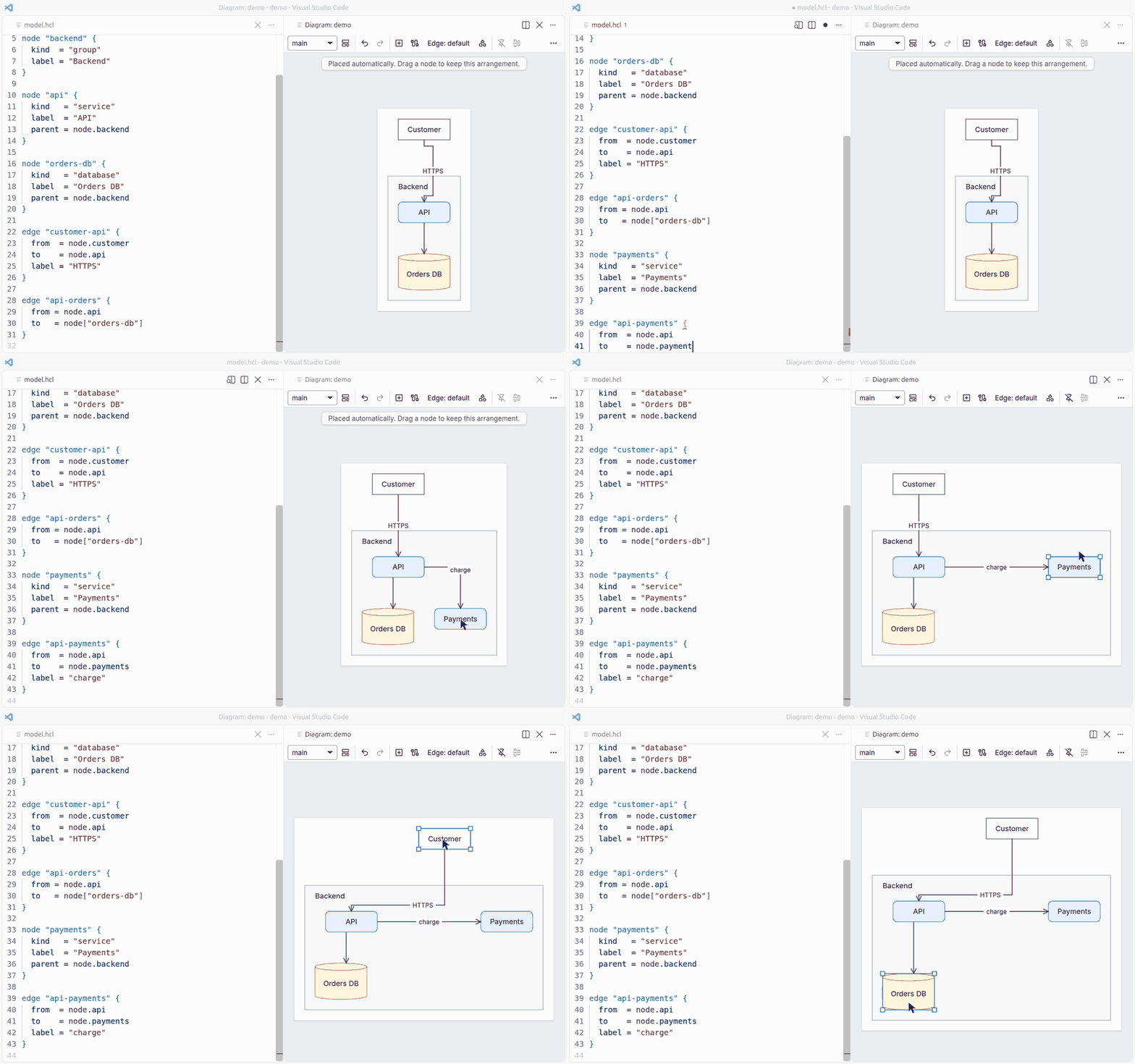
Diagrams as code that you can still arrange by hand. Write what exists as text, drag it into place
in a panel beside your editor, and dg routes the arrows around the boxes every time it draws. Your
diagrams live in your repository as plain files that people and coding agents can both edit.
Why model, style and layout are separate
Most diagram files mix what a system is with how it looks and where each box sits, so one small
change produces a diff nobody can read. dg keeps them apart:
| Part |
Answers |
Lives in |
Written by |
| Model |
What exists and how it connects |
*.hcl |
You or an agent |
| Style |
How each kind of thing looks |
style.hcl or a pack |
You, once |
| Layout |
Where things sit in each view |
views/*.layout.yaml |
The diagram panel |
Arrows are in none of them: they are routed each time the diagram is drawn. That gives you:
- Diffs you can review. Adding a service is a few lines of HCL. Dragging a box changes only a
layout file, never the model.
- One place to restyle. The model says
kind = "database" and the style decides that means a
cylinder. Change the style once and every diagram follows, with no model edits.
- One model, many views. An overview and a detailed view for each team share the same
elements, each with its own layout. Rename a node and every view follows.
- Arrows that never go stale. Move a box and its arrows route around whatever is in the way.
Built for coding agents
A dg model holds no coordinates or colors, so an agent describes a system much as it writes code
and still gets a clean picture:
- It states facts and dg does the drawing. Kinds decide the look, and any node nobody has
placed is positioned automatically.
- It learns the project.
dg vocabulary lists the kinds, edge kinds, tags and views it can use.
- It checks its work.
dg check --json reports problems as data, and dg export draws a view
as a PNG the agent can look at, or as JSON geometry it can read.
- It edits safely.
dg op applies the same operations as the diagram panel, one at a time or
as a batch. A refused operation leaves every file untouched.
- Its changes stay small. The same files always give the same bytes, so regenerating a layout
or an export adds nothing to a diff.
- You stay in control. When an agent adds a node, the positions you set stay where they are.
You review its model change in a pull request like any other code, then drag the new node into
place.
dg mcp offers all of this over the Model Context Protocol, with four tools: check,
vocabulary, op and export. export returns images, so the agent sees what it drew. To use
the command line or MCP, install dg from the
releases page, and Chrome or Chromium for export, then
add it to your MCP client as a stdio server:
dg mcp -C /path/to/project
Quick start
Create a folder with two files.
dg.hcl:
project "shop" {}
model.hcl:
node "web" {
  kind  = "service"
  label = "Web app"
}

node "orders-db" {
  kind  = "database"
  label = "Orders"
}

edge "web-orders" {
  from  = node.web
  to    = node["orders-db"]
  label = "SQL"
}
Open the folder in VS Code, open model.hcl, and click Open diagram at the top right of the
editor, or run dg: Open diagram from the Command Palette.
Drag a node. dg saves its position to a layout file and leaves model.hcl as it was.
What you get
In your HCL files
- Errors and warnings as you type, across the whole project
- Completion for kinds, node IDs, ports, selectors and style properties
- Hover, Go to Definition and Find All References
- Rename Symbol (F2) on an ID, which updates every reference and layout file
- Format Document
In the diagram panel
- Drag to arrange, switch views and open one view from another
- Create and connect nodes, and edit labels and properties
- Undo with Ctrl+Z (⌘Z), with every change written straight back to your files
- VS Code's light or dark theme
The extension bundles its own dg binary, so it needs nothing else on your machine, and it never
uses the network.
What it draws
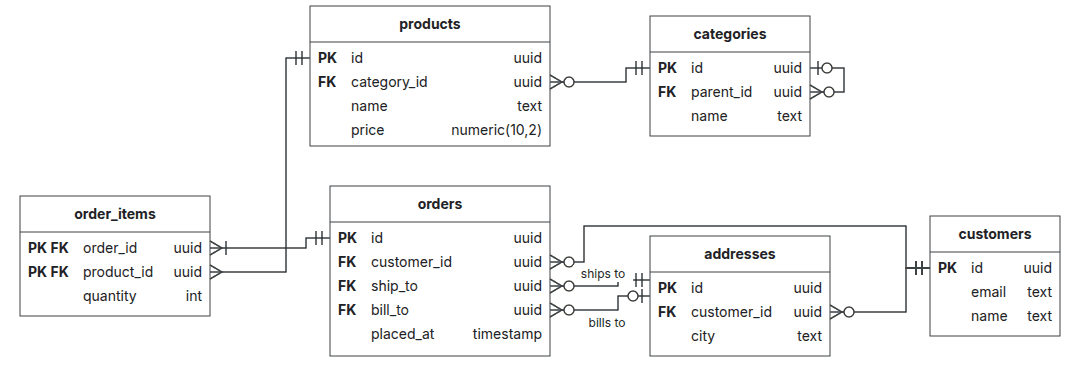
Architecture and C4, infrastructure and networks, flowcharts and swimlanes, entity-relationship
and class diagrams, and state machines.
dg is not for diagrams where position is data, such as sequence diagrams, Gantt charts, charts or
Venn diagrams.
Projects and settings
A folder is a dg project when it holds a dg.hcl, at any depth in your workspace. Other .hcl
files, such as Terraform's, are left alone.
| Setting |
Meaning |
dg.projectFolders |
Folders that are dg projects although they hold no dg.hcl, relative to the workspace folder |
Learn more
dg is licensed under the Apache License 2.0. The extension also holds the code of others, listed
in THIRD_PARTY_NOTICES.

