
Skip to content
| Marketplace
Sign in
Visual Studio Code>Programming Languages>Tree BuilderNew to Visual Studio Code? Get it now.
Tree Builder

Tree Builder

NTKhang

|
3 installs
| (0) | Free
Build structured folder trees and customizable file contexts from selected files and folders.
Installation
Launch VS Code Quick Open (Ctrl+P), paste the following command, and press enter.
Copied to clipboard
More Info

Tree Builder Documentation

Tree Builder is a VS Code extension for turning selected files and folders into structured context packages. The generated result can be copied to the clipboard or opened as a new editor document, making it useful for AI prompts, code reviews, project overviews, and technical documentation.

Contents

  • Tree Builder Documentation
    • Contents
    • Quick Start
    • Ways to Build Context
      • From the Explorer
      • From the active editor
      • From the Command Palette
    • Choosing a Template
    • Managing Templates
      • Wrapper template
      • Per-file template
    • Built-in Templates
    • Generated Output
    • Settings
    • Development
      • Requirements
      • Install and build
      • Tests and type checking
      • Package the extension
    • Troubleshooting
      • No files are generated
      • Files are missing from the result
      • The default command uses an unexpected format
      • Inspecting logs
    • Privacy
    • License
    • Author
    • Acknowledgments

Quick Start

  1. Open a project folder in VS Code.
  2. Select one or more files or folders in the Explorer.
  3. Right-click the selection and choose Tree Builder: Build Tree Context.
  4. Paste the generated context into your AI chat, or inspect the new editor tab when the selected template uses editor output.

Tree Builder discovers files recursively, removes duplicate nested selections, applies the template's include and exclude patterns, builds a deterministic directory tree, and renders the final context.

Ways to Build Context

From the Explorer

Select a file, folder, or multiple resources in the Explorer, then open the context menu. Use one of these commands:

  • Build Tree Context uses the configured default template.
  • Build Tree Context with Template... opens the template picker before generation.

The same commands work for a mixed selection of files and folders. When a folder and one of its children are both selected, the nested selection is automatically pruned.
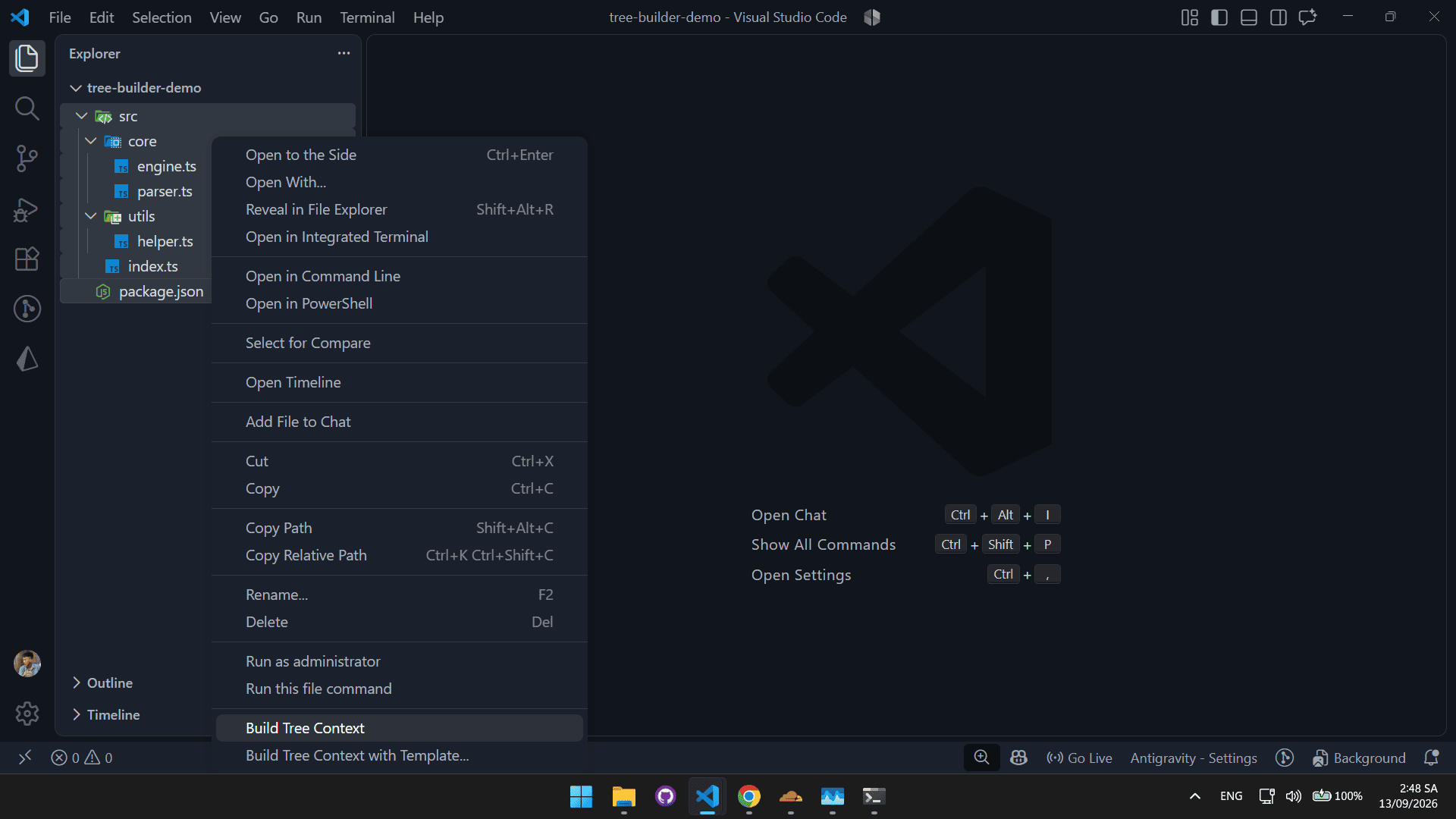
Explorer context menu

From the active editor

With a file open, right-click inside the editor and choose Build Tree Context. This builds context from the active file or the editor's current resource, depending on the available workspace selection.
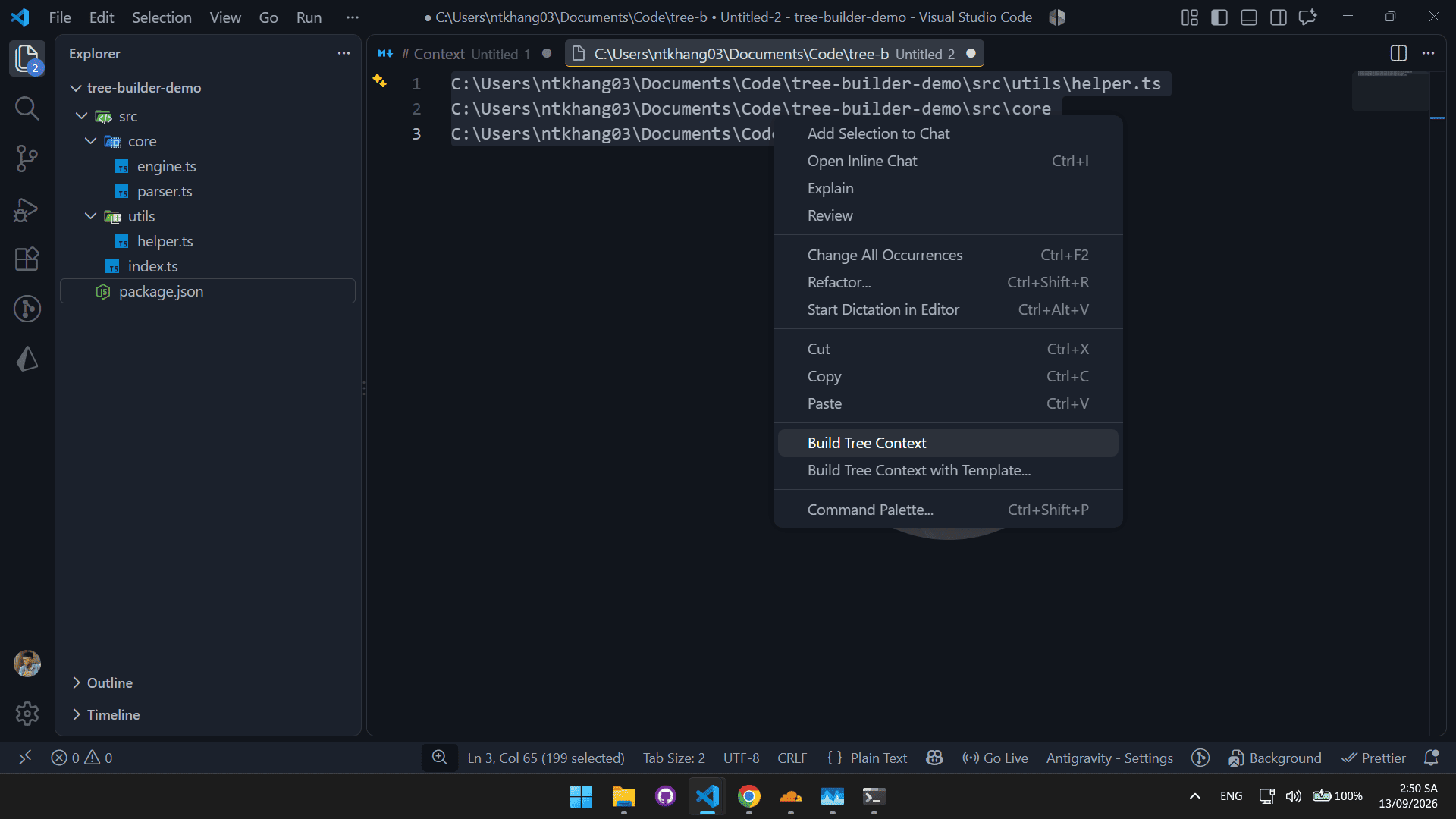
Editor context menu

From the Command Palette

Open the Command Palette with Ctrl+Shift+P (Cmd+Shift+P on macOS), then search for Tree Builder. The available commands are:

  • Tree Builder: Build Tree Context
  • Tree Builder: Build Tree Context with Template...
  • Tree Builder: Manage Templates

Choosing a Template

Use Build Tree Context with Template... whenever the output format should differ from the default. The picker shows each template's name, description, output target, content mode, and common-path behavior.
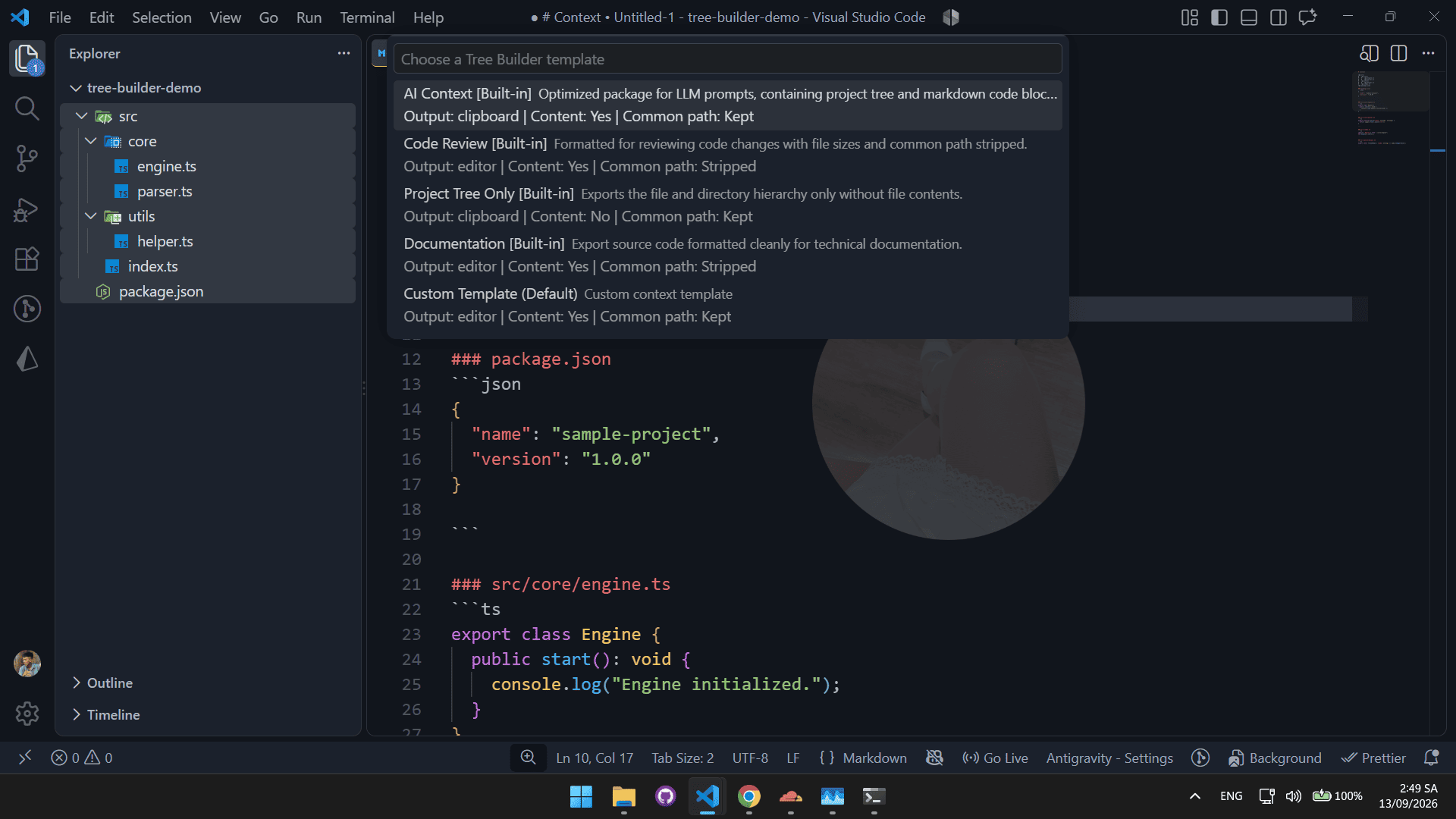
Template picker

The output target is controlled by the selected template:

  • Clipboard: the result is copied directly to the system clipboard.
  • Editor: the result is opened in a new untitled editor document.

Managing Templates

Run Tree Builder: Manage Templates from the Command Palette. The Template Manager provides:

  • Search across available templates.
  • A list of built-in and custom templates.
  • A New Template action.
  • Editing for name, description, output target, filters, wrapper, and per-file format.
  • A real-time preview using simulated sample files.
  • Duplicate for creating an editable copy of a built-in template.
  • Delete for removing a custom template.
  • Default Template for assigning the selected template as the default.
  • Save Changes for persisting edits.

Built-in templates are read-only. Duplicate one before customizing it.
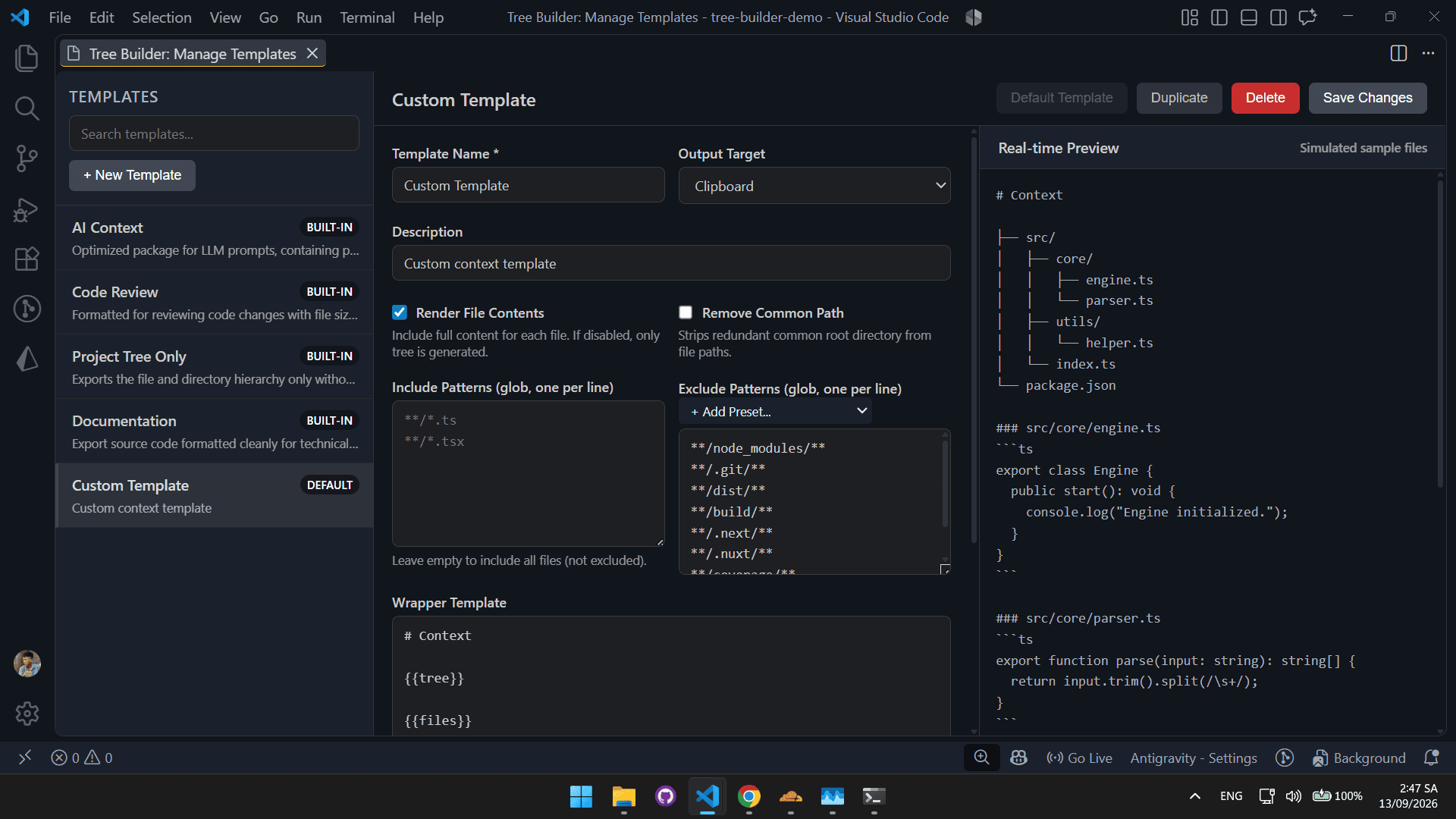
Template Manager

The editor supports separate include and exclude glob patterns. Enter one pattern per line. You can also add common exclude presets such as node_modules, .git, build output, and framework-generated directories.
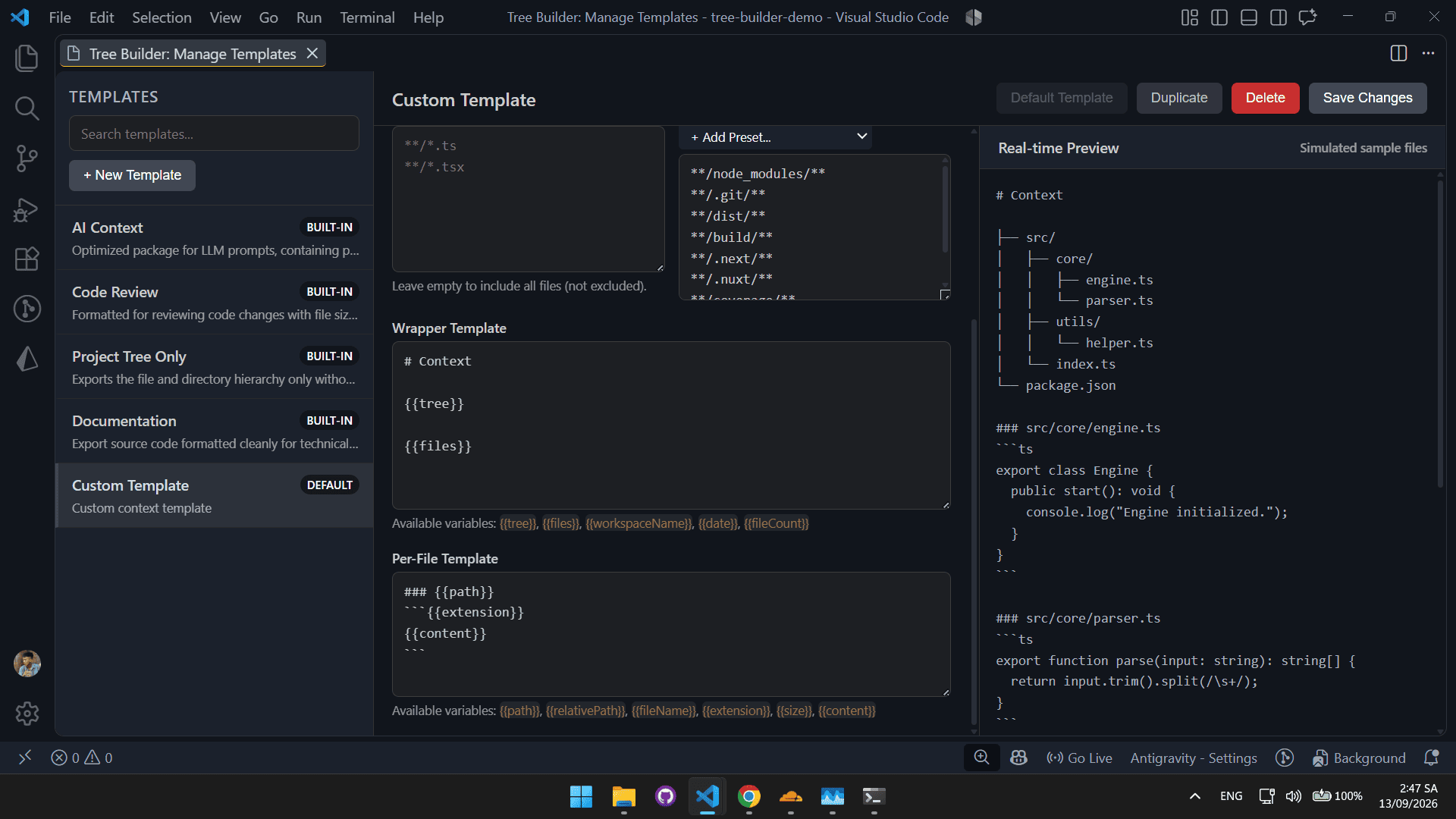
Template filters and fields

Wrapper template

The wrapper is rendered once for the complete result. It usually places the generated tree and rendered file blocks into a larger Markdown document.

Supported wrapper variables:

Variable Meaning
{{tree}} Rendered directory hierarchy.
{{files}} All rendered per-file blocks.
{{workspaceName}} Active workspace folder name.
{{date}} Generation date and time.
{{fileCount}} Number of included files.

Per-file template

The per-file template is rendered once for every included file.

Variable Meaning
{{path}} Display path, after optional common-path removal.
{{relativePath}} Workspace-relative path.
{{fileName}} File name including its extension.
{{extension}} Lowercase extension without the dot.
{{size}} Human-readable file size.
{{content}} File content or an omission notice.

Built-in Templates

Tree Builder includes these templates:

Template Output Content Best for
AI Context Clipboard Yes AI prompts containing a tree and Markdown code blocks.
Code Review Editor Yes Reviewing source changes with file sizes and shortened paths.
Project Tree Only Clipboard No Sharing only the project hierarchy.
Documentation Editor Yes Producing clean source documentation with metadata.
Custom Template Clipboard Yes A user-defined format.

The default built-in template is AI Context. Built-in filters exclude common generated and dependency directories such as node_modules, .git, dist, and build. Individual templates may have additional filters.

Generated Output

The generated context contains a deterministic tree with directories before files and alphabetical ordering. Depending on the selected template, file contents are wrapped in language-aware Markdown code blocks.
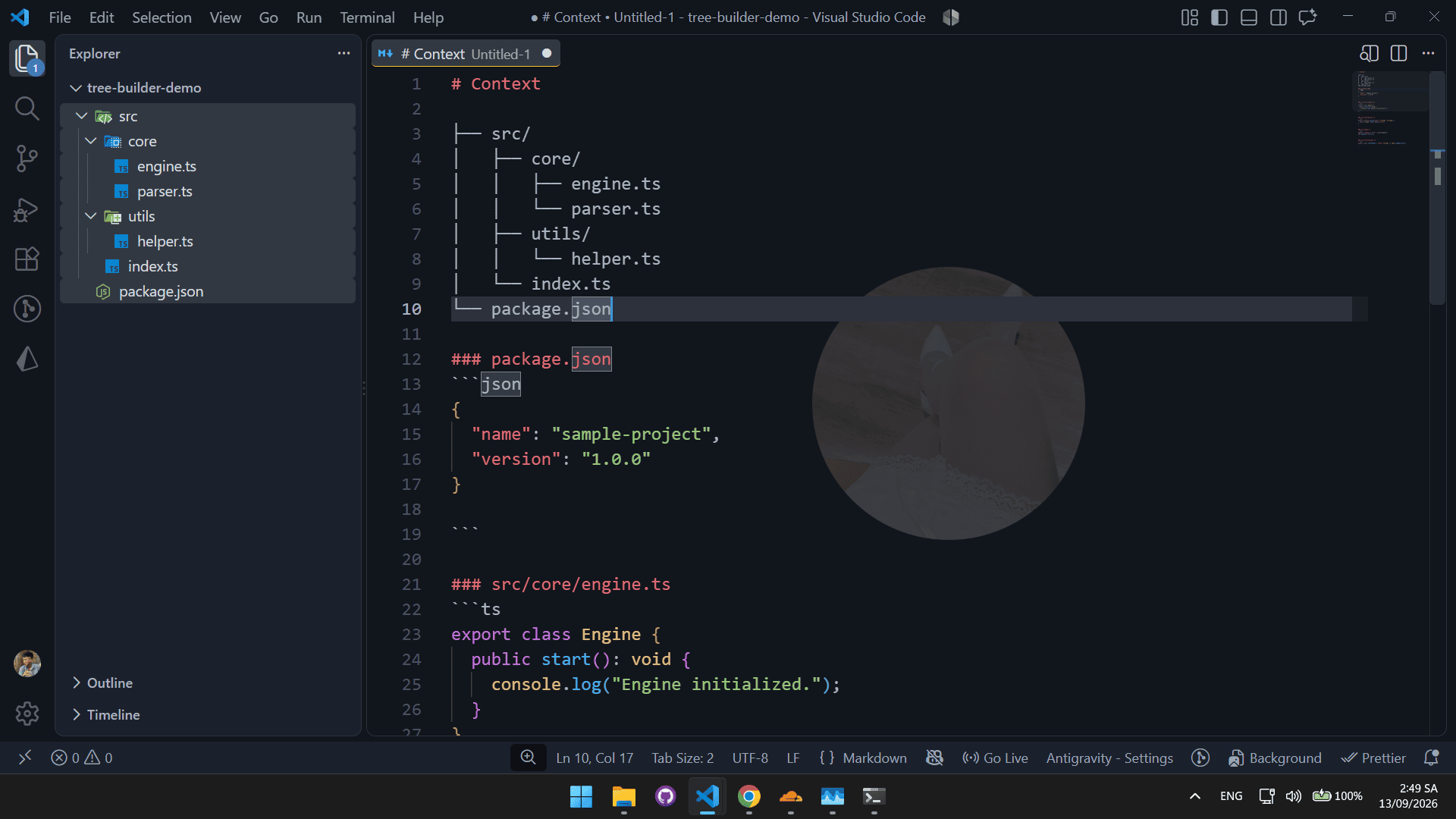
Generated tree context

Tree Builder protects the generation process in two ways:

  • Binary files are omitted with a [Binary file omitted] notice.
  • Files larger than the configured limit are omitted with a size-limit notice.

Cancellation is available while a large selection is being scanned or rendered.

Settings

Open VS Code Settings with Ctrl+, (Cmd+, on macOS) and search for Tree Builder, or add the following to settings.json:

{
	"treeBuilder.defaultTemplate": "ai-context",
	"treeBuilder.maxFileSize": 1048576,
	"treeBuilder.promptForTemplate": false,
	"treeBuilder.logLevel": "info"
}
Setting Default Description
treeBuilder.defaultTemplate ai-context ID of the template used by Build Tree Context.
treeBuilder.maxFileSize 1048576 Maximum file size in bytes to read. The default is 1 MiB.
treeBuilder.promptForTemplate false Always show the template picker for the default build command.
treeBuilder.logLevel info Logging verbosity: debug, info, warn, or error.

Development

Requirements

  • Node.js 20 or later
  • npm 9 or later
  • VS Code 1.85 or later

Install and build

npm install
npm run build

For continuous rebuilding during development:

npm run watch

Tests and type checking

npm run test:run
npm run lint

Package the extension

npx @vscode/vsce package --no-dependencies

The command creates a .vsix package that can be installed in VS Code with Extensions: Install from VSIX....

Troubleshooting

No files are generated

Confirm that a file or folder is selected in the Explorer, or that an active editor belongs to the current workspace. Tree Builder displays a warning when no files are found.

Files are missing from the result

Check the selected template's include and exclude patterns. A file can also be omitted because it is binary or larger than treeBuilder.maxFileSize.

The default command uses an unexpected format

Open Template Manager and check which template is marked as default. You can also set treeBuilder.defaultTemplate in VS Code settings or enable treeBuilder.promptForTemplate.

Inspecting logs

Open View: Toggle Output, then select Tree Builder from the channel list. Increase treeBuilder.logLevel to debug when diagnosing discovery or filtering behavior.

Privacy

Tree Builder processes selected files locally. It does not send project contents to an external service and does not require network access during normal operation.

License

Tree Builder is distributed under the MIT License. See LICENSE for the full text.

Author

  • Nguyen Thanh Khang - ntkhang03

Acknowledgments

  • Gemini - gemini
  • GitHub Copilot - copilot
  • Contact us
  • Jobs
  • Privacy
  • Manage cookies
  • Terms of use
  • Trademarks
  • Your Privacy Choices
  • Consumer Health Privacy
© 2026 Microsoft