Portl
Save and open frequently-used links from the Command Palette — no browser-switching needed.
One shortcut. Pick a link. Done.
Features
- Command Palette launcher — open any link with
Ctrl+Shift+L without leaving VS Code
- Sidebar tree view — browse links by group directly in the Activity Bar
- Any URI — web (
https://), local files (file:///), apps (onenote:, vscode://), and more
- Groups — organize links into collapsible folders
- Add link form — clean webview UI with group autocomplete and duplicate warning
- Quick delete — remove links from the tree or Command Palette
- Reset — clear all links in one step with confirmation
- Open in Simple Browser — optionally keep links inside VS Code
Commands
| Command |
Description |
Shortcut |
Portl: Open Link |
Pick and open a saved link |
Ctrl+Shift+L |
Portl: Add New Link |
Open the add-link form |
— |
Portl: Delete Link |
Pick a link to delete |
— |
Portl: Reset All Links |
Clear all saved links |
— |
Portl: Edit Config (JSON) |
Edit links directly in settings.json |
— |
Usage
Adding a link
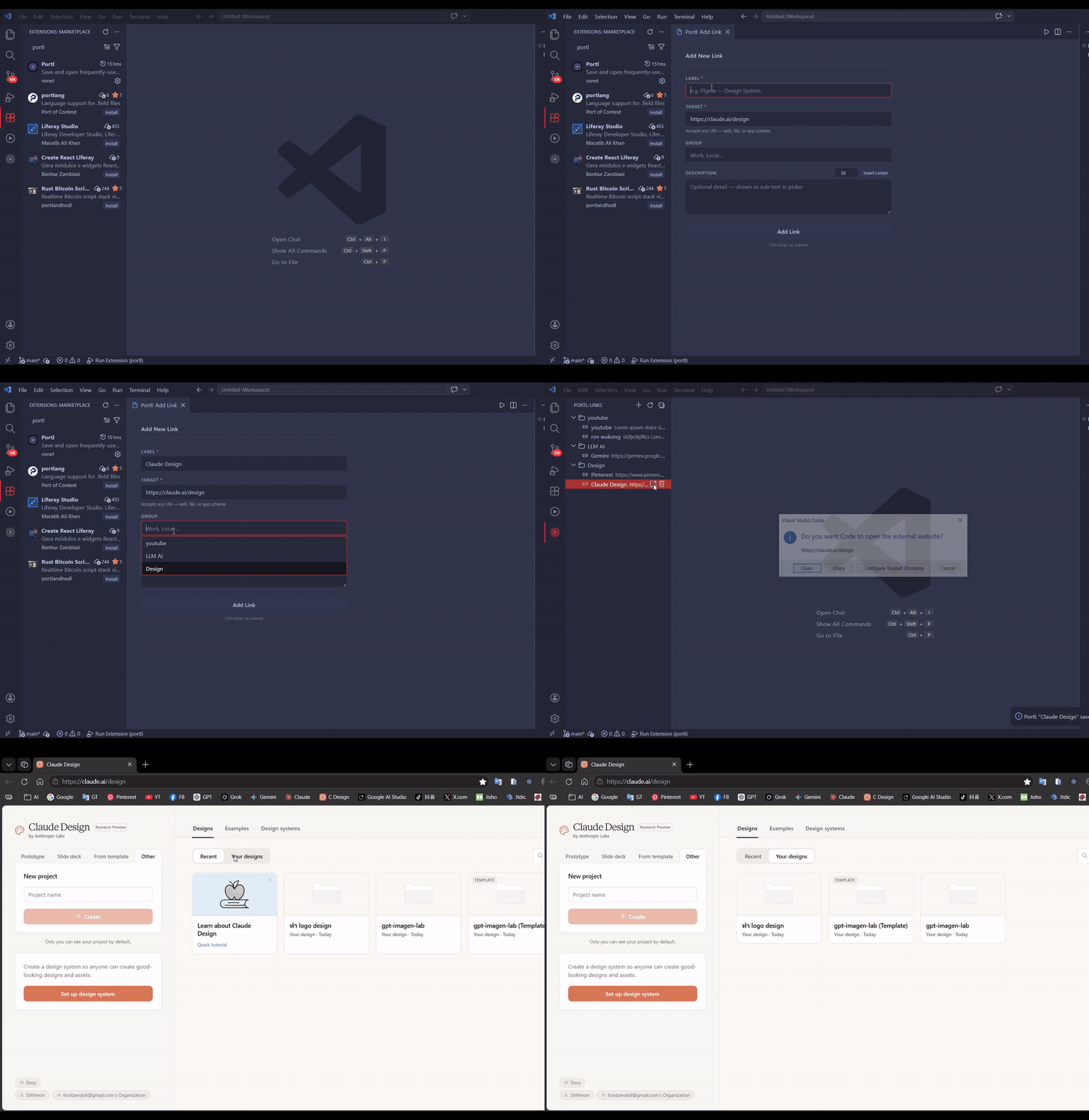
- Open Command Palette → Portl: Add New Link (or click
+ in the Links panel)
- Fill in Label, Target URI, optional Group and Description
- Click Add Link or press
Ctrl+Enter
Opening a link
Press Ctrl+Shift+L, type to filter, press Enter to open.
Or click any link in the Portl sidebar (Activity Bar).
https://figma.com/...
file:///C:/Projects/MyApp
onenote:https://...
vscode://settings/editor
Settings
| Setting |
Default |
Description |
portl.links |
{} |
Saved links (edit via Edit Config (JSON)) |
portl.openInBrowser |
true |
true = system browser · false = VS Code Simple Browser |
"portl.links": {
  "Quick Link": "https://example.com",
  "OneNote": { "target": "onenote:", "description": "Open OneNote" },
  "Work": {
    "nestedItems": {
      "Figma": "https://figma.com/...",
      "Notion": { "target": "https://notion.so/...", "description": "Sprint board" }
    }
  }
}
License
MIT
| |

