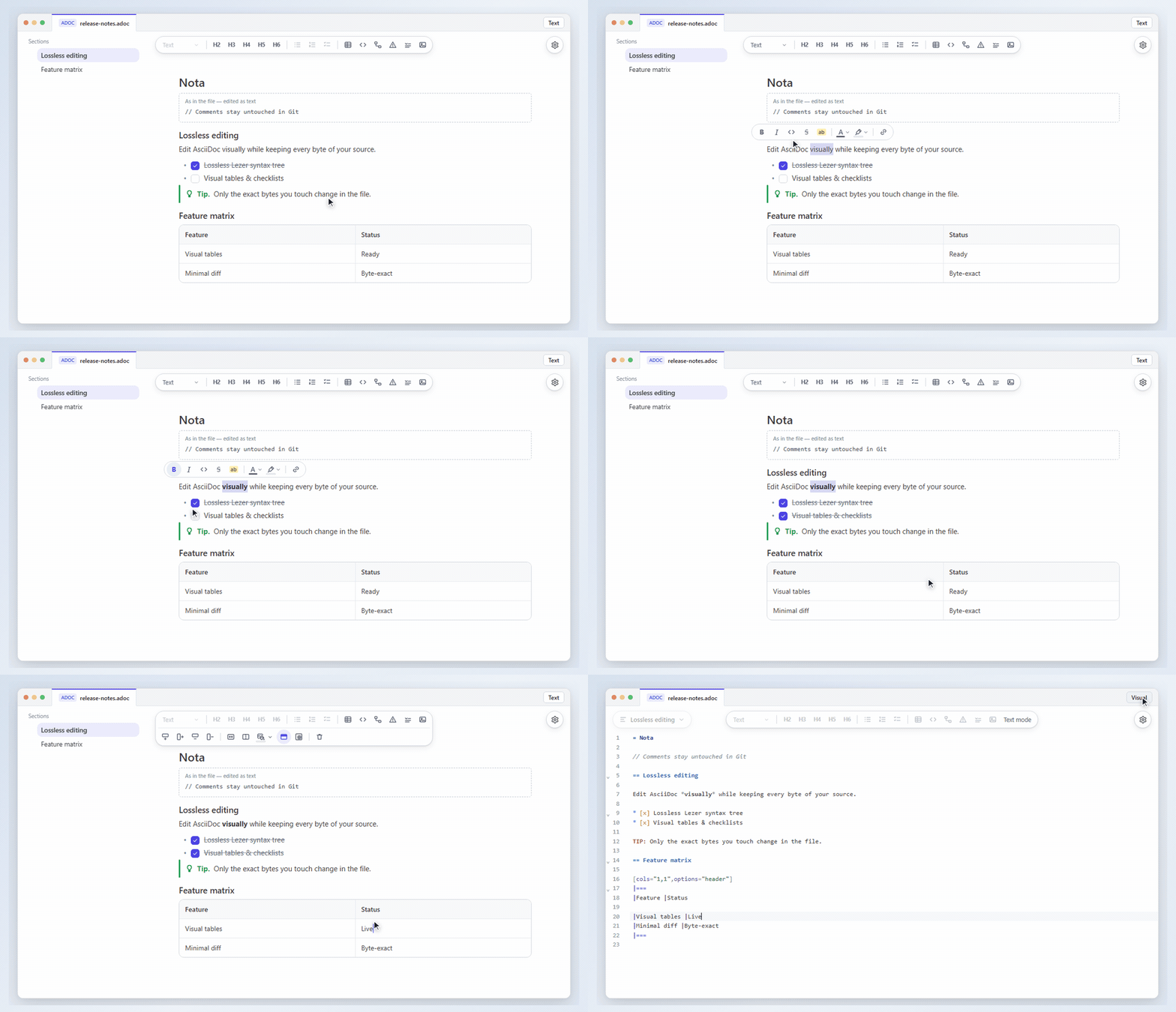
Lossless visual AsciiDoc editor for VS Code. Edit .adoc and .asciidoc files visually on the page while keeping the underlying text as the truth — only the bytes you change are touched, so spacing, comments and attributes stay intact in Git.
Features
Visual & Text in one tab — switch between the visual editor and syntax-highlighted AsciiDoc source with a single button, sharing one cursor position and VS Code undo history.
Lossless for Git — powered by Nota's Lezer syntax tree; unsupported constructs stay visible as editable source islands instead of being mangled on save.
Rich block & inline editing — headings, marks, text colors/highlights, links (xref:, URLs, sections), bulleted/numbered/checklists, admonitions, collapsible blocks, code blocks, local images and live Mermaid diagrams.
Visual tables — edit cells in place, merge/split cells, resize column widths, fill cells and nest tables up to 4 levels.
Outline & block handles — side or floating section outline with drag-to-reorder, plus a block handle (⋯) to add captions, anchors or move/delete blocks.
Diagnostics — parser errors and warnings are underlined inline and listed in VS Code's Problems panel.
Offline & bilingual — makes zero network requests, supports untrusted/virtual workspaces and speaks English and Russian (nota.language).
Shortcuts
Action
macOS
Windows / Linux
Bold / Italic / Monospace
⌘B / ⌘I / ⌘E
Ctrl+B / Ctrl+I / Ctrl+E
Strikethrough / Highlight
⇧⌘X / ⇧⌘H
Ctrl+Shift+X / Ctrl+Shift+H
Paragraph / Heading 2 / Heading 3
⌘⌥0 / ⌘⌥2 / ⌘⌥3
— (use / or toolbar)
Insert block menu
/ in an empty paragraph
/ in an empty paragraph
Open link / scroll to section
⌘-click
Ctrl-click
Paste formatted / plain text
⌘V / ⇧⌘V
Ctrl+V / Ctrl+Shift+V
Settings
Setting
Default
Description
nota.language
auto
Interface & diagnostics language (auto, en, ru)
nota.pageWidth
85
Page width in % of the tab (50–100)
nota.outlineView
capsule
Section outline mode: capsule (hover island) or side (pinned sidebar)
nota.showAnchors
false
Show [[id]] / [#id] anchor lines in Visual mode
nota.blocksInCapsule
all
Toolbar block buttons (all or frequent)
Tips
Open .adoc as plain text by default: right-click an .adoc tab → Reopen Editor With… → Configure Default Editor for ".adoc"…* → Text Editor.
Large files (> 1 MB): open directly in Text mode with a one-click button to switch to Visual mode anyway.