MyBatis Mapper Executor
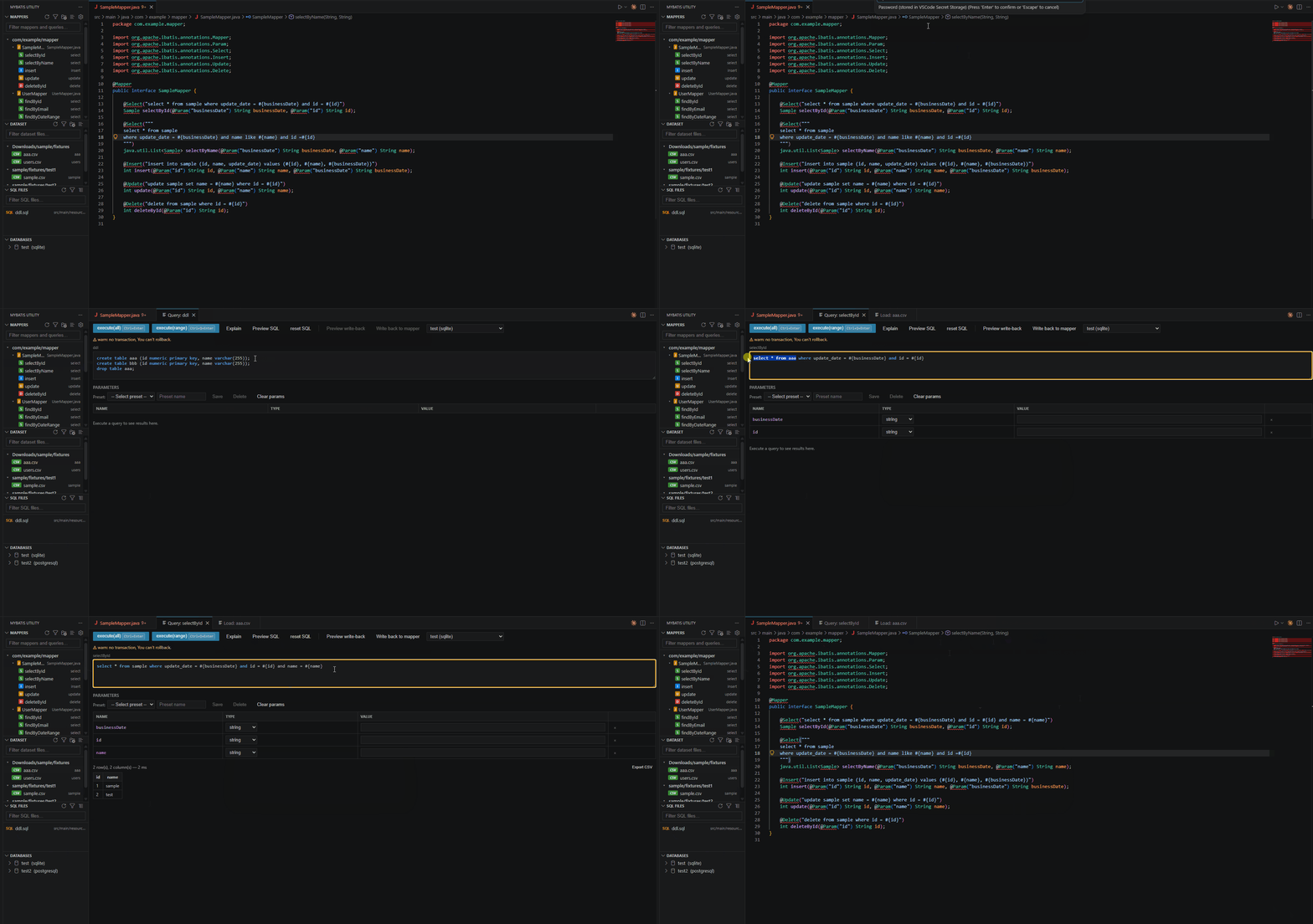
VSCode extension for MyBatis developers. Browse Mapper files, fill query parameters, and execute SQL against configured databases — all without leaving the editor.
Quick Start
| Step |
Where |
What to do |
| 1 |
Databases panel → + |
Add a database connection (SQLite path, or PostgreSQL/MySQL host + credentials). Passwords are stored in Secret Storage. |
| 2 |
Mappers panel title bar → ⊕ |
Add a scan folder pattern if the default (**/mapper, **/repository) doesn't match your project — or skip, the defaults work for most Spring Boot projects. |
| 3 |
Mappers panel |
Click any query to open the Query panel. |
| 4 |
Query panel |
Select a database, fill in #{param} values (type: string / number / boolean / date / null), then press Ctrl+Enter or click execute(all). |
| 5 |
(optional) Query panel |
Edit SQL inline — new #{param} placeholders are added to the parameter table automatically. |
| 6 |
(optional) Query panel |
Click Preview SQL to see the final SQL with all parameters substituted, before executing. |
| 7 |
(optional) Query panel |
Click Explain to run EXPLAIN and inspect the query plan. |
| 8 |
(optional) Query panel |
Click Preview write-back to diff the edited SQL against the mapper file, then Write back to mapper to save it. |
| 9 |
(optional) Query panel |
Click reset SQL to re-read the source file from disk and discard any inline edits. |
| 10 |
SQL Files panel |
Click any .sql file in the workspace to open it in the Query panel and execute it against a configured database. |
| 11 |
Dataset panel |
Click a CSV/XLSX fixture file → enter target table name → Preview → Load to bulk-reload a dev/test table. |
See Getting Started below for detailed instructions on each step.
Features
- Dynamic SQL support — MyBatis dynamic SQL tags (
<if>, <foreach>, <where>, <set>, <trim>, <choose>/<when>/<otherwise>, <bind>, <script>) are evaluated at execute and preview time using the parameter values you provide. test="…" conditions use a built-in OGNL expression evaluator. Parameters referenced only in test attributes (e.g. title in <if test="title != null">) are automatically added to the parameter table. <foreach> loop variables (item, index) are excluded from the table — enter comma-separated values in the collection parameter instead
- Mapper panel — Scans Java (
@Mapper) and XML mapper files, lists every query by name and type. Supports inline SQL annotations — single-line strings, Java 15+ text blocks """...""", string arrays {"...", "..."}, and concatenated strings "..." + "..." (the latter two are common for multi-line SQL, e.g. insert-select statements, on Java <15) — and XML-mapped interfaces. Results stream in folder-by-folder so the panel populates progressively on large projects. Scan results are cached — switching to another panel and back reuses the result instantly without rescanning. MyBatis Generator @SelectProvider / @InsertProvider etc. are automatically skipped (no inline SQL to browse)
- SQL Files panel — New panel that lists every
.sql file in the workspace. Click any file to open it in the Query panel and execute against a configured database. Panel refreshes automatically when .sql files are created or deleted
- Query panel — Click a query to open it, edit SQL inline with syntax highlighting, fill typed parameters (
#{param}), and execute. New #{param} placeholders added during editing are detected automatically and appended to the parameter table
- Write SQL back to mapper — Click Preview write-back to open a diff view (original file vs edited SQL); click Write back to mapper to save directly. Supports XML mapper bodies and Java
@Select/@Insert/@Update/@Delete annotations (single-line, text blocks, string arrays, and concatenated strings — text blocks and string arrays are preserved on write-back; concatenated strings are normalized to a single-line string or text block). Disabled for SQL files (edit them in the built-in editor instead)
- reset SQL reloads from disk — reset SQL re-reads the source file (XML, Java, or
.sql) so external edits made with other tools are always visible without manually refreshing
- Live SQL preview — Click Preview SQL to see the final SQL with all parameters substituted inline, before executing
- Explain plan — Click Explain to run
EXPLAIN on the current SQL and inspect the query plan
- Dataset loader — Dataset panel scans for CSV / XLSX fixture files in your workspace. Filter files in real time with the search input, switch between flat and hierarchical views, click any file to open the loader, preview data, map sheets to database tables, and bulk-load with one click (clears and reloads the target table). XLSX sheet names are read automatically when the loader opens
- Parameter presets — Save named sets of parameter values to
.vscode/mybatis-utility/params.yaml. Load them from a dropdown to re-fill values instantly. The file can be committed and shared across the team
- Multi-database support — SQLite, PostgreSQL, MySQL (extensible driver registry)
- Pagination — Large result sets paginated (configurable page size)
- CSV export — Export query results to CSV with one click
- Keyboard shortcuts —
Ctrl+Enter / Ctrl+Shift+Enter to execute without touching the mouse
Requirements
- VSCode 1.85 or later
- For PostgreSQL / MySQL: a running database server (no extra drivers needed — pure JS)
- For SQLite: a
.db / .sqlite file (WASM-based, no native compilation)
Getting Started
Open Settings (Ctrl+,) and search for MyBatis Utility, or use the $(new-folder) and $(filter) buttons in the Mapper panel title bar to add include / exclude patterns interactively — the picker shows the actual directories found in your workspace so there is no need to type paths manually.
To set patterns directly in settings, set Scan Folders to the directories that contain your Mapper files:
"mybatisUtility.scanFolders": [
  "src/main/java",
  "src/main/resources/mapper"
]
Default: ["**/mapper", "**/repository"] — works for most Spring Boot / Maven projects out of the box.
To exclude specific directories from the scan (e.g. generated code), use Scan Exclude:
"mybatisUtility.scanExclude": ["**/generated/**", "**/legacy/**"]
node_modules, target, build, out, dist, .gradle, src/test, src/test-* are always excluded.
Per-folder settings: in a multi-root workspace each folder can have its own scanFolders and scanExclude configured in its .vscode/settings.json. All settings have "scope": "resource" so VSCode applies the correct value per folder automatically.
Maven multi-module projects: open the root project folder in VSCode. The default **/mapper pattern finds mapper directories in every module automatically.
The Mappers panel in the sidebar will populate automatically. A Scanning… indicator is shown while the workspace is being searched. Results appear folder-by-folder as they are found. Use the filter input at the top to narrow results in real time, and use the list/tree icon in the title bar to switch between flat and hierarchical views.
2. Add a database connection
In the Databases panel, click + to add a connection via a quick wizard, or click the gear icon to open the full configuration panel.
Supported types:
| Type |
Connection info |
| SQLite |
Path to .db file |
| PostgreSQL |
host / port / database / schema / user / password |
| MySQL |
host / port / database / user / password |
Passwords are stored in VSCode's Secret Storage (never in plain text).
3. Run a query
- Click any query in the Mappers panel (use the filter input to find it quickly)
- The Query panel opens — the SQL from the mapper file is shown and is editable
- Select a database from the dropdown
- Fill in parameter values (choose type: string / number / boolean / date / null)
- Press Ctrl+Enter to execute, or click execute(all)
To execute only part of the SQL, select it and press Ctrl+Shift+Enter (or click execute(range)).
Click Preview SQL to see the fully-substituted SQL without executing it — useful for reviewing the final query before sending it to the database.
Click Explain to run EXPLAIN on the current SQL and display the query plan returned by the database.
If you edited the SQL and want to revert it, click reset SQL.
Parameter presets
To save the current parameter values as a preset, type a name in the Preset name field and click Save. To restore saved values, select a preset from the dropdown. Click Delete to remove the selected preset, or Clear params to reset all values.
Presets are saved to .vscode/mybatis-utility/params.yaml in your workspace. Add the file to .gitignore to keep values local, or commit it to share with your team.
4. Execute SQL files (SQL Files panel)
The SQL Files panel lists every .sql file found in the workspace (excluding node_modules, target, build, etc.). No configuration is needed — it scans the entire workspace automatically.
- Click any
.sql file to open it in the Query panel
- Select a database connection and fill in any
#{param} values
- Press Ctrl+Enter to execute
#{param} placeholders in the file are extracted automatically and shown in the parameter table.
Use the $(filter) button in the panel title bar to add exclude patterns if you want to hide generated or legacy SQL files. Use the $(refresh) button to re-scan after adding new files.
reset SQL for a SQL file re-reads the file from disk — useful if you edited the file externally and want the query panel to reflect the changes.
5. Load test data (Dataset panel)
The Dataset panel (in the sidebar) automatically scans for CSV and XLSX fixture files in common locations (fixtures/, testdata/, dataset/, src/test/resources/, etc.). Use the $(new-folder) and $(filter) buttons in the Dataset panel title bar to add include / exclude patterns interactively. Use the filter input at the top to narrow results in real time, and use the list/tree icon in the title bar to switch between flat and hierarchical views. Both view preferences are saved across sessions.
- Click any file in the Dataset panel to open the loader
- For XLSX files, sheet names are read automatically and displayed as rows in the mapping table
- Enter the target table name for each sheet you want to load
- Click Preview to inspect the first 100 rows before loading
- Click Load — this will delete all existing rows from the target table and re-insert data from the file
To customise which directories are scanned, use Dataset Directories and Dataset Exclude in settings, or the interactive picker buttons in the panel title bar.
Warning: The load operation is destructive. Always use it against a development/test database, not production.
Keyboard Shortcuts
| Shortcut |
Action |
Ctrl+Enter |
execute(all) — run the full displayed SQL |
Ctrl+Shift+Enter |
execute(range) — run only the selected text |
Settings
All settings support per-folder configuration in multi-root workspaces (scope: resource).
| Setting |
Default |
Description |
mybatisUtility.scanFolders |
["**/mapper", "**/repository"] |
Glob patterns for mapper file search. Empty = no scan. Use the $(new-folder) button in the Mapper panel to add patterns interactively. |
mybatisUtility.scanExclude |
[] |
Additional glob patterns to exclude from mapper scanning. Takes priority over scanFolders. node_modules, target, build, out, dist, .gradle, src/test, src/test-* are always excluded. Use the $(filter) button to add patterns interactively. |
mybatisUtility.fetchLimit |
5000 |
Max rows fetched per query. Reduce to save memory. |
mybatisUtility.pageSize |
200 |
Rows displayed per page in the result panel. |
mybatisUtility.datasetDirectories |
["**/fixture/**", "**/fixtures/**", ...] |
Glob patterns for fixture files shown in the Dataset panel. Use the $(new-folder) button to add patterns interactively. |
mybatisUtility.datasetExclude |
[] |
Additional glob patterns to exclude from dataset scanning. Takes priority over datasetDirectories. node_modules, target, build, dist, out, .gradle are always excluded. |
mybatisUtility.sqlExclude |
[] |
Additional glob patterns to exclude from SQL Files scanning. node_modules, target, build, dist, out, .gradle, .git are always excluded. Use the $(filter) button in the SQL Files panel to add patterns interactively. |
Open settings with the gear icon (⚙) in the Mappers panel title bar.
Java — annotation-based (single-line, text block, string array, or concatenated strings)
@Mapper
public interface UserMapper {
    @Select("SELECT * FROM users WHERE id = #{id}")
    User findById(String id);

    // Java 15+ text blocks are also supported
    @Select("""
        SELECT * FROM users
        WHERE name = #{name}
        """)
    List<User> findByName(String name);

    // Multi-line string array (common on Java <15, e.g. SELECT-INSERT statements)
    @Insert({
        "INSERT INTO orders_history (id, amount, user_id)",
        "SELECT id, amount, user_id",
        "FROM orders",
        "WHERE created_date < #{cutoffDate}"
    })
    int archiveOrders(String cutoffDate);

    // "..." + "..." string concatenation (another common pre-Java 15 multi-line style)
    @Insert("INSERT INTO orders_history (id, amount, user_id) " +
            "SELECT id, amount, user_id " +
            "FROM orders " +
            "WHERE created_date < #{cutoffDate}")
    int archiveOrders2(String cutoffDate);
}
Write-back preserves whichever format the original annotation used — editing SQL from a string-array annotation and saving keeps it as a string array rather than converting it to a text block. Concatenated ("a" + "b") annotations are normalized to a single-line string (or a text block, if the edited SQL spans multiple lines) on write-back.
Java — XML-mapped interface (@Mapper only, no inline SQL)
@Mapper
public interface UserMapper {
    List<User> findAll();
    User findById(Long id);
    int insert(User user);
}
Method names are listed in the panel with query kind inferred from the name prefix (find* / get* → SELECT, insert* / save* → INSERT, etc.). SQL can be filled in manually in the query panel.
XML — MyBatis mapper XML
<mapper namespace="com.example.UserMapper">
  <select id="findById" resultType="User">
    SELECT * FROM users WHERE id = #{id}
  </select>
</mapper>
Both #{param} and ${param} placeholders are detected and shown in the parameter table.
Dynamic SQL (<if>, <foreach>, <where>, <set>, …)
Dynamic SQL tags in XML mappers and Java <script> annotations are evaluated at execute / preview time:
<select id="selectByCondition" resultType="Sample">
  SELECT * FROM sample
  <where>
    <if test="name != null">
      AND name LIKE #{name}
    </if>
    <if test="status != null">
      AND status = #{status}
    </if>
  </where>
</select>
Parameters referenced only in test attributes (e.g. name, status) are added to the parameter table automatically. Leave a parameter empty to treat it as null — the corresponding <if> block is excluded from the executed SQL.
For <foreach>, enter comma-separated values in the collection parameter (e.g. 1,2,3 with type number):
<foreach collection="ids" item="id" open="(" close=")" separator=",">
  #{id}
</foreach>
→ expands to (1, 2, 3) at execution time.
Notes
- No transaction — queries run outside a transaction. There is no rollback. Be careful with INSERT / UPDATE / DELETE.
- fetchLimit warning — if results are truncated, a warning is shown. Add
LIMIT to your SQL or increase fetchLimit in settings.
- The SQL panel is editable — changes affect execution only. Use reset SQL to re-read the source file from disk, or Write back to mapper to persist edits (XML/Java mappers only).
- SQL Files panel — all
.sql files in the workspace are listed. Write-back is disabled for .sql files; edit them directly with VSCode's built-in editor and press reset SQL to reload.
License
MIT — see LICENSE

