CSV/TSV Viewer
English | 日本語
View CSV and TSV data as a table inside VS Code — from text you select in the editor, from the
clipboard, or from a file in the Explorer. Everything runs locally; the extension makes no network
requests and ships with no runtime dependencies.
Features
Preview selected text
Select CSV or TSV data in any editor, right-click, and choose CSV/TSV: Preview Selection as
Table. The delimiter is guessed from the selection by default (comma, tab, semicolon or pipe),
and can be pinned in settings.
Space-separated text works too — pick Space in the toolbar, or set
csvTsvViewer.selectionDelimiter to space. A run of spaces counts as one separator and leading
indentation is ignored, so column-aligned output (ps, df, a pasted fixed-width report) lines up
as a table. Auto-detection only falls back to space when no other delimiter fits and every sampled
line breaks into the same number of fields, so ordinary prose is not mistaken for a table.
Tab / 2+ spaces handles TSV whose tabs did not survive the trip — text copied out of a chat
reply or a rendered document usually arrives with each tab expanded to spaces, and tab-stop
alignment makes the width vary from column to column. This mode separates on a tab or a gap of
two or more spaces, so a single space stays inside the cell and New York 8 reads as two fields
rather than three. Auto-detection prefers it over space and applies the same guard: several
lines, all breaking into the same number of fields.
The menu item only appears when text is actually selected. While the preview is open it follows
the selection — select a different block and the table repaints.
Preview the clipboard
Run CSV/TSV: Preview Clipboard as Table from the Command Palette to show whatever delimited
text you last copied — a query result, a chunk of a log, a range from a spreadsheet.
This one is Command Palette only: the clipboard is not something you can right-click, so it gets
no context menu entry. Because you cannot see what you are about to preview, text with no
delimiter and no line break is rejected with a message rather than opening as a useless single
cell.
Table
All three entry points share one view:
- Paged display — 200 rows per page by default (
csvTsvViewer.pageSize), with first / previous /
next / last controls and a 1–200 of 12,000 style row range in the footer.
- Sticky header row and a sticky row-number gutter. Row numbers refer to the source file, so they
stay meaningful after filtering, sorting and paging.
- Click a header to sort (ascending → descending → original order). Numeric columns sort by value,
and blank cells always sort last. Sorting and filtering apply to the whole file, not just the
current page.
- Filter box, matching case-insensitively across every column.
- Transpose — swap rows and columns, for reading one wide record down the screen. Click again
to swap back. The sort and filter reset, because both referred to the previous orientation.
- Drag a column boundary to set its width by hand. The grip runs the full height of the table, so
it works from any row and not just the header; double-click a boundary to give that column back
to its automatic width. Widths survive sorting, filtering and paging, and reset when the data is
replaced or transposed. A width set by hand also outranks Wrap's uniform columns — only the
column you drag changes.
- Wrap — for data with one very long cell in it, where the alternative is scrolling sideways
to read anything. Columns narrow to a single shared width and wrap over three lines, and every
cell keeps the same width and height so the grid stays scannable. Anything past the third line
is clipped, with the full value on hover. Off by default; the setting sticks across reloads and
delimiter changes.
- Copy for Excel — tab-separated text that pastes straight into Excel or Google Sheets cells.
- Copy as Markdown — a GitHub-flavored Markdown table, with pipes escaped and cell newlines
turned into
<br>.
- Both copy actions take every row the current filter and sort produce, across all pages — not
just the page on screen.
- Switch the delimiter from the toolbar to re-parse without reopening.
View a file
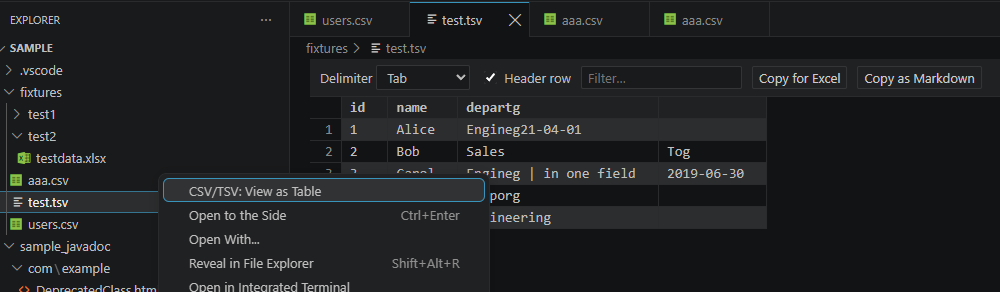
Right-click a .csv, .tsv or .tab file in the Explorer and choose CSV/TSV: View as Table.
Multi-selection is supported — each file opens in its own tab. The same command is available as a
button on the editor title bar when one of those files is open as text.
This extension never becomes the default editor. It is registered with priority: "option", so
.csv and .tsv keep opening in the plain text editor unless you explicitly pick the table view —
via the right-click command or Reopen Editor With….
Settings
| Setting |
Default |
Description |
csvTsvViewer.selectionDelimiter |
auto |
Delimiter for selection and clipboard previews: auto, comma, tab, semicolon, pipe, space, whitespace. |
csvTsvViewer.hasHeader |
true |
Treat the first row as a header row. |
csvTsvViewer.pageSize |
200 |
Rows displayed per page. |
csvTsvViewer.encoding |
auto |
File encoding: auto (BOM, then UTF-8, then Shift_JIS), utf8, shift_jis. |
csvTsvViewer.followSelection |
true |
Repaint the preview when the editor selection changes. |
csvTsvViewer.maxRows |
100000 |
Maximum rows displayed; larger inputs are truncated with a warning. |
csvTsvViewer.language |
auto |
UI language: auto, en, ja. |
Development
npm install
npm run compile      # type check + bundle
npm run watch        # rebuild on change (use with F5)
npm test             # unit tests
npm run package      # build a .vsix in the project root
npm run icon         # re-render images/icon.png from images/icon.svg
npm run package type-checks, builds and writes csv-tsv-viewer-<version>.vsix to the project
root. That file is what gets uploaded to the Marketplace — publishing is done manually, so no
publish token is stored in CI.
Press F5 to launch an Extension Development Host.
- Extension host (
src/) — bundled by esbuild to dist/extension.js (CommonJS, Node 18).
- Webview (
src/webview/) — bundled to dist/webview/main.js (IIFE, ES2020) plus main.css.
- Type checking is done by TypeScript 7 (
tsc --noEmit); esbuild performs all emit.
License
MIT

