STP — Hands-Free Voice Assistant for Claude Code and Antigravity


Wake it with a phrase. Dictate. Send by voice. STP works the way "hey Siri" works — except instead of opening apps or setting timers, it talks to your AI coding assistant for you. Works with Antigravity or Claude Code. You pick the target, you pick the chat.
100% local. Speech is transcribed on your machine with Vosk (offline, WebAssembly). There is no API key, no cloud transcription, and nothing you say ever leaves your computer. The only network access is a one-time ~40 MB speech-model download on first run.
Internally the package is named VTP (Voice to Prompt). It's the same project — STP is the user-facing name, VTP is the codename / repo / package id.
Watch the Demo
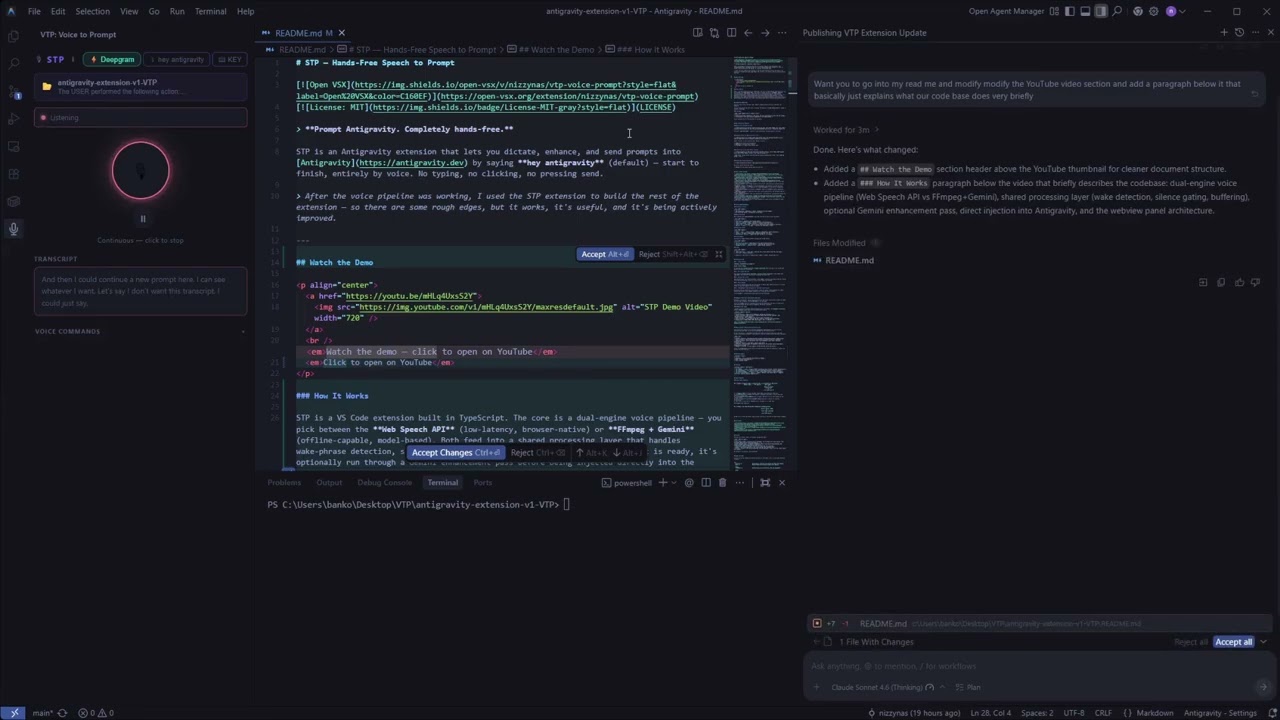
Click to open on YouTube
How It Works
The full loop — start, dictate, send, repeat — happens by voice. No mouse. No keyboard. No focus required.
Say your wake phrase and STP starts listening. The default is "hey antigravity" — change it in Settings. Then dictate naturally and end with something like "send the prompt." STP routes it into either Antigravity or Claude Code, whichever you've selected as the target.
Everything runs on-device:
- Speech-to-text — Vosk runs as WebAssembly inside the extension's webview. Your microphone audio is transcribed locally and never uploaded.
- Filler cleanup + intent — pure local regex. Instant, offline.
- Prompt "enhance" (optional) — if you have Ollama running locally, STP uses it to rewrite dictation into a spec-style prompt. If Ollama isn't installed, "enhance" gracefully falls back to a local cleanup pass. No key either way.
Two listening modes
| Mode |
What happens after a prompt is sent |
| Voice Activated (default) |
Mic idles. Say your wake phrase to start the next prompt. |
| Continuous |
Mic auto-restarts immediately. Just keep talking. |
Switch in the Settings menu inside the panel.
Pick your target — Antigravity or Claude Code
A button in the panel header (→ AG / → CC) toggles which AI chat receives your prompts. The voice flow doesn't change — only where the prompt lands.
When the target is Claude Code, the context card below the button becomes a chat lock. You can have several Claude Code conversations open and only the one you locked will receive the prompt.
Send while you're tabbed out
Injection doesn't need focus. Start a prompt by voice, alt-tab to a browser, say "send the prompt" — it lands. The chat is in your IDE, not your active window.
What You Can Say
| Say |
What happens |
hey antigravity (your wake phrase) |
Starts recording & appends to your prompt buffer |
send it / send the prompt |
Sends directly into the chat — no click needed |
enhance this prompt |
A local Ollama model rewrites it. Approve / Reject / Try Again inline |
approve / reject / try again |
Voice-control the enhancement review |
clean it up / scrub that |
Cleans the buffer in place — silent, no preview |
clean up and review |
Cleans + shows a preview to approve or reject |
cancel / clear that |
Discards the transcript buffer |
pause / mute |
Mutes the mic immediately. Buffer preserved |
resume / I'm back |
Wakes back up exactly where you left off |
Auto-clean before send
Filler words ("um", "uh") and immediate repeats are stripped locally before every send. If the buffer is genuinely noisy (self-corrections, "actually", "I mean") and you have Ollama installed, STP runs a small local cleanup pass. Otherwise it's regex-only — zero setup, zero network.
Setup
1. Install the extension
Install from Open VSX / the marketplace, or code --install-extension vtp-voice-prompt.vsix.
2. First run downloads the speech model
The first time you open the STP panel it downloads a Vosk English model to the extension's local storage. You'll see a progress banner. After that it works fully offline — the model is cached and reused.
It is a 130 MB download and STP cannot hear you until it finishes. That is the accurate model, and on a slow connection it is a long first run. If you would rather be talking in a minute, set vtp.voskModelUrl to the small one before you open the panel:
https://ccoreilly.github.io/vosk-browser/models/vosk-model-small-en-us-0.15.tar.gz
40 MB, noticeably less accurate on unusual words, and swappable later — changing the setting and running VTP: Re-download Speech Model fetches the other one.
Another language, or a different size? Point vtp.voskModelUrl at any vosk-browser-compatible .tar.gz, or an alphacephei .zip — those are converted on first run.
3. (Optional) Install Ollama for smart "enhance"
If you want the enhance this prompt command to do context-aware rewriting, install Ollama and pull a model:
ollama pull llama3.2
STP auto-detects Ollama on 127.0.0.1:11434. No key, no config — nothing leaves your machine. Without Ollama, "enhance" just runs a local cleanup pass. Change the model with vtp.enhancementModel.
4. Dictate
Open the STP panel from the Activity Bar. Click the microphone (or use Ctrl/Cmd+Shift+Space) and speak. The transcript updates live as you talk.
Claude Code Integration
Switch the target to Claude Code with the → AG / → CC header button. The first time, run "VTP: (Re-)apply Claude Code Patch" from the command palette once (it injects a tiny runtime hook so prompts can be delivered into the Claude Code webview) and reload the window.
- Lock a conversation — "VTP: Lock Claude Conversation (Pick Target Chat)" so prompts only land in that chat.
- Check it is working — "VTP: Check Claude Code Integration" says whether prompts can actually be delivered right now, and if not, which part is wrong.
- Restore — "VTP: Restore Claude Code (Unpatch)" rolls back to the pre-VTP state.
Because transcription is now fully local and fast, Claude Code mode no longer needs any third-party streaming service.
When Claude Code updates
Claude Code is a minified bundle, so the hook is attached by matching patterns in it — and an update can move what those patterns match. VTP watches for a new version, patches it within seconds of it landing, and offers you the reload. It writes what it found to %APPDATA%\VTP\health.json:
{ "claudeCode": { "version": "2.1.233" },
  "patches":  { "extJs_commands": "applied", "wvJs_handler": "applied" },
  "commands": { "inject": true },
  "working":  true }
working: false names the part that is wrong. Two failures look identical from the outside and want opposite things done, so they are reported separately: an anchor that no longer matches needs the pattern updating, while patched files with the commands missing just means this window started before the patch and a reload fixes it.
Sending a prompt from another program
Anything running as you can hand a prompt to an open Claude conversation by dropping a file in %APPDATA%\VTP\inbox:
{ "text": "what changed in the last commit?",
  "submit": false,
  "targetTitle": "vendor email" }
submit sends it; left out, it sits in the composer for you to read first. targetTitle picks a conversation by part of its name — leave it out and it goes to whichever Claude chats are open. A <name>.done.json appears beside it saying what happened, including which conversations received it, so the caller can tell delivery from silence. A name matching nothing is refused with a list of the ones that are open, rather than reported as sent.
Settings
| Setting |
Default |
What it does |
vtp.activationMode |
wake |
wake (say the phrase) or manual (push to talk) |
vtp.wakePhrase |
hey antigravity |
The phrase that starts recording |
vtp.postSendMode |
pause |
pause (idle after send) or continuous (keep listening) |
vtp.enhancementModel |
llama3.2 |
Local Ollama model tag used for enhance |
vtp.voskModelUrl |
en-us-0.22-lgraph (130 MB) |
Speech model, downloaded once. Accepts a vosk-browser .tar.gz or an alphacephei .zip. Point it at vosk-model-small-en-us-0.15.tar.gz for a 40 MB one |
vtp.contextDepth |
20 |
Recent conversation messages passed as context when enhancing |
vtp.injectionTarget |
antigravity |
Where prompts go: antigravity or claude-code |
vtp.claudeCodeLockedTitle |
"" |
Tab label of the locked Claude Code conversation |
vtp.voiceActivation.enabled |
false |
Listen in the background and start recording on the wake phrase, with nothing to press |
vtp.voiceActivation.wakePhrase |
hey antigravity |
The phrase it listens for in the background. Short ones misfire; three syllables or more is steadier |
vtp.inputGateDb |
-45 |
Anything quieter than this never reaches the recognizer. Raise it towards -35 in a noisy room; lower it if quiet speech is being dropped |
vtp.inputGainDb |
0 |
Extra microphone gain. Raise it if the input meter barely moves while you speak |
vtp.vadMode |
false |
Legacy always-on detection. Superseded by vtp.voiceActivation.enabled |
Commands
| Command |
What it does |
| VTP: Open Panel |
Shows the panel in the sidebar |
| VTP: Toggle Recording |
Starts or stops recording without touching the mouse |
| VTP: Switch Injection Target |
Antigravity or Claude Code |
| VTP: Re-download Speech Model |
Clears the cached model, so a new vtp.voskModelUrl takes effect |
| VTP: Open Debug Log |
The log file, when something needs explaining |
| VTP: Check Claude Code Integration |
Whether prompts can be delivered right now, and what is wrong if not |
| VTP: (Re-)apply Claude Code Patch |
Attaches the hook by hand. Normally automatic |
| VTP: Show Claude Code Patch Status |
Version and when it was patched |
| VTP: Restore Claude Code (Unpatch) |
Rolls Claude Code back to how it was |
| VTP: Lock Claude Conversation |
Pins prompts to one chat |
| VTP: Unlock Claude Conversation |
Back to whichever chats are open |
| VTP: List Open Claude Conversations |
What is open, and which one is locked |
Privacy
| Data |
What happens |
| Your voice / audio |
Transcribed entirely on your machine by Vosk (WebAssembly). Never uploaded, never written to disk. |
| Transcripts |
Stay local. Used to build the prompt that you send into your own AI chat. |
| Prompt "enhance" |
Runs against your local Ollama instance if present. If Ollama isn't installed, no LLM is contacted at all. |
| Network access |
Only a one-time speech-model download (configurable URL). After that, STP works offline. |
| API keys |
None. There are no keys to enter or store. |
Requirements
- VS Code / Antigravity
^1.85.0
- A microphone
- FFmpeg on your PATH — used to capture the mic locally (the webview can't access the microphone directly). The panel prompts you to install it if it's missing.
- ~40 MB free space for the cached speech model
- (Optional) Ollama for smart prompt enhancement
No cloud account, no API key — FFmpeg and the speech model are the only local dependencies.
License
MIT

