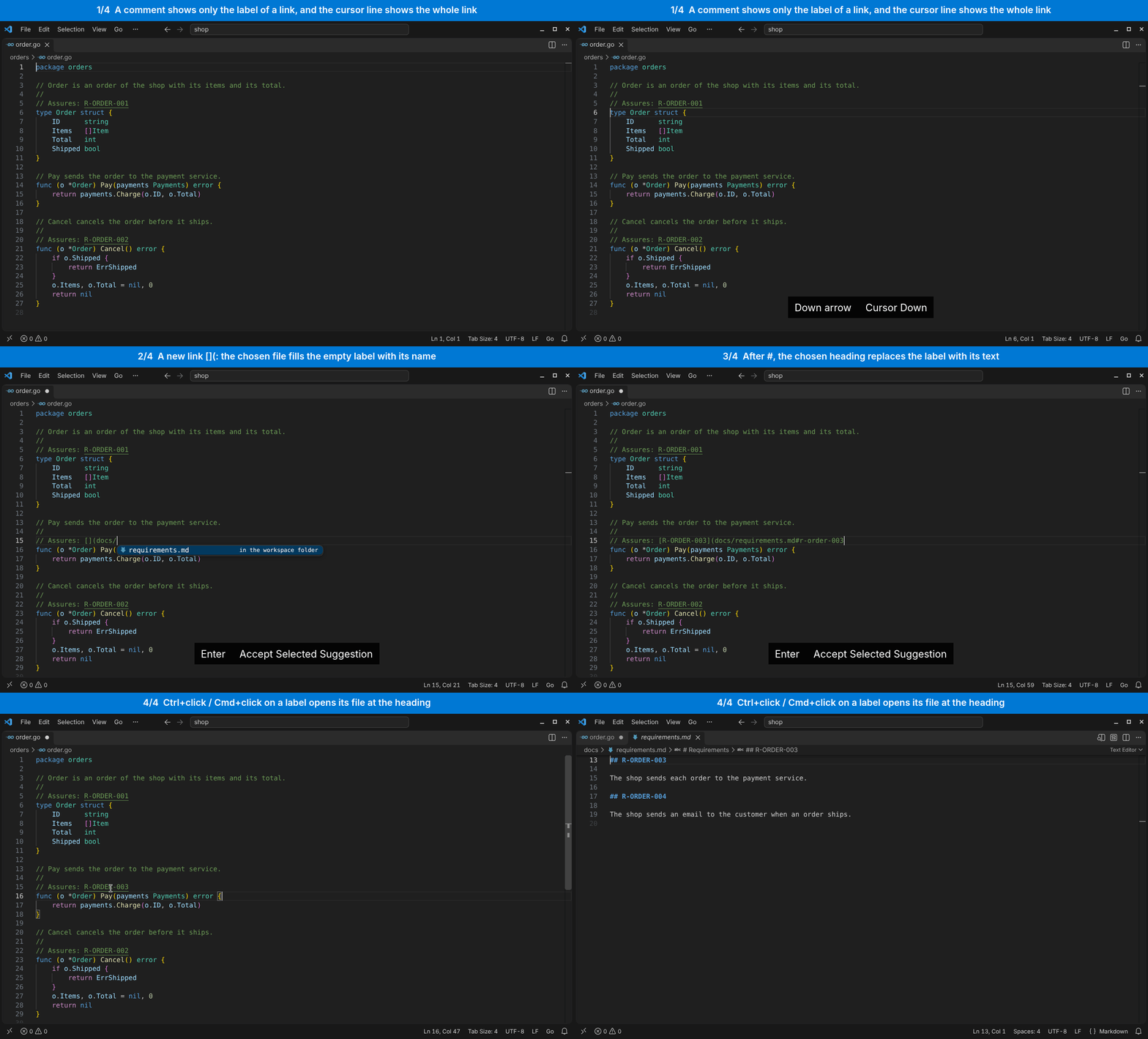
Makes the Markdown links in code comments clickable. A comment shows only the
label of a link, and Ctrl+click opens the target at the heading that the
link names. While you write a link, the extension completes its paths and
headings.
What the extension does on your computer
- When it works. The extension starts when a file of a
listed language opens in VS Code, for example a Go or a YAML
file. It does not run in VS Code for the Web.
- Files that it reads. It reads the text of the open files of the listed
languages and finds the Markdown links in their comments. For each link, it
asks VS Code whether the target file exists. It reads a Markdown target
when you follow a link to a heading or complete a heading, and it lists a
folder when you complete a path. It reads and lists nothing outside the
folders that a link may name: the folders of the workspace and, for a file
outside them, the folder of that file and its subfolders. The check
compares paths, so a symbolic link inside these folders can lead outside
them (see Limits).
- Hidden targets. A comment shows only the label of a resolved link. The
target stays in the file, and the lines of the cursor show the whole link.
- Files and data. It changes no file and no setting, and it writes
nothing to the disk. It keeps the resolved links in memory while the window
is open.
- Network. It makes no network connection, starts no process and collects
no telemetry. In a virtual workspace, the provider of its file system may
download the files that the extension reads.
- Restricted Mode and virtual workspaces. The extension works with all
features in Restricted Mode, because it only reads files, and in virtual
workspaces, because it reads files only through VS Code.
Security
describes each step and where its protection ends.
Features
- Clickable links. In a comment, the label of a Markdown link
[label](target) becomes a link. Ctrl+click opens the target with the
editor that VS Code uses for its file type. A link with a fragment opens a
Markdown file at the heading that the fragment names.
- Hidden targets. A comment shows only the label of a resolved link, as
rendered Markdown does. The lines of the cursor show the whole link, so
that you can edit it. A link whose target resolves to no file stays fully
visible, so that you see a broken link.
- Tooltip. The tooltip of a link names the file that it opens, relative
to its workspace folder, for example
Open docs/architecture/unit.md#a-unit-001.
- Completion. While you write a link, the extension completes the
folders and files of its path and the headings of a Markdown target. When
the label of the link is empty, as in
[](, the chosen file or heading
also becomes the label: a file with its name, and then a heading with its
text in place of that name. The label keeps only the letters (also with
accents), digits, spaces and the characters . , ( ) _ / + -. A second
choice corrects the label. The completion lists only names of letters,
digits and the characters . , _ + -: a name with a space, a parenthesis,
#, -- or a hyphen at the end is not offered.
- Languages. The extension reads the comments of Go, JavaScript,
TypeScript, JSON, CSS, HTML, XML, YAML, shell scripts, Dockerfiles, SQL and
more file types: see Files.
Usage
In a comment, write a Markdown link to a file of the workspace:
// Assures: [A-UNIT-001](docs/architecture/unit.md#a-unit-001)
The comment shows // Assures: A-UNIT-001, and Ctrl+click on A-UNIT-001
opens unit.md at the heading A-UNIT-001.
| Action |
How |
Effect |
| Follow a link |
Ctrl+click on the label |
Opens the target at the heading that its fragment names. |
| Show the whole link |
Move the cursor to its line |
Shows the brackets and the target, so that you can edit them. |
| Complete a target |
Type (, / or # in a link, or press Ctrl+Space |
Offers the folders and files of the path, and after # the headings of a Markdown file. |
| Take the label from a file or a heading |
Write [](, choose a file, and for a heading type # and choose it |
A file writes its name into a label that is empty or holds only spaces, or in place of the name of another file of the list. A heading writes its text into a label that is empty or holds only spaces, or in place of the name of its file or the text of another heading of the file, as the completion wrote them. A label with other text stays as it is. |
On macOS, follow a link with Cmd+click; the completion key is Ctrl+Space
there too. When the setting editor.multiCursorModifier is ctrlCmd, VS Code
follows links with Alt+click (Option+click on macOS).
Link resolution
The extension reads links of the form [label](target) in comments. It
resolves a relative target in this order, and the first existing file wins:
- Relative to the folder of the file that holds the comment.
- Relative to the workspace folder.
A target outside the folders of the workspace counts as no file, for example
../../../outside.md from a file two folders below the workspace folder. For
a file that is not inside a folder of the workspace, a target inside the
folder of that file counts too.
A fragment such as #a-unit-001 names the heading of a Markdown file
(.md) with that anchor. The anchor is the heading text in lower case,
without punctuation and with hyphens for spaces. The extension adds no link
to a web address, an absolute path, a bare fragment or a target without a
file, and such a link stays fully visible.
Files
The extension reads the comments of these files. Text in a string is not
a comment.
| Files |
Comments |
| Go |
// and /* */ |
Go module files (go.mod) |
// |
| JavaScript, TypeScript, JSX and TSX |
// and /* */ |
| JSON and JSON with Comments |
// and /* */ |
| CSS |
/* */ |
| SCSS and Less |
// and /* */ |
| HTML and XML |
<!-- --> |
| YAML, GitHub Actions workflows, shell scripts, Dockerfiles, ignore files, Makefiles and TOML |
# |
| Properties and INI files |
# and ; |
| SQL |
-- and /* */ |
A # or a ; starts a comment only at the start of a line or after white
space. Markdown files keep the link handling of VS Code.
Settings
| Setting |
Default |
Effect |
nimblescape.commentlinks.hideTargets |
true |
Shows only the label of a resolved link. The value false shows every link completely. |
Limits
- The extension reads links in comments only: not in a string, not in a
Markdown file and not in a file of a language that the table of
Files does not list. In a script or style block of an HTML file,
the comments of JavaScript and CSS are not read.
- A link opens a Markdown target at its heading in the text editor and in
the Markdown preview. The Markdown Editor of VS Code opens the target at the
start of the document, because VS Code does not tell that editor which line
to show
(microsoft/vscode#289785).
Another editor of Markdown files decides whether it shows the heading.
- On GitHub, a link in a code comment is plain text: GitHub makes no link in
a code file, not even of a web address. A comment link works only in VS
Code with the extension.
- The label of a link is text in the file, and it can name a file other than
the target. Before you follow a link in a file that you do not trust, read
its tooltip, or put the cursor on its line to show the whole link.
- The check of a target compares paths and does not follow symbolic links. A
symbolic link inside a folder of the workspace can point to a file or a
folder anywhere on the computer, and a link through it opens that file.
Security
lists the known limits.
Change log · Contributing · Support · Issues · Source
© 2026 Hannes Stauss (scalarion@nimblescape.com) · MIT License.
| |

