Wharfsync — secure SFTP/FTP sync & upload on save
Upload files to your server when you save them, over SFTP, FTP or FTPS. Wharfsync is the maintained successor for people who used the liximomo and Natizyskunk “SFTP” extensions: it reads your existing .vscode/sftp.json, moves your passwords into your operating system keychain, and never uploads its own config.
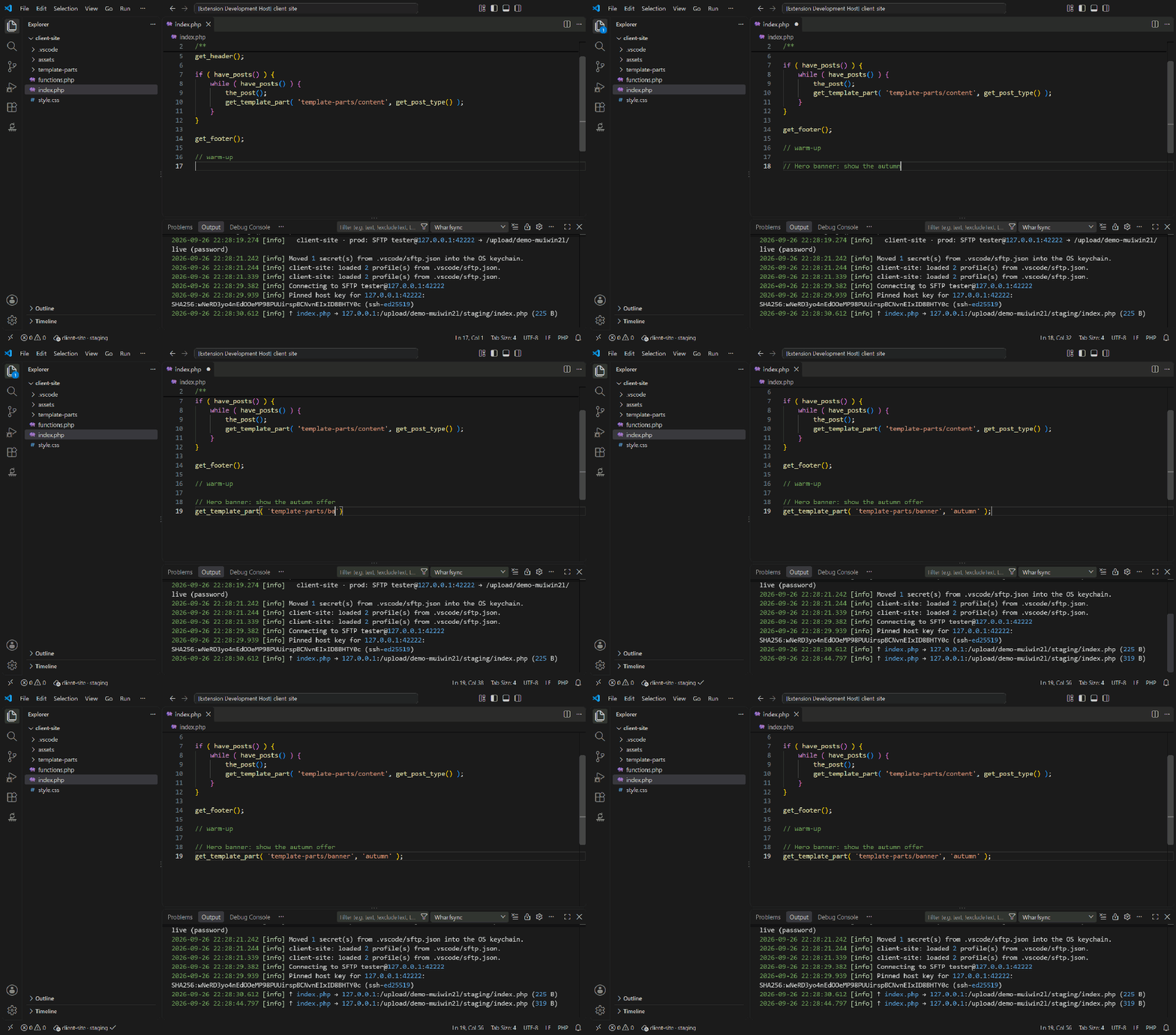
The animation shows: a PHP file is edited and saved; the Wharfsync status bar item spins while the file uploads, then shows a tick; the Wharfsync log records the upload, and the server copy is updated.
Wharfsync works on VS Code 1.124+ — the release where the old SFTP extension started failing with TypeError: isDate is not a function. Last tested on 13 November 2026 on VS Code 1.146, VS Code Insiders 1.147 and VSCodium 1.143 (upload on save over SFTP against a real server), and earlier on Cursor 1.105. Every build is checked for the removed Node.js functions that caused that crash.
Migrating from the SFTP extension (liximomo / Natizyskunk)
Your settings carry over. There is nothing to rewrite.
- Install Wharfsync and disable the old SFTP extension for your workspace. (Wharfsync notices when it is installed and offers to open it, because two extensions uploading on save would upload every file twice.)
- Open your project. Wharfsync reads
.vscode/sftp.json: hosts, ports, protocols, context, remotePath, uploadOnSave, ignore, profiles and defaultProfile, jump hosts (hop), watcher and syncOption.
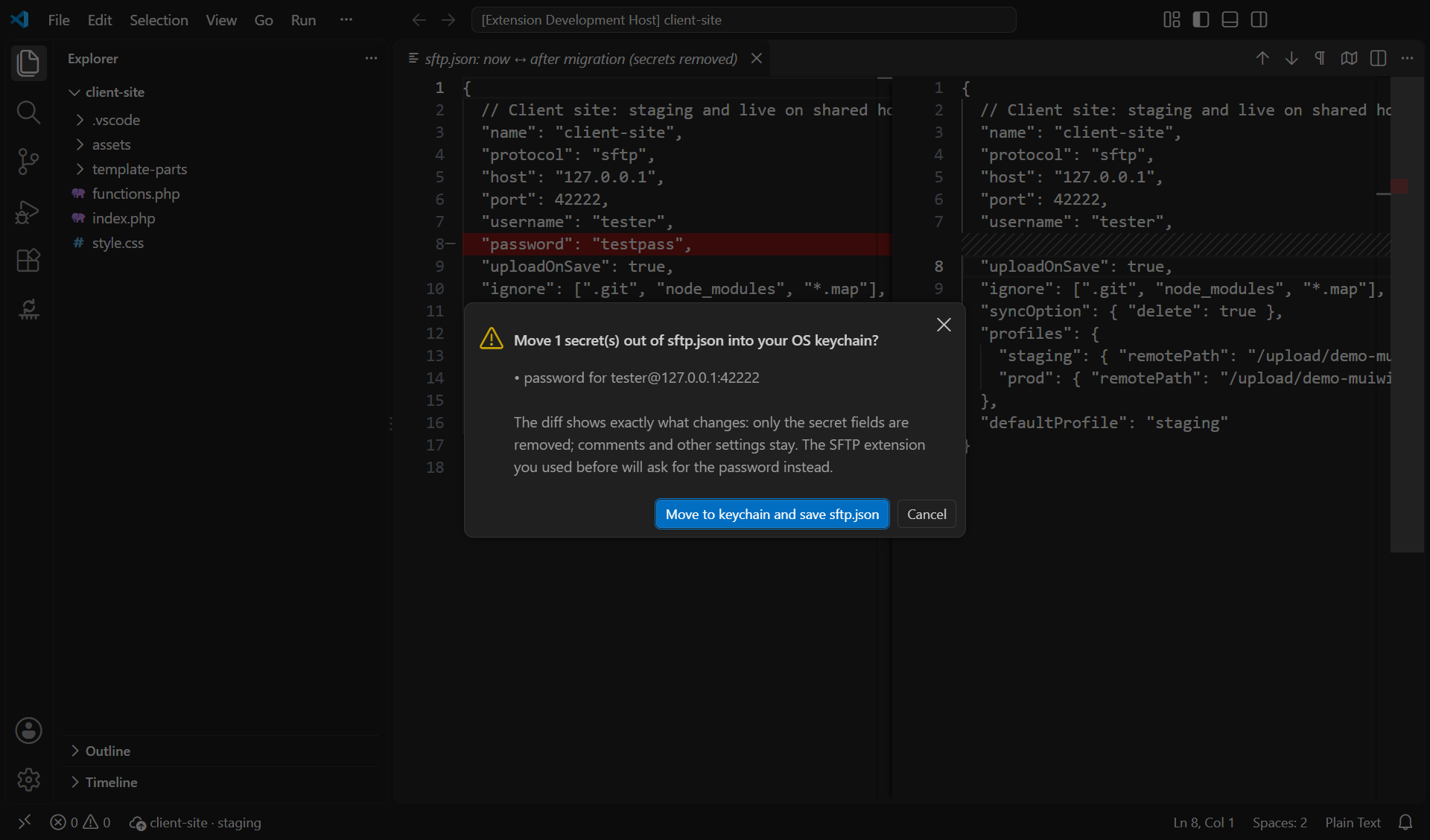
- One-click import: run Wharfsync: Import / migrate sftp.json (Wharfsync also offers this the first time it sees a password in the file). It shows a diff of
sftp.json with the password and passphrase fields removed. When you approve, it stores each secret in your OS keychain, checks it can read it back, and only then saves the file. Comments and every other setting are kept.
That's it: upload on save carries on as before.
Options Wharfsync reads: name, context, protocol (sftp, ftp, ftps), host, port, username, password, privateKeyPath, passphrase (or true to be asked), agent, remotePath, uploadOnSave, ignore, ignoreFile, secure (true, "control", "implicit"), concurrency, connectTimeout, remoteTimeOffsetInHours, syncOption, watcher, hop, profiles, defaultProfile, plus Wharfsync's own optional environment (dev, staging, prod).
*Moved to the keychain on import.
Accepted for compatibility but with no effect: useTempFile, openSsh, downloadOnOpen, interactiveAuth, algorithms, sshConfigPath, remoteExplorer, limitOpenFilesOnRemote, filePerm, dirPerm, secureOptions, passive. Wharfsync lists any of these it finds in its log when you import.
Security: fixing the password leaks
Reviews of the old extensions kept reporting the same failure: sftp.json, password included, ending up in git or uploaded to the server itself. Wharfsync is built so that cannot happen.
- Passwords live in your OS keychain, not in
sftp.json (Windows Credential Manager, macOS Keychain, or your Linux keyring, through VS Code's secret storage).
.vscode/ and .wharfsync/ are never uploaded and never downloaded into, at any depth, whatever your ignore list says. This is hard-coded, not a setting, and our tests upload whole projects to real SFTP, FTP and FTPS servers and list the server to prove it.- Exposed-secret warning: if
sftp.json still holds a password and the folder is a git repository with a remote, Wharfsync warns you and offers to move the secrets or add the file to .gitignore. The check is local; nothing is sent to GitHub or anyone else.
- Host keys are pinned. The first connection shows the server's SHA-256 fingerprint and asks. There is no “accept all” option. A changed key blocks the connection.
- FTPS certificates trusted by your system are accepted; self-signed ones are shown with their fingerprint and pinned. Your password is only sent after the certificate is accepted. Plain FTP gets a clear “unencrypted” warning.
- Nothing destructive happens silently: every remote delete asks first; overwriting a file that is newer on the server, or that someone changed since your last transfer, asks first.
- The log redacts secrets: passwords, passphrases, keys and licence keys are removed from every line.
- No telemetry. Your files, paths, hosts and credentials go only to your own servers.
More detail: Security model.
Free and Pro
|
Free |
Pro |
Reads your existing sftp.json; one-click import to the keychain |
✓ |
✓ |
| Upload on save; upload / download files and folders; status bar |
✓ |
✓ |
| All the security protections above |
✓ |
✓ |
| SSH agent and private keys with passphrases |
✓ |
✓ |
| Server profiles |
1 |
Unlimited |
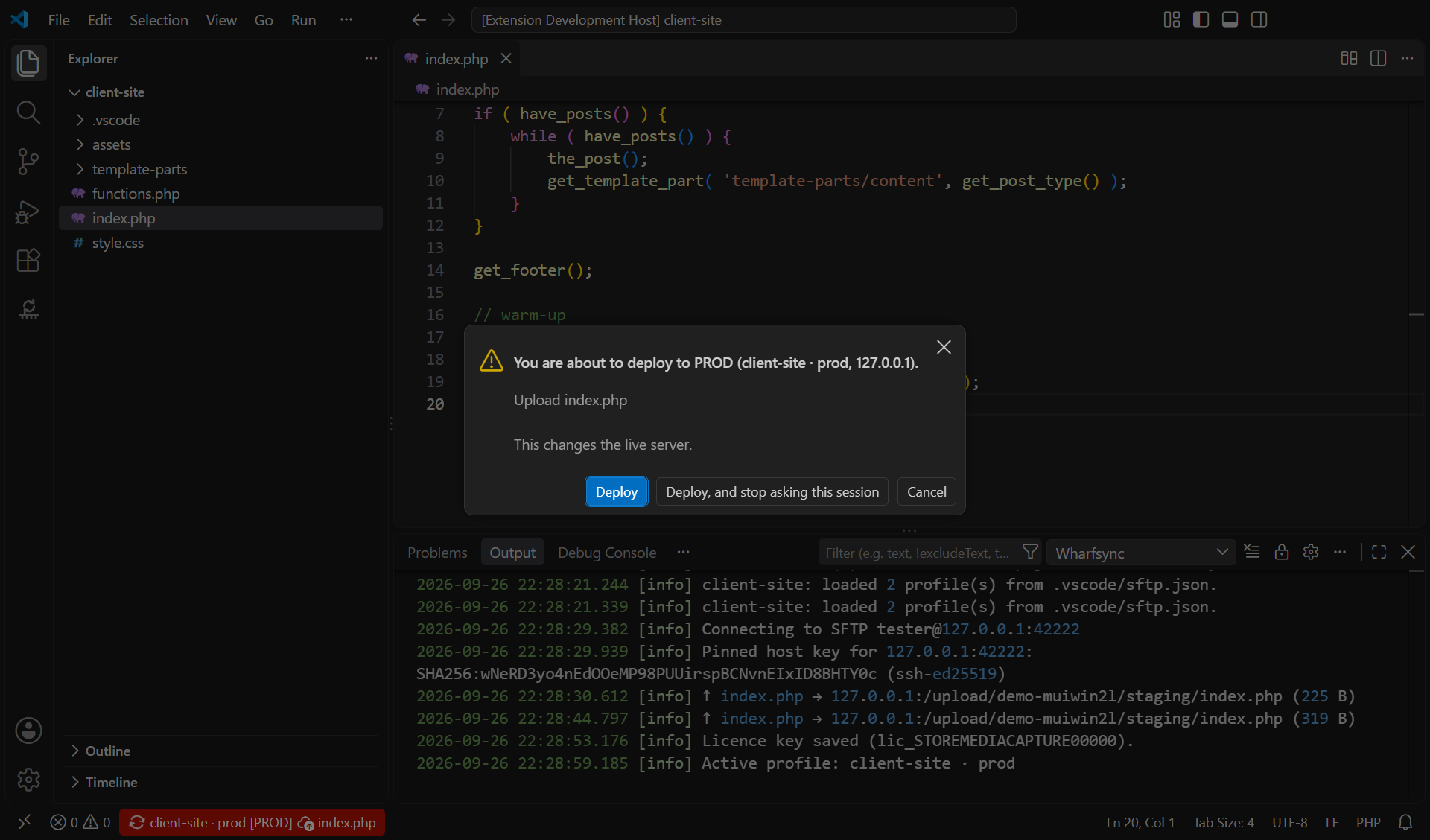
| dev / staging / prod environments, colour-coded status bar, “you are about to deploy to PROD” check |
|
✓ |
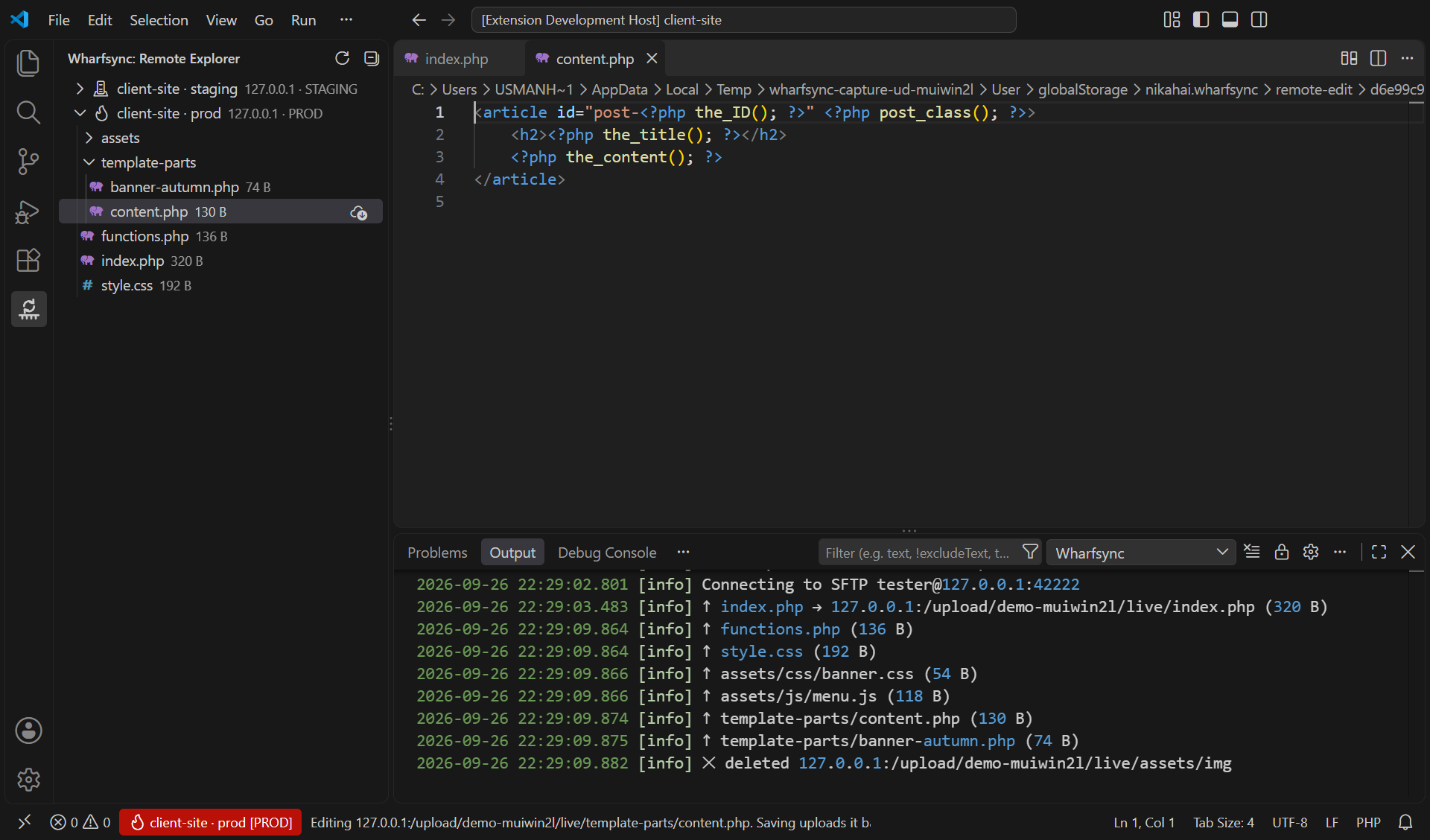
| Remote explorer: browse, open, edit and save back, rename, delete |
|
✓ |
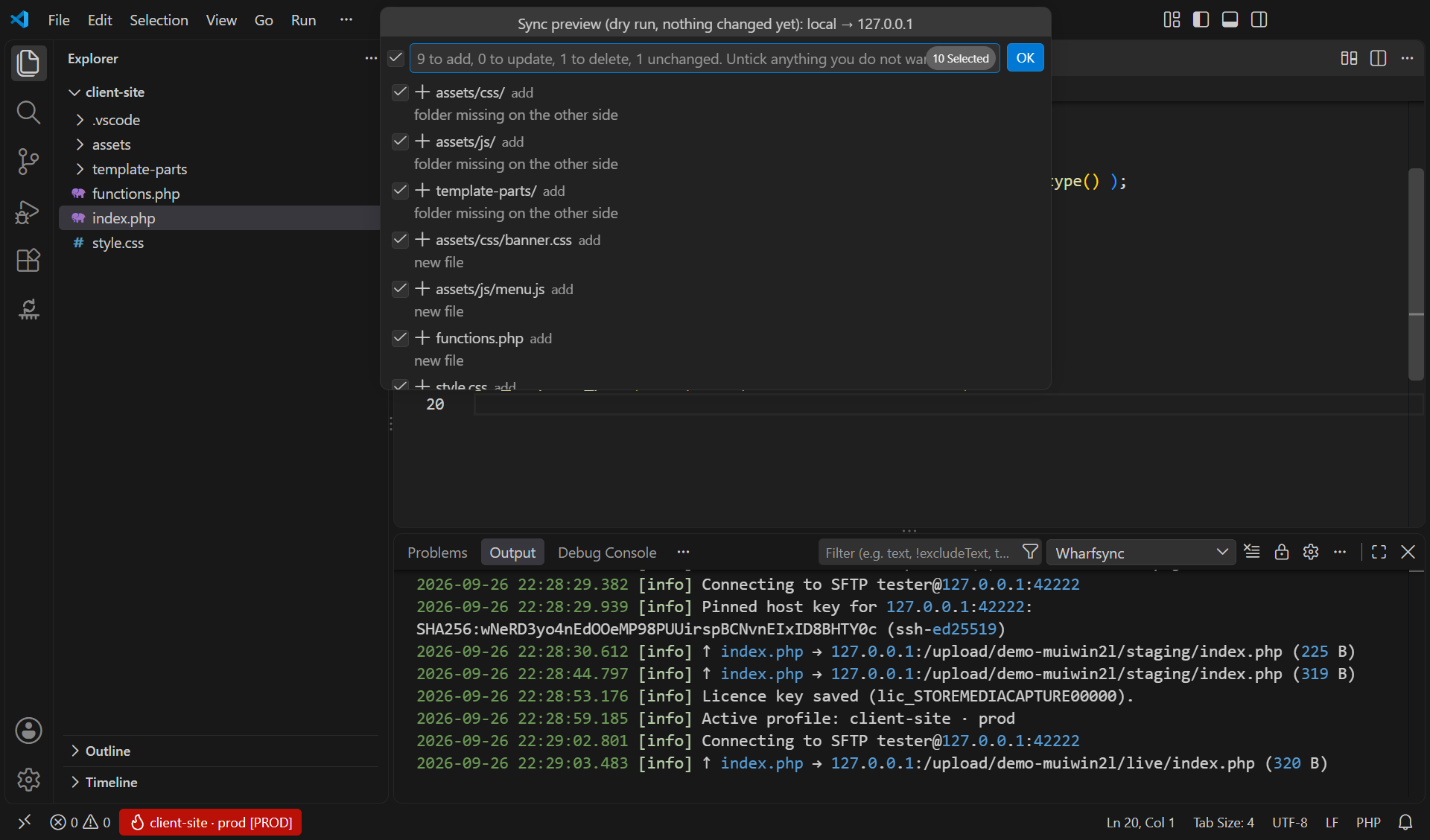
| Diff local ↔ remote; sync preview (dry run) listing adds, changes and deletes before applying |
|
✓ |
| Two-way folder sync by size + modification time or by checksum |
|
✓ |
| Watch mode for build output folders |
|
✓ |
| Jump hosts (ProxyJump) and parallel transfers |
|
✓ |
Automatic local backup of every remote file before it is overwritten (.wharfsync/backups, 7 days) |
|
✓ |
Pricing
- Free: £0.
- Wharfsync Pro: £3.99 a month or £39 a year.
The price shown is the total you pay. No trial; cancel any time and Pro runs to the end of the period you paid for. Buy at wharfsync.com/buy: your licence key appears on the page straight after payment. Paste it into Wharfsync: Enter licence key. Keys are verified offline; once a day the extension sends the key (and nothing else) to renew it.
Commands
| Command |
What it does |
| Wharfsync: Import / migrate sftp.json |
One-click import; moves secrets to the keychain after showing the diff |
| Wharfsync: Create sftp.json config |
Starter config without a password field |
| Wharfsync: Upload active file / Upload / Download |
Also in the Explorer and editor right-click menus |
| Wharfsync: Diff with remote (Pro) |
Opens a read-only wharfsync-remote: copy beside your file |
| Wharfsync: Sync local → remote / remote → local (Pro) |
Dry-run preview first, then apply what you tick |
| Wharfsync: Switch profile / environment |
Pro for more than one profile |
| Wharfsync: Toggle watch mode (Pro) |
Uses the watcher block in sftp.json |
| Wharfsync: Save password / Remove saved passwords |
Manage keychain entries |
| Wharfsync: Forget a pinned host key / certificate |
After a legitimate server rebuild |
| Wharfsync: Enter licence key / Manage or cancel subscription / Refresh licence now |
Licence and billing |
| Wharfsync: Show log |
Redacted output log |
Settings
wharfsync.licence.autoRefresh (default on), wharfsync.backups.enabled, wharfsync.backups.retentionDays (7), wharfsync.backups.maxFileSizeMB (50), wharfsync.sync.strategy (sizeMtime or checksum), wharfsync.conflict.toleranceSeconds (2), wharfsync.statusBar.enabled.
Requirements and notes
- VS Code 1.90 or newer, or a compatible editor (Cursor, VSCodium via Open VSX). Trusted workspaces only.
- On Windows, SSH-agent sign-in uses the built-in OpenSSH agent. Pageant is not supported; use
privateKeyPath instead.
Privacy, terms and support
Wharfsync collects no telemetry. See the Privacy Notice, Terms & EULA, Refund & Cancellation Policy and Extension privacy & permissions. The full texts are also in LEGAL.md inside the extension.
Support: support@wharfsync.com
Wharfsync is independent and not affiliated with the authors of the liximomo or Natizyskunk SFTP extensions.
Wharfsync is a trading name of Nikah AI Ltd, registered in England and Wales, company no. 17199968. Registered office: Office 1216, 60 Tottenham Court Road, London W1T 2EW. ICO registration ZC176381.

