Nightgauge
The cockpit for the Nightgauge autonomous software factory, built into VS Code.
Nightgauge guides work through planning, implementation, validation, and pull
request stages, and this extension is where you watch it
work: queue issues, approve plans, follow live pipeline state, and review
the evidence behind each run. A six-stage pipeline combines
documentation-first planning with deterministic checks at key boundaries:
a plan you approve before any code is written, a hard build/test gate, and
a manual test checklist before a PR is opened.
It is not a chatbot or an inline code-completion tool. It's a pipeline
orchestrator: each stage runs as a fresh AI agent that receives a
structured JSON handoff from the previous stage instead of the full
conversation history, so context stays focused and any stage can be retried
independently. Deterministic code verifies repository state and selected stage
outputs; provider behavior and manual review remain part of the trust model.

Quick Start
Before you start
Nightgauge drives real tools on your machine, so three things must be in place
before the pipeline can run a single stage. See
Requirements for versions.
git, and a repository with a GitHub remote.- The
gh CLI, signed in — run gh auth login.
This is how the pipeline authenticates to GitHub. Signing in to Nightgauge
inside VS Code (step 2 below) does not replace it.
- An AI coding agent — the
claude
CLI (Claude Code) is
the supported adapter path. The other adapters — Codex, Gemini, Copilot,
and direct API keys — are beta: they work, but are far less exercised
and rougher; see Settings.
Run Nightgauge: Adapter Doctor from the Command Palette at any point to
check all three. (The nightgauge binary ships inside the extension and is
not added to your PATH, so there is no shell command to run until you
clone the repository.)
Steps
- Install — from
Open VSX, which
serves the build matching your platform automatically and is wired in by
default in VSCodium, Cursor, Windsurf and Gitpod. In VS Code itself, download
the
.vsix for your platform from the
latest release and
install it with code --install-extension nightgauge-<target>-<version>.vsix,
or Extensions: Install from VSIX in the Command Palette.
- Sign in (optional) — Sign-in appears once
cloud features are on
(
"nightgauge.cloud.enabled": true); then run Nightgauge: Sign In with
GitHub from the Command Palette. This connects a Nightgauge account for
hosted features. It is not how the pipeline reaches GitHub — that is
gh auth login above, or a token in .nightgauge/config.yaml.
- Trust the folder — Open the repository you want to automate. VS Code
opens a folder it has not seen before in Restricted Mode, which
disables Nightgauge entirely: there is no Nightgauge icon in the activity
bar until you trust it. Click Manage in the Restricted Mode banner,
then Trust, and the icon appears.
- Initialize the repo — Open the Nightgauge sidebar and click
Initialize Repository in the welcome view. This starts your AI agent
(the
claude CLI by default) in a VS Code terminal, so expect an
interactive session — the agent may ask its own questions, including its
own folder-trust prompt, before it does anything. It then writes
.nightgauge/config.yaml, standard labels, and links your GitHub
Project board. Nothing is written until you opt in.
- Claim an issue — Click Nightgauge: Pick Up Issue (or drag an
item out of the Ready list) to start the pipeline on a GitHub issue.
- Watch it run — The pipeline moves through
issue-pickup →
feature-planning → feature-dev → feature-validate → pr-create →
pr-merge automatically, pausing only for your plan approval and a manual
test confirmation. When it finishes, you have a reviewed, issue-linked
pull request.
Installing
Nightgauge ships a separate build per platform to
Open VSX, which
picks the right one for you, and attaches all three as .vsix assets to every
GitHub release for
direct install in VS Code. macOS (Apple Silicon and Intel) and Linux x64 are
supported. Windows is not supported yet — the pipeline backend is a native
binary that has no Windows build, so the registry will report the extension as
unavailable there.
To install a specific build instead, download the VSIX matching your OS and
architecture from the GitHub
Release and use
Extensions → … → Install from VSIX. For extension development, clone the
repository and run scripts/dev-install.sh; that builds the working tree with a
timestamped development version and is not a release-validation path.
Features
- Command Palette Integration - Run pipeline stages, dashboards, and
utilities from the command palette
- Status Bar - Visual feedback showing current pipeline state
- Settings - Configurable authentication and model selection
- Output Channel - Structured logging for pipeline events
- Pipeline Queue - Queue issues for sequential processing when a pipeline is
already running
- Batch Processing - Process multiple issues through the full pipeline with
dynamic queue addition
- Multi-repository workspaces and autonomous mode - Route issues across
several repositories and let a scheduler pick up ready work on its own. Both
are available but materially less finished than the single-repository loop
above; treat them as beta and keep a human watching the Action Center
- Knowledge Value Dashboard - Aggregates KB telemetry into header cards, a
hit-rate gauge, per-stage bar chart, top-recalled/stale tables, and
graduation history (see below)
- Adapter Usage & Quota - The active adapter's usage as a status-bar meter
(click to cycle windows) and, in the dashboard's Overview tab, a panel with
every window at once, per-model breakdown, burn rate, projected exhaustion,
and a recent-runs strip. Both read one snapshot, so they never disagree; a
window with no known ceiling shows an absolute figure rather than a bar, and
an adapter nothing can meter is labelled unknown rather than zero
One run, every surface
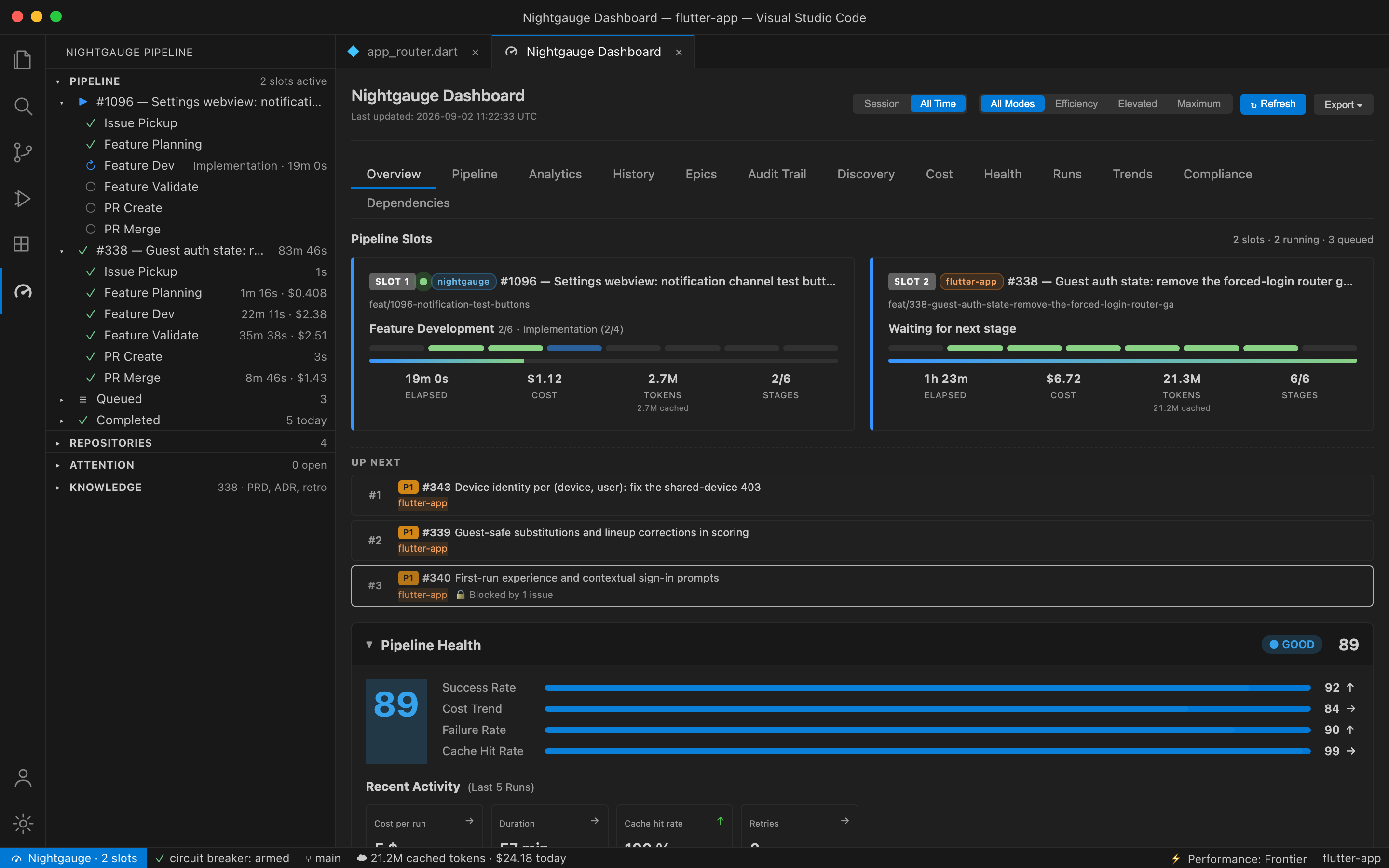
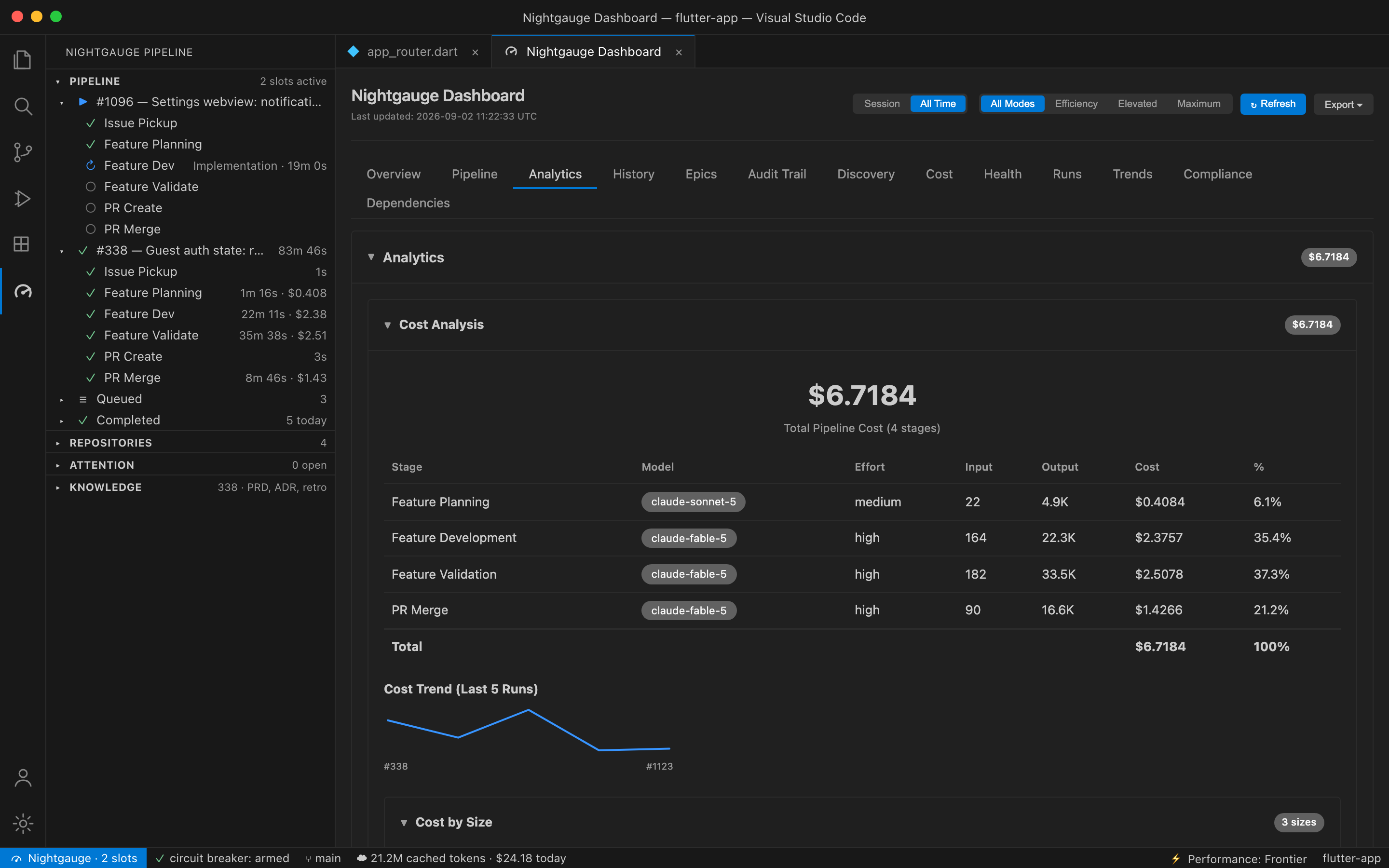
Every image on this page is rendered from the same real pipeline run by
npm run -w packages/nightgauge marketing:screenshots: the dashboard HTML is the
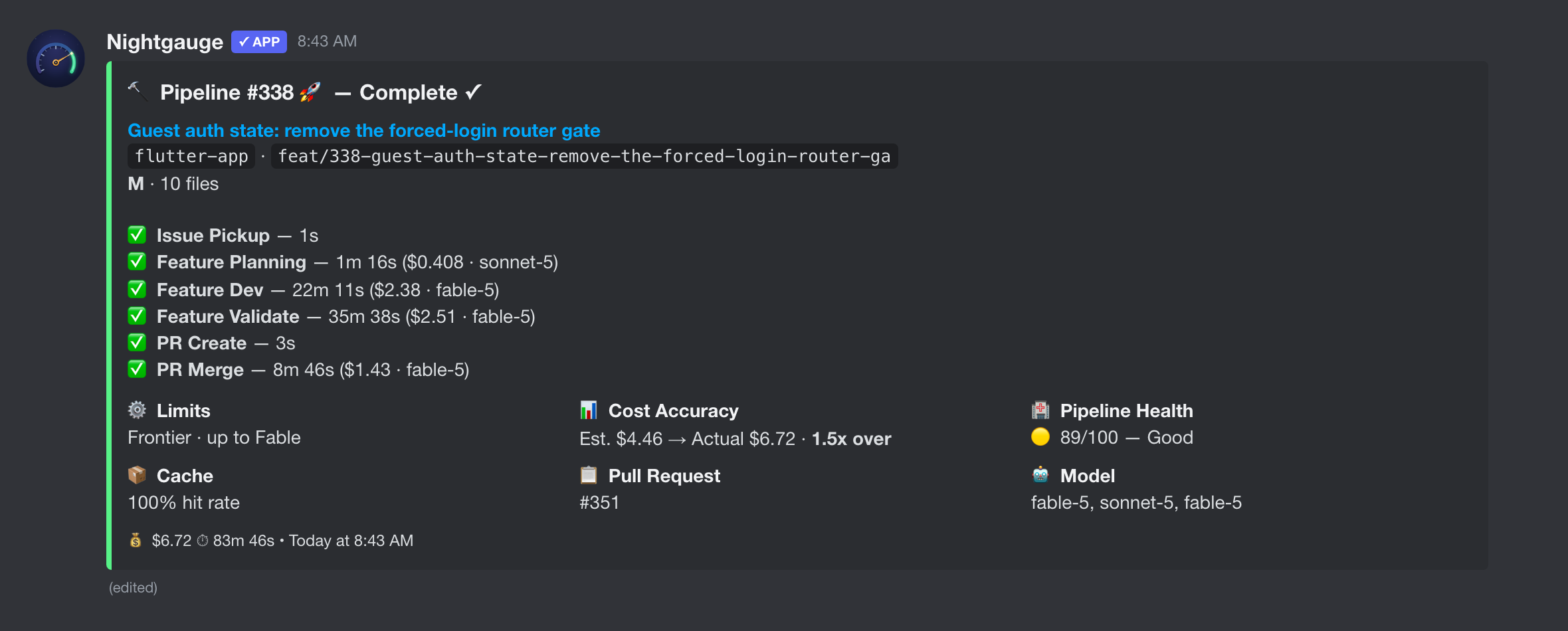
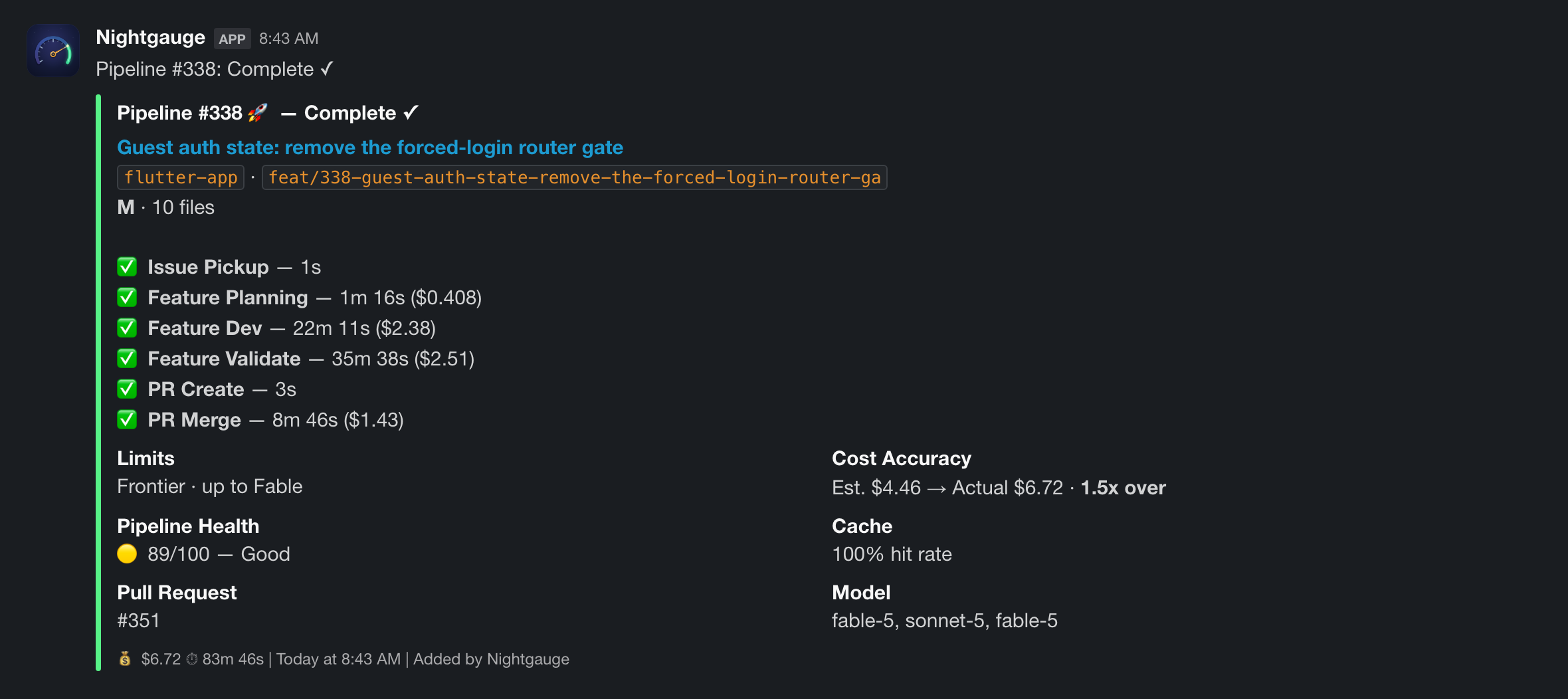
extension's own renderer and the notification cards are the exact payloads the
Discord and Slack notifiers send. Only the window and chat chrome around them
are mocked.
Analytics — the model, effort level, tokens and cost of every stage in the
run, with the share of the total each stage took and the cost trend across
recent runs.
Notifications — the Discord embed and Slack attachment posted when the same
run merged. Configure either in .nightgauge/config.yaml.
Exact appearance varies with your VS Code theme, platform, and version.
What this extension does on your machine
Nightgauge is an automation tool, so it does more on a developer machine than a
theme or a linter does. Everything it does is listed here rather than left for
you to discover, because "an extension that runs a coding agent" is exactly the
shape a reasonable person should want disclosed up front.
It runs a bundled native binary. dist/bin/nightgauge is a compiled Go
program, built from cmd/nightgauge in this repository, and it ships inside the
extension for your platform. It is the deterministic half of the product: it
reads and writes .nightgauge/ state, talks to the GitHub API, and renders
stage prompts. Nothing is downloaded at runtime — the binary is resolved
from the installed extension directory, an explicit
nightgauge.backend.binaryPath setting, or your PATH, and never fetched.
It executes no remote code. Every webview loads its scripts from inside the
package and no Content-Security-Policy in the extension names a remote origin.
This is enforced by a build-time check, not a convention.
It spawns processes. git, the gh CLI, and your chosen AI coding agent
(the claude CLI by default). That is the product: the pipeline works by
driving the same tools you would drive by hand. It requires a trusted workspace
and is fully disabled in VS Code's Restricted Mode.
It uses your existing credentials, and stores none of its own. GitHub access
comes from gh auth login or a token you place in .nightgauge/config.yaml.
GH_TOKEN / GITHUB_TOKEN are read from your environment and passed to the
child processes that need them. They are never transmitted anywhere else.
It runs shell hooks from the bundled plugin. dist/claude-plugins/ contains
the pipeline's Agent Skills and its hook scripts, all readable in this
repository under claude-plugins/. They gate stage transitions and validate
work; they are the same files whether you install the extension or clone the
repo.
It writes outside the workspace only when you ask. The one case is
~/.claude/settings.json, and only if you run Nightgauge: Show my 5-hour and
weekly limits, which shows the exact file path in a confirmation dialog first
and can be reversed from the same command. After an extension update the
extension repairs the absolute path it previously wrote there, since its own
update invalidated it; it never touches a statusLine it did not write.
What leaves your machine. With cloud features
off, the default, Nightgauge's hosted service hears from this machine only when
you act: signing in or out, activating a license, starting a trial, managing
your subscription, or opening a dashboard tab that shows your account's cloud
data. Nothing runs in the background. With them on, the run telemetry
described in Privacy and Telemetry below goes to
api.nightgauge.dev, with this machine's registration, heartbeat and the
other cloud features. The telemetry honors VS Code's global telemetry setting
as a hard stop that no Nightgauge setting can override. Your AI provider's CLI
makes its own calls to its own provider, under your own account and
credentials, and git and gh talk to your forge. There is no other egress.
For the security reporting process and supported versions, see
SECURITY.md.
Privacy and Telemetry
Nothing about your work is uploaded unless
cloud features are on (platform.enabled: true)
and you are signed in or have a license key. With them on, telemetry is on by
default and you are told so on first activation; turning it off there, or later
in your user settings, is honored permanently, by the extension and by the
binary it starts, and so is platform.telemetry.enabled: false in your
machine-tier config. VS Code's global telemetry-off setting is honored as a
hard stop. Each run then sends its repository and issue number, the issue
title, labels and the first 8,192 characters of its body, the branch, its
timings, token counts, cost and outcome, and a failed stage's error message
(which can quote command output), so the hosted dashboard can show your runs.
It never sends your source code, file contents, prompts, secrets or commit
SHAs. Streams can be disabled independently at any time.
Read Telemetry Privacy
for the complete field list, retention policy, controls, and deletion
instructions, and the Nightgauge Privacy Policy.
Commands
A full, current list of contributed commands is visible in VS Code's
Extensions view under this extension's "Feature Contributions" tab (sourced
directly from package.json). The most commonly used:
| Command |
Description |
Nightgauge: Sign In with GitHub |
Connect a Nightgauge account for hosted features (optional; shown once cloud features are on); not how the pipeline reaches GitHub. Nightgauge: Sign In offers the same plus a browser device-code flow. |
Nightgauge: Pick Up Issue |
Claim an issue and start the pipeline |
Nightgauge: Run Stage... |
Run a single pipeline stage |
Nightgauge: Show Dashboard |
Open the pipeline dashboard |
Nightgauge: Open Knowledge Value Dashboard |
Open the Knowledge Value dashboard |
Nightgauge: Stop Pipeline |
Stop the currently running pipeline |
Nightgauge: Open Settings |
Open the visual settings panel |
Active Issue Knowledge Panel
When a pipeline issue is in progress, the Active Issue Knowledge panel
appears in the Nightgauge sidebar showing:
- PRD.md — product requirements for the active issue
- decisions.md — architecture decisions recorded during planning
- Related Decisions — semantically similar decisions from prior issues (powered by
nightgauge knowledge recall)
The panel refreshes automatically when the active issue changes or when knowledge
files are modified on disk. Click any file item to open it in the editor.
Knowledge Value Dashboard
Opens a webview that aggregates
.git/nightgauge/pipeline/history/knowledge-events.jsonl into a single
"Is my Knowledge doing anything?" view.
Surfaces:
- 5 header cards: writes / reads / recalls / hits / graduations, with
delta vs. prior window
- Hit-rate gauge (
recall_hits / recalls) with color-coded bands
(green >50%, yellow 20–50%, red <20%)
- Per-stage bar chart of reads + writes
- Top-recalled table (paths sorted by read + recall_hit counts)
- Stale-entries table (paths whose last touch is older than the
configured
stale_days threshold)
- Graduation history timeline
Window selector: 7 d / 30 d / 90 d. Manual Refresh button + auto-refresh
every 5 min while the panel is visible. Empty states for "telemetry
disabled" and "no events in window" are rendered with actionable
instructions.
Enable telemetry by adding to .nightgauge/config.yaml:
knowledge:
  telemetry:
    enabled: true
    stale_days: 30
Identical data is available on the CLI, from a clone of this repository:
nightgauge knowledge metrics --window 7 --stale-days 30 --json
Settings
Configure the extension via VS Code Settings (Preferences > Settings):
| Setting |
Default |
Description |
nightgauge.authProvider |
max |
Authentication provider (max/bedrock/vertex) |
nightgauge.defaultModel |
sonnet |
Default model (sonnet/opus/haiku) |
Run state, contexts, plans, retros and pipeline logs live in the clone's git
directory (.git/nightgauge/, shared by every worktree of the clone), never
in the working tree; nightgauge layout prints their paths.
The full settings surface (adapters, orchestration budgets, notifications,
telemetry, and more) is best browsed through
Nightgauge: Open Settings, which reads/writes the layered
.nightgauge/config.yaml tiers directly.
Cloud features (optional)
Cloud features are optional and off by default. The local pipeline needs
neither of the two switches below.
"nightgauge.cloud.enabled": true in VS Code settings shows the account,
subscription and team commands in the Command Palette, sign-in among them,
and the Subscription and Team sections in the sidebar. It changes what the
extension shows, not what it sends.platform.enabled: true in your machine-tier config.yaml
(where it lives;
a repository's .nightgauge/config.yaml or config.local.yaml cannot set
it, or any other platform setting) decides whether the extension and its
bundled binary talk to the hosted service on their own: restoring your
session, registering this machine, checking that the service is reachable,
using a stored license key and sending the telemetry described in
Privacy and Telemetry. With the default, false,
they do none of that.
Signing in, activating a license and starting a trial are your own explicit
actions, and they work with platform.enabled off. A license key they store
is kept in VS Code and in the OS keychain, and nothing uses it until you turn
platform.enabled on. A NIGHTGAUGE_LICENSE_KEY in the environment VS Code
was started from is different: setting it is an explicit opt-in, and the
bundled binary uses it whatever platform.enabled says.
// settings.json
"nightgauge.cloud.enabled": true
# the machine-tier config.yaml (~/.nightgauge/config.yaml on macOS)
platform:
  enabled: true
The full platform: block is described in
Platform Configuration.
Status Bar
The status bar shows the current pipeline state:
| State |
Display |
Action on Click |
| Idle |
$(dashboard) Nightgauge |
Run Pipeline |
| Running |
$(sync~spin) {Stage} |
Stop Pipeline |
| Complete |
$(check) Complete |
Run Pipeline |
| Error |
$(error) Error |
Show Dashboard |
Ready Issues View
The Ready Issues sidebar displays all issues with "Ready" status from your
GitHub Project board, intelligently sorted to help you focus on the highest
value work.
Smart Sort (Default):
Issues are automatically sorted by:
- Priority - Critical (P0) → High (P1) → Medium/Low (P2) → Unprioritized
- Blocked Status - Unblocked issues appear before blocked ones
- Size - Smaller issues (XS, S) before larger ones for quick wins
- Age - Older issues (lower numbers) first as tiebreaker
Configuration:
Change the sort order via Settings → Nightgauge → Ready Items → Sort By:
| Sort Option |
Description |
| Smart |
Priority → Unblocked → Size → Age (Recommended) |
| Board |
Preserve GitHub Project board order |
| Priority |
Sort by priority labels only |
| Number |
Sort by issue number |
| Size |
Sort by t-shirt size only |
| Dependencies |
Topological sort (unblocked issues first) |
Epic Grouping:
When epic grouping is enabled, board tabs show the complete epic — all
sub-issues — whenever at least one sub-issue matches the tab's status. Blocked
sub-issues display with lock icons (🔒) indicating they are waiting on a
predecessor. This gives full visibility into the pipeline sequence so you can
run an epic as a batch and watch issues unblock as each phase completes.
Auto-Refresh:
Enable auto-refresh in settings to keep the list up-to-date without manual
refreshes.
Pipeline Queue
When a pipeline is already running and you try to pick up another issue, the
extension automatically queues the new issue for processing after the current
pipeline completes.
Key Features:
- Automatic Queueing - Issues are queued automatically when a pipeline is
active
- Priority Sorting - Queue items are sorted by priority (P0-P3), then size
(S-XL), then issue number
- Dynamic Addition - Add issues to the queue while batch processing is
running
- Token Estimation - Queue displays estimated token consumption based on
issue size labels
- Visual Feedback - Queue section in the sidebar shows all queued issues
with position indicators
Size Label to Token Estimates:
| Size Label |
Token Estimate |
| XS |
5,000 |
| S |
10,000 |
| M |
20,000 |
| L |
40,000 |
| XL |
80,000 |
| (no label) |
20,000 |
Contributing
Contributing, architecture and the test tiers are documented in the repository:
https://github.com/nightgauge/nightgauge/blob/main/CONTRIBUTING.md
Repository Configuration Requirements
Auto-Merge Setting
Disable the repository's allow_auto_merge setting before running the pipeline.
The extension monitors this setting on workspace load and displays a warning
notification if enabled.
Why: The pipeline's pr-merge stage requires exclusive control over PR
merging to detect failures, apply corrections, and keep the UI in sync.
Auto-merge bypasses these mechanisms and causes stale pipeline state.
To disable via VS Code: click Disable Auto-Merge in the warning
notification that appears on workspace load; the extension turns the setting
off through the GitHub API.
To disable via CLI: from a clone of this repository, run
nightgauge repo disable-auto-merge --owner <org> --repo <repo>. The binary
bundled with the extension is not on your PATH.
Requirements
| Requirement |
Notes |
| VS Code 1.85.0 or higher |
|
git |
With a GitHub remote configured on the repository you point Nightgauge at. |
gh CLI, authenticated |
gh auth login. The pipeline resolves its GitHub token from .nightgauge/config.yaml, GITHUB_TOKEN, or gh auth token — in that order. The extension's Sign In with GitHub command authenticates a Nightgauge account and is not part of that chain. |
| An AI coding agent |
The claude CLI (Claude Code) is the supported adapter path. The other adapters — Codex, Gemini, Copilot, and direct API keys — are beta: they work, but are far less exercised and rougher. |
macOS (Apple Silicon and Intel) and Linux x64 only — see
Installing.
Verify all of it from the Command Palette with Nightgauge: Adapter
Doctor.
Uninstalling
Removing the extension from VS Code removes the extension and its bundled
binary. Nightgauge also writes state outside the extension directory, which VS
Code does not clean up. To remove everything it created:
# Per-user configuration and cached usage data
rm -rf ~/.nightgauge ~/.config/nightgauge

# Per-repository state, in each repo you ran Nightgauge in
rm -rf <repo>/.nightgauge
Nothing is installed outside these paths and the VS Code extension directory:
no system services, no login items, no changes to other applications or system
settings. Files Nightgauge generated in your repository — AGENTS.md,
CLAUDE.md, docs added by Make Repo AI-Ready — are ordinary tracked files
and are left alone; remove them with git if you no longer want them.
License
Apache-2.0 ·
Terms ·
Privacy Policy
Publisher
Nightgauge is published and stewarded by Edibu, LLC.
The macOS binaries bundled in this extension are signed with the Apple
Developer ID Developer ID Application: Edibu LLC (RZJPN7Y7BG) and notarized
by Apple, so the signing identity on the shipped executable can be matched
against the publisher named here. The certificate's common name omits the
comma in the registered entity name Edibu, LLC; the authoritative
identifier is the Apple Team ID RZJPN7Y7BG, which is stable across
certificate renewals.
unzip -p <vsix> extension/dist/bin/nightgauge > /tmp/ng
codesign -dv --verbose=4 /tmp/ng    # Authority + TeamIdentifier
spctl -a -vvv -t install /tmp/ng    # notarization
Every release artifact also carries a signed GitHub build-provenance
attestation. See
Artifact Verification.

