Skip to content
| Marketplace
Sign in
Visual Studio Code>Other>LazyNuGetNew to Visual Studio Code? Get it now.
LazyNuGet

LazyNuGet

nickprotop

|
5 installs
| (0) | Free
A TUI-based NuGet package manager embedded in VS Code
Installation
Launch VS Code Quick Open (Ctrl+P), paste the following command, and press enter.
Copied to clipboard
More Info

License: MIT NuGet VS Code

A terminal-based NuGet package manager for VS Code, inspired by lazygit.

LazyNuGet brings a fast, keyboard-and-mouse-driven interface to NuGet package management — right inside VS Code. Navigate your projects, view package details, check for updates, and search NuGet.org without leaving the editor.

Browse. Update. Search.

LazyNuGet in VS Code

How It Works

This extension embeds the full LazyNuGet TUI inside a VS Code panel. It's not a stripped-down version — it's the real thing, with full mouse support, movable dialogs, and every feature of the standalone terminal app.

Under the hood, the extension spawns the LazyNuGet binary in a pseudo-terminal (PTY) and renders its output using xterm.js in a Webview panel. Every keystroke and mouse event goes directly to the TUI with zero interception from VS Code.

Getting Started

  1. Install the extension from the VS Code Marketplace
  2. Open a folder containing .NET projects
  3. The LazyNuGet status bar appears on the right (shows when .NET projects are detected)
  4. Click the status bar icon or press Ctrl+Shift+N (or Cmd+Shift+N on macOS)
  5. LazyNuGet opens as an editor tab — navigate with keyboard or mouse

That's it. The binary is bundled with the extension — no separate installation needed.

Ways to open:

  • Click the $(package) LazyNuGet status bar item (bottom right)
  • Press Ctrl+Shift+N / Cmd+Shift+N
  • Command Palette: LazyNuGet: Open Package Manager

Features

Visual Interface Full terminal UI with mouse support, not just CLI commands
Smart Updates Auto-detect outdated packages across all projects
Package Search Browse and install from NuGet.org in-app
Dependencies Visualize project and package dependency trees
History Track and retry all NuGet operations
Configuration Private feeds, custom sources, settings

Keyboard Shortcuts

Key Action
↑/↓ Navigate lists
Enter View package details / Select project
Ctrl+O Open folder picker
Ctrl+R Reload projects
Ctrl+S Search NuGet.org
Ctrl+D Dependency tree
Ctrl+H View operation history
Ctrl+P Settings
Ctrl+U Update package / Update all
Ctrl+V Change package version
Ctrl+X Remove package
Ctrl+L Open log viewer
Ctrl+↑/↓ Scroll details panel
Esc Go back / Close dialogs

Full mouse support is also available — click on projects, packages, buttons, and drag modal dialogs.

Screenshots

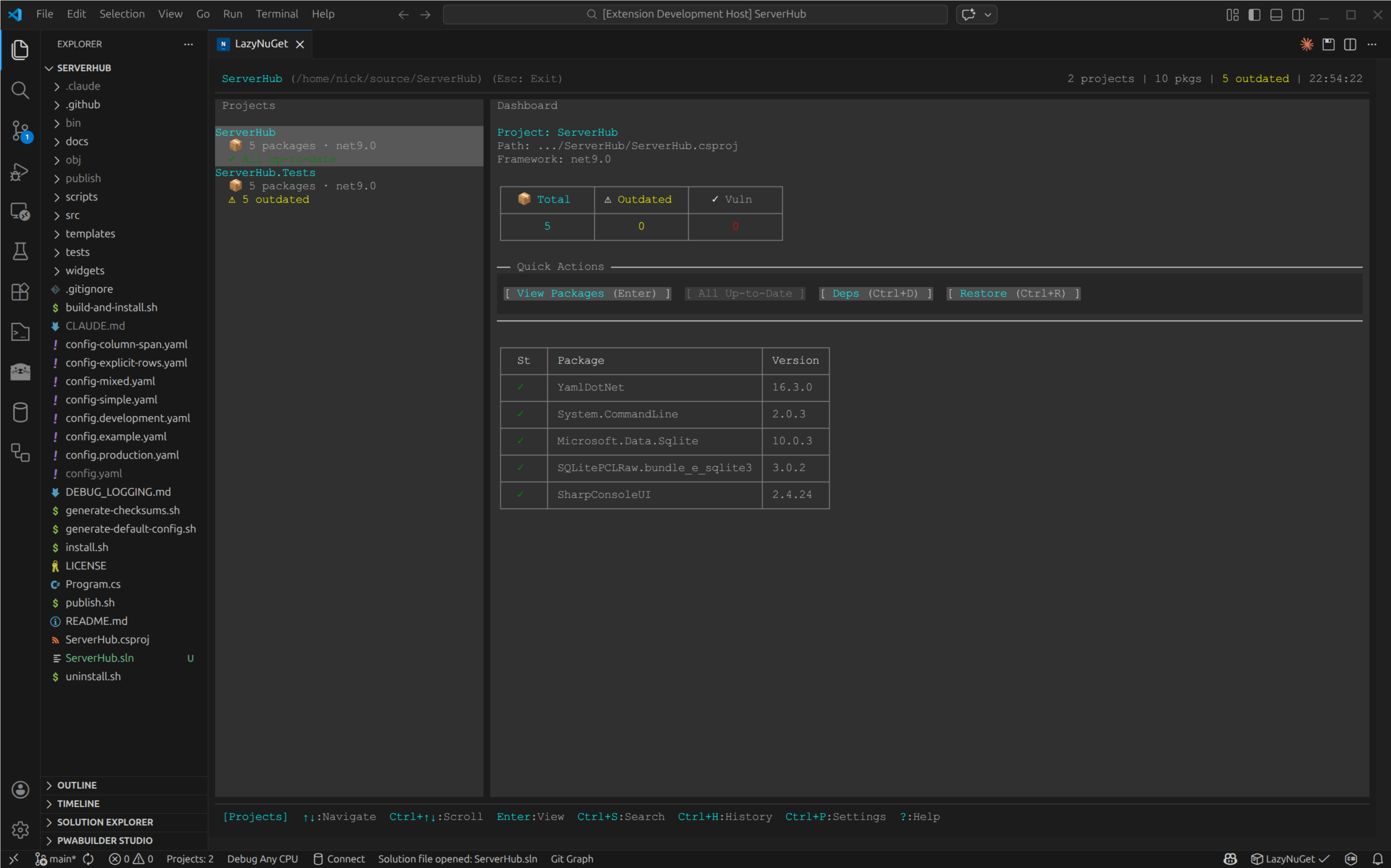
Dashboard Overview

The main dashboard shows your project tree on the left and package details on the right. Quickly see which packages are outdated and navigate with keyboard or mouse — all running natively inside VS Code.

Dashboard Overview

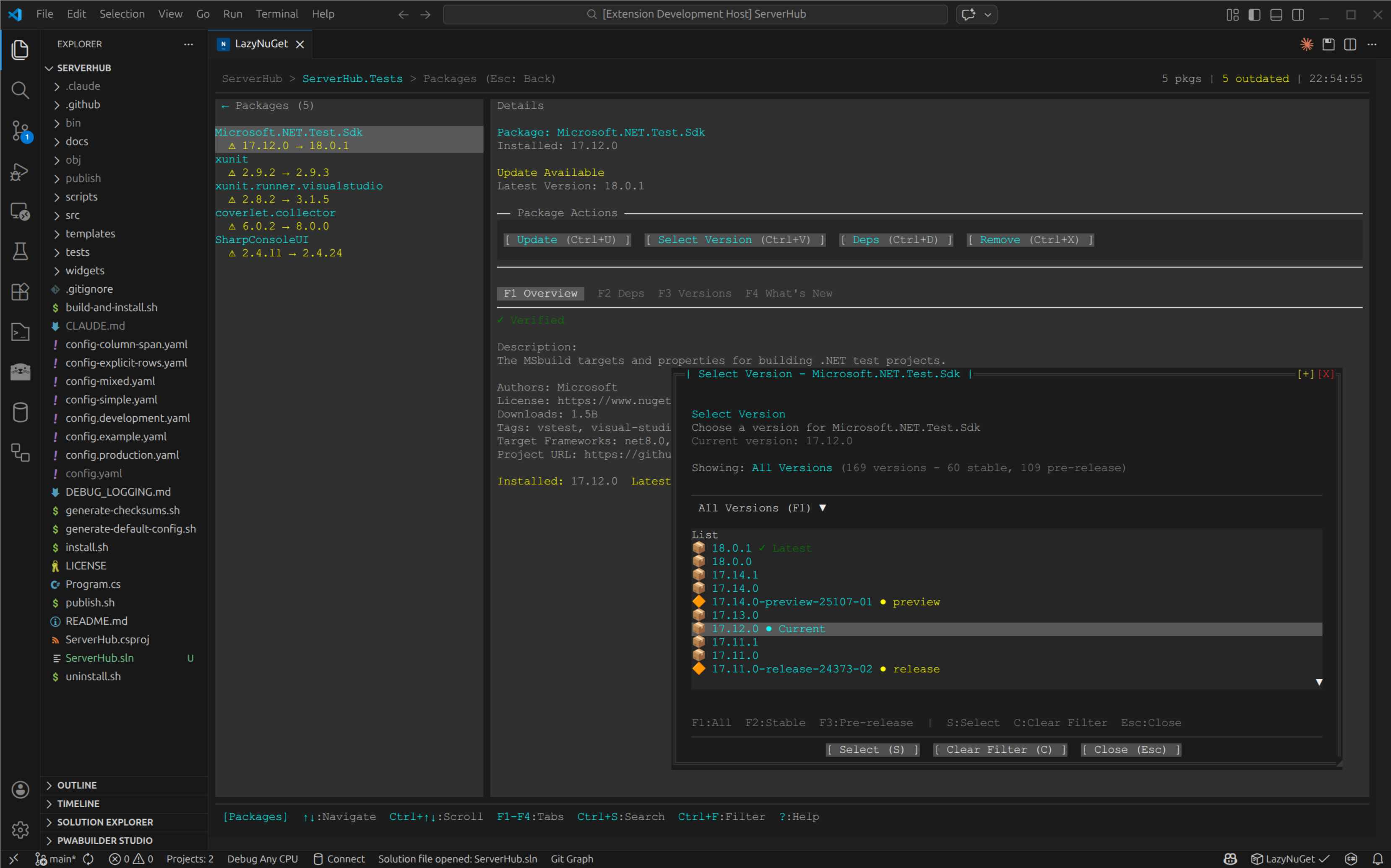
Version Selection

Select from all available package versions with an interactive version picker, fully integrated with VS Code's interface.

Version Selection

For more screenshots of LazyNuGet features, see the main documentation.

Extension Settings

Setting Description Default
lazynuget.binaryPath Override path to the lazynuget binary (uses bundled binary)

Requirements

  • VS Code 1.96.0 or later
  • A folder containing .NET projects (.csproj, .fsproj, .vbproj)

No .NET SDK is required — the LazyNuGet binary is self-contained and bundled with the extension.

Standalone Usage

LazyNuGet also works as a standalone terminal application outside VS Code. See the main repository for installation options:

  • .NET Global Tool: dotnet tool install --global LazyNuGet
  • Self-contained binary: Available for Linux, macOS, and Windows

Built With

  • SharpConsoleUI — Terminal UI framework with responsive layouts and window management
  • xterm.js — Terminal rendering in the VS Code Webview
  • node-pty — Pseudo-terminal for full TUI support

Author

Nikolaos Protopapas — @nickprotop

License

MIT — see the LICENSE file for details.

  • Contact us
  • Jobs
  • Privacy
  • Manage cookies
  • Terms of use
  • Trademarks
© 2026 Microsoft