Skip to content
| Marketplace
Sign in
Visual Studio Code>Formatters>Markdown to PDF Converter Fully Local and PrivateNew to Visual Studio Code? Get it now.
Markdown to PDF Converter Fully Local and Private

Markdown to PDF Converter Fully Local and Private

nickcrv

|
1 install
| (0) | Free
Export Markdown to PDF in VS Code with LaTeX (KaTeX), Mermaid diagrams, GFM, emoji, and CJK (Chinese, Japanese, Korean) support.
Installation
Launch VS Code Quick Open (Ctrl+P), paste the following command, and press enter.
Copied to clipboard
More Info

Markdown to PDF Converter for VS Code

Export Markdown and Markdown Components files to high-quality PDF directly inside VS Code. Fully local and private PDF generation inside VS Code.

LaTeX (KaTeX) math, Mermaid diagrams, GitHub Flavored Markdown, local images, optional page numbers, colorful emoji rendering, and bundled Chinese, Japanese, and Korean fallback fonts are all supported in one export flow.

Features

  • Export .md and .mdc files without leaving VS Code
  • Run export from the Command Palette or the editor context menu
  • Choose where to save the generated PDF
  • Open the exported PDF immediately after rendering
  • Show export progress inside VS Code notifications

Feature highlights

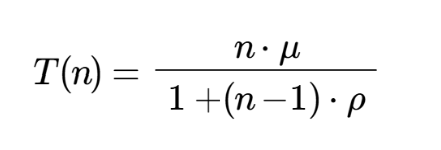
LaTeX (KaTeX) math

Display math blocks rendered with full LaTeX support.

LaTeX (KaTeX) display math rendered in the exported PDF

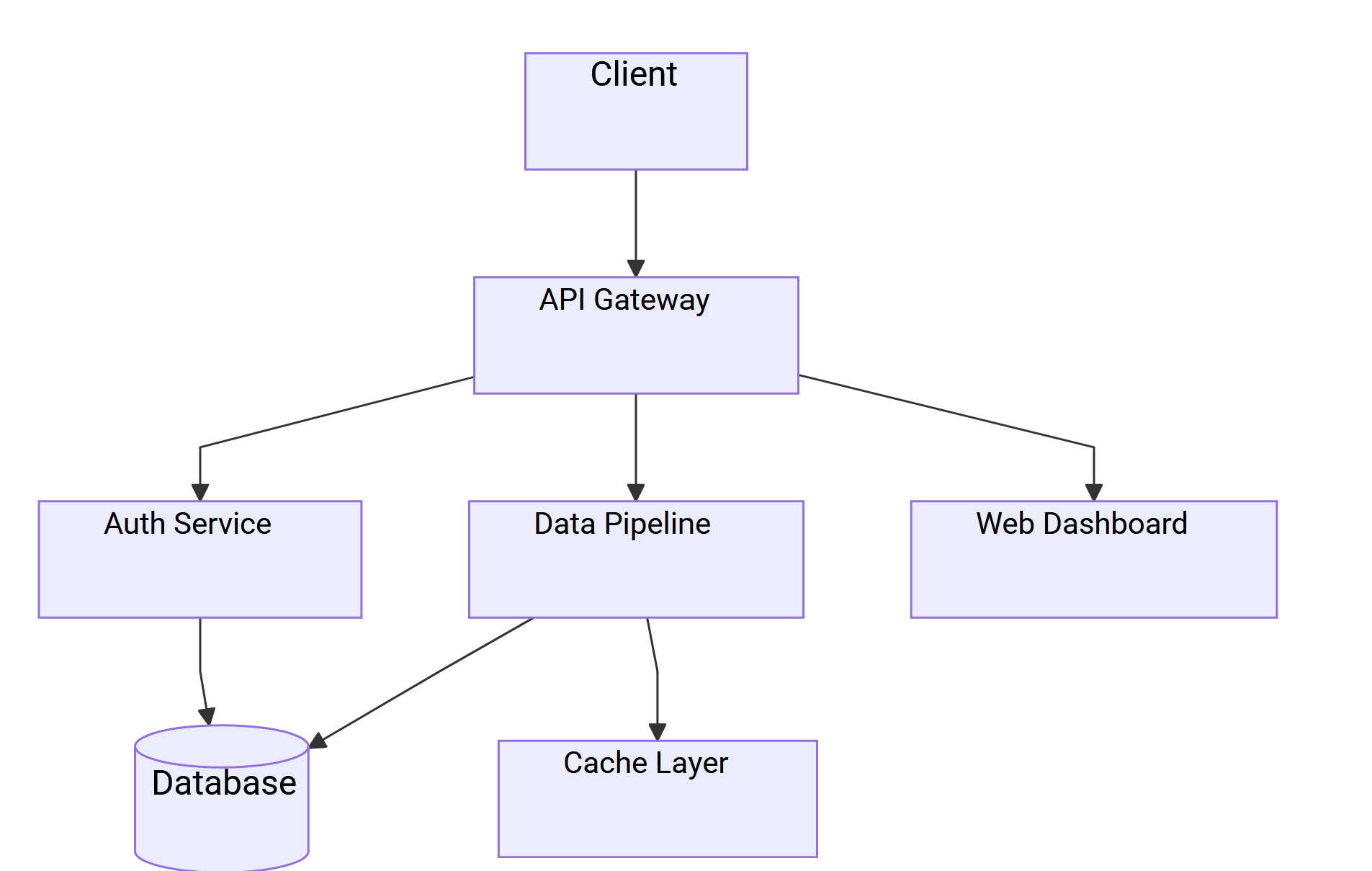
Mermaid diagrams

Flowcharts, sequence diagrams, and more rendered directly from fenced code blocks.

Mermaid flowchart rendered in the exported PDF

GitHub Flavored Markdown

Tables, task lists, fenced code blocks, and standard Markdown structure are preserved in the PDF output.

Local images

Both Markdown image syntax and HTML <img> tags are resolved for local files before export.

Optional PDF controls

  • Page numbers
  • Colorful emojis (beta)
  • Bundled Chinese, Japanese, and Korean fallback fonts

Usage

  1. Open a Markdown (.md) or Markdown Components (.mdc) file.
  2. Open the Command Palette with Ctrl/Cmd + Shift + P.
  3. Run Markdown to PDF: Export PDF.
  4. Choose where to save the PDF.
  5. Wait for the export notification to complete.
  6. Click Open if you want to open the generated PDF immediately.

You can also run the same command from the editor right-click context menu.

Configuration

The extension exposes these settings in settings.json:

Setting Default Description
markdownPdf.includePageNumbers false Include page numbers in the generated PDF.
markdownPdf.useColorfulEmojis false Enable colorful emoji rendering. This is still marked beta and can fall back to monochrome in some cases.
markdownPdf.useCjkFonts false Enable bundled fallback font loading for Chinese, Japanese, and Korean text.

Notes

  • This extension exports directly from inside VS Code.
  • The generated PDF path is chosen through the save dialog at export time.
  • CJK support uses bundled offline font data instead of depending on a remote CDN.
  • Contact us
  • Jobs
  • Privacy
  • Manage cookies
  • Terms of use
  • Trademarks
© 2026 Microsoft