Solaris
The first time-adaptive theme for VS Code. Cool and crisp by day, warm and easy by night -- like f.lux for your entire editor palette.
Solaris is a matched pair of light and dark themes designed to shift with your day. A companion extension watches the clock and switches automatically, so your editor stays comfortable from morning stand-up to late-night debugging.
| Solaris Day |
Solaris Night |
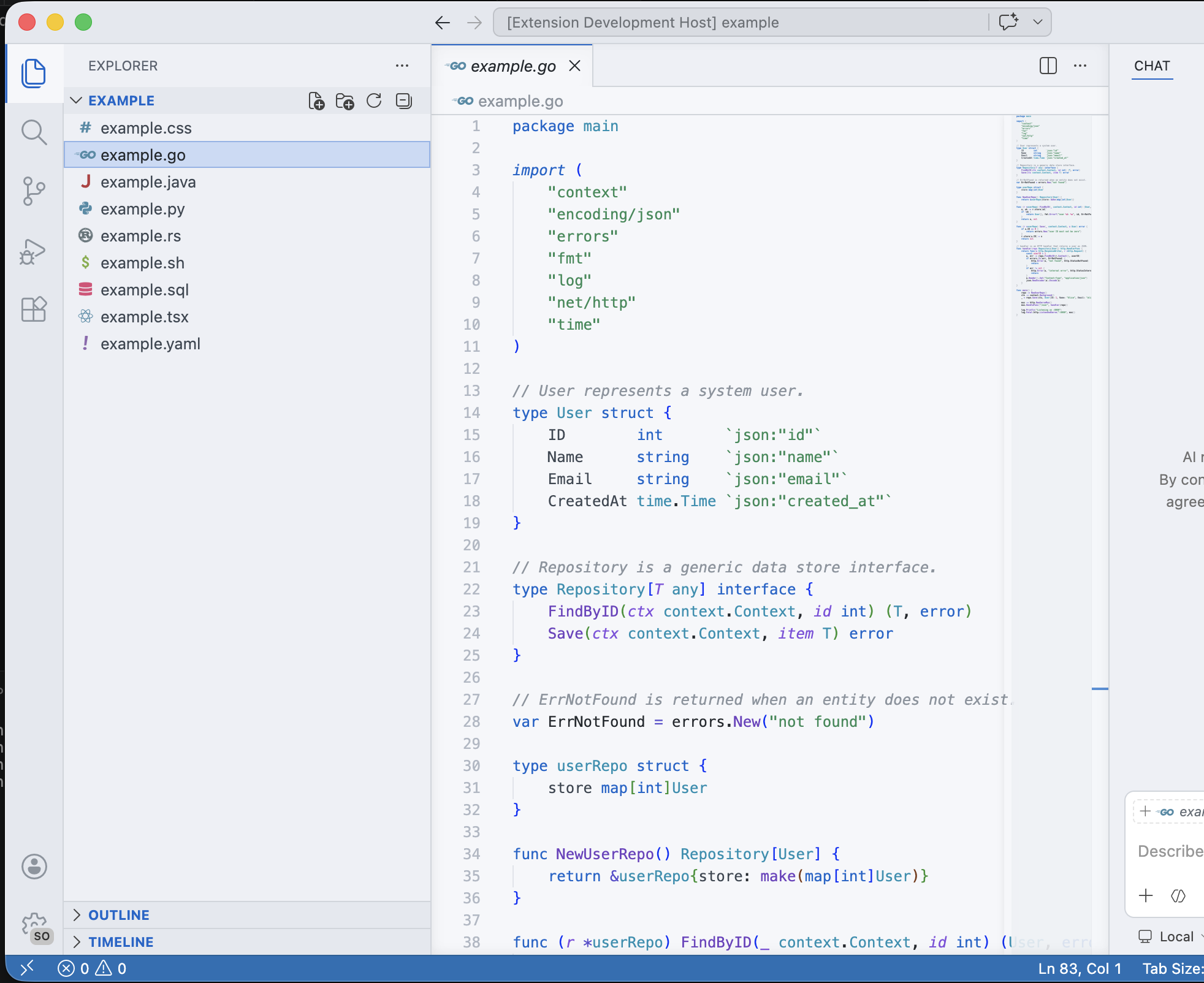 |
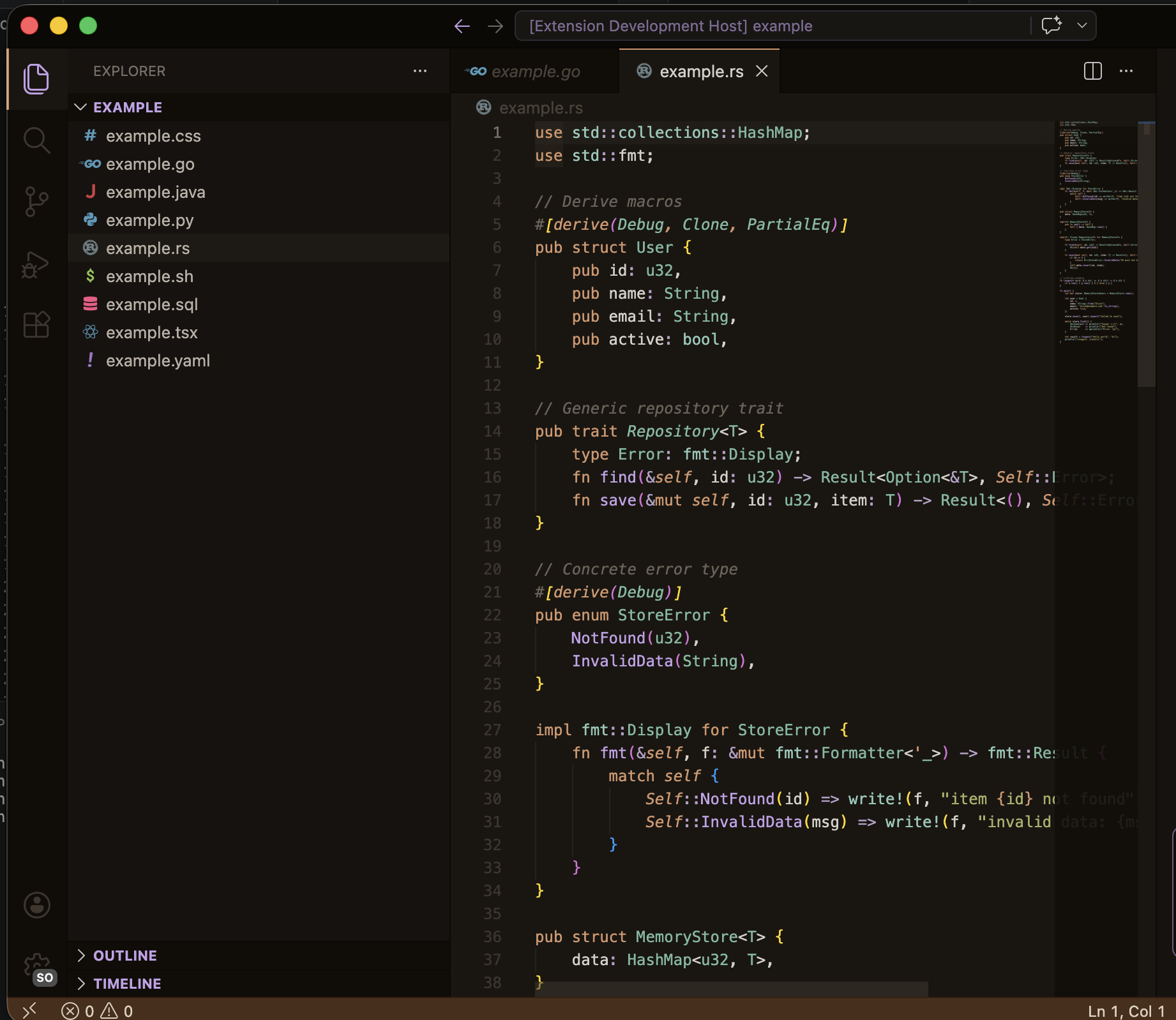 |
Day vs Night
| Element |
Solaris Day (Light) |
Solaris Night (Dark) |
| Background |
#f5f7fa cool blue-gray |
#1a1612 warm charcoal |
| Keywords |
#0066cc blue |
#d4956a amber |
| Strings |
#2e8b57 sea green |
#a8b065 olive |
| Functions |
#6f42c1 purple |
#c4a0e8 lavender |
| Types / Classes |
#0891b2 teal |
#7ab89e sage |
| Constants / Numbers |
#d63384 magenta |
#d4856a coral |
| Contrast |
High -- sharp readability in bright environments |
Low -- reduced eye strain for evening work |
Day leans on cool blues and greens for focus. Night shifts to warm ambers and earthy tones that feel easy on the eyes when the lights are off.
How It Works
Solaris includes a lightweight companion extension that runs a periodic check against your system clock:
- During the day (default: 7:00 AM onwards), the extension applies Solaris Day.
- At night (default: 7:00 PM onwards), it switches to Solaris Night.
- The extension auto-starts when either Solaris theme is active and auto-stops when you switch to a different theme.
No external services, no location tracking -- just a simple hour-of-day check.
Configuration
| Setting |
Type |
Default |
Description |
vsThemes.solaris.dayStartHour |
number |
7 |
Hour (0--23) when Solaris Day activates |
vsThemes.solaris.nightStartHour |
number |
19 |
Hour (0--23) when Solaris Night activates |
Add these to your settings.json to customize the schedule:
{
  "vsThemes.solaris.dayStartHour": 6,
  "vsThemes.solaris.nightStartHour": 20
}
Commands
Open the Command Palette (Ctrl+Shift+P / Cmd+Shift+P) and search for:
| Command |
Description |
| Solaris: Enable Time-Adaptive Switching |
Start automatic day/night switching |
| Solaris: Disable Time-Adaptive Switching |
Stop automatic switching |
| Solaris: Toggle Day/Night Now |
Manually flip between Day and Night |
Language Support
Solaris provides full syntax highlighting coverage for all languages supported by VS Code, including but not limited to:
- JavaScript / TypeScript (and JSX/TSX)
- Python
- Rust, Go, C/C++
- HTML, CSS, SCSS
- JSON, YAML, TOML, Markdown
- Java, C#, PHP, Ruby, Swift, Kotlin
Getting Started
- Install from the VS Code Marketplace (search "Solaris Adaptive") or run
ext install nheo.solaris-theme
- Open the Command Palette (
Cmd+Shift+P / Ctrl+Shift+P)
- Select Preferences: Color Theme
- Choose Solaris Day or Solaris Night
- The extension auto-activates -- it will check the time every 5 minutes and switch themes for you
That's it. No extra setup needed. The switching starts automatically when a Solaris theme is selected and stops when you switch to a different theme.
To manually flip between day and night at any time, run Solaris: Toggle Day/Night Now from the Command Palette.
To customize the schedule, add these to your settings.json:
{
  "vsThemes.solaris.dayStartHour": 6,   // switch to Day at 6 AM
  "vsThemes.solaris.nightStartHour": 20  // switch to Night at 8 PM
}
Part of vs-themes
Solaris is part of the vs-themes collection by nheo.
License
MIT

