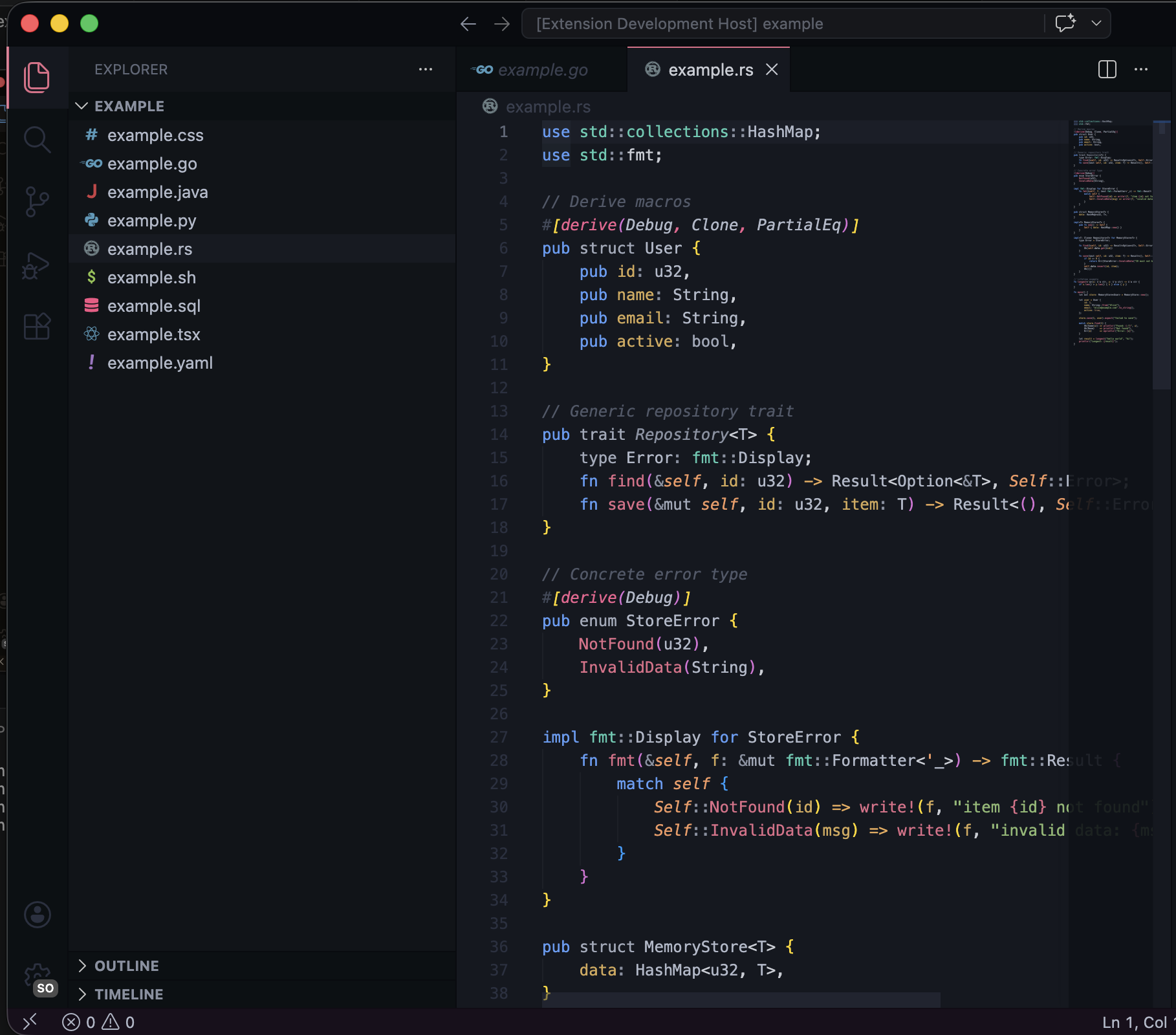
Intent SemanticA dark theme that colors code by what it does, not what it is — data flow in warm ambers, control flow in cool blues, side effects in magenta-red, pure logic in neutral silver. Installation Launch VS Code Quick Open ( Ctrl+P), paste the following command, and press enter.Copied to clipboard |

IntentA fundamentally different approach to syntax highlighting. Every theme colors code by grammar. Intent colors code by purpose.
The ProblemTraditional syntax themes assign colors based on grammar categories: keywords get one color, strings get another, types get a third. This tells you what a token is syntactically, but nothing about what it does in your program. You end up mentally parsing your own code every time you read it. The IdeaIntent organizes color around semantic purpose -- the role each token plays in your program's behavior. When you glance at a line of code, the colors immediately tell you:
This is not a subtle difference. It changes how you read code. Color SystemIntent maps five categories of purpose to five distinct color families against a cool-neutral dark background (
The mapping is deliberate. Warm colors draw the eye to data as it flows through your program. Cool colors recede, letting control structures form a calm scaffold. Magenta-red demands attention on side effects -- exactly the tokens most likely to introduce bugs. Neutral tones keep structural logic out of the way. Earth tones ground literals as stable, unchanging values. Why This MattersMost bugs live at the boundaries between data transformation and side effects. Intent makes those boundaries visible at a glance. When you scan a function colored by Intent:
You stop reading token-by-token and start reading by intention. Technical DetailsIntent leverages VS Code's semantic highlighting to identify token roles beyond what TextMate grammars alone can provide. Semantic tokens carry information about whether a symbol is a variable, a parameter, a function call, a type, or a decorator -- and Intent uses all of it. Design principles:
Language SupportFull syntax and semantic highlighting for all VS Code supported languages. Installation
Or from the command line: Part of vs-themesIntent is part of the vs-themes collection by nheo. License |