Note: This is a fork of the original MQL Tools by L-I-V. This edition adds clangd support and significant performance optimizations.
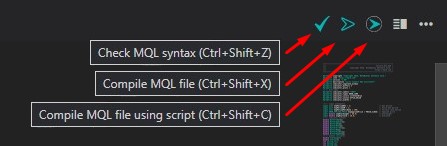
The MQL Tools extension adds language support for MQL (MetaQuotes Language) to VS Code, including functions:
1. Checking the syntax of mqh/mq4/mq5 files (without compilation).
2. Compilation of mq4/mq5 files.
3. Compilation of mq4/mq5 files using script.
The script opens the file "mq4/mq5" in the "MetaEditor" and clicks the "Compile" button, thus MT4/MT5 is automatically updated. (The idea is takenfrom here).
4. Opening the MQL help.
To find the word you need in the MQL help, put the cursor on it or highlight it and then press F1.
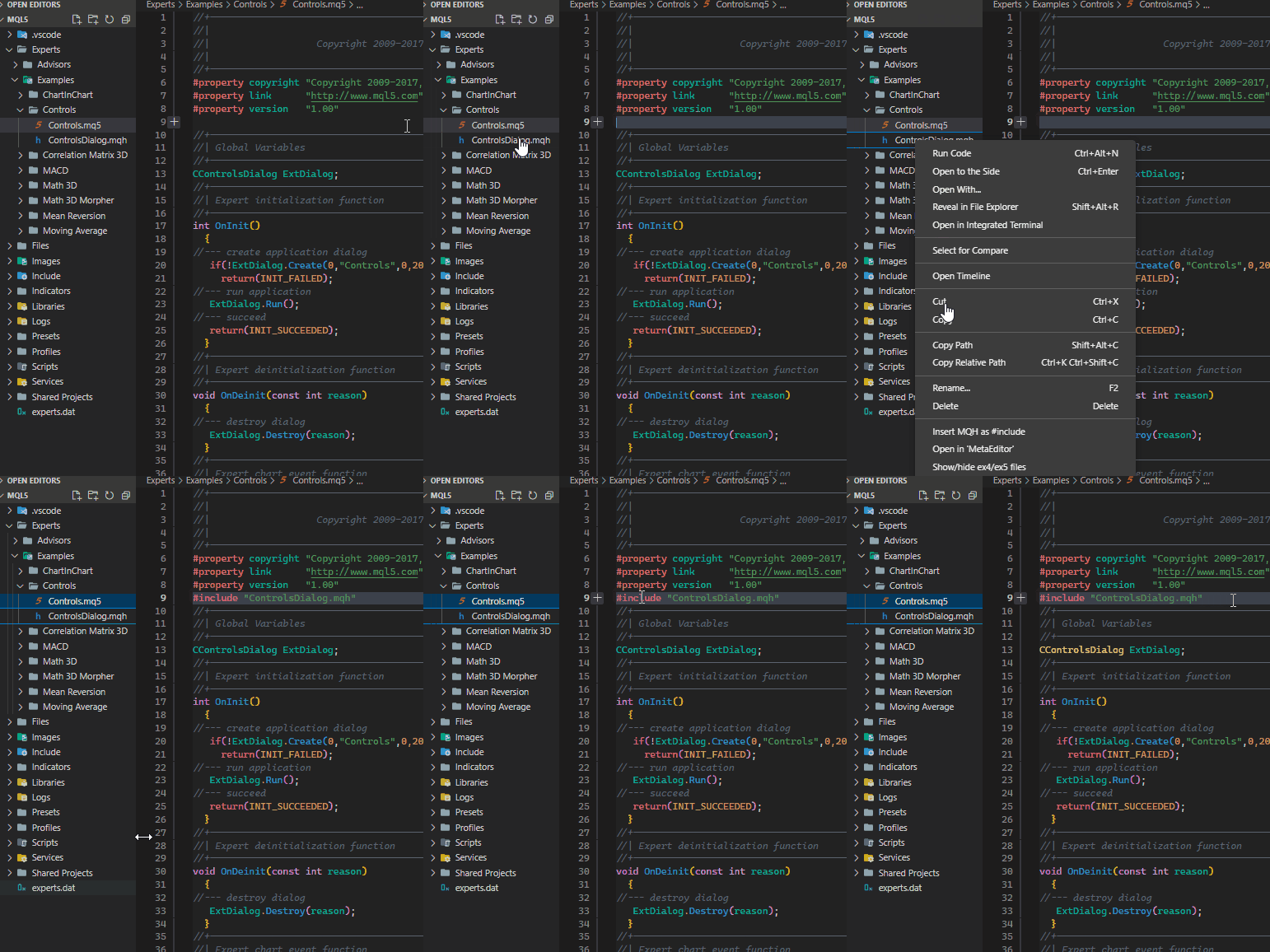
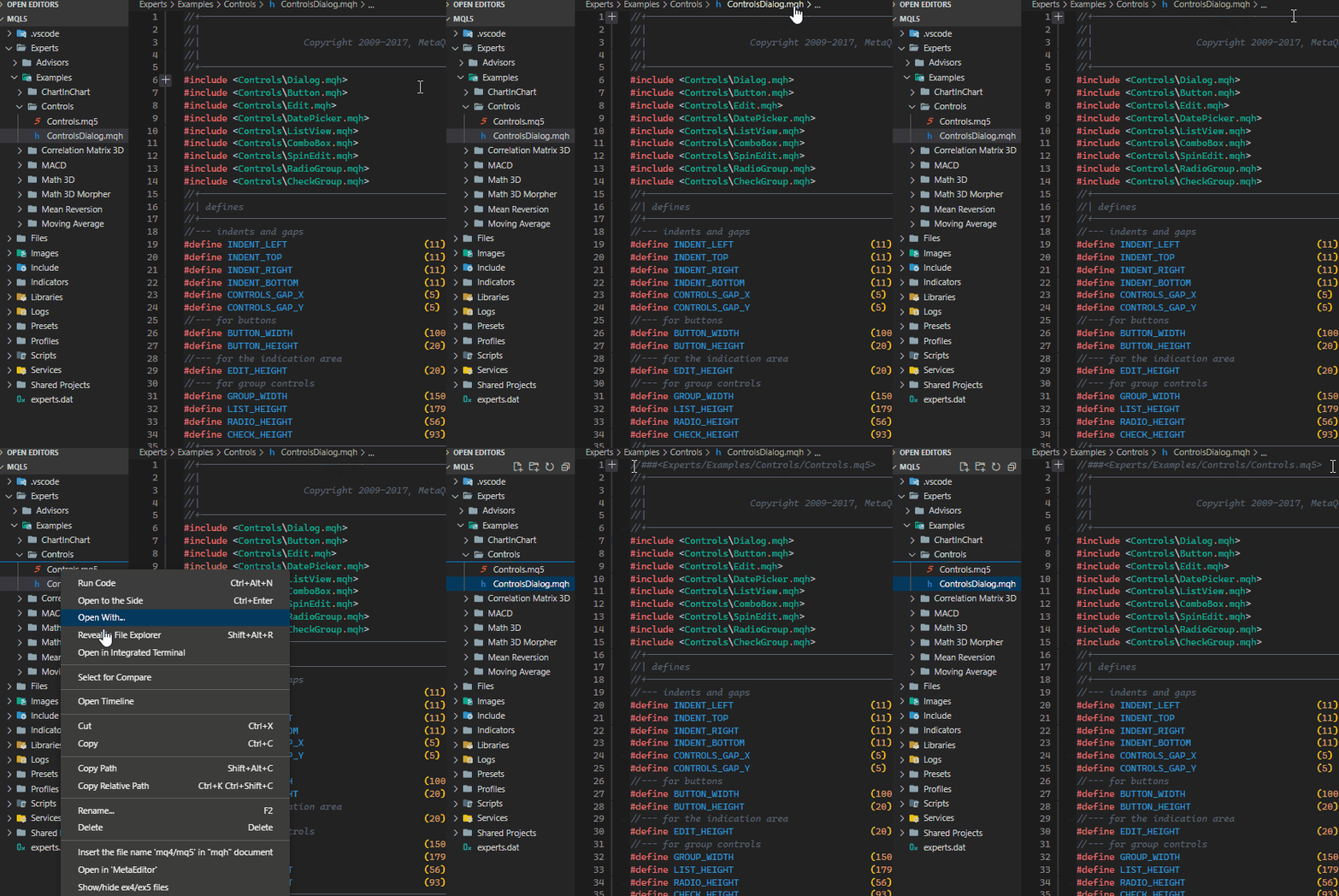
5. In the explorer context menu, added items:
"Open in 'MetaEditor'"
"Show/hide ex4/ex5 files"
"Insert MQH as #include"
"Insert the file name 'mq4/mq5' in 'mqh'"
(When working with the "mqh" file, in order not to switch to the "mq4/mq5" file window during compilation, you should write the name of the "mq4/mq5" file on the first line. Example: //###<Experts/Examples/MACD Sample.mq5>).
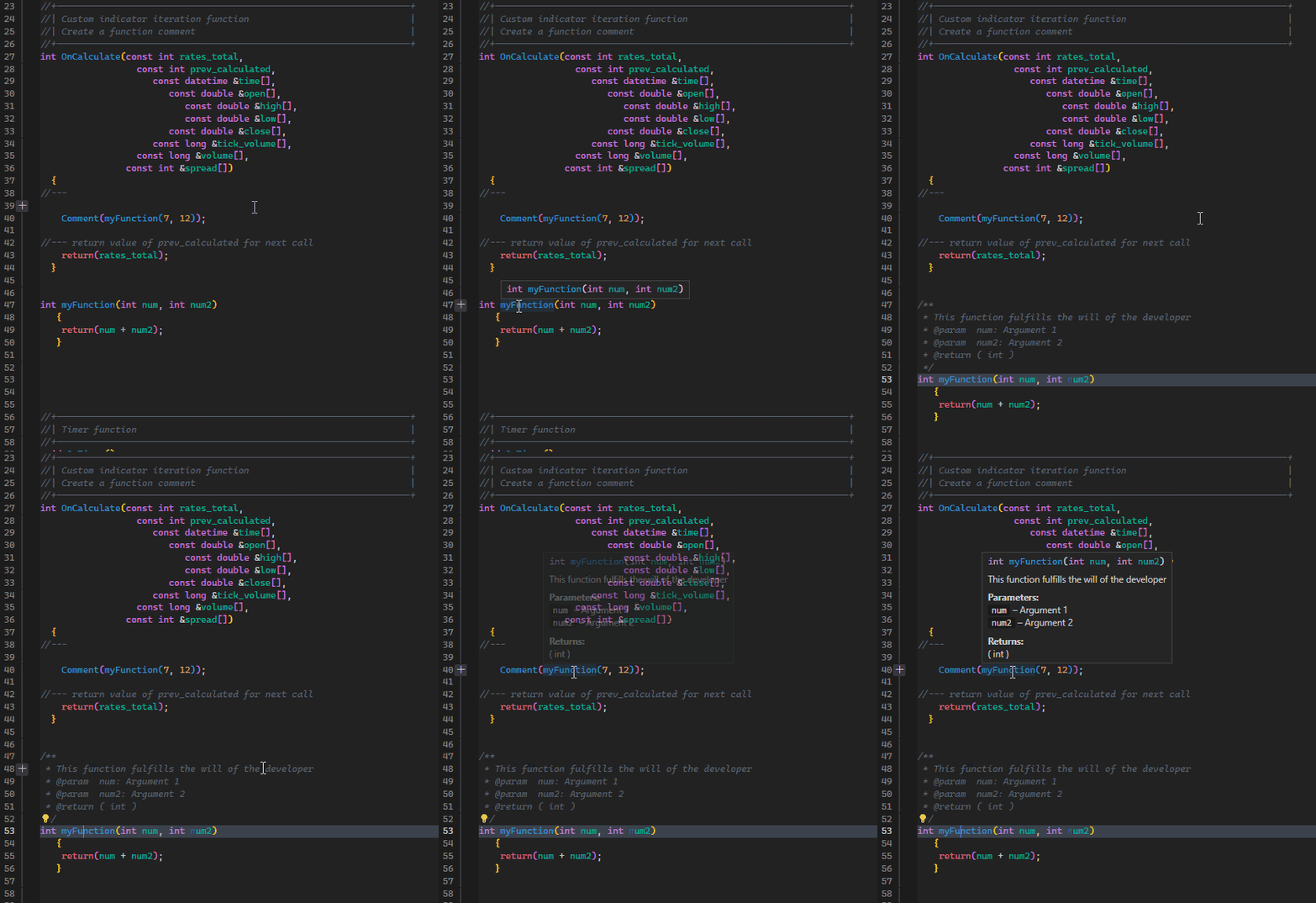
6. Creating a comment for a function.
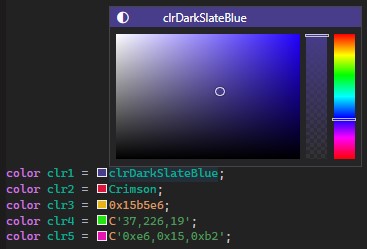
7. Visualizing and modify mql colors.
8. Autocomplete of entering names of variables, constants and MQL5 functions.
9. Displaying information about mql5 function when hovers show the mouse cursor over its name.
10. MQL syntax highlighting.
🚀 IntelliSense & Semantic Support
This extension now uses clangd to provide state-of-the-art IntelliSense, code completion, and navigation for MQL4/5.
Why clangd? It provides faster, more accurate semantic analysis and better support for complex MQL projects compared to the default Microsoft C++ engine.
Automatic Configuration: When you run the "MQL: Create configuration" command, the extension automatically configures clangd with the correct include paths and compiler flags for your MQL version (MQL4 or MQL5).
Conflict Prevention: To ensure the best experience, this extension automatically disables the Microsoft C++ "IntelliSense Engine" (while keeping the extension installed for other features) to prevent duplicate errors and completion items.
🛠 Quick Setup Guide:
Installation:
Install this MQL Tools extension from the VS Code Marketplace.
Note: The clangd extension will be automatically installed as a required dependency.
Open your project:
Open your MQL project folder (e.g., your MQL5 or MQL4 folder).
Pro Tip: Ensure your folder name contains "MQL4" or "MQL5" for automatic version detection.
Basic Configuration:
Open Settings (Ctrl+,) and search for MQL Tools.
Provide the path to your MetaEditor executable (essential for compilation).
Initialize IntelliSense:
Press Ctrl+Shift+P and run the command: "MQL: Create configuration".
This one-time setup configures clangd to recognize your MQL code and libraries.
Bonus: Icons:
If you wish, set custom icons for MQL files. Press Ctrl+Shift+P, select "MQL: Add icons to the theme", and choose your preferred MQL-supported theme.
💡 Important Notes:
Multi-root workspaces: The configuration tool supports multi-root workspaces and will prioritize settings for the currently active file's folder.
Settings Merge: The extension is built to be "clean" - it merges MQL flags with your existing clangd.fallbackFlags rather than overwriting them.
Compiler Flags: We automatically inject -xc++ and -std=c++17 along with version-specific defines (__MQL4__/__MQL5__) to help clangd understand MQL syntax.