Pomodoro Timer & Focus MusicPomodoro sprint timer with focus music for VS Code and Cursor — lo-fi and ambient, no lyrics or ads. One goal per sprint, what would settle it, and a log of what you shipped. Installation Launch VS Code Quick Open ( Ctrl+P), paste the following command, and press enter.Copied to clipboard |

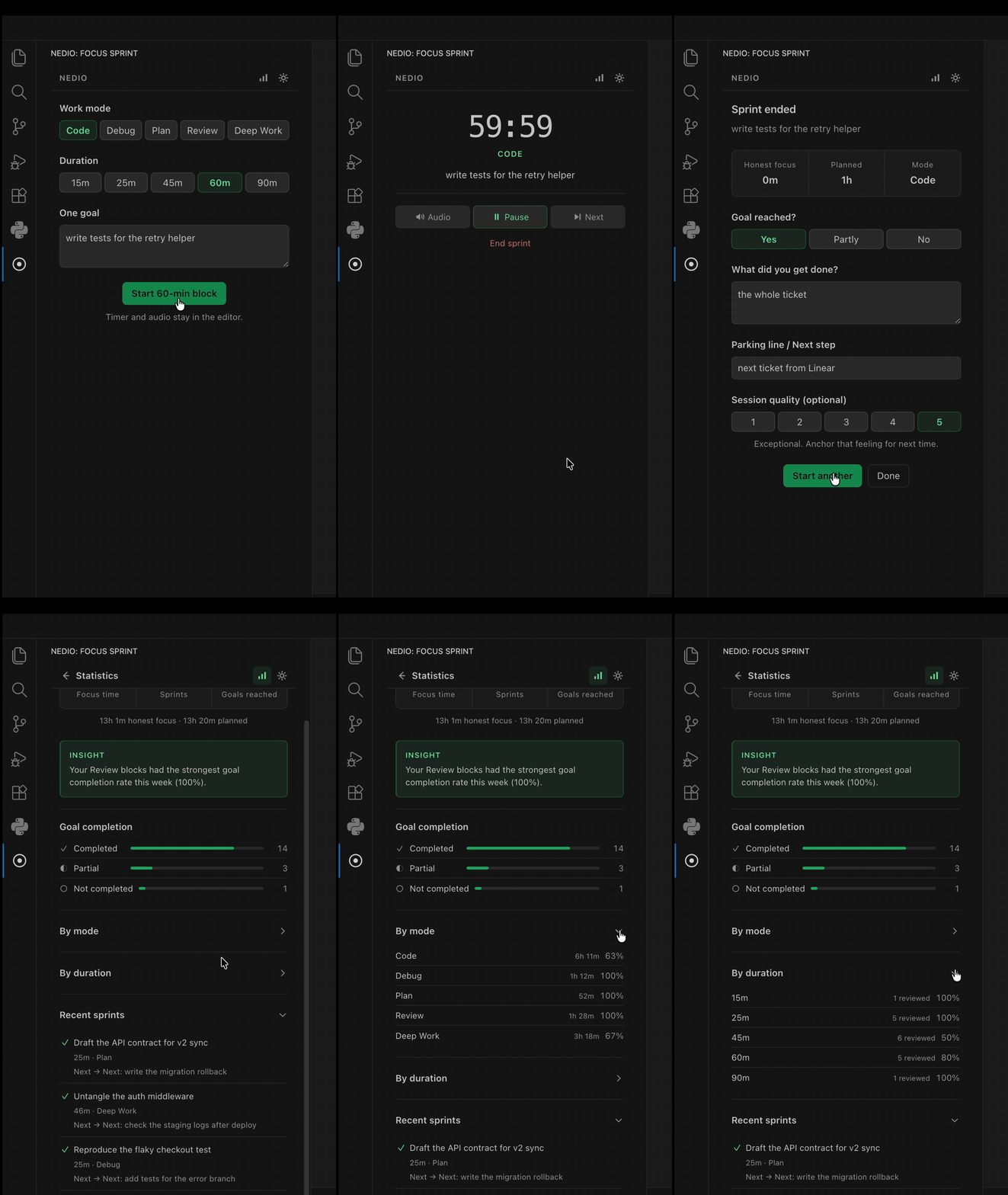
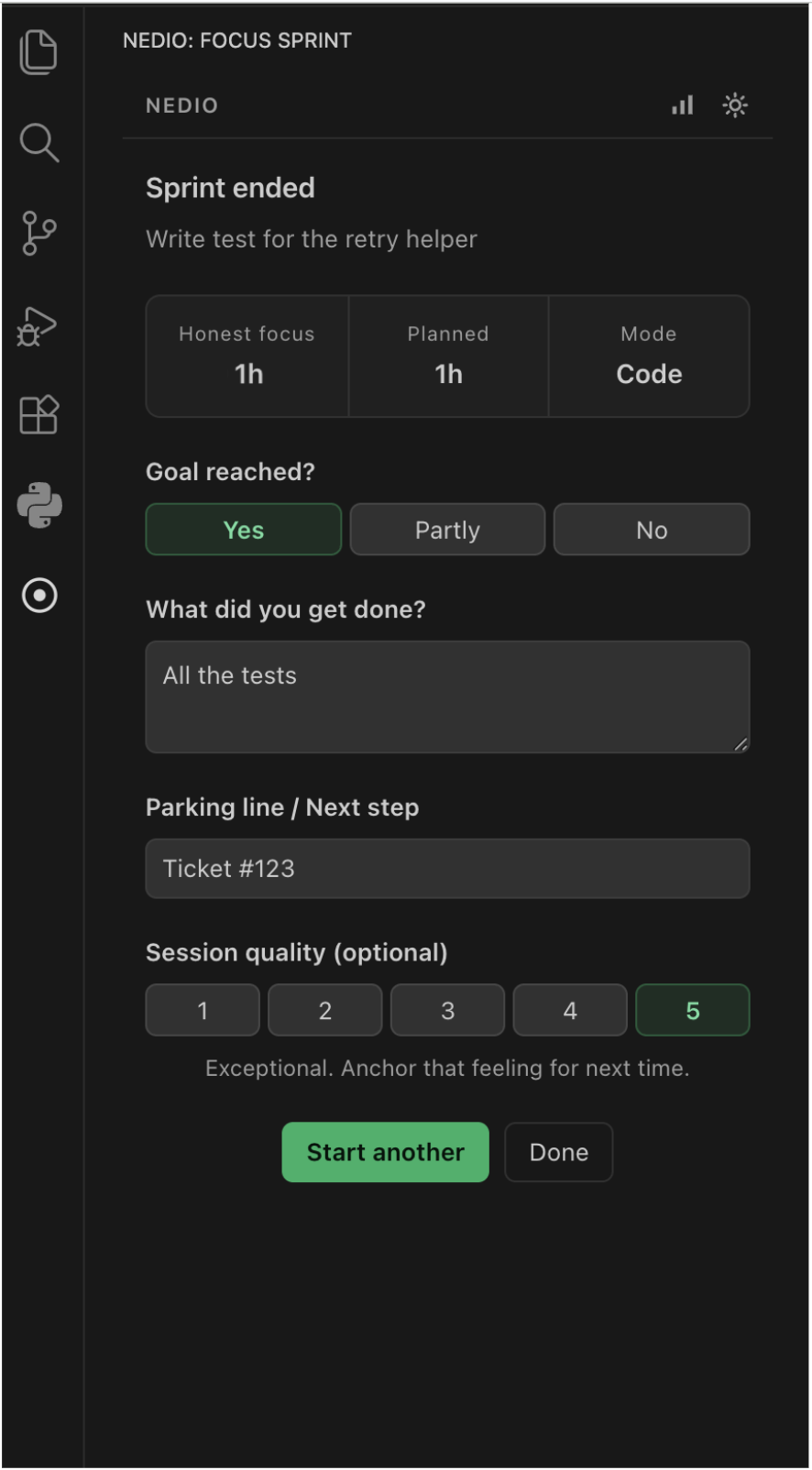
Pomodoro Timer & Focus Music for VS Code and CursorRun a Pomodoro sprint with instrumental focus music, without leaving your editor. NEDIO is a Pomodoro timer that also plays the music. Pick one goal, choose a work mode and a duration, start the sprint — the countdown, the audio, the end-of-sprint review, and your weekly focus stats all live in the editor. No second browser tab, no playlist to curate, no ads.
Requires a free NEDIO account. Sign-in takes one click from the panel.
Why another Pomodoro timerMost Pomodoro extensions only count down. Music apps make you pick what to play, then keep a tab open competing for your attention. NEDIO puts both in one loop: name what you are shipping, start a bounded sprint, work with instrumental audio, then record what actually happened.
What you get
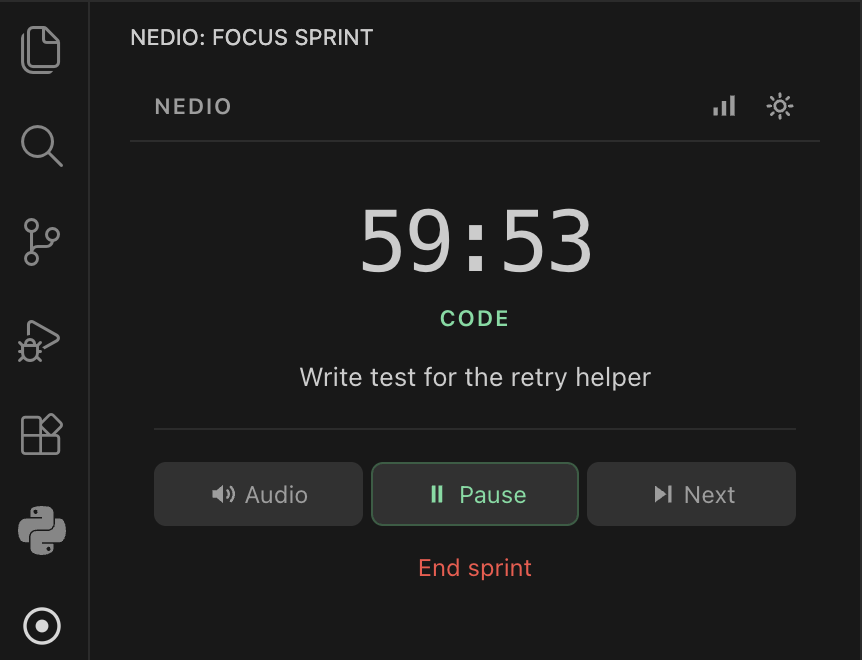
Where to find itThe NEDIO icon sits in the activity bar, the strip of icons down the side. The countdown appears in the status bar, bottom left. There is no default keyboard shortcut. Get started
From the Command Palette:
FAQIs there a Pomodoro timer for VS Code? Yes. NEDIO runs Pomodoro-style sprints inside VS Code and Cursor, with a countdown in the status bar and controls in the sidebar. The classic 25-minute interval is the default; 15, 45, 60, and 90 minutes are also available. Can I play focus music inside VS Code? Yes. NEDIO streams instrumental focus audio in the editor itself, so you do not need a browser tab or a separate music app running alongside your editor. What kind of music does it play? Instrumental only — lo-fi and ambient tracks selected for coding. No lyrics, no ads, no autoplay rabbit holes. Does it work in Cursor? Yes. NEDIO is a standard UI extension and runs in VS Code, Cursor, and other compatible editors. Do I need an account? Yes. Connecting the editor signs you into NEDIO so sprints, reviews, and statistics stay in sync between the editor and nedio.xyz. Creating an account is free. Is it free? There is a free plan with a daily limit on focus audio. Pro removes the cap. See nedio.xyz/pricing. Does it read my code? No. NEDIO reads no workspace content. Source code, file names, and repository names are never sent anywhere. See Privacy below. Free and ProThe free plan has a daily limit of focus-audio minutes; the panel shows how much of it you have used. Pro removes that cap and unlocks additional controls and analytics on the NEDIO service. Current plans: nedio.xyz/pricing. Payments and subscription management happen on the NEDIO website, never inside the extension. PrivacyNEDIO reads no workspace content. Authentication tokens are stored with VS Code's SecretStorage API and are never exposed to the webview. NEDIO always talks to Full policy: nedio.xyz/privacy. Network activityOnce per editor start the extension fetches Product analyticsWhen both NEDIO telemetry and the editor-wide telemetry setting are enabled, the extension records first engagement, account connection, sprint lifecycle, statistics views, web-app opens, and coarse playback error codes, and coarse playback recovery timings (stalls, recoveries, skips; a track identifier and durations only). Events are attached to the signed-in NEDIO account and identify the host as VS Code, VS Code Insiders, Cursor, or another compatible editor. Source code, filenames, repository names, machine identifiers, sprint goals, and review text are never included. Sprint duration and completion data come from the same listening-session history that powers your statistics. Set Settings
SupportRun Links
Start one sprint. Ship one thing. |