Copilot Monitor
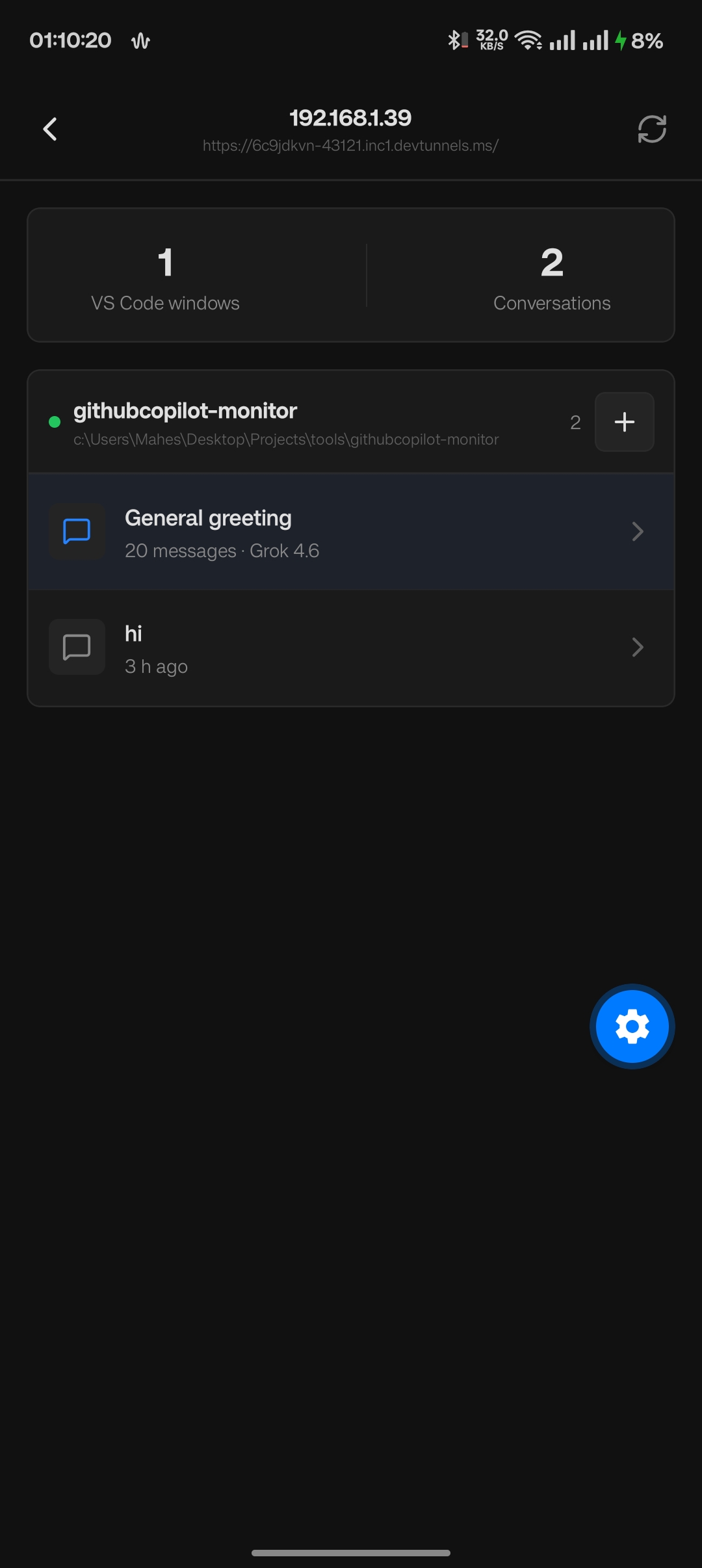
Monitor and control local GitHub Copilot Chat sessions from a browser dashboard or the Copilot Monitor phone app. Switch among open VS Code windows and conversations, follow responses and tools in real time, send prompts, manage models and approvals, organize chats — on your Wi-Fi or, with one click, from anywhere through a free tunnel.
Every open VS Code window runs a hidden loopback bridge, while one window owns the shared gateway on a stable port. Clients see one address, protected by a per-computer pairing secret, and can route actions to the exact window and chat session.
[!IMPORTANT]
Copilot Monitor is an independent open-source project. It is not affiliated with, endorsed by, or supported by GitHub or Microsoft.
Security
Every API request must present the computer's pairing secret. Anyone who holds it can read local Copilot transcripts, send prompts, change chat settings, approve tool calls, or enable Bypass Approvals/Autopilot for a chat, so treat the QR code and pairing link like a password.
- The secret is created once per computer and shared by all VS Code windows; the QR code /
Copy Pairing Link carry it in the URL fragment, which browsers never send to servers.
- Rotate it with
Copilot Monitor: Reset Pairing Secret if a code or link may have leaked; every phone and browser then re-pairs.
- On the LAN the dashboard is plain HTTP. For access from outside your network, use an HTTPS tunnel (see Remote access); do not port-forward
43121 on your router.
- Review Windows Firewall prompts and allow private networks only.
- Stop the dashboard from the Command Palette when it is not needed.
Current Features
- Discovers every open VS Code window through a publish-once descriptor registry; liveness comes from the gateway's connection to each window, not from heartbeats.
- Shows all persisted local Copilot chats for each live window.
- Reconstructs the session transcript from VS Code's append-only chat operation log by tailing only the bytes that changed.
- Streams live in-memory transcript and working-state changes with Server-Sent Events.
- Keeps long chats responsive with bounded transcript rendering, sampled message jumpers, lightweight inactive-chat summaries, and on-demand (never scheduled) live exports.
- Shows assistant markdown, code blocks, and summarized tool activity.
- Renders compact semantic headings, lists, quotes, rules, inline code, and emphasis instead of exposing raw markdown spacing.
- Renders fenced
mermaid blocks as self-hosted, theme-aware SVG diagrams without a CDN.
- Shows live terminal command, cwd, output, exit code, and duration inside tool activity.
- Allows one-time tool approval or skip after exact window/session/request/tool validation.
- Routes selection and prompts by both
windowId and session resource.
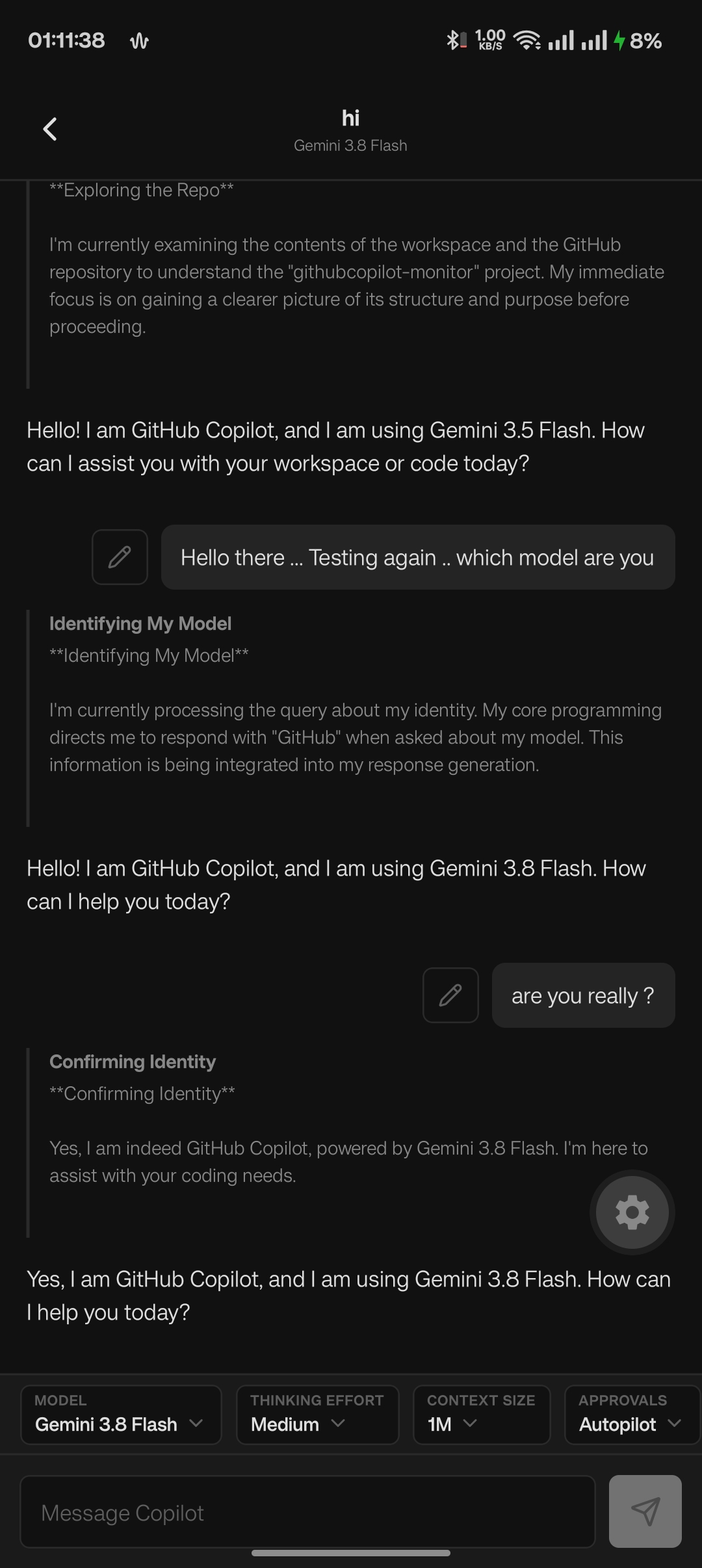
- Lists every currently selectable Copilot model for each VS Code window, including Auto.
- Shows the selected model, the model used by the latest request, thinking effort, context tier, and available configuration choices.
- Changes the model for the exact selected window and chat session.
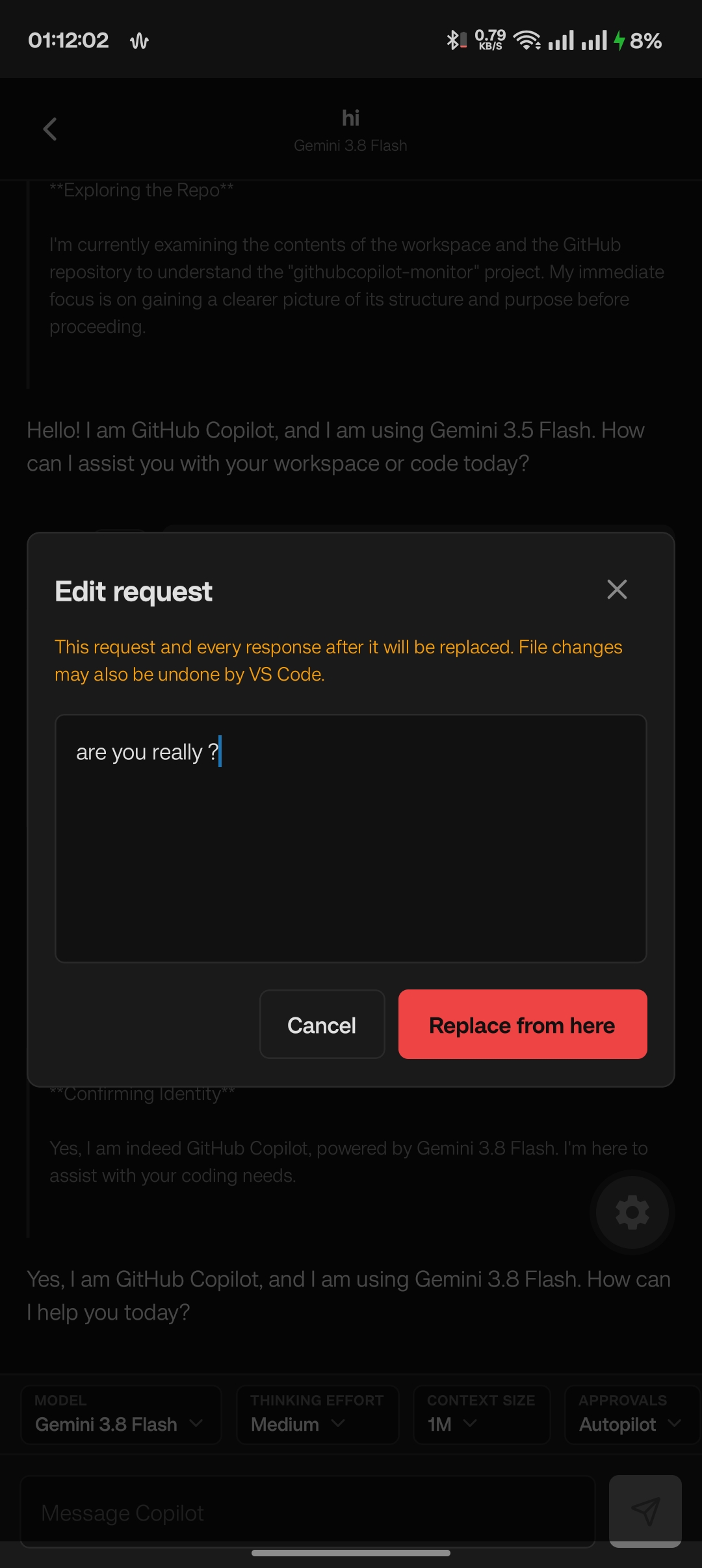
- Edits a historical user request through VS Code's native chat editor, replacing that request and the subsequent branch after explicit confirmation.
- Synchronizes native VS Code model and effort/context changes through debounced SQLite file notifications; no polling while the watcher is healthy.
- Changes thinking effort and context size for the exact selected window and chat, then briefly reloads that chat so VS Code restores the new configuration through its native editor-scoped store.
- Places model, effort, and context controls in a compact Copilot-style composer toolbar.
- Adds a workspace/conversation navigator, per-turn message rail, conversation search, and top/bottom navigation.
- Organizes conversations into persistent collapsible Todo, In Progress, Review, Done, and custom board columns with drag/drop, keyboard-accessible movement, and pinning.
- Creates and renames exact-window local chats from the dashboard.
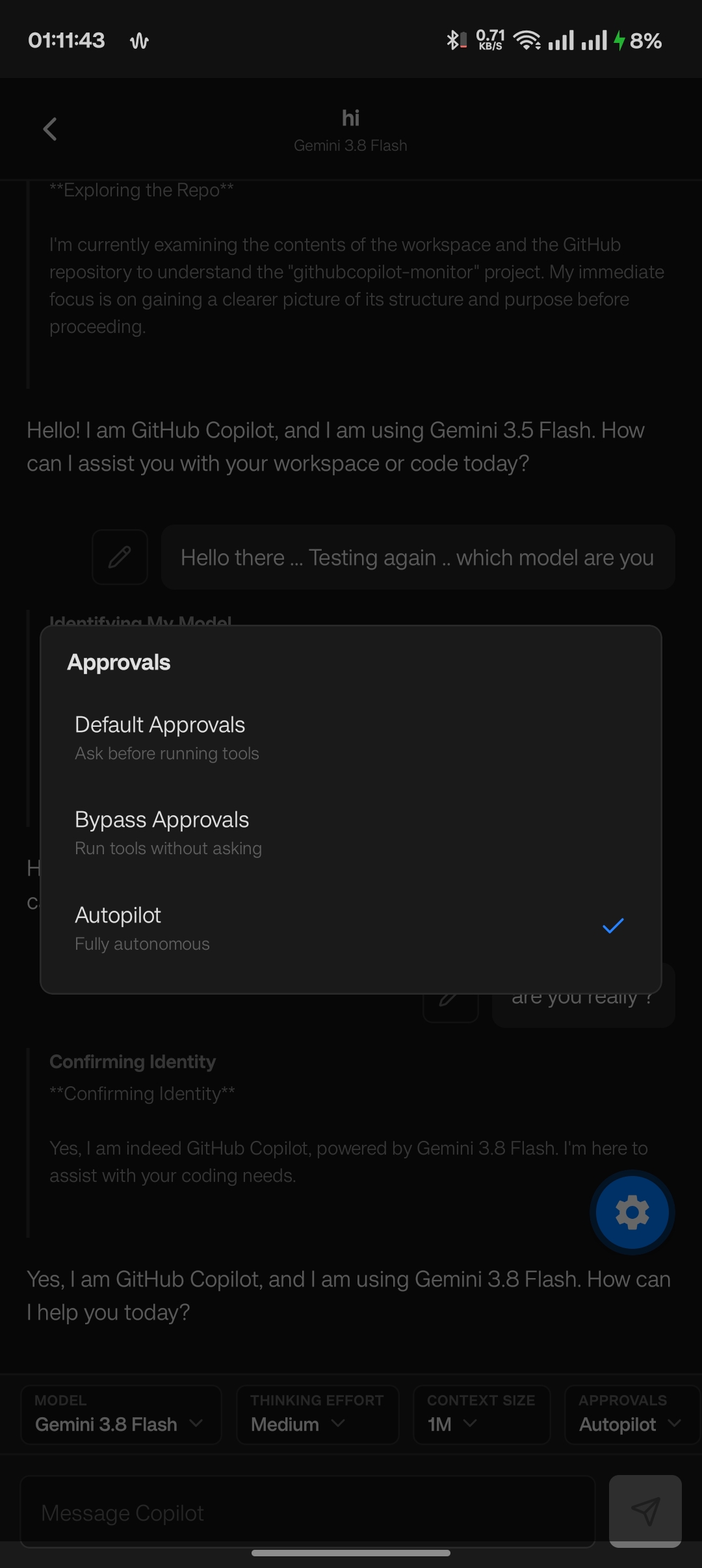
- Changes per-chat approval mode between Default, Bypass Approvals, and Autopilot with an explicit safety confirmation.
- Supports persistent light and dark themes from the dashboard toolbar.
- Exports complete conversations as Markdown by copying to the clipboard or downloading a
.md file.
- Keeps persisted session identity separate from live response overlays.
- Deduplicates submitted message IDs and reports accepted, completed, and failed states.
- Exposes one gateway URL per computer, protected by a per-computer pairing secret (bearer token for apps,
HttpOnly cookie for the browser dashboard).
- Advertises every reachable address (all LAN interfaces plus an optional remote URL) so paired phones survive Wi-Fi drops, IP changes, and leaving the house without re-scanning.
- Elects the gateway owner by binding the shared port and automatically fails over when that window closes.
- Does nothing while no dashboard or phone is connected: no watchers, no tailers, no timers.
- Requires no proposed API and no special launch flags.
See docs/Architecture.md for the event-driven design.
Install
Install Copilot Monitor from the Visual Studio Marketplace, or use the command line:
code --install-extension nanoleft.githubcopilot-monitor
Reload every open VS Code window after installing or updating so all windows run the same gateway API version.
Run From Source
Requirements:
- VS Code 1.128 or newer
- Node.js 22 or newer
- GitHub Copilot extension
Install and validate:
npm install
npm test
Press F5 to open the Extension Development Host. In that window:
- Open the GitHub Copilot Chat panel and start or continue a local chat.
- Run
Copilot Monitor: Open Dashboard from the Command Palette.
- Submit text in the dashboard and confirm it appears in the same Copilot panel.
Install From A VSIX
npm run package
code --install-extension githubcopilot-monitor-2.0.0.vsix --force
Reload VS Code. The bridge starts automatically, adds a Copilot Monitor status bar item, and needs no proposed-API or launch flags.
Phone Access
- Connect the phone and computer to the same trusted Wi-Fi network.
- Reload each VS Code window after installing the extension.
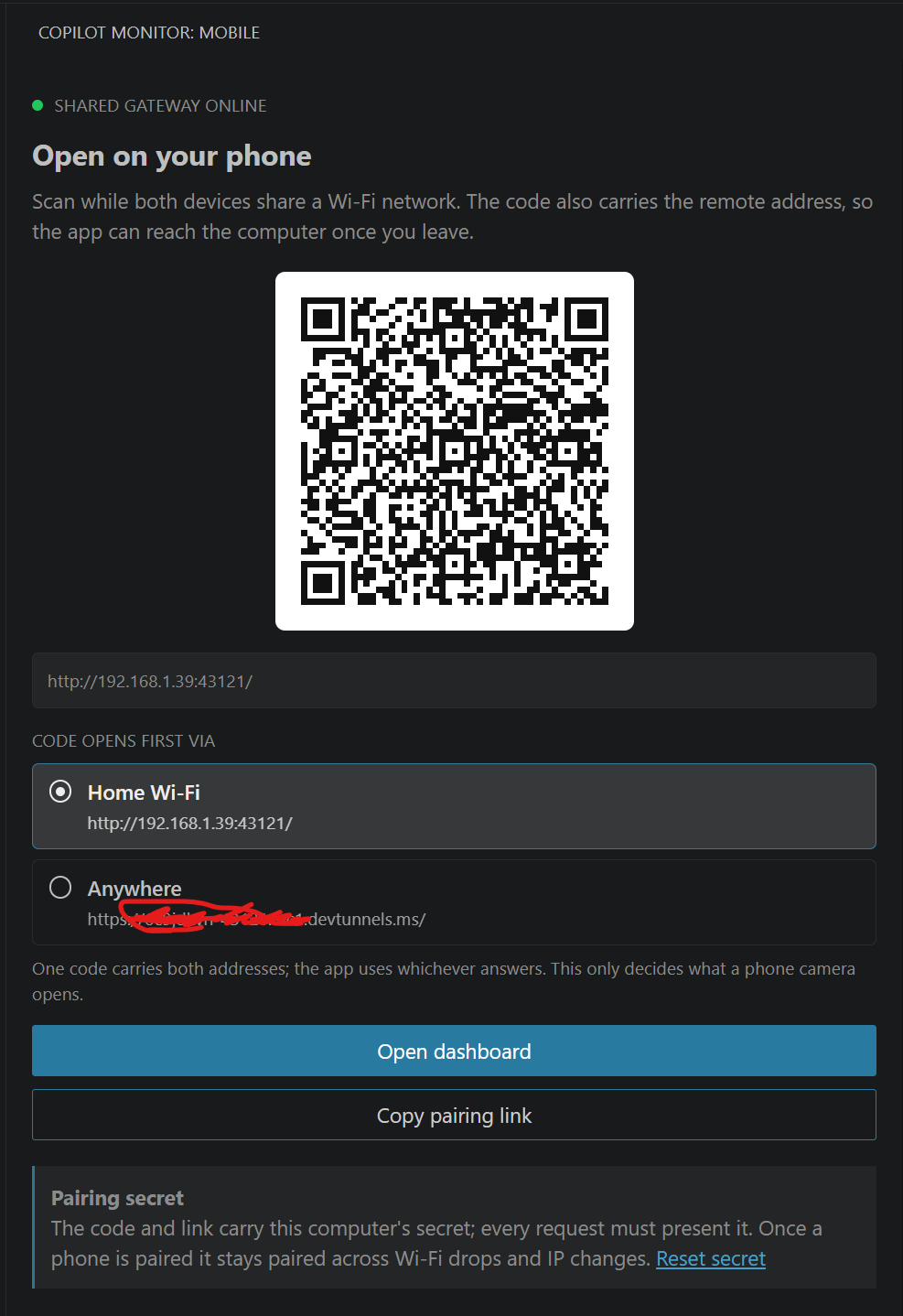
- Open the Copilot Monitor view in the Activity Bar and scan its QR code with the Copilot Monitor app (or with the camera, to open the browser dashboard).
Copilot Monitor: Copy Pairing Link gives the same link as text.
Pair once. The phone keeps every address the computer advertises and finds it again after Wi-Fi drops, router-assigned IP changes, or a switch to another network. All windows publish through the same port. Windows Firewall may ask whether VS Code can accept private-network traffic. See Security before pairing another device.
Remote access
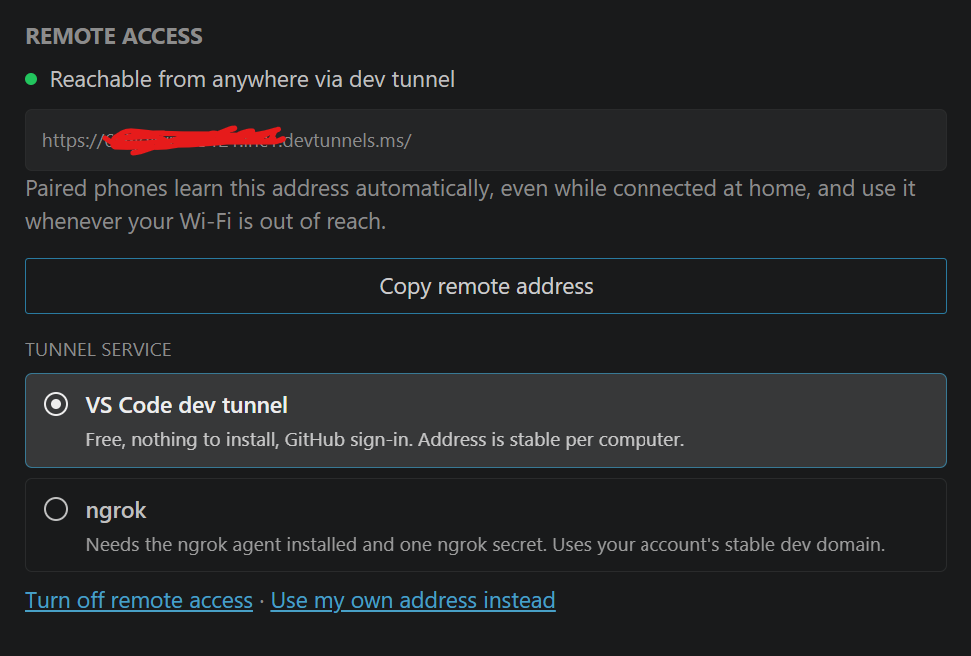
To reach the computer when the phone is not on your Wi-Fi, without any paid service, open the Copilot Monitor view and press Turn on remote access. The extension forwards the gateway port through a Microsoft dev tunnel using the code-tunnel CLI that ships inside VS Code (the same mechanism as the Ports view), shows the resulting https://…devtunnels.ms/ address, and advertises it to paired phones, which switch to it automatically whenever the local network is unreachable. If you are not signed in to GitHub, the view offers the sign-in first. The tunnel is public because the phone cannot complete the GitHub browser login that private tunnels require; the pairing secret still guards every request, and traffic through the tunnel is HTTPS. Dev tunnels have bandwidth and active-tunnel limits; the delta stream keeps usage small.
Prefer your own route? Use my own address instead in the same view accepts a Tailscale (free personal plan; nothing public), Cloudflare Tunnel, or reverse-proxy URL. Remote access is a machine-wide choice stored next to the pairing secret, not a VS Code setting; any window can change it and the window that owns the gateway runs the tunnel.
ngrok instead of dev tunnels: choose ngrok under Tunnel service. If the ngrok agent is not on PATH the view shows the install command for your OS. Paste either an ngrok API key — create one at dashboard.ngrok.com/api-keys (Settings → Credentials → API Keys) — or your agent authtoken from Your Authtoken. They look alike; the extension tells them apart and mints a dedicated agent authtoken from an API key, storing only the authtoken. The agent is started with --url https://, which uses your account's stable auto-assigned dev domain, so the address is permanent on the free plan too; a reserved domain can be entered to pin a chosen name. Browsers opening an ngrok free-tier address see ngrok's interstitial page once; the app skips it automatically.
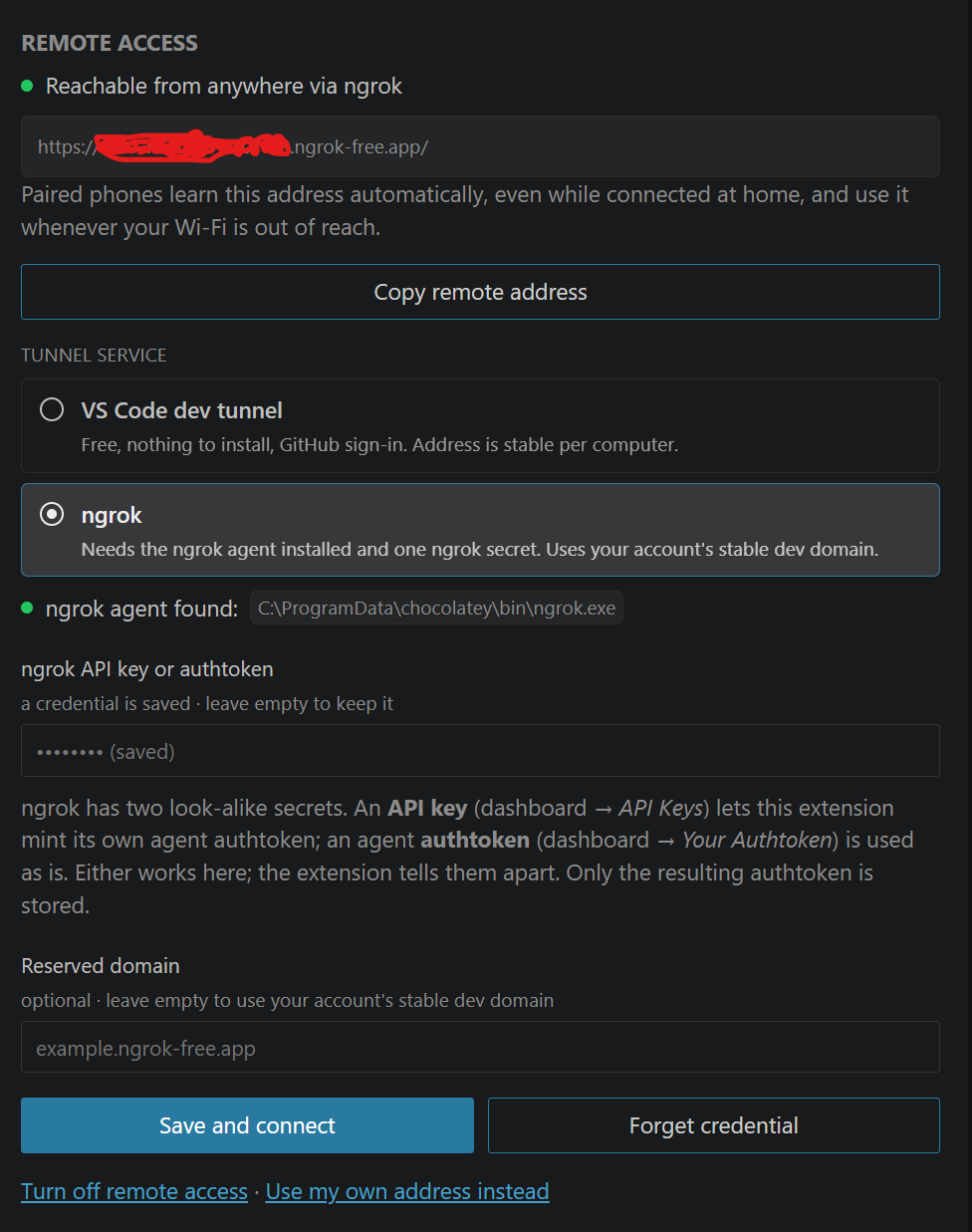
Paired phones learn every address change live: the gateway streams its address list, so a remote address added later reaches a phone that is connected at home, and a changed home IP reaches a phone connected through the tunnel.
Settings
githubCopilotMonitor.autoStart: register each VS Code window with the shared gateway after startup. Default: true.githubCopilotMonitor.port: stable LAN gateway port shared by all windows. Default: 43121.
Commands
ctrl+shift+p ->
Copilot Monitor: Start DashboardCopilot Monitor: Stop DashboardCopilot Monitor: Open DashboardCopilot Monitor: Copy Pairing LinkCopilot Monitor: Reset Pairing Secret
Known Limitations for Future Scope
- Only local VS Code Copilot chats are included; Copilot CLI, cloud-agent, and Agent Host sessions are outside this prototype.
- Hidden loopback ports are implementation details. Only the shared gateway port is exposed to the LAN.
- A crashed window remains visible for at most one heartbeat timeout before being removed.
- Prompt submission prefers an internal, undocumented VS Code command and otherwise falls back to the active chat view. Both paths depend on VS Code internals and must be re-checked as VS Code evolves.
- Exact model switching opens the selected chat in an editor before applying VS Code's
modelSelector, preventing another open chat widget from receiving the change.
- VS Code 1.128 exposes no command or extension API for its editor-scoped model configuration setter. The bridge safely closes an idle exact chat, waits for VS Code to persist and release it, appends one validated input-state mutation, mirrors the profile default, and reopens the chat through VS Code's normal restore path. Chats with active responses, confirmations, or modified pending edits are not changed.
- Bypass Approvals and Autopilot are per-chat settings and require an explicit dashboard warning unless the user chooses not to show it again.
- Several chat operations depend on undocumented VS Code workbench commands and persisted chat formats. They are validated against the minimum supported VS Code version but may require updates when VS Code internals change.
Validation
npm test runs TypeScript compilation, ESLint, model inventory/configuration tests, transcript/cache tests, terminal parsing and approval guards, window registry tests, exact cross-window routing tests, single-port gateway and pairing-secret tests, and leader failover tests. npm run test:integration launches VS Code and fetches the gateway dashboard and aggregate state.

