中文 | English | Français | 日本語 | 한국어
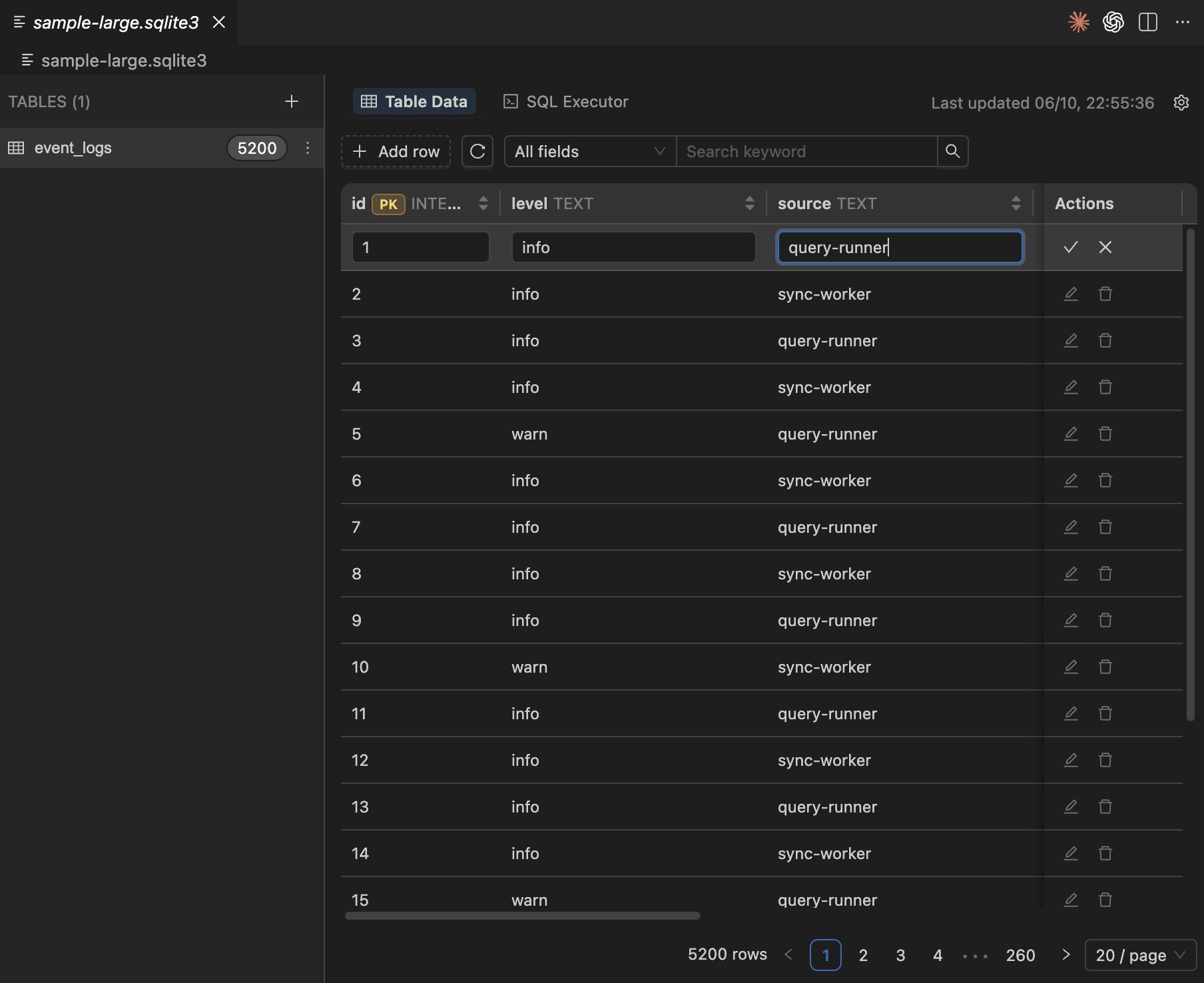
sqlite-tool is a visual SQLite database tool for VS Code. Open a .db, .sqlite, or .sqlite3 file to browse tables, inspect and edit data, create tables, and run SQL directly inside the editor.
Features
- Open SQLite database files with a custom editor, with no extra setup.
- Browse tables, row counts, paginated data, and sorted results.
- Search across all fields or within a selected field.
- Add, edit, and delete rows with NULL handling, primary-key protection, and delete confirmation.
- View CREATE SQL, rename tables, and create tables from a guided form.
- Run queries and write statements in a Monaco SQL editor with result tables and execution history.
- Follow the VS Code light/dark theme or switch theme manually inside the tool.
- Use VS Code's native dirty-state and
Ctrl/Cmd+S save flow to write changes back to disk.
Installation
If you have a .vsix package, install it with:
code --install-extension sqlite-tool-2.0.0.vsix
You can also install it from VS Code by choosing "Install from VSIX..." in the Extensions view.
Usage
- Open any
.db, .sqlite, or .sqlite3 file in the VS Code Explorer.
- The file opens automatically with the
sqlite-tool editor.
- Select a table on the left to browse, search, or edit data.
- Switch to the SQL executor when you need to run SQL.
- After changes, the editor tab shows an unsaved state. Press
Ctrl/Cmd+S to write the database file.
Settings
sqlite-tool supports interface language settings:
Auto: follow the VS Code display language.Chinese / English / French / Japanese / Korean: choose a language manually.
Search for sqlite-tool in VS Code Settings, or open the in-tool settings panel to adjust language, theme, default page size, and SQL editor font size.
Notes
- Keep a backup before editing important databases.
- Tables without a primary key and without
rowid support are browse-only and cannot be edited or deleted row by row.
- If the file is modified externally, sqlite-tool warns you before saving so you can avoid overwriting external changes.
Developer Docs
Development, architecture, self-check, and packaging notes are in docs/开发者指南.md.
License
MIT

