MyMarkdown for VS Code
Make Markdown easier to scan without leaving the editor. MyMarkdown adds colourful
headings, readable JSON, Mermaid diagrams, callouts, highlights, footnotes, linting, and
a clickable Contents view to VS Code's own Markdown preview.
Private by design: no account, no network requests, and nothing leaves your computer.
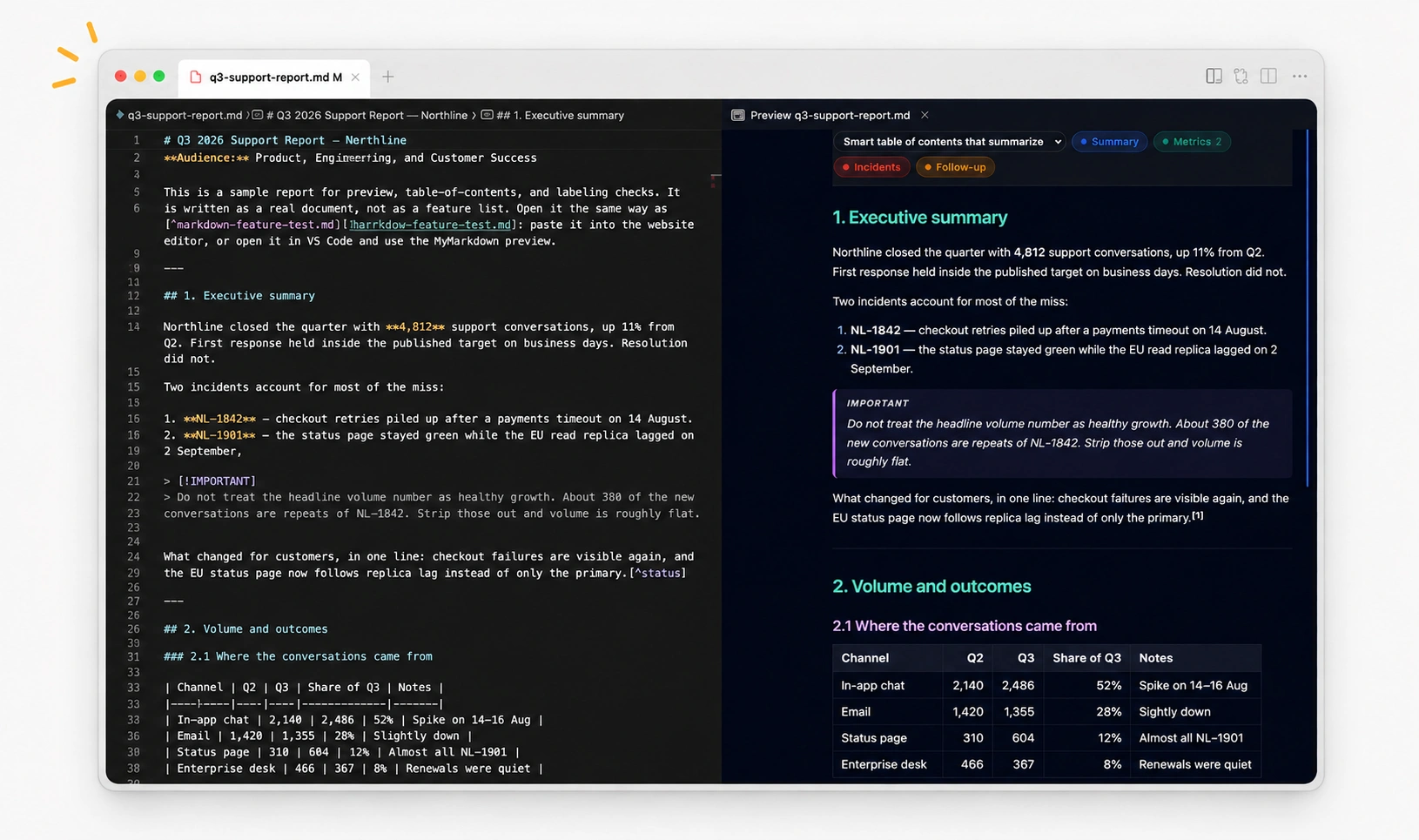
What you get
A clearer preview
Open any .md file and press Ctrl+Shift+V or Cmd+Shift+V. MyMarkdown styles the
preview you already know, so scroll sync, links, images, search, and click-to-source keep
working.
- Distinct colours for H1, H2, and H3
- Responsive tables and code blocks
- Mermaid diagrams that follow your light or dark theme
- Task lists with clear checked and unchecked states
- GitHub callouts, highlights, strikethrough, math, and footnotes
JSON that is easy to read
JSON is formatted one field per line and coloured by type. Long values wrap inside the
preview, and \n inside strings becomes a visible line break. Bare and inline JSON are
recognized too.
Beautify with one command
Run MyMarkdown: Beautify Markdown, click the sparkle button, or press
Ctrl+Alt+B / Cmd+Alt+B.
Beautify tidies spacing, normalizes bullets, and formats JSON as one undoable edit. It
preserves your cursor and scroll position, and leaves YAML front matter, HTML, indented
code, and precision-sensitive numbers untouched.
Contents and linting
The MyMarkdown activity-bar view lists H1, H2, and H3 headings. Select one to jump to it.
Heading jumps, unclosed fences, invalid JSON, and mixed bullet styles appear in the
Problems panel as you type.
Labels
Long documents hide their own shape. Ask MyMarkdown to label one and it draws coloured
bars down the edge of the preview, each marking a stretch of the document and naming what
it is about. A chip row above the preview lists the labels in the active lens; click a
chip, or the matching bar, to jump to the next place that label appears. When a document
has several lenses, use the dropdown chip at the start of the row to switch between them.
Run MyMarkdown: Suggest Label Lenses for three questions worth asking about the open
document, or MyMarkdown: Label Document… to ask your own. Each answer is a lens, and
a document can keep several — one showing how the content breaks down, another showing
which parts still need work. Click the MyMarkdown item in the status bar (or run
MyMarkdown: Switch Label Lens) to switch between lenses, hide labels for the open
document, delete a lens you no longer want, or turn labels off everywhere with one click.
MyMarkdown: Remove Label Lens and MyMarkdown: Toggle Labels do the same two things
directly, for a keybinding or the Command Palette.
The chip row inside the preview is read-only: VS Code's built-in preview gives a
contributed script no way to write back to the editor, so deleting a lens or disabling the
feature always goes through one of the commands above, never a click inside the preview
itself. The dropdown lists "Delete a lens…" and "Disable labels completely" alongside the
real lenses so both options are visible from there too, but picking either just shows a
one-line reminder of the command to run and puts the dropdown back on the lens you were
already viewing — the preview only ever displays, never acts.
Existing Markdown files are not labelled retroactively. Open any old .md file and run
MyMarkdown: Suggest Label Lenses or MyMarkdown: Label Document… once; after that,
its labels are saved and reopen with the document. New Markdown files work the same way:
write the document, run one of the label commands when it is ready, then use the chip row
in the preview. If labels do not generate, install a language model provider such as
GitHub Copilot or set mymarkdown.labels.cliCommand to a local command that returns the
expected JSON.
Labels use the AI you already have: a language model provider such as GitHub Copilot, or a
command you point the extension at. No API key is stored or sent by this extension.
Your Markdown stays local unless you explicitly generate AI labels, in which case the
document is sent to your selected AI provider.
Labels are saved beside your workspace, so they are still there tomorrow. Each one
remembers the text it covers, so editing elsewhere in the document leaves it on the right
section, and a label whose text you delete quietly disappears.
Labels from your coding agent
Coding agents can label the Markdown they write, so the labels are there the first time
you open a document. MyMarkdown ships a markdown-labels skill and a small hook for Claude
Code, GitHub Copilot (CLI and VS Code agent mode), Cursor and Codex. When an agent saves a
document of 400 or more words with at least two headings and no labels yet, the hook tells
it to run the skill. The skill writes three lenses to .mymd/, the hook ties each label to
its text so it survives later edits, and the open preview picks them up as soon as they are
saved.
The hook and skill live in each project, so set them up once per project, either way:
- In VS Code, open the project and run MyMarkdown: Install Label Hooks for Coding
Agents.
- From a terminal at the project root (or anywhere inside it, if it is a git repository),
with no editor needed, run
npx mymarkdown-hooks init.
Both add the same six files: the hook (.agents/hooks/markdown-labels.cjs), the skill
(in .agents/skills/ and .claude/skills/), and one small config entry each for Claude
Code and Cursor (.claude/settings.json), Copilot (.github/hooks/markdown-labels.json)
and Codex (.codex/hooks.json). The command installs into the folder open in VS Code;
npx installs at the top of the git repository you run it in. Labels show up when that
folder is also the one you open in VS Code and start your agents from (Copilot CLI always
reads the top of the git repository).
Nothing you already have is overwritten. The hook entry is merged into an existing
.claude/settings.json or .codex/hooks.json, and a file that differs is only replaced
if you confirm. After an update, run the command again and choose Replace, or run
npx mymarkdown-hooks init --force; either replaces any edits you made to these files.
You need Node.js on your PATH.
Then each agent may need one step of its own:
| Agent |
Turning it on |
| Claude Code |
Trust the folder when Claude Code asks. |
| Cursor's agent |
Nothing more: Cursor reads Claude Code's hooks unless an admin has turned that off. |
| Copilot CLI |
Trust the folder when Copilot asks. |
| VS Code agent mode |
Nothing more: agent mode reads .github/hooks. |
| Codex |
Trust the project, then approve the hook in /hooks. Start Codex from the project root. |
The hook and skill always use .mymd, whatever mymarkdown.labels.storagePath is set to.
Settings
mymarkdown.lint
Default: true
Reports Markdown structure problems in the Problems panel.
Default: false
Lets Format Document and editor.formatOnSave run Beautify. It stays off by default
to avoid conflicting with Prettier or markdownlint. If you enable it, choose MyMarkdown
for Markdown files:
"[markdown]": {
  "editor.defaultFormatter": "mymarkdown.mymarkdown",
  "editor.formatOnSave": true
}
mymarkdown.labels.enabled
Default: true
Draws label bars in the preview for documents that have them. Run
MyMarkdown: Toggle Labels to flip it without opening Settings.
mymarkdown.labels.provider
Default: auto
Which AI to ask for labels: languageModel for a provider such as Copilot, cli for a
command of your own, or auto for whichever is available.
mymarkdown.labels.cliCommand
Default: empty
The command to run when no language model provider is used. The request goes to its
standard input and JSON is read back from its standard output:
"mymarkdown.labels.cliCommand": "claude -p"
mymarkdown.labels.storagePath
Default: .mymd
The folder holding label files, mirroring each document's path. Add it to .gitignore to
keep labels to yourself, or commit it to share them with everyone on the project.
Settings apply immediately; no reload is needed.
Install and use
Install from the VS Code Marketplace, reload the window, open a Markdown file, and press
Ctrl+Shift+V / Cmd+Shift+V.
For a local package:
code --install-extension vscode-extension/mymarkdown-0.1.22.vsix
Open source
Source, release notes, and contribution instructions are on
GitHub. Ideas and bug reports are welcome in
Issues.
License
MIT

