My Last Chat
English | 简体中文
My Last Chat is a VS Code extension for managing and searching your AI chat history summaries. It integrates deeply with GitHub Copilot, making it easy to save, search, and reuse your AI conversation records.
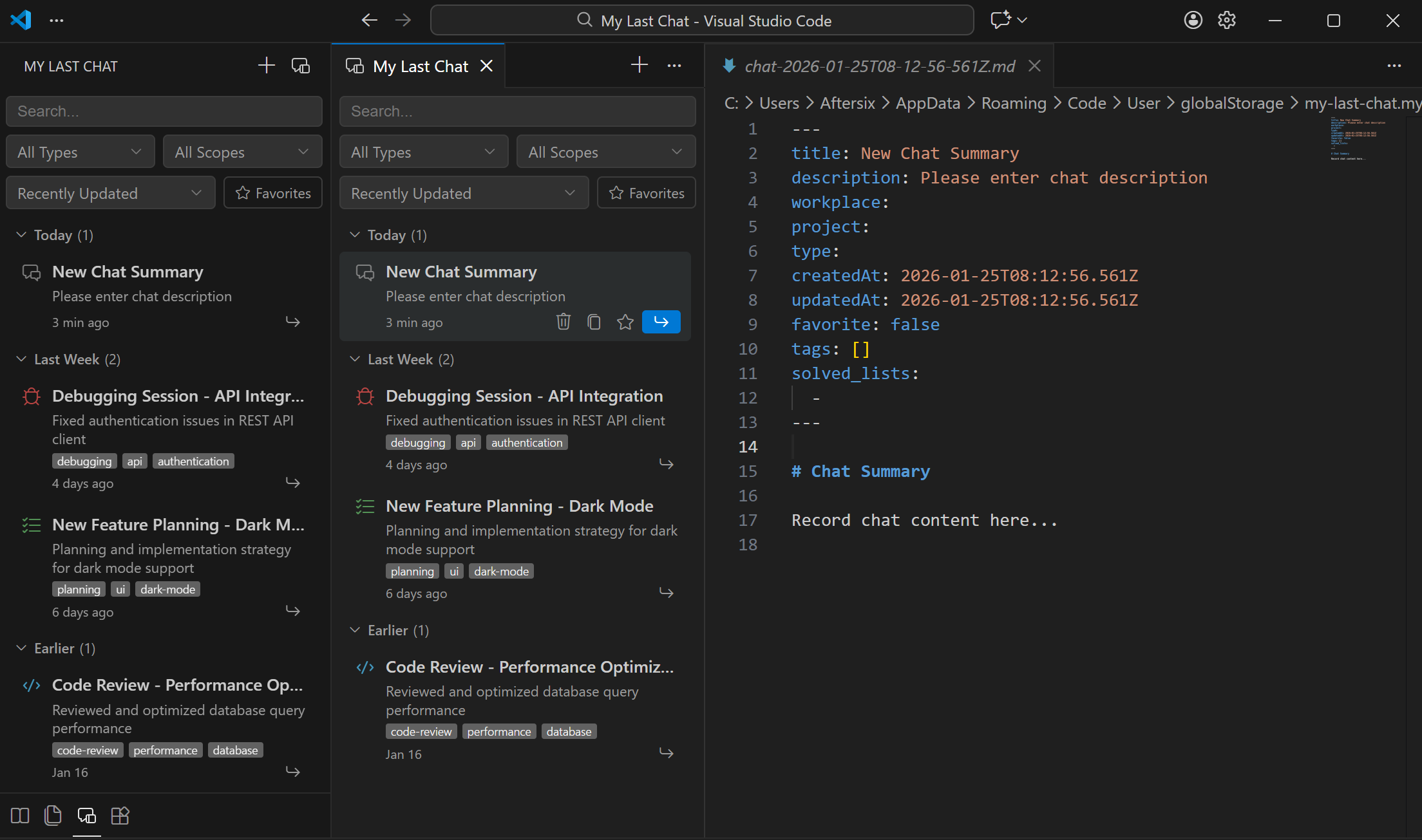
When you install the My Last Chat extension, you get:
- My Last Chat View - View and manage all chat summaries in the sidebar
- Copilot Tool Integration - Three native LM tools for GitHub Copilot
- Auto Summary Generation - Use
/compact command to automatically summarize conversations
Getting Started
Create Your First Summary
- Click the My Last Chat icon in the Activity Bar
- Click the
+ button to create a new summary
- Fill in the summary information and save
Auto-Generate Summaries with Copilot
This extension provides a compact.prompt.md file, which is a reusable prompt file. Add it to Copilot Chat's Prompt configuration, and you can use the /compact command in Copilot Chat:
@workspace /compact
This command will automatically:
- Extract technical details and code patterns from the current conversation
- Generate YAML frontmatter with proper metadata format
- Smart deduplication: update existing summaries or create new files
- Auto-save to
.myLastChat/ directory
Key Features
📝 Summary Management
All chat summaries are stored as Markdown files in the .myLastChat folder, each containing:
- YAML frontmatter metadata (title, description, project info, etc.)
- Markdown-formatted chat content
- Tags and completed task lists
💡 Flexible Knowledge Management
/compact is not just for summarizing conversations, but also for flexible project knowledge management. You can:
- Use
/compact after conversations to update existing knowledge or create new knowledge
- Insert relevant summaries into current conversations anytime to provide project knowledge or progress
- Build a searchable, reusable project knowledge base
🔍 Search and Filtering
- Search by title - Quickly find relevant summaries
- Metadata filtering - Filter by project, type, scope
- Favorites - Mark important summaries
- Time grouping - Group by Today, Yesterday, Last Week, Earlier
🎨 Flexible View Options
- Sidebar View - Quick browse summaries in the sidebar
- Editor Panel - Open the full summary list in the editor
Provides three extension tools for GitHub Copilot:
| Tool |
Function |
myLastChat_getLastChatsList |
Get all chat summary lists |
myLastChat_searchByTitle |
Search summaries by title keywords |
myLastChat_searchByMeta |
Search summaries by metadata fields |
Feedback Levels:
TITLE_ONLY - Returns title onlyDESCRIPTION - Returns title and descriptionMETA - Returns all metadataALL - Returns full content
Example:
Find all debugging summaries using MyLastChats tools
🚀 Quick Insert to Chat
One-click to add summary files to Copilot conversations, helping the AI assistant understand previous conversation context.
---
title: Chat title (required)
description: Chat description (required)
workplace: /path/to/workspace (required)
project: Project name
type: coding | debug | planning | spec
createdAt: 2026-01-25T10:00:00.000Z
updatedAt: 2026-01-25T10:00:00.000Z
favorite: false
tags: [tag1, tag2]
solved_lists:
  - Completed task 1
  - Completed task 2
---

# Chat Summary Title

Record chat content here...
Companion Prompt File
📄 compact.prompt.md - Conversation Summary Generator
This is a companion prompt file that can be used in Copilot Chat:
/compact
Features:
- ✅ Auto-extract technical details and code patterns
- ✅ Generate YAML frontmatter with proper metadata format
- ✅ Smart deduplication: update existing summaries or create new files
- ✅ Auto-save to
.myLastChat/ directory
Configuration Options
Open VS Code Settings (Ctrl+,) and search for "My Last Chat":
- Storage Location - Choose workspace or global storage
- Global Storage Path - Customize global storage directory
- Auto Hide Controls - Automatically hide search bar when scrolling
Privacy and Data
All chat summaries are stored in the local file system. The extension does not send your summary content to any remote servers.
Feedback and Issues
If you encounter any problems or have feature suggestions, please submit them in GitHub Issues.
License
MIT License - See LICENSE file for details

