Xpositor
Review your code changes from your phone, with an AI guide that walks you through them.
Xpositor puts the uncommitted changes in your repository on your phone. Scan a QR code in VS Code, then read the diffs, note questions and mark files reviewed wherever you are. When you want help, a guided walkthrough explains the changes step by step. It runs on the Codex or Claude Code login you already have on your laptop, so there's no extra account or API bill.
Xpositor is a preview. It is free and open source under the Apache 2.0 license.
What you can do
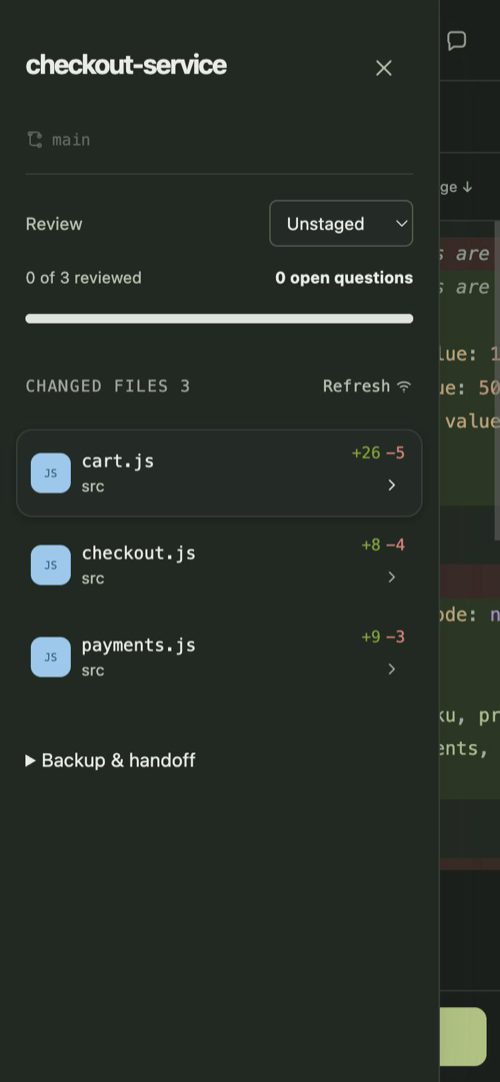
- Read every changed file on your phone. Syntax highlighting, adjustable text size, line wrapping, folded unchanged lines and jumps between changes.
- Choose what to review: unstaged, staged or all changes.
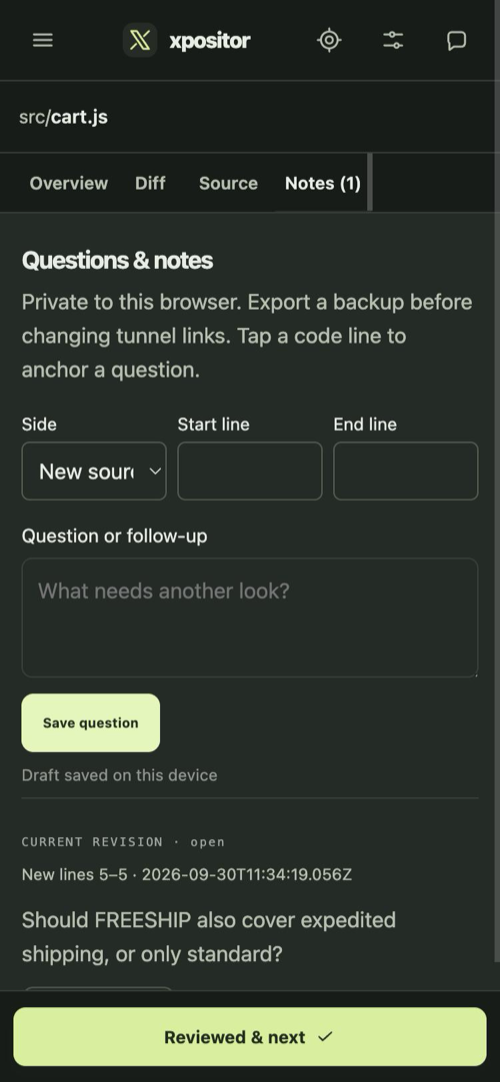
- Keep private notes. Tap a line to write a question. Notes stay on your phone.
- Mark files reviewed one by one, then export a Markdown summary to follow up at your desk.
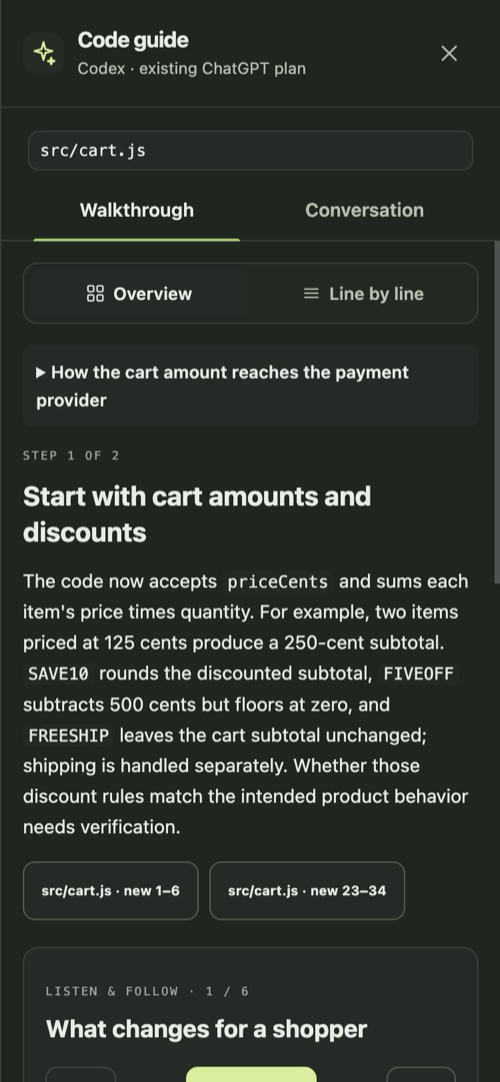
- Start a guided walkthrough. The AI reads the changed files and the code around them, plans an order, and explains each step with links into the code.
- Ask follow-up questions, or tap Explain more simply or Another example.
- Listen instead of read. An optional voice, running on your laptop, reads the walkthrough aloud.
- Keep reading offline. Once a snapshot is loaded, it stays readable when the connection drops.
Xpositor is read-only. It never stages, edits, commits or pushes anything. "Reviewed" is a personal marker, not a pull request approval.
Requirements
- VS Code 1.85 or later, with a Git repository open from local disk in a trusted workspace.
- Git on your laptop.
- A phone with a modern browser. Nothing to install from an app store.
- For the AI guide (optional): the Codex CLI signed in with ChatGPT, or Claude Code signed in. Without either, everything except the guide still works.
- To connect from another network (optional): Cloudflare's free
cloudflared tool.
- For the voice (optional): Node.js 20 or later and npm.
Pair your phone
- Open a Git repository in VS Code.
- Click the Xpositor icon in the Activity Bar. The Pair phone view starts Xpositor and shows a QR code.
- Put your phone on the same Wi-Fi as your laptop and scan the code with its camera.
That's it. You can also start from the Command Palette with Xpositor: Start Phone Review.
To connect from a different network, such as mobile data, choose HTTPS tunnel in the Pair phone view and scan the new code. This needs cloudflared:
brew install cloudflared                  # macOS
winget install --id Cloudflare.cloudflared  # Windows
Keep the pairing link private. It contains the access key to your session.
|
Local Wi-Fi (default) |
HTTPS tunnel |
| Where your phone can be |
On the same trusted Wi-Fi |
Anywhere with internet |
| Connection |
Plain HTTP on your local network |
HTTPS, relayed through Cloudflare |
| Install as an app, reopen offline |
No |
Yes |
| Extra software |
None |
cloudflared |
| Cost or account |
None |
None |
Your phone keeps notes and review marks per address. A new Quick Tunnel gets a new address, and a Wi-Fi address can change too. Export a backup before switching, then import it at the new address. If you already run a Cloudflare named tunnel, you can give Xpositor a permanent address instead (see Settings).
The AI guide
Xpositor uses the Codex or Claude Code login already on your laptop. By default it tries a signed-in Codex (ChatGPT) account first, then Claude Code. Use the xpositor.aiProvider setting to pick one. The Pair phone view shows which provider is connected. Use Recheck connection after you install or sign in.
- Requests count toward your plan's usage and limits.
- Xpositor never switches to a paid API key by itself. API billing only happens if you set
xpositor.aiProvider to api and provide OPENAI_API_KEY and OPENAI_MODEL in VS Code's environment.
- Choose the model and reasoning effort in the phone app. For Codex, the list comes from your installed CLI. For Claude Code, you can pick Opus, Sonnet or Haiku.
Windows and Codex: the Codex VS Code extension alone may not add a codex command. Install the CLI in PowerShell, sign in with ChatGPT, then reload VS Code:
npm install -g @openai/codex
codex
Privacy: what leaves your laptop
Xpositor has no server, no account and no telemetry. There's nothing of ours in between your laptop and your phone. Your code goes to at most three places, and you choose each one.
1. Your phone. Xpositor sends the diffs and the full text of changed files to the phone you paired. On Wi-Fi this travels as plain HTTP across your local network. Anyone who can watch that network could read it, so only use Wi-Fi you trust. The phone page loads its code only from your laptop and talks to nothing else.
2. Cloudflare, only in tunnel mode. Traffic travels over HTTPS through Cloudflare's network. Cloudflare decrypts and re-encrypts it at its edge, so it acts as a trusted intermediary. Xpositor doesn't add its own end-to-end encryption on top. If that's not acceptable for a codebase, stay on Wi-Fi.
3. Your AI provider, only when you use the guide. Starting a walkthrough or asking a question sends the code the AI reads, plus your question, to OpenAI (through Codex) or Anthropic (through Claude Code). Your account's terms apply. The AI only gets read-only tools over a frozen snapshot of your changes and the files around them. It can't run commands, edit files, use the network or see your notes, unless you paste a note into a question. Set xpositor.aiProvider to none and nothing goes to an AI provider.
What stays put
- Notes, drafts and review marks live in your phone's browser storage. Clearing the site's data deletes them.
- Your Codex and Claude Code logins stay on the laptop. The phone never sees them.
- Walkthrough conversations are saved on the laptop in
~/.xpositor/reviews/, readable only by your user. Delete that folder to clear them. Codex also keeps its own conversation history.
- The voice runs entirely on your laptop, and no text goes to a cloud speech service. The one-time setup downloads the speech runtime from npm and the voice model from Hugging Face into
~/.xpositor/voice.
- Pairing uses a random access key. With a named tunnel, the key is kept in VS Code's Secret Storage so your phone stays paired.
- Debug logs of AI requests are off by default (
xpositor.devAiLog). If you turn them on, they contain your code and questions.
The code is open, so you can check every claim above: github.com/MubashirullahD/xpositor.
Listen to a walkthrough
Click Install local voice in the Pair phone view once. It downloads the free Kokoro voice to your laptop and reports when it's ready. Refresh the phone page afterwards. Starting a walkthrough then prepares the first chapter's audio automatically. Choose from three voices and adjust the speed. Playback pauses after each section and when you ask a question. The words highlight as they're spoken. Narration is English only for now.
Settings
| Setting |
Default |
What it does |
xpositor.transport |
lan |
Start on local Wi-Fi (lan) or the HTTPS tunnel (tunnel). You can switch in the Pair phone view. |
xpositor.aiProvider |
auto |
auto, codex, claude, none, or api (billed separately). |
xpositor.autoStart |
false |
Start Xpositor when VS Code opens a workspace. |
xpositor.port |
0 |
Fixed port for the phone connection. 0 picks a free one. |
xpositor.cloudflaredPath |
cloudflared |
Where to find cloudflared if it isn't on your PATH. |
xpositor.tunnelName |
|
An existing Cloudflare named tunnel to run. |
xpositor.publicUrl |
|
The HTTPS address routed by that tunnel. |
xpositor.startupTimeoutSeconds |
30 |
How long to wait for startup before showing diagnostics (5–300). |
xpositor.devAiLog |
false |
Record AI requests to ~/.xpositor/ai-logs for debugging. |
Permanent address with a named tunnel. If you already operate a Cloudflare named tunnel and hostname, route the hostname to http://127.0.0.1:4311, then set:
{
  "xpositor.transport": "tunnel",
  "xpositor.port": 4311,
  "xpositor.tunnelName": "my-existing-tunnel",
  "xpositor.publicUrl": "https://xpositor.example.com"
}
Xpositor only runs cloudflared tunnel run for that tunnel. It never creates tunnels, DNS records or Cloudflare accounts.
Good to know
- Your laptop must stay on and connected while you fetch new changes or ask the AI. Already loaded code stays readable offline.
- Xpositor shows a snapshot. Refresh on the phone to see new changes.
- Very large change sets are refused rather than shown incomplete. The limits are 2,000 changed files, 2 MiB per file and 16 MiB per snapshot.
- If your operating system asks whether VS Code may accept incoming connections, allow it so your phone can connect over Wi-Fi.
Feedback and source
Licensed under the Apache License 2.0.

