Git File History View
One action → clear file history.
A fast, focused view of a single file's Git history, built to feel like part of VS Code rather than a Git client bolted onto it.
Why
VS Code's built-in Git support is excellent for changing your code, and weaker at answering the question you actually ask most often: what happened to this file, and why? Timeline entries are terse, most history extensions turn into full graph clients, and the file you are reading is rarely one click away from its own past.
This extension does one thing well. Open a file, press one button, read its story.
Features
- Reachable from anywhere - editor title bar, editor context menu, Explorer, open editors, the SCM view, the Command Palette, or Ctrl+Alt+H (Cmd+Alt+H on macOS).
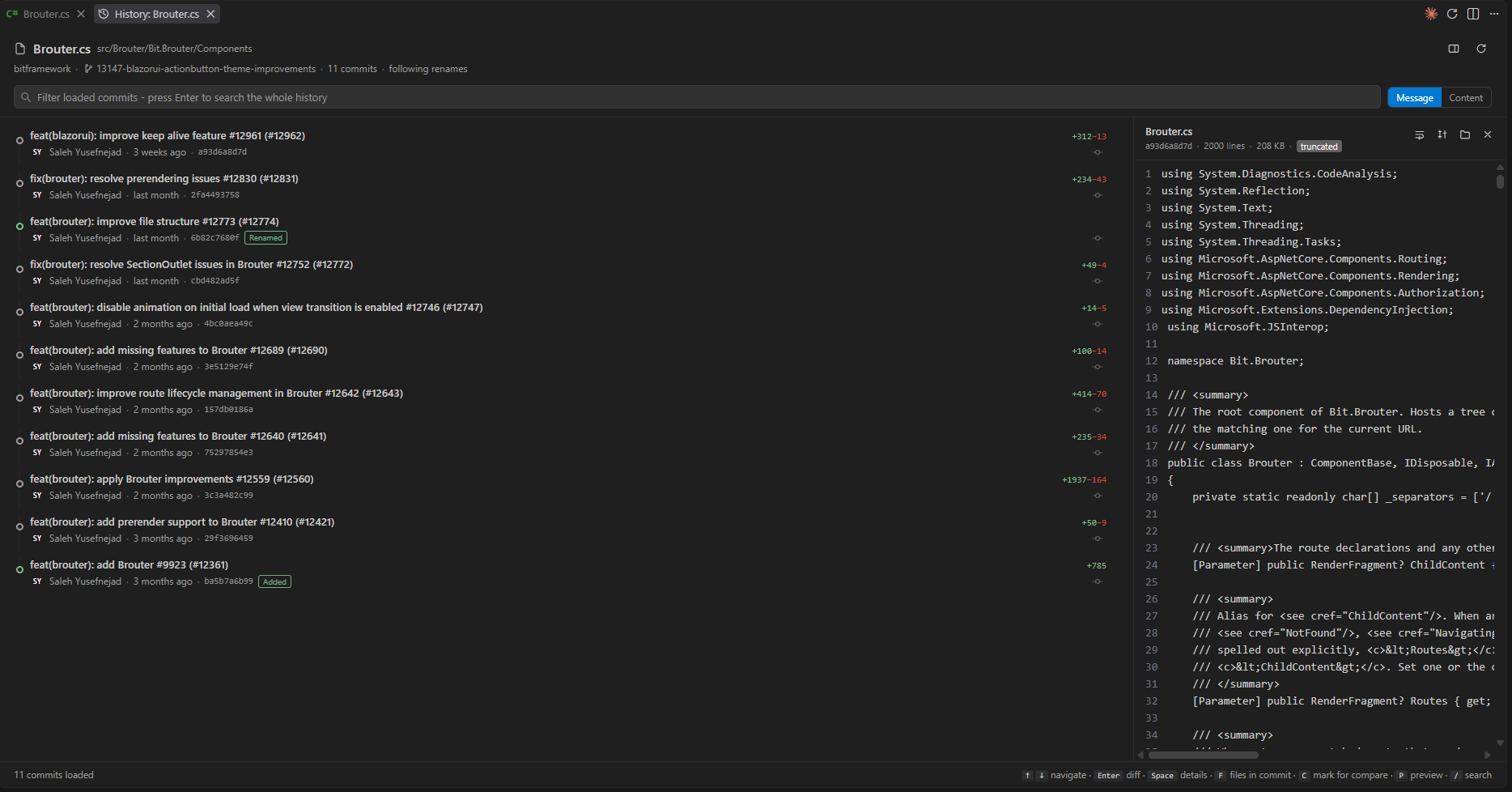
- A readable timeline - commit message, author avatar, relative time (exact date on hover), short SHA, branch and tag badges, change type, and lines added/removed.
- Follows renames - history does not stop at the commit that moved the file, and the rename itself is called out.
- Preview beside the timeline - selecting a commit shows the whole file as it was at that point, with line numbers, in a resizable pane. Toggle it with P.
- The rest of the commit - a button on every row lists every file that commit touched, so a change is never read out of context. Pick any of them to open its diff.
- Diff in one keystroke - Enter opens the file's diff for the selected commit in VS Code's own diff editor.
- Search two ways - filter the loaded commits as you type, or press Enter to search the whole history by commit message (
--grep) or by changed content (-S, the pickaxe) to find when a line was introduced.
- Incremental loading - history arrives one page at a time and older commits are fetched as you scroll or arrow down.
- Keyboard-first - arrow keys navigate, Space expands details, / focuses search, F5 refreshes.
- Native look - themed entirely from VS Code colour variables, so light, dark and high-contrast themes all work without configuration.
Usage
- Open any file that lives in a Git repository.
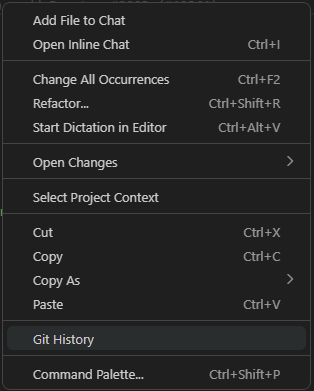
- Click the history icon in the editor title bar - or right-click the file in the Explorer and choose Git History - or run Git History: Show File History from the Command Palette.
- The view opens with the newest commits first.
In the view
| Action |
How |
| Move between commits |
↑ ↓, PageUp PageDown, Home End |
| Open the diff for a commit |
Enter, or double-click |
| Show commit details and actions |
Space, or click |
| List every file the commit changed |
F, or the button at the end of the row |
| Mark a commit for comparison |
C, Alt+click, or Select for compare |
| Compare the marked commit with another |
Ctrl+Enter, or Compare with <sha> |
| Filter loaded commits |
Type in the search box |
| Search the whole history |
Type, then Enter |
| Search by changed content |
Switch the mode to Content, type, then Enter |
| Show or hide the file preview |
P, or the preview button |
| Resize the preview |
Drag the divider, or focus it and use the arrow keys |
| Refresh |
F5, or the refresh button |
| Focus the search box |
/ or Ctrl+F |
Selecting a commit shows the file as it stood at that commit in the preview pane
beside the list - line numbers, optional soft wrapping, and buttons to open the
diff or the full version in an editor. Long files are truncated to keep the view
responsive, and the pane says so. A commit that deleted the file shows the last
version before the deletion.
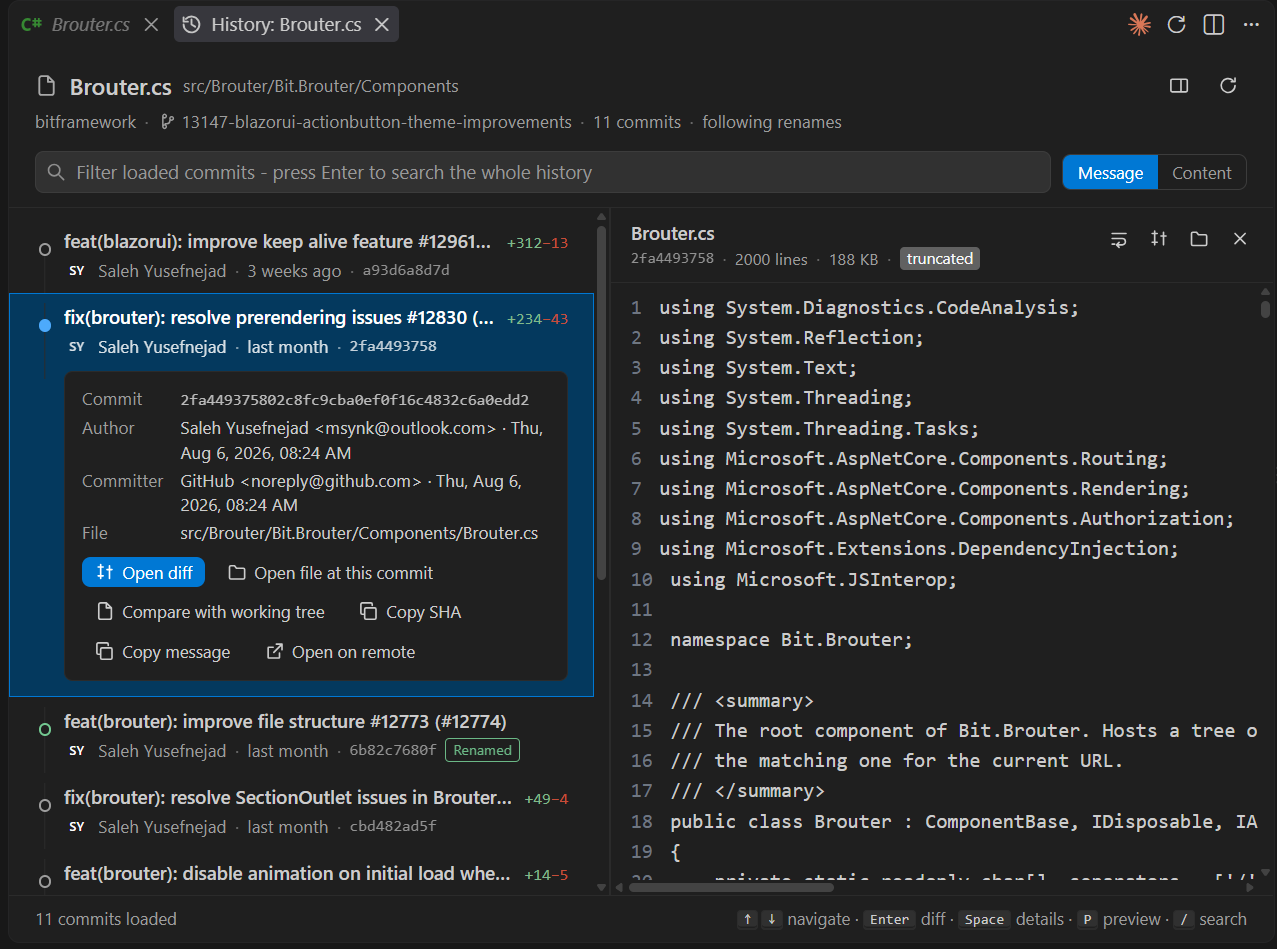
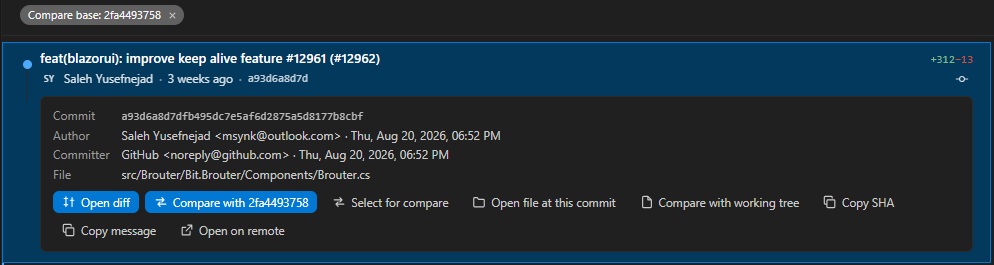
Selecting a commit also reveals its full message and these actions:
- Open diff - the file's change in that commit, against its parent.
- Select for compare - marks the commit as one side of a comparison. Any
other commit then offers Compare with
<sha>, which diffs the file
between the two - however far apart they are, and across renames. The marked
row keeps a compare base badge until it is cleared from the chip above the
list. The diff always reads older on the left, whichever side was marked first.
- Open file at this commit - the whole file as it was, read-only.
- Compare with working tree - that revision against what is on disk now.
- Copy SHA / Copy message.
- Open on remote - the commit on GitHub, GitLab, Bitbucket or Azure DevOps, when the repository has such a remote.
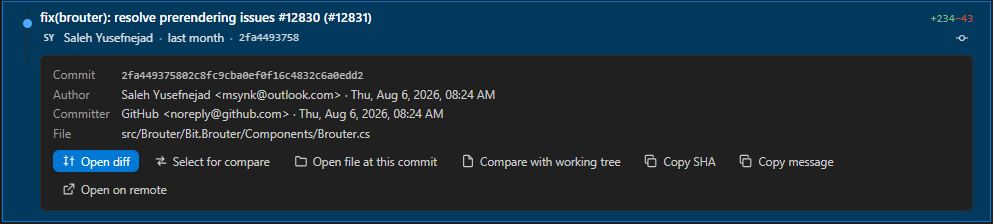
Once a commit is marked, every other row offers Compare with <sha>, and a compare base chip above the list shows what is marked.
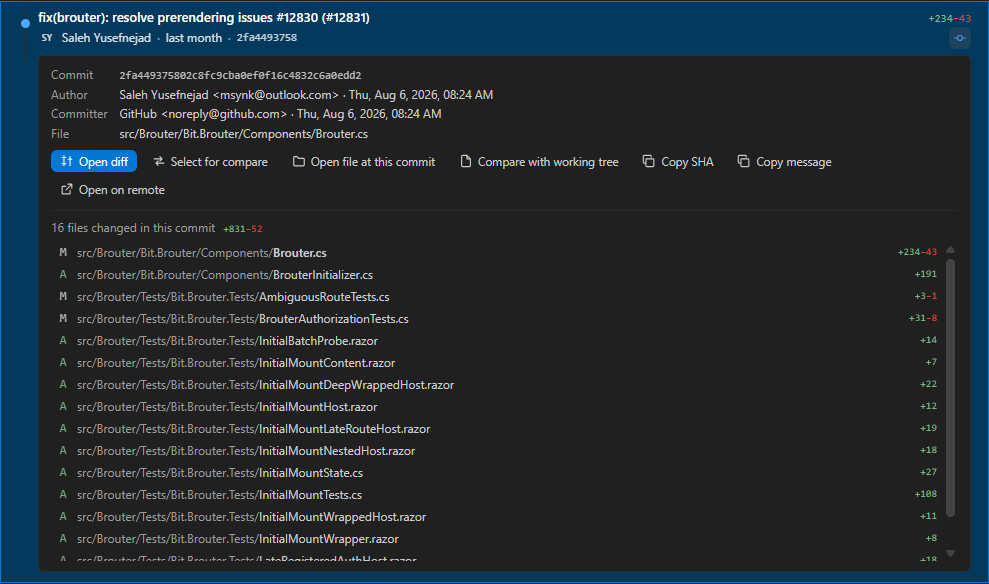
The button at the end of each row opens the other half of the story: every file
the commit touched, with its status and line counts, and the file being followed
picked out among them. Selecting any of them diffs it against the parent commit,
so a one-line change can be read next to the rest of the work it belongs to.
Commits touching more than 500 files are cut off there, and the list says so.
Settings
Sensible defaults; almost nothing to configure.
| Setting |
Default |
What it does |
gitFileHistory.pageSize |
50 |
Commits loaded per page. |
gitFileHistory.followRenames |
true |
Follow the file across renames and moves (git log --follow). |
gitFileHistory.showGravatars |
false |
Load author avatars from Gravatar. Off by default: generated initial avatars need no network requests. |
gitFileHistory.openDiffOnSelect |
false |
Open the diff as soon as a commit is selected, rather than on Enter. |
gitFileHistory.showPreview |
true |
Show the file preview pane. The view remembers the toggle and the pane's size per window. |
gitFileHistory.previewMaxLines |
2000 |
Lines shown in the preview before it is truncated. |
The extension uses the git binary VS Code already resolved, so the git.path setting is honoured automatically.
How it works
Performance was the constraint the design was built around.
- One
git log per page. The log is requested with -z --raw --numstat and a custom --format, so a single spawn yields the commit metadata, the exact change status and the line counts. No follow-up command per commit.
- Cursor paging, not
--skip. Each page requests one extra commit; that commit becomes the starting point of the next walk. Paging cost stays proportional to the page size instead of re-walking from HEAD every time - and the cursor carries the path the file had at that commit, so it stays correct across renames.
- Cached repository discovery. Roots come from the built-in Git extension where it already knows them (no process at all), and directory lookups are memoised. Remotes are cached per repository.
- Cancellation everywhere. Typing a new search or switching files kills the in-flight
git process rather than waiting for it.
- Cheap rendering. The webview is plain DOM with no framework, appends pages rather than re-rendering, and uses
content-visibility so off-screen rows cost nothing to keep around.
- Immutable content is cached. A commit's file contents cannot change, so the diff provider caches them.
- Nothing runs until it is needed. Activation registers commands and providers only; the git binary is not even resolved until the first history request.
Architecture
src/
  extension.ts            Activation, commands, webview serializer
  git/
    gitExecutor.ts        The single place that spawns git (cancellation, errors)
    parseLog.ts           Parses the -z --raw --numstat log stream
    history.ts            The git commands themselves - no vscode import, fully testable
    gitService.ts         Caching facade over history.ts, used by the UI
    contentProvider.ts    Read-only `git-file-history:` documents backed by `git show`
    builtInGit.ts         Minimal typing for the built-in vscode.git API
  ui/
    historyPanel.ts       The webview panel: state, paging, commands
    protocol.ts           Message types shared with the webview
    resolveTarget.ts      Works out which file the user meant
  util/
    paths.ts, remoteUrl.ts
media/
  main.js, main.css       The webview itself (no dependencies)
The git/ layer deliberately does not import vscode, which is what lets the test suite drive it against a real repository.
Development
npm install
npm run compile        # bundle to dist/ with esbuild
npm run watch          # rebuild on change
npm run lint
npm run typecheck
npm test               # compiles, then runs the unit + git + webview suites
npm run test:integration   # runs the suites that need a real VS Code instance
Press F5 to launch the Extension Development Host. The launch configuration opens demo/sample-repo, so there is something to look at immediately.
Demo repository
node demo/setup.js               # create demo/sample-repo
node demo/setup.js --commits 400 # or a longer history, to exercise paging
It builds a repository with several authors, back-dated commits, a rename, tags, a binary file, a deleted file and a long tail of commits. See demo/README.md for a manual test checklist.
Tests
| Suite |
What it covers |
test/unit/parseLog.test.ts |
The log stream parser: renames, binaries, merges, control bytes inside messages. |
test/unit/history.test.ts |
The git layer against a real repository created on the fly - rename following, cursor paging, both search modes, error and cancellation paths. |
test/unit/webview.test.ts |
The real webview script in jsdom: rendering, filtering, keyboard navigation, empty/error states, the message protocol, and escaping of untrusted commit text. |
test/suite/extension.test.ts |
Command registration and target resolution inside VS Code. |
test/suite/panel.test.ts |
End-to-end in a real VS Code: opening the view for a file in a throwaway repository, tab reuse, and the git-file-history: document provider. |
Packaging
npx @vscode/vsce package
node scripts/make-icon.js regenerates images/icon.png; it is drawn procedurally so the repository holds no unreviewable binary.
Requirements
- VS Code 1.85 or newer.
- Git on your
PATH, or a git.path setting VS Code can use.
Known limitations
- History is read from the current branch, as
git log <file> sees it. There is no branch picker - this is a file history view, not a Git client.
- Whole-history message search uses
--grep, which matches commit messages; author and SHA matching apply to the commits already loaded.
- Commit URLs are built for GitHub, GitLab, Bitbucket and Azure DevOps. Self-hosted instances on other domains hide the "Open on remote" action rather than guess a URL that would 404.
- The preview is plain text: no syntax highlighting, and binary files are named rather than rendered. Open the version in an editor for a highlighted, searchable copy.
License
MIT - see LICENSE.
| |

