Agent Worktree Viewer
Review what your AI coding agent did, without leaving the editor.
Claude Code and other agents do their work in separate git worktrees, so your own checkout is never touched. That's safe, but reviewing the result means digging through hidden folders and the terminal. Agent Worktree Viewer puts every worktree in VS Code's Explorer, shows exactly what each one changed compared with main, and lets you commit and merge the work with a click.
Highlights
- Every worktree in one place. A Worktrees section in the Explorer shows your main checkout and each agent's worktree, with how many commits it's ahead, and a
● when there is uncommitted work.
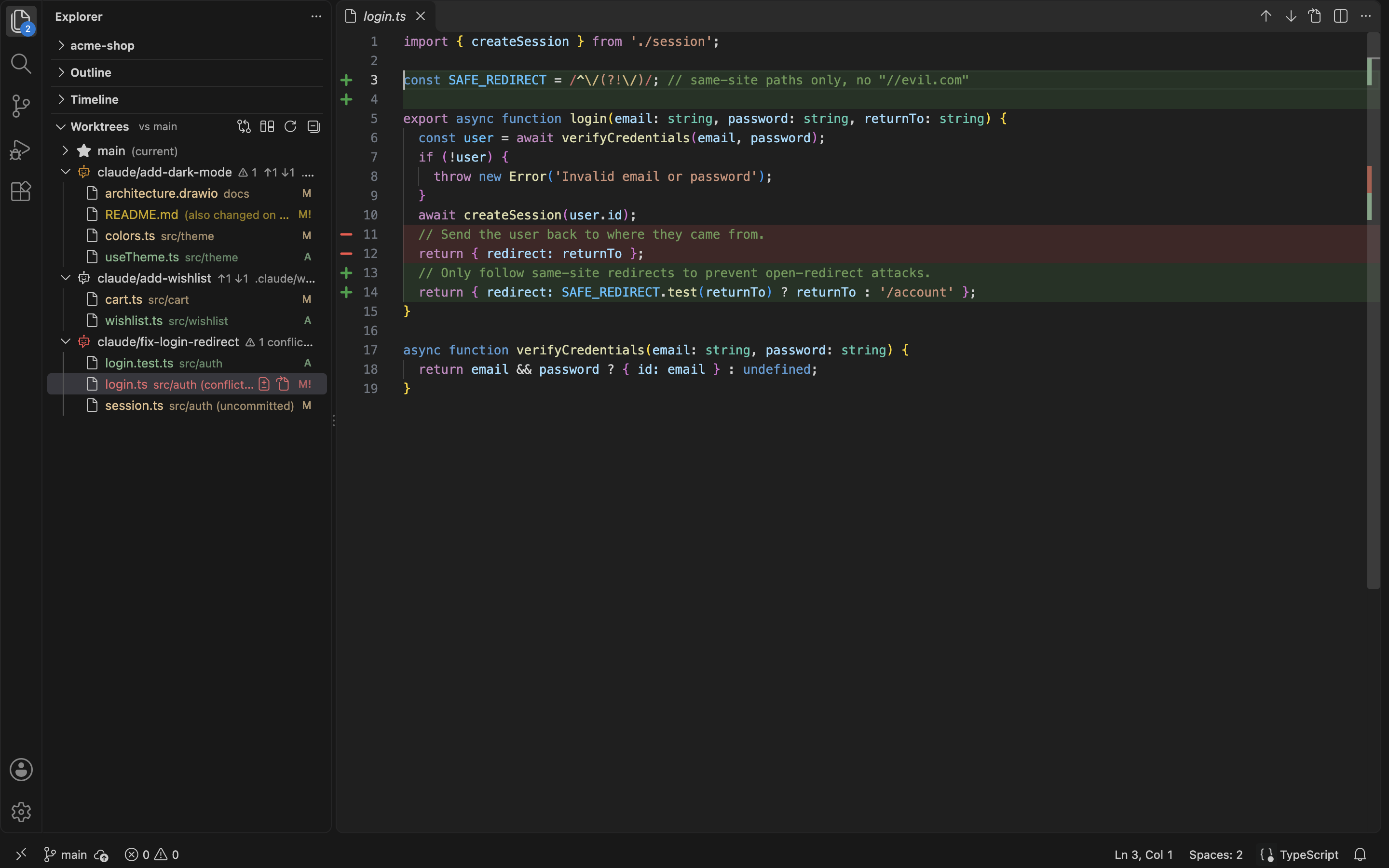
- Diffs you can read at a glance. Click a changed file to see it against
main as a single inline document: removed lines in red directly above their replacements in green.
- Rendered diffs for docs and diagrams. Markdown, Mermaid, draw.io and SVG changes open side by side as they look, not as raw markup.
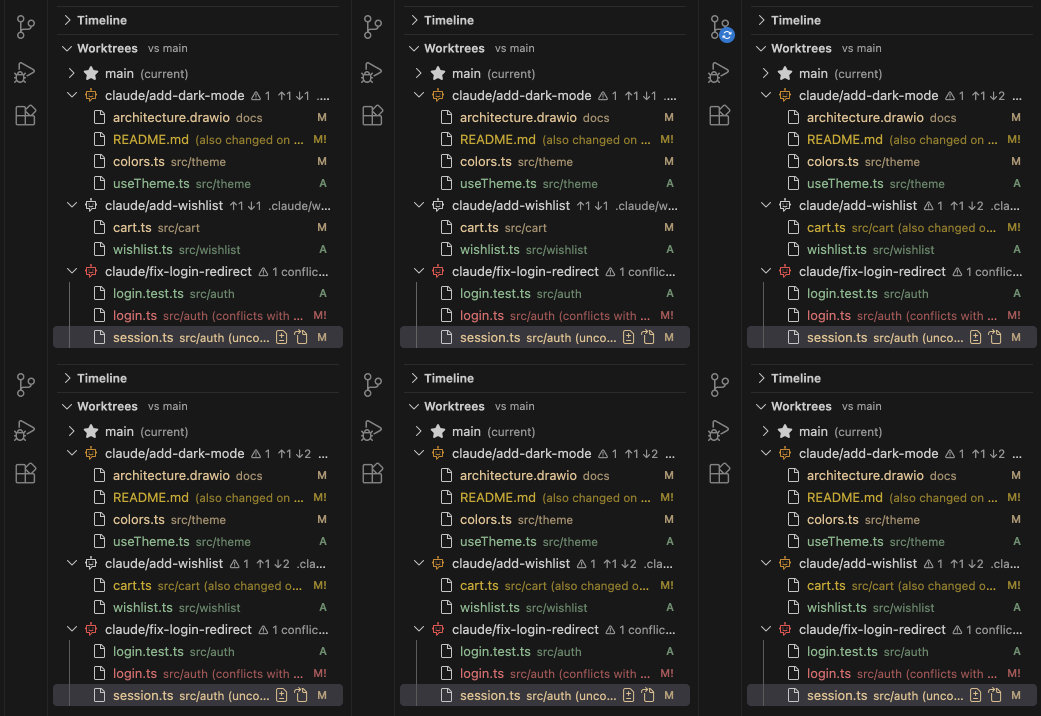
- Clashes with main flagged early. When main changed a file an agent also changed, the agent's robot turns orange; if merging would conflict, it turns red and flashes, and the Explorer icon gets a badge.
- Commit and merge in one click. Commit leftover changes, then merge, merge-commit or squash a worktree into
main. Conflicts pause the merge so you can resolve or abort it.
- Live. The view refreshes while the agent is still writing files.
Review changes as they look, not as markup
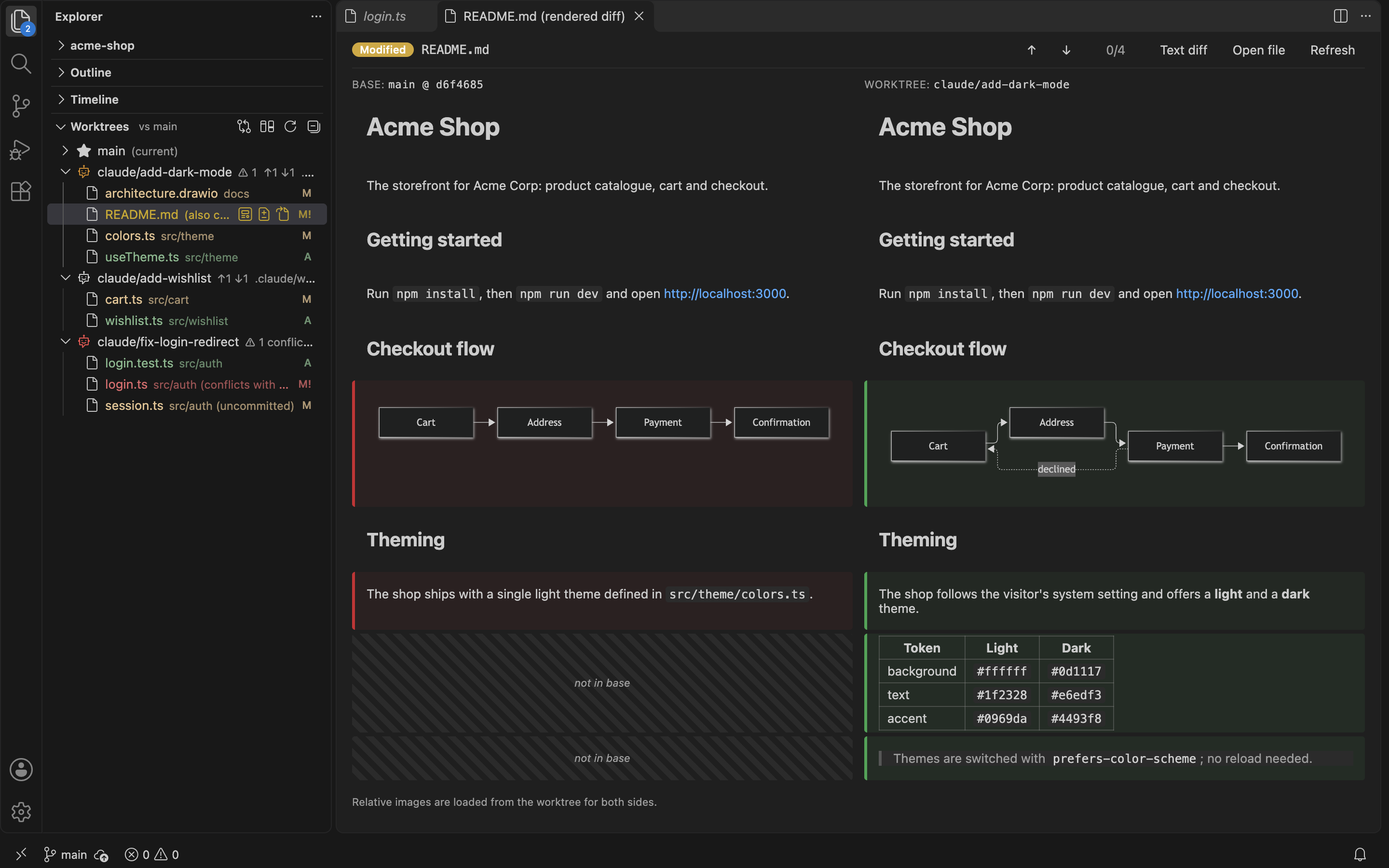
Markdown is rendered on both sides and aligned block by block. Added, removed and changed paragraphs, tables and code blocks are tinted green and red, and Mermaid code blocks are drawn as diagrams.
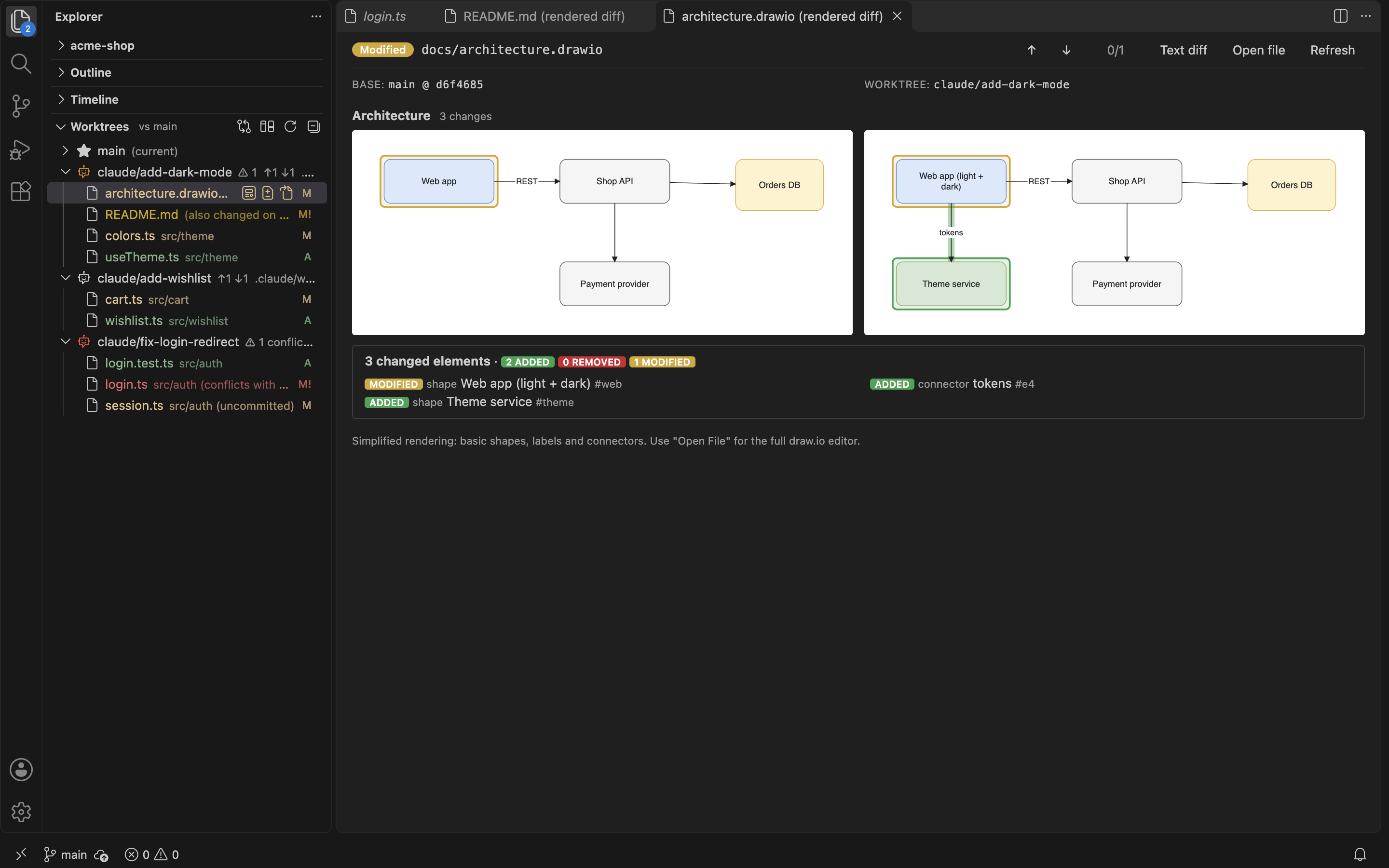
draw.io diagrams are compared shape by shape. New shapes and connectors are outlined in green, removed ones in red, changed ones in amber, with a clickable list of every change.
| File type |
What you see |
Markdown (.md, .markdown, .mdx) |
Both versions rendered and aligned block by block; Mermaid fences drawn |
Mermaid (.mmd, .mermaid) |
Both diagrams rendered |
draw.io (.drawio, .dio) |
Both diagrams on the same canvas, changed shapes and connectors highlighted |
draw.io SVG (.drawio.svg) |
Both images plus the list of changed diagram elements |
SVG and images (.svg, .png, .jpg, .gif, .webp, …) |
Both images side by side |
| Everything else |
Inline single-document diff, or VS Code's two-pane diff if you prefer |
See clashes with main before you merge
Each worktree lists only what it changed since it branched from main. Changes on main never appear there, except where they matter: when main changed a file the agent changed too.
- The agent's robot turns orange when
main changed some of the same files, either committed since the agent started or still uncommitted in your checkout.
- It turns red when a trial merge predicts a conflict. The trial runs in git's object store and touches no files.
- The icon flashes when this first happens, and the Explorer icon shows a badge with the number of affected worktrees.
- The affected files are marked
M! with (also changed on main) or (conflicts with main), and the tooltip lists them.
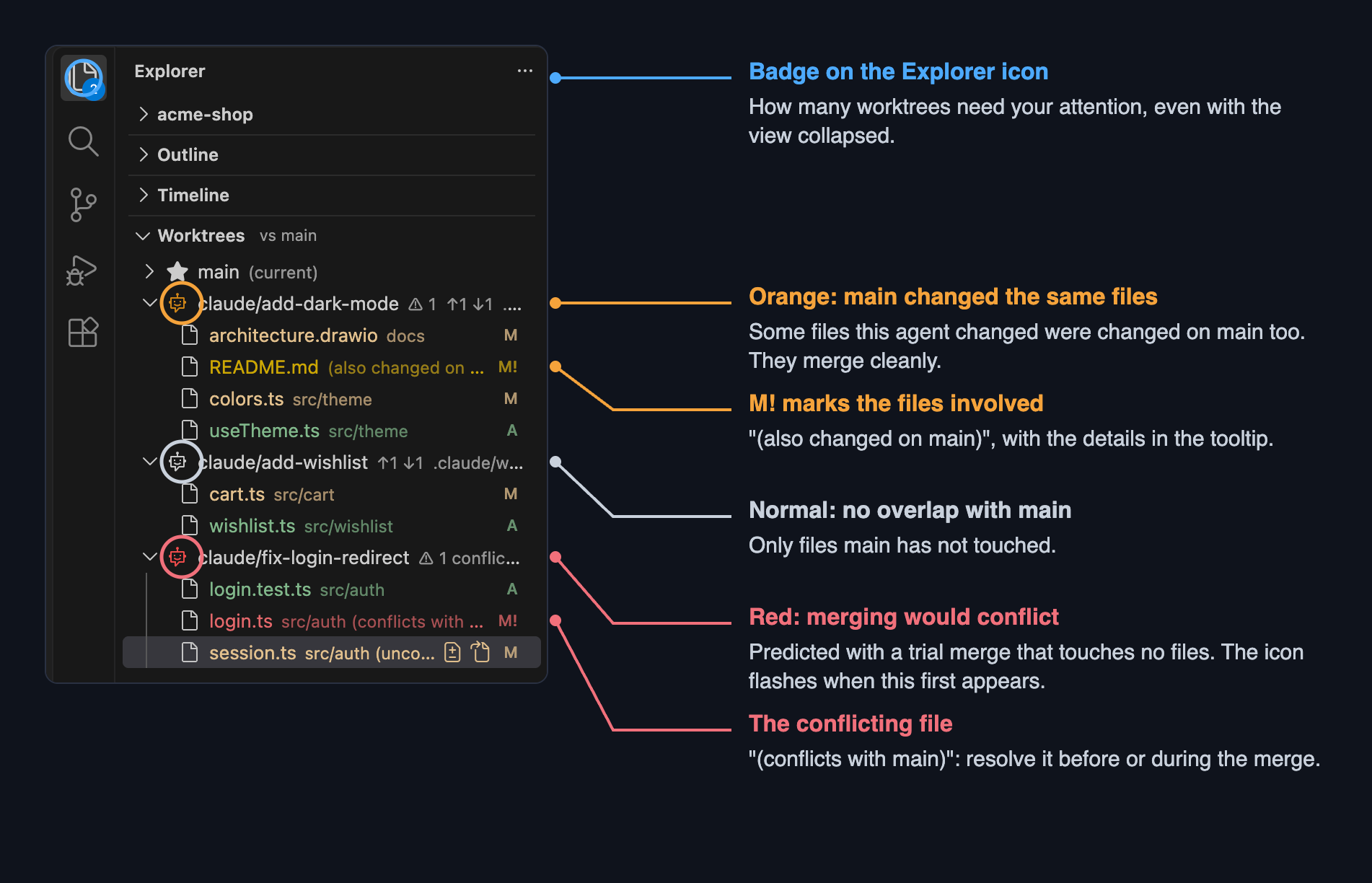
A teammate's commit lands on main and touches a file the wish-list agent also changed. The robot turns orange and flashes:
Commit what the agent left behind
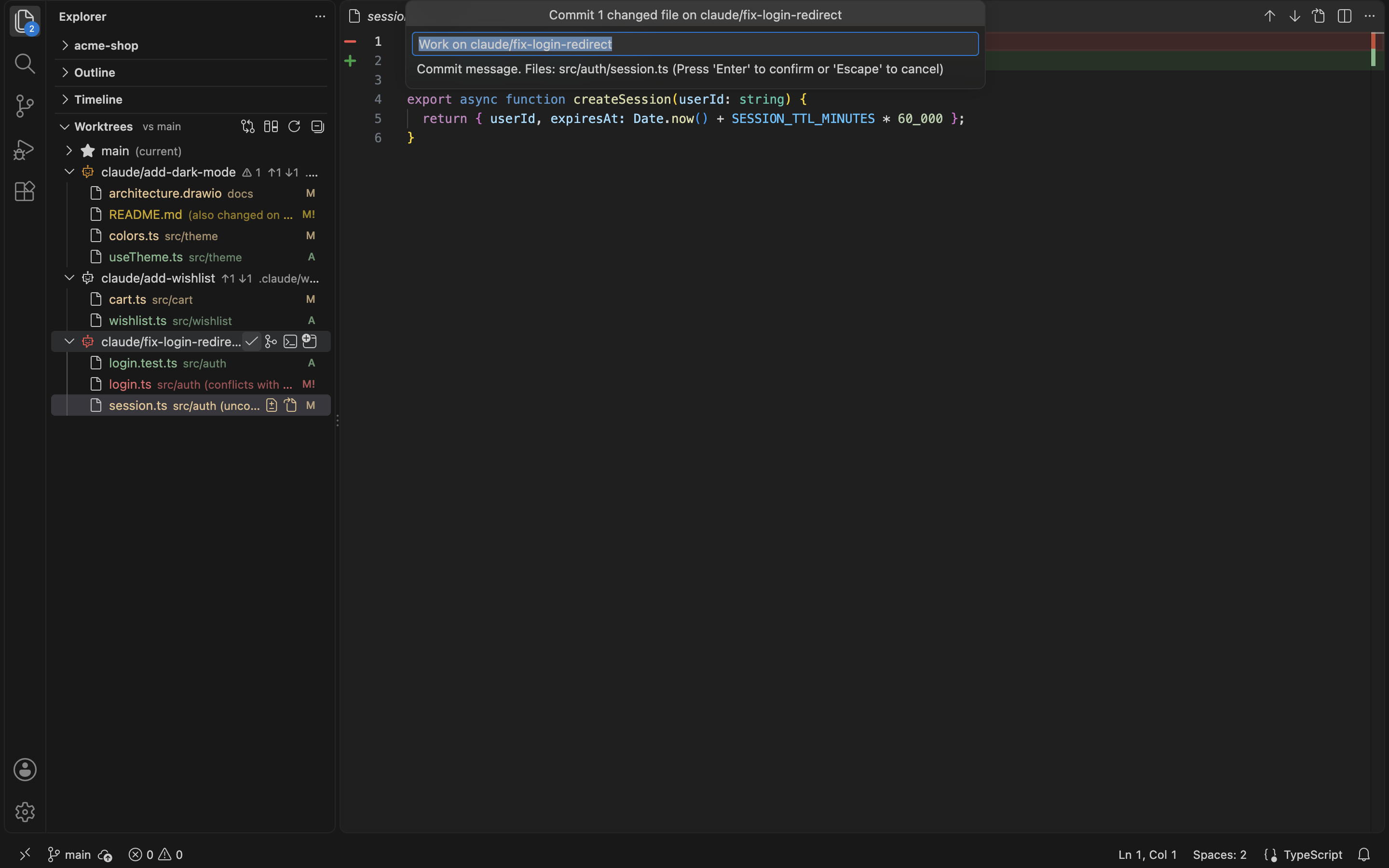
Agents often stop with their last edits uncommitted. Any worktree with uncommitted changes, main included, gets a ✓ button: type a message and everything is committed, new files included. Other agents' worktrees inside your project are never swept into a commit on main.
Merge into main when you're happy
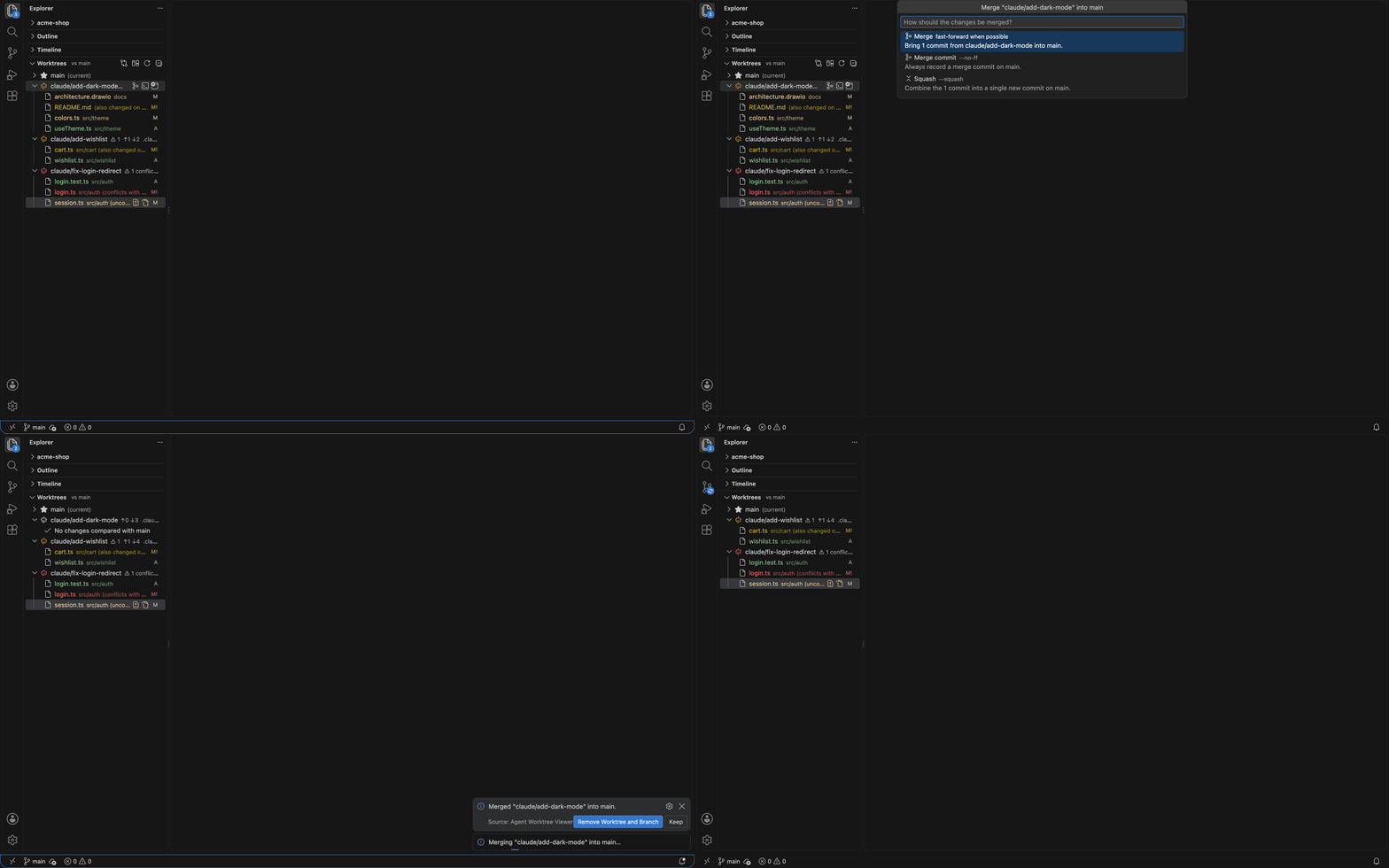
The merge button brings a worktree's branch into main:
- Merge (fast-forward when possible), Merge commit (
--no-ff) or Squash into one commit.
- If the worktree still has uncommitted changes, you can commit them first.
- If uncommitted changes on
main touch the same files, it offers to commit those and try again.
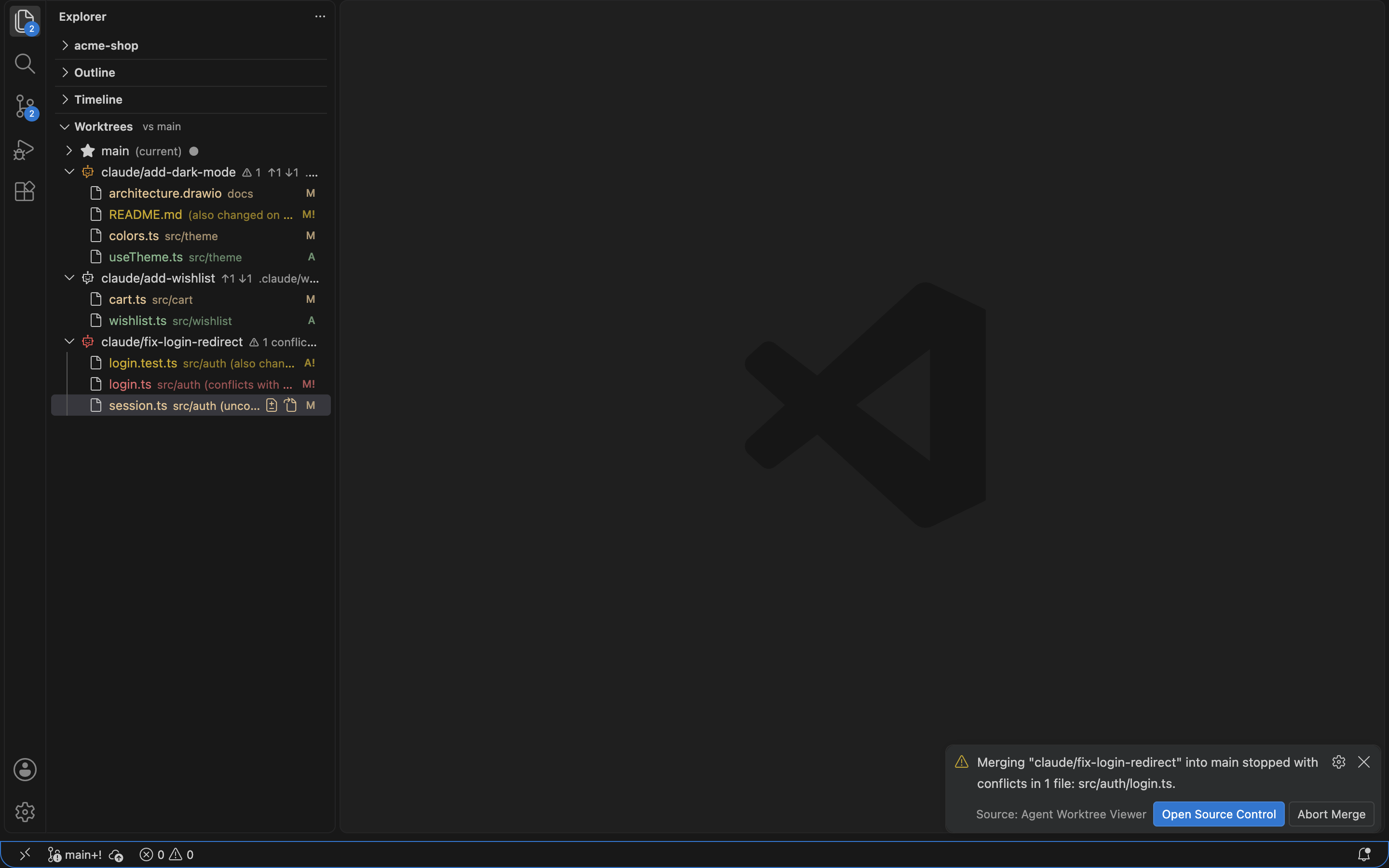
- Conflicts pause the merge. Open Source Control to resolve them in VS Code's merge editor, or click Abort Merge to put
main back exactly as it was.
- Afterwards you can remove the worktree and its branch in one step.
Here is the whole flow: click merge, pick how, done. Then remove the worktree and its branch with one more click.
When a merge would conflict, nothing is forced. The merge pauses and tells you which files clash, and you choose:
Getting started
- Install the extension and open a git repository in a trusted workspace.
- Open the Explorer. The Worktrees section lists your checkout and every worktree, with the base branch shown next to the title (for example vs main).
- Let your agent work. With Claude Code, worktrees appear under
.claude/worktrees/ and get a robot icon. Expand one to see its changes, and click a file to review it.
- Use ✓ to commit and the merge button to bring the work into
main.
Actions
| Where |
Action |
| Changed file (click) |
Open the rendered diff, or the inline text diff for other files |
| Changed file (buttons / right-click) |
Rendered diff · Inline text diff · Side-by-side text diff · Open file · Open base version |
| Worktree row |
Commit All Changes · Merge into Base Branch · Open Terminal · Open in New Window · Reveal in Finder/Explorer · Copy Path · Remove Worktree |
| View title bar |
Change Base Branch · Toggle inline/side-by-side text diff · Refresh · Collapse all |
| Inline diff editor |
Previous/next change (Alt+F5 / Shift+Alt+F5) · Open rendered diff · Open file |
Settings
| Setting |
Default |
Description |
worktreeViewer.baseBranch |
"" |
Branch to compare against. Empty = main, then master, then the main worktree's branch. The Change Base Branch button overrides it per workspace. |
worktreeViewer.compareMode |
mergeBase |
mergeBase = what the worktree changed since it branched (like a pull request). baseTip = difference from the current tip of the base. |
worktreeViewer.renderedDiff |
true |
Open Markdown, Mermaid, SVG, draw.io and images as rendered side-by-side diffs |
worktreeViewer.diffStyle |
inline |
Text diffs: inline (single document) or sideBySide |
worktreeViewer.agentPathPatterns |
["/.claude/worktrees/"] |
Path fragments that mark a worktree as agent-created (robot icon, listed first) |
worktreeViewer.autoRefresh |
true |
Watch worktrees for changes |
FAQ
Does it only work with Claude Code?
No. It shows every git worktree. Claude Code's worktrees (.claude/worktrees/) are recognised automatically; add other agents' folders to worktreeViewer.agentPathPatterns to give them the robot icon too.
Will it change my repository on its own?
No. It only reads git state until you click Commit, Merge or Remove, and every one of those asks first. Removing a worktree with uncommitted work needs a second confirmation.
What happens on a merge conflict?
The merge stops, nothing is committed, and a notification lists the conflicting files. Resolve them in Source Control and commit, or click Abort Merge to restore main.
Where are the worktree files?
Claude Code keeps them inside your project under .claude/worktrees/<name>/, so you can also browse them in the normal Explorer.
Requirements
git 2.25 or newer on your PATH (or set in git.path).- A trusted workspace. The extension runs git in your repository, and a repository's own git configuration can run commands, so it stays off in Restricted Mode.
Privacy
Agent Worktree Viewer runs entirely on your machine. It collects no telemetry and makes no network requests: it only runs git locally and reads files in your workspace.
Known limitations
- The draw.io renderer is simplified: rectangles, rounded rectangles, ellipses, rhombuses, triangles, swimlanes, text and connectors. Stencils, icons and embedded images appear as plain boxes. Use Open file with a draw.io editor extension for full fidelity.
- In Markdown diffs, relative images load from the worktree for both sides, and raw HTML inside Markdown is not rendered.
- Only the first git repository of a multi-root workspace is shown.
Feedback
Questions, ideas and bug reports are welcome in the Q & A tab of this Marketplace page.
License
MIT. The license (LICENSE.txt) and the notices for bundled third-party packages (ThirdPartyNotices.txt) are included in the extension.

