Pipe to Shell
Leverage your favourite shell commands to edit text.
Features
- Edit the selected text by piping it through shell commands
- Insert the output of shell commands at the cursor position
- Records command history: you can edit and reuse past commands
- Highly configurable: shell preference, env vars and many more
- Support multi cursors
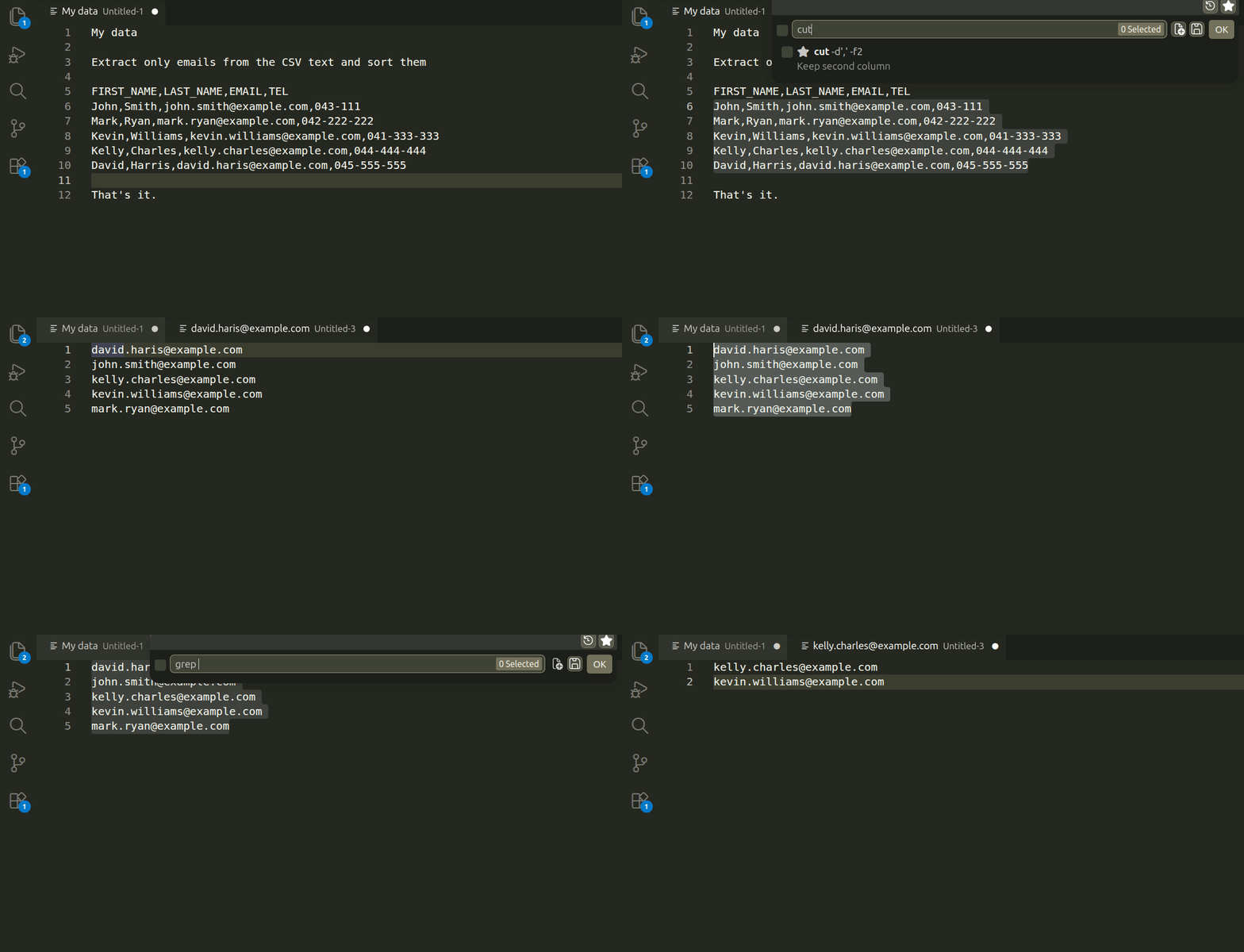
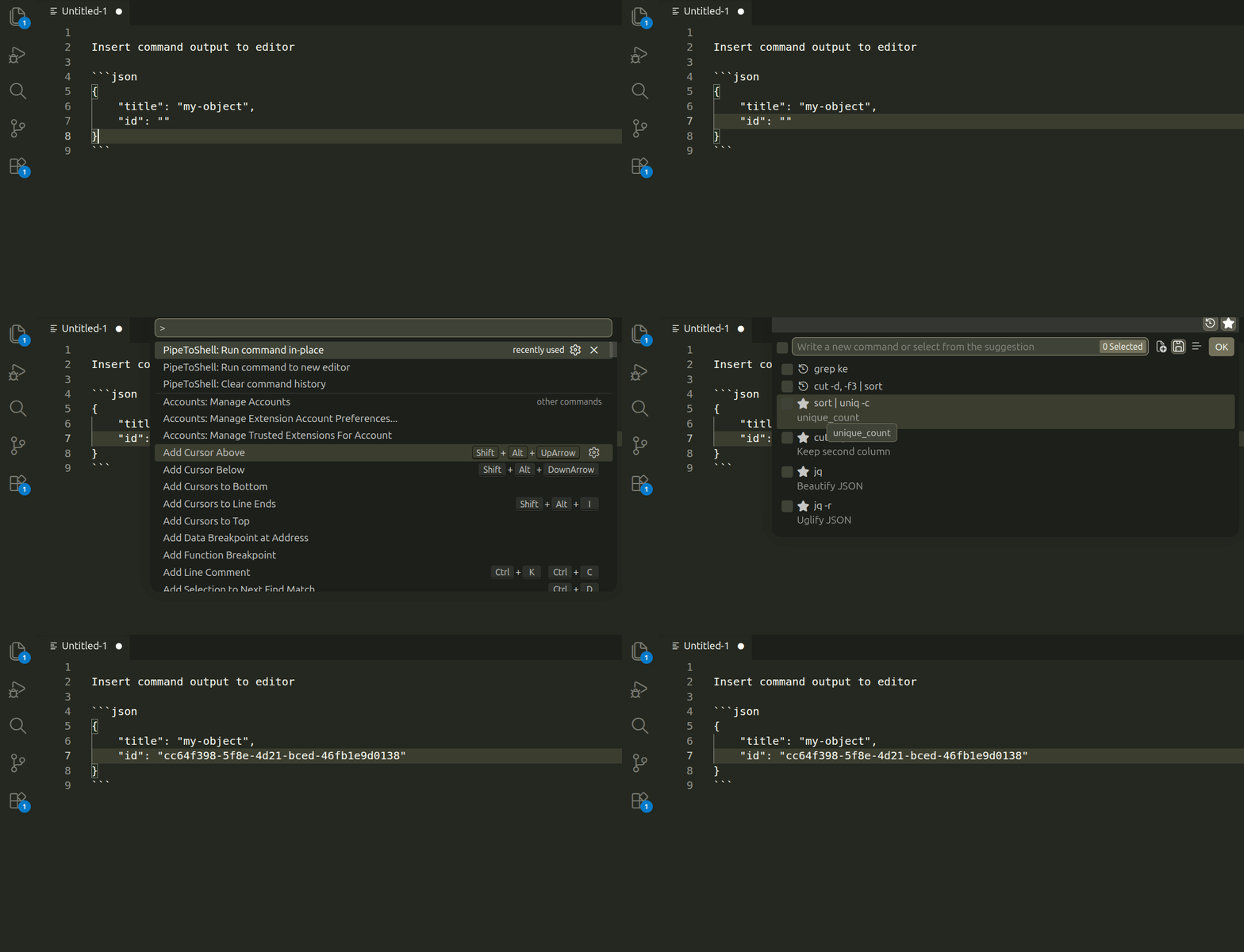
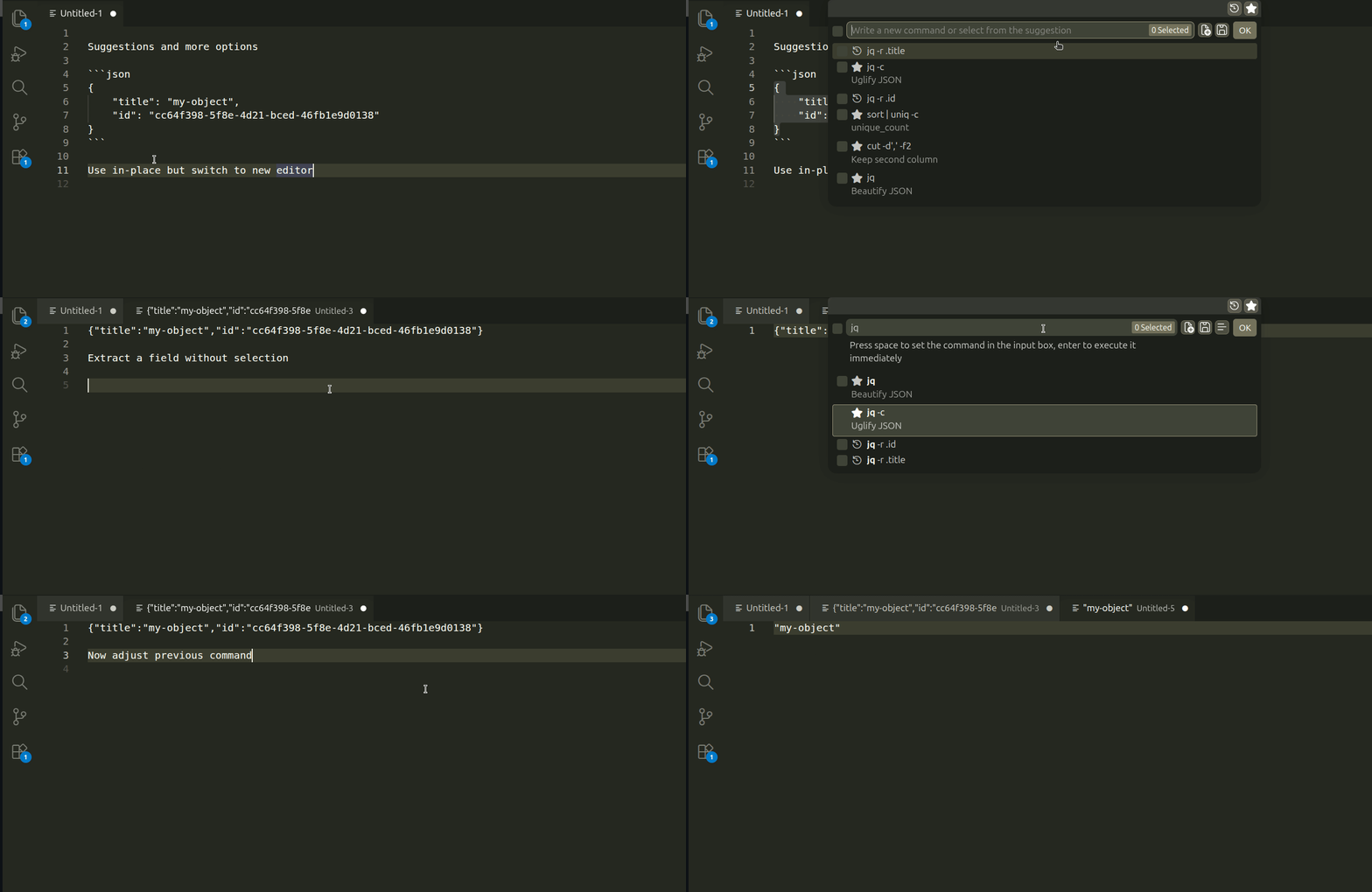
Enter a command
PipeToShell: Run command in-place and PipeToShell: Run command to new editor
show a command input with suggestions. The input allows to enter a new command
or modify an existing suggestion.
Command IDs: pipeToShell.runCommandInPlace /
pipeToShell.runCommandNewEditor.
By clicking the OK button or pressing Enter, the entered command is
run.
The suggestions are made of the previous run commands (marked with  ) and the favorite commands
(marked with
) and the favorite commands
(marked with  ).
).
By clicking or pressing Space on a suggestion, the command is set in the prompt to be further modified.
By pressing Enter on a suggestion, that command is run immediately.
By default all suggestions are shown but it is possible to customize it with the
buttons at the top:
- : Hide/Show history suggestions (Ctrl+H)
- : Hide/Show favorite suggestions (Ctrl+F)
It is also possible to customize the execution:
 : Change target In-place/New-editor (Ctrl+N). The default value is based on the command run.
 : Save the command in history (Ctrl+S)
 : When selected process file content if no text is selected (Ctrl+G)
The initial value is defined by pipeToShell.processEntireTextIfNoneSelected
configuration
The checkboxes are VScode API limitations, they are meaningless and should be
ignored.
History
The history size is controlled by pipeToShell.historyMaxSize. It is persistent over an IDE restart.
The history can be cleared with PipeToShell: Clear Command History (Command
ID: pipeToShell.clearCommandHistory)
Shell configuration
You can adjust the configuration to use your preferred shell with specific args.
pipeToShell.shell.linux (default: "/bin/sh")
The path of the shell that this extension uses on Linux
pipeToShell.shellArgs.linux (default: ["-c"])
Arguments to the shell to be used on Linux
pipeToShell.shell.osx (default: "/bin/sh")
The path of the shell that this extension uses on macOS
pipeToShell.shellArgs.osx (default: ["-c"])
Arguments to the shell to be used on macOS
pipeToShell.shell.windows (default: "cmd.exe")
The path of the shell that this extension uses on Windows
- For PowerShell, you may set this to
"pwsh"
- For Bash on WSL (Windows Subsystem for Linux), you may set this to
"wsl"
pipeToShell.shellArgs.windows (default: ["/d", "/s", "/c"])
Arguments to the shell to be used on Winows
- For PowerShell, you may set this to
["-NoLogo", "-NoProfile", "-Command"]
- For Bash on WSL (Windows Subsystem for Linux), you may set this to
["bash", "-c"]
Environment variables
By default, the env vars are inherited from the VScode process running the extension.
A few extra env vars are added by the extension:
file: Absolute path to the file (if not untitled)fileWorkspaceFolder: workspace folder the file belongs (if has one)relativeFile: file path relative to fileWorkspaceFolder (if has one)
If the provided command is referencing selectedText then the text selection is
passed through this env var instead of stdin.
Additional custom env vars can defined in pipeToShell.shell.env setting:
{
    "PATH": "/some/path"
}
Working directory
The current directory for shell commands can be customized with
pipeToShell.currentDirectoryKind (default: "currentFile").
currentFile: If the target directory is not available, HOME directory will
be used.workspaceRoot: The workspace root where the file belongs. If none, the root
of the first folder in the workspace. If not available, the home directory.
Favorite commands
List of commands that are always shown in the suggestions and that may also be
used with keyboard shortcuts.
You can define them in the configuration pipeToShell.favoriteCommands. Each
element must have an ID and command. An additional nice name can be added.
"pipeToShell.favoriteCommands": [
    {
        "id": "extract-email-and-sort-on-address-book",
        "command": "cut -d, -f3 | sort"
    },
    {
        "id": "insert-melbourne-time",
        "command": "TZ=Australia/Melbourne date '+%Y-%m-%dT%H:%M:%S'",
        "name": "Insert Melbourne Time"
    },
    ...
]
Keyboard Shortcuts
Open prompt
You can quickly open a command input box by registering the extension command to your keyboard shortcut settings. For example:
{
    "key": "ctrl+r ctrl+r",
    "command": "pipeToShell.runCommandInPlace",
    "when": "editorTextFocus && !editorReadonly"
}
Run a specific command
By using pipeToShell.quickCommand:
{
    "key": "ctrl+shift+;",
    "command": "pipeToShell.quickCommand",
    "when": "editorTextFocus",
    "args": "beautify_json"
}
If the args is a favourite command id, then the related command is run else the provided command is run:
{
    "key": "ctrl+shift+;",
    "command": "pipeToShell.quickCommand",
    "when": "editorTextFocus",
    "args": "jq -c"
}
It is also possible to customize the execution:
{
    "key": "ctrl+shift+[",
    "command": "pipeToShell.quickCommand",
    "when": "editorTextFocus",
    "args": {
        "command": "jq -c",
        "shouldOpenNewEditor": false,
        "shouldSaveCommand": true,
        "shouldProcessEntireText": true,
    }
}
command is required and behaves as args when a string. All the other
parameters are optional. The default values are the ones listed above except
shouldProcessEntireText that is defined by the extension setting.
Audit & Debug
There is a Pipe to Shell channel in the Output.
The following elements can be configured to be logged (locally) on success
pipeToShell.logging.success.XXX and/or failure
pipeToShell.logging.failure.XXX in the settings:
- Command: Always
true by default
- Stdin: Always
false by default
- Stdout: Only in failure by default
- Stderr: Only in failure by default
- Env vars: Always
false by default
- Cwd: Only in failure by default
The datetime of the execution is also logged.
Changelog
https://github.com/morikko/vscode-pipe-to-shell/blob/master/CHANGELOG.md
Request Features or Report Bugs
Feature requests and bug reports are welcome: https://github.com/morikko/vscode-pipe-to-shell/issues
Reporting a bug: Please include as much environment information (OS
name/version, the editor version) and steps on how to reproduce it.
Requesting a feature: Please try to provide the context of why you want
the feature. I am not encline to complicate the extension for little benefit
or obscur use cases.
Credit
This extension is a fork from Edit with Shell Command extension and greatly inspired by Filter Text extension.

