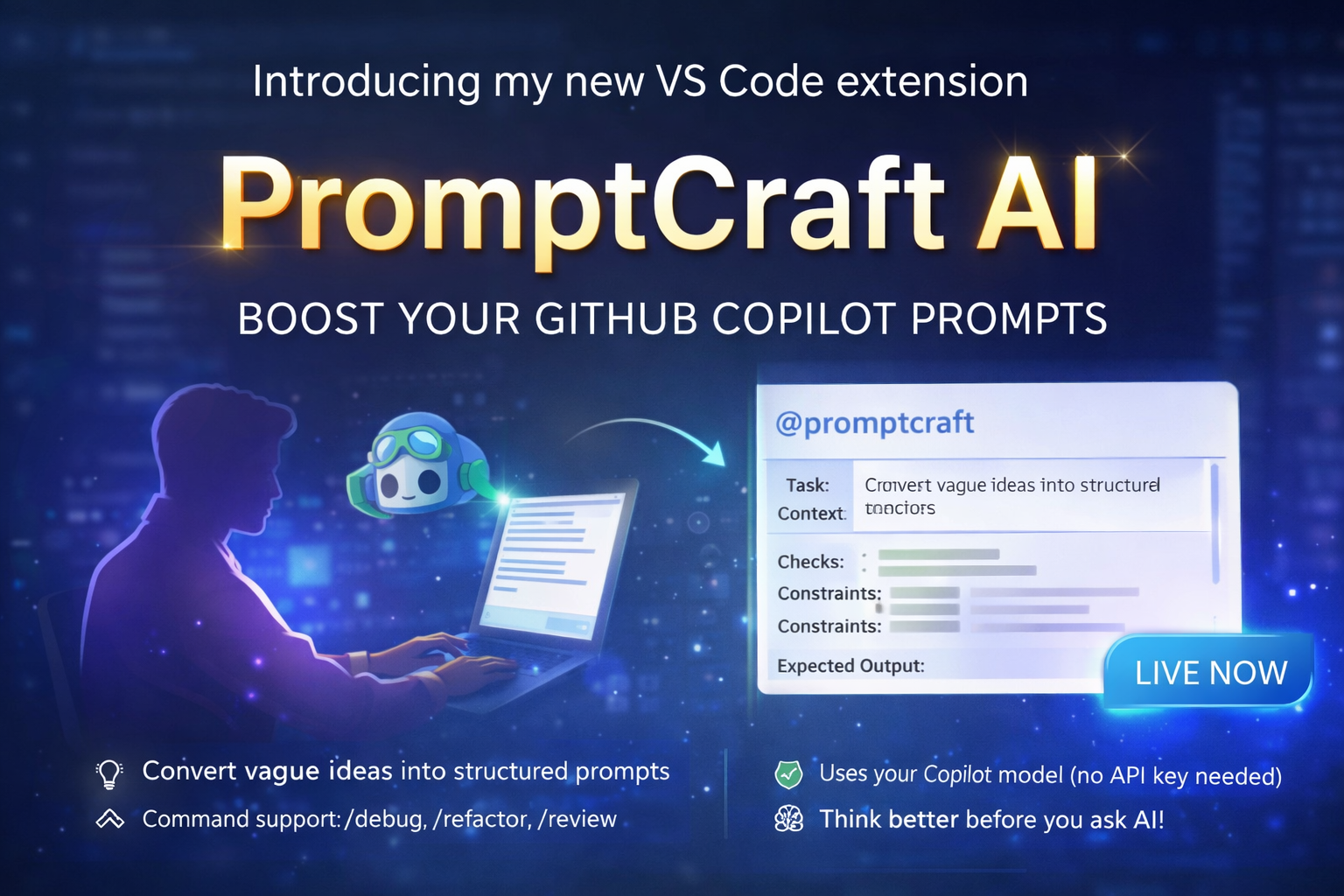
PromptCraft AI
Think Better. Ask Better. Build Faster.
A GitHub Copilot Chat extension that turns vague developer requests into clear, structured, and actionable prompts.
How PromptCraft Works
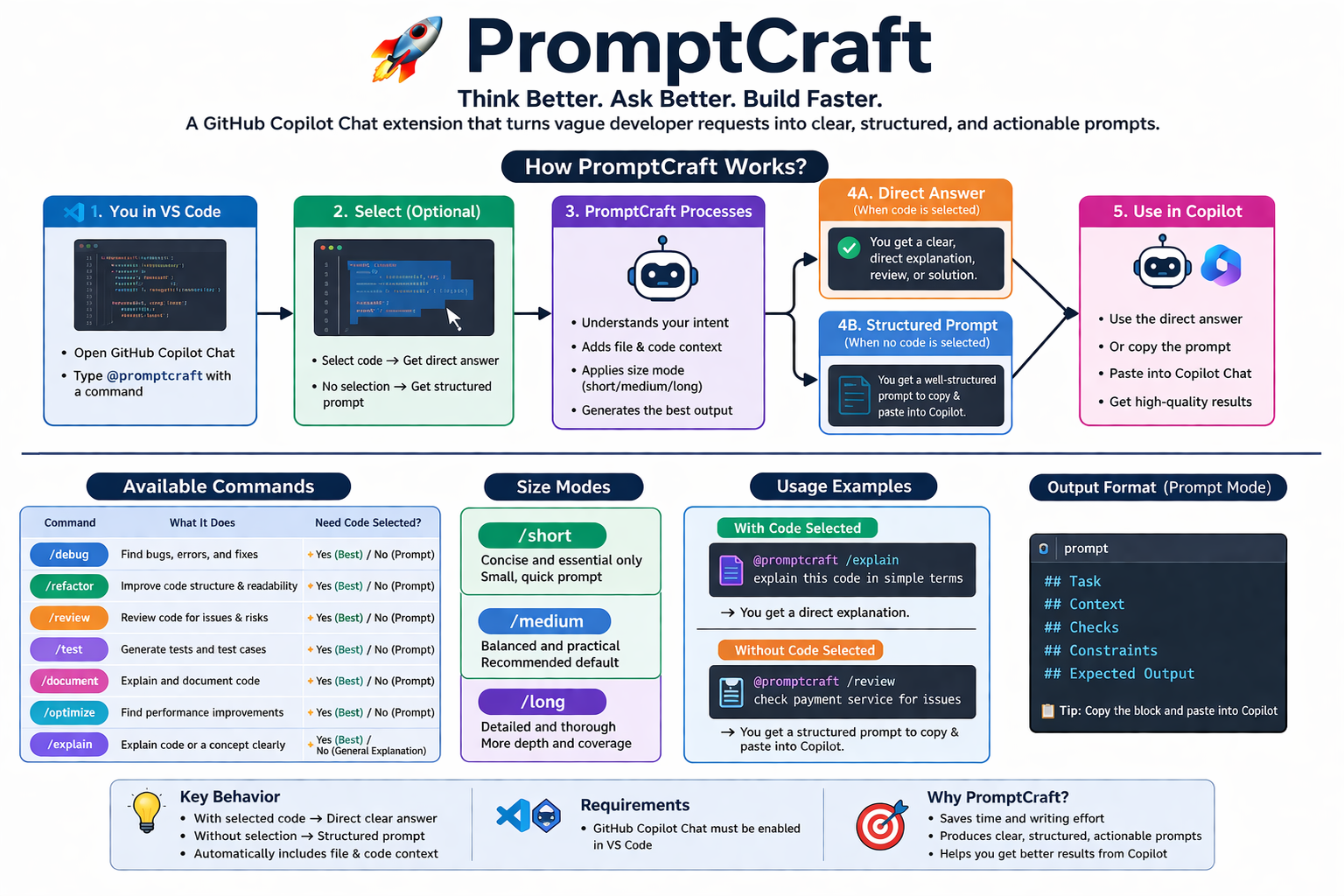
Features
- Works directly inside Copilot Chat (
@promptcraft)
- Converts rough ideas into structured engineering prompts
- Slash commands:
/debug, /refactor, /review
- Advanced commands:
/test, /document, /optimize, /explain
- Prompt size modes:
/short, /medium, /long
- Smart behavior:
- With selected code → Direct answer with code-aware explanation
- Without selection → Structured prompt generation
/explain → Always gives direct explanation (code or concept)
- Automatically includes active file and selected code context
- Uses your existing Copilot model (no API key required)
- Clean, structured output (Task, Context, Checks, etc.)
Usage
Open GitHub Copilot Chat and type:
@promptcraft /debug api failing in payment service
@promptcraft /refactor optimize this method
Best Mode (Recommended)
- Select code in the editor
- Run:
@promptcraft /explain explain this code in simple terms
Output:
- Direct explanation
- No extra prompt needed
- No copy/paste required
Prompt Mode (Fallback)
If no code is selected:
@promptcraft /review review payment service
Output:
- Structured prompt
- Copy and paste into Copilot if needed
When to Select Code
| Command |
Select Code? |
Behavior |
/explain |
Optional |
Direct explanation (code or concept) |
/debug |
Recommended |
Deep issue analysis |
/review |
Recommended |
Code review |
/refactor |
Recommended |
Code improvement |
/test |
Recommended |
Test generation |
/document |
Recommended |
Documentation |
/optimize |
Recommended |
Performance analysis |
Tip: Selecting code unlocks the full power of PromptCraft.
Examples
Explain Code
@promptcraft /explain explain this method
Explain a Concept (No Code)
@promptcraft /explain explain dependency injection in simple terms
Debug an Issue
@promptcraft /debug payment API failing with 500 error
Review Code
@promptcraft /review check this service for issues
Generate Tests
@promptcraft /test generate test cases for this method
Optimize Code
@promptcraft /optimize improve performance of this method
Output Types
PromptCraft works in two modes:
1. Direct Answer Mode
- Triggered when code is selected
- Returns explanation, analysis, or suggestions directly
- No second step needed
2. Prompt Generation Mode
- Triggered when no code is selected
- Generates a structured prompt
- Can be reused in Copilot or other LLMs
Requirements
- GitHub Copilot Chat enabled in VS Code
Extension Settings
| Setting |
Description |
promptcraft.defaultSizeMode |
Default size mode: short, medium, or long |
Known Issues
- No direct "Ask Copilot" button yet (manual paste required in prompt mode)
/explain may follow prior chat patterns in some sessions (open a new chat if needed)
Release Notes
0.0.4
- Improved README formatting for Marketplace
- Fixed image rendering
- Minor UX improvements
0.0.3
- Added direct-answer mode for selected code
- Added
/test, /document, /optimize, /explain
- Added prompt size modes (
/short, /medium, /long)
- Added active file and selected code context
- Improved overall UX and output clarity
0.0.1
- Initial release
- Chat participant (
@promptcraft)
- Slash commands support
- Structured prompt generation
Why PromptCraft
PromptCraft is not just a prompt enhancer. It is a thinking assistant and AI coding partner for developers.
Credits
Icons sourced from Flaticon
Author
Venkata Jagan Mohan Thonangi
Software Engineer | AI Builder

