Device ControlControl local iOS simulators and Android emulators in VS Code, with live views and MCP tools for Copilot and Claude Code. Installation Launch VS Code Quick Open ( Ctrl+P), paste the following command, and press enter.Copied to clipboard |

Device ControlView and control a local iOS simulator or Android emulator from the Device Control activity view in VS Code. The view follows the device your agent targets, opens when the agent starts using it, and shows the current action and its result.
Set up a deviceThis release runs on Apple silicon Macs.
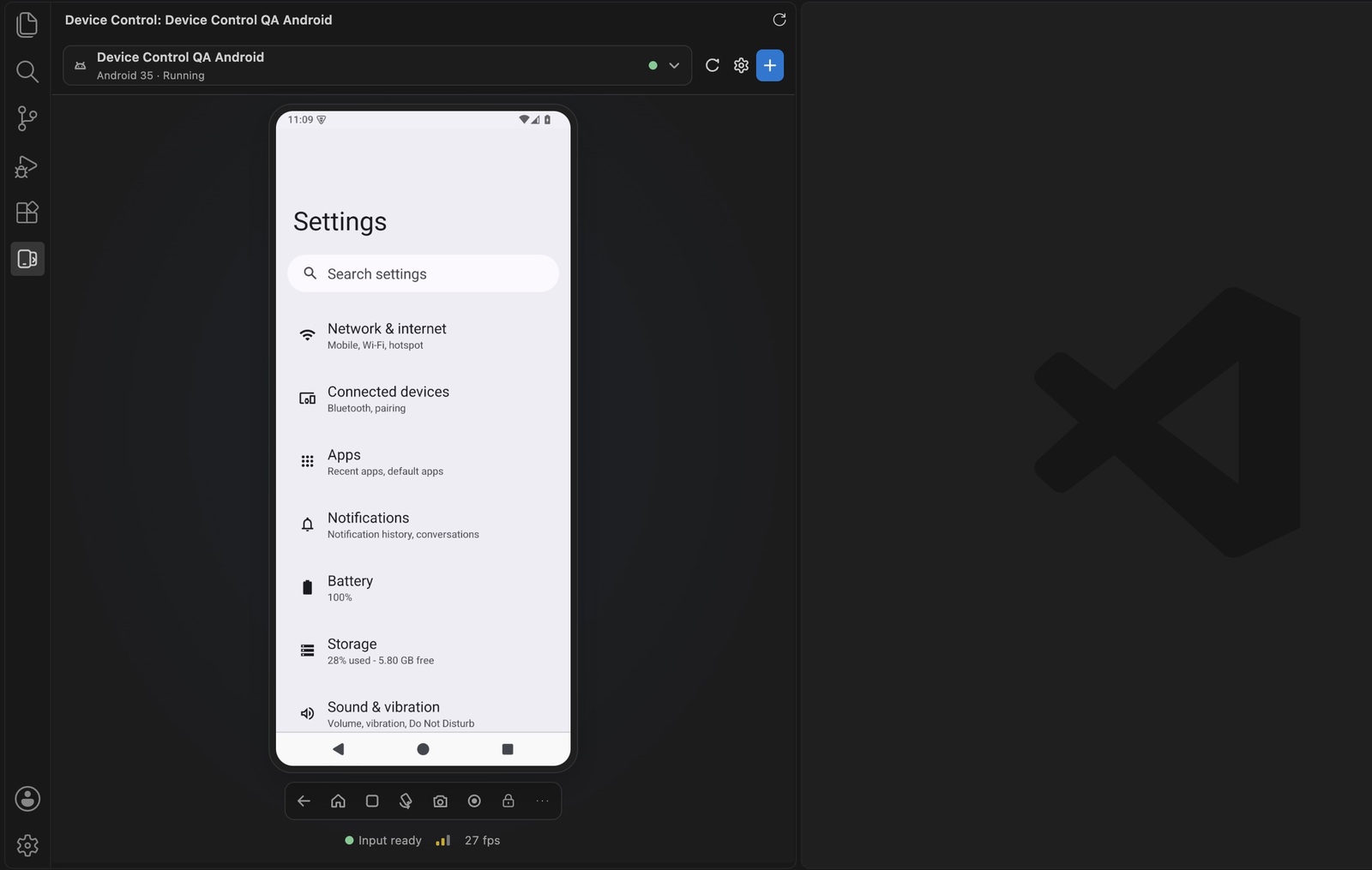
Open Device Control in the Activity Bar, select a device and boot it. iOS uses simulator-use by default. Choose Built-in under Device Control › Ios Engine in VS Code settings to switch. Android always uses the built-in engine. iPhone Duo uses the simulator-use active-display engine with either setting. Use an agentCopilot discovers the Device Control MCP definition in VS Code. Enable its tools in your agent session. Claude Code uses a local stdio bridge. Install the Claude Code VS Code extension and CLI, then run Device Control: Connect Claude Code to This Window in a trusted local folder. Open a new Claude Code chat after connecting or switching engines. The command adds a machine-local MCP entry for the selected folder. It keeps the workspace's shared files and Claude's tool approval settings intact. For a CLI outside PATH, set Example requests for simulator-use:
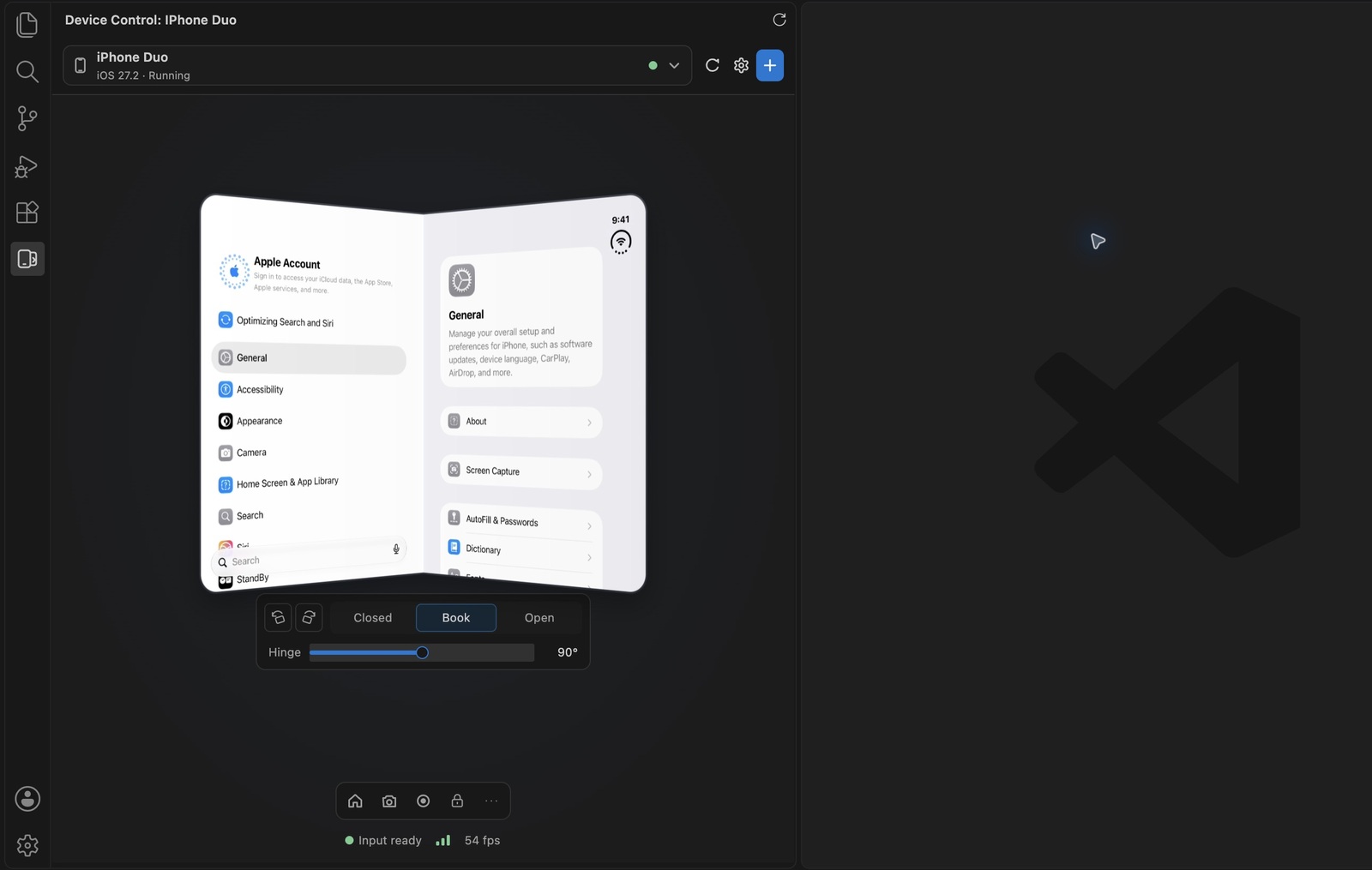
The simulator-use engine offers compact accessibility reads, grouped actions, app lifecycle, builds, tests, logs, and recording through its local tools. The built-in engine offers Mobile Canvas's broader device inventory and operations. The simulator-use catalog includes Android input and inspection, plus shared device lifecycle. Use Built-in for specialized Android tools beyond that catalog. Agent tool lists are refreshed by a new Claude Code chat. The iPhone Duo toolbar has Closed, Book, Open, rotation in both directions, and a 0–180° hinge slider. Drag the slider to preview the fold and release it to apply the angle. The live display bends around a vertical hinge in Book. The GPU maps each decoded frame across both halves in one draw, with a direct-to-panel Canvas fallback when WebGL is unavailable. The simulator-use live view uses a separate hardware-encoded H.264 stream. If video is unavailable, the view falls back to JPEG. Agents can use With either engine setting, Claude Code can read and capture the active iPhone Duo display with The gear beside the device picker opens the iOS engine, frame rate, resolution and appearance settings from the view. BuildFrom the repository root, with Node 24: The package command targets Apple silicon Mac. The asset preparation script selects and checks SHA-256 for the Mobile Canvas runtime available for the build host. The bundled simulator-use version is 0.18.1. Release artifacts carry both projects' licenses and simulator-use's third-party notices. Device Control is based on Mobile Canvas by Jonathan Dick. Mobile Canvas and its adapted idb portions are distributed under the notices in LICENSE. Simulator-use and the third-party components it ships have their own notices in the bundled package. |