Composer Review for Claude Code
Review what Claude Code changes in your project, one hunk at a time, and tell Claude what you think. Your decisions and reasons go into Claude's next prompt, so it can fix what you rejected and keep what you accepted.
Bug reports and ideas are very welcome: see Reporting problems.
Features
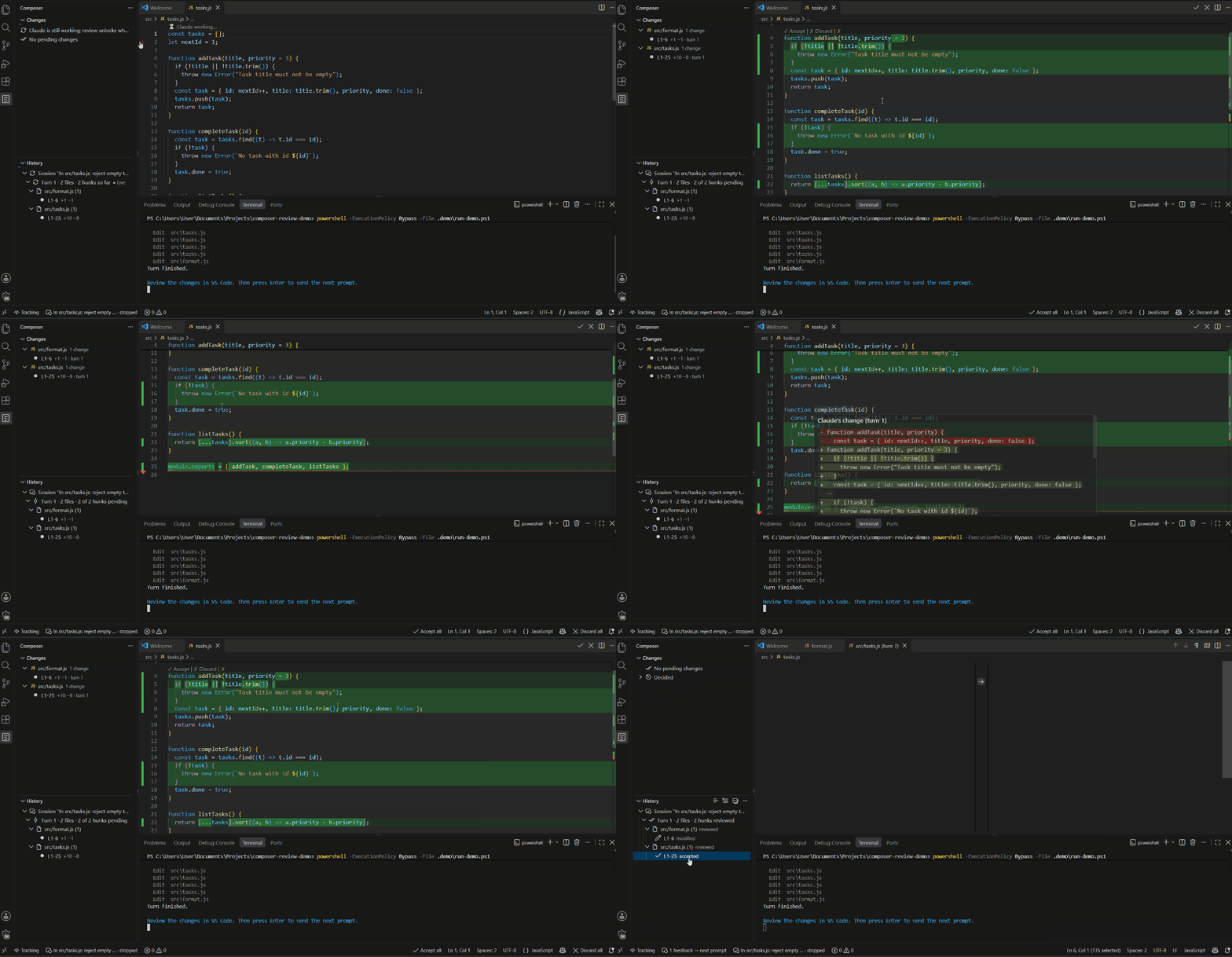
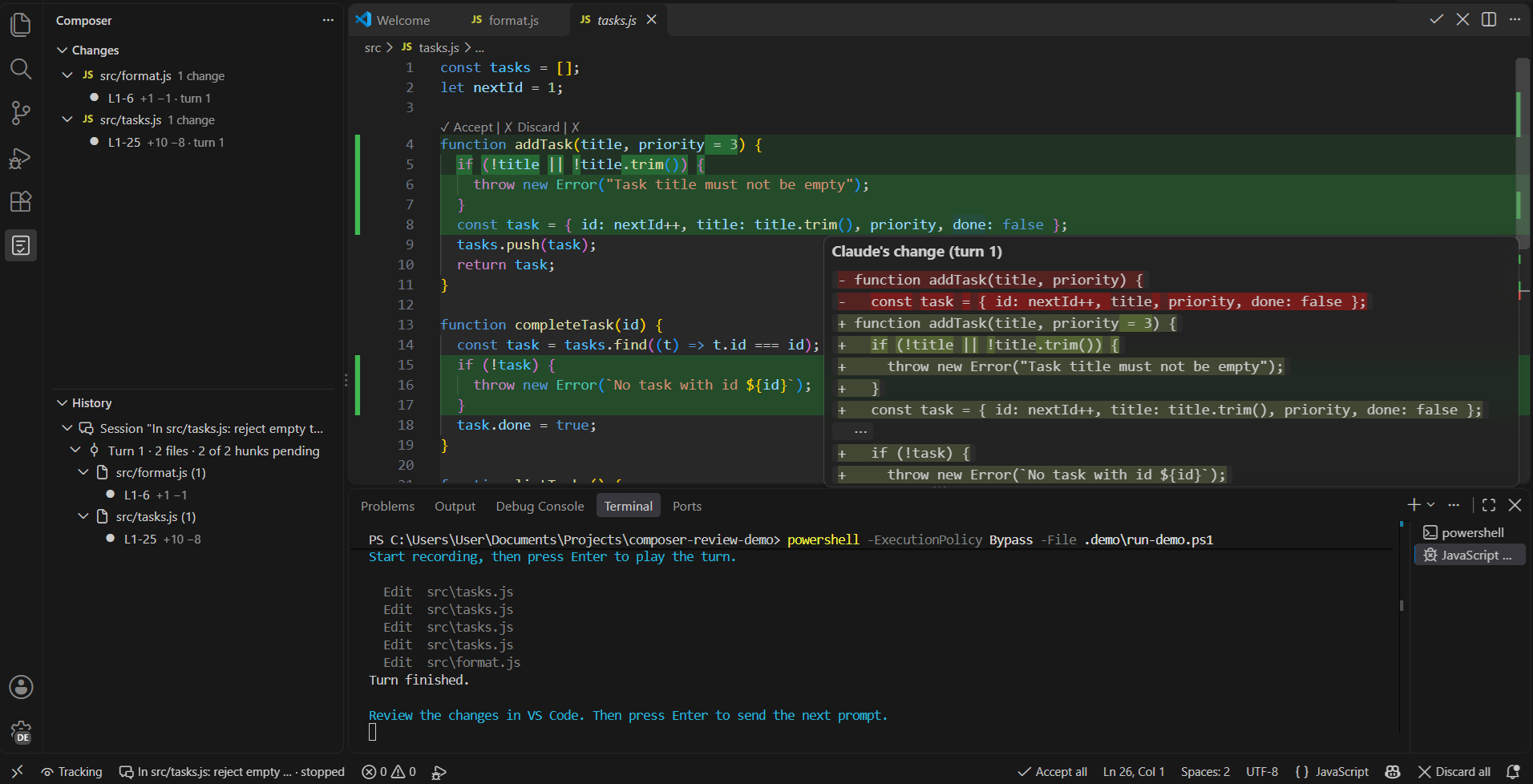
- Review every change Claude makes. After each Claude Code turn, the Changes view lists the files Claude changed and every change in them. Changes several turns made to the same lines are shown as one change.
- Accept, Discard, or edit. Accept a change, discard it (with an optional reason), or edit it right in the file and Accept your version: it is recorded as modified.
- Feedback goes back to Claude. When you finish the turn, your decisions and reasons are added to your next message to Claude.
- Diffs right in the editor. Pending changes are highlighted like a GitHub diff, removed lines are marked, and hovering a change shows its old and new lines.
- Your repository is never touched. Snapshots are kept in a separate hidden git repository outside your project.
- Everything stays local. Nothing is uploaded.
Requirements
- VS Code 1.100 or newer.
- Claude Code 2.1.299 or newer, with the
claude command available.
- git 2.30 or newer.
- Windows, macOS or Linux, on x64 or arm64.
Getting started
- Install the extension. A Get started with Composer Review walkthrough opens; you can also run Welcome: Open Walkthrough and choose it.
- Run Composer: Run Setup to check your environment. Composer: Run Doctor explains any problem it finds, and warns when VS Code's auto save is off (Claude edits the files on disk, so unsaved edits are invisible to it).
- Run Composer: Install or Update Claude Code Plugin. You see exactly what will change in Claude Code's settings before anything happens. The plugin isn't turned on for your whole account.
- Run Composer: Bind Folder to choose the project folder Composer should watch. Binding turns the plugin on for that folder only; nothing is tracked until you do this.
- Start Claude Code from that folder (not a subfolder) and give it a task. When the turn ends, open the Composer view in the activity bar and review the changes in Changes.
Reviewing changes
For every change in the Changes view you can:
- Accept it,
- Discard it: ✗ Discard asks for an optional reason; the small ✗ next to it discards right away with the reason set in
composer.defaultDiscardReason, or none,
- edit it yourself right in the file, then Accept your version.
Accept all and Discard all work on the whole session (the Changes view's title bar) or on the open file (the ✓ and ✗ buttons in the editor's title bar, and the status bar). Your decisions are listed under Decided, where you can reset them, and Composer: Undo Last Review Decision (Ctrl+Alt+Z, Cmd+Alt+Z on macOS) takes back the last one.
A change whose content changed outside the review (the file was moved, deleted, switched to another branch or rewritten outside VS Code) moves to Changed externally: it can't be accepted or discarded, only Dismissed (no feedback for Claude). When its content comes back, it is pending again.
The History view shows every turn of the session with its own changes and the decisions on them. Clear History in its title bar deletes the folder's recorded sessions and reviews and keeps the folder bound; Delete Session (the trash icon on a session) deletes only that session.
In the editor
Added lines are green, edited lines light green with the changed characters brighter, and the unchanged lines inside a change get a very light background. Wherever Claude removed lines, a red dotted line and a red mark in the gutter show the place (the file itself is never changed to show them). Hover a change to see its changed lines as a diff. A change you edit stays highlighted, drawn against the original lines. Changes that only switch line endings (CRLF and LF) are not shown.
How it works
- A small companion plugin for Claude Code takes a private snapshot of your files around each turn.
- The extension compares the snapshots and lists the changes for you to review.
- Your decisions are sent to Claude with your next prompt.
Snapshots are kept in a separate hidden git repository, so your own repository, branches and history are never touched.
Settings
| Setting |
Default |
What it does |
composer.reasonPresets |
6 presets |
Reasons offered when you discard a change or accept one you edited. |
composer.defaultDiscardReason |
empty |
The reason the quick ✗ records: the id of a reason preset, e.g. not-needed. |
composer.lockWhileRunning |
true |
Blocks review decisions while Claude is still working on the turn, and makes the files it is changing read-only in the active editor. |
composer.revealOnChange |
false |
Reveals the Composer view when Claude changes files. |
composer.idleMinutes |
10 |
Minutes without activity after which a running turn asks whether to finish it. |
composer.feedback.maxChars |
8000 |
The most characters of feedback put into Claude's next prompt; older items are summarised. |
composer.snapshot.maxFileSizeMB |
2 |
Files larger than this are left out of snapshots. |
composer.snapshot.extraExcludes |
[] |
Extra .gitignore-style patterns that snapshots leave out, in every folder. |
composer.retention.days / composer.retention.turns |
14 / 50 |
How long old snapshots are kept. |
composer.plugin.autoUpdate |
true |
Updates the Claude Code plugin without asking when the extension ships a newer one. |
To leave folders out of one project only, run Composer: Edit Exclude Rules. The editor colours are theme colours you can override in workbench.colorCustomizations: composer.addedLineBackground, composer.editedLineBackground, composer.addedTextBackground, composer.hunkExtentBackground, composer.removedLine, composer.addedOverviewRuler and composer.removedOverviewRuler.
Privacy
Everything stays on your machine. Snapshots, review decisions and logs are stored in ~/.composer-review (%USERPROFILE%\.composer-review on Windows), or in the folder set in the COMPOSER_HOME environment variable, never in your project. Composer does not upload anything itself: a problem report (below) only opens a prefilled GitHub page, and you decide whether to submit it.
Snapshots never contain files matched by your .gitignore, .git/, node_modules/, secret files such as .env, *.pem, *.key and SSH keys, binary files, or files over 2 MB.
Limitations
- Only changes made by Claude Code are recorded; edits you make yourself in the folder are not.
- Start Claude Code from the bound folder itself. Sessions started in a subfolder or a parent folder aren't tracked, and a bound folder can't contain or sit inside another bound folder.
- When Claude switches branches (
git switch, checkout, reset --hard, rebase) or stashes changes, the files that changed are not shown as Claude's changes; the turn shows a marker instead.
- Composer can't always tell which of Claude's shell commands made a change. The Doctor explains when this applies.
- Nested git repositories and folders reached through links are not tracked, and case-only renames are not shown.
- Very large folders take a while to bind and to snapshot; you see an estimate before binding and can cancel.
- The diff editor's Revert Block counts as your own edit, not a Discard; Composer offers to record a Discard for it.
- Undo remembers the last 20 decisions of the window, until VS Code restarts.
Reporting problems
Run Composer: Report a Problem (Command Palette, or the ... menu of the Changes and History views; error messages and the Doctor offer it too). Choose bug, idea or question, describe what happened, and click Open on GitHub: a prefilled issue opens in Composer's public feedback repository, misstheaim/composer-review-feedback, and you submit it there with your GitHub account. You can also open an issue there directly.
You can also ask Claude Code: "report this Composer bug". Claude writes the description from your conversation and calls Composer's prepare_bug_report tool, which opens the same prefilled page.
A report contains your description, the versions of Composer, VS Code, Claude Code and git, your OS, the folder's binding state, the Doctor's results and the last lines of Composer's logs, with your folder, home and data paths replaced by <folder>, ~ and <store>. It never contains your files, diffs or prompts. The form shows exactly what is included, and you can leave the environment or the logs out.
Uninstalling
- Close your Claude Code sessions in the bound folders (type
/exit).
- Run Composer: Delete Composer Data and choose Everything Composer stores. Confirm, then choose whether to uninstall the Claude Code plugin too. If a Claude Code session is still open, nothing is changed and you are told which folders to close. If something can't be deleted, the message says what and why; run the command again to finish.
- Uninstall the extension from the Extensions view and restart VS Code. Composer then cleans up whatever is left in the background: the plugin in every bound folder, the plugin's marketplace and the stored data.
Composer Review is an independent project. It is not made, endorsed or supported by Anthropic. Claude and Claude Code are trademarks of Anthropic, PBC.

