Dropbox Image Uploader for VS Code
Upload images to Dropbox and automatically insert direct links into your Markdown files.
✨ Features
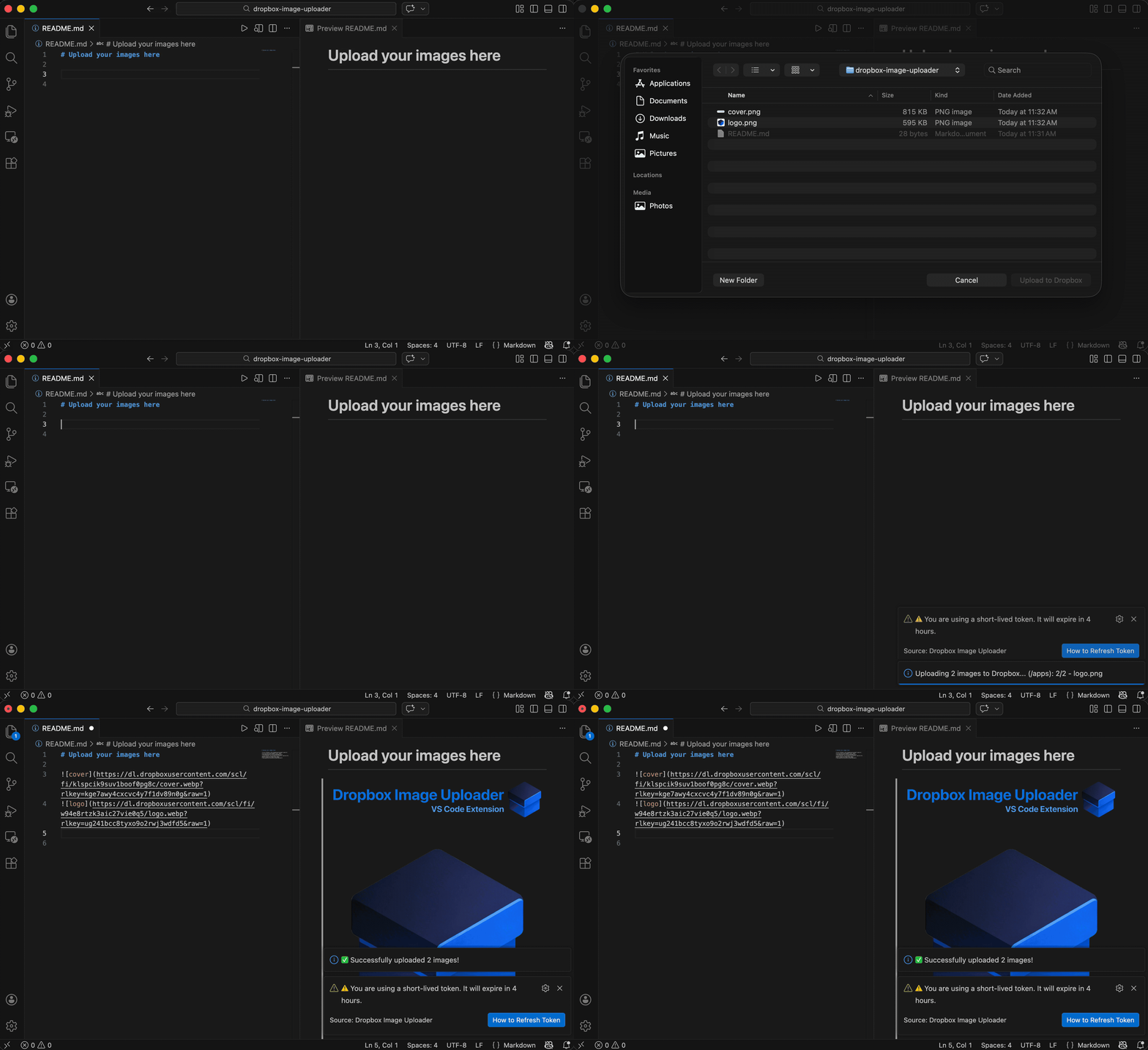
- 📤 Multiple Image Upload: Upload multiple images at once
- 🔗 Auto-Insert Links: Automatically inserts Markdown image syntax
- 📊 Progress Tracking: Real-time upload status
- 🎨 Image Conversion: Optional format conversion and resizing (requires ffmpeg)
- 🔧 Flexible Paths: Configure or choose upload paths on the fly
📦 Installation
From VS Code Marketplace
- Open VS Code
- Go to Extensions (
Cmd/Ctrl + Shift + X)
- Search for "Dropbox Image Uploader"
- Click Install
From VSIX File
- Download the latest
.vsix file
- Open VS Code Extensions view (
Cmd/Ctrl + Shift + X)
- Click
... menu → Install from VSIX...
- Select the downloaded
.vsix file
- Reload VS Code
🔑 Setup: Get Your Dropbox Access Token
Before using the extension, you need to generate a Dropbox Access Token:
- Go to Dropbox App Console
- Select your app (or create a new one)
- Navigate to the Settings tab
- Find the OAuth 2 section
- Click Generate under "Generated access token"
- Copy the token
Then configure it in VS Code:
- Open Settings (
Cmd/Ctrl + ,)
- Search for "Dropbox Image Uploader"
- Paste your token into the Access Token field
Note: The token is stored locally in your VS Code settings and never shared.
🚀 Usage
Method 1: Command Palette
- Open a Markdown file (
.md)
- Press
Cmd/Ctrl + Shift + P
- Type "Upload Image to Dropbox"
- Select images to upload
- Done! Links are automatically inserted at your cursor
Method 2: Keyboard Shortcut
- Open a Markdown file
- Press
Cmd + Alt + U (Mac) or Ctrl + Alt + U (Windows/Linux)
- Select images
- Links inserted automatically
- Open a Markdown file
- Right-click in the editor
- Select "Upload Image to Dropbox"
- PNG (
.png)
- JPEG (
.jpg, .jpeg)
- GIF (
.gif)
- BMP (
.bmp)
- WebP (
.webp)
- SVG (
.svg)
🎨 Image Conversion (Optional)
Convert and resize images automatically before uploading with ffmpeg.
Prerequisites
Install ffmpeg on your system:
# macOS
brew install ffmpeg

# Ubuntu/Debian
sudo apt install ffmpeg

# Windows (Chocolatey)
choco install ffmpeg

# Windows (winget)
winget install ffmpeg
How It Works
- Format Conversion: Convert images to WebP, JPG, or PNG
- Smart Resizing: Automatically resize large images while maintaining aspect ratio
- Graceful Fallback: If ffmpeg is unavailable or conversion fails, the original image is uploaded
- Efficient Processing: Only converts when necessary (skips if format/size already matches)
Configuration Examples
Web Optimization (WebP + 1920px)
{
  "dropboxImageUploader.imageFormat": "webp",
  "dropboxImageUploader.maxImageSize": 1920
}
Blog Posts (JPEG + 1280px)
{
  "dropboxImageUploader.imageFormat": "jpg",
  "dropboxImageUploader.maxImageSize": 1280
}
No Conversion (Original Files)
{
  "dropboxImageUploader.imageFormat": "",
  "dropboxImageUploader.maxImageSize": 0
}
⚙️ Settings
Open VS Code Settings (Cmd/Ctrl + ,) and search for "Dropbox Image Uploader":
Access Token (Required)
Use Custom Path (Optional)
- Unchecked (default): You'll be prompted for the upload path each time
- Checked: Uses the path specified in "Upload Path" setting
Upload Path (Optional)
- Default upload directory in Dropbox
- Default:
/apps
- Examples:
/blog-images, /projects/screenshots
- Convert images to this format before uploading
- Options:
webp, jpg, png
- Leave empty to keep original format
- Requires ffmpeg
Max Image Size (Optional)
- Maximum width or height in pixels
- Set to
0 to disable resizing
- Example:
1920 will resize images so the longest dimension is 1920px
- Requires ffmpeg
🆘 Troubleshooting
Make sure you've entered your Dropbox token in VS Code settings.
"This command is only available in Markdown files"
The extension only activates when editing .md files. This is intentional to avoid clutter.
"ffmpeg is not installed"
Image conversion is optional. If you don't need it, you can ignore this warning. Otherwise, install ffmpeg using the commands above.
"Failed to upload to Dropbox"
- Check your internet connection
- Verify your Access Token is valid
- Ensure your Dropbox app has the required permissions (
files.content.write, sharing.write)
📋 How It Works
- You select images to upload
- (Optional) Images are converted/resized with ffmpeg
- Images are uploaded to your Dropbox
- A shared link is created
- The link is converted to a direct download URL (
dl.dropboxusercontent.com)
- Markdown syntax
 is inserted at your cursor
The resulting images are immediately visible when you preview your Markdown!
🤝 Contributing
Found a bug or have a feature request? Open an issue on GitHub.

