DSH Agent for VS Code
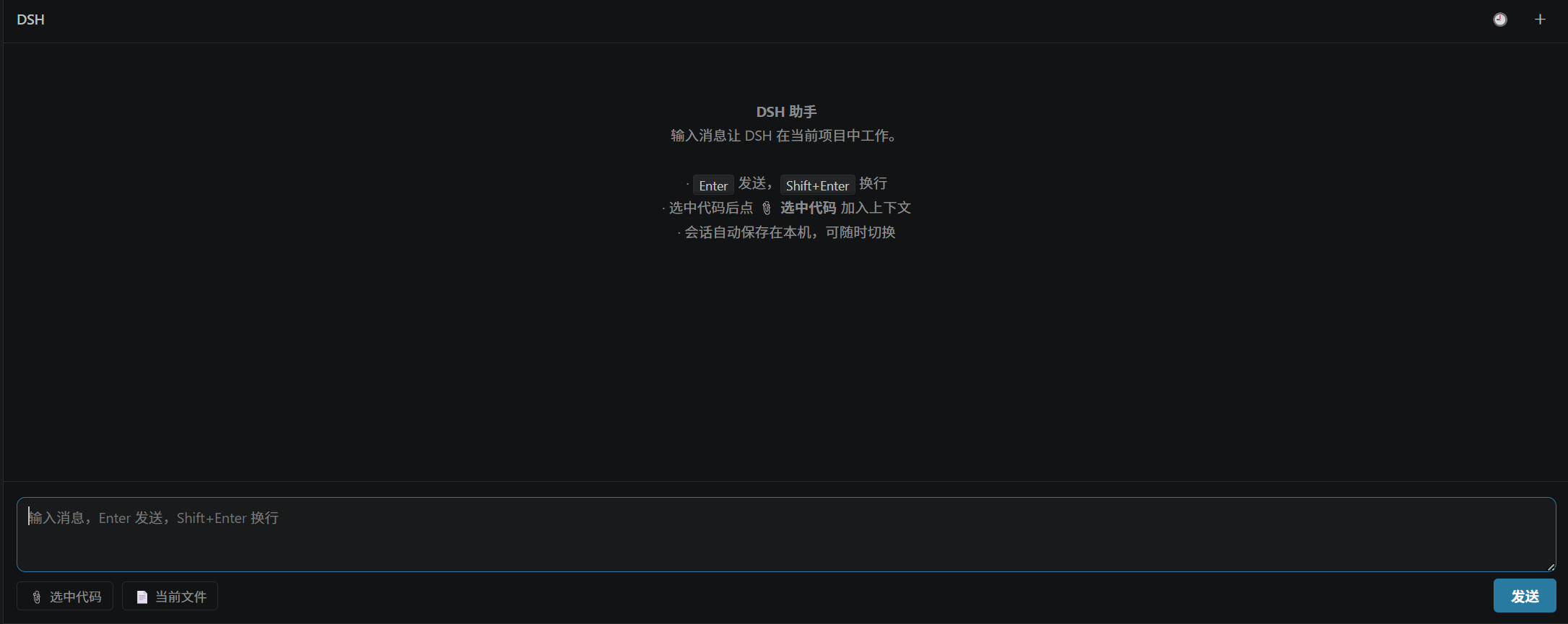
Everything is a plugin. DSH (DeepSeek Harness) is the plugin-driven AI agent framework — models, tools, sandbox, session storage, the UI, even the agent loop itself are plugins. This extension brings that power into VS Code: a chat panel where the DSH agent works directly in your project (read/write files, run commands, propose solutions), with its reasoning, tool calls, goals and todo lists streamed live. Sessions are saved locally.
How it works: each message spawns dsh --profile headless "<task>" as a subprocess, with the current workspace as the agent's working directory. No long-running service, no dependency on dsh web internals.
中文文档 · 简体中文说明
Screenshots
| Chat panel |
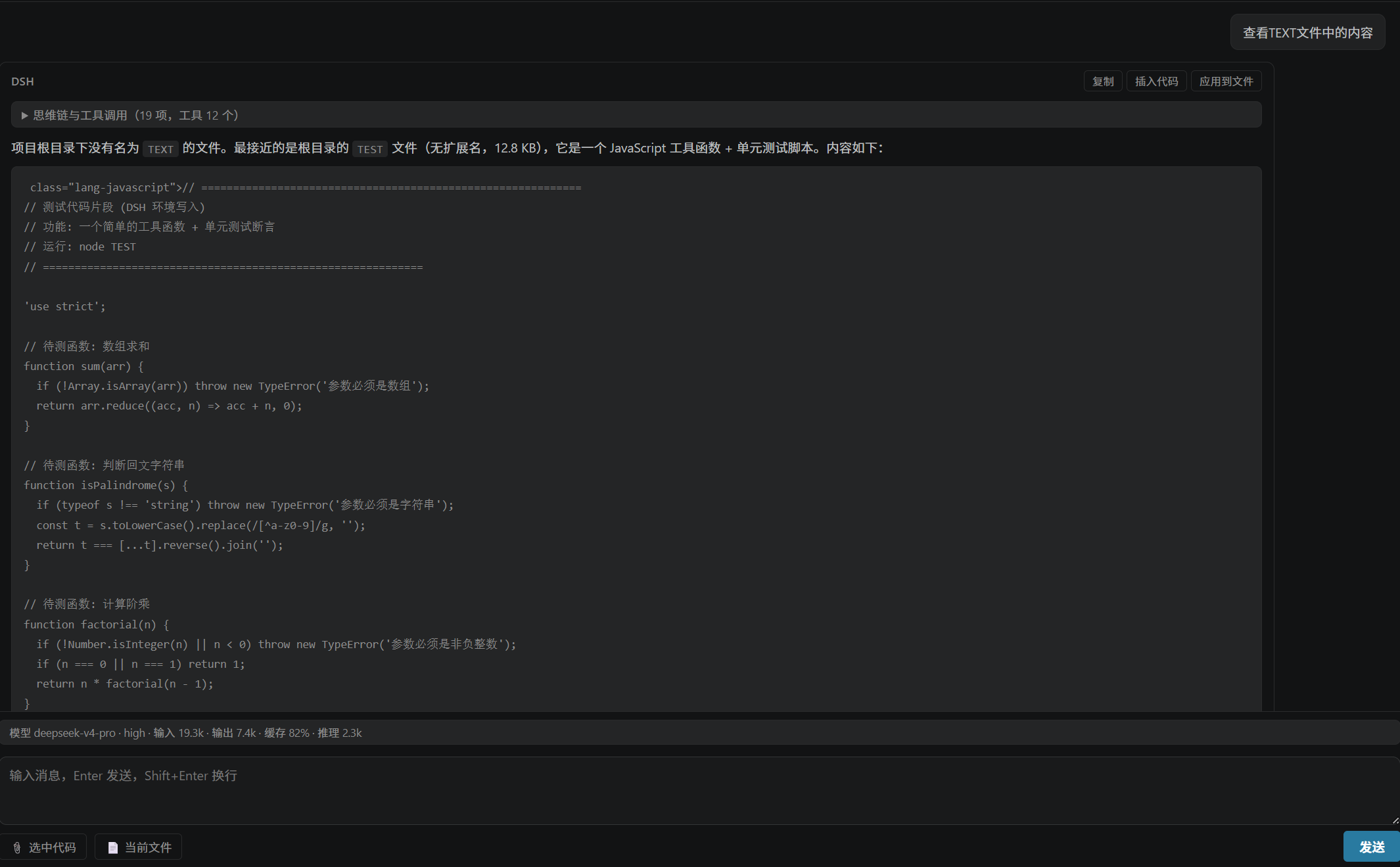
Thinking chain & tool calls |
 |
 |
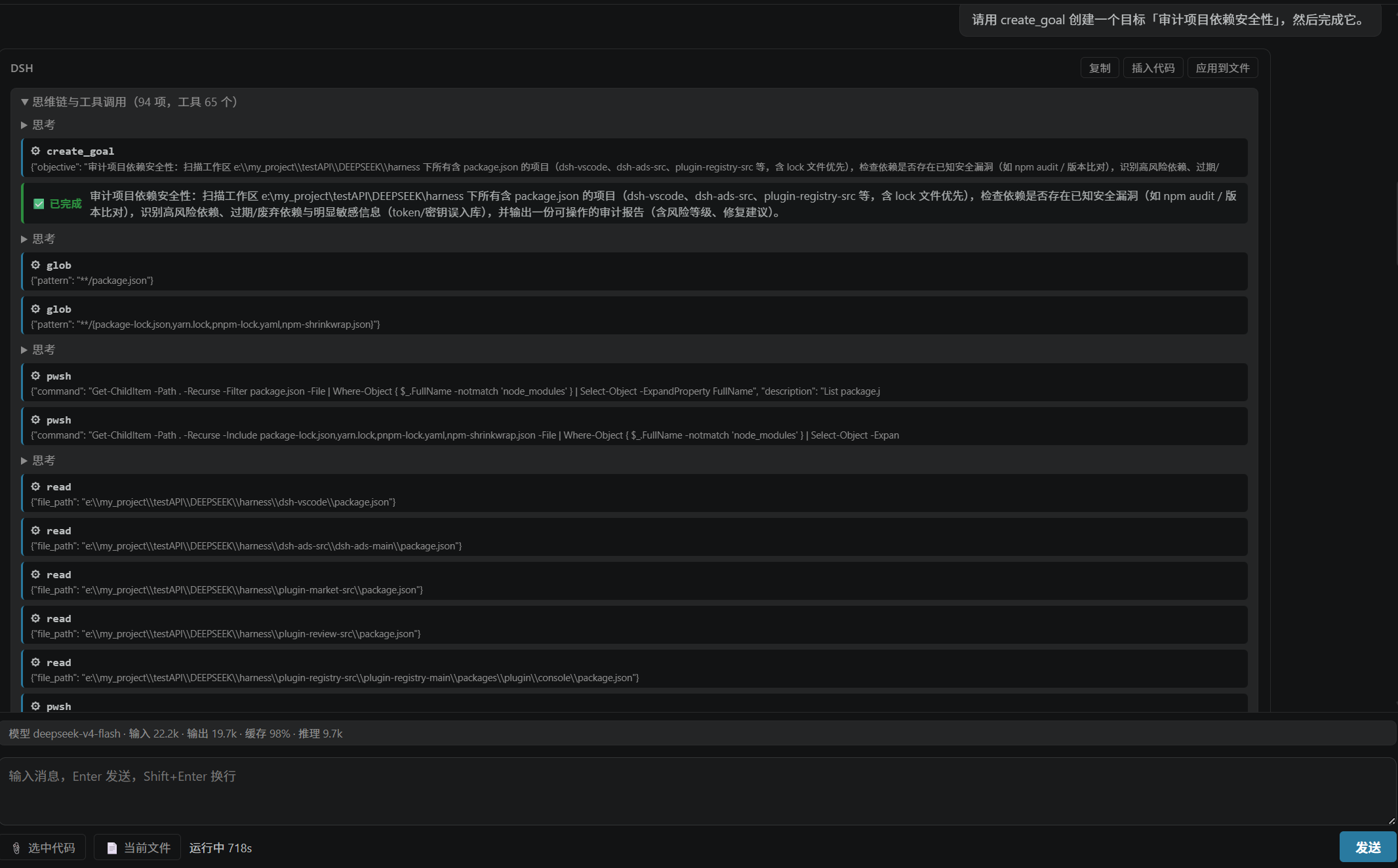
| Full session view |
 |
Quick Start (no source code, no compilation)
- Get the extension: download the
dsh-harness-vscode-<version>.vsix file (shipped with each release).
- Install: VS Code Extensions panel (
Ctrl+Shift+X) → ⋯ (top-right) → Install from VSIX… → select the .vsix file.
- Or via command line:
code --install-extension dsh-harness-vscode-0.7.0.vsix
- Configure API Key:
Ctrl+Shift+P → DSH: Set API Key → enter your DeepSeek API Key (sk-..., obtainable at platform.deepseek.com).
- The key is stored in the system keychain (VS Code SecretStorage), never written to any config file.
- Open a project folder (workspace).
- Run "DSH: Check Environment" to confirm dsh and the API Key are ready.
- Run "DSH: Open Chat", or click the
DSH button in the status bar.
No key in VS Code? You can also set the environment variable DEEPSEEK_API_KEY, or put the key in ~/.dsh/.credentials.yaml (shared with dsh web). Any of the three works.
Prerequisites
- DSH CLI installed globally:
npm i -g @deepseek-ai/dsh (after install, open a new terminal and verify dsh --version prints a version).
- A DeepSeek API Key (step 3 above).
- VS Code ≥ 1.86, Node ≥ 22 (the extension starts dsh with
--expose-internals automatically and prefers the node on PATH; Node ≥ 24 recommended).
If dsh is not on PATH, set its path manually in the dsh-harness-vscode.cliPath setting.
Usage
- Type a task in the chat panel and press
Enter. DSH works autonomously in your project (reading files, editing code, running commands) while streaming its thinking and tool calls in real time (collapsible "thinking" blocks, tool cards, answer drafts; thinking is broken down per "turn N · step M"), then gives a final answer.
- Goals streaming: when DSH creates/updates/completes goals with the goal tool, goal cards appear live (🎯 created / ✏️ updated / ⏸ paused / ▶️ resumed / ✅ completed / 🚧 blocked) and are kept in the final thinking-chain trace.
- Todo list streaming: when DSH plans multi-step work, a checkable task list shows live progress (⬜ todo → 🔄 in progress → ✅ done).
- Unified provider catalog:
/provider connects to 16 built-in providers in one click (OpenAI / Anthropic / Google / etc., just add an API key) or a custom gateway wizard.
- Auto session naming: after a task, DSH generates the session title automatically.
- Activity-bar sidebar: the DSH whale icon in the activity bar → "Status" view shows current model/reasoning effort/sandbox/memory, with shortcuts for open chat, check environment, compatibility self-test, view/edit memory.
- Built-in Chat integration: invoke
@dsh-agent <task> in VS Code's native Chat (Copilot Chat); #file references become context, answers stream back into the chat.
- 📎 Selection / 📄 current file: attach editor selection or the current file as context above the input (removable anytime).
- 🕘 History sessions / + new session: sessions persist locally per workspace, switch anytime.
- Clickable file references: paths like
src/main.ts:12 become links; click to open the file at that line.
- Copy / Insert code / Apply to file on assistant answers: insert the first code block at the cursor; apply writes code blocks to project files (path guessed, confirm before write, never outside the workspace).
- Cancel anytime while running (kills the subprocess underneath).
- Right-click a file in Explorer → DSH: Ask about File for quick analysis.
Slash commands in chat
| Command |
Action |
/help |
Show command help |
/clear |
New session |
/provider |
Switch model provider: built-in one-click (OpenAI / Anthropic / Google / Mistral / Groq / OpenRouter / xAI / Together etc., add API key and go) or the custom provider wizard (self-hosted gateway, OpenAI-compatible or Anthropic protocol); API keys live in the system keychain |
/model |
Switch model for the current provider |
/effort |
Switch reasoning effort (off/low/medium/high/max; use off for non-reasoning models) |
/skills |
List and enable skills (~/.dsh/skills or <project>/.dsh/skills, one directory per skill with SKILL.md) |
/compact |
Compact the session into a summary and replace history |
/status |
Show current provider/model/effort/skills/usage |
/memory |
Show project long-term memory |
/edit-memory |
Open the memory file in the editor |
/remember <content> |
Append a fact to project long-term memory |
/context |
Show attached context |
Usage bar: above the input, shows "model · reasoning effort · input/output tokens · cache hit rate · reasoning tokens", updated live (data from DSH session logs' usage field).
Plugin system (everything is a plugin)
DSH is built on a plugin-driven architecture: models, tools, sandbox, session storage, the UI — even the agent loop itself — are all plugins composed via cordis.patch.yml in each profile. This extension surfaces that power:
- "DSH: Plugin Center": browse the plugins actually loaded in your headless profile (🟢 active / ⚪ inactive), and install plugins from any source — npm package names (
dsh-plugin-doctor), GitHub repos (dsh-external/dsh-artifact, installed via explicit HTTPS so no SSH key is needed), tarball URLs, or a local plugin folder.
- The headless profile loads 80+ plugin rows out of the box (llm, session, agent, tool-*, goal, compaction, sandbox, skills…).
- Headless compatibility check: the DSH plugin ecosystem is designed for the official Web client; this extension drives DSH through the headless CLI. After every install the extension runs
dsh --profile headless --dump-config and reports objectively whether the plugin actually loads: ✅ loaded & patch active / ⚠️ loaded with warnings / ⚪ installed but inactive / ❌ check failed. You can also re-run the check from the plugin's action menu.
- Honest scope: the check only proves "it loads" — it cannot guarantee every feature works (plugins depending on Web UI, external APIs or specific hosts may load but not fully function). A prominent notice in the plugin center states this boundary before you install anything.
- Plugin watch: however a plugin got installed — via the plugin center, directly by the DSH agent in chat ("install me a plugin"), or manually — the extension notices plugins that were never checked and auto-runs the compatibility check (on activation, on opening the plugin center, and after each chat task), then reports the result.
- Note: the community plugin ecosystem is still early — many plugins on curated lists are GitHub repos not yet published to npm, and some depend on packages that were never published (installing them fails with a clear message).
- "DSH: Mode Presets": enable/disable DSH native behavior presets with one click (written to the headless profile's
cordis.patch.yml, overriding plugin config by id; effective on next task):
- Auto compaction: long conversations auto-compact at 80% context pressure, keeping 20% key info.
- Strict plan mode: produce a full plan before acting; no unapproved changes.
- "DSH: Check Environment" reports installed plugins and preset status.
- Plugin config files:
~/.dsh/profiles/headless/cordis.patch.yml (user preset layer), ~/.dsh/profiles/headless/package.json (dsh.profile.bundles).
Third-party models / custom gateways
DSH supports 30+ model providers under the hood. Connect from /provider in chat, no manual config editing:
- Built-in providers (key only): OpenAI, Anthropic, Google Gemini, Mistral, Groq, OpenRouter, xAI, Together AI, Cerebras, NVIDIA NIM, Moonshot (Kimi), MiniMax, Hugging Face, Fireworks, DeepSeek, GitHub Copilot (16 total). Select → confirm config write → enter API key (system keychain) → use immediately.
- Only
llm-pi-ai.providers.<id>.apiKeyEnv is written; the model list comes from the DSH catalog automatically — new models appear after DSH upgrades, config never goes stale.
- Custom provider wizard: self-hosted gateways / relays (e.g. LMU AI, company gateway). The wizard asks: display name → id → API protocol (OpenAI-compatible
openai-completions / Anthropic anthropic-messages) → Base URL → API key env var → model list, then writes config automatically.
- Config lands in
~/.dsh/settings.yaml under llm-pi-ai.providers (same mechanism as the official web Models page); auto-backup (.bak-<timestamp>) before write, rollback on failure; effective on next task, no restart.
- "DSH: Check Environment" prints the configured providers for review.
Note: non-reasoning models like deepseek-chat don't support reasoning effort — pick off in /effort; some providers (GitHub Copilot, OpenAI Codex) need a subscription or OAuth, see the prompt when selecting.
Command palette shortcuts
- DSH: Explain Current File — attach the current file and ask for an explanation.
- DSH: Review Changes (git diff) — grab
git diff as context and request a review.
- DSH: Write Tests for Current File — attach the current file and request unit tests.
- DSH: Open dsh Terminal — run
dsh web in the integrated terminal (port 3088).
- DSH: View / Edit Project Memory — view or edit workspace
.dsh/memory.md (DSH references it on every task).
Long-term memory
Project memory lives at .dsh/memory.md in the workspace root and is injected into every task. Good for: build/test commands, architecture conventions, gotchas, decisions. Append with /remember, edit directly with /edit-memory (versioned with the repo, committable).
Configuration (Settings → search dsh)
| Key |
Default |
Description |
dsh-harness-vscode.cliPath |
"" |
Absolute path to the dsh executable or its lib/bin.js; empty = resolve from PATH (on Windows it locates the JS entry directly to avoid cmd escaping) |
dsh-harness-vscode.extraArgs |
[] |
Extra args appended to the launch command (e.g. --patch <path>) |
dsh-harness-vscode.timeoutSeconds |
600 |
Task timeout in seconds; auto-cancelled when exceeded |
dsh-harness-vscode.environment |
{} |
Extra env vars for the dsh subprocess (e.g. API keys) |
dsh-harness-vscode.historyMessages |
20 |
Recent messages folded into the task text (multi-turn continuity) |
dsh-harness-vscode.maxMessageChars |
8000 |
Max chars of a single history/context entry folded into the task text |
dsh-harness-vscode.streamProgress |
true |
Stream thinking chain & tool calls (tails the DSH session event log); off = final answer only |
FAQ
"dsh command not found" / check environment fails
→ dsh isn't installed or not on PATH. Run npm i -g @deepseek-ai/dsh, open a new terminal, verify dsh --version; or point dsh-harness-vscode.cliPath at the full path.
Check environment says "API key not configured"
→ Run DSH: Set API Key and enter your DeepSeek API Key (sk-...); or set DEEPSEEK_API_KEY as an environment variable. The built-in deepseek-official provider works with just a key, nothing else to configure.
MISSING_CREDENTIAL after sending
→ Same: no API key detected. The panel shows instructions.
Task times out
→ Increase dsh-harness-vscode.timeoutSeconds (default 600s).
Special characters mangled in the task text (Windows)
→ The extension auto-locates dsh's JS entry and launches it with node directly, avoiding cmd escaping. If it still breaks, please report it.
Developers: build from source
git clone <this repo> dsh-harness-vscode
cd dsh-harness-vscode
npm install
npm run compile      # or npm run watch for incremental
npm test             # unit tests
npx vsce package     # produce the .vsix
- F5 to debug:
.vscode/launch.json is ready (needs npm install first).
- Structure:
src/ (extension: CLI runner, chat panel, session store), media/ (Webview frontend), test/ (unit tests).
Security
The extension itself performs no file/command operations directly — it hands tasks to dsh --profile headless, which ships its own sandbox and approval stack:
- Sandbox: default
workspace-write — the agent can only read/write files inside the current workspace, shell runs restricted (PowerShell ConstrainedLanguage on Windows). Verified: attempts to write outside the workspace are rejected.
- Approval: default
ask; but headless has no interactive answerer, so operations requiring approval fail closed (auto-denied) — the agent cannot self-grant dangerous operations.
- Configurable: set
dsh-harness-vscode.permissionMode to read-only / workspace-write / danger-full-access. ⚠ danger-full-access fully removes limits and auto-approves — only when you fully trust the task.
Suggestion: before letting the agent modify the project, run git status to confirm the tree is clean (or committed), so anything goes wrong can be reverted.
Notes & limitations
- Each message is a fresh
headless session; multi-turn context is stitched from recent messages into the task text — history does not grow unbounded.
- Streaming tails DSH's session event log (plain JSONL): shows thinking, tool calls, answer drafts; the final answer is still headless stdout. If the log is unavailable (e.g. older dsh without
compression: none), it degrades to final answer only.
- Session data lives under the extension's
globalStorage (bucketed per workspace) and survives extension uninstall; project memory lives in workspace .dsh/memory.md.
License
MIT
| |