A SQLTools driver for connecting to Mimer SQL databases from Visual Studio Code.
Uses @mimersql/node-mimer for database connectivity.
Features
- Connect to Mimer SQL databases
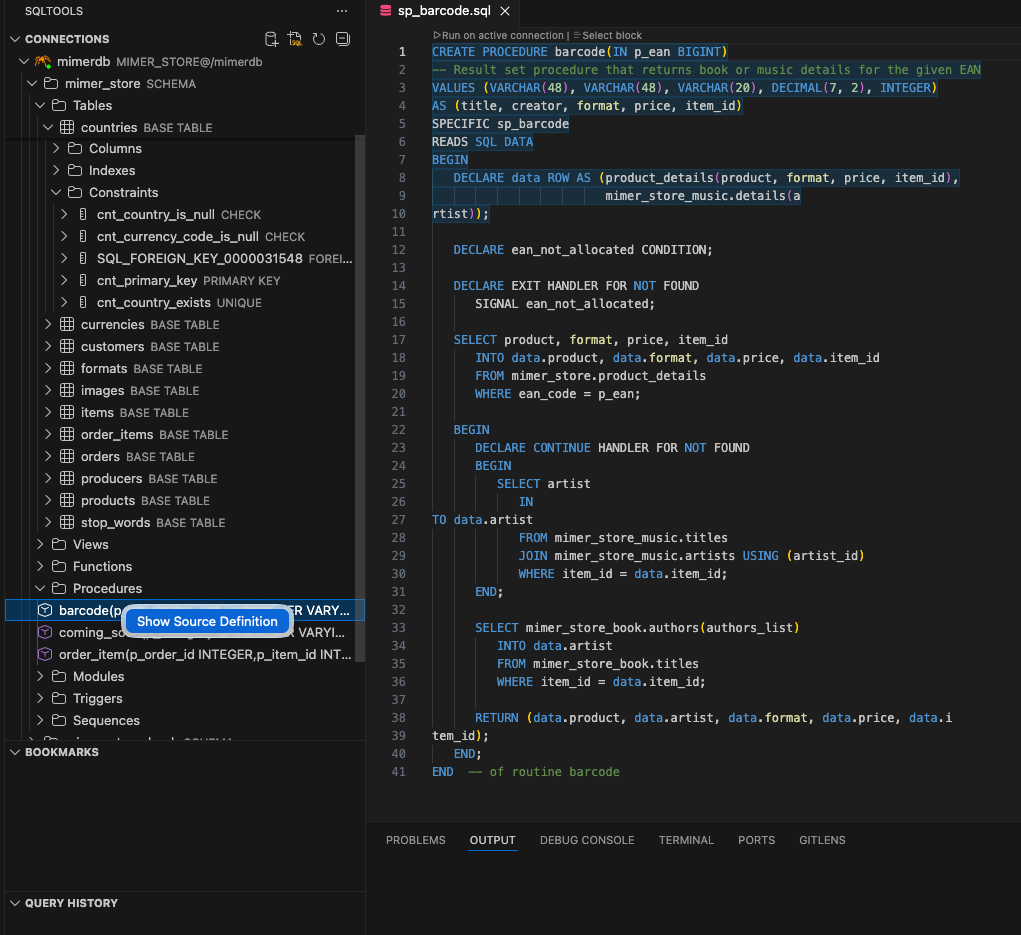
- Browse schemas, tables, views, columns, indexes, constraints, sequences, modules, functions, procedures, and triggers
- Show source code for functions, procedures, triggers, views, and modules
- Execute SQL queries with syntax highlighting
- View query results in a table format
- Auto-completion for table and column names
- Generate INSERT queries (standard SQL syntax)
- Secure credential storage via VS Code's built-in credential manager
- Export query results
Prerequisites
- Visual Studio Code — Version 1.75.0 or later
- SQLTools Extension — Install from VS Code marketplace
- Mimer SQL — Version 11.0 or later installed on your system
Installation
Via VS Code Marketplace
- Open VS Code
- Go to Extensions (Ctrl+Shift+X / Cmd+Shift+X)
- Search for "SQLTools Mimer SQL Driver"
- Click "Install"
From VSIX
- Download the
.vsix file from releases
- In VS Code, go to Extensions
- Click the
... menu -> "Install from VSIX..."
- Select the downloaded
.vsix file
From Source
git clone https://github.com/mimersql/sqltools-mimer-driver
cd sqltools-mimer-driver

npm install
npm run package
Then install the generated .vsix file in VS Code.
Configuration
- Open VS Code Command Palette (Ctrl+Shift+P / Cmd+Shift+P)
- Select "SQLTools: Add New Connection"
- Choose "Mimer SQL" as the driver
- Fill in connection details:
- Database: Your Mimer SQL database name (DSN)
- Username: Your database username
- Password mode: How to handle the password (see below)
Password Modes
- SQLTools Driver Credentials (default): Password is stored securely in VS Code's credential manager (OS keychain). You will be prompted for the password on first usage, and it will be saved securely for future connections.
- Ask on connect: Prompts for the password every time you connect. Nothing is stored.
- Save as plaintext in settings: Password is saved in your VS Code
settings.json. Not recommended for shared or synced configurations.
Example Connection Settings
{
  "name": "My Mimer DB",
  "driver": "MimerSQL",
  "database": "mydb",
  "username": "SYSADM",
  "connectionTimeout": 30
}
Usage
Connect to Database
- Click on the SQLTools icon in the sidebar
- Click on your saved connection to connect
- Explore your database structure in the tree view
Execute Queries
- Open a new SQL file or select a query
- Right-click -> "Run on Active Connection"
- Or use keyboard shortcut: Ctrl+E Ctrl+E (Windows/Linux) or Cmd+E Cmd+E (Mac)
Browse Database
- Expand schemas to see tables, views, modules, functions, procedures, triggers, and sequences
- Click on tables to see sub-folders with columns (primary and foreign keys are indicated), indexes, and constraints
- Functions and procedures show their parameter signatures
- Triggers show their timing and event (e.g. "BEFORE INSERT")
- Indexes show whether they are unique
- Modules expand to show their member functions and procedures
- Right-click tables for options:
- Show Records
- Describe Table
- Generate INSERT statement
- Right-click functions/procedures/triggers/views/modules and click "Show Source Code" to see their source definitions
The driver works on the following platforms (where Mimer SQL is available):
- Linux x64, ARM64
- Windows x64
- macOS x64, ARM64 (Apple Silicon)
Troubleshooting
Connection Issues
Problem: "dsn, user, and password are required"
Solution:
- Verify the database name (DSN) is correct
- Ensure username is filled in
- If using "SQLTools Driver Credentials", try deleting the connection and re-creating it
Problem: Cannot connect to database
Solution:
- Verify Mimer SQL is running (
mimcontrol -t <database>)
- Check that the DSN is configured correctly
- Test connectivity with
bsql command-line tool first
Extension Not Showing
Problem: Mimer SQL not appearing in driver list
Solution:
- Ensure SQLTools is installed and enabled
- Reload VS Code window (Ctrl+Shift+P -> "Reload Window")
- Check the extension is enabled in the Extensions panel
Development
Building
# Install dependencies
npm install

# Compile TypeScript
npm run compile

# Build and package extension (universal, all platforms)
npm run package

# Build platform-specific packages
./scripts/build-all.sh
Project Structure
sqltools-mimersql-driver/
├── connection.schema.json # Connection dialog schema
├── src/
│   ├── extension.ts           # VS Code extension entry point
│   └── ls/
│       ├── plugin.ts      # Language Server plugin
│       ├── driver.ts          # Main driver implementation
│       └── queries.ts         # SQL metadata queries
├── webpack.config.js      # Webpack config (two bundles)
├── scripts/
│   ├── copy-deps.js       # Copies runtime deps for packaging
│   └── build-all.sh       # Builds universal + platform-specific packages
├── package.json           # Extension manifest
└── tsconfig.json          # TypeScript config
Contributing
Contributions are welcome. Please:
- Fork the repository
- Create a feature branch
- Make your changes
- Submit a pull request
Support
License
MIT License — see LICENSE file for details.
Credits
Changelog
1.0.0
- Initial release with core features:
- Connect to Mimer SQL databases
- Browse schemas, tables, views, modules, functions, procedures, triggers
- Show source code for functions/procedures/triggers/views
- Execute SQL queries with syntax highlighting
- Auto-completion for table and column names
- Generate INSERT queries
- Secure credential storage via VS Code's credential manager

