Markdown Site Preview
Browse your whole Markdown documentation like a website - rendered as a real
documentation site, not a single-file preview.
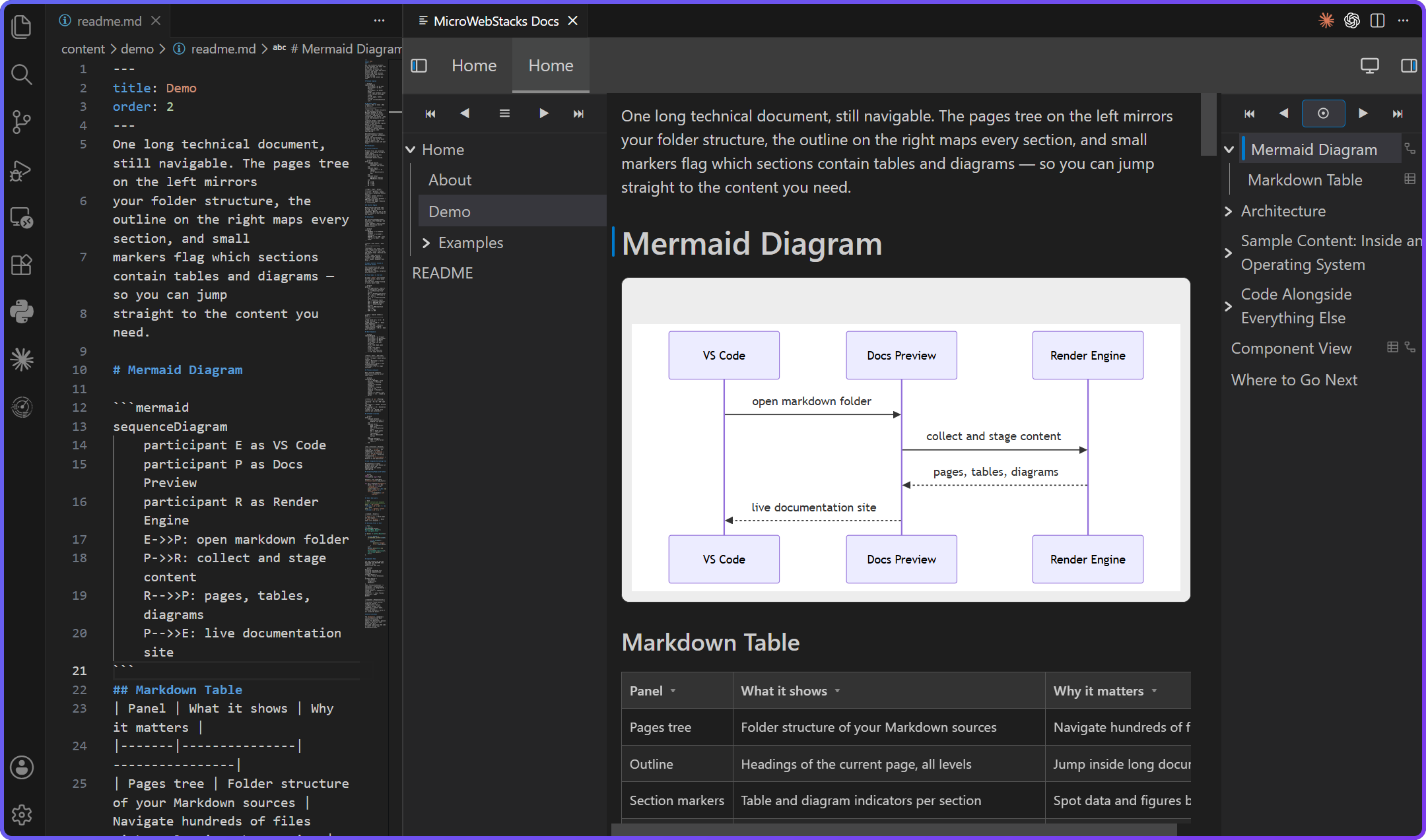
Features
- File tree - navigate a whole multi-folder docs repo from a sidebar, not one file at a time.
- Outline / table of contents - jump between headings of the current page, with per-section table and diagram markers.
- Diagrams - Mermaid and PlantUML render client-side; BlockDiag renders to SVG through Kroki.
- Math - inline and block formulas render with KaTeX.
- Tables - Markdown tables become sortable, readable data tables.
- Syntax highlighting - fenced code blocks highlighted with Shiki.
Free & private by design
Markdown Site Preview is free, MIT-licensed open source, and everything
renders locally on your machine. No telemetry, no data collection, no
accounts - your Markdown never leaves your computer, and there is nothing
to opt out of because nothing is collected in the first place. The only
network endpoint is the optional Kroki diagram server, and you choose it -
run it locally (see below) and even your diagrams stay home.
Requirements
- No system Node.js or npm is required on the normal install path. On first
use the extension runs the bundled lite/json engine shipped inside the VSIX
and uses VS Code's own bundled runtime to execute its scripts. Engine
acquisition is fully offline: the installed extension never contacts the
npm registry and fails clearly if its bundled payload is missing or corrupt.
- No runtime flags need to be configured. The extension automatically probes
VS Code's runtime with
ELECTRON_RUN_AS_NODE; users should not set that
variable themselves. On the rare VS Code/Electron build where this internal
mode is unavailable, install Node.js 18+ on PATH or, for an explicit
administrator override, point MICROWEBSTACKS_NODE_PATH at its executable.
- Optional: a reachable Kroki server if your docs contain
BlockDiag or explicitly Kroki-routed diagrams. Mermaid and PlantUML need no
Java, Docker, or external server.
Getting started
- Open a folder that contains your Markdown documentation.
- Run Markdown Site Preview: Open Preview from the Command Palette (
Ctrl+Shift+P).
- Browse in the VS Code panel. The preview follows active
.md files; use
the panel-toolbar lock icon to keep the current page fixed.
The workspace folder is the documentation root by default. Other commands:
Markdown Site Preview: Restart Server and Markdown Site Preview: Stop Server.
Configuration
| Setting |
Default |
What it does |
microwebstacks.preview.krokiServer |
http://localhost:18000 |
Kroki URL for BlockDiag and explicitly Kroki-routed languages. Point it at a local Kroki (Docker), the public https://kroki.io, or your own internal endpoint. |
microwebstacks.preview.docsRoot |
manifest render.folder or output.content |
Documentation root, if your docs live in a subfolder. |
Mermaid and PlantUML render client-side with zero external setup. BlockDiag and
explicitly Kroki-routed languages need a reachable server at the configured
URL. Relevant setting changes automatically restart only the affected live
workspace preview. The manual restart command remains available when needed.
PlantUML can be routed back to Kroki in manifest.yaml for content that relies
on unsupported local includes or optional sprite bundles:
diagram:
  languages:
    plantuml: kroki
Local Kroki via Docker
Nothing is sent off your machine. Start a local Kroki server on the default
port the extension already expects (http://localhost:18000):
docker run -d --name mws-kroki -p 18000:8000 yuzutech/kroki:latest
Stop it when you're done:
docker stop mws-kroki && docker rm mws-kroki
If you have the astro-huge-doc repository checked out, compose.yaml at the
repo root defines the same service - run docker compose up -d /
docker compose down (or pnpm kroki:up / pnpm kroki:down) from there
instead.
Advanced: microwebstacks.preview.enginePath can point development builds
at an astro-huge-doc checkout instead of the engine bundled in the VSIX.
Corporate endpoint diagnostics
If first-run engine activation fails, the MicroWebStacks Docs output
channel automatically prints a local-only diagnostic block. It identifies the
failed activation stage and reports storage checks as named PASS/FAIL
results. Nothing is uploaded and the checks avoid printing the user's storage
path.
Administrators with Node.js 22 and a repository clone can run the same focused
hydration check without VS Code or network access:
node scripts/diagnose-extension-hydration.cjs
It uses disposable files under .tmp/ and prints a short list of named
PASS/FAIL results suitable for reporting without copying machine paths or
logs.

