Skip to content
| Marketplace
Sign in
Visual Studio Code>Other>AI PairNew to Visual Studio Code? Get it now.
AI Pair

AI Pair

Michal Štrba

|
8 installs
| (0) | Free
Pair program with an AI agent: a second cursor that types at a human pace and narrates what it's doing.
Installation
Launch VS Code Quick Open (Ctrl+P), paste the following command, and press enter.
Copied to clipboard
More Info

For those of us who want, need, or love to stay close to the code

A mirror neuron is a neuron that fires both when an animal acts and when the animal observes the same action performed by another.

— Wikipedia

Be there for every keystroke

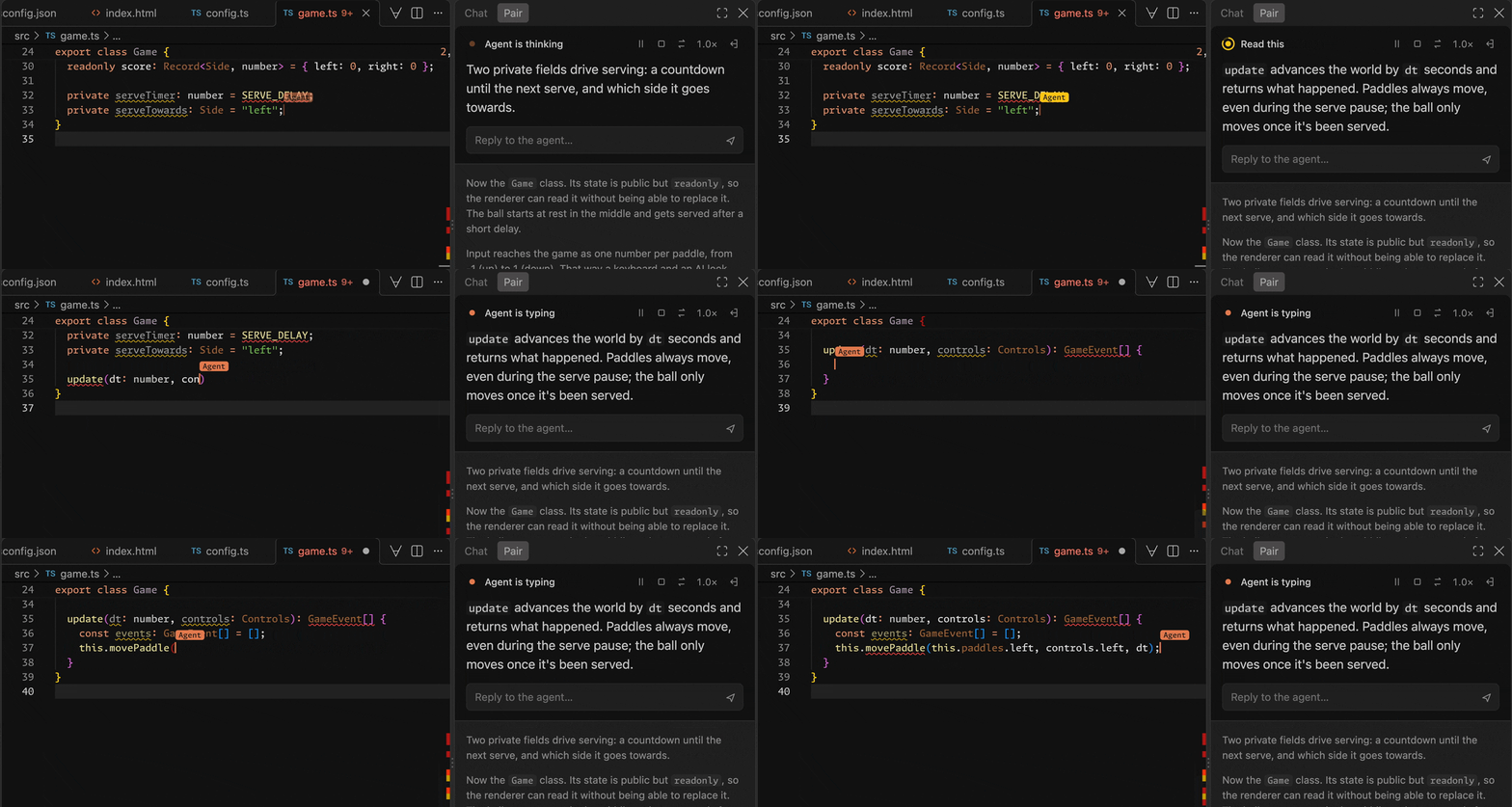
The agent explains the update method in the Pair panel, then types it in the editor

Some of us, at least some of the time, want to understand our code at a deep level. For that, handing a task to an agent and reviewing the diff that comes back can be exhausting. With AI Pair, you're there for every keystroke instead, and you end up knowing the code almost as if you'd typed it yourself.

It's pair programming where your coding agent has the keyboard. It types in your editor slowly enough to follow and explains what it's doing. Interrupt it whenever you like, or take over and let it watch you for a change.

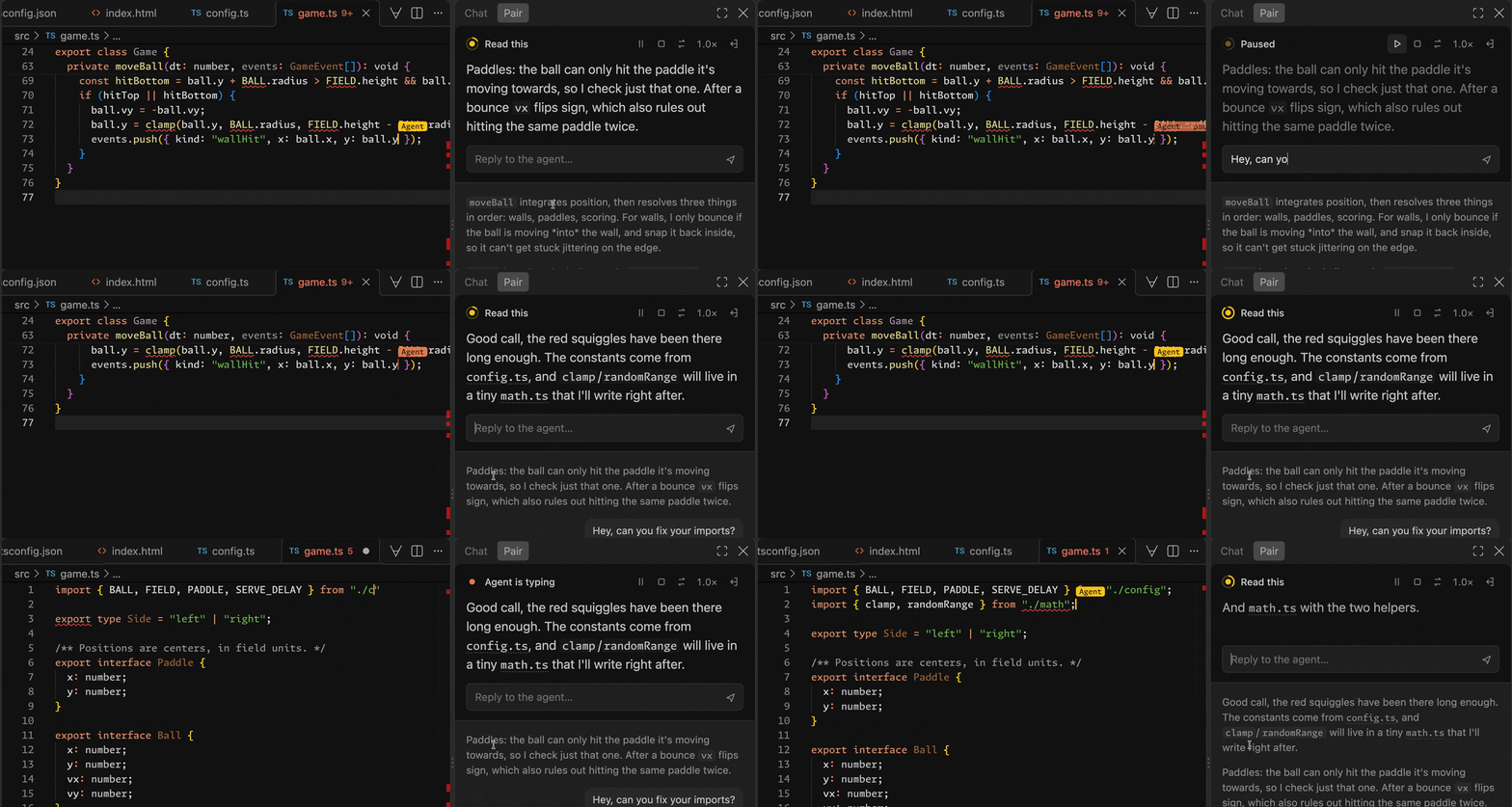
Interrupt and steer

The programmer asks the agent to fix its imports, and it adds them at the top of the file

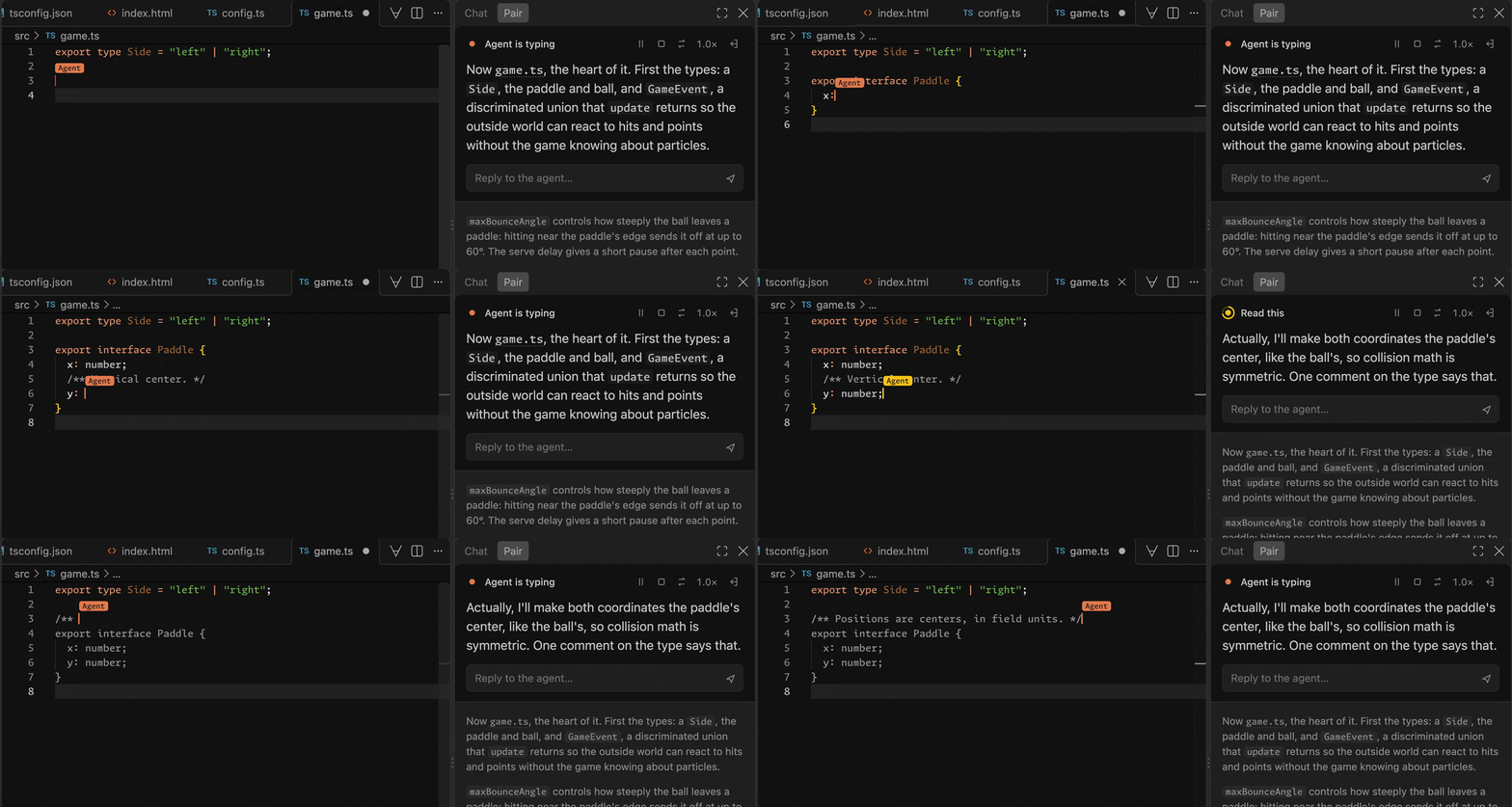
Watch it change its mind in real time

The agent writes a comment, reconsiders, deletes it, and documents the type differently

It's also a good way to learn a new technology, or to have the agent walk you through code you don't know yet.

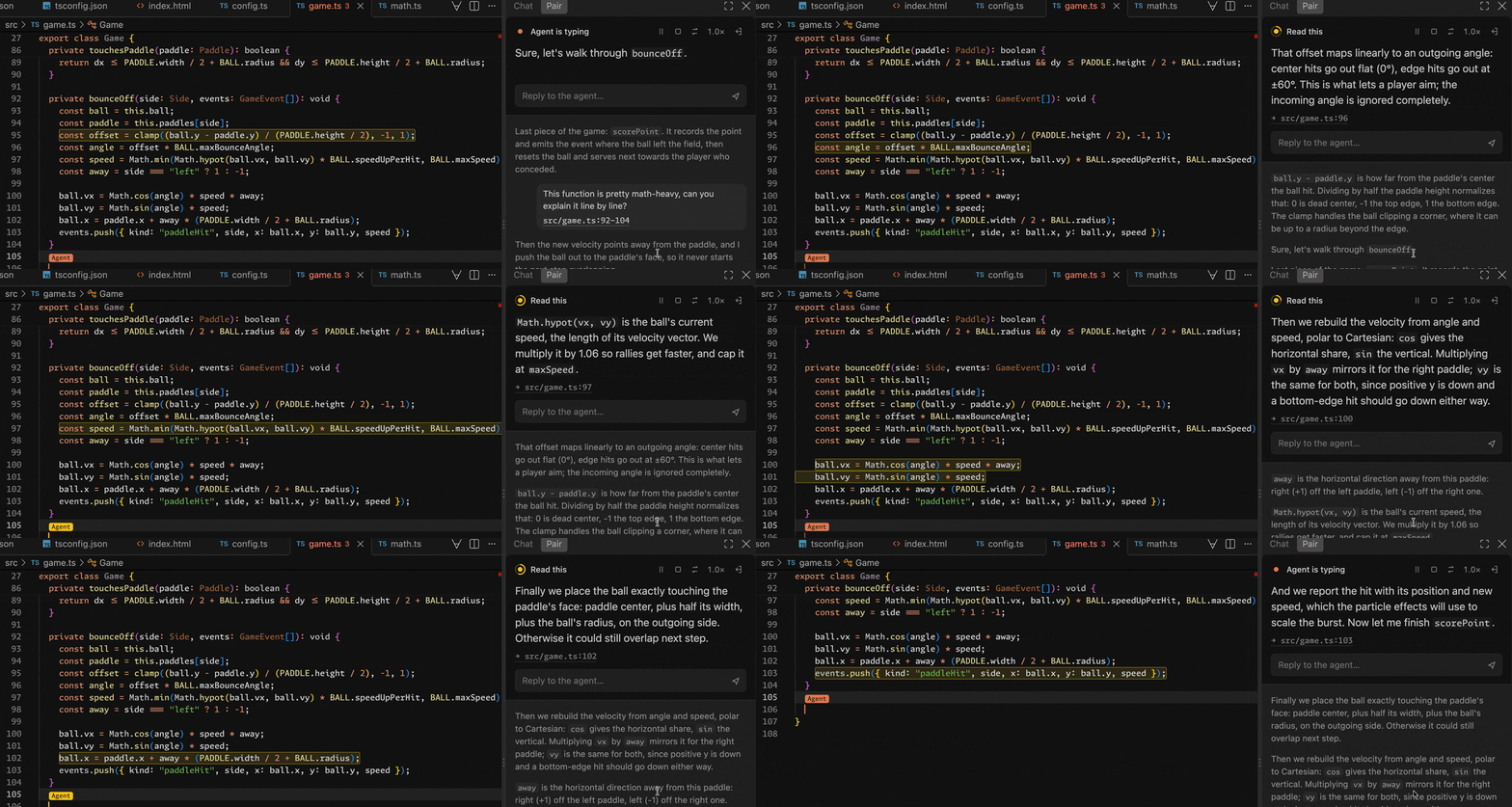
Ask it to explain code line by line

The agent walks through a function line by line, highlighting each line and explaining it in the Pair panel

It works in VS Code, with the coding agent you already use. Setup is built in for Claude Code, Codex, OpenCode, Gemini CLI, Cursor and GitHub Copilot, and any agent that supports MCP can be connected by hand.

Note: It works best with strong models; weaker ones tend to struggle with this way of working.

Set up

  1. Open a project folder.
  2. Run AI Pair: Set Up Agent and pick your agents: Claude Code, Codex, OpenCode, Gemini CLI, Cursor. It adds a pair server to each one's user-wide MCP configuration. Another agent copies an MCP configuration instead: a stdio server named pair running ~/.ai-pair/bin/pair-mcp (pair-mcp.cmd on Windows). GitHub Copilot needs no setup.
  3. Restart your agent.

Pair

Start your agent in the folder that's open in VS Code and ask it to pair ("let's pair on…"). In Claude Code you can also run /mcp__pair__start.

  • Reply: type in the panel's reply box and press Enter. Typing pauses playback.
  • Ask about some code: select it in the editor, then reply; the selection goes along (× leaves it out). Or right-click it: Ask the Agent About the Selection.
  • Commands: the agent's tests and builds play in an AI Pair terminal. Choose Run, Allow for session, or Skip in the panel.
  • Interrupt: the button, or just edit the code.
  • Look around: scrolling or switching files pauses playback. Resume brings you back.
  • My turn / Hand back: write a part yourself while the agent navigates.
  • The speed menu (1.0×): the pace, from 0.4× to 3.0×.

AI Pair: Play Demo Session shows what it's like without an agent.

Settings

  • aiPair.speed: overall playback speed.
  • aiPair.agentName: the name on the agent's cursor.
  • aiPair.timing: fine-tune any typing or pause duration.
  • aiPair.confirmCommands: ask before each command the agent runs in the terminal (on by default).
  • Contact us
  • Jobs
  • Privacy
  • Manage cookies
  • Terms of use
  • Trademarks
  • Your Privacy Choices
  • Consumer Health Privacy
© 2026 Microsoft