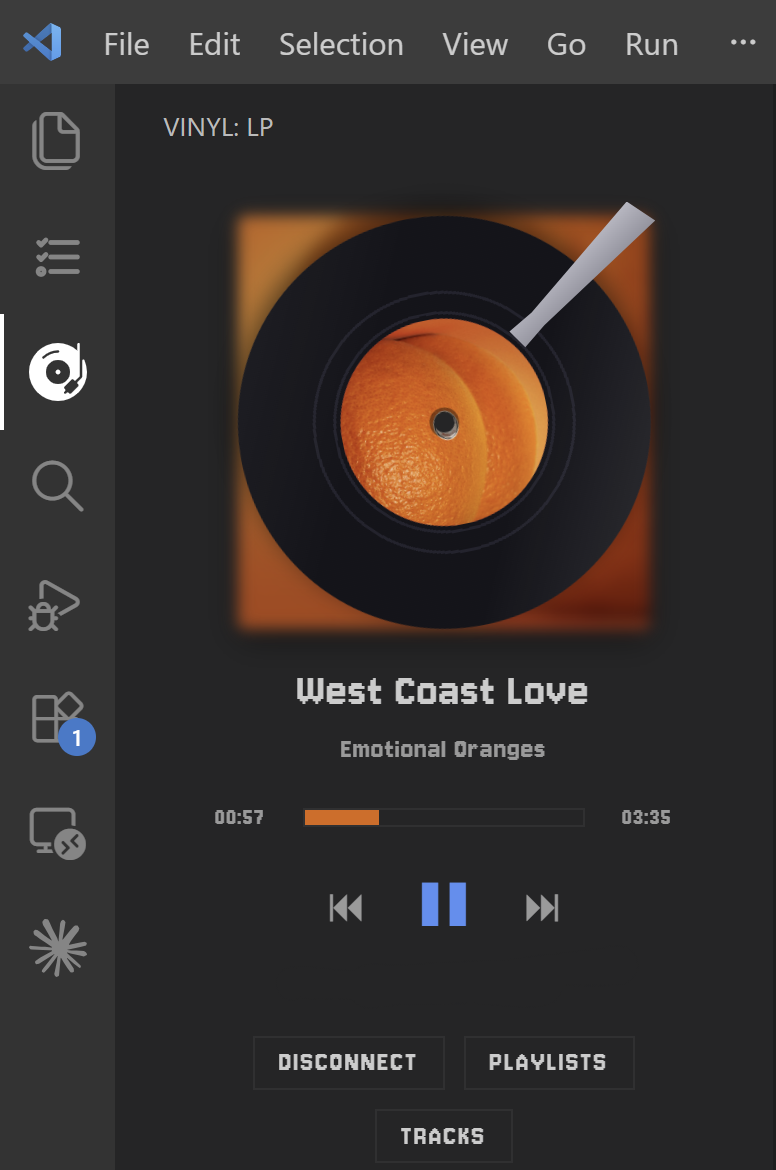
A spinning LP in your VS Code sidebar that remote-controls Spotify — play/pause, skip, seek, browse playlists, and jump between tracks while the album art spins.
Audio plays through your normal Spotify app (desktop/web/phone); this panel is the remote + now-playing display.
Requires Spotify Premium and an active Spotify session somewhere (open Spotify and play once).
🚀 Setup (one time, ~2 minutes)
Each user connects with their own free Spotify app (Spotify policy). It's just copy-paste, and your tokens stay on your machine.
App name / description: anything (e.g. My Vinyl Player).
Redirect URI: type this exactly, then click Add:
http://127.0.0.1:9876/callback
⚠️ Must match character-for-character. If port 9876 is taken, change Vinyl: Redirect Port in settings and use the matching http://127.0.0.1:<your-port>/callback here.
Under Which API/SDKs are you planning to use?, check Web API.
Agree to the terms and click Save.
Step 2 — Copy your Client ID
Open your new app → Settings (or its main page).
Copy the Client ID.
🔒 No Client Secret needed — Vinyl uses the secure PKCE flow.
Step 3 — Paste it into VS Code
Open Settings: Ctrl/Cmd + , → search vinyl.
Paste it into Vinyl: Spotify Client Id.
💾 Settings auto-save — no Enter/Save button, just click elsewhere.
Step 4 — Connect
Click the Vinyl icon in the Activity Bar (left edge).
Click Connect Spotify → approve in the browser. Done! 🎉
🎧 Usage
Open the Vinyl icon in the Activity Bar (drag it to the panel/secondary sidebar if you like).
Play a song from Spotify so there's an active session.
⏮ ⏯ ⏭ control playback; click or drag the bar to seek.
Playlists — open the list and click one to start playing it.
Tracks — appears while playing from a playlist; open it to see every song and click one to jump to it.
Command Palette: Vinyl: Play / Pause, Next Track, Previous Track, Choose Playlist, Connect / Disconnect Spotify.
⚙️ Settings
Setting
Default
Description
vscodeVinyl.spotifyClientId
""
Your Spotify app's Client ID (from setup).
vscodeVinyl.redirectPort
9876
Loopback port for the OAuth redirect. Must match your app's Redirect URI.
vscodeVinyl.pollIntervalMs
4000
How often (ms) to refresh now-playing.
vscodeVinyl.lpSkin
album
Look of the record label.
🩹 Troubleshooting
"No active device" — open Spotify and play once; the panel then controls it.
"Playback control requires Spotify Premium" — the control API is Premium-only.
Browser opened but never connected — your Redirect URI must exactly match http://127.0.0.1:<port>/callback (port = Vinyl: Redirect Port).
Tracks list empty / "Forbidden" — Spotify blocks reading its own playlists (Daily Mix, Discover Weekly, editorial, etc.). Play from a playlist you created.
Tokens are stored in VS Code's encrypted Secret Storage; calls go straight to Spotify with no third-party server. MIT License.