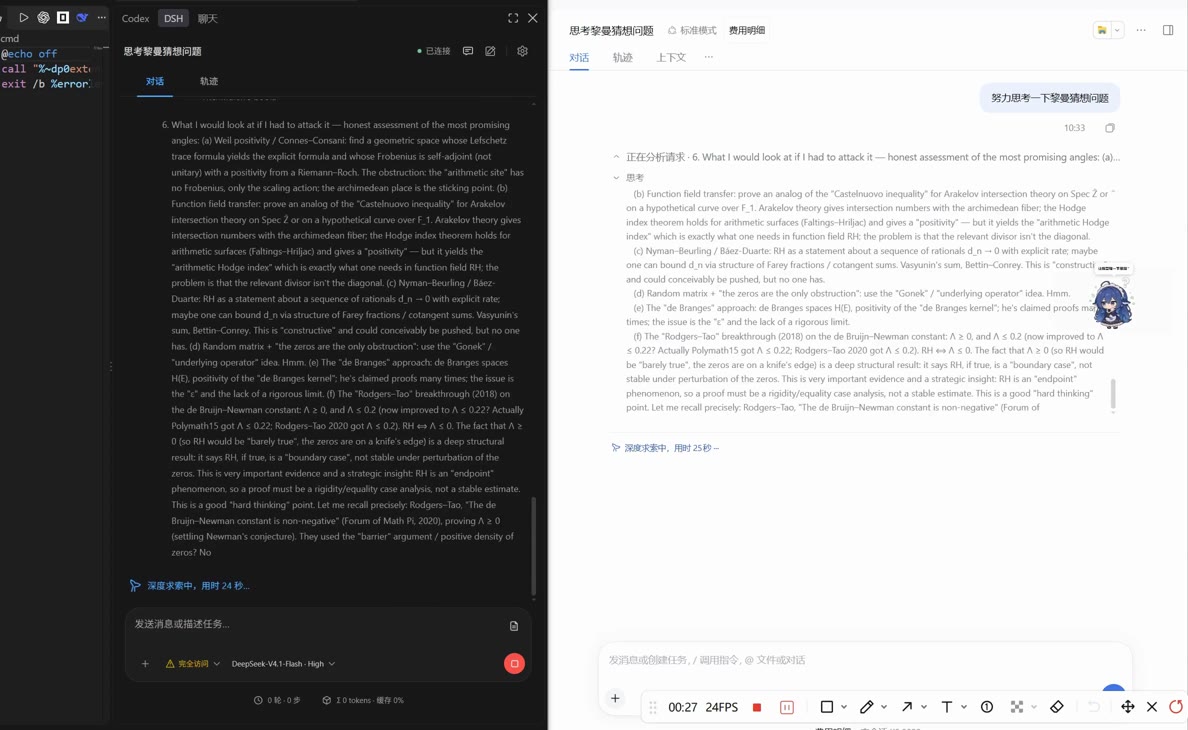
DSH Coding Agent简体中文 | English Develop with DeepSeek Harness in VS Code, with an editor workflow similar to Codex and Claude Code extensions: chat about your project, attach selections and files, follow tool execution, and review changes. Run a local DSH package or connect to Desktop and continue the same workspace and session. Demo
Install and connectInstall DSH Coding Agent in VS Code, open a trusted project folder, then open DSH in the right side bar. Choose either way to run DSH below. Option 1: Connect to Desktop and continue shared sessions
If you previously disabled the connection entry, re-enable Settings → General → VS Code connection in Desktop. A saved manual connection takes precedence. On local Windows, interrupted Desktop connections automatically refresh their address and authorization before reconnecting. A saved address without pairing information can recover only when a unique local Desktop is verified. Manual recovery steps appear if automatic recovery fails. For other platforms, remote environments, or when automatic connection is unavailable, copy the address from Desktop's VS Code connection entry and run DSH: Connect to Desktop in VS Code. Credentials are stored in VS Code SecretStorage. Option 2: Use a local DSH package from npmThis option requires neither Desktop nor the connect plugin. Install Node.js (see compatibility for runtime requirements and supported DSH versions), then run: In the extension, open Settings → Connection source, select Local DSH package, confirm the detected global package or select an executable, then click Start and connect to local DSH. You can also install a specific version under Local package and version in settings. The extension starts a separate service; use option 1 to continue an existing Desktop session. If you download a Chat in the side bar or an editor tab. Available models, tools and advanced features depend on the connected DSH runtime. See compatibility and the capability matrix for scope and limitations, and support for reporting instructions. Upgrading from the local buildThis extension uses the ID License and creditsMIT. Based on Jabofish/deepseek-harness-vscode, powered by DeepSeek Harness. This project is independently maintained by the community. |